
User Profile - Change Default Location

How to Change the Default Location of a User Profile in Vista and Windows 7


   Information
A user profile is the main C:\Users\(user-name) folder of a user account that contains all of the account's settings, shortcuts, information, and user folders (ex: My Music) with the files in them.

This will show you how to Move the default location of a user profile in Windows 7 and Vista to another location of your choice so it will be stored and used from the new location instead.

This can be handy if you are low on free space on your C: drive.

You must be logged in as an administrator to be able to do the steps in this tutorial.

   Warning
Before doing this, you should create a system image to be safe. This way you can do a system image recovery to undo any mistake you might make in the instructions below that could result in the user profile you are moving, or Windows, to no longer work.
   Note
The drive or partition that you move the user profile folder(s) to, will now be included in a system image if created since it will now be considered a system drive.
   Tip
If you are just wanting to save HDD space from the files in your user folders, then you might consider this below to be able to access the files from your libraries with the files actually located where you like instead. This way you will not have to worry about any potential issues that come with moving user folder locations.


OPTION ONE

For Already Existing User Accounts


   Warning
Some of the programs you have installed may not work properly after moving your user profile folder since they are still looking for their information in the user profile folder's original AppData folder location which of course no longer exists.

If you have this problem afterwards, then you may be able to uninstall and reinstall these programs, or use OPTION TWO in the tutorial to create a new user account and create new shortcuts for the programs to fix this.


Method One

To Change the Default Location of an Existing User Profile


1. Log on to the user account that you want to move. In Windows Explorer, navigate to it's C:\Users\(user-name) folder, right click on the user folder, click on Share with and Nobody.

2. Log off.

3. Log on to an administrator account that you are not moving it's user folder for.
NOTE: If you do not have another administrator account to use, then you will need to create a new account first and log in to it. When done with the tutorial, you can delete the new account.

4. In Windows Explorer, navigate to the C:\Users\(user-name) folder (ex: C:\Users\User account to move) that you want to move. Right click on it and click on Copy. (see screenshot below)
Step1.jpg
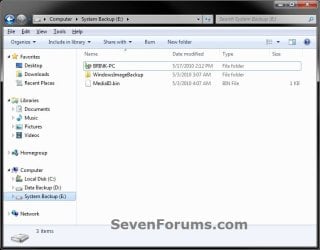
5. In Windows Explorer, navigate to the new location (ex: E: drive) that you want to move the C:\Users\(user-name) folder to. Right click on a empty space in the main window (middle), and click on Paste. (see screenshot below)
NOTE: This should be another internal hard drive or partition.
Step2.jpg
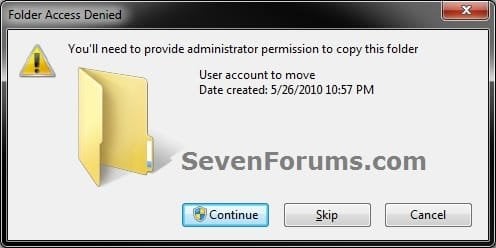
6. If prompted, click on Continue. (see screenshot below)
Step3-UAC.jpg
7. If prompted by UAC, then click on Yes (Windows 7) or Continue (Vista).

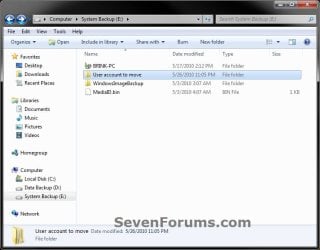
8. The C:\Users\(user-name) folder (step 4) is now copied over to the new location (ex: E:\User account to move). You can close Windows Explorer. (see screenshot below)
Step4.jpg
9. Open the Start Menu, then type regedit in the search box and press enter.

10. If prompted by UAC, then click on Yes (Windows 7) or Continue (Vista).

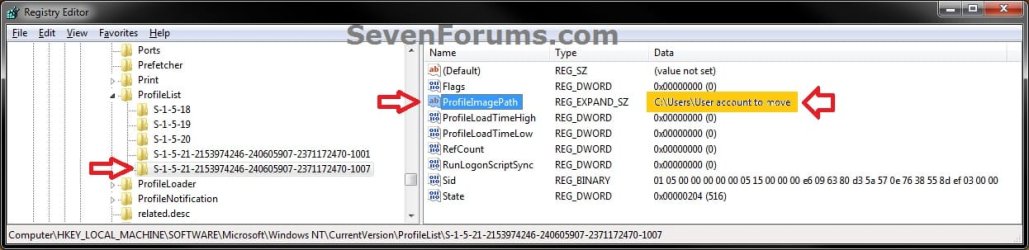
11. In regedit, navigate to the location below. (see screenshot below)

Code:
HKEY_LOCAL_MACHINE\SOFTWARE\Microsoft\Windows NT\CurrentVersion\ProfileList
Step5.jpg
12. In the left pane under the Profilelist key, select and look at each S-1-5 key with the long number until you see the user account name and path (step 3) that you want to move in the value Data column of ProfileImagePath in the right pane. When the correct user name is found, right click on ProfileImagePath, and click on Modify. (see screenshot above)

13. Type in the full path of the location (ex: E:\User account to move) that you copied the user profile folder to in step 7, and click on OK. (see screenshot below)
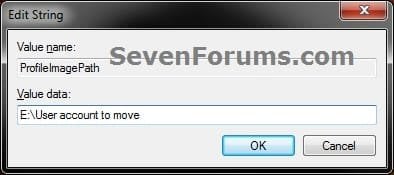
Step6.jpg
14. Regedit will now look similiar to this with the new location now. Close regedit. (see screenshot below)
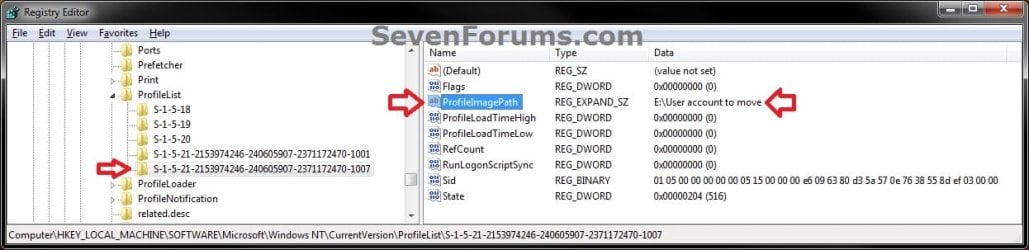
Step7.jpg
15. To Verify that the User Profile has been Moved Successfully
A) Log off or Switch User, then log in to the user account that you moved the user profile folder of.

B) Open the Start Menu and open the user profile folder from this location. (see screenshot below)
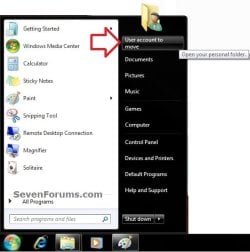
Log-in-1.jpg
C) Right click on one of the user folders (ex: Desktop), click on Properties, and click on the Location tab. (see screenshot below)
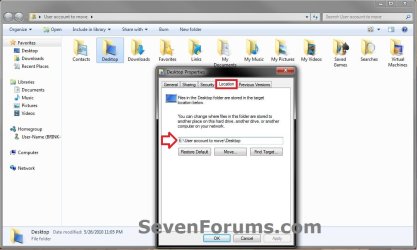
Log-in-2.jpg
D) You should see the new location (ex: E:\User account to move\Desktop) from step 8 as the now new default location. Click on OK. (see screenshot above)
16. To Delete the User Profile from the Old Location
NOTE: Once you have verified (step 15) that the moved user profile has been moved successfully, you can now safely delete the user profile folder from the old location (ex: C:\Users\User account to move) from step 4.
A) Log off of the user account that you moved if you are logged into it from step 15.

B) Log on to an administrator account that you did not move it's user folder for.

C) In Windows Explorer, navigate to the old C:\Users\(user-name) folder (ex: C:\Users\User account to move) that you had copied (step 4). Right click on it and click on Delete. (see screenshot below)
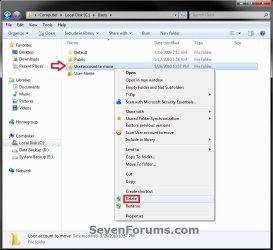
Delete-1_UAC.jpg
D) If prompted by UAC, then click on Yes (Windows 7) or Continue (Vista).

E) If prompted, click on Continue. (see screenshot below)
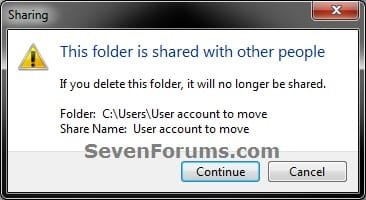
Delete-2.jpg
F) You can now empty the Recycle Bin to finish deleting the old user profile folder from the old location.
NOTE: You will need to approve emptying the Recycle Bin.
17. The existing user profile folder has now been completely moved to the new default location where Windows 7 or Vista will now run it from when logged on to it.


Method Two

To Restore the Existing User Profile's Default Location


1. Repeat OPTION ONE, but move the new default User Profile folder (ex: E:\User account to move) and registry entries back to the original C:\Users folder location (ex: C:\Users\User account to move).


OPTION TWO

For All New User Accounts Created


   Note
This will change where all newly created user accounts will have their user profile folder created at in a default location of your choice instead of the old default C:\Users location.

Thank you to Alain for pointing this out.

1. To Change the Default User Profile Location of New User Accounts
A) Open the Start Menu, then type regedit in the search box and press enter.
B) If prompted by UAC, then click on Yes (Windows 7) or Continue (Vista).

C) In regedit, navigate to the location below. (see screenshot below)

Code:
HKEY_LOCAL_MACHINE\SOFTWARE\Microsoft\Windows NT\CurrentVersion\ProfileList
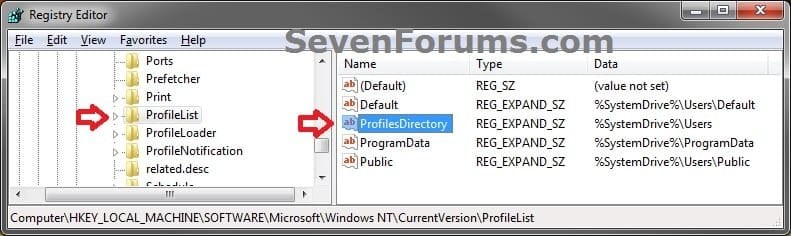
New-1.jpg
D) In the right pane of ProfileList, right click on ProfilesDirectory and click on Modify. (see screenshot above)

E) Type in the full path (ex: E:\Users) of where you want new user accounts to be created at, and click on OK. (see screenshot below)
New-2.jpg
F) The registry will now look similar to this. (see screenshot below)
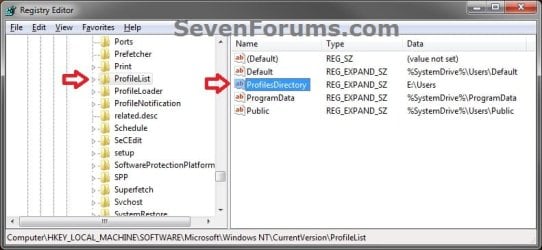
New-3.jpg
G) When you create a new user account, it's user profile folder will now be created at the location you specified in step 1E.
2. To Restore the Default User Profile Location of New User Accounts
A) Repeat step 1, but type %SystemDrive%\Users at step 1E instead.
NOTE: This step only changes the user profile folder location of any newly created user accounts back to this default location, and not any existing user accounts.

B) If you wish to change an already existing new account's user profile folder location, then you will need to do Method Two in OPTION ONE above to change it back to C:\Users.
3. Close regedit.

That's it,
Shawn


Last edited:
Al,

Moving an existing profile could be problematic with some programs.

You might consider OPTION TWO in the tutorial. After OPTION TWO, the new user account that will be at the new location. Next, you would just need to copy any shortcuts (Start Menu, desktop, Startup, etc) and files (ex: your users' Music, Documents, etc.. ) from the old user account's profile folder to the new user account's profile folder. You will have to setup all your settings in the new account again though.

When finished, and everything checks out ok, you could delete your old user account to regain the HDD space it's using. You might wait a day or two before deleting the old account just to be safe and make sure that you had copied everything you wanted though.

Great, will give that a try and feed back to you. I wont delete the old user profile in any hast, will make sure it is up and running smoothly first. Could I copy the existing user and paste it in the new user profile on my bigger HD? Would this miraculously make my programs functionable or am I dreaming?

Thanks again

No, you will not be able to copy and paste the old profile into the new one like that and still have it work. Only copy shortcuts and files in My Music, My Documents, etc.... :(

You're programs will still work just fine, but you may have to adjust any personal settings back.
 
Last edited:

My Computer

Computer type
PC/Desktop
Computer Manufacturer/Model Number
Self built custom
OS
64-bit Windows 11 Pro for Workstations
CPU
Intel i7-8700K OC'd to 5 GHz
Motherboard
ASUS ROG Maximus XI Formula Z390
Memory
64 GB (4x16GB) G.SKILL TridentZ RGB DDR4 3600 MHz
Graphics Card(s)
ASUS ROG-STRIX-GTX1080TI-O11G-GAMING
Sound Card
Integrated
Monitor(s) Displays
2 x Samsung Odyssey G7 27"
Screen Resolution
2560x1440
Hard Drives
1TB Samsung 990 PRO M.2,
4TB Samsung 990 PRO PRO M.2,
TerraMaster F8 SSD Plus NAS
PSU
Seasonic Prime Titanium 850W
Case
Thermaltake Core P3
Cooling
Corsair Hydro H115i
Keyboard
Logitech wireless K800
Mouse
Logitech MX Master 4
Internet Speed
2 Gb/s Download and 100 Mb/s Upload
Antivirus
Malwarebyte Anti-Malware Premium
Browser
Google Chrome
Other Info
Logitech Z625 speaker system,
Logitech BRIO 4K Pro webcam,
HP Color LaserJet Pro MFP M477fdn,
APC SMART-UPS RT 1000 XL - SURT1000XLI,
Galaxy S23 Plus phone
This could be a possibility ...

Sorry if this has been mentioned before, but have you tried mounting the partition you want to use onto the user folder ? I did this with both my own user 'My Documents' and 'My Downloads' folder - as far as I can tell, it should work transparently and without messing about with registry settings and such - filesystems - Mount second drive as c:/Users in Windows 7 - Super User has full details on doing this but I will summarize ;

Create either a restore point or a full system back-up in case something goes horribly wrong.
Boot using either a WinPE2.0 disk (Hirens boot cd / Windows installation disk) and get to a command prompt.
Locate the drive / partition that has your Windows 7 installation on it, locate the drive / partition you want to use for the Users folder.

At the command prompt use Type robocopy c:\Users d:\ /mir /xj (replace the directories with the ones from your system)

Remove the original users directory - rmdir /S /Q C:\Users

After deleting the C:\Users directory, recreate it

mkdir C:\Users


Run the DISKPART command, and select the second disk (substitute * for correct disk number listed after the LIST DISK command)


DISKPART


LIST DISK


SELECT DISK *


SELECT PARTITION 1


Set the mountpoint. If it fails, go back and make sure the C:\Users directory exists and is empty.


ASSIGN MOUNT=C:\Users


EXIT


Reboot. Once it's done rebooting, you can use Start->diskmgmt.msc to remove the drive letter from the second drive if you want.


should work perfectly ...
 

My Computer

Computer Manufacturer/Model Number
Abit AB9 self build
OS
Windows 7 Ultimate x64
CPU
intel E6850
Motherboard
Abit AB9
Memory
8Gb DDR2
Graphics Card(s)
ATI Sapphire HD4830
Sound Card
Asus Xonar DG
Monitor(s) Displays
Dual display Compaq P1220 / Philips 107E
Hard Drives
2 x 1 Tb Sata 2
1 x 640 Gb Sata 2
1 x 500 Gb Sata 2
1 x 150 Gb Raptor Sata 2
1 x 500 Gb IDE
PSU
Powercooler 750 watt
Case
Custom build desktop / tower
Cooling
multi-fan air cooled
Hi Brink,

I've already done this, and it's been working fine for months, but lately I've been wondering just what the benefit is...

For example, having users in original location on an ssd would mean a quicker experience.

But lets just say you make an image of windows, you must always make an image also of the users folder, right.
If you didnt, and windows becomes corrupt or infected with a virus, and you restored an earlier image or windows, but no image of the current users folder, it wouldnt achieve anything, that is, its the user profile that becomes corrupt or infected with a virus, so they both need to always be imaged at same time?

So, if that's the case, and the ONLY way to restore your system from corruption or a virus, is to make sure you have an image of BOTH, then wouldn't it be easier to just leave the users folder on c drive and image that?

Other than moving location of the space wasting folders which aren't required in an image ( pics, vid, music etc) , is there an important reason to move the whole users folder that I'm missing? ( I probably knew them when I first did this, but cant remember them now :p )
 

My Computer

OS
7 Ult x64 sp1
CPU
intel i
Motherboard
z68
Memory
ddr3 2GB+
Graphics Card(s)
nvidia pcie
Monitor(s) Displays
lcd
Hard Drives
sata2
PSU
600W
Cooling
fans
Hello Nevesswodniw,

Moving a user profile can save HDD space, but personallly I believe it's best to leave the user profile as is by default to avoid having issues from any mistakes made. It's much easier to just use libraries (see TIP box at top of tutorial) to save HDD space and access files from different locations in the one library folder with the files still stored at the different locations.

When you move your user profile to another location, that other location will be included by default when creating a system image, and cannot be not included. If you are using a 3rd party program to create a system image with, then yes you will need to make sure that you also include this other location or Windows will not work properly when restored.
 

My Computer

Computer type
PC/Desktop
Computer Manufacturer/Model Number
Self built custom
OS
64-bit Windows 11 Pro for Workstations
CPU
Intel i7-8700K OC'd to 5 GHz
Motherboard
ASUS ROG Maximus XI Formula Z390
Memory
64 GB (4x16GB) G.SKILL TridentZ RGB DDR4 3600 MHz
Graphics Card(s)
ASUS ROG-STRIX-GTX1080TI-O11G-GAMING
Sound Card
Integrated
Monitor(s) Displays
2 x Samsung Odyssey G7 27"
Screen Resolution
2560x1440
Hard Drives
1TB Samsung 990 PRO M.2,
4TB Samsung 990 PRO PRO M.2,
TerraMaster F8 SSD Plus NAS
PSU
Seasonic Prime Titanium 850W
Case
Thermaltake Core P3
Cooling
Corsair Hydro H115i
Keyboard
Logitech wireless K800
Mouse
Logitech MX Master 4
Internet Speed
2 Gb/s Download and 100 Mb/s Upload
Antivirus
Malwarebyte Anti-Malware Premium
Browser
Google Chrome
Other Info
Logitech Z625 speaker system,
Logitech BRIO 4K Pro webcam,
HP Color LaserJet Pro MFP M477fdn,
APC SMART-UPS RT 1000 XL - SURT1000XLI,
Galaxy S23 Plus phone
Correct. I would still recommend to leave it set as default.

I'm sure that many people may find it to have a number of benefits for their own reasons though.
 

My Computer

Computer type
PC/Desktop
Computer Manufacturer/Model Number
Self built custom
OS
64-bit Windows 11 Pro for Workstations
CPU
Intel i7-8700K OC'd to 5 GHz
Motherboard
ASUS ROG Maximus XI Formula Z390
Memory
64 GB (4x16GB) G.SKILL TridentZ RGB DDR4 3600 MHz
Graphics Card(s)
ASUS ROG-STRIX-GTX1080TI-O11G-GAMING
Sound Card
Integrated
Monitor(s) Displays
2 x Samsung Odyssey G7 27"
Screen Resolution
2560x1440
Hard Drives
1TB Samsung 990 PRO M.2,
4TB Samsung 990 PRO PRO M.2,
TerraMaster F8 SSD Plus NAS
PSU
Seasonic Prime Titanium 850W
Case
Thermaltake Core P3
Cooling
Corsair Hydro H115i
Keyboard
Logitech wireless K800
Mouse
Logitech MX Master 4
Internet Speed
2 Gb/s Download and 100 Mb/s Upload
Antivirus
Malwarebyte Anti-Malware Premium
Browser
Google Chrome
Other Info
Logitech Z625 speaker system,
Logitech BRIO 4K Pro webcam,
HP Color LaserJet Pro MFP M477fdn,
APC SMART-UPS RT 1000 XL - SURT1000XLI,
Galaxy S23 Plus phone
woops, It double posted, I deleted one, and they both deleted.....

The main reasons I moved the users folder to a separate partition are, so that when a new user profile is created, the "MY" folders don't use up HDD space on the windows partition ( so that the user doesn't have to manually move the locations after creating the new profile ), and so that the firefox and thunderbird profiles are also automatically created on the separate partition.

So my question would be, if I leave the users folder as default, which I would like to do, is there any way at all that you know of, where the pics/vid/music etc folders and the firefox/thunderbird profile folders can automatically be set to a separate partition after a new user profile is created, instead of having to re-direct them manually afterwards?
 

My Computer

OS
7 Ult x64 sp1
CPU
intel i
Motherboard
z68
Memory
ddr3 2GB+
Graphics Card(s)
nvidia pcie
Monitor(s) Displays
lcd
Hard Drives
sata2
PSU
600W
Cooling
fans
LOL, no problem.

You could use libraries if setup as in the yellow TIP box at the top of the tutorials for the the pics/vid/music etc folders. However, programs will still be on C though unless they have an option to select where you want to install them at. :(
 

My Computer

Computer type
PC/Desktop
Computer Manufacturer/Model Number
Self built custom
OS
64-bit Windows 11 Pro for Workstations
CPU
Intel i7-8700K OC'd to 5 GHz
Motherboard
ASUS ROG Maximus XI Formula Z390
Memory
64 GB (4x16GB) G.SKILL TridentZ RGB DDR4 3600 MHz
Graphics Card(s)
ASUS ROG-STRIX-GTX1080TI-O11G-GAMING
Sound Card
Integrated
Monitor(s) Displays
2 x Samsung Odyssey G7 27"
Screen Resolution
2560x1440
Hard Drives
1TB Samsung 990 PRO M.2,
4TB Samsung 990 PRO PRO M.2,
TerraMaster F8 SSD Plus NAS
PSU
Seasonic Prime Titanium 850W
Case
Thermaltake Core P3
Cooling
Corsair Hydro H115i
Keyboard
Logitech wireless K800
Mouse
Logitech MX Master 4
Internet Speed
2 Gb/s Download and 100 Mb/s Upload
Antivirus
Malwarebyte Anti-Malware Premium
Browser
Google Chrome
Other Info
Logitech Z625 speaker system,
Logitech BRIO 4K Pro webcam,
HP Color LaserJet Pro MFP M477fdn,
APC SMART-UPS RT 1000 XL - SURT1000XLI,
Galaxy S23 Plus phone
Hmmm! Interesting stuff!

I'm using the library function, and I have moved my documents, pictures etc. to my E: partition. But now I'm wondering if that is the smart thing to do!?!

This is my restore scheme:
I have created a partition on an external USB Disk (Not SSD, good old fashioned HDD), and cloned my C: drive to this partition using EaseUS Todo Backup. Then I have created a bootable Utility CD-ROM that I can use to copy back the clone if things go sour.

Question is:
Will the system still recognize my libraries after such an operation? Or are there hidden pitfalls I don't know about?
Morten
 

My Computer

Computer Manufacturer/Model Number
SAMSUNG ELECTRONICS CO., LTD. RC530/RC730
OS
Windows Home Premium 64bit
CPU
Intel(R) Core(TM) i5-2410M CPU @ 2.30GHz
Memory
6GB DDR3 (PC3-10700) 667 MHz
Graphics Card(s)
NVIDIA GeForce GT 540M
Sound Card
Realtek High Definition Audio
Hard Drives
SAMSUNG HM641JI - 640.1 GB
Other Info
Laptop
Hello Morten, and welcome to Seven Forums.

It will only recognize your moved user folders on E if you also include E in the cloned image backup.

This is one reason why IMO it would best to leave the user folders at default, and use libraries as setup using the yellow TIP box at the top of the tutorial instead. This way you would not have to worry about making sure you have included all location that you moved user folders to in backup images.

Hope this helps, :)

Shawn
 

My Computer

Computer type
PC/Desktop
Computer Manufacturer/Model Number
Self built custom
OS
64-bit Windows 11 Pro for Workstations
CPU
Intel i7-8700K OC'd to 5 GHz
Motherboard
ASUS ROG Maximus XI Formula Z390
Memory
64 GB (4x16GB) G.SKILL TridentZ RGB DDR4 3600 MHz
Graphics Card(s)
ASUS ROG-STRIX-GTX1080TI-O11G-GAMING
Sound Card
Integrated
Monitor(s) Displays
2 x Samsung Odyssey G7 27"
Screen Resolution
2560x1440
Hard Drives
1TB Samsung 990 PRO M.2,
4TB Samsung 990 PRO PRO M.2,
TerraMaster F8 SSD Plus NAS
PSU
Seasonic Prime Titanium 850W
Case
Thermaltake Core P3
Cooling
Corsair Hydro H115i
Keyboard
Logitech wireless K800
Mouse
Logitech MX Master 4
Internet Speed
2 Gb/s Download and 100 Mb/s Upload
Antivirus
Malwarebyte Anti-Malware Premium
Browser
Google Chrome
Other Info
Logitech Z625 speaker system,
Logitech BRIO 4K Pro webcam,
HP Color LaserJet Pro MFP M477fdn,
APC SMART-UPS RT 1000 XL - SURT1000XLI,
Galaxy S23 Plus phone
Thank you Shawn! I'm glad to have found such a great forum, it has given me answers to almost every question I've pondered (new to win7)!

As to your reply:

I knew it, it looked too simple when I was arguing with myself:(. Well, back to the drawing board...

Thanx for the quick reply!

Morten
 

My Computer

Computer Manufacturer/Model Number
SAMSUNG ELECTRONICS CO., LTD. RC530/RC730
OS
Windows Home Premium 64bit
CPU
Intel(R) Core(TM) i5-2410M CPU @ 2.30GHz
Memory
6GB DDR3 (PC3-10700) 667 MHz
Graphics Card(s)
NVIDIA GeForce GT 540M
Sound Card
Realtek High Definition Audio
Hard Drives
SAMSUNG HM641JI - 640.1 GB
Other Info
Laptop
You're most welcome Morten. :)
 

My Computer

Computer type
PC/Desktop
Computer Manufacturer/Model Number
Self built custom
OS
64-bit Windows 11 Pro for Workstations
CPU
Intel i7-8700K OC'd to 5 GHz
Motherboard
ASUS ROG Maximus XI Formula Z390
Memory
64 GB (4x16GB) G.SKILL TridentZ RGB DDR4 3600 MHz
Graphics Card(s)
ASUS ROG-STRIX-GTX1080TI-O11G-GAMING
Sound Card
Integrated
Monitor(s) Displays
2 x Samsung Odyssey G7 27"
Screen Resolution
2560x1440
Hard Drives
1TB Samsung 990 PRO M.2,
4TB Samsung 990 PRO PRO M.2,
TerraMaster F8 SSD Plus NAS
PSU
Seasonic Prime Titanium 850W
Case
Thermaltake Core P3
Cooling
Corsair Hydro H115i
Keyboard
Logitech wireless K800
Mouse
Logitech MX Master 4
Internet Speed
2 Gb/s Download and 100 Mb/s Upload
Antivirus
Malwarebyte Anti-Malware Premium
Browser
Google Chrome
Other Info
Logitech Z625 speaker system,
Logitech BRIO 4K Pro webcam,
HP Color LaserJet Pro MFP M477fdn,
APC SMART-UPS RT 1000 XL - SURT1000XLI,
Galaxy S23 Plus phone
Thank you!

After a couple of years I finally got the point of needing to reinstall my OS, thank goodness I remembered this post from when I originally tried to find a way to move my User and ProgramInfo folders... which was too much for me at the time. I vowed that one day I'd have everything on my D drive. Now I will.

Thanks again.
 

My Computer

OS
7 Home Premium 64bit
You're most welcome Ignatz, and welcome to Seven Forums. :)
 

My Computer

Computer type
PC/Desktop
Computer Manufacturer/Model Number
Self built custom
OS
64-bit Windows 11 Pro for Workstations
CPU
Intel i7-8700K OC'd to 5 GHz
Motherboard
ASUS ROG Maximus XI Formula Z390
Memory
64 GB (4x16GB) G.SKILL TridentZ RGB DDR4 3600 MHz
Graphics Card(s)
ASUS ROG-STRIX-GTX1080TI-O11G-GAMING
Sound Card
Integrated
Monitor(s) Displays
2 x Samsung Odyssey G7 27"
Screen Resolution
2560x1440
Hard Drives
1TB Samsung 990 PRO M.2,
4TB Samsung 990 PRO PRO M.2,
TerraMaster F8 SSD Plus NAS
PSU
Seasonic Prime Titanium 850W
Case
Thermaltake Core P3
Cooling
Corsair Hydro H115i
Keyboard
Logitech wireless K800
Mouse
Logitech MX Master 4
Internet Speed
2 Gb/s Download and 100 Mb/s Upload
Antivirus
Malwarebyte Anti-Malware Premium
Browser
Google Chrome
Other Info
Logitech Z625 speaker system,
Logitech BRIO 4K Pro webcam,
HP Color LaserJet Pro MFP M477fdn,
APC SMART-UPS RT 1000 XL - SURT1000XLI,
Galaxy S23 Plus phone
Brink,
This looks great. I do have a question I'd like to get your opinion on. I have installed a SSD, but my User profile is too large to fit on it. I have migrated Win 7 to the SSD after stripping documents, music, etc out of my User profile so it would be small enough. However, I kept a copy of the original profile on my HDD, and after the OS migration, I restored it to the original name.

I can now boot to the OS on the SSD, or to the original OS on the HDD. The latter is exactly the same as what I had before the SSD, except that there is now an SSD in the system. When I boot to the SSD everything is fine, except that I cannot access my documents, since the corresponding folders on the SSD are empty. I want to only use the SSD boot, but I need to be able to access the User profile on the HDD.

I have considered several methods to get the SSD system to see the User profile on the HDD, but then I saw this tutorial and wondered if I used Method 1 starting from step 7 (since the User profile I want to use is already in the location where I want it), would I have access to my old user profile from the migrated OS?

The most likely alternative that I have found is to create junctions between the “My” files folders on the SSD and on the HDD, but your method seems more straightforward.

Thanks in advance for your input.
 

My Computer

Computer Manufacturer/Model Number
Dell Latitude E6420
OS
Windows 7 Professional 64-bit
CPU
i7 @ 2.70GHz
Memory
8 GB
Graphics Card(s)
NVIDIA NVS 4200M
Hard Drives
Samgsung SSD PM 810
Hello pknight,

You might consider using the yellow TIP box at the top of the tutorial instead to include the folders from the old profile on the HDD into libraries to access from instead. This the files will not take up any space on the SSD, and you will not have to worry about messing up your user profile on the SSD by trying to move it to or take over the one on the HDD.

Hope this helps, :)
Shawn
 

My Computer

Computer type
PC/Desktop
Computer Manufacturer/Model Number
Self built custom
OS
64-bit Windows 11 Pro for Workstations
CPU
Intel i7-8700K OC'd to 5 GHz
Motherboard
ASUS ROG Maximus XI Formula Z390
Memory
64 GB (4x16GB) G.SKILL TridentZ RGB DDR4 3600 MHz
Graphics Card(s)
ASUS ROG-STRIX-GTX1080TI-O11G-GAMING
Sound Card
Integrated
Monitor(s) Displays
2 x Samsung Odyssey G7 27"
Screen Resolution
2560x1440
Hard Drives
1TB Samsung 990 PRO M.2,
4TB Samsung 990 PRO PRO M.2,
TerraMaster F8 SSD Plus NAS
PSU
Seasonic Prime Titanium 850W
Case
Thermaltake Core P3
Cooling
Corsair Hydro H115i
Keyboard
Logitech wireless K800
Mouse
Logitech MX Master 4
Internet Speed
2 Gb/s Download and 100 Mb/s Upload
Antivirus
Malwarebyte Anti-Malware Premium
Browser
Google Chrome
Other Info
Logitech Z625 speaker system,
Logitech BRIO 4K Pro webcam,
HP Color LaserJet Pro MFP M477fdn,
APC SMART-UPS RT 1000 XL - SURT1000XLI,
Galaxy S23 Plus phone
Thanks, Shawn. However, I am not just trying to save HDD space. I have about 300GB of music, video, photos, documents, etc. in my profile. I would like to run my apps like I have been doing, with the data files where the apps expect them to be. Does the library method do this? And, even though I may not use it, would the method in the tutorial work, if I start at step 7, as I described earlier?

I am willing to take a bit of a risk, since I won't be changing the system on the HDD, and I can always boot to that and restore if things go wrong.
 

My Computer

Computer Manufacturer/Model Number
Dell Latitude E6420
OS
Windows 7 Professional 64-bit
CPU
i7 @ 2.70GHz
Memory
8 GB
Graphics Card(s)
NVIDIA NVS 4200M
Hard Drives
Samgsung SSD PM 810
No, libraries wouldn't work for that.

However, I'm not sure if you start at step 7 in Method One would work either in this situation. You could give it a try and see, but I would recommend to create a restore point of C (Windows drive) first to be safe.
 

My Computer

Computer type
PC/Desktop
Computer Manufacturer/Model Number
Self built custom
OS
64-bit Windows 11 Pro for Workstations
CPU
Intel i7-8700K OC'd to 5 GHz
Motherboard
ASUS ROG Maximus XI Formula Z390
Memory
64 GB (4x16GB) G.SKILL TridentZ RGB DDR4 3600 MHz
Graphics Card(s)
ASUS ROG-STRIX-GTX1080TI-O11G-GAMING
Sound Card
Integrated
Monitor(s) Displays
2 x Samsung Odyssey G7 27"
Screen Resolution
2560x1440
Hard Drives
1TB Samsung 990 PRO M.2,
4TB Samsung 990 PRO PRO M.2,
TerraMaster F8 SSD Plus NAS
PSU
Seasonic Prime Titanium 850W
Case
Thermaltake Core P3
Cooling
Corsair Hydro H115i
Keyboard
Logitech wireless K800
Mouse
Logitech MX Master 4
Internet Speed
2 Gb/s Download and 100 Mb/s Upload
Antivirus
Malwarebyte Anti-Malware Premium
Browser
Google Chrome
Other Info
Logitech Z625 speaker system,
Logitech BRIO 4K Pro webcam,
HP Color LaserJet Pro MFP M477fdn,
APC SMART-UPS RT 1000 XL - SURT1000XLI,
Galaxy S23 Plus phone
Well, it works in the sense that everything boots and runs, but it does not work in the sense that when I try to open an existing file in a program such as Word, it still looks for it in C:\Users\myname, rather than F:\Users\myname. (iTunes is the one program that found its files on the F: drive without any problems.)

It looks as though the only way to do what I want to do that might work is to create junctions between C:\users\myname and F:\users\myname, or perhaps just between the My Documents, My Music, etc. folders.

I will try the junction solution soon and report back.

Thanks again for your help.
 

My Computer

Computer Manufacturer/Model Number
Dell Latitude E6420
OS
Windows 7 Professional 64-bit
CPU
i7 @ 2.70GHz
Memory
8 GB
Graphics Card(s)
NVIDIA NVS 4200M
Hard Drives
Samgsung SSD PM 810
I created the junction between C:\Users\myname and F:\Users\myname, and everything is working as it should. The system (not just Windows Explorer) sees the user profile as being on C:\, just as I was looking for. Thanks again.
 

My Computer

Computer Manufacturer/Model Number
Dell Latitude E6420
OS
Windows 7 Professional 64-bit
CPU
i7 @ 2.70GHz
Memory
8 GB
Graphics Card(s)
NVIDIA NVS 4200M
Hard Drives
Samgsung SSD PM 810
That's great news pknight. Thank you for posting back with your results. :)
 

My Computer

Computer type
PC/Desktop
Computer Manufacturer/Model Number
Self built custom
OS
64-bit Windows 11 Pro for Workstations
CPU
Intel i7-8700K OC'd to 5 GHz
Motherboard
ASUS ROG Maximus XI Formula Z390
Memory
64 GB (4x16GB) G.SKILL TridentZ RGB DDR4 3600 MHz
Graphics Card(s)
ASUS ROG-STRIX-GTX1080TI-O11G-GAMING
Sound Card
Integrated
Monitor(s) Displays
2 x Samsung Odyssey G7 27"
Screen Resolution
2560x1440
Hard Drives
1TB Samsung 990 PRO M.2,
4TB Samsung 990 PRO PRO M.2,
TerraMaster F8 SSD Plus NAS
PSU
Seasonic Prime Titanium 850W
Case
Thermaltake Core P3
Cooling
Corsair Hydro H115i
Keyboard
Logitech wireless K800
Mouse
Logitech MX Master 4
Internet Speed
2 Gb/s Download and 100 Mb/s Upload
Antivirus
Malwarebyte Anti-Malware Premium
Browser
Google Chrome
Other Info
Logitech Z625 speaker system,
Logitech BRIO 4K Pro webcam,
HP Color LaserJet Pro MFP M477fdn,
APC SMART-UPS RT 1000 XL - SURT1000XLI,
Galaxy S23 Plus phone
Back
Top