
User Profile Folder - Change User Account Folder Name

How to Change the User Folder Name of a User Profile in Windows 7


   Information
Normally, you could change your account name in User Accounts from the Control Panel (icons view), but that still would not change your accoun's user profile folder name in C:\Users.

This will show you how to change your account name and change the user profile folder name of any user account, including the built-in Administrator account (if enabled), in Windows 7 without losing anything in that user account. This will affect the user account's name for the C:\Users\(user-name) folder, Start Menu, Log on screen, Welcome screen, security permissions, etc......

You must be logged in as an administrator, and is a different account than the account you are changing the name of to be able to do this tutorial.

   Warning
Since editing a user profile and the registry can mess up Windows 7 if a mistake is made, it is highly advisable to create a restore point before doing this tutorial. This way if you make a mistake, you will be able to simply do a system restore to select and go back to this restore point to undo the mistake.


Here's How:

1. Log on to the user account (ex: Old Name) that you want to change the name of.

2. Save the current theme (ex: Old Name) for this user account. (see screenshot below)
NOTE: This is so that you will be able to change the theme back to this current theme in step 21 below later if you like.
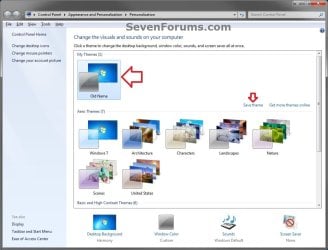
Save_Theme.jpg
3. If you have any files or folders in your C:\Users\(user-name) profile folder that are set to be shared, then you will need to temporarily set them to not be shared for now. After you finish renaming the user profile folder name, you could set them to be shared again in step 23 below.

4. Log off the user account that you want to change the name of. (see screenshot below)
NOTE: If you do not have another administrator account to use, then create a new administrator account first, then log off. When finished with the tutorial, you can delete this newly created account.
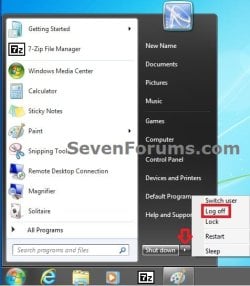
Log_Off.jpg
5. Log on to an administrator account that is not the user account that you want to change the name of.

6. Open Windows Explorer, navigate to C:\Users, open the Users folder, right click on the user profile folder (ex: Old Name) that you want to change the name of, and click on Rename. (see screenshot below)
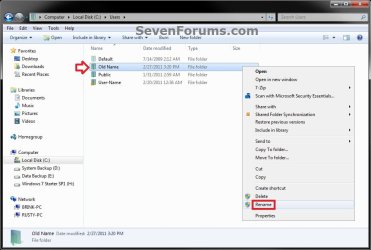
Step1.jpg
7. Type in the name (ex: New Name) that you want this user account's folder to have now and press Enter. Close the Windows Explorer window. (see screenshot below)
NOTE: If you are not able to rename the user folder for some reason (ex: in use), then boot into Safe Mode and try again.
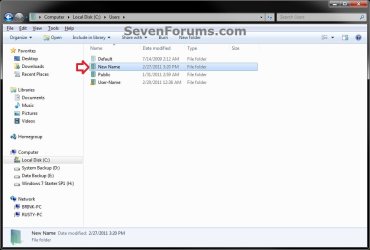
Step2.jpg
8. If prompted, click on Continue and Yes (UAC) to approve renaming the user folder.

9. Open the Start Menu, and type regedit in the search box and press Enter.

10. If prompted by UAC, then click on Yes.

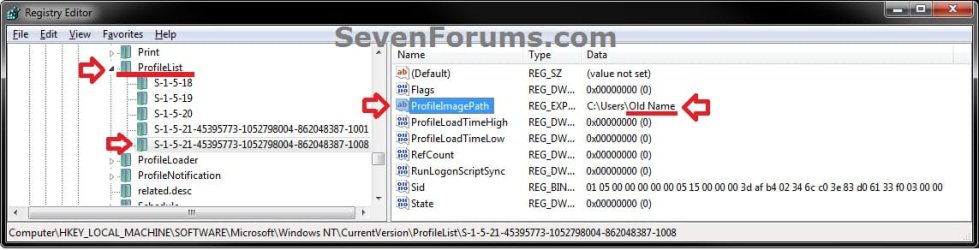
11. In regedit, navigate to the location below. (see screenshot below)

Code:
HKEY_LOCAL_MACHINE\SOFTWARE\Microsoft\Windows NT\CurrentVersion\ProfileList
Step3.jpg
12. In the left pane of regedit, expand Profilelist, and select each long number S-1-5-.... key one by one until your see the user account name (ex: Old Name) that you want to change the name of included in the Data column of ProfileImagePath in the right pane. (see screenshot above)

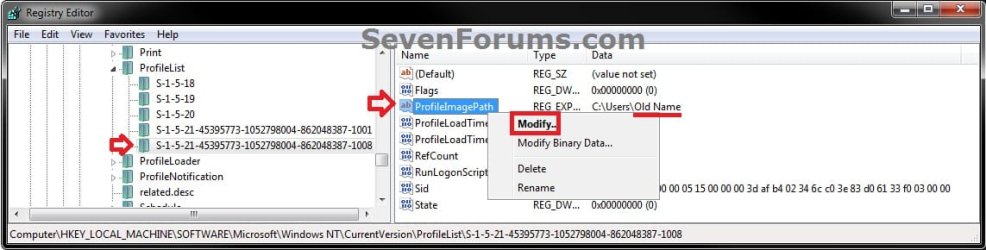
13. In the right pane of the long number S-1-5-.... key for the user account (ex: Old Name) that you want to change the name of, right click on ProfileImagePath, and click on Modify. (see screenshot below.
Step6.jpg
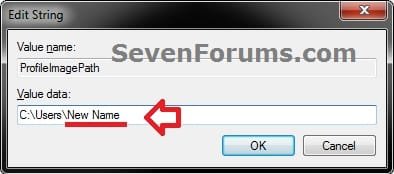
14. Change only the name (ex: Old Name) in the full path to the name (ex: New Name) that you want for the user account, and click on OK. (see screenshot below)
Step5.jpg
15. Close regedit.

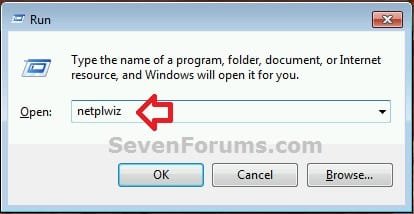
16. Press the Windows + R keys to open the Run dialog, type netplwiz, and click on OK. (see screenshot below)
netplwiz-1.jpg
17. Check the Users must enter a user name and password to use this computer box, select the user account's old name (ex: Old Name), and click on the Properties button. (see screenshot below)
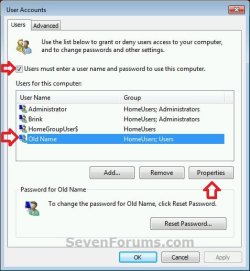
netplwiz-2.jpg
18. Change both the User name and Full name to the same new name (ex: New Name) from step 7 above, and click on OK. (see screenshot below)
netplwiz-3.jpg
19. Click on OK, and Restart the computer to apply. (see screenshot below step 17)

20. Log on to the now completely renamed user account (ex: New Name) from step 1 above.

21. When you log on to the renamed user account (ex: New Name) for the first time, you will notice that the desktop background wallpaper is now solid black. This is normal. Change the theme from the black Unsaved Theme to the theme (ex: Old Name) that you saved in step 2 above to restore the saved theme. (see screenshot below)
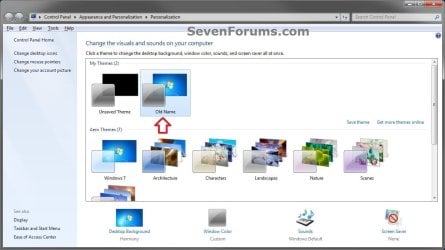
Theme-2.jpg
22. If you had to create a new administrator account at step 4 above to do this tutorial with, then you can now delete this newly created account if you like. This is not the New Name account.

23. If you had to set files to not be shared in step 3 above, then you can set them to be shared again if you like.

24. If you had Windows set to automatically log on to a user account at startup, then you can set that while logged on to an administrator account again if you like.


That's it,
Shawn


Last edited:
  • Like
Reactions: Arc
This worked brilliantly, the only thing is, i changed my username a few weeks back instead of doing it after renaming the "User Profile Folder". I have not came across any problems.
 

My Computer My Computer

Computer Manufacturer/Model Number
Customised
OS
Windows 7 64Bit Ultimate Edition SP1
CPU
AMD Phenom II X5 955 @ 3200 Mhz
Motherboard
Asus M5A99X EVO
Memory
G.Skill 12GB DDR3 1333MHz
Graphics Card(s)
Palit GeForce GTX 550 Ti OC Sonic 1GB
Sound Card
Onboard
Monitor(s) Displays
LG 32" HDTV
Screen Resolution
1920x1080 @ 60Hz
Hard Drives
Internal 250GB SATA 3.0 Western Digital WDC WD25 00AAKX-001CA0

Internal 500GB SATA 2.0 Seagate ST350041 3AS

Internal 500GB SATA 2.0 Western Digital WDC WD50 00AAKS-00WWP

External 1TB USB 2.0 Western Digital

External 2TB USB 2.0 Buffalo
PSU
Colors-IT 750w BLACK 12CM Silent
Case
Xigamatek CPC-T45UB-U01 Asgard Chassis
Cooling
4 120mm Fans In Total
Keyboard
ADVENT Illuminated Keyboard
Mouse
Genius
Internet Speed
30MB
Other Info
CPU Cooler - Cooler Master Hyper 212 Plus Cooler
New username was a successful, but with Old Username In C:/Users

Hello Brink,
I changed successfully changed the oldusername. However in the C:/Users folder appears the oldusername with the following AppData and NtUser.Dat files. Also in the registry are about 20 instances of the oldusername. The user name does not appear in the Windows NT Current Version ProfileList of the registry. Further the oldusername apperars in the "Profiles stored on this computer" of "System Properties" box "Advanced" tab "User Profile" settings as newusername-HP\oldusername. How can I remove the oldusername from the computer? What happens if I delete the olderusername folder from C:/Users folder? Will it reappear again? I am wondering if these old vestiges of the oldusername will take up memory and cause future problems. Thank you for guidance with this problem.
freddi6111
 

My Computer My Computer

Computer Manufacturer/Model Number
HP 520-1970
OS
Windows 7 64 bit
Hello Freddi, and welcome to Seven Forums.

Due to the reasons in the blue NOTE box at the top of the tutorial, the only true way to remove the old name of the user account is to create a new administrator account, then delete the old user account while logged in the new one.

Be sure to backup anything that you do not want to lose from the old account first though. For example, shortcuts, Start Menu shortcuts, files inside the user folders, etc....

Hope this helps,
Shawn
 

My Computer My Computer

Computer type
PC/Desktop
Computer Manufacturer/Model Number
Self built custom
OS
64-bit Windows 11 Pro for Workstations
CPU
Intel i7-8700K OC'd to 5 GHz
Motherboard
ASUS ROG Maximus XI Formula Z390
Memory
64 GB (4x16GB) G.SKILL TridentZ RGB DDR4 3600 MHz
Graphics Card(s)
ASUS ROG-STRIX-GTX1080TI-O11G-GAMING
Sound Card
Integrated
Monitor(s) Displays
2 x Samsung Odyssey G7 27"
Screen Resolution
2560x1440
Hard Drives
1TB Samsung 990 PRO M.2,
4TB Samsung 990 PRO PRO M.2,
TerraMaster F8 SSD Plus NAS
PSU
Seasonic Prime Titanium 850W
Case
Thermaltake Core P3
Cooling
Corsair Hydro H115i
Keyboard
Logitech wireless K800
Mouse
Logitech MX Master 4
Internet Speed
2 Gb/s Download and 100 Mb/s Upload
Antivirus
Malwarebyte Anti-Malware Premium
Browser
Google Chrome
Other Info
Logitech Z625 speaker system,
Logitech BRIO 4K Pro webcam,
HP Color LaserJet Pro MFP M477fdn,
APC SMART-UPS RT 1000 XL - SURT1000XLI,
Galaxy S23 Plus phone
Instructions followed according to the tutorial

Hi Shawn,

Thank you for answering my questions. I followed the tutorial instructions. The residual oldusername mess is probably from an earlier window support failed username change. Your procedure worked better. But now I have the oldusername mess. What can I do to remove the oldusername information in the registry and the abbreviated oldusername folder in the c:/Users folder? If I start from scratch and use another newusername, I will still have the original oldusername material. Can you help me with the manually removal of the oldusername material? Can I make registry changes that would eliminate the oldusername? Will a safe mode removal of the oldusername folder work. Any help is appreciated to overcome this problem. Thank you for your time and your response to my original request.
 

My Computer My Computer

Computer Manufacturer/Model Number
HP 520-1970
OS
Windows 7 64 bit
Freddi,

Once you have deleted the old user account from within the Control Panel, you should be able to delete it's C:\User\(user-name) folder.

As for the registry entries, I can't recommend to just delete all references found in the registry with that name since I can't see what they are for. It's just to dangerous and risky to leave you with having to reinstall Windows 7.

If you like however, you could use steps 11-12 in the tutorial to look for a long number S-1-5-.... key at the three registry locations below that may have the old deleted user account name as the data value for ProfileImagePath. If so, delete the long number S-1-5-.... key for the old deleted user account. Be sure to create a restore point first. This way if you make a mistake, you can do a system restore at boot to select the restore point and undo the mistake.


HKEY_LOCAL_MACHINE\SOFTWARE\Microsoft\Windows NT\CurrentVersion\ProfileList

and

HKEY_LOCAL_MACHINE\SOFTWARE\Wow6432Node\Microsoft\Windows NT\CurrentVersion\ProfileList

and

HKEY_USERS


My Computer My Computer

Computer type
PC/Desktop
Computer Manufacturer/Model Number
Self built custom
OS
64-bit Windows 11 Pro for Workstations
CPU
Intel i7-8700K OC'd to 5 GHz
Motherboard
ASUS ROG Maximus XI Formula Z390
Memory
64 GB (4x16GB) G.SKILL TridentZ RGB DDR4 3600 MHz
Graphics Card(s)
ASUS ROG-STRIX-GTX1080TI-O11G-GAMING
Sound Card
Integrated
Monitor(s) Displays
2 x Samsung Odyssey G7 27"
Screen Resolution
2560x1440
Hard Drives
1TB Samsung 990 PRO M.2,
4TB Samsung 990 PRO PRO M.2,
TerraMaster F8 SSD Plus NAS
PSU
Seasonic Prime Titanium 850W
Case
Thermaltake Core P3
Cooling
Corsair Hydro H115i
Keyboard
Logitech wireless K800
Mouse
Logitech MX Master 4
Internet Speed
2 Gb/s Download and 100 Mb/s Upload
Antivirus
Malwarebyte Anti-Malware Premium
Browser
Google Chrome
Other Info
Logitech Z625 speaker system,
Logitech BRIO 4K Pro webcam,
HP Color LaserJet Pro MFP M477fdn,
APC SMART-UPS RT 1000 XL - SURT1000XLI,
Galaxy S23 Plus phone
Can't change user name

I recently purchased a pc running Windows 7 Ultimate 64bit and set about changing the name of the guy who set it all up to mine. I succeeded in getting myself logged on as administrator and changed every instance of his name that I could find simply by clicking on 'rename'. Some of those instances weren't allowed and I now have my name showing up at start up with no other users visible, but Windows Explorer C:\users shows only the old user name and mine doesn't appear. This folder shows a padlock symbol and is clearly locked so I don't have any sort of access to it. I tried to work through the tutorial but couldn't log on as the other guy as he doesn't appear on the opening screen and I can't change anything else.
 

My Computer My Computer

OS
Windows 7 Ultimate 64bit
Hello Shealtiel, and welcome to Seven Forums.

If you just go and rename everything like that, you're going to run into issues that may leave you not being able to log into the user account as you have just found out the hard way. :(

Are you able to boot into Safe Mode, enable the built-in Administrator, log in to the built-in Administrator, undo whatever you did, then follow the proper steps in the tutorial to rename a user account?
 

My Computer My Computer

Computer type
PC/Desktop
Computer Manufacturer/Model Number
Self built custom
OS
64-bit Windows 11 Pro for Workstations
CPU
Intel i7-8700K OC'd to 5 GHz
Motherboard
ASUS ROG Maximus XI Formula Z390
Memory
64 GB (4x16GB) G.SKILL TridentZ RGB DDR4 3600 MHz
Graphics Card(s)
ASUS ROG-STRIX-GTX1080TI-O11G-GAMING
Sound Card
Integrated
Monitor(s) Displays
2 x Samsung Odyssey G7 27"
Screen Resolution
2560x1440
Hard Drives
1TB Samsung 990 PRO M.2,
4TB Samsung 990 PRO PRO M.2,
TerraMaster F8 SSD Plus NAS
PSU
Seasonic Prime Titanium 850W
Case
Thermaltake Core P3
Cooling
Corsair Hydro H115i
Keyboard
Logitech wireless K800
Mouse
Logitech MX Master 4
Internet Speed
2 Gb/s Download and 100 Mb/s Upload
Antivirus
Malwarebyte Anti-Malware Premium
Browser
Google Chrome
Other Info
Logitech Z625 speaker system,
Logitech BRIO 4K Pro webcam,
HP Color LaserJet Pro MFP M477fdn,
APC SMART-UPS RT 1000 XL - SURT1000XLI,
Galaxy S23 Plus phone
Hi Brink

You wrote, "Are you able to boot into Safe Mode, enable the built-in Administrator, log in to the built-in Administrator, undo whatever you did, then follow the proper steps in the tutorial to rename a user account?"

The short answer is no, because I am new to W7 and am familiar with nothing as it is so different from XP.

However, thanks to you and your excellent tutorial and explanatory links I have been able to do most of those things. I was able to get into Safe Mode and to log-in to the built-in Administrator, but totally unable to undo all that I had done that you said I shouldn't have. So I decided to follow as best I could, "the proper steps" to rename a user account. However each time bar one that it came to renaming the old account I found my own name there already from what I'd done previously, so I went through motions of doing the change without actually doing it and everything seemed to work OK. The one place I just knew I would still find the old name was in the Registry so I did that "properly". After that everything went swimmingly right to the point where you said the background would be black and it was. However before I had time to do any more while I watched it reverted to my old background and everything was back to normal. So it all fitted where it touched and everything is OK as far as the name change goes. Thanks for all your help. All I have to do now is to disable that built-in bloke.

I do have another unrelated problem but I'll bring that up in the proper place.

So tremendous thanks and God bless!

Alan
 

My Computer My Computer

OS
Windows 7 Ultimate 64bit
You're most welcome Alan. I'm happy to hear that you got it all untwisted and sorted. :)
 

My Computer My Computer

Computer type
PC/Desktop
Computer Manufacturer/Model Number
Self built custom
OS
64-bit Windows 11 Pro for Workstations
CPU
Intel i7-8700K OC'd to 5 GHz
Motherboard
ASUS ROG Maximus XI Formula Z390
Memory
64 GB (4x16GB) G.SKILL TridentZ RGB DDR4 3600 MHz
Graphics Card(s)
ASUS ROG-STRIX-GTX1080TI-O11G-GAMING
Sound Card
Integrated
Monitor(s) Displays
2 x Samsung Odyssey G7 27"
Screen Resolution
2560x1440
Hard Drives
1TB Samsung 990 PRO M.2,
4TB Samsung 990 PRO PRO M.2,
TerraMaster F8 SSD Plus NAS
PSU
Seasonic Prime Titanium 850W
Case
Thermaltake Core P3
Cooling
Corsair Hydro H115i
Keyboard
Logitech wireless K800
Mouse
Logitech MX Master 4
Internet Speed
2 Gb/s Download and 100 Mb/s Upload
Antivirus
Malwarebyte Anti-Malware Premium
Browser
Google Chrome
Other Info
Logitech Z625 speaker system,
Logitech BRIO 4K Pro webcam,
HP Color LaserJet Pro MFP M477fdn,
APC SMART-UPS RT 1000 XL - SURT1000XLI,
Galaxy S23 Plus phone
I was following your tutorial & all was going fine until step 7. It wouldn't let me rename the folder so I went into safe mode to try again. I was able to do it fine, but then I didn't go directly into regedit to do step 9 because I couldn't see the next step in safe mode. I restarted in normal mode & it said something about not starting up the user correctly. I did the rest of the steps, but when I logged back on it looked like a new user screen. All my pictures, documents, email, was gone. I had created a system restore point before I began this, so I figured I would just start over again. After I did the system restore though, I still don't have my stuff back. My icons are there & the screen is blue. My pictures, docs, & email are still gone. Any idea why the restore didn't work? HELP!
 

My Computer My Computer

Computer Manufacturer/Model Number
Compaq Presario SR5605F
OS
Windows Vista
Hello Wab, and welcome to Seven Forums.

System Restore will not affect user folders. Only system files, programs, and the registry instead.

The tutorial will not work unless it's done all at once first. While in another administrator account, double check to make sure that the user folder is renamed back to what it was originally, and double check the registry location in step 11 to make sure it has the same name as well.

Hope this helps,
Shawn
 

My Computer My Computer

Computer type
PC/Desktop
Computer Manufacturer/Model Number
Self built custom
OS
64-bit Windows 11 Pro for Workstations
CPU
Intel i7-8700K OC'd to 5 GHz
Motherboard
ASUS ROG Maximus XI Formula Z390
Memory
64 GB (4x16GB) G.SKILL TridentZ RGB DDR4 3600 MHz
Graphics Card(s)
ASUS ROG-STRIX-GTX1080TI-O11G-GAMING
Sound Card
Integrated
Monitor(s) Displays
2 x Samsung Odyssey G7 27"
Screen Resolution
2560x1440
Hard Drives
1TB Samsung 990 PRO M.2,
4TB Samsung 990 PRO PRO M.2,
TerraMaster F8 SSD Plus NAS
PSU
Seasonic Prime Titanium 850W
Case
Thermaltake Core P3
Cooling
Corsair Hydro H115i
Keyboard
Logitech wireless K800
Mouse
Logitech MX Master 4
Internet Speed
2 Gb/s Download and 100 Mb/s Upload
Antivirus
Malwarebyte Anti-Malware Premium
Browser
Google Chrome
Other Info
Logitech Z625 speaker system,
Logitech BRIO 4K Pro webcam,
HP Color LaserJet Pro MFP M477fdn,
APC SMART-UPS RT 1000 XL - SURT1000XLI,
Galaxy S23 Plus phone
Maybe this is the thread to post my issue. Well, when I set up my Windows 7 laptop I used the name "Darshan-PC" and then I changed it to "Windows7-PC" but in the task manager under the processes tab, the user name still shows Darshan instead of Windows7, what should I do any feedback would be greatly appreciated! Thanks. its not really that much of an issue I never even go to the processes tab unless im forced to end a process but i never have to cuz i got a 2.2 ghz quad core cpu and 8gb ddr3 1333mhz ram :) but i want my pc to be PERFECT so any help please?
 

My Computer My Computer

Computer Manufacturer/Model Number
Acer 5552-7668
OS
Windows 7 Home Premium 64-Bit
CPU
2.2 GHz Quad Core Processor
Memory
8GB DDR3 1333MHz
Graphics Card(s)
ATI Radeon HD 4250
Monitor(s) Displays
52" 120 Hz Full HD LCD HDTV
Screen Resolution
1920x1080p
Hard Drives
640GB 5400 RPM (internal)
2TB USB 2.0 7200 RPM (external)
4TB USB 3.0 7200 RPM (external)
Keyboard
logitech cordless desktop mx 5500
Mouse
logitech cordless desktop mx 5500
Internet Speed
20 MBPS
Hello Blazin,

That is normal for the old user name to display in Task Manager like that as per the blue NOTE box at the top if the tutorial. The only true way to change the user name everywhere is to create a new user account and delete the old one. :(
 

My Computer My Computer

Computer type
PC/Desktop
Computer Manufacturer/Model Number
Self built custom
OS
64-bit Windows 11 Pro for Workstations
CPU
Intel i7-8700K OC'd to 5 GHz
Motherboard
ASUS ROG Maximus XI Formula Z390
Memory
64 GB (4x16GB) G.SKILL TridentZ RGB DDR4 3600 MHz
Graphics Card(s)
ASUS ROG-STRIX-GTX1080TI-O11G-GAMING
Sound Card
Integrated
Monitor(s) Displays
2 x Samsung Odyssey G7 27"
Screen Resolution
2560x1440
Hard Drives
1TB Samsung 990 PRO M.2,
4TB Samsung 990 PRO PRO M.2,
TerraMaster F8 SSD Plus NAS
PSU
Seasonic Prime Titanium 850W
Case
Thermaltake Core P3
Cooling
Corsair Hydro H115i
Keyboard
Logitech wireless K800
Mouse
Logitech MX Master 4
Internet Speed
2 Gb/s Download and 100 Mb/s Upload
Antivirus
Malwarebyte Anti-Malware Premium
Browser
Google Chrome
Other Info
Logitech Z625 speaker system,
Logitech BRIO 4K Pro webcam,
HP Color LaserJet Pro MFP M477fdn,
APC SMART-UPS RT 1000 XL - SURT1000XLI,
Galaxy S23 Plus phone
I followed this tutorial, but skipped step 22, because I'm using Windows 7 Home. Is there a third party program that will change these settings for me? I'm having a few problems, that I think may be related to this step. If not, can you help me fix the following?

I'm still seeing the old user name in the Users tab in Task Manager (ok just saw your post that this can't be changed) but it's also showing the old name in the Security tab in Properties for any file or folder.

I deleted the temporary admin account from the Users control panel, but when I log in from my main admin account (the only account I have on this machine now) the folder for the deleted account is locked, and can't be deleted.

One of the programs on my machine now only works if I select run as administrator.
 

My Computer My Computer

OS
Windows 7 Home 64
Hello Tempuser, and welcome to Seven Forums.

The old user name still showing in Task Manager is normal as posted in my post above yours for more details. :(

Since you can't delete the user folder normally, you may be able to with the free program Unlocker or in a command prompt at boot.

The program may require elevation to run. You might see if you can use OPTION FOUR or FIVE in the tutorial below to set the program's shortcut to always "Run as administrator" so not to have to do it each time you want to run it.

http://www.sevenforums.com/tutorials/11841-run-administrator.html

Hope this helps,
Shawn
 

My Computer My Computer

Computer type
PC/Desktop
Computer Manufacturer/Model Number
Self built custom
OS
64-bit Windows 11 Pro for Workstations
CPU
Intel i7-8700K OC'd to 5 GHz
Motherboard
ASUS ROG Maximus XI Formula Z390
Memory
64 GB (4x16GB) G.SKILL TridentZ RGB DDR4 3600 MHz
Graphics Card(s)
ASUS ROG-STRIX-GTX1080TI-O11G-GAMING
Sound Card
Integrated
Monitor(s) Displays
2 x Samsung Odyssey G7 27"
Screen Resolution
2560x1440
Hard Drives
1TB Samsung 990 PRO M.2,
4TB Samsung 990 PRO PRO M.2,
TerraMaster F8 SSD Plus NAS
PSU
Seasonic Prime Titanium 850W
Case
Thermaltake Core P3
Cooling
Corsair Hydro H115i
Keyboard
Logitech wireless K800
Mouse
Logitech MX Master 4
Internet Speed
2 Gb/s Download and 100 Mb/s Upload
Antivirus
Malwarebyte Anti-Malware Premium
Browser
Google Chrome
Other Info
Logitech Z625 speaker system,
Logitech BRIO 4K Pro webcam,
HP Color LaserJet Pro MFP M477fdn,
APC SMART-UPS RT 1000 XL - SURT1000XLI,
Galaxy S23 Plus phone
The "Run as administrator" option, under advanced settings, on the shortcut is grayed out. I can select that option under Compatibility on both the shortcut and the application. But is there a way to stop the UAC from popping up, just for this application?

I'm guessing creating a new admin account, deleting the old account entirely, and just reinstalling some of my programs would solve all of these issues? Although, that would be kind of a PITA, just for the purpose of changing a name.
 

My Computer My Computer

OS
Windows 7 Home 64

My Computer My Computer

Computer type
PC/Desktop
Computer Manufacturer/Model Number
Self built custom
OS
64-bit Windows 11 Pro for Workstations
CPU
Intel i7-8700K OC'd to 5 GHz
Motherboard
ASUS ROG Maximus XI Formula Z390
Memory
64 GB (4x16GB) G.SKILL TridentZ RGB DDR4 3600 MHz
Graphics Card(s)
ASUS ROG-STRIX-GTX1080TI-O11G-GAMING
Sound Card
Integrated
Monitor(s) Displays
2 x Samsung Odyssey G7 27"
Screen Resolution
2560x1440
Hard Drives
1TB Samsung 990 PRO M.2,
4TB Samsung 990 PRO PRO M.2,
TerraMaster F8 SSD Plus NAS
PSU
Seasonic Prime Titanium 850W
Case
Thermaltake Core P3
Cooling
Corsair Hydro H115i
Keyboard
Logitech wireless K800
Mouse
Logitech MX Master 4
Internet Speed
2 Gb/s Download and 100 Mb/s Upload
Antivirus
Malwarebyte Anti-Malware Premium
Browser
Google Chrome
Other Info
Logitech Z625 speaker system,
Logitech BRIO 4K Pro webcam,
HP Color LaserJet Pro MFP M477fdn,
APC SMART-UPS RT 1000 XL - SURT1000XLI,
Galaxy S23 Plus phone
Thanks Brink! I'll do that for now.

Will creating a brand new admin user, and deleting all other users, and switching everything over to this new admin account, also solve these problems?
 

My Computer My Computer

OS
Windows 7 Home 64
I would recommend to wait a few days before deleting the other accounts to see how the new one does first, but creating a new account will have it's name everywhere. It will not help with the UAC prompt though.
 

My Computer My Computer

Computer type
PC/Desktop
Computer Manufacturer/Model Number
Self built custom
OS
64-bit Windows 11 Pro for Workstations
CPU
Intel i7-8700K OC'd to 5 GHz
Motherboard
ASUS ROG Maximus XI Formula Z390
Memory
64 GB (4x16GB) G.SKILL TridentZ RGB DDR4 3600 MHz
Graphics Card(s)
ASUS ROG-STRIX-GTX1080TI-O11G-GAMING
Sound Card
Integrated
Monitor(s) Displays
2 x Samsung Odyssey G7 27"
Screen Resolution
2560x1440
Hard Drives
1TB Samsung 990 PRO M.2,
4TB Samsung 990 PRO PRO M.2,
TerraMaster F8 SSD Plus NAS
PSU
Seasonic Prime Titanium 850W
Case
Thermaltake Core P3
Cooling
Corsair Hydro H115i
Keyboard
Logitech wireless K800
Mouse
Logitech MX Master 4
Internet Speed
2 Gb/s Download and 100 Mb/s Upload
Antivirus
Malwarebyte Anti-Malware Premium
Browser
Google Chrome
Other Info
Logitech Z625 speaker system,
Logitech BRIO 4K Pro webcam,
HP Color LaserJet Pro MFP M477fdn,
APC SMART-UPS RT 1000 XL - SURT1000XLI,
Galaxy S23 Plus phone
So then really the only way to solve all my problems is to upgrade to Windows 7 Pro, so I can edit Local Security Group Policy Editor or to reinstall Windows 7 Home, and start from scratch with a new user name?
 

My Computer My Computer

OS
Windows 7 Home 64
Back
Top