
User Profiles - Create and Move During Windows 7 Installation

How to Create User Accounts on another Partition or Disk During Windows 7 Installation

   Information
There are several methods to move user profiles to another disk or partition after you have installed Windows 7. The easiest way is to use Audit Mode and System Preparation Tool, both built-in Windows 7 features, to permanently move the location of the folder Users.

This tutorial shows how to relocate both Users and ProgramData to another disk or partition when doing a new, fresh and clean install of Windows 7. If you have already installed Seven, and you'd like to move those folders away from their default location in C: drive, please read first post number 22 in this thread. Follow the steps told in that post, and continue then from beginning of the page 4 in this tutorial.
When Windows 7 is installed, 5 or 6 system folders are created depending on chosen bit-version:

  • PerfLogs (Performance Logs), where Windows stores performance and reliability logs
  • Program Files, where applications and software are installed. Windows x86 (32-bit) stores all applications here, Windows x64 (64-bit) only native 64-bit applications
  • Program Files (x86), only in Windows x64. All non-x64 applications are stored here
  • Windows, which contains core operating system files and drivers
  • ProgramData, where some applications store application and user specific settings and configuration files
  • Users. This is the "home" of all user folders. When a new user account is created and this new user logs in first time, Windows creates a set of user specific folders Users\New_User
Moving Windows and Program Files folders is not recommend by Microsoft. However, moving both Users and ProgramData folders is safe and can save a lot of space on system disk. Pictures, mp3’s videos, documents and so on, a user folder with its subfolders can be tens, sometimes hundreds of gigabytes.

For instance, using this laptop of mine as an example, the total size of Users folder and subfolders is at the moment about 240 GB. The size of ProgramData folder is at the moment almost 18 GB. I simply could not have these folders stored in my system C: drive, there’s not enough space.

When installing Windows 7, I recommend using Windows System Preparation Tool (Sysprep) in so called Audit Mode to relocate Users and ProgramData, leaving C: drive only for Windows and applications.

   Warning

An upgraded Windows cannot be sysprepped. As this method is based in sysprepping, this tutorial is valid only for Windows setups which have not been upgraded.

This means that if you have for instance in-place upgraded Vista to Seven, you cannot sysprep. The same applies if you have upgraded from a lesser edition to a better edition, for instance from Windows 7 Home Premium to Professional.

Notice that a repair install is also an upgrade install, so if you have ever done a repair install (= in-place upgrade to same edition), you cannot sysprep.

In other words, when sysprepping an existing Windows setup it only works if the Windows was installed clean and has never been upgraded or repaired using repair install, or if it is the original pre-installed Windows.

Using this method causes Windows 7 to lose activation information, and it needs to be reactivated afterwards. If your Windows 7 is an OEM version, you might not be able to reactivate it, at least not without phone activation option.

   Warning
IE10 Users: Please read this article first: Sysprep Fatal Error With IE 10 (FIX) | System Administration


Complete tutorial as PDF: View attachment Relocate User folders during Windows 7 installation.pdf (1.22 MB)

Kari


Last edited:
HELP!
Kari, great guide. However, everything was going great until it came time to run the script to start sysprep/OOBE.
When I type in the command sysprep.exe/audit/reboot/unattend/:u:\relocate.xml I get the following in an info box:

Usage: sysprep.exe[/quiet][/generalize][/audit oobe][/reboot /shutdown /quit][/unattend:<filename>]
"If no command-line arguments are provided, a graphical user interface is used to select the desired mode of sysprep operation."

What do I do now?!? It won't execute the command, and just returns me to a new command prompt line.

I think you've forgotten to put spaces. Try:

sysprep.exe /audit /reboot /unattend:U:\relocate.xml
Yes, the command syntax is wrong. Before every switch there must be a space.

Kari
 

My Computer My Computer

Computer type
Laptop
Computer Manufacturer/Model Number
HP ENVY 17-1150eg
OS
Windows 10 Pro x64 EN-GB
CPU
1.6 GHz Intel Core i7-720QM Processor
Memory
6 GB
Graphics Card(s)
ATI Mobility Radeon HD 5850 Graphics
Sound Card
Beats sound system with integrated subwoofer
Monitor(s) Displays
17" laptop display, 22" LED and 32" Full HD TV through HDMI
Screen Resolution
1600*900 (1), 1920*1080 (2&3)
Hard Drives
Internal: 2 x 500 GB SATA Hard Disk Drive 7200 rpm
External: 2TB for backups, 3TB USB3 network drive for media
Cooling
As Envy runs a bit warm, I have it on a Cooler Master pad
Keyboard
Logitech diNovo Media Desktop Laser (bluetooth)
Mouse
Logitech Performance Mouse MX
Internet Speed
50/10 Mbps VDSL
Antivirus
Windows Defender 4.3.9431.0
Browser
Maxthon 3.5.2., IE11
Uh, yeah...that was it. What a newb...but that's what's so great about this forum. Even a total newb like me can follow the directions to do this...most of the time.
Thanks again for the great guide.
 

My Computer My Computer

Computer Manufacturer/Model Number
Dell XPS8300
OS
Windows 7 Home Premium 64bit
CPU
Intel i7-2600 3.4 GHz
Memory
12GB
Sound Card
Integrated THX
Monitor(s) Displays
Dell 24" HD
Hard Drives
Crucial M4 128GB
Dell 2 TB 7200 RPM
PSU
460 W Dell factory
Case
XPS
Cooling
Stock
Followed the instructions in post #22 because I had already installed Windows7 and created a user. Anyway, the screens went beyond what is shown in that post where it took me to request for cd key screen, enter user, enter computer name, etc.

Entered all info requested (probably should have aborted prior to doing that?) Continued to page 4 of the tutorial, ran the script, then got an error message to re-install. Ended up doing a restore from my system image.

Will try again. Question: I had the Windows Installation disk in the optical drive, should I have taken it out then go through the process?

Thanks
 

My Computer My Computer

OS
Windows 7 Home Premium 64-bit
CPU
i5 2500K
Motherboard
Asus P8Z68-V PRO
Memory
Corsair Vengeance 8GB
Graphics Card(s)
Sapphire Radeon HD6850
Hard Drives
Crucial M4 SSD 64GB
Seagate Barracuda 1TB
PSU
Corsair HX750
Case
Antec 300
Cooling
Stock
Keyboard
Microsoft Ergonomic
Mouse
5 year old Logitech MX518
Hi,

First of all I would thanks Kari for such a great tutorial. There is all needed for a newbie to make it right. I'm french so I apologize for my english to not be as good as I would.

I've read the whole thread and unfortunalety, it appears that I'm the only one getting the following issue. At the end of the process, i didn't have my users and programData folders moved in the D disk.

What can i tell you is that I'm not using a DVD to install a fresh OS but USB drive. Every files I need is stored on it. The OS ( Windows 7 Professional SP1 x64 Fr ) at the root and a Utilitary folder with soft to reinstall, xml files... The USB letter is F: by the way.

I wanna do an unattended windows 7. So at the beginning i'm using an autounattend.xml file to avoid lanuage, disk settings etc instead of pressing the SHIFT F3... combo to enter the audit mode.
I guess its doesnt make any difference right ? I have only one physical disk with 2 partitions formated in NTFS etc. C: 50Go D: 100Go.

So, once the OS Setup is over, the computer reboot in audit mode.

As noticed in the tutorial, I start sysprep with the following associated xml file
relocate.xml. Below is its content.
<?xml version="1.0" encoding="utf-8" ?>
- <unattend xmlns="urn:schemas-microsoft-com:unattend">
- <settings pass="oobeSystem">
- <component name="Microsoft-Windows-Shell-Setup" processorArchitecture="amd64" publicKeyToken="31bf3856ad364e35" language="neutral" versionScope="nonSxS" xmlns:wcm="http://schemas.microsoft.com/WMIConfig/2002/State" xmlns:xsi="http://www.w3.org/2001/XMLSchema-instance">
- <FolderLocations>
<ProfilesDirectory>d:\Users</ProfilesDirectory>
<ProgramData>d:\ProgramData</ProgramData>
</FolderLocations>
</component>
</settings>
<cpi:offlineImage cpi:source="wim:F:/sources/install.wim#Windows 7 PROFESSIONAL" xmlns:cpi="urn:schemas-microsoft-com:cpi" />
</unattend>

So i launch my batch 'relocate.bat'. Its content is following bellow
c:\windows\system32\sysprep\sysprep /audit /reboot /unattend:%1:\Utilitaires\UNATTENDED\XML\relocatex%2.xml

To Lauch the batch : F is the USB drive's letter and 64 the architecture
relocate F 64

The computer reboots, always in audit mode. However, D is still empty. There is no users or programdata folder. According to the tutorial, it seems to be normal.

Then I install applys, drivers etc before reboot the computer, always in audit mode. This way i save my user cfg for next new basic created accounts.
So i launch my batch 'audit.bat'. Its content is following bellow
c:\windows\system32\sysprep\sysprep /audit /reboot /generalize /unattend:%1:\Utilitaires\UNATTENDED\XML\unattendx%2.xml

Content of unattendx64.xml
<?xml version="1.0" encoding="UTF-8"?>
<unattend xmlns="urn:schemas-microsoft-com:unattend">
<settings pass="specialize">
<component name="Microsoft-Windows-Shell-Setup" processorArchitecture="amd64" publicKeyToken="31bf3856ad364e35" language="neutral" versionScope="nonSxS" xmlns:wcm="http://schemas.microsoft.com/WMIConfig/2002/State" xmlns:xsi="http://www.w3.org/2001/XMLSchema-instance">
<CopyProfile>true</CopyProfile>
</component>
</settings>
<settings pass="oobeSystem">
<component name="Microsoft-Windows-Shell-Setup" processorArchitecture="amd64" publicKeyToken="31bf3856ad364e35" language="neutral" versionScope="nonSxS" xmlns:wcm="http://schemas.microsoft.com/WMIConfig/2002/State" xmlns:xsi="http://www.w3.org/2001/XMLSchema-instance">
<OOBE>
<HideEULAPage>true</HideEULAPage>
</OOBE>
</component>
</settings>
<settings pass="generalize">
<component name="Microsoft-Windows-Security-SPP" processorArchitecture="amd64" publicKeyToken="31bf3856ad364e35" language="neutral" versionScope="nonSxS" xmlns:wcm="http://schemas.microsoft.com/WMIConfig/2002/State" xmlns:xsi="http://www.w3.org/2001/XMLSchema-instance">
<SkipRearm>1</SkipRearm>
</component>
</settings>
<cpi:offlineImage cpi:source="wim:c:/win7dvd/sources/install.wim#Windows 7 PROFESSIONAL" xmlns:cpi="urn:schemas-microsoft-com:cpi"/>
</unattend>

To Launch the batch : F is the USB drive's letter and 64 the architecture
audit F 64
Now user cfg is saved and i can reboot the computer in oobe mode so i can finalize the OS setup.

So i launch my batch 'oobe.bat'. Its content is following bellow
c:\windows\system32\sysprep\sysprep /oobe /shutdown /generalize /unattend:%1:\Utilitaires\UNATTENDED\XML\unattendx%2.xml

To Launch the batch : F is the USB drive's letter and 64 the architecture.
oobe F 64

OOBE mode launched so i can fill username etc...
The computer is finally ready so i go check the D disk and users & programData folders are still missing... I dont understand what I missed and what the mess is going on.

Thanks!
 
Last edited:

My Computer My Computer

OS
Windows 7 Professional x64 SP1
Ok, I originally thought this was going to be a great solution for my situation. I've been running Win7 Home Premium x64 on a WD 1tb hdd since January. I recently bought an SSD to use as an OS drive. At the same time, I built a new box for my wife, also using the same version of Win7. My initial hope was to have only an SSD in her machine and route everything to the "old" WD hdd for storage as a network drive in my box. From reading through this and a ton of other forum material, it seems that won't work (at least not easily enough for me to accomplish it w/o enormous headaches), so I scrapped that plan and ordered a separate storage HDD for the new machine.

Where I'm running into the issue, though, is trying to get Win7 functional under the method in this thread after installing on the SSD in the machine that houses the existing HDD. I didn't come across this until I'd already installed and created a User account, so I initially tried using the post #22 method, editting the xml file to reflect HOMEPREMIUM and that is was going to drive h: (first attempt) or f: (2nd, see below) from the D: dvd drive. I did have the issue w/ WMPNetworkSvc, but I was able to get passed that. Everything seemed to go ok until I got to the reboot after exiting Audit mode. I got an error message with a particular file path I didn't note at the time, had the system reboot, and then got an error that I simply couldn't get passed:

"Windows could not complete the installation. To intall Windows on this computer, please restart the installation."

This appears over the "Setup is preparing your computer for first use" screen.

I couldn't figure out what to do, so after some more research, I wiped the SSD with diskpart from the language select screen on the Windows 7 disk install (not sure if this was necessary, but it seemed like it) and proceeded to follow this tutorial as a fresh install. But I encountered the same problem. This time I actually caught the error:

"Windows could not parse or process unattend answer file C:\Windows\Panther\unattend.xml for pass oobeSystem"

This only shows up once and then I'm back to the "Windows could not complete the installation. To intall Windows on this computer, please restart the installation" over the "Setup is preparing your computer for first use" screen.

I'm not really sure what to do at this point. I can't figure out if there's a way to get back into Audit mode and make an adjustment to the relocate.xml file to fix the Panther error. Is this happening because the HDD that I'm trying to use has Win7 installed on it still (I didn't want to delete anything on this drive until I got the SSD up and running successfully); it seems post #120 may be in reference to this, so would I need to rename or actually delete the files on the hdd first?

I did find an old post about this error at theether.net/kb/100124 via a google search, but I also found other references on ms support forums about ShowMediaCenter being the issue (not sure if that's the same as the ether post), but no instructions how to correct it. I'm wondering if it is the issue from ether.net if the <UserAccounts> code can just be incorporated into Kari's relocate.xml file?

At this point I'm stuck and not sure how to proceed, aside from wiping the SSD yet again and just abandoning this setup altogether (which I really don't want to do). Any suggestions/solutions are greatly appreciated. At least I have the setup on the new machine to keep me busy once the HDD arrives today....
 

My Computer My Computer

OS
Windows 7 Home Premium x64
On the road, not on my own rig. I'm going to check this error of yours tomorrow. Have to read that theether.net solution and see how it could be implemented.

Kari
 

My Computer My Computer

Computer type
Laptop
Computer Manufacturer/Model Number
HP ENVY 17-1150eg
OS
Windows 10 Pro x64 EN-GB
CPU
1.6 GHz Intel Core i7-720QM Processor
Memory
6 GB
Graphics Card(s)
ATI Mobility Radeon HD 5850 Graphics
Sound Card
Beats sound system with integrated subwoofer
Monitor(s) Displays
17" laptop display, 22" LED and 32" Full HD TV through HDMI
Screen Resolution
1600*900 (1), 1920*1080 (2&3)
Hard Drives
Internal: 2 x 500 GB SATA Hard Disk Drive 7200 rpm
External: 2TB for backups, 3TB USB3 network drive for media
Cooling
As Envy runs a bit warm, I have it on a Cooler Master pad
Keyboard
Logitech diNovo Media Desktop Laser (bluetooth)
Mouse
Logitech Performance Mouse MX
Internet Speed
50/10 Mbps VDSL
Antivirus
Windows Defender 4.3.9431.0
Browser
Maxthon 3.5.2., IE11
"Windows could not complete the installation. To intall Windows on this computer, please restart the installation."

I'm pretty sure you get this error because you tried to install an antivirus software.
If you work with a SP0 version of windows 7, install the KB981542 hotfix to fix this problem.
If you work with a SP1 version of windows 7, this hotfix is already added to updates.

If it doesnt work and it could be even the hotfix instaled... i guess you're trying to install AVIRA. Before reboot, turn off guardian protection and registry protection in security section ( expert mode must be enabled to see that section )

By the way, when having the error, you can display a cmd thanks to shitf+F10. Then go to avira's folder then write "setup.exe /REMOVE" to get avira unistalled. Reboot, and the pc will be again in audit mode so you dont have to start from the begining. If its not avira u did install, try looking for the same options in its configuration...

No help for me Kari ? :(
 

My Computer My Computer

OS
Windows 7 Professional x64 SP1
Relocate

I followed all instructions for clean install, etc. Have the "relocate.xml" file on the "D" drive. Have looked it all over, and changed the text inside to HOMEPREMIUM as instructed, but it will not run. Error is" Windows could not parse or process unattend answer file [D:\relocate.xml]. The specified file does not exist." - But it does, it's the only file on the D drive, which was completely formatted prior to copying the text to the .xml file.

I've triple-checked all of the spelling, and have reattempted the procedure many times now, always watching the spelling and spaces in the command line. I've also tried making a new relocate.xml file on the C drive, changing the command line of course, and still get the same error.

I am stuck, and don't know what to try next. Brand new ASUS MB, 8G ram, 4 core AMD, 90G SSD for C drive, etc. Any ideas anyone? I would appreciate help. I was really excited about being able to move my user profile, but now am afraid I won't be able to get it to work.

Thanks for any and all help!
 
Last edited:

My Computer My Computer

OS
Win 7 Home Premium
Sysprep could not initialize

I find I'm failing at the first step.

When I run Sysprep I get the message:
Sysprep could not initialize. There are one or more windows updates that require a reboot. To run Sysprep, reboot the computer and restart the application.

So far rebooting and restarting has had no affect.

have also tried stopping the WMPnetworksvc but windows says it isn't running.

Win7 HOMEPREMIUM on a 60GB SSD as C: and a 1.0TB hard drive on E:

EDIT: I solved this by uninstalling and reinstalling solitaire. Sysprep ran properly after that.
 
Last edited:

My Computer My Computer

Computer Manufacturer/Model Number
custom build
OS
Windows 7 Pro 64 SP1
CPU
i5 750
Motherboard
Gigabyte GA-P55A-UD3P
Memory
4* 2GB 1333 DDR3 Kingston (8GB)
Graphics Card(s)
Radeon HD5850 XFX
Sound Card
Realtek HDAudio
Monitor(s) Displays
CMV CT-722A
Hard Drives
seagate 80GB sata system
seagate 1.5TB sata user data
PSU
Zalman ZM-750HP
Case
Centurion 5 II
Keyboard
PS2 generic
Mouse
HP USB
Other Info
Samsung SH-B083 BD-ROM/DVD
User directories moved but program data didn't

I ran the sysprep and everything seemed to work OK.

At the end the USER directories have moved properly and new users are being created in there properly, and the ProgramData has moved, but the original program data folder is still on the C: drive. Is this normal?
 
Last edited:

My Computer My Computer

Computer Manufacturer/Model Number
custom build
OS
Windows 7 Pro 64 SP1
CPU
i5 750
Motherboard
Gigabyte GA-P55A-UD3P
Memory
4* 2GB 1333 DDR3 Kingston (8GB)
Graphics Card(s)
Radeon HD5850 XFX
Sound Card
Realtek HDAudio
Monitor(s) Displays
CMV CT-722A
Hard Drives
seagate 80GB sata system
seagate 1.5TB sata user data
PSU
Zalman ZM-750HP
Case
Centurion 5 II
Keyboard
PS2 generic
Mouse
HP USB
Other Info
Samsung SH-B083 BD-ROM/DVD

My Computer My Computer

Computer type
Laptop
Computer Manufacturer/Model Number
HP ENVY 17-1150eg
OS
Windows 10 Pro x64 EN-GB
CPU
1.6 GHz Intel Core i7-720QM Processor
Memory
6 GB
Graphics Card(s)
ATI Mobility Radeon HD 5850 Graphics
Sound Card
Beats sound system with integrated subwoofer
Monitor(s) Displays
17" laptop display, 22" LED and 32" Full HD TV through HDMI
Screen Resolution
1600*900 (1), 1920*1080 (2&3)
Hard Drives
Internal: 2 x 500 GB SATA Hard Disk Drive 7200 rpm
External: 2TB for backups, 3TB USB3 network drive for media
Cooling
As Envy runs a bit warm, I have it on a Cooler Master pad
Keyboard
Logitech diNovo Media Desktop Laser (bluetooth)
Mouse
Logitech Performance Mouse MX
Internet Speed
50/10 Mbps VDSL
Antivirus
Windows Defender 4.3.9431.0
Browser
Maxthon 3.5.2., IE11
@Ibex

Yes, the old ProgramData stays on C:. Read post #30 in this thread for better explanation: http://www.sevenforums.com/tutorial...ing-windows-7-installation-4.html#post1161672

Would you like to tell how did you resolve your update / reboot issue as told in your previous post?

Kari
Sure - the reboot itself was doing no good. Sysprep just wouldn't run. Looking at posts on another forum I found someone who had the same problem so I tried what he did. I uninstalled solitaire and then installed it. The process of uninstalling and then installing (in the example I followed he did the reverse, he installed and then uninstalled) seems to have reset whatever flag was showing that a reboot was required.
After that Sysprep worked perfectly. I had to run Sysprep several times before I got the final result but it worked perfectly every time.

I now have everything working as I wanted it. I have also moved program files (I know it's not recommended but my SSD is way to small to leave it on there) I also used links at the NTFS level to redirect them from C: to E: so far its working fine.
 

My Computer My Computer

Computer Manufacturer/Model Number
custom build
OS
Windows 7 Pro 64 SP1
CPU
i5 750
Motherboard
Gigabyte GA-P55A-UD3P
Memory
4* 2GB 1333 DDR3 Kingston (8GB)
Graphics Card(s)
Radeon HD5850 XFX
Sound Card
Realtek HDAudio
Monitor(s) Displays
CMV CT-722A
Hard Drives
seagate 80GB sata system
seagate 1.5TB sata user data
PSU
Zalman ZM-750HP
Case
Centurion 5 II
Keyboard
PS2 generic
Mouse
HP USB
Other Info
Samsung SH-B083 BD-ROM/DVD
Thanks for the info, Ibex. That is really interesting.

Kari
 

My Computer My Computer

Computer type
Laptop
Computer Manufacturer/Model Number
HP ENVY 17-1150eg
OS
Windows 10 Pro x64 EN-GB
CPU
1.6 GHz Intel Core i7-720QM Processor
Memory
6 GB
Graphics Card(s)
ATI Mobility Radeon HD 5850 Graphics
Sound Card
Beats sound system with integrated subwoofer
Monitor(s) Displays
17" laptop display, 22" LED and 32" Full HD TV through HDMI
Screen Resolution
1600*900 (1), 1920*1080 (2&3)
Hard Drives
Internal: 2 x 500 GB SATA Hard Disk Drive 7200 rpm
External: 2TB for backups, 3TB USB3 network drive for media
Cooling
As Envy runs a bit warm, I have it on a Cooler Master pad
Keyboard
Logitech diNovo Media Desktop Laser (bluetooth)
Mouse
Logitech Performance Mouse MX
Internet Speed
50/10 Mbps VDSL
Antivirus
Windows Defender 4.3.9431.0
Browser
Maxthon 3.5.2., IE11
Flawless for me

Kari,
Thanks for your devotion to your craft.

I did your tutorial yesterday and it went off without a hitch. Only "problem" was user error hitting enter instead of backspace while at command prompt...lol.

I have a 60G SSD and a 500G data drive. Have been downloading and installing many Gigs of music software since and have had no glitch or problem. User folder is living on E: and filling up the 500G drive while my 60G ssd is sitting around 29G and only growing by a few small Mb here and there.

The only thing I wonder about is backing up. Do you have any suggestions on that part of the process? I am still reading and absorbing "audit mode" and am curious about junctions as well so I will monitor this thread from time to time.

Once again, thank you so much for the invaluable information!

Readyrover
 

My Computer My Computer

Computer Manufacturer/Model Number
Home Built
OS
Win 7 HomePremium 64bit
CPU
AthlonII x64 Dual Core 3.0Ghz
Motherboard
Asrock NC-S UCC GeForce 7025/nForce 630a
Memory
8Gb Gskill
Graphics Card(s)
onboard Nvidia GeForce 7025
Sound Card
onboard VIA VT1705 codec 5.1 channel HD Audio
Monitor(s) Displays
AOC 20" 1680x1050
Hard Drives
OCZ Vertex Plus SataII 60G, Seagate Barracuda 7200.12 500G
PSU
Antec 500 Earth Watts
Case
Apevia
Cooling
Stock CPU cooler, 3 case fans
User Folder refusing to move

hi Kari,

Thanks to you for staying with this and supporting everyone,
My query may be too vague but I hope you can give some general advice. I am trying a new install on a Fuji-Siemens laptop with a 320Gb drive with a 45Gb C partition and a 225Gb D partition.

As far as i can tell i have done everything you suggest. Sysprep seems to run and the laptop reboots. But when I look on the D drive when still in audit or after OOBE reboot and log-on, the user folders do not appear on D and can only be found on C drive. I get no error messages during the Sysprep procedure and a progress bar appears briefly and looks like the one in your tutorial just before the laptop re-boots.

I would be grateful if there are any obvious problems you or others can suggest - (I have changed settings - x86, PROFESSIONAL, "E" for cd drive in the .XML file)
I have run the procedure on many occasions but the User folder just does not appear on D drive.

Thanks
Martin
 

My Computer My Computer

Computer Manufacturer/Model Number
asus
OS
xp 32
CPU
amd 3200
Motherboard
asus
Hi Martin, welcome to the Seven Forums.

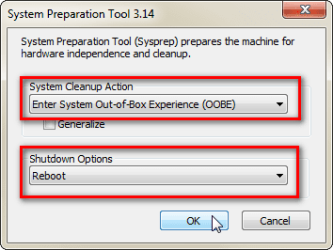
The folders are not moved before the computer is booted in OOBE (Out Of the Box Experience) mode. As long as you stay in Audit Mode or reboot to Audit Mode, nothing is done except some preparations; sysprep runs the script preparing computer to be started normally in Welcome / OOBE mode, and only then are the folders created / moved to the new address.

So, after running the script and when computer has booted back to Audit Mode, exit Audit Mode rebooting normally to OOBE as told in tutorial. You should select the SysPrep options as in this screenshot:

SysPrep_OOBE.png

When you then log in first time to Windows normal mode, you should see the new folders on location you selected.

Kari
 
Last edited:

My Computer My Computer

Computer type
Laptop
Computer Manufacturer/Model Number
HP ENVY 17-1150eg
OS
Windows 10 Pro x64 EN-GB
CPU
1.6 GHz Intel Core i7-720QM Processor
Memory
6 GB
Graphics Card(s)
ATI Mobility Radeon HD 5850 Graphics
Sound Card
Beats sound system with integrated subwoofer
Monitor(s) Displays
17" laptop display, 22" LED and 32" Full HD TV through HDMI
Screen Resolution
1600*900 (1), 1920*1080 (2&3)
Hard Drives
Internal: 2 x 500 GB SATA Hard Disk Drive 7200 rpm
External: 2TB for backups, 3TB USB3 network drive for media
Cooling
As Envy runs a bit warm, I have it on a Cooler Master pad
Keyboard
Logitech diNovo Media Desktop Laser (bluetooth)
Mouse
Logitech Performance Mouse MX
Internet Speed
50/10 Mbps VDSL
Antivirus
Windows Defender 4.3.9431.0
Browser
Maxthon 3.5.2., IE11
Hi Kari,

Thanks for the advice about the folders not moving till I boot into normal mode. That saves me looking unnecessarily.

Unfortunately the folders do not appear on D drive even after I boot normally. I have tried the routine several times doing a new install of Windows 7 each time. For the latest attempts I have been following your routine for when W7 is already installed. I will paste the commands and .xml script I have used.

Before doing that I would just add that everything seems to run as expected - eg a progress box saying Sysprep is doing something appears for a few seconds and the laptop reboots. There are no error messages. The only difference to what you describe is that when I set up windows as if a "new install", I am asked to provide a user name and password. I am then taken directly into the new account with no chance to choose my original login. When I reboot again, I am then offered the choice of original or old. Anyway, the main concern is that the User folder(s) have not moved from C to D.

These are the command prompts and the xml script I have used. F is the drive letter for the USB memory stick but I had similar results placing the xml on D drive. The Windows 7 install dvd is in the E drive

1) During install I used cd \Windows\System32\Sysprep

if booting into audit from already installed I used command prompt as administrator and C:\Windows\System32\Sysprep\Sysprep.exe /audit /reboot then I used cd \Windows\System32\Sysprep

2) Next I used Sysprep.exe /audit /reboot /unattend:F:\relocate.xml

3) This is the "relocate.xml" script (saved with word wrap off) -

Code:
<?xml version="1.0" encoding="utf-8"?>
<unattend xmlns="urn:schemas-microsoft-com:unattend">
<settings pass="oobeSystem">
<component name="Microsoft-Windows-Shell-Setup" processorArchitecture="x86" publicKeyToken="31bf3856ad364e35" language="neutral" versionScope="nonSxS" xmlns:wcm="http://schemas.microsoft.com/WMIConfig/2002/State" xmlns:xsi="http://www.w3.org/2001/XMLSchema-instance">
<FolderLocations>
<ProfilesDirectory>d:\Users</ProfilesDirectory>
<ProgramData>d:\ProgramData</ProgramData>
</FolderLocations>
</component>
</settings>
<cpi:offlineImage cpi:source="wim:E:/sources/install.wim#Windows 7 PROFESSIONAL" xmlns:cpi="urn:schemas-microsoft-com:cpi" />
</unattend>

I would be very grateful if you can spot any stupid mistakes I am making or have any ideas, I am playing with this first W7 install to check which of my XP programmes work on W7 before doing a final install "for keeps"

Thanks,
Martin
 
Last edited by a moderator:

My Computer My Computer

Computer Manufacturer/Model Number
asus
OS
xp 32
CPU
amd 3200
Motherboard
asus
Hi Brink,
Thanks for the edit and sorry I didn't know about keeping smileys at bay with code boxes!
Martin
 
Last edited:

My Computer My Computer

Computer Manufacturer/Model Number
asus
OS
xp 32
CPU
amd 3200
Motherboard
asus
Hey all, I am having the same issue as above Xosder in post 144. and derryvolge in post 156

-I installed the OS on my new SSD, C: drive
-my old hard drive, 1 TB with Windows 7 pro 32 bit still installed on it is F:
-my DVD drive is E:

my unattended.xml file contains:
Code:
<?xml version="1.0" encoding="utf-8"?>
<unattend xmlns="urn:schemas-microsoft-com:unattend">
<settings pass="oobeSystem">
<component name="Microsoft-Windows-Shell-Setup" processorArchitecture="amd64"
publicKeyToken="31bf3856ad364e35" language="neutral" versionScope="nonSxS" xmlns:wcm="http://schemas.microsoft.com/WMIConfig/2002/State" xmlns:xsi="http://www.w3.org/2001/XMLSchema-instance">
<FolderLocations> <ProfilesDirectory>[B]f[/B]:\Users</ProfilesDirectory> <ProgramData>[B]f[/B]:\ProgramData</ProgramData>
</FolderLocations> </component>
</settings>
<cpi:offlineImage cpi:source="wim:[B]E[/B]:/sources/install.wim#Windows 7 ULTIMATE" xmlns:cpi="urn:schemas-microsoft-com:cpi" />
</unattend>

In bold are the changes I made to the script on the tutorial to math my drives

Additionally, I type:
Code:
Sysprep.exe /audit /reboot /unattend:F:\relocate.xml
After running script, computer reboots in Audit mode, then when I exit Audit mode (by clicking OK on OOBE popup) and reboot occurs, I get:

"Windows could not parse or process unattend answer file C:\Windows\Panther\unattend.xml for pass oobeSystem"

This only shows up once and then I'm back to the "Windows could not complete the installation. To intall Windows on this computer, please restart the installation" over the "Setup is preparing your computer for first use" screen.

I have looked all over the internet but have not found any solution, any tips will be greatly appreciated!

Thanks
 
Last edited:

My Computer My Computer

OS
Windows 7 Ultimate 64 bit
Sorry geeks, I have been a bit busy and only occasionally checked in here. Now I had some time and checked your scripts.

First, Martin and Vict555, I find no typos or other mistakes in your scripts. If the Windows installation DVD is on drive E: as you both seem to have, if the install media is valid and includes original install.wim on Sources folder, if the destination drive exists, and if the bit version is correct (x86 for Martin and x64 for Vict), then those scripts are as far as I can tell correct.

I am very sorry but I can not explain this. As I have told earlier on this thread, sometimes it just wont work. My saldo at the moment is 16 out of 18 rigs I have done did work, 2 did not. I have done an enormous amount of Googling, Binging, Yahooing, you name it ;), and I have found no explanation. I suspect it is some Windows service that causes this. I am going to do some extensive testing next weekend trying to find out more.

Kari
 

My Computer My Computer

Computer type
Laptop
Computer Manufacturer/Model Number
HP ENVY 17-1150eg
OS
Windows 10 Pro x64 EN-GB
CPU
1.6 GHz Intel Core i7-720QM Processor
Memory
6 GB
Graphics Card(s)
ATI Mobility Radeon HD 5850 Graphics
Sound Card
Beats sound system with integrated subwoofer
Monitor(s) Displays
17" laptop display, 22" LED and 32" Full HD TV through HDMI
Screen Resolution
1600*900 (1), 1920*1080 (2&3)
Hard Drives
Internal: 2 x 500 GB SATA Hard Disk Drive 7200 rpm
External: 2TB for backups, 3TB USB3 network drive for media
Cooling
As Envy runs a bit warm, I have it on a Cooler Master pad
Keyboard
Logitech diNovo Media Desktop Laser (bluetooth)
Mouse
Logitech Performance Mouse MX
Internet Speed
50/10 Mbps VDSL
Antivirus
Windows Defender 4.3.9431.0
Browser
Maxthon 3.5.2., IE11
Back
Top