
User Profiles - Create and Move During Windows 7 Installation

How to Create User Accounts on another Partition or Disk During Windows 7 Installation

   Information
There are several methods to move user profiles to another disk or partition after you have installed Windows 7. The easiest way is to use Audit Mode and System Preparation Tool, both built-in Windows 7 features, to permanently move the location of the folder Users.

This tutorial shows how to relocate both Users and ProgramData to another disk or partition when doing a new, fresh and clean install of Windows 7. If you have already installed Seven, and you'd like to move those folders away from their default location in C: drive, please read first post number 22 in this thread. Follow the steps told in that post, and continue then from beginning of the page 4 in this tutorial.
When Windows 7 is installed, 5 or 6 system folders are created depending on chosen bit-version:

  • PerfLogs (Performance Logs), where Windows stores performance and reliability logs
  • Program Files, where applications and software are installed. Windows x86 (32-bit) stores all applications here, Windows x64 (64-bit) only native 64-bit applications
  • Program Files (x86), only in Windows x64. All non-x64 applications are stored here
  • Windows, which contains core operating system files and drivers
  • ProgramData, where some applications store application and user specific settings and configuration files
  • Users. This is the "home" of all user folders. When a new user account is created and this new user logs in first time, Windows creates a set of user specific folders Users\New_User
Moving Windows and Program Files folders is not recommend by Microsoft. However, moving both Users and ProgramData folders is safe and can save a lot of space on system disk. Pictures, mp3’s videos, documents and so on, a user folder with its subfolders can be tens, sometimes hundreds of gigabytes.

For instance, using this laptop of mine as an example, the total size of Users folder and subfolders is at the moment about 240 GB. The size of ProgramData folder is at the moment almost 18 GB. I simply could not have these folders stored in my system C: drive, there’s not enough space.

When installing Windows 7, I recommend using Windows System Preparation Tool (Sysprep) in so called Audit Mode to relocate Users and ProgramData, leaving C: drive only for Windows and applications.

   Warning

An upgraded Windows cannot be sysprepped. As this method is based in sysprepping, this tutorial is valid only for Windows setups which have not been upgraded.

This means that if you have for instance in-place upgraded Vista to Seven, you cannot sysprep. The same applies if you have upgraded from a lesser edition to a better edition, for instance from Windows 7 Home Premium to Professional.

Notice that a repair install is also an upgrade install, so if you have ever done a repair install (= in-place upgrade to same edition), you cannot sysprep.

In other words, when sysprepping an existing Windows setup it only works if the Windows was installed clean and has never been upgraded or repaired using repair install, or if it is the original pre-installed Windows.

Using this method causes Windows 7 to lose activation information, and it needs to be reactivated afterwards. If your Windows 7 is an OEM version, you might not be able to reactivate it, at least not without phone activation option.

   Warning
IE10 Users: Please read this article first: Sysprep Fatal Error With IE 10 (FIX) | System Administration


Complete tutorial as PDF: View attachment Relocate User folders during Windows 7 installation.pdf (1.22 MB)

Kari


Last edited:
Hey Kari Thanks for your great tutorial. I followed the instructions carefully and everything went well. Except for one thing... For some reason, the drive (D: ) I moved my Users folder in is a Dynamic volume, which pisses me off since I can't back it up as an image using Acronis True Image. Then I tried to convert it back to Basic volume... Which I can't since there is a system file on it. So to break this vicious cycle, I need to move back my Users folder to my C: drive. Reading the previous posts, I found that you can reverse the process by changing a few things in the answer file and running sysprep. I put my windows installation CD in drive F: and booted in sysprep using the run command you gave earlier. I created the XML which looks like this (I am using Home Premium 64):


I opened command prompt but when I tried to enter command lines I got this...

What did i do wrong? Is there another command to use when evertything is already installed and user has been created? Anyways, I rebooted in OOBE mode, created a new temporary user and logged back in my real one, waiting for your genius to strike again. Everything seems to be fine except that damn command path that won't work like I thought it would... (PS: sorry i was lazy about cropping screenshots)
(PPS: please keep it as simple as possible since I am not really a computer whiz, more of a gamer :P)
 
Last edited:

My Computer My Computer

At a glance

Windows 7 Home Premium
OS
Windows 7 Home Premium
Error In Following Tutorial

I am doing a fresh install of WIN 7 on a new build with an SSD drive for C: boot drive and two 4TB in Raid 1 for storage and data. I followed the tutorial using Audit Mode to move the program data files and user files from the SSD to the data hard disk. When I entered the commend Sysprep.exe /audit /reboot /unattend:C:\relocate.xml I received the following error message: "System Preparation Tool 3.14 Windows could not parse or process unattend answer file [c:\relocate.xml]. The answer file is invalid. The error was detected at line 4 column 1 of the answer file." I checked the file relocate.xml I created against that in the tutorial posted in the forum and it is identical except for the appropriate drive letters. Can anyone assist?
 

My Computer My Computer

At a glance

Windows 7 Professional 64 bit
OS
Windows 7 Professional 64 bit
Hey Kari Thanks for your great tutorial. I followed the instructions carefully and everything went well. Except for one thing... For some reason, the drive (D: ) I moved my Users folder in is a Dynamic volume, which pisses me off since I can't back it up as an image using Acronis True Image. Then I tried to convert it back to Basic volume... Which I can't since there is a system file on it. So to break this vicious cycle, I need to move back my Users folder to my C: drive. Reading the previous posts, I found that you can reverse the process by changing a few things in the answer file and running sysprep. I put my windows installation CD in drive F: and booted in sysprep using the run command you gave earlier. I created the XML which looks like this (I am using Home Premium 64):


I opened command prompt but when I tried to enter command lines I got this...

What did i do wrong? Is there another command to use when evertything is already installed and user has been created? Anyways, I rebooted in OOBE mode, created a new temporary user and logged back in my real one, waiting for your genius to strike again. Everything seems to be fine except that damn command path that won't work like I thought it would... (PS: sorry i was lazy about cropping screenshots)
(PPS: please keep it as simple as possible since I am not really a computer whiz, more of a gamer :P)

Looking at why your command didn't work is cause you had a space in between \ and Windows . Its all one thing no spaces example
CD \WINDOWS\SYSTEM32\SYSPREP . You only have a space between " CD and \ " if it doesn't open up to that command then try typing in C:\ and it should go to C:\Windows\System32\Sysprep . Like in the image below. Typing \Windows is the same thing as typing C:\Windows .

2zojh2c.png


@ JPOLIKA … Looking at the tutorial it looks like the relocate.XML file is located inside the D:\ . Try placing the file to a USB flash drive and just change the letter to the letter of the Flash Drive .
 

My Computer My Computer

At a glance

Windows 7 Ultimate 32-Bit & Windows 7 Ultimat...Intel Core i7 CPU 950 @ 3.07GHzOCZ 6GB (3 x 2GB) 240-Pin DDR3 SDRAM DDR3 160...ATI Radeon HD 5700 Series
Computer Manufacturer/Model Number
Custom Built
OS
Windows 7 Ultimate 32-Bit & Windows 7 Ultimate 64-Bit
CPU
Intel Core i7 CPU 950 @ 3.07GHz
Motherboard
ASUS P6T DELUXE V2
Memory
OCZ 6GB (3 x 2GB) 240-Pin DDR3 SDRAM DDR3 1600 OCZ3X1600R2
Graphics Card(s)
ATI Radeon HD 5700 Series
Sound Card
OnBoard
Hard Drives
WD6400AACS-00M3B0 (640GB SATA )
PSU
CORSAIR 850w
Case
NZXT LEXA
Cooling
Intel Stock Heatsink Fan
Keyboard
Microsoft Wireless Laser Keyboard 7000
Mouse
Microsoft Wireless Laser Mouse 7000
@VistaKing First thing didn't work, it wasn't the space. As for second solution, I tried it before first posting but didn't know I had to put "cd" before "space"C:\ (don<t know shit about this stuff :P) so I gave it a try and guess what... IT WORKED :D!!!

So I want to say big thanks to both Kari and VistaKing pour their great help in making my rig super fast and all prep'd up for gaming ;). I can't tell you how much it means to finally be able to stop beating my head against my desk trying to figure out how to make everything work correctly. THANK YOU SOOO MUCH!
 

My Computer My Computer

At a glance

Windows 7 Home Premium
OS
Windows 7 Home Premium
Glad you have solved your issue . Glad to help .
 

My Computer My Computer

At a glance

Windows 7 Ultimate 32-Bit & Windows 7 Ultimat...Intel Core i7 CPU 950 @ 3.07GHzOCZ 6GB (3 x 2GB) 240-Pin DDR3 SDRAM DDR3 160...ATI Radeon HD 5700 Series
Computer Manufacturer/Model Number
Custom Built
OS
Windows 7 Ultimate 32-Bit & Windows 7 Ultimate 64-Bit
CPU
Intel Core i7 CPU 950 @ 3.07GHz
Motherboard
ASUS P6T DELUXE V2
Memory
OCZ 6GB (3 x 2GB) 240-Pin DDR3 SDRAM DDR3 1600 OCZ3X1600R2
Graphics Card(s)
ATI Radeon HD 5700 Series
Sound Card
OnBoard
Hard Drives
WD6400AACS-00M3B0 (640GB SATA )
PSU
CORSAIR 850w
Case
NZXT LEXA
Cooling
Intel Stock Heatsink Fan
Keyboard
Microsoft Wireless Laser Keyboard 7000
Mouse
Microsoft Wireless Laser Mouse 7000
@ Jpolika: do not put the answer file on C:, put it on another drive. If still not working post the answer file as you have it here.

About that ThreatSignal's issue which VistaKing already solved:

It was the extra space. Removing it would have CD'd C: drive to correct folder. However, even if you had fixed it the next command (sysprep) had not worked for you were on the wrong drive, the D: drive.

For future readers sake I will try to explain this:
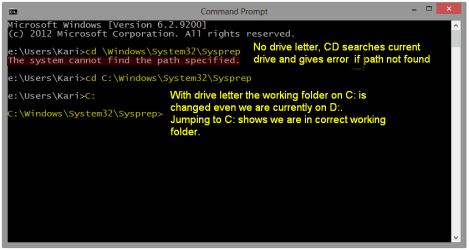
CD is a command used to change the current working folder, acronym coming from words Change Directory (Directory = how we called Folder back in the old days...). If the CD command is given with preceding drive letter for example CD C:\Windows\System32\Sysprep it changes the working folder on said drive (C: in this example) but does not go there if the command is given when you are currently on another drive. You were on drive D: so you had stayed there even after succesful CD on C: drive.

When the CD command is given as VistaKing told without preceding drive letter as CD \Windows\System32\Sysprep, the CD command searches the current D: drive for that folder path and when not found, gives an error message.

Correct procedure for you had been first to change current drive by typing C: and pressing Enter, thereafter CD command on C:. Or vice versa, change the working folder on C: and then jump there with C: + Enter:

CommandPrompt.png

You could also have given the command to open sysprep directly just writing the path and command name and pressing Enter. This way it is the same in which drive you currently are, command is run anyway:
Code:
C:\Windows\System32\Sysprep\Sysprep.exe

Kari
 

My Computer My Computer

At a glance

Windows 10 Pro x64 EN-GB1.6 GHz Intel Core i7-720QM Processor6 GBATI Mobility Radeon HD 5850 Graphics
Computer type
Laptop
Computer Manufacturer/Model Number
HP ENVY 17-1150eg
OS
Windows 10 Pro x64 EN-GB
CPU
1.6 GHz Intel Core i7-720QM Processor
Memory
6 GB
Graphics Card(s)
ATI Mobility Radeon HD 5850 Graphics
Sound Card
Beats sound system with integrated subwoofer
Monitor(s) Displays
17" laptop display, 22" LED and 32" Full HD TV through HDMI
Screen Resolution
1600*900 (1), 1920*1080 (2&3)
Hard Drives
Internal: 2 x 500 GB SATA Hard Disk Drive 7200 rpm
External: 2TB for backups, 3TB USB3 network drive for media
Cooling
As Envy runs a bit warm, I have it on a Cooler Master pad
Keyboard
Logitech diNovo Media Desktop Laser (bluetooth)
Mouse
Logitech Performance Mouse MX
Internet Speed
50/10 Mbps VDSL
Antivirus
Windows Defender 4.3.9431.0
Browser
Maxthon 3.5.2., IE11
Kari I will try the thumb drive method next time we are up at this location where the new machine is in about 2 weeks time. Thanks for the information.
 

My Computer My Computer

At a glance

Windows 7 Professional 64 bit
OS
Windows 7 Professional 64 bit
It must not be a thumb drive, it can also be another HD partition, D: or E: or anything.
 

My Computer My Computer

At a glance

Windows 10 Pro x64 EN-GB1.6 GHz Intel Core i7-720QM Processor6 GBATI Mobility Radeon HD 5850 Graphics
Computer type
Laptop
Computer Manufacturer/Model Number
HP ENVY 17-1150eg
OS
Windows 10 Pro x64 EN-GB
CPU
1.6 GHz Intel Core i7-720QM Processor
Memory
6 GB
Graphics Card(s)
ATI Mobility Radeon HD 5850 Graphics
Sound Card
Beats sound system with integrated subwoofer
Monitor(s) Displays
17" laptop display, 22" LED and 32" Full HD TV through HDMI
Screen Resolution
1600*900 (1), 1920*1080 (2&3)
Hard Drives
Internal: 2 x 500 GB SATA Hard Disk Drive 7200 rpm
External: 2TB for backups, 3TB USB3 network drive for media
Cooling
As Envy runs a bit warm, I have it on a Cooler Master pad
Keyboard
Logitech diNovo Media Desktop Laser (bluetooth)
Mouse
Logitech Performance Mouse MX
Internet Speed
50/10 Mbps VDSL
Antivirus
Windows Defender 4.3.9431.0
Browser
Maxthon 3.5.2., IE11
Kari ,
Thank You for clarifying the CD command to ThreatSignal. I have the ProfileDirectory and ProgramData Directory done inside Windows SIM and save the file as Autounattend.xml and place the file inside the root of a Flash Drive . It wipes the drive and partitions it and puts the Users and ProgramData folder into D automatically .
 

My Computer My Computer

At a glance

Windows 7 Ultimate 32-Bit & Windows 7 Ultimat...Intel Core i7 CPU 950 @ 3.07GHzOCZ 6GB (3 x 2GB) 240-Pin DDR3 SDRAM DDR3 160...ATI Radeon HD 5700 Series
Computer Manufacturer/Model Number
Custom Built
OS
Windows 7 Ultimate 32-Bit & Windows 7 Ultimate 64-Bit
CPU
Intel Core i7 CPU 950 @ 3.07GHz
Motherboard
ASUS P6T DELUXE V2
Memory
OCZ 6GB (3 x 2GB) 240-Pin DDR3 SDRAM DDR3 1600 OCZ3X1600R2
Graphics Card(s)
ATI Radeon HD 5700 Series
Sound Card
OnBoard
Hard Drives
WD6400AACS-00M3B0 (640GB SATA )
PSU
CORSAIR 850w
Case
NZXT LEXA
Cooling
Intel Stock Heatsink Fan
Keyboard
Microsoft Wireless Laser Keyboard 7000
Mouse
Microsoft Wireless Laser Mouse 7000
I'm so used to command line I never stop to think not all users know or like it. To start Sysprep UI in a "modern" way:
Press Win + R to open Run dialog, type %windir%\system32\sysprep\sysprep.exe, click OK.

:) Kari
 

My Computer My Computer

At a glance

Windows 10 Pro x64 EN-GB1.6 GHz Intel Core i7-720QM Processor6 GBATI Mobility Radeon HD 5850 Graphics
Computer type
Laptop
Computer Manufacturer/Model Number
HP ENVY 17-1150eg
OS
Windows 10 Pro x64 EN-GB
CPU
1.6 GHz Intel Core i7-720QM Processor
Memory
6 GB
Graphics Card(s)
ATI Mobility Radeon HD 5850 Graphics
Sound Card
Beats sound system with integrated subwoofer
Monitor(s) Displays
17" laptop display, 22" LED and 32" Full HD TV through HDMI
Screen Resolution
1600*900 (1), 1920*1080 (2&3)
Hard Drives
Internal: 2 x 500 GB SATA Hard Disk Drive 7200 rpm
External: 2TB for backups, 3TB USB3 network drive for media
Cooling
As Envy runs a bit warm, I have it on a Cooler Master pad
Keyboard
Logitech diNovo Media Desktop Laser (bluetooth)
Mouse
Logitech Performance Mouse MX
Internet Speed
50/10 Mbps VDSL
Antivirus
Windows Defender 4.3.9431.0
Browser
Maxthon 3.5.2., IE11
OK, I have tested a new, different scenario now on three PC's, and it works. Here's what you should do if installing Seven on SSD and relocating User folders using this method, or if for any reason wanting to move ProgramData and / or Users after Windows is already installed. This method can be used whenever you want to relocate Users to another disk on an existing installation of Seven.

If you want to install Seven on an SSD: Install Seven normally to SSD, disconnecting all other disks. After Windows has booted first time normally after installation, shut the computer down and reconnect other disks. Reboot Windows.

Relocating Users and ProgramData folders when Windows Seven is already installed:

Run Command Prompt as administrator by clicking Start Menu > All Programs > Accessories, then right clicking Command Prompt and selecting Run as Administrator:

View attachment 128354

Type this to command prompt: C:\Windows\System32\Sysprep\Sysprep.exe /audit /reboot, hit Enter.

View attachment 128355

Windows reboots now to Audit Mode, "thinking" it's been started first time as the message on screen shows:

View attachment 128356

Now continue from beginning of page 4 in tutorial, and follow the steps described. Running the script causes Windows to move ProgramData and Users folders from C: to another disk or partition, also moving all content of said folders. The later you do this, the longer it takes because Windows has more to move.

Notice that this really makes Windows think it's first boot, so you have to select country and keyboard layout and again create a user account when first time booted in OOBE (normal) mode after running the script. Because the Users folder already contains your user account folders, you get an error message if trying to input the same name:

View attachment 128342

Use a temporary name, for instance Test to continue first boot routine. When Windows stops for login, choose your old account to login, for instance in my case I chose here Kari and not the account Test which I just created:

View attachment 128343

When finally in Windows desktop, go to User Accounts and remove the unnecessary Test account. That account has yet no folders to remove because Windows does not create user folders when user account is created; the user folders are only created when user logs in first time.

That's it. Works without any problems whatsoever.

Kari
Does it really relocate all already made users? So for example C:\users\myname will be transfer to D:\base\myname? All junction points will also be created in D:\base\myname ?
Some installed programs save some stuff like C:\users\myname\documents hardcoded in registry. Will this be fixed?

Or does it just create a junction from C:\USERS to D:\BASE and moving all stuff (also junctions) inside?
Just doubleclick on C:\USERS and check
 

My Computer My Computer

At a glance

Microsoft Windows 7 Home Premium 64-bits 7601...Intel(R) Core(TM) i3 CPU M 370 @ 2.40GHz4,00 GBATI Mobility Radeon HD 5400 Series
Computer type
Laptop
Computer Manufacturer/Model Number
ACER ASPIRE 5742G
OS
Microsoft Windows 7 Home Premium 64-bits 7601 Multiprocessor Free Service Pack 1
CPU
Intel(R) Core(TM) i3 CPU M 370 @ 2.40GHz
Motherboard
Acer Aspire 5742G
Memory
4,00 GB
Graphics Card(s)
ATI Mobility Radeon HD 5400 Series
Sound Card
(1) AMD High Definition Audio Device (2) Realtek High Defi
Screen Resolution
1366 x 768 x 32 bits (4294967296 colors) @ 60 Hz
Hard Drives
WDC WD5000BEVT-22ZAT0
Yes, it transfers everything. The first OOBE boot after sysprep might take a long time, though, depending on how much user data there is to move (the move itself is not done when sysprepped, it's done during first OOBE boot).

All registry entries will be changed (current user, default user all users etc.), for this method changes the value of <ProfilesDirectory> variable completely, going through every instance of it in registry. It kind of hard codes the new value of this environment variable to the system. Each and every existing profile will be moved.

It does not create any junctions or links. It simply changes the default value of a Windows environment variable and acts thereafter as if this new value were the correct, default value. Drive_X:\Users will be the default value of <ProfilesDirectory> in every aspect, in a failproof way.

Kari
 

My Computer My Computer

At a glance

Windows 10 Pro x64 EN-GB1.6 GHz Intel Core i7-720QM Processor6 GBATI Mobility Radeon HD 5850 Graphics
Computer type
Laptop
Computer Manufacturer/Model Number
HP ENVY 17-1150eg
OS
Windows 10 Pro x64 EN-GB
CPU
1.6 GHz Intel Core i7-720QM Processor
Memory
6 GB
Graphics Card(s)
ATI Mobility Radeon HD 5850 Graphics
Sound Card
Beats sound system with integrated subwoofer
Monitor(s) Displays
17" laptop display, 22" LED and 32" Full HD TV through HDMI
Screen Resolution
1600*900 (1), 1920*1080 (2&3)
Hard Drives
Internal: 2 x 500 GB SATA Hard Disk Drive 7200 rpm
External: 2TB for backups, 3TB USB3 network drive for media
Cooling
As Envy runs a bit warm, I have it on a Cooler Master pad
Keyboard
Logitech diNovo Media Desktop Laser (bluetooth)
Mouse
Logitech Performance Mouse MX
Internet Speed
50/10 Mbps VDSL
Antivirus
Windows Defender 4.3.9431.0
Browser
Maxthon 3.5.2., IE11
Yes, it transfers everything. The first OOBE boot after sysprep might take a long time, though, depending on how much user data there is to move (the move itself is not done when sysprepped, it's done during first OOBE boot).

All registry entries will be changed, for this method changes the value of <ProfilesDirectory> variable completely, going through every instance of it in registry. It kind of hard codes the new value of this environment variable to the system.

It does not create any junctions or links. It simply changes the default value of a Windows environment variable and acts thereafter as if this new value were the correct, default value. Drive_X:\Users will be the default value of <ProfilesDirectory> in every aspect, in a failproof way.

Kari
So it does sort of search and replace on ALL user registry files. But does it do the same thing on ini files and for example settings.dat in appdata? Many programs save their settings in appdata in files like settings.dat, perferences.cfg etc.
 

My Computer My Computer

At a glance

Microsoft Windows 7 Home Premium 64-bits 7601...Intel(R) Core(TM) i3 CPU M 370 @ 2.40GHz4,00 GBATI Mobility Radeon HD 5400 Series
Computer type
Laptop
Computer Manufacturer/Model Number
ACER ASPIRE 5742G
OS
Microsoft Windows 7 Home Premium 64-bits 7601 Multiprocessor Free Service Pack 1
CPU
Intel(R) Core(TM) i3 CPU M 370 @ 2.40GHz
Motherboard
Acer Aspire 5742G
Memory
4,00 GB
Graphics Card(s)
ATI Mobility Radeon HD 5400 Series
Sound Card
(1) AMD High Definition Audio Device (2) Realtek High Defi
Screen Resolution
1366 x 768 x 32 bits (4294967296 colors) @ 60 Hz
Hard Drives
WDC WD5000BEVT-22ZAT0
Yes. Everything.

Create a test machine on VirtualBox or VMware and see it yourself. When the variable value is changed, everything that was previously pointed at C:\Users will now be pointing to X:\Users.

Not many days ago I showed a neighbor how to do this. Over 80 gigs of user data on two accounts, Ms Office, VLC and a few more players, PhotoShop, Windows Live apps, bunch of games and other installed apps. Took almost an hour, everything works.

Kari
 

My Computer My Computer

At a glance

Windows 10 Pro x64 EN-GB1.6 GHz Intel Core i7-720QM Processor6 GBATI Mobility Radeon HD 5850 Graphics
Computer type
Laptop
Computer Manufacturer/Model Number
HP ENVY 17-1150eg
OS
Windows 10 Pro x64 EN-GB
CPU
1.6 GHz Intel Core i7-720QM Processor
Memory
6 GB
Graphics Card(s)
ATI Mobility Radeon HD 5850 Graphics
Sound Card
Beats sound system with integrated subwoofer
Monitor(s) Displays
17" laptop display, 22" LED and 32" Full HD TV through HDMI
Screen Resolution
1600*900 (1), 1920*1080 (2&3)
Hard Drives
Internal: 2 x 500 GB SATA Hard Disk Drive 7200 rpm
External: 2TB for backups, 3TB USB3 network drive for media
Cooling
As Envy runs a bit warm, I have it on a Cooler Master pad
Keyboard
Logitech diNovo Media Desktop Laser (bluetooth)
Mouse
Logitech Performance Mouse MX
Internet Speed
50/10 Mbps VDSL
Antivirus
Windows Defender 4.3.9431.0
Browser
Maxthon 3.5.2., IE11
Kaktussoft yes it is all truly moved and it is one system spread over two drives. Even new accounts will be created on the secondary drive. when you click, say Documents, from the Start menu it will open without you even knowing Documents is on another drive. Nice slick way to do it. Even the Desktop folder is moved since it is in the Users folder.

My hang up was predicting how windows would assign drive letters for the script.
 

My Computer My Computer

At a glance

Windows 7 Ultimate X64 SP1Intel i5-2550K, Differing ~4.4-4.8GHz No buil...16GB G.Skill Sniper 1866MHz @ 2133MHz 2x8GBASUS GTX650TIB-DC2OC-2GD5, (650TI Boost)
Computer type
PC/Desktop
Computer Manufacturer/Model Number
Home Built Desktop By DataTech
OS
Windows 7 Ultimate X64 SP1
CPU
Intel i5-2550K, Differing ~4.4-4.8GHz No built in GPU
Motherboard
ASUS P8Z68-V PRO/GEN3
Memory
16GB G.Skill Sniper 1866MHz @ 2133MHz 2x8GB
Graphics Card(s)
ASUS GTX650TIB-DC2OC-2GD5, (650TI Boost)
Sound Card
Onboard Realtek 5-1
Monitor(s) Displays
Samsung P2570HD
Screen Resolution
1920x1080
Hard Drives
Samsung 840 Pro 256GB SSD for OS, 500GB Seagate Constellation (Enterprise drive) for Data
PSU
Corsair HX650W
Case
Inwin Dragon Rider
Cooling
Hyper 212 EVO w/two Noctua fans, push-pull, @1300 RPM
Keyboard
E-Z Eyes, bright yellow keys with large characters
Mouse
steelseries SENSEI Laser Pro Gaming
Internet Speed
48-51Mbs Mbs down, 11 Mbs up Xfinity Cable
Antivirus
Norton Internet Security 2013
Browser
IE 10, Opera, Pale Moon if needed
Other Info
4 case fans, LG BluRay-RE, ASUS DVD-RW, Mr. Fusion power supply, 1.21 gigawatts.
Hey, it's me again :) I have got some weird problem here. Installing Win 7 Enterprise 64bit on new and shiny computer. I have spent 2 days in Audit mode now installing drivers and other stuff. Now I would like to relocate Users and ProgramData folder. I have been doing this before on the old computer and it worked, that's why I am confused now.

Problem is, that sysprep.exe is not there where it should be. C:\Windows\System32\sysprep contains only empty folder "en-US". Same goes for C:\Windows\SysWOW64\sysprep.

I tried searching whole C: and it found it only once at this weird location:
C:\Windows\winsxs\amd64_microsoft-windows-sysprep_31bf3856ad364e35_6.1.7600.16385_none_4b73926c122be805\sysprep.exe

I am not really sure if I am supposed to use this one.

Anyway, only difference from the PDF guide is the dialog of sysprep tool when first booting to it from installation. I have been using another tutorial of yours and there is stated:

Now let's quit Sysprep t be able to customize Windows and install drivers and software. Select System Cleanup Action: Enter System Audit Mode and Shutdown Options: Quit as shown below and click OK
Could this cause the problem ? I tried restarting windows, dialog is always appearing again and I had hit Cancel, but to no use.
 
Last edited:

My Computer My Computer

At a glance

Windows 7 Enterprise 64bitIntel Core i5 3470DDR3 Corsair XMS3 8GBNVidia GeForce GTX 260 (Gainward)
Computer type
PC/Desktop
OS
Windows 7 Enterprise 64bit
CPU
Intel Core i5 3470
Motherboard
ASUS P8Z77-M
Memory
DDR3 Corsair XMS3 8GB
Graphics Card(s)
NVidia GeForce GTX 260 (Gainward)
Sound Card
Realtek High Definition Audio
Monitor(s) Displays
LG 22''
Screen Resolution
1680 x 1050
Hard Drives
SSD Crucial M4 128GB
Seagate 750GB (7200.10)
Seagate 320GB (7200.8)
Seagate 250GB (7200.8)
Case
Fractal Design Define R4 - Black Pearl
Cooling
Arctic Freezer 13 + Artic Accelero Extreme Plus II
Internet Speed
cabel, 30MBit
Antivirus
Avast
Browser
Comodo Dragon, Waterfox
No, that is not the issue. I have never heard or seen about an empty sysprep folder. If your install media is valid, and you have done a normal install, it should be there.

I have to do some research, as I said this is the first time ever I have heard anything like this.

I have a suggestion, but I need first really warn you: I believe the tip below works, but as I cannot be sure I simply refuse any kind of responsibility if it fails. You need to understand the risks and that it might cause you losing the Windows functionality.

OK, the tip: Use sysprep from component storage folder (WinSxS) by running your answer file as follows:
Code:
C:\Windows\winsxs\amd64_microsoft-windows-sysprep_31bf3856ad364e35_6.1.7600.16385_none_4b73926c122be805\sysprep.exe /audit /reboot /unattend:DRIVE:\RELOCATE.XML

Interested to hear how it went...

Kari
 

My Computer My Computer

At a glance

Windows 10 Pro x64 EN-GB1.6 GHz Intel Core i7-720QM Processor6 GBATI Mobility Radeon HD 5850 Graphics
Computer type
Laptop
Computer Manufacturer/Model Number
HP ENVY 17-1150eg
OS
Windows 10 Pro x64 EN-GB
CPU
1.6 GHz Intel Core i7-720QM Processor
Memory
6 GB
Graphics Card(s)
ATI Mobility Radeon HD 5850 Graphics
Sound Card
Beats sound system with integrated subwoofer
Monitor(s) Displays
17" laptop display, 22" LED and 32" Full HD TV through HDMI
Screen Resolution
1600*900 (1), 1920*1080 (2&3)
Hard Drives
Internal: 2 x 500 GB SATA Hard Disk Drive 7200 rpm
External: 2TB for backups, 3TB USB3 network drive for media
Cooling
As Envy runs a bit warm, I have it on a Cooler Master pad
Keyboard
Logitech diNovo Media Desktop Laser (bluetooth)
Mouse
Logitech Performance Mouse MX
Internet Speed
50/10 Mbps VDSL
Antivirus
Windows Defender 4.3.9431.0
Browser
Maxthon 3.5.2., IE11
Ok seems solved now, but I am not sure how and why. I again tried to do what is quoted up there in my post and that way the sysprep.exe stayed where it should. Although it had reset some settings like taskbar icons, but that's not big deal, since this is just admin account. I just hope it will be really moved once I finish it here.
 

My Computer My Computer

At a glance

Windows 7 Enterprise 64bitIntel Core i5 3470DDR3 Corsair XMS3 8GBNVidia GeForce GTX 260 (Gainward)
Computer type
PC/Desktop
OS
Windows 7 Enterprise 64bit
CPU
Intel Core i5 3470
Motherboard
ASUS P8Z77-M
Memory
DDR3 Corsair XMS3 8GB
Graphics Card(s)
NVidia GeForce GTX 260 (Gainward)
Sound Card
Realtek High Definition Audio
Monitor(s) Displays
LG 22''
Screen Resolution
1680 x 1050
Hard Drives
SSD Crucial M4 128GB
Seagate 750GB (7200.10)
Seagate 320GB (7200.8)
Seagate 250GB (7200.8)
Case
Fractal Design Define R4 - Black Pearl
Cooling
Arctic Freezer 13 + Artic Accelero Extreme Plus II
Internet Speed
cabel, 30MBit
Antivirus
Avast
Browser
Comodo Dragon, Waterfox
hello it's working i have complete it, it's really simple good work kari you have make e good tutorial .
thx for the help
 

My Computer My Computer

At a glance

win7 hom 64
OS
win7 hom 64
That was good news! Happy computing, Scorpio.

Kari
 

My Computer My Computer

At a glance

Windows 10 Pro x64 EN-GB1.6 GHz Intel Core i7-720QM Processor6 GBATI Mobility Radeon HD 5850 Graphics
Computer type
Laptop
Computer Manufacturer/Model Number
HP ENVY 17-1150eg
OS
Windows 10 Pro x64 EN-GB
CPU
1.6 GHz Intel Core i7-720QM Processor
Memory
6 GB
Graphics Card(s)
ATI Mobility Radeon HD 5850 Graphics
Sound Card
Beats sound system with integrated subwoofer
Monitor(s) Displays
17" laptop display, 22" LED and 32" Full HD TV through HDMI
Screen Resolution
1600*900 (1), 1920*1080 (2&3)
Hard Drives
Internal: 2 x 500 GB SATA Hard Disk Drive 7200 rpm
External: 2TB for backups, 3TB USB3 network drive for media
Cooling
As Envy runs a bit warm, I have it on a Cooler Master pad
Keyboard
Logitech diNovo Media Desktop Laser (bluetooth)
Mouse
Logitech Performance Mouse MX
Internet Speed
50/10 Mbps VDSL
Antivirus
Windows Defender 4.3.9431.0
Browser
Maxthon 3.5.2., IE11
Back
Top