Did you decide you want to move the hard drive into the new PC to try that first, use the factory installed Win7, or do a
Clean Reinstall Windows 7?
Since it hasn't been explicated beyond the link Ignatz posted earlier, to move the hard drive you presently have it would need to be SATA, swapped in to replace the present one for adjustment. Then enter BIOS setup to enable CSM or Legacy BIOS to disable any UEFI settings present.
Now boot the PAR disk provided to
Adjust Win7 to boot on new hardware with Paragon Adaptive Restore CD to do P2P Adjust which might prompt for SATA controller driver in order to do its magic. That driver along with all others will be on the PC's Support Downloads webpage if not in the PAR disk which contains the Win7 driverstore.
After adjust, reboot the PC to see if it will start and if not confirm that the correct partition is
Partition Marked Active then run
Startup Repair - Run 3 Separate Times until it starts. If it won't start even then there is likely more BIOS settings that need adjustment, so post back camera snaps of any UEFI, CSM, Legacy BIOS and BIOS BOot Priority order settings.
Once it starts it should swap out all drivers in a cascade which can be monitored from the animation in the System Tray. After several reboots, once all drivers are swapped, install the PC's Network driver from its Support Downloads webpage if necessary - you can plug in by ethernet wire to maximize chance it will start up connected.
Once online enable
Automatically deliver drivers via Windows Update (Step 3), Check for Updates, install all Important and Optional except Bingware, with reboots, until no more are offered. Even under Optional there will be patches needed to make hardware and software run correctly.
Next check Device Manager to import any drivers still missing from the PC's Downloads page. We can help you find any of these. Observe functions like cam, hotkeys, backlighting, etc. to see if they work as these softwares may be needed from the Downloads page too, but should only be added as needed to keep the install cleanest.
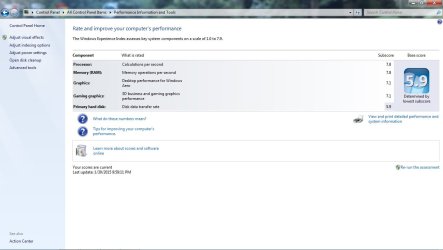
Now you're ready to test performance to see how this compares to the factory install or if there is any doubt doing a perfect
Clean Reinstall Windows 7. Even if you don't do one the tools and methods in that tutorial will assure you are doing everything that works best with Win7 based on tens of thousands of cases we've helped with here.