
Solved Win 7 Disk Info Location?

Y0GI

New member
Local time
9:18 PM
Messages
27
Location
League City, Texas (Houston)
Hello friends,


According to HD Sentinel Pro, my 7 year old 1 TB Seagate HDD is sick: "The drive found 8 bad sectors during its self test." So, I bought a Crucial MX500 1 TB SSD to replace it. I have 2 problems:


First, I am unable to find that page within Win 7 that shows both a table of all of the drive info at the top followed by a graphical display of the installed drives, with bars that represent each drive, the partitions, and the free space. Do you know what I am talking about? Where is this feature located, please?


Second, My primary drive is a 120 GB Samsung 840 Pro SSD which contains my C: drive with my Win 7 Pro 64 Bit OS. For some unknown reason, the "System Reserved" partition is located on the Seagate HDD. Shouldn't the SR partition be on the same drive (Samsung SSD) as the OS?

If I remove the Seagate HDD, will the system be able to boot w/o the SR partition?
If not, how do I transfer the SR partition from the HDD to the SSD? (Yes, I have plenty of space on the SSD).


Thanks!


Yogi
 

My Computer

Computer type
PC/Desktop
Computer Manufacturer/Model Number
Custom Built
OS
Windows 7 Pro X64
CPU
Intel Core i5 4670K
Motherboard
MSI Z87-G43
Memory
8 GB Crucial Ballistix Tactical
Graphics Card(s)
Intel Integrated GT 4600
Hard Drives
Seagate Barracuda 1 TB
Antivirus
AVG Free
Browser
Firefox
You want disk managment to show the details if you post a screenshot from that showing all the details we can see what's going on
 

My Computer

Computer type
PC/Desktop
OS
win 8 32 bit
First, I am unable to find that page within Win 7 that shows both a table of all of the drive info at the top followed by a graphical display of the installed drives, with bars that represent each drive, the partitions, and the free space. Do you know what I am talking about? Where is this feature located, please?
Click the Start button, and in the Search box at the bottom of the pop-up Start Menu, type "disk management".


If I remove the Seagate HDD, will the system be able to boot w/o the SR partition?
"System Reserved" is just the label on a partition. Any partition can be labeled "System Reserved". What matters is whether it is configured as the "System" partition.

In the aformentioned Disk Management, check all the descriptions (where it says "Healthy..."). "System" and "Boot" are the relevant identifiers. "Boot" should be your OS partition (usually designated C:). "System" may be the same as "Boot", or may be a different partition. "System" should also be designated "Active".
If the partition on your Seagate is indeed designated "System", then you are correct -- your system will no longer boot if you remove the Seagate.

You can create a new partition on the SSD and configure it to serve as the "System" partition, though an easier solution is to simply make your OS partition "System". The "System" partition does not have to be separate from the "Boot" partition.
 

My Computer

Computer type
PC/Desktop
Computer Manufacturer/Model Number
Dell Optiplex 7050
OS
Windows 7/8.1/10 multiboot
CPU
Intel Core i7-7700
Motherboard
Dell, Intel Q270 chipset
Memory
48GB (2x16GB Crucial DDR4-3200 + 2x8GB Hynix DDR4-2400)
Graphics Card(s)
Intel HD630 + AMD Radeon R7 450 PCIe
Monitor(s) Displays
Asus VC279 (27")
Screen Resolution
1920x1080
Hard Drives
Toshiba M.2 NVMe (256GB),
Samsung 960 Evo (500GB),
WD Red Plus 80EFBX (8TB)
Thank you very much, samuria and dg1261!


Yes, Disk Management was the feature that I was looking for.


It turns out that the "System Reserved" partition on Seagate is NOT the "System" drive, C: IS.


I found an option in HD Sentinel to repair the Seagate Non-destructively and I used it. HD Sentinel says that the Seagate is now back to 100% error free.


I'm not feeling too good right now. I'll post a screen shot later.


Thanks again for the HUGE help!


Yogi
 

My Computer

Computer type
PC/Desktop
Computer Manufacturer/Model Number
Custom Built
OS
Windows 7 Pro X64
CPU
Intel Core i5 4670K
Motherboard
MSI Z87-G43
Memory
8 GB Crucial Ballistix Tactical
Graphics Card(s)
Intel Integrated GT 4600
Hard Drives
Seagate Barracuda 1 TB
Antivirus
AVG Free
Browser
Firefox
I haven't used IMGR.COM in a LOOONG time! I hope that this works?

v9Kg6No.jpg
v9Kg6No.jpg

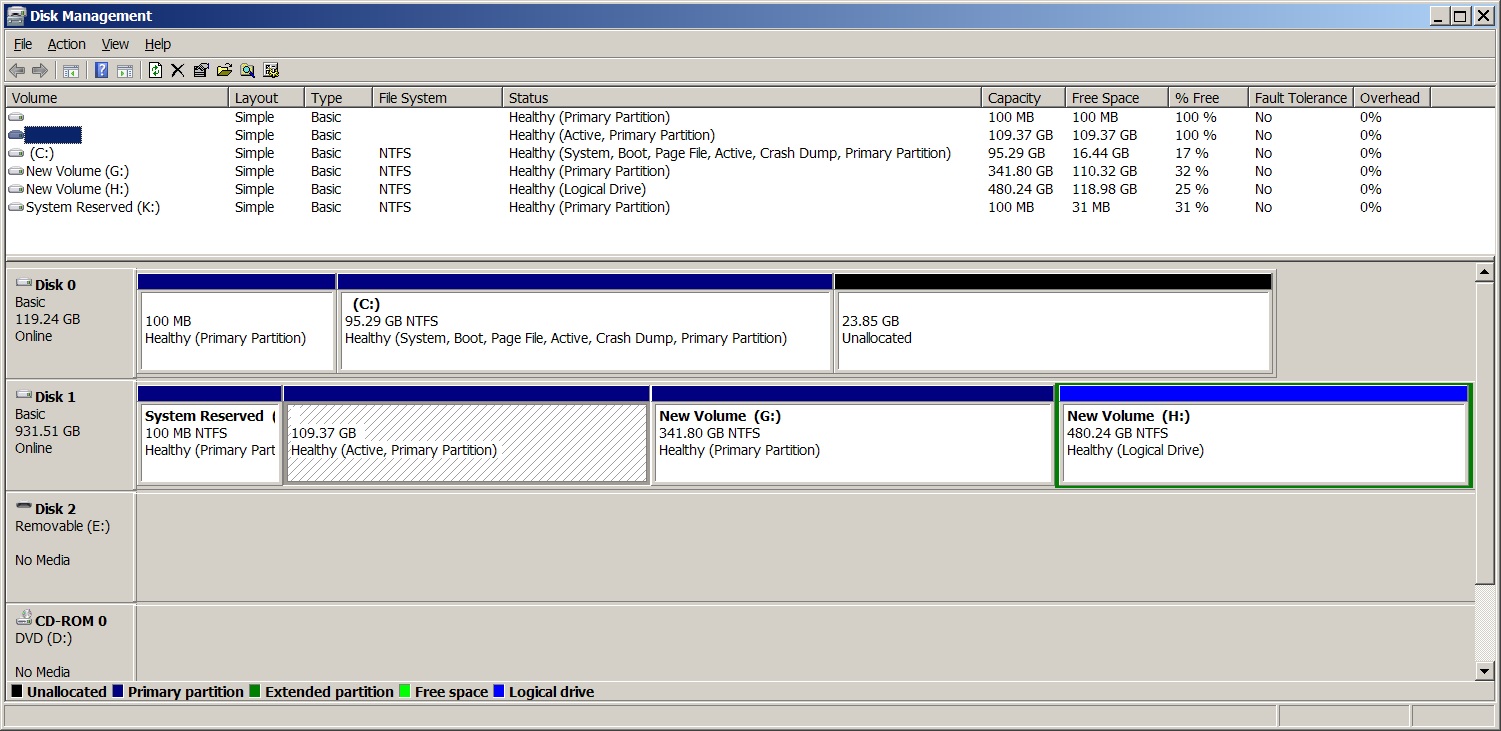
So, I have 109.37 GB (NOT MB!) of unused space on the Seagate that I had completely forgotten about! It's hell to get old!
Gotta decide:
1) Give it a drive letter and format, or
2) Resize the G: partition to include this additional space?
How difficult is #2?
Can Win 7 do it or do I need 3rd party software?
 

My Computer

Computer type
PC/Desktop
Computer Manufacturer/Model Number
Custom Built
OS
Windows 7 Pro X64
CPU
Intel Core i5 4670K
Motherboard
MSI Z87-G43
Memory
8 GB Crucial Ballistix Tactical
Graphics Card(s)
Intel Integrated GT 4600
Hard Drives
Seagate Barracuda 1 TB
Antivirus
AVG Free
Browser
Firefox
The good news is that Samsung-part.2 is Active, System, and Boot. That means it isn't using the Seagate disk at all when booting. You can confirm that for yourself by shutting down, temporarily disconnecting the cables to the Seagate, and rebooting. It should boot fine without the Seagate.

The Samsung has a 100 MB part.1 that was likely intended for copying the System Reserved partition from the Seagate, but never got configured that way, so it's effectively an abandoned partition. Since the Samsung works fine with part.2 as the System partition, I would leave it as is and would not try to change anything to use part.1. If it ain't broke, don't fix it, so leave part.1 abandoned, as is.

The Samsung also has 23 GB of unallocated space (not part of any partition) at the end. It was likely configured that way by the Samsung program as part of its "overprovisioning" setup. Leave it as is, and don't be tempted to try and add it to the C: partition.

On the Seagate, part.1 ("System Reserved") is also an abandoned partition. Then comes the 109 GB part.2, followed by two data partitions. You should understand the mechanics of trying to merge two partitions before deciding how you want to approach that task.

While it is easy to add or remove space at the back of a partition, it is far more involved trying to add/remove space at the front. In your scenario, you would have to delete the 109 GB part.2 to leave unallocated space, then slide each and every sector of G: forward so the 109 GB unallocated space is behind G: instead of in front of it. Then you can expand the back end of G: to incorporate the unallocated space. The first and third steps are quick and easy, but that middle step will take a long time. That's a long and risky process because if anything goes wrong you could lose all your data that was on G:. I wouldn't even attempt it unless you have a good backup of all of G:'s data.

Windows tools are not capable of sliding G:, so you'd need a third-party partition manager -- of which there are many good, free ones if you choose to go that route. However, don't be lulled by partition managers that make it sound like you can merge the two with a simple click of a button. Under the hood they will actually perform the operations I outlined, so the same risk is there. Don't try it without a backup.

OTOH, if you already have a backup, here's a more straightforward plan: delete the first three partitions ("System Reserved", 109 GB, and G:), create a new, empty 450 GB G: partition in front of H:, and restore all of it's files from your backups. Since you're not having to slide G: with this plan, Windows Disk Management can handle it and you won't need to use a third-party partition manager.
 

My Computer

Computer type
PC/Desktop
Computer Manufacturer/Model Number
Dell Optiplex 7050
OS
Windows 7/8.1/10 multiboot
CPU
Intel Core i7-7700
Motherboard
Dell, Intel Q270 chipset
Memory
48GB (2x16GB Crucial DDR4-3200 + 2x8GB Hynix DDR4-2400)
Graphics Card(s)
Intel HD630 + AMD Radeon R7 450 PCIe
Monitor(s) Displays
Asus VC279 (27")
Screen Resolution
1920x1080
Hard Drives
Toshiba M.2 NVMe (256GB),
Samsung 960 Evo (500GB),
WD Red Plus 80EFBX (8TB)
Great info.
Thank you, dg1261!
Yogi
 

My Computer

Computer type
PC/Desktop
Computer Manufacturer/Model Number
Custom Built
OS
Windows 7 Pro X64
CPU
Intel Core i5 4670K
Motherboard
MSI Z87-G43
Memory
8 GB Crucial Ballistix Tactical
Graphics Card(s)
Intel Integrated GT 4600
Hard Drives
Seagate Barracuda 1 TB
Antivirus
AVG Free
Browser
Firefox
Back
Top