WIN partition divides my HDD

MajorG

New member
Member
Local time
5:15 AM
Messages
69
Hello,

I bought a new 1TB drive, in addition to my current 1TB one, and installed windows on it.
I still want to keep my old windows bootable on the old drive.
The problem is that the old windows partition on the old drive is located in the middle of the two other partiotion I had.

So my old setup looked like this:
D, C, E.
Now, I deleted both D and E so I could combine them to a single partition. But I realized I can't.
It looks like this:

unallocated space, C, unallocated space.

Is there anything I can do to combine to unallocated spaces?
I tried using Acronis disk director to make a copy partition of the old windows partition.
Didn't work. It doesnt recognize it as a system partition.

Thank you.
 

My Computer

Computer type
PC/Desktop
OS
Win 7 64 bit
CPU
I5 3470
Motherboard
GA-H77M-D3H
Memory
Corsair 8GB DDR3 1600MHZ
Graphics Card(s)
Sparkle GTX460 1GB
Screen Resolution
1920X1080
Hard Drives
WD 320GB
Samsung 1TB F3
PSU
FSP 700W
Cooling
Scythe Grand Kama Cross
Internet Speed
30Mbps
Antivirus
Microsoft Security Essentials
Browser
FF,GC
So my old setup looked like this:
D, C, E.
Now, I deleted both D and E so I could combine them to a single partition. But I realized I can't.
It looks like this:

unallocated space, C, unallocated space.

Is there anything I can do to combine to unallocated spaces?
I tried using Acronis disk director to make a copy partition of the old windows partition.
Didn't work. It doesnt recognize it as a system partition.
Use MiniTool Partition Wizard free. You can install the regular Windows version that runs under booted Windows, and you can also burn the standalone bootable CD ISO to a bootable CD so that you can run from this CD when you need to "safely and conveniently" perform operations directly involving the Windows C-partition itself.

Standalone Bootable CD Partition Wizard can do everything you want, all in one fell swoop. You could have used it to delete your unwanted D and E partitions, but for sure you can now "slide C to the left (aka "move") on that drive. It's got a nice GUI interface that makes the operations you want to perform intuitive graphically, or you can manually specify precise values for the desired locations of the partition(s) you're working with, or the amount of free space before/after the partition(s), etc.

Highly recommended program, and it's free.
 

My Computer

Computer type
PC/Desktop
Computer Manufacturer/Model Number
Home-built, two systems (1) and (2)
OS
Windows 7 Pro x64 (1), Win7 Pro X64 (2)
CPU
i5-3350p 3.1Ghz/6MB-cache (1); E8400 3.0Ghz/6MB-cache (2)
Motherboard
ASUS P8Z77-V Pro (1); ASUS P5Q3 (2)
Memory
8GB PC3-12800 DDR3 (1); 4GB PC3-10600 DDR3 (2)
Graphics Card(s)
ATI HD7750 (1), (see TV cards); ATI R7 250 (2)
Sound Card
Realtek ALC892 HD Audio (1); Realtek ALC1200 HD Audio (2)
Monitor(s) Displays
Eizo HD2441W LCD, Eizo S2433W (1); Eizo 24" S2433W (2)
Screen Resolution
1920x1200, 1920x1200 (1); 1920x1200 (2)
Hard Drives
(1) 1TB SATA-II (7200RPM), 2x2TB SATA-III (7200RPM), 250GB SATA-III (10000RPM) for OS; 2x2TB external USB 3.0

(2) 320GB SATA-II (7200RPM), 750GB SATA-II (7200RPM), 150GB SATA-II (10000RPM) for OS; 2TB external USB 3.0
PSU
Nesteq ECS-6001 600W (1); Nesteq ECS-5001 500W (2)
Case
Acousti-Case 360 (1) and (2)
Cooling
Noctua NH-U12P SE2 for CPU, 2x120mm case fans (1) and (2)
Keyboard
IBM PS/2 (1) and (2)
Mouse
Logitech MX Revolution wireless (1); Microsoft wired (2)
Internet Speed
100mbps down / 10mbps up
Antivirus
Microsoft Security Essentials; Malwarebyte Anti-Malware Pro
Browser
Firefox
Other Info
Ceton InfiniTV 4-tuner cablecard-enabled TV card as well as Hauppauge HVR-2250 OTA/ATSC 2-tuner TV card in (1), running under Win7 WMC

My Computer

Computer type
PC/Desktop
Computer Manufacturer/Model Number
Skylake Special #666
OS
Windows 10 Pro x64
CPU
Intel Core i7 6700K
Motherboard
Asus Sabertooth Z170 Mark 1
Memory
GSkill TridentZ RGB 16GB 3600 16-16-16-36
Graphics Card(s)
EVGA GTX 980 Ti SC x2
Sound Card
Realtek High Definition
Monitor(s) Displays
AOC G2460PG
Screen Resolution
1920 x 1080 144Hz
Hard Drives
Samsung 860 Pro 256GB, Seagate Barracuda 4TB x2
PSU
EVGA 1000 P2, EVGA White Custom Braided Cables
Case
Corsair Vengeance C70 Gunmetal Black
Cooling
Corsair H100i v2, Corsair ML120 x2, Thermal Grizzly Kryonaut
Keyboard
Logitech G910 Orion Spectrum
Mouse
Logitech G700s
Internet Speed
Verizon Fios Quantum Gateway 75/75
Antivirus
Windows Defender, Malwarebytes Free 3.8.3
Browser
Chrome
Other Info
Corsair SP120 x4, LG Blu-ray Drive, Durabrand HT-395 100 Watt Dolby Digital Amp, Corsair H2100 Wireless 7.1 Headset
So my old setup looked like this:
D, C, E.
Now, I deleted both D and E so I could combine them to a single partition. But I realized I can't.
It looks like this:

unallocated space, C, unallocated space.

Is there anything I can do to combine to unallocated spaces?
I tried using Acronis disk director to make a copy partition of the old windows partition.
Didn't work. It doesnt recognize it as a system partition.
Use MiniTool Partition Wizard free. You can install the regular Windows version that runs under booted Windows, and you can also burn the standalone bootable CD ISO to a bootable CD so that you can run from this CD when you need to "safely and conveniently" perform operations directly involving the Windows C-partition itself.

Standalone Bootable CD Partition Wizard can do everything you want, all in one fell swoop. You could have used it to delete your unwanted D and E partitions, but for sure you can now "slide C to the left (aka "move") on that drive. It's got a nice GUI interface that makes the operations you want to perform intuitive graphically, or you can manually specify precise values for the desired locations of the partition(s) you're working with, or the amount of free space before/after the partition(s), etc.

Highly recommended program, and it's free.

So I can basically move the partition physically on the drive with this software?
Is it safe to do this to an OS partition?

Hope I explained myself properly at the beginning of the thread so you got what I was talking about.

Thanks guys for the quick help.
 

My Computer

Computer type
PC/Desktop
OS
Win 7 64 bit
CPU
I5 3470
Motherboard
GA-H77M-D3H
Memory
Corsair 8GB DDR3 1600MHZ
Graphics Card(s)
Sparkle GTX460 1GB
Screen Resolution
1920X1080
Hard Drives
WD 320GB
Samsung 1TB F3
PSU
FSP 700W
Cooling
Scythe Grand Kama Cross
Internet Speed
30Mbps
Antivirus
Microsoft Security Essentials
Browser
FF,GC
So I can basically move the partition physically on the drive with this software?
Absolutely.


Is it safe to do this to an OS partition?
Absolutely.

What you didn't describe completely is how you installed the second OS on the second drive, while retaining the first OS on the first drive (and which you now want to slide to the left on the drive itself).

Normally, when installing a second OS, the Windows installer detects the presence of an existing bootable Windows and creates a Boot Manager Menu. This menu then appears when you boot the machine, providing you with a choice of which of the two OS's you want to boot to (one is normally set as the default, which typically is the most recently installed Windows). This Boot Manager Menu approach is very convenient for this exact functionality.

Alternatively, you can get into the BIOS (or SETUP) at boot time and manually pick a drive/OS you want to boot from. This is more clumsy than the easy-to-use Boot Manager Menu method normally used, but it will also work.

So... what did you do? How did you boot to either of your two Windows when you still had those original two partitions (D and E) which you've now deleted? I ask this because the Boot Manager Menu contains a physical partition number on the drive, for the bootable OS partition. So when you still had D and E on that drive (arranged D, C, E) the bootable C partition was partition #2, whereas now that you've deleted D and E it is partition #1. This would cause a problem for Boot Manager Menu, if you were using it.

Yes, you can slide your C partition to the left with Partition Wizard with no problem or consequence. But if you were using Boot Manager Menu, your deletion of D (originally to the left of C) has caused a renumbering of the partition C still on the drive, and this needs to be corrected. I would recommend that you use EasyBCD to "repair" the Boot Manager Menu. You'd boot to your second/latest Windows, install EasyBCD, and then "edit the Boot Manager Menu" to add your now-slid-left C partition on the first drive as a second bootable OS.

EasyBCD is a very easy to use GUI maintenance tool for the Boot Manager Menu.
 

My Computer

Computer type
PC/Desktop
Computer Manufacturer/Model Number
Home-built, two systems (1) and (2)
OS
Windows 7 Pro x64 (1), Win7 Pro X64 (2)
CPU
i5-3350p 3.1Ghz/6MB-cache (1); E8400 3.0Ghz/6MB-cache (2)
Motherboard
ASUS P8Z77-V Pro (1); ASUS P5Q3 (2)
Memory
8GB PC3-12800 DDR3 (1); 4GB PC3-10600 DDR3 (2)
Graphics Card(s)
ATI HD7750 (1), (see TV cards); ATI R7 250 (2)
Sound Card
Realtek ALC892 HD Audio (1); Realtek ALC1200 HD Audio (2)
Monitor(s) Displays
Eizo HD2441W LCD, Eizo S2433W (1); Eizo 24" S2433W (2)
Screen Resolution
1920x1200, 1920x1200 (1); 1920x1200 (2)
Hard Drives
(1) 1TB SATA-II (7200RPM), 2x2TB SATA-III (7200RPM), 250GB SATA-III (10000RPM) for OS; 2x2TB external USB 3.0

(2) 320GB SATA-II (7200RPM), 750GB SATA-II (7200RPM), 150GB SATA-II (10000RPM) for OS; 2TB external USB 3.0
PSU
Nesteq ECS-6001 600W (1); Nesteq ECS-5001 500W (2)
Case
Acousti-Case 360 (1) and (2)
Cooling
Noctua NH-U12P SE2 for CPU, 2x120mm case fans (1) and (2)
Keyboard
IBM PS/2 (1) and (2)
Mouse
Logitech MX Revolution wireless (1); Microsoft wired (2)
Internet Speed
100mbps down / 10mbps up
Antivirus
Microsoft Security Essentials; Malwarebyte Anti-Malware Pro
Browser
Firefox
Other Info
Ceton InfiniTV 4-tuner cablecard-enabled TV card as well as Hauppauge HVR-2250 OTA/ATSC 2-tuner TV card in (1), running under Win7 WMC
So I can basically move the partition physically on the drive with this software?
Absolutely.


Is it safe to do this to an OS partition?
Absolutely.

What you didn't describe completely is how you installed the second OS on the second drive, while retaining the first OS on the first drive (and which you now want to slide to the left on the drive itself).

Normally, when installing a second OS, the Windows installer detects the presence of an existing bootable Windows and creates a Boot Manager Menu. This menu then appears when you boot the machine, providing you with a choice of which of the two OS's you want to boot to (one is normally set as the default, which typically is the most recently installed Windows). This Boot Manager Menu approach is very convenient for this exact functionality.

Alternatively, you can get into the BIOS (or SETUP) at boot time and manually pick a drive/OS you want to boot from. This is more clumsy than the easy-to-use Boot Manager Menu method normally used, but it will also work.

So... what did you do? How did you boot to either of your two Windows when you still had those original two partitions (D and E) which you've now deleted? I ask this because the Boot Manager Menu contains a physical partition number on the drive, for the bootable OS partition. So when you still had D and E on that drive (arranged D, C, E) the bootable C partition was partition #2, whereas now that you've deleted D and E it is partition #1. This would cause a problem for Boot Manager Menu, if you were using it.

Yes, you can slide your C partition to the left with Partition Wizard with no problem or consequence. But if you were using Boot Manager Menu, your deletion of D (originally to the left of C) has caused a renumbering of the partition C still on the drive, and this needs to be corrected. I would recommend that you use EasyBCD to "repair" the Boot Manager Menu. You'd boot to your second/latest Windows, install EasyBCD, and then "edit the Boot Manager Menu" to add your now-slid-left C partition on the first drive as a second bootable OS.

EasyBCD is a very easy to use GUI maintenance tool for the Boot Manager Menu.

I cant boot anymore to anything. I just made a boot cd for mini tools and booted it. I didnt even touch anything. Just restarted my PC after MiniTools completly booted. After the restart it just gives me this message 'reboot and select proper boot device or insert boot media in selected boot device and press a key'.
Tried manualy booting from either drive but no luck. Any idea?
 

My Computer

Computer type
PC/Desktop
OS
Win 7 64 bit
CPU
I5 3470
Motherboard
GA-H77M-D3H
Memory
Corsair 8GB DDR3 1600MHZ
Graphics Card(s)
Sparkle GTX460 1GB
Screen Resolution
1920X1080
Hard Drives
WD 320GB
Samsung 1TB F3
PSU
FSP 700W
Cooling
Scythe Grand Kama Cross
Internet Speed
30Mbps
Antivirus
Microsoft Security Essentials
Browser
FF,GC
I cant boot anymore to anything. I just made a boot cd for mini tools and booted it. I didnt even touch anything. Just restarted my PC after MiniTools completly booted. After the restart it just gives me this message 'reboot and select proper boot device or insert boot media in selected boot device and press a key'.
Tried manualy booting from either drive but no luck. Any idea?
A bootable partition on any drive MUST be marked as "active". The BIOS requires that "active" partition indication to know which partition to go to in order to start the boot process.

And the active partition must normally be on the first drive listed in the boot sequence in the BIOS configuration, but in theory it actually can be on any of the hard drives shown in the BIOS boot sequence configuration.

Normally, this ACTIVE partition would be the "system reserved" partition in which Windows has installed the Boot Manager software itself... which is normally that typical 100MB "system reserved" partition we always see. A from-scratch Windows install on a completely empty drive would in fact install Boot Manager into that 100MB "system reserved" partition it creates and marks ACTIVE, and then Windows itself is installed into a second non-Active partition that typically uses up the rest of the brand new empty drive (unless you step in to change the installation defaults).

So, boot again to Partition Wizard and examine the partitions on your two drives. If you can take a photo of what you see and post it here, that would be very useful. But I want to know if you have a "100MB" system reserved partition on either of your two drives? If so, is it marked "active" (which Partition Wizard will show in its partition status info)?

If not, are any partitions marked "active"?

Again, a picture's worth a thousand words. Showing us what Partition Wizard has found will be extremely helpful.

It may be necessary to run Windows Repair three times to regain a working Boot Manager and associated ACTIVE partition, assuming you have a Win7 installation DVD. You never indicated how you got from Win7 on one drive to a second Win7 on a second drive.

Could one of the partitions (say D, which you've now deleted) on the first drive, actually have been the 100MB "system reserved" ACTIVE partition... and which you've now deleted? I would have guessed in order to install the second Windows that a Boot Manager Menu would have been created, and this would not have been in either C partition but rather would have been in the 100MB "system reserved" Active partition.
 

My Computer

Computer type
PC/Desktop
Computer Manufacturer/Model Number
Home-built, two systems (1) and (2)
OS
Windows 7 Pro x64 (1), Win7 Pro X64 (2)
CPU
i5-3350p 3.1Ghz/6MB-cache (1); E8400 3.0Ghz/6MB-cache (2)
Motherboard
ASUS P8Z77-V Pro (1); ASUS P5Q3 (2)
Memory
8GB PC3-12800 DDR3 (1); 4GB PC3-10600 DDR3 (2)
Graphics Card(s)
ATI HD7750 (1), (see TV cards); ATI R7 250 (2)
Sound Card
Realtek ALC892 HD Audio (1); Realtek ALC1200 HD Audio (2)
Monitor(s) Displays
Eizo HD2441W LCD, Eizo S2433W (1); Eizo 24" S2433W (2)
Screen Resolution
1920x1200, 1920x1200 (1); 1920x1200 (2)
Hard Drives
(1) 1TB SATA-II (7200RPM), 2x2TB SATA-III (7200RPM), 250GB SATA-III (10000RPM) for OS; 2x2TB external USB 3.0

(2) 320GB SATA-II (7200RPM), 750GB SATA-II (7200RPM), 150GB SATA-II (10000RPM) for OS; 2TB external USB 3.0
PSU
Nesteq ECS-6001 600W (1); Nesteq ECS-5001 500W (2)
Case
Acousti-Case 360 (1) and (2)
Cooling
Noctua NH-U12P SE2 for CPU, 2x120mm case fans (1) and (2)
Keyboard
IBM PS/2 (1) and (2)
Mouse
Logitech MX Revolution wireless (1); Microsoft wired (2)
Internet Speed
100mbps down / 10mbps up
Antivirus
Microsoft Security Essentials; Malwarebyte Anti-Malware Pro
Browser
Firefox
Other Info
Ceton InfiniTV 4-tuner cablecard-enabled TV card as well as Hauppauge HVR-2250 OTA/ATSC 2-tuner TV card in (1), running under Win7 WMC
I cant boot anymore to anything. I just made a boot cd for mini tools and booted it. I didnt even touch anything. Just restarted my PC after MiniTools completly booted.
Sorry, I don't understand what you're saying.

When you boot Partition Wizard from the standalone bootable CD, you would then be placed in the program itself (running from the CD). It doesn't do anything unless you tell it what operations you want it to perform.

You would now do something (e.g. click on the partition on drive #1 you want to slide left, and then pull it left in the GUI or specify 0 freespace to its left, etc.) to tell it you want to slide that C partition on your first drive to the left, and then push APPLY to complete the operation, and then you would exit the program, remove the CD from the tray, and return to the standard machine boot process.

Is this what happened? Or did you do something different? Unless you tell Partition Wizard the action(s) you'd like it to perform and then push APPLY, nothing is going to happen. So how can you say "I didn't even touch anything. Just restarted my PC after MiniTools completely booted". What does that mean??
 

My Computer

Computer type
PC/Desktop
Computer Manufacturer/Model Number
Home-built, two systems (1) and (2)
OS
Windows 7 Pro x64 (1), Win7 Pro X64 (2)
CPU
i5-3350p 3.1Ghz/6MB-cache (1); E8400 3.0Ghz/6MB-cache (2)
Motherboard
ASUS P8Z77-V Pro (1); ASUS P5Q3 (2)
Memory
8GB PC3-12800 DDR3 (1); 4GB PC3-10600 DDR3 (2)
Graphics Card(s)
ATI HD7750 (1), (see TV cards); ATI R7 250 (2)
Sound Card
Realtek ALC892 HD Audio (1); Realtek ALC1200 HD Audio (2)
Monitor(s) Displays
Eizo HD2441W LCD, Eizo S2433W (1); Eizo 24" S2433W (2)
Screen Resolution
1920x1200, 1920x1200 (1); 1920x1200 (2)
Hard Drives
(1) 1TB SATA-II (7200RPM), 2x2TB SATA-III (7200RPM), 250GB SATA-III (10000RPM) for OS; 2x2TB external USB 3.0

(2) 320GB SATA-II (7200RPM), 750GB SATA-II (7200RPM), 150GB SATA-II (10000RPM) for OS; 2TB external USB 3.0
PSU
Nesteq ECS-6001 600W (1); Nesteq ECS-5001 500W (2)
Case
Acousti-Case 360 (1) and (2)
Cooling
Noctua NH-U12P SE2 for CPU, 2x120mm case fans (1) and (2)
Keyboard
IBM PS/2 (1) and (2)
Mouse
Logitech MX Revolution wireless (1); Microsoft wired (2)
Internet Speed
100mbps down / 10mbps up
Antivirus
Microsoft Security Essentials; Malwarebyte Anti-Malware Pro
Browser
Firefox
Other Info
Ceton InfiniTV 4-tuner cablecard-enabled TV card as well as Hauppauge HVR-2250 OTA/ATSC 2-tuner TV card in (1), running under Win7 WMC
I cant boot anymore to anything. I just made a boot cd for mini tools and booted it. I didnt even touch anything. Just restarted my PC after MiniTools completly booted. After the restart it just gives me this message 'reboot and select proper boot device or insert boot media in selected boot device and press a key'.
Tried manualy booting from either drive but no luck. Any idea?
A bootable partition on any drive MUST be marked as "active". The BIOS requires that "active" partition indication to know which partition to go to in order to start the boot process.

And the active partition must be on the first drive listed in the boot sequence in the BIOS configuration. Normally, this would be the partition in which Windows has installed the Boot Manager software itself... which is normally that typical 100MB "system reserved" partition we always see. A from-scratch Windows install on a completely empty drive would create Boot Manager into that 100MB "system reserved" partition it creates and marks ACTIVE, and then Windows itself is installed into a second non-Active partition that typically uses up the rest of the brand new empty drive (unless you step in to change the installation defaults).

So, boot again to Partition Wizard and examine the partitions on your two drives. If you can take a photo of what you see and post it here, that would be very useful. But I want to know if you have a "100MB" system reserved partition on either of your two drives? If so, is it marked "active" (which Partition Wizard will show in its partition status info)?

If not, are any partitions marked "active"?

Again, a picture's worth a thousand words. Showing us what Partition Wizard has found will be extremely helpful.

It may be necessary to run Windows Repair three times to regain a working Boot Manager and associated ACTIVE partition, assuming you have a Win7 installation DVD. You never indicated how you got from Win7 on one drive to a second Win7 on a second drive.

Could one of the partitions (say D, which you've now deleted) on the first drive, actually have been the 100MB "system reserved" ACTIVE partition... and which you've now deleted? I would have guessed in order to install the second Windows that a Boot Manager Menu would have been created, and this would not have been in either C partition but rather would have been in the 100MB "system reserved" Active partition.
Umm.. I just re-installed windows on an unallocated partition just to see everything was fine.
Then I restarted my PC and booted to the WIN DVD. A repair was suggested. I accepted the repair and both my OS'es were recovered.
So.. all fine now.

What I meant earlier is that I didn't do any actions in minitools.
I burned the minitools bootable cd and booted into it. No actions were done inside the software.
Just a simple boot.
After it booted to minitools I restarted my PC because I realized I forgot to backup something.
And... that's pretty much it.. After the restart I couldn't boot into either of my drives..
I cant boot anymore to anything. I just made a boot cd for mini tools and booted it. I didnt even touch anything. Just restarted my PC after MiniTools completly booted.
Sorry, I don't understand what you're saying.

When you boot Partition Wizard from the standalone bootable CD, you would then be placed in the program itself (running from the CD). It doesn't do anything unless you tell it what operations you want it to perform.

You would now do something (e.g. click on the partition on drive #1 you want to slide left, and then pull it left in the GUI or specify 0 freespace to its left, etc.) to tell it you want to slide that C partition on your first drive to the left, and then push APPLY to complete the operation, and then you would exit the program, remove the CD from the tray, and return to the standard machine boot process.

Is this what happened? Or did you do something different? Unless you tell Partition Wizard the action(s) you'd like it to perform and then push APPLY, nothing is going to happen. So how can you say "I didn't even touch anything. Just restarted my PC after MiniTools completely booted". What does that mean??
See above.

Thanks guys for trying to help.
 

My Computer

Computer type
PC/Desktop
OS
Win 7 64 bit
CPU
I5 3470
Motherboard
GA-H77M-D3H
Memory
Corsair 8GB DDR3 1600MHZ
Graphics Card(s)
Sparkle GTX460 1GB
Screen Resolution
1920X1080
Hard Drives
WD 320GB
Samsung 1TB F3
PSU
FSP 700W
Cooling
Scythe Grand Kama Cross
Internet Speed
30Mbps
Antivirus
Microsoft Security Essentials
Browser
FF,GC
One more option...

From the same people who provide EasyBCD they provide another product named EasyRE. It's not free, but it's very modestly priced.

EasyRE (which I have not used myself, so I can't vouch for it) is like the Windows Repair mechanism in that it's designed to do the repair needed to get your machine bootable again. This would no doubt include recreating the Boot Manager partition as ACTIVE, if you'd lost it, etc.

My guess is that just as GUI-based EasyBCD is FAR simpler to use than the Windows BCD utility to accomplish the same goals, I'd bet EasyRE is much more intuitive and easy to use than the similar Windows Repair mechanism.

Just a thought, if you have to go to this "repair" step to get your machine bootable again (i.e. if your deletion of D on drive #1 was actually the unfortunate and inappropriate deletion of the 100MB ACTIVE "system reserved" partition).
 

My Computer

Computer type
PC/Desktop
Computer Manufacturer/Model Number
Home-built, two systems (1) and (2)
OS
Windows 7 Pro x64 (1), Win7 Pro X64 (2)
CPU
i5-3350p 3.1Ghz/6MB-cache (1); E8400 3.0Ghz/6MB-cache (2)
Motherboard
ASUS P8Z77-V Pro (1); ASUS P5Q3 (2)
Memory
8GB PC3-12800 DDR3 (1); 4GB PC3-10600 DDR3 (2)
Graphics Card(s)
ATI HD7750 (1), (see TV cards); ATI R7 250 (2)
Sound Card
Realtek ALC892 HD Audio (1); Realtek ALC1200 HD Audio (2)
Monitor(s) Displays
Eizo HD2441W LCD, Eizo S2433W (1); Eizo 24" S2433W (2)
Screen Resolution
1920x1200, 1920x1200 (1); 1920x1200 (2)
Hard Drives
(1) 1TB SATA-II (7200RPM), 2x2TB SATA-III (7200RPM), 250GB SATA-III (10000RPM) for OS; 2x2TB external USB 3.0

(2) 320GB SATA-II (7200RPM), 750GB SATA-II (7200RPM), 150GB SATA-II (10000RPM) for OS; 2TB external USB 3.0
PSU
Nesteq ECS-6001 600W (1); Nesteq ECS-5001 500W (2)
Case
Acousti-Case 360 (1) and (2)
Cooling
Noctua NH-U12P SE2 for CPU, 2x120mm case fans (1) and (2)
Keyboard
IBM PS/2 (1) and (2)
Mouse
Logitech MX Revolution wireless (1); Microsoft wired (2)
Internet Speed
100mbps down / 10mbps up
Antivirus
Microsoft Security Essentials; Malwarebyte Anti-Malware Pro
Browser
Firefox
Other Info
Ceton InfiniTV 4-tuner cablecard-enabled TV card as well as Hauppauge HVR-2250 OTA/ATSC 2-tuner TV card in (1), running under Win7 WMC
One more option...

From the same people who provide EasyBCD they provide another product named EasyRE. It's not free, but it's very modestly priced.

EasyRE (which I have not used myself, so I can't vouch for it) is like the Windows Repair mechanism in that it's designed to do the repair needed to get your machine bootable again. This would no doubt include recreating the Boot Manager partition as ACTIVE, if you'd lost it, etc.

My guess is that just as GUI-based EasyBCD is FAR simpler to use than the Windows BCD utility to accomplish the same goals, I'd bet EasyRE is much more intuitive and easy to use than the similar Windows Repair mechanism.

Just a thought, if you have to go to this "repair" step to get your machine bootable again (i.e. if your deletion of D on drive #1 was actually the unfortunate and inappropriate deletion of the 100MB ACTIVE "system reserved" partition).
Me deleting D and E drives has nothing to do with this.
I rebooted and even switched between my OS'es a few times after the deletion. Everything was fine.

When I had the boot trouble, I booted into the minitools bootable cd again and tried making the Win partition "Active". But neither worked. It just said something like "No windows folder was found", although I could see there was a windows folder.

It's just a weird problem.. Somehow minitools f@#ed my system for no reason.

Anyhow, windows repair fixed everthing so it's all fine now.
I will reconsider keeping my old win partition. Caused me enough headache for today.
 

My Computer

Computer type
PC/Desktop
OS
Win 7 64 bit
CPU
I5 3470
Motherboard
GA-H77M-D3H
Memory
Corsair 8GB DDR3 1600MHZ
Graphics Card(s)
Sparkle GTX460 1GB
Screen Resolution
1920X1080
Hard Drives
WD 320GB
Samsung 1TB F3
PSU
FSP 700W
Cooling
Scythe Grand Kama Cross
Internet Speed
30Mbps
Antivirus
Microsoft Security Essentials
Browser
FF,GC
Umm.. I just re-installed windows on an unallocated partition just to see everything was fine.

Then I restarted my PC and booted to the WIN DVD. A repair was suggested. I accepted the repair and both my OS'es were recovered.

So.. all fine now.

What I meant earlier is that I didn't do any actions in minitools.

I burned the minitools bootable cd and booted into it. No actions were done inside the software.
Just a simple boot.
After it booted to minitools I restarted my PC because I realized I forgot to backup something.
And... that's pretty much it.. After the restart I couldn't boot into either of my drives..
Well I certainly don't know why you suddenly couldn't re-boot from either of your two drives using the identical approach you probably had been successfully using previously, just because you had booted to the Partition Wizard CD and then exited the program... which would of course do nothing at all to your partitions. So this should not have impacted whatever hard drive boot capability you previously had.

Anyway, it sounds like you have now repaired things (using the third installed Windows), but still have the first Windows on drive #1 not positioned where you want it. Is there now a boot manager menu that lists THREE bootable versions of Windows??

Are you going to slide the original Windows on drive #1 left as you described your original goal when starting this thread, using Partition Wizard? Note that you can do this while booted to either of the other two Windows and using the installed Partition Wizard in either of those two Windows systems. You don't have to use the standalone boot CD to accomplish this slide-left of the first Windows on drive #1. You only should use the standalone boot CD to make changes to the Windows partition itself you are running from, and which can't be done while running under that Windows itself. But when you're running from a second or third Windows partition, you can now do maintenance on a currently unused Windows partition while running in the second or third Windows system itself.


I'm not trying to confuse things, but I'd still like to see a screenshot of your two hard drives as shown either by Partition Wizard or DISKMGMT.MSC. If you use DISKMGMT.MSC, please expand to full-screen and spread the column dividers in the upper pane so that we can read all the English text in the cells.

I'm still wanting to see WHICH partition is marked "active", and what's in each of your partitions... as viewed from whichever of your now THREE versions of Windows you must be running from.
 

My Computer

Computer type
PC/Desktop
Computer Manufacturer/Model Number
Home-built, two systems (1) and (2)
OS
Windows 7 Pro x64 (1), Win7 Pro X64 (2)
CPU
i5-3350p 3.1Ghz/6MB-cache (1); E8400 3.0Ghz/6MB-cache (2)
Motherboard
ASUS P8Z77-V Pro (1); ASUS P5Q3 (2)
Memory
8GB PC3-12800 DDR3 (1); 4GB PC3-10600 DDR3 (2)
Graphics Card(s)
ATI HD7750 (1), (see TV cards); ATI R7 250 (2)
Sound Card
Realtek ALC892 HD Audio (1); Realtek ALC1200 HD Audio (2)
Monitor(s) Displays
Eizo HD2441W LCD, Eizo S2433W (1); Eizo 24" S2433W (2)
Screen Resolution
1920x1200, 1920x1200 (1); 1920x1200 (2)
Hard Drives
(1) 1TB SATA-II (7200RPM), 2x2TB SATA-III (7200RPM), 250GB SATA-III (10000RPM) for OS; 2x2TB external USB 3.0

(2) 320GB SATA-II (7200RPM), 750GB SATA-II (7200RPM), 150GB SATA-II (10000RPM) for OS; 2TB external USB 3.0
PSU
Nesteq ECS-6001 600W (1); Nesteq ECS-5001 500W (2)
Case
Acousti-Case 360 (1) and (2)
Cooling
Noctua NH-U12P SE2 for CPU, 2x120mm case fans (1) and (2)
Keyboard
IBM PS/2 (1) and (2)
Mouse
Logitech MX Revolution wireless (1); Microsoft wired (2)
Internet Speed
100mbps down / 10mbps up
Antivirus
Microsoft Security Essentials; Malwarebyte Anti-Malware Pro
Browser
Firefox
Other Info
Ceton InfiniTV 4-tuner cablecard-enabled TV card as well as Hauppauge HVR-2250 OTA/ATSC 2-tuner TV card in (1), running under Win7 WMC
Me deleting D and E drives has nothing to do with this.
I rebooted and even switched between my OS'es a few times after the deletion. Everything was fine.
You still have not described how you do this. Is it through Boot Manager that shows all of your choosable bootable Windows versions and you navigate with the arrow keys and press ENTER? Or is it manual selection of boot drive through BIOS or SETUP machine override??

This is very important to understanding what your previous environment was.


When I had the boot trouble, I booted into the minitools bootable cd again and tried making the Win partition "Active".
When was this? The first time you used PW you said you just exited immediately, because you "forgot to back something up".

But now you tried making the Win partition "active"? I have stated earlier that ACTIVE is where Boot Manager must reside, and ordinarily that is not in any Windows partition. It is normally in a separate small "system reserved" partition, although technically there is no reason that Boot Manager can't actually be located in a Windows partition itself.

In fact, that's what "repair" does... it installs the currently missing Boot Manager files (and menu) into the Windows system partition and then marks it ACTIVE. Thus now Windows and Boot Manager both reside in the one C-partition (this is actually how the old WinXP used to operate, before MS changed the Win7 installer to create a separate small ACTIVE "system reserved" partition just to hold Boot Manager).


But neither worked. It just said something like "No windows folder was found", although I could see there was a windows folder.

It's just a weird problem.. Somehow minitools f@#ed my system for no reason.
In all the many uses of Partition Wizard, I've never heard any reports of symptoms like you describe. And I've never known it to do ANYTHING to any partition if (a) you didn't push APPLY, and (b) certainly not if it reported some error and could not complete the requested operation(s) sequence.


Anyhow, windows repair fixed everthing so it's all fine now.
As I mentioned previously, Windows Repair will do just what you clearly needed... namely (a) restore Boot Manager into a partition, and (b) mark that partition as ACTIVE. Most likely one of your three Windows partitions was selected and now shows up as ACTIVE (if you post the requested screenshot of your disks, I'm sure all of these questions will instantly be answered by a single picture).


I will reconsider keeping my old win partition. Caused me enough headache for today.
Now that your system is working (with three selectable Windows from Boot Manager menu list??), you're truly free to slide that original Windows partition on drive #1 to the left using PW... with no fear (at least that's my opinion).
 

My Computer

Computer type
PC/Desktop
Computer Manufacturer/Model Number
Home-built, two systems (1) and (2)
OS
Windows 7 Pro x64 (1), Win7 Pro X64 (2)
CPU
i5-3350p 3.1Ghz/6MB-cache (1); E8400 3.0Ghz/6MB-cache (2)
Motherboard
ASUS P8Z77-V Pro (1); ASUS P5Q3 (2)
Memory
8GB PC3-12800 DDR3 (1); 4GB PC3-10600 DDR3 (2)
Graphics Card(s)
ATI HD7750 (1), (see TV cards); ATI R7 250 (2)
Sound Card
Realtek ALC892 HD Audio (1); Realtek ALC1200 HD Audio (2)
Monitor(s) Displays
Eizo HD2441W LCD, Eizo S2433W (1); Eizo 24" S2433W (2)
Screen Resolution
1920x1200, 1920x1200 (1); 1920x1200 (2)
Hard Drives
(1) 1TB SATA-II (7200RPM), 2x2TB SATA-III (7200RPM), 250GB SATA-III (10000RPM) for OS; 2x2TB external USB 3.0

(2) 320GB SATA-II (7200RPM), 750GB SATA-II (7200RPM), 150GB SATA-II (10000RPM) for OS; 2TB external USB 3.0
PSU
Nesteq ECS-6001 600W (1); Nesteq ECS-5001 500W (2)
Case
Acousti-Case 360 (1) and (2)
Cooling
Noctua NH-U12P SE2 for CPU, 2x120mm case fans (1) and (2)
Keyboard
IBM PS/2 (1) and (2)
Mouse
Logitech MX Revolution wireless (1); Microsoft wired (2)
Internet Speed
100mbps down / 10mbps up
Antivirus
Microsoft Security Essentials; Malwarebyte Anti-Malware Pro
Browser
Firefox
Other Info
Ceton InfiniTV 4-tuner cablecard-enabled TV card as well as Hauppauge HVR-2250 OTA/ATSC 2-tuner TV card in (1), running under Win7 WMC
Umm.. I just re-installed windows on an unallocated partition just to see everything was fine.

Then I restarted my PC and booted to the WIN DVD. A repair was suggested. I accepted the repair and both my OS'es were recovered.

So.. all fine now.

What I meant earlier is that I didn't do any actions in minitools.

I burned the minitools bootable cd and booted into it. No actions were done inside the software.
Just a simple boot.
After it booted to minitools I restarted my PC because I realized I forgot to backup something.
And... that's pretty much it.. After the restart I couldn't boot into either of my drives..
Well I certainly don't know why you suddenly couldn't re-boot from either of your two drives using the identical approach you probably had been successfully using previously, just because you had booted to the Partition Wizard CD and then exited the program... which would of course do nothing at all to your partitions. So this should not have impacted whatever hard drive boot capability you previously had.

Anyway, it sounds like you have now repaired things (using the third installed Windows), but still have the first Windows on drive #1 not positioned where you want it. Is there now a boot manager menu that lists THREE bootable versions of Windows??

Are you going to slide the original Windows on drive #1 left as you described your original goal when starting this thread, using Partition Wizard? Note that you can do this while booted to either of the other two Windows and using the installed Partition Wizard in either of those two Windows systems. You don't have to use the standalone boot CD to accomplish this slide-left of the first Windows on drive #1. You only should use the standalone boot CD to make changes to the Windows partition itself you are running from, and which can't be done while running under that Windows itself. But when you're running from a second or third Windows partition, you can now do maintenance on a currently unused Windows partition while running in the second or third Windows system itself.


I'm not trying to confuse things, but I'd still like to see a screenshot of your two hard drives as shown either by Partition Wizard or DISKMGMT.MSC. If you use DISKMGMT.MSC, please expand to full-screen and spread the column dividers in the upper pane so that we can read all the English text in the cells.

I'm still wanting to see WHICH partition is marked "active", and what's in each of your partitions... as viewed from whichever of your now THREE versions of Windows you must be running from.
Yes, I do have 3 showing on the boot menu.

I just used Acronis disk director to push my old OS so I could use all of my unallocated space. It worked perfectly fine.

My system is now like this:
HDD#0- C (Shown as "system" and a bunch of other stuff including "active")
A (Shown as "Main partition")
HDD#1-*unallocated space*
D (My old OS, shown as "Main partition")
E (The recent OS I installed a few minutes ago because of the problem. Shown too as "Main partition")

So.. Now I have a question..
Can I just delet the E partition in Disk manager? Or am I supposed to delet Windows partitions differently because they are sensitive or something?


You still have not described how you do this. Is it through Boot Manager that shows all of your choosable bootable Windows versions and you navigate with the arrow keys and press ENTER? Or is it manual selection of boot drive through BIOS or SETUP machine override??

This is very important to understanding what your previous environment was.
Do what? Deleted the partitions or boot my different OS'es?
I have a choise on PC startup, which OS I want to boot to. Through BIOS.

When was this? The first time you used PW you said you just exited immediately, because you "forgot to back something up".
Yes. I tried making a partition "Active" after the problem started. Not before.
I just had to try to see if it will make my system bootable again. But nothing helped.

In all the many uses of Partition Wizard, I've never heard any reports of symptoms like you describe. And I've never known it to do ANYTHING to any partition if (a) you didn't push APPLY, and (b) certainly not if it reported some error and could not complete the requested operation(s) sequence.
No idea. I can swear I didn't do anything. Just purely booted that minitools cd and safely quited it. Nothing abnormal.

As I mentioned previously, Windows Repair will do just what you clearly needed... namely (a) restore Boot Manager into a partition, and (b) mark that partition as ACTIVE. Most likely one of your three Windows partitions was selected and now shows up as ACTIVE (if you post the requested screenshot of your disks, I'm sure all of these questions will instantly be answered by a single picture).
My OS is in Hebew. I wrote above how it looks like in device manager :)
 

My Computer

Computer type
PC/Desktop
OS
Win 7 64 bit
CPU
I5 3470
Motherboard
GA-H77M-D3H
Memory
Corsair 8GB DDR3 1600MHZ
Graphics Card(s)
Sparkle GTX460 1GB
Screen Resolution
1920X1080
Hard Drives
WD 320GB
Samsung 1TB F3
PSU
FSP 700W
Cooling
Scythe Grand Kama Cross
Internet Speed
30Mbps
Antivirus
Microsoft Security Essentials
Browser
FF,GC
My system is now like this:
HDD#0- C (Shown as "system" and a bunch of other stuff including "active")
A (Shown as "Main partition")
HDD#1-*unallocated space*
D (My old OS, shown as "Main partition")
E (The recent OS I installed a few minutes ago because of the problem. Shown too as "Main partition")
I'm sure the Windows Repair you did selected the first Windows system partition it found (i.e. your C on HDD#0), placed Boot Manager into it, and marked the partition as "active".

That's how you're now once again operating normally... and without requiring a 100MB un-lettered "system reserved" partition dedicated to just Boot Manager itself as is normally the case from fresh Win7 installs onto a new empty drive. As long as Boot Manager is present in the "active" partition, that's all that matters.


So.. Now I have a question..
Can I just delete the E partition in Disk manager? Or am I supposed to delete Windows partitions differently because they are sensitive or something?
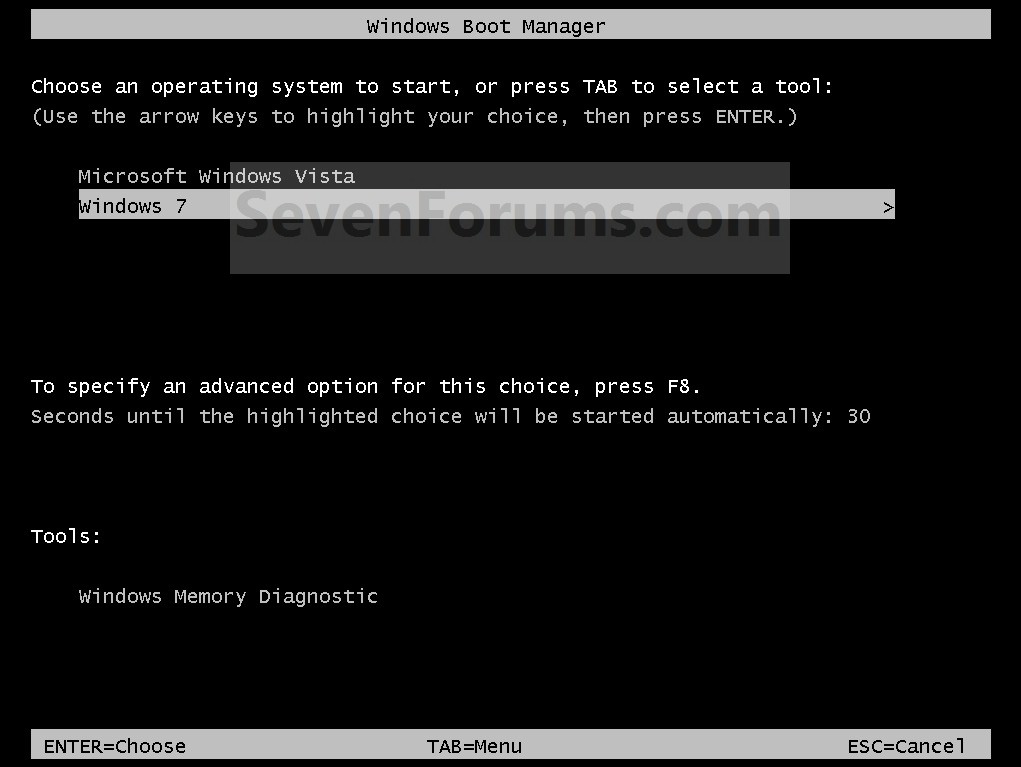
Assuming you are actually now running with Boot Manager, when you boot you should see something like the following example (which shows "Windows Boot Manager" across the top):

DDNkM5.jpg


Technically this is NOT FROM THE BIOS... it is from Windows Boot Manager, which was kicked off by the BIOS going to the "active" partition on the first drive in the BIOS-configured boot sequence and then launching it using special information stored in the first sector on that "active" partition. This was made possible when you ran Windows Repair to correct whatever damage had previously been present, where all of this Boot Manager linkage was somehow damaged or corrupted... perhaps when you installed your second copy of Windows on your second hard drive.


I have a choise on PC startup, which OS I want to boot to. Through BIOS.
If you see what I showed in the above screenshot, then technically this is NOT BIOS... it is Windows Boot Manager you're dealing with.

You use the arrow keys to navigate through the list (and you now probably see THREE versions of Windows, with your most recently installed third Windows pre-selected as the default which will be chosen if you don't navigate before pressing ENTER, or simply let the 10-30 seconds expire so that the default Windows gets launched automatically).


Anyway, you cannot just delete a Windows partition (i.e. the third Windows you just installed to get past these problems)... at least not without first removing it from the existing Boot Manager Menu.

Follow one of the several alternative methods described in this SevenForums Tutorial to properly remove your unwanted Windows from the Boot Manager Menu. Note that the aforementioned EasyBCD is also on this list of possible tools to use, and it's honestly the easiest way to delete the unwanted entry from the Menu list. But any of the described methods will work as well.

Once deleted, confirm that you can re-boot and your new Boot Manager Menu no longer shows the now deleted third unwanted Windows, and that you can select one of the remaining two Windows and boot successfully.

Once confirmed that you're now back to a two-Windows environment, you can use either Acronis or Partition Wizard to delete your unwanted Windows partition (or just FORMAT it, confirming you do want to erase it).

I'd recommend you also change the "LABEL" of your partitions, to something more useful or unique. Having them all named "main partition" or "system" is fairly ambiguous. I label my own partitions on my multiple hard drives with a composite of some abbreviation of manufacturer/model/capacity (e.g. WD750) for that drive followed by P1, P2, etc., for the partitions themselves. So WD750-P1, WD2000-P2, etc.. Doesn't have to be English words... can be any label you want, so why not keep it helpful if you have multiple partitions.
 

My Computer

Computer type
PC/Desktop
Computer Manufacturer/Model Number
Home-built, two systems (1) and (2)
OS
Windows 7 Pro x64 (1), Win7 Pro X64 (2)
CPU
i5-3350p 3.1Ghz/6MB-cache (1); E8400 3.0Ghz/6MB-cache (2)
Motherboard
ASUS P8Z77-V Pro (1); ASUS P5Q3 (2)
Memory
8GB PC3-12800 DDR3 (1); 4GB PC3-10600 DDR3 (2)
Graphics Card(s)
ATI HD7750 (1), (see TV cards); ATI R7 250 (2)
Sound Card
Realtek ALC892 HD Audio (1); Realtek ALC1200 HD Audio (2)
Monitor(s) Displays
Eizo HD2441W LCD, Eizo S2433W (1); Eizo 24" S2433W (2)
Screen Resolution
1920x1200, 1920x1200 (1); 1920x1200 (2)
Hard Drives
(1) 1TB SATA-II (7200RPM), 2x2TB SATA-III (7200RPM), 250GB SATA-III (10000RPM) for OS; 2x2TB external USB 3.0

(2) 320GB SATA-II (7200RPM), 750GB SATA-II (7200RPM), 150GB SATA-II (10000RPM) for OS; 2TB external USB 3.0
PSU
Nesteq ECS-6001 600W (1); Nesteq ECS-5001 500W (2)
Case
Acousti-Case 360 (1) and (2)
Cooling
Noctua NH-U12P SE2 for CPU, 2x120mm case fans (1) and (2)
Keyboard
IBM PS/2 (1) and (2)
Mouse
Logitech MX Revolution wireless (1); Microsoft wired (2)
Internet Speed
100mbps down / 10mbps up
Antivirus
Microsoft Security Essentials; Malwarebyte Anti-Malware Pro
Browser
Firefox
Other Info
Ceton InfiniTV 4-tuner cablecard-enabled TV card as well as Hauppauge HVR-2250 OTA/ATSC 2-tuner TV card in (1), running under Win7 WMC
If you want, when you get a chance, post a shot of disk management for us to look over. ;)
 

My Computer

Computer type
PC/Desktop
Computer Manufacturer/Model Number
Skylake Special #666
OS
Windows 10 Pro x64
CPU
Intel Core i7 6700K
Motherboard
Asus Sabertooth Z170 Mark 1
Memory
GSkill TridentZ RGB 16GB 3600 16-16-16-36
Graphics Card(s)
EVGA GTX 980 Ti SC x2
Sound Card
Realtek High Definition
Monitor(s) Displays
AOC G2460PG
Screen Resolution
1920 x 1080 144Hz
Hard Drives
Samsung 860 Pro 256GB, Seagate Barracuda 4TB x2
PSU
EVGA 1000 P2, EVGA White Custom Braided Cables
Case
Corsair Vengeance C70 Gunmetal Black
Cooling
Corsair H100i v2, Corsair ML120 x2, Thermal Grizzly Kryonaut
Keyboard
Logitech G910 Orion Spectrum
Mouse
Logitech G700s
Internet Speed
Verizon Fios Quantum Gateway 75/75
Antivirus
Windows Defender, Malwarebytes Free 3.8.3
Browser
Chrome
Other Info
Corsair SP120 x4, LG Blu-ray Drive, Durabrand HT-395 100 Watt Dolby Digital Amp, Corsair H2100 Wireless 7.1 Headset

I'm sure the Windows Repair you did selected the first Windows system partition it found (i.e. your C on HDD#0), placed Boot Manager into it, and marked the partition as "active".
It actually repaired them both at once.

Anyway, you cannot just delete a Windows partition (i.e. the third Windows you just installed to get past these problems)... at least not without first removing it from the existing Boot Manager Menu.
What happnes if I do just delet the partition?
Once, a few years ago, after installing a new windows on a new HDD, I just deleted the "Windows" folder itself. I dont remember any issues..

I'd recommend you also change the "LABEL" of your partitions, to something more useful or unique. Having them all named "main partition" or "system" is fairly ambiguous. I label my own partitions on my multiple hard drives with a composite of some abbreviation of manufacturer/model/capacity (e.g. WD750) for that drive followed by P1, P2, etc., for the partitions themselves. So WD750-P1, WD2000-P2, etc.. Doesn't have to be English words... can be any label you want, so why not keep it helpful if you have multiple partitions.
I meant that it's shown as "Main partition" in Disk manager. The lable (you mean the name of the partition, right?) is not "Main partition".
Or did I missunderstand you?
What do you mean?
If you want, when you get a chance, post a shot of disk management for us to look over. ;)

Alright, although I wrote how it is shown exactly.


EDIT:

I just used this EasyBCD thing.. Followed the tutorial.
And once again it f&$#!ed up the boot..

So I repaired it again and just used "option #1" from the tutorial, that uses built in system boot options in MSCONFIG and now it works. I no longer see the unwanted Win partition.

I swear I hate those software that handle sensitive things. They always seem to f@!ck up my system.
 
Last edited:

My Computer

Computer type
PC/Desktop
OS
Win 7 64 bit
CPU
I5 3470
Motherboard
GA-H77M-D3H
Memory
Corsair 8GB DDR3 1600MHZ
Graphics Card(s)
Sparkle GTX460 1GB
Screen Resolution
1920X1080
Hard Drives
WD 320GB
Samsung 1TB F3
PSU
FSP 700W
Cooling
Scythe Grand Kama Cross
Internet Speed
30Mbps
Antivirus
Microsoft Security Essentials
Browser
FF,GC
It actually repaired them both at once.

What happens if I do just delete the partition?
Once, a few years ago, after installing a new windows on a new HDD, I just deleted the "Windows" folder itself. I dont remember any issues..
There's an entry for the Windows partition you're wanting to delete in the Boot Manager menu. If you're going to delete the partition (thus making it impossible to select that Windows to boot to) then you also want to delete the entry in the Boot Manager menu. That's the only additional thing you should do. Otherwise, there's no problem deleting the partition.

That tutorial is exactly the procedure to use to remove the Boot Manager menu entry for the Windows partition you no longer want/need and am about to physically delete.


I meant that it's shown as "Main partition" in Disk manager. The lable (you mean the name of the partition, right?) is not "Main partition".
Or did I missunderstand you?
What do you mean?
I mean to use the "LABEL" function for a partition (available in Partition Wizard, My Computer -> right-click on partition -> select General tab, enter "label" information, Acronis, etc.) to give it a "name" that is meaningful.

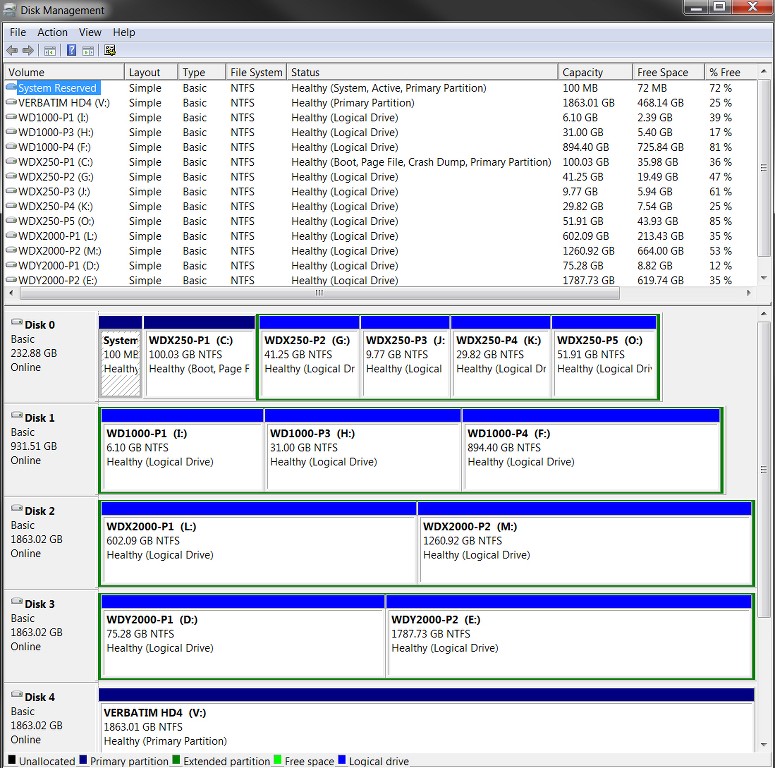
Here is my own 4-drive (plus external 2TB USB 3.0 drive, for backups) multi-partition setup. Note that all the partitions on one drive have the same prefix portion in their "label" that identifies the drive manufacturer and size (because that's interesting and unique), with a simple suffix of -P1, -P2, etc.

O0mKzx.jpg


EDIT:

I just used this EasyBCD thing.. Followed the tutorial.
And once again it f&$#!ed up the boot..
Don't know why you are having such problems, with software products that are highly recommended on this forum and have been used countless times to perform the identical tasks you're trying to accomplish... and with no reported problems.

You didn't describe exactly what the symptom was after using EasyBCD to simply delete an entry from the Boot Manager menu, but I can't imagine it doing anything problematic.

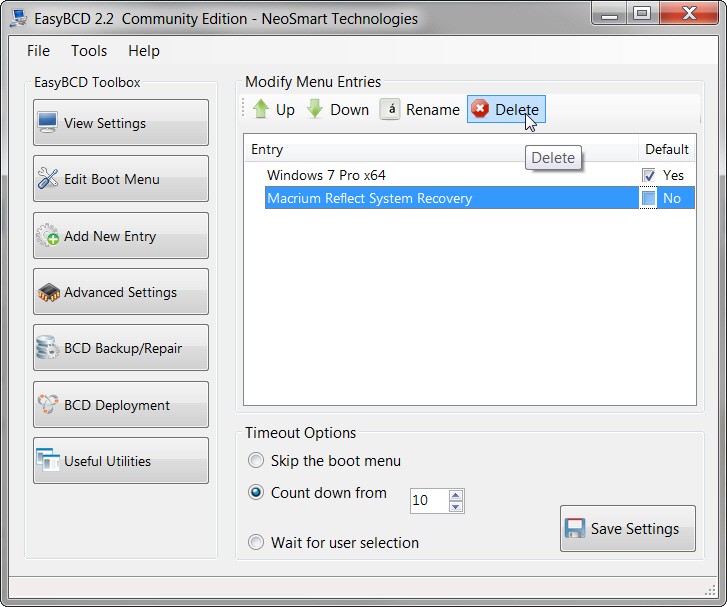
For example, if I wanted to delete my "Macrium Reflect System Recovery" entry in my Boot Manager menu, I'd simply push the "edit boot menu" button on the left, select the entry in the Boot Manager menu list that I wanted to delete in the right pane, and then push the "DELETE" toolbar button above that right pane. Then push "save settings", and I'm done.

mpuErE.jpg


Can't imagine you didn't follow the identical steps to delete your third (most recently installed) unwanted Windows. Did you remember that this was probably also marked as the DEFAULT item? In other words, if you delete the default boot menu item, one of the remaining two items (in your case) should then have been checked as the "default".

Anyway, unless you describe what subsequent boot problem you encountered, I really can't speculate on what might have been incorrect in the tutorial or what you might have done to get yourself in trouble. Certainly there's nothing wrong with the EasyBCD software product itself, based on LOTS of uses by many many others.


So I repaired it again and just used "option #1" from the tutorial, that uses built in system boot options in MSCONFIG and now it works. I no longer see the unwanted Win partition.
Many ways to skin a cat. I would have used EasyBCD (as I have in the past) and not expected any surprises or resulting problems.


I swear I hate those software that handle sensitive things. They always seem to f@!ck up my system.
Honestly can't understand your experience. Partition Wizard and EasyBCD are perhaps two of THE MOST HIGHLY REGARDED utilities recommended on this forum, for common everyday tasks that are exactly what these two programs are designed to perform easily and reliably.
 

My Computer

Computer type
PC/Desktop
Computer Manufacturer/Model Number
Home-built, two systems (1) and (2)
OS
Windows 7 Pro x64 (1), Win7 Pro X64 (2)
CPU
i5-3350p 3.1Ghz/6MB-cache (1); E8400 3.0Ghz/6MB-cache (2)
Motherboard
ASUS P8Z77-V Pro (1); ASUS P5Q3 (2)
Memory
8GB PC3-12800 DDR3 (1); 4GB PC3-10600 DDR3 (2)
Graphics Card(s)
ATI HD7750 (1), (see TV cards); ATI R7 250 (2)
Sound Card
Realtek ALC892 HD Audio (1); Realtek ALC1200 HD Audio (2)
Monitor(s) Displays
Eizo HD2441W LCD, Eizo S2433W (1); Eizo 24" S2433W (2)
Screen Resolution
1920x1200, 1920x1200 (1); 1920x1200 (2)
Hard Drives
(1) 1TB SATA-II (7200RPM), 2x2TB SATA-III (7200RPM), 250GB SATA-III (10000RPM) for OS; 2x2TB external USB 3.0

(2) 320GB SATA-II (7200RPM), 750GB SATA-II (7200RPM), 150GB SATA-II (10000RPM) for OS; 2TB external USB 3.0
PSU
Nesteq ECS-6001 600W (1); Nesteq ECS-5001 500W (2)
Case
Acousti-Case 360 (1) and (2)
Cooling
Noctua NH-U12P SE2 for CPU, 2x120mm case fans (1) and (2)
Keyboard
IBM PS/2 (1) and (2)
Mouse
Logitech MX Revolution wireless (1); Microsoft wired (2)
Internet Speed
100mbps down / 10mbps up
Antivirus
Microsoft Security Essentials; Malwarebyte Anti-Malware Pro
Browser
Firefox
Other Info
Ceton InfiniTV 4-tuner cablecard-enabled TV card as well as Hauppauge HVR-2250 OTA/ATSC 2-tuner TV card in (1), running under Win7 WMC

I mean to use the "LABEL" function for a partition (available in Partition Wizard, My Computer -> right-click on partition -> select General tab, enter "label" information, Acronis, etc.) to give it a "name" that is meaningful.

Here is my own 4-drive multi-partition setup. Note that all the partitions on one drive have the same prefix portion in their "label" that identifies the drive manufacturer and size (because that's interesting and unique), with a simple suffix of -P1, -P2, etc.
Well.. I actually like it simple. Just a letter is fine by me.

Don't know why you are having such problems, with software products that are highly recommended on this forum and have been used countless times to perform the identical tasks you're trying to accomplish... and with no reported problems.

You didn't describe exactly what the symptom was after using EasyBCD to simply delete an entry from the Boot Manager menu, but I can't imagine it doing anything problematic.

For example, if I wanted to delete my "Macrium Reflect System Recovery" entry in my Boot Manager menu, I'd simply push the "edit boot menu" button on the left, select the entry in the Boot Manager menu list that I wanted to delete in the right pane, and then push the "DELETE" toolbar button above that right pane. Then push "save settings", and I'm done.
No idea.. I just followed a simple procces. Nothing too complicated. And no, the defult was my middle Win, not the one I deleted.

Many ways to skin a cat. I would have used EasyBCD (as I have in the past) and not expected any surprises or resulting problems.
Why use a third party software when you have it built in?
I really dont see why.
I rely more on built in functions if possible.

I used them both to give it a try. "Not for me" is my conclusion.


BTW, you sure have a lot of partitions. Why?
I really hated the fact I divided my single HDD to 4 partitions when I only got it like 5 years ago.
And I couldnt really do anything because I had too much data on each partition. So I couldn't just transfer data to another partition and combine them together.


I have a another two questions.

#1 What if I'd like to delet my old windows partition in the future (The one I am trying to keep as for now)?
I read that you can't delete the old Win partition because it may contain the boot files that my current system uses.

If in Disk manager I see that my current windows C drive is marked as System, Boot and Active while my old Windows drive is marked just as "Primary drive", is it fine deleting the old one?


#2 Is there anything I need to know about Logical drives, Extended drives, Primary drives and so on?
It is really confussing.
And I dont see any options considering these things in the built in Disk manager.


Thank you.
 

My Computer

Computer type
PC/Desktop
OS
Win 7 64 bit
CPU
I5 3470
Motherboard
GA-H77M-D3H
Memory
Corsair 8GB DDR3 1600MHZ
Graphics Card(s)
Sparkle GTX460 1GB
Screen Resolution
1920X1080
Hard Drives
WD 320GB
Samsung 1TB F3
PSU
FSP 700W
Cooling
Scythe Grand Kama Cross
Internet Speed
30Mbps
Antivirus
Microsoft Security Essentials
Browser
FF,GC
Help? ;)
 

My Computer

Computer type
PC/Desktop
OS
Win 7 64 bit
CPU
I5 3470
Motherboard
GA-H77M-D3H
Memory
Corsair 8GB DDR3 1600MHZ
Graphics Card(s)
Sparkle GTX460 1GB
Screen Resolution
1920X1080
Hard Drives
WD 320GB
Samsung 1TB F3
PSU
FSP 700W
Cooling
Scythe Grand Kama Cross
Internet Speed
30Mbps
Antivirus
Microsoft Security Essentials
Browser
FF,GC
Back
Top