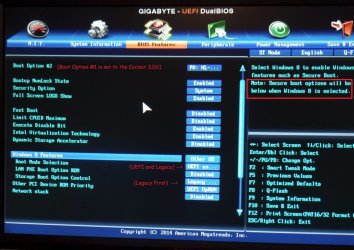
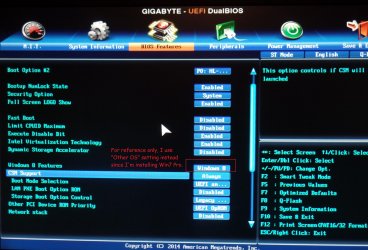
Not saying I am a Pro, but I've built many custom PCs over the years, more than a couple dozen for myself, my wife, and other family members. But this is one of the weirdest problem I've ever come across: after doing a "fresh install" of Windows 7 64-bit, everything goes fine. For those familiar with the install, the final steps of setup are to ask for a login name and machine name. I enter that information, then specify passwords on the next part of the setup, then lastly the timezone selection. Then Windows prepares the desktop, and the install looks complete.
THEN, within 30 seconds, Windows automatically logs out and shuts down (i.e. clears the desktop and shows "Windows is shutting down" {or similar} message). It's sort of like when pressing the power button on some setups (for like 1 second, not the 5 seconds hard shutdown), which induces the shutdown procedure for Windows (depending on the setup, bios settings, etc). I believe there are some other conditions which might cause Windows to auto-shutdown, perhaps like overheat detection? Or perhaps over-the-network shutdowns, except I've intentionally not plugged in the Ethernet during the installation.
Just installing Windows alone is fairly hardware intensive, how can it make it all the way thru the entire installation, then only stay afloat for 30 seconds after the first login? This problem is so consistent. I've re-installed more times then I can remember now (with a few variations, which I'll explain shortly), same result every time. My first thought was there was something funny with the motherboard. So I returned the ASUS H97I PLUS board the next day, and exchanged it for a Gigabyte GA-Z97X-UD3H (wanted more SATA ports anyway). And to my amazement, the exact same problem with this 2nd quite different motherboard.
So, memory? The memory I went with for this new build is Corsair Vengeance DDR3 2x8GB (CMZ16GX3M2A1600C10). But then I borrowed a 8GB Patriot DDR3 from my file server which has been running for over a year. Same result. I put the Corsair Vengeance DDR3 RAM into the file server just mentioned; works fine. Don't think RAM is a problem here (and the exact same incompatibility with both an Asus and Gigabyte seems unlikely).
Hard drive? I've tried a 120GB Corsair SSD, an old 400GB Samsung drive, and a new 4TB HGST drive. All native SATA. All same results.
Install media? I have my own OEM retail Win7 Pro, and my friend also has MSDN. We've tried both my DVD media and his ISO put on a USB drive (obviously not at the same time). Same result either way. And just to verify, we used both media to setup a Windows 64-bit installation in a VM under VMware. Both work fine there. Don't think media is a problem here (but I have had install media go bad after years of many installs, so I know it can happen). The DVD drive is a LG SATA basic drive, nothing out of the ordinary (but it's not new either). When doing the install via USB ISO, we unplug the DVD drive just to have it out of the way, and use a USB 2.0 port on the back of the motherboard.
Video card? I didn't intend to put any exotic video cards in this system. So, I'm just using the onboard video. I have assumed on these modern LGA 1150 boards, the motherboard external video connectors are driven directly by the integrated video card of the CPU? This is what the motherboard manual implies also (Onboard Graphics, Integrated Graphics Processor). But before I talk about the processor: I've tried both the onboard and PCIe video card. The only spare PCIe video card I have anymore is an old GALAXY nVidia GeForce 7200GS 256MB DDR2 (old school, but fanless!). I suspect it's not even as good as the integrated GPU. I've tried both the DVI and VGA video connectors (of both the motherboard with the PCIe not installed, and on the PCIe while it was installed). And that was the only suggestion I came across when trying to search for this problem: to try a VGA cable, since sometimes during install some systems freak out about going into "HD" video modes and the VGA cable might prevent that. At least I tried it; but it was all the same result.
So finally, the CPU: to keep power consumption down, I went with a Pentium G3440 3.3Ghz, 3MB cache. This is the first time I've tried one of these G-series, having gone with i7's for awhile. And this is where I have a confession: when I first put the system together, when I did my first Power-On, I was amazed at how quiet the system was. First things first, I went into the BIOS to gloss over available settings. Poking around, it came to my attention that the CPU fan speed said "0 rpm". Then I indeed noticed the stock-Intel fan power cable had got wrapped up with the fan. So it had the heatsink, but the fan was not spinning. I figured with POST and inspecting the BIOS, it maybe went about as long as 90 seconds at most (probably less, but it certainly wasn't left like that for minutes). First time I've had that problem. I shut the power supply power off immediately, unplugged it, wait 30 seconds or so. Then adjusted the CPU fan cables accordingly, it hasn't repeated the problem since. And since then, I've monitored the BIOS reported CPU temp holding at 39degC with the ran around 1500rpm. Again, this was on a brand new CPU, initial power on. All the install attempts mentioned above were after this.
If the CPU is healthy enough to install Windows completely, clear up to the initial "Preparing your desktop" and logging in, without blue screening or any other ill effect, it would seem to me the CPU is fine (since it at least had the heatsink and wasn't on long enough to actually do anything stressful other than run the BIOS). But still, something is triggering the auto-logoff and shutdown (Windows says both within 30 seconds after finishing the install: "Logging off" followed by "Shutting down"). And after the shutdown, it restarts and doesn't boot anymore. Note, I've also disabled any temp warnings and such, as far as I can tell, in the BIOS.
So to summarize:
- Intel G3440 3.3Ghz CPU in a Gigabyte GA-Z97X-UD3H LGA1150 board, 8GB Corsair DDR3 (have 16GB, but used one stick to minimize hardware involved; have swapped sticks and tried different slots). Antec 550W power supply. New (<5 days) components.
- Two different Win7 Pro 64-bit media (my original OEM DVD and a MSDN ISO). With OEM DVD install, I have a SATA DVD drive attached. With USB ISO, I remove/detach the DVD drive (just because; minimize necessary H/W) and use a USB2.0 port on the back of the motherboard itself.
- Windows 7 installs completely (via USB ISO or DVD media), get to final step of entering time zone and preparing desktop. If I am quick, I can Win-R, do CMD.exe and do "dir" (so the install IS working). But each time, within 30 seconds after the install, windows logs off and shutdown the PC.
- The PC doesn't actually shutdown, but instead restarts. It then gets in an infinite loop of restarting even before POST messages appear (but yet if I hold DEL, eventually I can get back into the BIOS; so not the entire POST is aborted).
- Tried with onboard video only, tried with basic 7200GS nvidia PCIe 256MB DDR2 video card.
- Tried DVI (normally white) video connection and VGA (normally blue) video connection (same monitor).
- Tried other RAM from a working system. Verified the RAM that I want to use works fine in the other working system.
- Tried 3 different hard drives (did a Corsair low level format on the SSD using their tools, not sure if the 400GB hard drive ever had an OS on it {but I always at least erase all the partitions during the install}, and the 4TB never had anything installed on it before for sure). Same result on all of them.
- No ethernet connected during install or at any time. No USB devices, except when doing the install by USB ISO.
- Tried two different motherboards (described above). BIOS updated the Asus, same result. The Gigabyte is already at BIOS ver F7 (there is a newer F8e, but it says Beta BIOS so I'll avoid that for now). Neither motherboard has BT or Wifi capability, so no updates sneaking in that way.
So, what am I missing here? Never had a problem with a Win7 install. Or at least, not with a completely stock system (i.e. no clock adjustments). And I've never had a bad Intel chip (nor have I had owned one long enough for it to go bad). I haven't tried replacing the PSU. But as mentioned, I make it through the entire fresh install on a blank drive, clear past login and initial desktop setup. It's golden for 30 seconds, then shuts down, reboots itself, and power cycles indefinately thereafter (or some kind of reboot).
Can some win7 media have some kind of self-destruct in them, to not work after a certain year? I suppose I could try Win8. I'll add that I did try my old dusty Vista 64-bit Ultimate, and it doesn't work either. I do the install, do SP1 and SP2, then do the auto-updates -- then something goes bad with the auto-update and it gets stuck in some cycle of installing updates and reverting failed updates (left it going all night). Gave up on Vista after two nights. The motherboard doesn't technically support Vista, but I found suitable Intel ethernet drivers. Still, as the vendor doesn't support Vista, I gave up on that route. I could go FreeNAS, but I'm really baffled about this Win7 issue.
Suggestions welcomed, but I suspect next thing I'm going to try is replacing the CPU. Is there something particular about newer 2015 boards, trying to make Win7 obsolete? I could try a Win8 install I suppose; not opposed to it (use it on my laptop), but just Win7 has always been so reliable for me...
-SteveL
THEN, within 30 seconds, Windows automatically logs out and shuts down (i.e. clears the desktop and shows "Windows is shutting down" {or similar} message). It's sort of like when pressing the power button on some setups (for like 1 second, not the 5 seconds hard shutdown), which induces the shutdown procedure for Windows (depending on the setup, bios settings, etc). I believe there are some other conditions which might cause Windows to auto-shutdown, perhaps like overheat detection? Or perhaps over-the-network shutdowns, except I've intentionally not plugged in the Ethernet during the installation.
Just installing Windows alone is fairly hardware intensive, how can it make it all the way thru the entire installation, then only stay afloat for 30 seconds after the first login? This problem is so consistent. I've re-installed more times then I can remember now (with a few variations, which I'll explain shortly), same result every time. My first thought was there was something funny with the motherboard. So I returned the ASUS H97I PLUS board the next day, and exchanged it for a Gigabyte GA-Z97X-UD3H (wanted more SATA ports anyway). And to my amazement, the exact same problem with this 2nd quite different motherboard.
So, memory? The memory I went with for this new build is Corsair Vengeance DDR3 2x8GB (CMZ16GX3M2A1600C10). But then I borrowed a 8GB Patriot DDR3 from my file server which has been running for over a year. Same result. I put the Corsair Vengeance DDR3 RAM into the file server just mentioned; works fine. Don't think RAM is a problem here (and the exact same incompatibility with both an Asus and Gigabyte seems unlikely).
Hard drive? I've tried a 120GB Corsair SSD, an old 400GB Samsung drive, and a new 4TB HGST drive. All native SATA. All same results.
Install media? I have my own OEM retail Win7 Pro, and my friend also has MSDN. We've tried both my DVD media and his ISO put on a USB drive (obviously not at the same time). Same result either way. And just to verify, we used both media to setup a Windows 64-bit installation in a VM under VMware. Both work fine there. Don't think media is a problem here (but I have had install media go bad after years of many installs, so I know it can happen). The DVD drive is a LG SATA basic drive, nothing out of the ordinary (but it's not new either). When doing the install via USB ISO, we unplug the DVD drive just to have it out of the way, and use a USB 2.0 port on the back of the motherboard.
Video card? I didn't intend to put any exotic video cards in this system. So, I'm just using the onboard video. I have assumed on these modern LGA 1150 boards, the motherboard external video connectors are driven directly by the integrated video card of the CPU? This is what the motherboard manual implies also (Onboard Graphics, Integrated Graphics Processor). But before I talk about the processor: I've tried both the onboard and PCIe video card. The only spare PCIe video card I have anymore is an old GALAXY nVidia GeForce 7200GS 256MB DDR2 (old school, but fanless!). I suspect it's not even as good as the integrated GPU. I've tried both the DVI and VGA video connectors (of both the motherboard with the PCIe not installed, and on the PCIe while it was installed). And that was the only suggestion I came across when trying to search for this problem: to try a VGA cable, since sometimes during install some systems freak out about going into "HD" video modes and the VGA cable might prevent that. At least I tried it; but it was all the same result.
So finally, the CPU: to keep power consumption down, I went with a Pentium G3440 3.3Ghz, 3MB cache. This is the first time I've tried one of these G-series, having gone with i7's for awhile. And this is where I have a confession: when I first put the system together, when I did my first Power-On, I was amazed at how quiet the system was. First things first, I went into the BIOS to gloss over available settings. Poking around, it came to my attention that the CPU fan speed said "0 rpm". Then I indeed noticed the stock-Intel fan power cable had got wrapped up with the fan. So it had the heatsink, but the fan was not spinning. I figured with POST and inspecting the BIOS, it maybe went about as long as 90 seconds at most (probably less, but it certainly wasn't left like that for minutes). First time I've had that problem. I shut the power supply power off immediately, unplugged it, wait 30 seconds or so. Then adjusted the CPU fan cables accordingly, it hasn't repeated the problem since. And since then, I've monitored the BIOS reported CPU temp holding at 39degC with the ran around 1500rpm. Again, this was on a brand new CPU, initial power on. All the install attempts mentioned above were after this.
If the CPU is healthy enough to install Windows completely, clear up to the initial "Preparing your desktop" and logging in, without blue screening or any other ill effect, it would seem to me the CPU is fine (since it at least had the heatsink and wasn't on long enough to actually do anything stressful other than run the BIOS). But still, something is triggering the auto-logoff and shutdown (Windows says both within 30 seconds after finishing the install: "Logging off" followed by "Shutting down"). And after the shutdown, it restarts and doesn't boot anymore. Note, I've also disabled any temp warnings and such, as far as I can tell, in the BIOS.
So to summarize:
- Intel G3440 3.3Ghz CPU in a Gigabyte GA-Z97X-UD3H LGA1150 board, 8GB Corsair DDR3 (have 16GB, but used one stick to minimize hardware involved; have swapped sticks and tried different slots). Antec 550W power supply. New (<5 days) components.
- Two different Win7 Pro 64-bit media (my original OEM DVD and a MSDN ISO). With OEM DVD install, I have a SATA DVD drive attached. With USB ISO, I remove/detach the DVD drive (just because; minimize necessary H/W) and use a USB2.0 port on the back of the motherboard itself.
- Windows 7 installs completely (via USB ISO or DVD media), get to final step of entering time zone and preparing desktop. If I am quick, I can Win-R, do CMD.exe and do "dir" (so the install IS working). But each time, within 30 seconds after the install, windows logs off and shutdown the PC.
- The PC doesn't actually shutdown, but instead restarts. It then gets in an infinite loop of restarting even before POST messages appear (but yet if I hold DEL, eventually I can get back into the BIOS; so not the entire POST is aborted).
- Tried with onboard video only, tried with basic 7200GS nvidia PCIe 256MB DDR2 video card.
- Tried DVI (normally white) video connection and VGA (normally blue) video connection (same monitor).
- Tried other RAM from a working system. Verified the RAM that I want to use works fine in the other working system.
- Tried 3 different hard drives (did a Corsair low level format on the SSD using their tools, not sure if the 400GB hard drive ever had an OS on it {but I always at least erase all the partitions during the install}, and the 4TB never had anything installed on it before for sure). Same result on all of them.
- No ethernet connected during install or at any time. No USB devices, except when doing the install by USB ISO.
- Tried two different motherboards (described above). BIOS updated the Asus, same result. The Gigabyte is already at BIOS ver F7 (there is a newer F8e, but it says Beta BIOS so I'll avoid that for now). Neither motherboard has BT or Wifi capability, so no updates sneaking in that way.
So, what am I missing here? Never had a problem with a Win7 install. Or at least, not with a completely stock system (i.e. no clock adjustments). And I've never had a bad Intel chip (nor have I had owned one long enough for it to go bad). I haven't tried replacing the PSU. But as mentioned, I make it through the entire fresh install on a blank drive, clear past login and initial desktop setup. It's golden for 30 seconds, then shuts down, reboots itself, and power cycles indefinately thereafter (or some kind of reboot).
Can some win7 media have some kind of self-destruct in them, to not work after a certain year? I suppose I could try Win8. I'll add that I did try my old dusty Vista 64-bit Ultimate, and it doesn't work either. I do the install, do SP1 and SP2, then do the auto-updates -- then something goes bad with the auto-update and it gets stuck in some cycle of installing updates and reverting failed updates (left it going all night). Gave up on Vista after two nights. The motherboard doesn't technically support Vista, but I found suitable Intel ethernet drivers. Still, as the vendor doesn't support Vista, I gave up on that route. I could go FreeNAS, but I'm really baffled about this Win7 issue.
Suggestions welcomed, but I suspect next thing I'm going to try is replacing the CPU. Is there something particular about newer 2015 boards, trying to make Win7 obsolete? I could try a Win8 install I suppose; not opposed to it (use it on my laptop), but just Win7 has always been so reliable for me...
-SteveL
My Computer
At a glance
Windows 7 64-bitPentiumYesNone
- Computer type
- PC/Desktop
- Computer Manufacturer/Model Number
- Custom
- OS
- Windows 7 64-bit
- CPU
- Pentium
- Motherboard
- Gigabyte
- Memory
- Yes
- Graphics Card(s)
- None
- Hard Drives
- 4TB HST