Window Color and Appearance - Change

How to Change the Window Color and Appearance in Windows 7


   Information
This will show you how to change the Window Color and Appearance settings for how windows, the Start Menu, and the taskbar are displayed in Windows 7.

   Warning
Aero Requirements to be Enabled in Windows 7

NOTE: If Aero is not enabled, then you will not see the Window Color and Appearance screen in step 3A of OPTION TWO below.
  • Aero is not included in Windows 7 Home Basic or Windows 7 Starter editions.
  • 1 GHz 32-bit or 64-bit processor
  • 1 GB of system memory
  • A graphics card with support for DirectX 9 graphics with at least 128 MB of memory.
  • The graphics card must support Pixel Shader 2.0 and the Windows Display Driver Model (WDDM).
  • Activate Windows 7.
  • You must be have True Color (32 bit) set instead of High Color (16 bit).
  • The Themes and Desktop Window Manager Session Manager Services are set to Start and Automatic.
  • The desktop composition and Animated controls and elements inside windows options enabled in Visual Effects.
  • Refresh or update your WEI score.
  • You must be using a "Aero" theme.
   Tip
All advanced appearance settings for a single user are stored in the three registry keys below.

  • HKEY_CURRENT_USER\Control Panel\Colors
  • HKEY_CURRENT_USER\Control Panel\Desktop\Colors
  • HKEY_CURRENT_USER\Control Panel\Desktop\WindowMetrics


OPTION ONE

To Change "Window Color and Appearance" in ONLY Windows 7 Starter and Home Basic


   Note
If you have the Windows 7 Home Premium, Professional, Ultimate, or Enterprise edition, then use OPTION TWO below instead.


1. Open the Control Panel (icons view), and click on the Display icon.

2. In the left blue pane, click on the Change color scheme link. (see screenshot below)
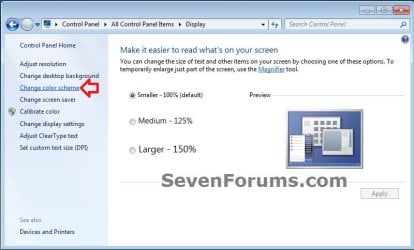
Starter_Basic-1.jpg
3. Click on the Advanced button. (see screenshot below)
NOTE: Aero themes are not available in the Windows 7 Starter and Home Basic editions.
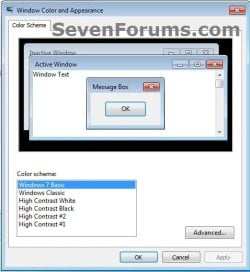
Starter_Basic-2.jpg
4. Go to step 7B in OPTION TWO below to do steps 7B to 9.

5. When finished, click on OK. (see screenshot below step 3)

6. Close the Display window. (see screenshot below step 1)


OPTION TWO

To Change "Window Color and Appearance" in ONLY Windows 7 Home Premium, Professional, Ultimate, and Enterprise


   Note
If you have the Windows 7 Starter or Home Basic edition, then use OPTION ONE above instead.


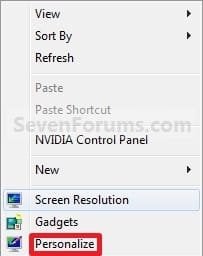
1. Right click on a empty space on the desktop and click on Personalize. (see screenshot below)
177d1230589847-window-color-appearance-change-right_click.jpg

2. Click on the Window Color link at the bottom of the window. (see screenshot below)
NOTE: The name that is grayed out under Window Color, is the current color selected.
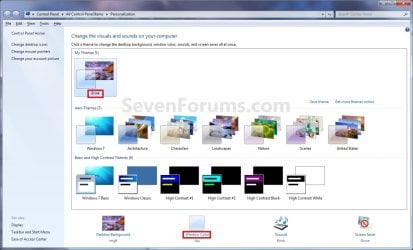
Personalize.jpg

   Warning

  • If you have selected from the Basic and High Contrast Themes , then you will not see the Window Color and Appearance screen below step 3A. Instead, go to step 7.
  • If you have selected from the Aero Themes, then you will see the Window Color and Appearance screen below step 3A. Continue to step 3.

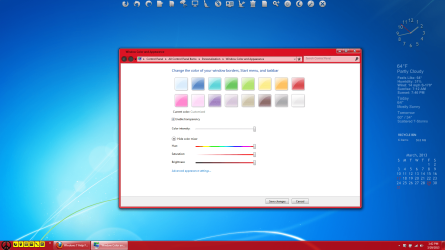
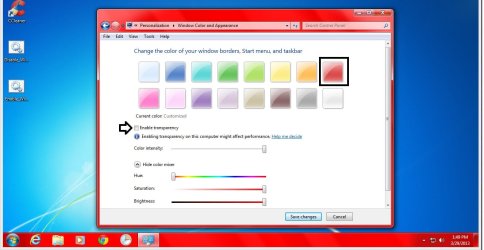
3. Select a Color
A) Click on an available color that you would like the Start Menu, window borders, and taskbar to be. (see screenshot below step 5A)
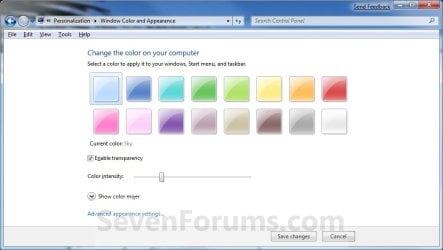
Color_and_Appearance-1.jpg
4. Enable or Disable Transparency
A) Check or uncheck Enable transparency to enable or disable transparency for the Start Menu, window borders, and taskbar. (see screenshot below step 3A)
5. Adjust Color Intensity
A) Slide the Color intensity slider to the left to lighten the color (step 3) or to the right to darken the color (step 3). (see screenshot below step 3A)
WARNING: If you slide the slider to far to the right, the Start menu, windows, and taskbar, may no longer be transparent (if enabled) since the color will be to dark. You would just need to slide it some to the left to lighten the color again.
6. To Adjust the Color Mixer Settings
NOTE: If you do not want to adjust the color mixer settings, then skip this step to keep the default color selected in step 3 and go to step 7 instead.
A) Click on the Show color mixer button. (see screenshot below)
NOTE: This is if you would like to adjust the color's (step 3A) hue, saturation, and brightness to create a custom color.

B) Slide the sliders to adjust the color.
NOTE: If you do not wish to continue to step 7, then click on the Save Changes button to apply the changes and close the window below. You're done.
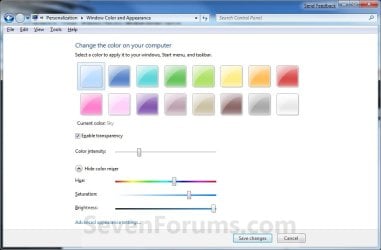
Color_and_Appearance-2.jpg
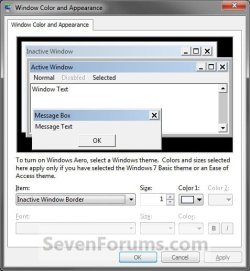
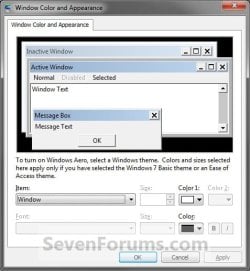
7. To Change the "Advanced Window Color and Appearance" Settings
WARNING: Colors and sizes selected for items will only be used if you have selected a Windows Classic or High Contrast theme. If any other theme is applied, you will not be able to change colors and sizes for items.
A) Click on the Advanced appearance settings link. (see screenshot above)
NOTE: You will not need to do this if you have a Basic and High Contrast Theme selected. Continue to step 7B instead.

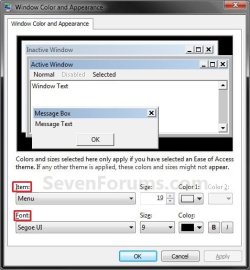
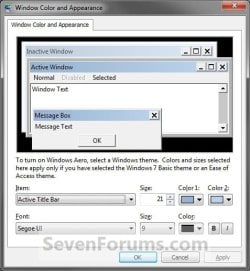
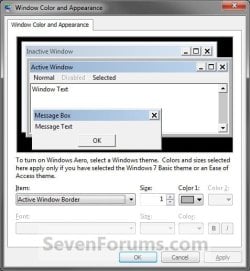
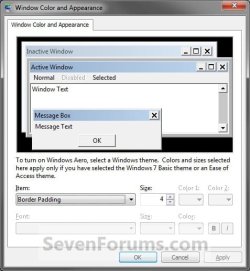
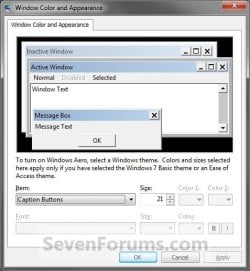
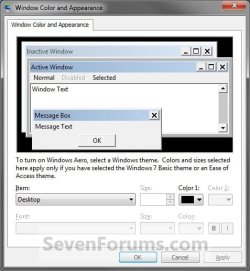
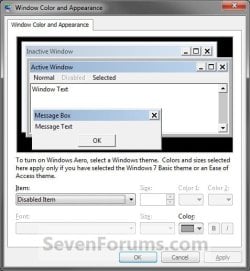
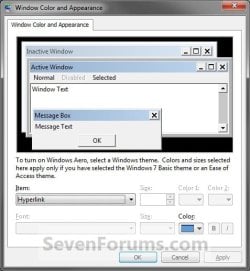
B) To Change a Window Item Setting

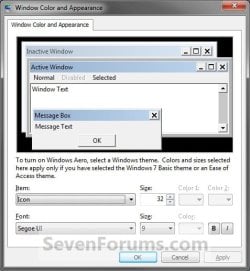
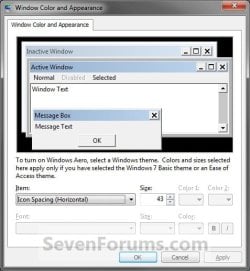
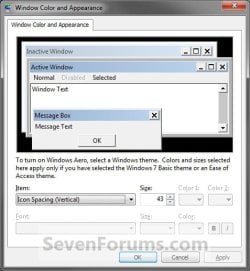
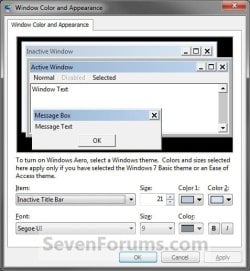
  • To Select a Item - Click on the Item drop down menu and select a window item you want to change. (See screenshots below step 7C)
    NOTE: You can also click on the different displayed windows at the top of the "Window Color and Appearance" window to select a Item to.
  • To Change the Item Size - Change the Size number to what you want.
  • To Change the Item Color - Click on the Color 1 and Color 2 drop down menu and select a color.
    NOTE: The color will only change if you have the Windows Classic theme selected.
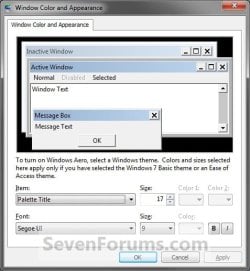
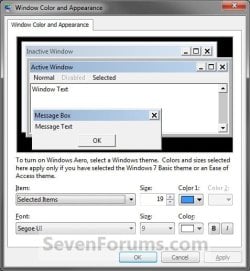
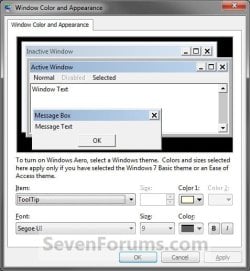
C) To Change the Font Settings for the Selected Item

  • To Change the Item Font - Click on the Font drop down menu and select a font. (See screenshotd below)
  • To Change the Item Font Size - Click on the Size drop down menu and select a number for the size. The higher the number, the larger the size.
  • To Change the Item Font Color - Click on the Color drop down menu and select a color.
  • To Have the Item Font in Bold - Click the B button to highlight it. If it is not highlighted, then the font will not be in bold.
  • To Have the Item Font in Italic - Click on the I button to highlight it. If it is not highlighted, then the font will not be in italic.
Classic_Color_and_Appearance-1.jpg

Classic_Color_and_Appearance-2.jpg
D) Repeat steps 7B and 7C until you change all the Items you wanted.
8. The Default Advanced Appearance Settings
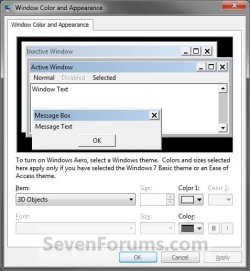
3D_Objects.jpgActive_Tittle_Bar.jpg

Active_Window_Border.jpgApplication Background.jpg

Border_Padding.jpgCaption_Buttons.jpg

Desktop.jpgDisabled_Item.jpg

Hyperlink.jpgIcon.jpg

Icon_Spacing_Horizontal.jpgIcon_Spacing_Vertical.jpg

Inactive_Title_Bar.jpgInactive_Window_Border.jpg

Menu.jpgMessage_Box.jpg

Palette_Title.jpgScrollbar.jpg

Selected_Items.jpgToolTip.jpg

Window.jpg

9. When finished, click on OK. (see screenshots above or below step 7C)

10. Click on the Save Changes button in the Window Color and Appearance window. (see screenshot below step 6B)
NOTE: You will not have this to do if you have a Basic and High Contrast Theme selected.

11. Close the the Personalization window. (see screenshot below step 2)
That's it,
Shawn


Attachments

  • Right_Click.jpg
    Right_Click.jpg
    7.6 KB · Views: 470,417
Last edited:
Yup that was it. Thank you very much.
Can't believe I forgot to do that. :o
Thanks again! Keep up the good work :)
 

My Computer My Computer

OS
Windows 7 Ultimate x64
You're most welcome. LOL, no worries. We all do it. :)
 

My Computer My Computer

Computer type
PC/Desktop
Computer Manufacturer/Model Number
Self built custom
OS
64-bit Windows 11 Pro for Workstations
CPU
Intel i7-8700K OC'd to 5 GHz
Motherboard
ASUS ROG Maximus XI Formula Z390
Memory
64 GB (4x16GB) G.SKILL TridentZ RGB DDR4 3600 MHz
Graphics Card(s)
ASUS ROG-STRIX-GTX1080TI-O11G-GAMING
Sound Card
Integrated
Monitor(s) Displays
2 x Samsung Odyssey G7 27"
Screen Resolution
2560x1440
Hard Drives
1TB Samsung 990 PRO M.2,
4TB Samsung 990 PRO PRO M.2,
TerraMaster F8 SSD Plus NAS
PSU
Seasonic Prime Titanium 850W
Case
Thermaltake Core P3
Cooling
Corsair Hydro H115i
Keyboard
Logitech wireless K800
Mouse
Logitech MX Master 4
Internet Speed
2 Gb/s Download and 100 Mb/s Upload
Antivirus
Malwarebyte Anti-Malware Premium
Browser
Google Chrome
Other Info
Logitech Z625 speaker system,
Logitech BRIO 4K Pro webcam,
HP Color LaserJet Pro MFP M477fdn,
APC SMART-UPS RT 1000 XL - SURT1000XLI,
Galaxy S23 Plus phone
help please at firs i could change win. themes like at step 3 ,but now i can't anymore i did some thiing an now it's like at step 7 and still from there i can't change my Win. color...:(((
 

My Computer My Computer

OS
Windows 7 Home Premium 64bit
Hello Jovan, and welcome to Seven Forums.

Double check each item (links) in the red warning box at the top of the tutorial to make sure you meet the requirements to have Aero enabled. :)
 

My Computer My Computer

Computer type
PC/Desktop
Computer Manufacturer/Model Number
Self built custom
OS
64-bit Windows 11 Pro for Workstations
CPU
Intel i7-8700K OC'd to 5 GHz
Motherboard
ASUS ROG Maximus XI Formula Z390
Memory
64 GB (4x16GB) G.SKILL TridentZ RGB DDR4 3600 MHz
Graphics Card(s)
ASUS ROG-STRIX-GTX1080TI-O11G-GAMING
Sound Card
Integrated
Monitor(s) Displays
2 x Samsung Odyssey G7 27"
Screen Resolution
2560x1440
Hard Drives
1TB Samsung 990 PRO M.2,
4TB Samsung 990 PRO PRO M.2,
TerraMaster F8 SSD Plus NAS
PSU
Seasonic Prime Titanium 850W
Case
Thermaltake Core P3
Cooling
Corsair Hydro H115i
Keyboard
Logitech wireless K800
Mouse
Logitech MX Master 4
Internet Speed
2 Gb/s Download and 100 Mb/s Upload
Antivirus
Malwarebyte Anti-Malware Premium
Browser
Google Chrome
Other Info
Logitech Z625 speaker system,
Logitech BRIO 4K Pro webcam,
HP Color LaserJet Pro MFP M477fdn,
APC SMART-UPS RT 1000 XL - SURT1000XLI,
Galaxy S23 Plus phone
i checked everything in the red Warning box my PC-s ok i just don't know what hapend ,i was playing a game and the game stoped working and to exit i presed alt+F4 a few times an then i saw my task bar being white not the color it was before and now when i put the mouse pointer on a opened folder or etc. it shows me this in the image instead of showing me how a folder should look like. Hope the pic. helps you to solve my problem :D
 

Attachments

  • test.png
    test.png
    10.4 KB · Views: 360

My Computer My Computer

OS
Windows 7 Home Premium 64bit

My Computer My Computer

Computer type
PC/Desktop
Computer Manufacturer/Model Number
Self built custom
OS
64-bit Windows 11 Pro for Workstations
CPU
Intel i7-8700K OC'd to 5 GHz
Motherboard
ASUS ROG Maximus XI Formula Z390
Memory
64 GB (4x16GB) G.SKILL TridentZ RGB DDR4 3600 MHz
Graphics Card(s)
ASUS ROG-STRIX-GTX1080TI-O11G-GAMING
Sound Card
Integrated
Monitor(s) Displays
2 x Samsung Odyssey G7 27"
Screen Resolution
2560x1440
Hard Drives
1TB Samsung 990 PRO M.2,
4TB Samsung 990 PRO PRO M.2,
TerraMaster F8 SSD Plus NAS
PSU
Seasonic Prime Titanium 850W
Case
Thermaltake Core P3
Cooling
Corsair Hydro H115i
Keyboard
Logitech wireless K800
Mouse
Logitech MX Master 4
Internet Speed
2 Gb/s Download and 100 Mb/s Upload
Antivirus
Malwarebyte Anti-Malware Premium
Browser
Google Chrome
Other Info
Logitech Z625 speaker system,
Logitech BRIO 4K Pro webcam,
HP Color LaserJet Pro MFP M477fdn,
APC SMART-UPS RT 1000 XL - SURT1000XLI,
Galaxy S23 Plus phone
i tried to change it like in that tutorial but it didn't work :( any other sugestions??
 

My Computer My Computer

OS
Windows 7 Home Premium 64bit
i tried to change it like in that tutorial but it didn't work :( any other sugestions??

jovanD

You're using the windows basic theme.
Did you try using any aero theme and see if the previews come back?

Try the troubleshoot for aero:

(1)Click on the Start :orb:
(2)Type in Find and fix problems with transparency and other visual effects.

Troubleshoot and see if that gets back your aero.
 

My Computer My Computer

Computer type
PC/Desktop
Computer Manufacturer/Model Number
Self assembled
OS
Windows 10 Home 64Bit
CPU
Intel Core i5 10400 @ 2.90GHz
Motherboard
Intel Corporation DG41WV (PROCESSOR)
Memory
8.00GB Single-Channel Unknown @ 1329MHz (16-20-20-38)
Sound Card
Realtek High Definition Audio
Monitor(s) Displays
DELL E170S
Screen Resolution
1280x1024 pixels
Hard Drives
931GB TOSHIBA DT01ACA100 (SATA)
238GB TEAM TM8PS7256G (SATA SSD)
Case
Nothing Fancy
Cooling
Fans
Keyboard
A4 Tech Co LTD
Mouse
A4 Tech Co Ltd/Logitech
Internet Speed
25 Mbps

My Computer My Computer

Computer type
PC/Desktop
Computer Manufacturer/Model Number
Self built custom
OS
64-bit Windows 11 Pro for Workstations
CPU
Intel i7-8700K OC'd to 5 GHz
Motherboard
ASUS ROG Maximus XI Formula Z390
Memory
64 GB (4x16GB) G.SKILL TridentZ RGB DDR4 3600 MHz
Graphics Card(s)
ASUS ROG-STRIX-GTX1080TI-O11G-GAMING
Sound Card
Integrated
Monitor(s) Displays
2 x Samsung Odyssey G7 27"
Screen Resolution
2560x1440
Hard Drives
1TB Samsung 990 PRO M.2,
4TB Samsung 990 PRO PRO M.2,
TerraMaster F8 SSD Plus NAS
PSU
Seasonic Prime Titanium 850W
Case
Thermaltake Core P3
Cooling
Corsair Hydro H115i
Keyboard
Logitech wireless K800
Mouse
Logitech MX Master 4
Internet Speed
2 Gb/s Download and 100 Mb/s Upload
Antivirus
Malwarebyte Anti-Malware Premium
Browser
Google Chrome
Other Info
Logitech Z625 speaker system,
Logitech BRIO 4K Pro webcam,
HP Color LaserJet Pro MFP M477fdn,
APC SMART-UPS RT 1000 XL - SURT1000XLI,
Galaxy S23 Plus phone
Why is the taskbar colors on the right and left darker? Is there a way to correct that? I tried the color mixer, but nothing did it.
 

My Computer My Computer

Computer type
Laptop
Computer Manufacturer/Model Number
compaq
OS
windows Ultimate
Why is the taskbar colors on the right and left darker? Is there a way to correct that? I tried the color mixer, but nothing did it.

Hello Rose,

It looks like that was answered in your original thread for this below. You'll need to adjust the color intensity and mixer sliders a bit until you no longer see them.
http://www.sevenforums.com/themes-styles/284149-taskbar-color.html
This is caused by Aero and it's ray of light on a window illusion. You see it in the border of windows as well. The screenshot below has it standing out more to better see the ray of light beams across it.

(click on image to see full size)
taskbar.jpg

Hope this helps, :)
Shawn
 
Last edited:

My Computer My Computer

Computer type
PC/Desktop
Computer Manufacturer/Model Number
Self built custom
OS
64-bit Windows 11 Pro for Workstations
CPU
Intel i7-8700K OC'd to 5 GHz
Motherboard
ASUS ROG Maximus XI Formula Z390
Memory
64 GB (4x16GB) G.SKILL TridentZ RGB DDR4 3600 MHz
Graphics Card(s)
ASUS ROG-STRIX-GTX1080TI-O11G-GAMING
Sound Card
Integrated
Monitor(s) Displays
2 x Samsung Odyssey G7 27"
Screen Resolution
2560x1440
Hard Drives
1TB Samsung 990 PRO M.2,
4TB Samsung 990 PRO PRO M.2,
TerraMaster F8 SSD Plus NAS
PSU
Seasonic Prime Titanium 850W
Case
Thermaltake Core P3
Cooling
Corsair Hydro H115i
Keyboard
Logitech wireless K800
Mouse
Logitech MX Master 4
Internet Speed
2 Gb/s Download and 100 Mb/s Upload
Antivirus
Malwarebyte Anti-Malware Premium
Browser
Google Chrome
Other Info
Logitech Z625 speaker system,
Logitech BRIO 4K Pro webcam,
HP Color LaserJet Pro MFP M477fdn,
APC SMART-UPS RT 1000 XL - SURT1000XLI,
Galaxy S23 Plus phone
Mine is like this. I tried the mix slider it didn't do anything to me. See darkness on the left and right?
 

Attachments

  • taskbar color.PNG
    taskbar color.PNG
    14.5 KB · Views: 285

My Computer My Computer

Computer type
Laptop
Computer Manufacturer/Model Number
compaq
OS
windows Ultimate
Rose I have the theme I made you and I do not see the dark sides see screenshot, You need to adjust the sliders and or change the wallpaper.

Jerry
untitled.PNG
 

My Computer My Computer

Computer type
Laptop
Computer Manufacturer/Model Number
Sager NP9170
OS
Win 7 Pro x64 / Win 10 Pro
CPU
Intel(R) Core(TM) i7-3630QM CPU @ 2.40GHz
Motherboard
CLEVO P170EM
Memory
12 GB
Graphics Card(s)
(1) Intel(R) HD Graphics 4000 (2) NVIDIA GeForce GTX 675M
Sound Card
(1) Realtek High Definition Audio (2) Intel(R) Display Aud
Monitor(s) Displays
17.3
Screen Resolution
1920x1080
Hard Drives
(1) Samsung 860 EVO 500GB(OS) (1) Samsung 860 EVO 500GB(Data)
Keyboard
Backlite
Antivirus
MSE, Malwarebytes Pro
Browser
Firefox
Other Info
DESKTOP: Custom-built.
OS: Win 10 Pro x64.
CASE: Rosewill R5.
CPU: Intel I5 4670K CPU @ 3.40GHz.
CPU COOLER: Cool Master Hyper 212 EVO.
MOTHERBOARD: Asus Z87-A.
MEMORY: Kingston HyperX 2x4 GB.
GPU: Nvidia Geforce 650 TI.
PSU: Corsair TX750.
DRIVES: (1) Samsung 840 120 GB SSD (2) Western Digital blue 500 GB 7200 RPM.
Mine is like this. I tried the mix slider it didn't do anything to me. See darkness on the left and right?

I find that having it set like this below helps quite a bit. You might see how it looks for you. :)

(click on image to see full size)
settings.jpg
 

My Computer My Computer

Computer type
PC/Desktop
Computer Manufacturer/Model Number
Self built custom
OS
64-bit Windows 11 Pro for Workstations
CPU
Intel i7-8700K OC'd to 5 GHz
Motherboard
ASUS ROG Maximus XI Formula Z390
Memory
64 GB (4x16GB) G.SKILL TridentZ RGB DDR4 3600 MHz
Graphics Card(s)
ASUS ROG-STRIX-GTX1080TI-O11G-GAMING
Sound Card
Integrated
Monitor(s) Displays
2 x Samsung Odyssey G7 27"
Screen Resolution
2560x1440
Hard Drives
1TB Samsung 990 PRO M.2,
4TB Samsung 990 PRO PRO M.2,
TerraMaster F8 SSD Plus NAS
PSU
Seasonic Prime Titanium 850W
Case
Thermaltake Core P3
Cooling
Corsair Hydro H115i
Keyboard
Logitech wireless K800
Mouse
Logitech MX Master 4
Internet Speed
2 Gb/s Download and 100 Mb/s Upload
Antivirus
Malwarebyte Anti-Malware Premium
Browser
Google Chrome
Other Info
Logitech Z625 speaker system,
Logitech BRIO 4K Pro webcam,
HP Color LaserJet Pro MFP M477fdn,
APC SMART-UPS RT 1000 XL - SURT1000XLI,
Galaxy S23 Plus phone
Still left and right darker. Its like burgundy kind of.
 

My Computer My Computer

Computer type
Laptop
Computer Manufacturer/Model Number
compaq
OS
windows Ultimate
Could you post a screenshot showing your settings with what color tile you have selected?
 

My Computer My Computer

Computer type
PC/Desktop
Computer Manufacturer/Model Number
Self built custom
OS
64-bit Windows 11 Pro for Workstations
CPU
Intel i7-8700K OC'd to 5 GHz
Motherboard
ASUS ROG Maximus XI Formula Z390
Memory
64 GB (4x16GB) G.SKILL TridentZ RGB DDR4 3600 MHz
Graphics Card(s)
ASUS ROG-STRIX-GTX1080TI-O11G-GAMING
Sound Card
Integrated
Monitor(s) Displays
2 x Samsung Odyssey G7 27"
Screen Resolution
2560x1440
Hard Drives
1TB Samsung 990 PRO M.2,
4TB Samsung 990 PRO PRO M.2,
TerraMaster F8 SSD Plus NAS
PSU
Seasonic Prime Titanium 850W
Case
Thermaltake Core P3
Cooling
Corsair Hydro H115i
Keyboard
Logitech wireless K800
Mouse
Logitech MX Master 4
Internet Speed
2 Gb/s Download and 100 Mb/s Upload
Antivirus
Malwarebyte Anti-Malware Premium
Browser
Google Chrome
Other Info
Logitech Z625 speaker system,
Logitech BRIO 4K Pro webcam,
HP Color LaserJet Pro MFP M477fdn,
APC SMART-UPS RT 1000 XL - SURT1000XLI,
Galaxy S23 Plus phone
Still red. Still same. When I change it the left and right still dark.
 

My Computer My Computer

Computer type
Laptop
Computer Manufacturer/Model Number
compaq
OS
windows Ultimate
I guess there is no other solution for this. I wish there was a taskbar theme or something. Because the windows classic theme doesn't do the classic gray bar like 98. Or Xp taskbar.
 

My Computer My Computer

Computer type
Laptop
Computer Manufacturer/Model Number
compaq
OS
windows Ultimate
Rose,

None that I know of other than playing with the sliders to get it as close to what you wanted as possible. :(
 

My Computer My Computer

Computer type
PC/Desktop
Computer Manufacturer/Model Number
Self built custom
OS
64-bit Windows 11 Pro for Workstations
CPU
Intel i7-8700K OC'd to 5 GHz
Motherboard
ASUS ROG Maximus XI Formula Z390
Memory
64 GB (4x16GB) G.SKILL TridentZ RGB DDR4 3600 MHz
Graphics Card(s)
ASUS ROG-STRIX-GTX1080TI-O11G-GAMING
Sound Card
Integrated
Monitor(s) Displays
2 x Samsung Odyssey G7 27"
Screen Resolution
2560x1440
Hard Drives
1TB Samsung 990 PRO M.2,
4TB Samsung 990 PRO PRO M.2,
TerraMaster F8 SSD Plus NAS
PSU
Seasonic Prime Titanium 850W
Case
Thermaltake Core P3
Cooling
Corsair Hydro H115i
Keyboard
Logitech wireless K800
Mouse
Logitech MX Master 4
Internet Speed
2 Gb/s Download and 100 Mb/s Upload
Antivirus
Malwarebyte Anti-Malware Premium
Browser
Google Chrome
Other Info
Logitech Z625 speaker system,
Logitech BRIO 4K Pro webcam,
HP Color LaserJet Pro MFP M477fdn,
APC SMART-UPS RT 1000 XL - SURT1000XLI,
Galaxy S23 Plus phone
Rose I can make your theme with red taskbar and window frame but you will not able to use the slider to change colors. let me know.

Jerry
 

My Computer My Computer

Computer type
Laptop
Computer Manufacturer/Model Number
Sager NP9170
OS
Win 7 Pro x64 / Win 10 Pro
CPU
Intel(R) Core(TM) i7-3630QM CPU @ 2.40GHz
Motherboard
CLEVO P170EM
Memory
12 GB
Graphics Card(s)
(1) Intel(R) HD Graphics 4000 (2) NVIDIA GeForce GTX 675M
Sound Card
(1) Realtek High Definition Audio (2) Intel(R) Display Aud
Monitor(s) Displays
17.3
Screen Resolution
1920x1080
Hard Drives
(1) Samsung 860 EVO 500GB(OS) (1) Samsung 860 EVO 500GB(Data)
Keyboard
Backlite
Antivirus
MSE, Malwarebytes Pro
Browser
Firefox
Other Info
DESKTOP: Custom-built.
OS: Win 10 Pro x64.
CASE: Rosewill R5.
CPU: Intel I5 4670K CPU @ 3.40GHz.
CPU COOLER: Cool Master Hyper 212 EVO.
MOTHERBOARD: Asus Z87-A.
MEMORY: Kingston HyperX 2x4 GB.
GPU: Nvidia Geforce 650 TI.
PSU: Corsair TX750.
DRIVES: (1) Samsung 840 120 GB SSD (2) Western Digital blue 500 GB 7200 RPM.
Back
Top