How to Remove Windows Explorer Toolbar in Windows 7
Information
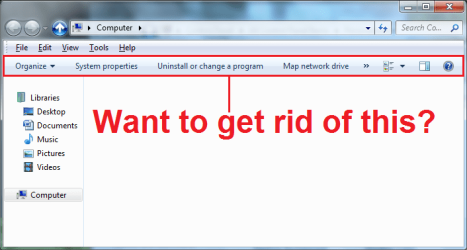
In windows 7 Microsoft implemented a new toolbar in Windows Explorer. It has options like: Organize, Share with, Burn, New Folder. Do you want to get rid of this for good? This is how.
Note
If you do this you will not be able to access any of the features that are on this bar, that includes changing which panes are up. You can however use these tutorials registry edits to turn them on or off:
To use custom themes after removing the explorer toolbar, you will have to extract the file to:
C:\Windows\Resources\Themes\"Custom Theme"\Shell\NormalColor
To use custom themes after removing the explorer toolbar, you will have to extract the file to:
C:\Windows\Resources\Themes\"Custom Theme"\Shell\NormalColor
OPTION ONE
To Remove Windows Explorer Toolbar
1. Click on the Download button below to download the Remove Explorer Bar.zip file.
Download
2. Disable Aero.
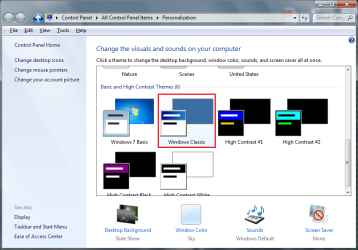
- Right click on the Desktop, select "Personalize"
- Select "Windows Classic" theme:
- Extract: "Add_Take_Ownership.reg"
- Run: "Add_Take_Ownership.reg"
- If prompted by User Access Control, then select "Yes".
- "Registry Editor" will ask something like:
- Select "Yes"
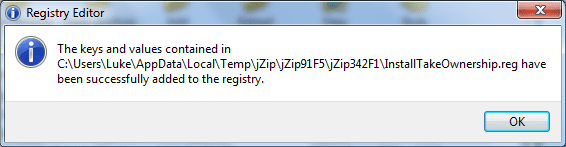
- "Registry Editor" will say something like:
- Select "OK"
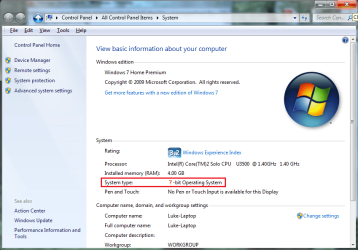
- Right Click on "Computer", select "Properties"
- Look next to "System type:", it will say one of these: "64-bit Operating System" or "32-bit Operating System":
Warning
You MUST back up the following files if you ever wish to revert back. One way you might backup a file is by copying the original file and then renaming the copy "shellstyle - Original.dll" or "shellstyle - Backup.dll". Make sure you do a backup file for each file that you are going to change.
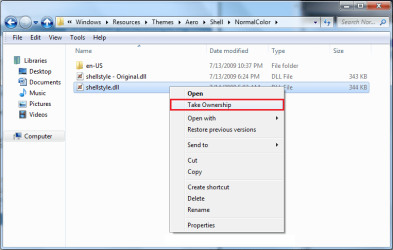
- Navigate to the folder:
Code:
C:\Windows\Resources\Themes\Aero\Shell\NormalColor - Right click on the file: "shellstyle.dll", select "Take Ownership":
- If prompted by User Access Control, then select "Yes".
- The following Steps 5-7 are for "64-bit Operating System" only.
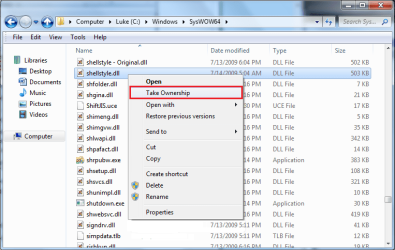
- Navigate to the folder: "C:\Windows\SysWOW64"
- Right click on the file: "shellstyle.dll", select "Take Ownership":
- If prompted by User Access Control, then select "Yes".
6. If your system is a "64-bit Operating System" perform steps 1-2.
- Extract (drag and drop to your desktop) and run the following files: "Shellstyle Extract x64.exe", "Shellstyle Extract x64_2.exe" from the download in step 1 above.
- If prompted by User Access Control, then select "Yes".
- Extract (drag and drop to your desktop) and run the following file: "Shellstyle Extract x86.exe" from the download in step 1 above.
- If prompted by User Access Control, then select "Yes".
- Right click on your Desktop, click "Personalize"
- Enable your desired theme
OPTION TWO
To Restore Windows Explorer Toolbar
1. Disable Aero.
- Right click on your desktop, click "Personalize"
- Select "Windows Classic" theme
- Navigate to the folder:
Code:
C:\Windows\Resources\Themes\Aero\Shell\NormalColor - Change the file "shellstyle.dll" to another name I.E. "shellstyle - NEW.dll"
- Put the original file back in this folder and name it "shellstyle.dll"
- Navigate to the folder: "C:\Windows\SysWOW64" (Note this folder is only on 64 bit versions of windows 7)
- Change the file "shellstyle.dll" to another name I.E. "shellstyle - NEW.dll"
- Put the original file back in this folder and name it "shellstyle.dll"
- Right click on your Desktop, click "Personalize"
- Enable your desired theme
Attachments
-
 registry asks.png9.4 KB · Views: 27,738
 -
 shell resource.png26.5 KB · Views: 29,809
 -
 shell SysWOW64.png34.3 KB · Views: 28,238
 -
 system type.png52.5 KB · Views: 28,177
 -
 want to get rid of this.png23.9 KB · Views: 31,747
 -
 Registry editor.png9.9 KB · Views: 27,819
 -
 Personailize.png48.3 KB · Views: 28,307
 -
Remove Explorer Bar.zip334.6 KB · Views: 5,067
Last edited by a moderator:


 )
)