Window Explorer Toolbar - Remove

How to Remove Windows Explorer Toolbar in Windows 7


   Information
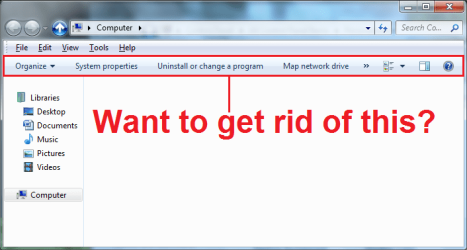
In windows 7 Microsoft implemented a new toolbar in Windows Explorer. It has options like: Organize, Share with, Burn, New Folder. Do you want to get rid of this for good? This is how.

attachment.php

   Note
If you do this you will not be able to access any of the features that are on this bar, that includes changing which panes are up. You can however use these tutorials registry edits to turn them on or off:

To use custom themes after removing the explorer toolbar, you will have to extract the file to:

C:\Windows\Resources\Themes\"Custom Theme"\Shell\NormalColor


OPTION ONE

To Remove Windows Explorer Toolbar


1. Click on the Download button below to download the Remove Explorer Bar.zip file.

Download


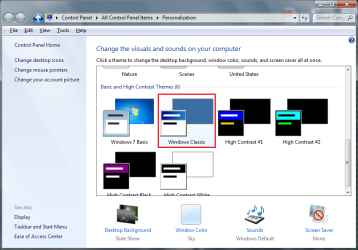
2. Disable Aero.

  1. Right click on the Desktop, select "Personalize"
  2. Select "Windows Classic" theme:

    attachment.php
3. Download and install "Add_Take_Ownership.reg".

  1. Extract: "Add_Take_Ownership.reg"
  2. Run: "Add_Take_Ownership.reg"
  3. If prompted by User Access Control, then select "Yes".
  4. "Registry Editor" will ask something like:

    attachment.php
  5. Select "Yes"
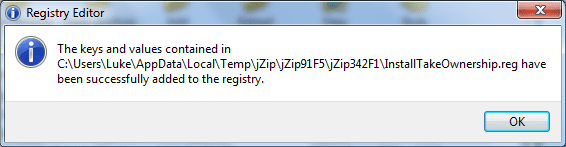
  6. "Registry Editor" will say something like:

    attachment.php
  7. Select "OK"
4. Determine whether your operating system is 64 bit or 32 bit.

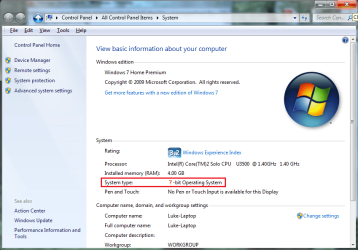
  1. Right Click on "Computer", select "Properties"
  2. Look next to "System type:", it will say one of these: "64-bit Operating System" or "32-bit Operating System":

    attachment.php
5. Taking control of necessary files.
   Warning
You MUST back up the following files if you ever wish to revert back. One way you might backup a file is by copying the original file and then renaming the copy "shellstyle - Original.dll" or "shellstyle - Backup.dll". Make sure you do a backup file for each file that you are going to change.


  1. Navigate to the folder:
    Code:
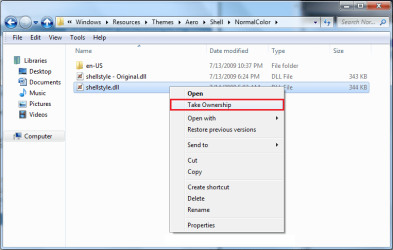
    C:\Windows\Resources\Themes\Aero\Shell\NormalColor
  2. Right click on the file: "shellstyle.dll", select "Take Ownership":

    attachment.php
  3. If prompted by User Access Control, then select "Yes".
  4. The following Steps 5-7 are for "64-bit Operating System" only.
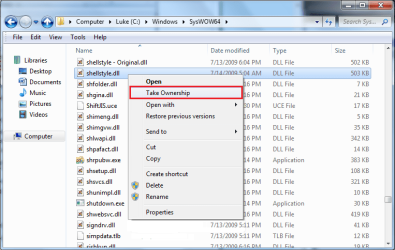
  5. Navigate to the folder: "C:\Windows\SysWOW64"
  6. Right click on the file: "shellstyle.dll", select "Take Ownership":

    attachment.php
  7. If prompted by User Access Control, then select "Yes".

6. If your system is a "64-bit Operating System" perform steps 1-2.
  1. Extract (drag and drop to your desktop) and run the following files: "Shellstyle Extract x64.exe", "Shellstyle Extract x64_2.exe" from the download in step 1 above.
  2. If prompted by User Access Control, then select "Yes".
7. If your system is a "32-bit Operating System" perform steps 1-2.

  1. Extract (drag and drop to your desktop) and run the following file: "Shellstyle Extract x86.exe" from the download in step 1 above.
  2. If prompted by User Access Control, then select "Yes".
8. Re enable your original theme.

  1. Right click on your Desktop, click "Personalize"
  2. Enable your desired theme
9. You are Done!


OPTION TWO

To Restore Windows Explorer Toolbar


1. Disable Aero.

  1. Right click on your desktop, click "Personalize"
  2. Select "Windows Classic" theme
2. Restore Backups.

  1. Navigate to the folder:
    Code:
    C:\Windows\Resources\Themes\Aero\Shell\NormalColor
  2. Change the file "shellstyle.dll" to another name I.E. "shellstyle - NEW.dll"
  3. Put the original file back in this folder and name it "shellstyle.dll"
  1. Navigate to the folder: "C:\Windows\SysWOW64" (Note this folder is only on 64 bit versions of windows 7)
  2. Change the file "shellstyle.dll" to another name I.E. "shellstyle - NEW.dll"
  3. Put the original file back in this folder and name it "shellstyle.dll"
3. Re enable your original theme.

  1. Right click on your Desktop, click "Personalize"
  2. Enable your desired theme
4. You are Done!


Attachments

  • registry asks.png
    registry asks.png
    9.4 KB · Views: 27,738
  • shell resource.png
    shell resource.png
    26.5 KB · Views: 29,809
  • shell SysWOW64.png
    shell SysWOW64.png
    34.3 KB · Views: 28,238
  • system type.png
    system type.png
    52.5 KB · Views: 28,177
  • want to get rid of this.png
    want to get rid of this.png
    23.9 KB · Views: 31,747
  • Registry editor.png
    Registry editor.png
    9.9 KB · Views: 27,819
  • Personailize.png
    Personailize.png
    48.3 KB · Views: 28,307
  • Remove Explorer Bar.zip
    Remove Explorer Bar.zip
    334.6 KB · Views: 5,067
Last edited by a moderator:
hope this helps someone, took me forever to find out how to do this, when I found it i figured there should be a tutorial on how too
 

My Computer

Computer Manufacturer/Model Number
acer timeline 3810t
OS
Windows 7 64-bit Windows 7 32-bit
CPU
Intel Core 2 Solo (1.4 GHz)
Memory
4 GB DDR3 SDRAM - 1066 MHz SO DIMM 204-pin
Graphics Card(s)
Intel GMA 4500MHD Dynamic Video Memory Technology 5.0
Monitor(s) Displays
Widescreen 13.3 in TFT active matrix
Hard Drives
# 250 GB - Serial ATA-150 - 5400 rpm
Case
# Ultraportable (Under 4 lbs.) , Budget
I really wanted this to work as I hate that sh**bar, but I couldn't get this to work
:cry:
 

My Computer

OS
Windows 7
did you follow all of the steps? Did you take ownership of the proper files?
 

My Computer

Computer Manufacturer/Model Number
acer timeline 3810t
OS
Windows 7 64-bit Windows 7 32-bit
CPU
Intel Core 2 Solo (1.4 GHz)
Memory
4 GB DDR3 SDRAM - 1066 MHz SO DIMM 204-pin
Graphics Card(s)
Intel GMA 4500MHD Dynamic Video Memory Technology 5.0
Monitor(s) Displays
Widescreen 13.3 in TFT active matrix
Hard Drives
# 250 GB - Serial ATA-150 - 5400 rpm
Case
# Ultraportable (Under 4 lbs.) , Budget
I did, but I don't have folder (C:\Windows\SysWOW64)
Running W7, 32
How come I don't have that folder?
 

My Computer

OS
Windows 7
That folder is for 64 bit only, so if your windows is 32 bit it wont have it and you shouldn't have to worry about it.
 

My Computer

Computer Manufacturer/Model Number
acer timeline 3810t
OS
Windows 7 64-bit Windows 7 32-bit
CPU
Intel Core 2 Solo (1.4 GHz)
Memory
4 GB DDR3 SDRAM - 1066 MHz SO DIMM 204-pin
Graphics Card(s)
Intel GMA 4500MHD Dynamic Video Memory Technology 5.0
Monitor(s) Displays
Widescreen 13.3 in TFT active matrix
Hard Drives
# 250 GB - Serial ATA-150 - 5400 rpm
Case
# Ultraportable (Under 4 lbs.) , Budget
Ok, but
After renaming the old ones and copying the new ones then explorer itself wont start
I get the frame and it looks busy and nothing, explorer itself wont function anymore
Luckily I have xplorer2 installed, otherwise I would be F*****
 

My Computer

OS
Windows 7
wait so you are reverting it, and it did that? I need you to list in detail every step you did and how you did it.
 

My Computer

Computer Manufacturer/Model Number
acer timeline 3810t
OS
Windows 7 64-bit Windows 7 32-bit
CPU
Intel Core 2 Solo (1.4 GHz)
Memory
4 GB DDR3 SDRAM - 1066 MHz SO DIMM 204-pin
Graphics Card(s)
Intel GMA 4500MHD Dynamic Video Memory Technology 5.0
Monitor(s) Displays
Widescreen 13.3 in TFT active matrix
Hard Drives
# 250 GB - Serial ATA-150 - 5400 rpm
Case
# Ultraportable (Under 4 lbs.) , Budget
I did exactly as instructed, the problem is that Explorer wont function after switching Shellstyle files
 

My Computer

OS
Windows 7
What version of windows 7 do you have? and its 32 bit correct?

Well doesnt matter, I was able to replicate this, im working on fixing it. Sorry about this.
There seems to be a issue with the windows/system32 file. O also a note there are still ways you can get to files without explorer, if you open taskmanager select new task, run notepad. You can use its open file menu as a file browser pretty well, just make sure you select all files.
 

My Computer

Computer Manufacturer/Model Number
acer timeline 3810t
OS
Windows 7 64-bit Windows 7 32-bit
CPU
Intel Core 2 Solo (1.4 GHz)
Memory
4 GB DDR3 SDRAM - 1066 MHz SO DIMM 204-pin
Graphics Card(s)
Intel GMA 4500MHD Dynamic Video Memory Technology 5.0
Monitor(s) Displays
Widescreen 13.3 in TFT active matrix
Hard Drives
# 250 GB - Serial ATA-150 - 5400 rpm
Case
# Ultraportable (Under 4 lbs.) , Budget
ok try just using the "Shellstyle Extract x86.exe", you might have to restart and it might cause explorer to freeze at first.

This should work I just tested it on my desktop which is 32 bit.


Ok so I updated and simplified the tutorial, everything should work correctly for 64 bit and 32 bit.
 
Last edited:

My Computer

Computer Manufacturer/Model Number
acer timeline 3810t
OS
Windows 7 64-bit Windows 7 32-bit
CPU
Intel Core 2 Solo (1.4 GHz)
Memory
4 GB DDR3 SDRAM - 1066 MHz SO DIMM 204-pin
Graphics Card(s)
Intel GMA 4500MHD Dynamic Video Memory Technology 5.0
Monitor(s) Displays
Widescreen 13.3 in TFT active matrix
Hard Drives
# 250 GB - Serial ATA-150 - 5400 rpm
Case
# Ultraportable (Under 4 lbs.) , Budget
That's more like it
Everything is working fine now, you might want to mention in your tutorial that to be able to use custom themes, they will have to extract that file to:
C:\Windows\Resources\Themes\"Custom Theme"\Shell\NormalColor
Dude, you have no idea how happy you made me ;)
I love you

BTW.. Can you look at my other posts and tell me if you have a solution?
 

My Computer

OS
Windows 7
That's more like it
Everything is working fine now, you might want to mention in your tutorial that to be able to use custom themes, they will have to extract that file to:
C:\Windows\Resources\Themes\"Custom Theme"\Shell\NormalColor
Dude, you have no idea how happy you made me ;)
I love you

BTW.. Can you look at my other posts and tell me if you have a solution?
O thats good to know, I dont use custom themes so I didn't know. I'm adding in pictures so I will add that in too.
And its great to hear its working!
 

My Computer

Computer Manufacturer/Model Number
acer timeline 3810t
OS
Windows 7 64-bit Windows 7 32-bit
CPU
Intel Core 2 Solo (1.4 GHz)
Memory
4 GB DDR3 SDRAM - 1066 MHz SO DIMM 204-pin
Graphics Card(s)
Intel GMA 4500MHD Dynamic Video Memory Technology 5.0
Monitor(s) Displays
Widescreen 13.3 in TFT active matrix
Hard Drives
# 250 GB - Serial ATA-150 - 5400 rpm
Case
# Ultraportable (Under 4 lbs.) , Budget
Well, this doesn't work for me. I like my GUI to be as close to the Windows 2000 standard as is possible, and removing the FolderBand is the last hurdle. I followed your instructions on my 32-bit Win7 and that $%@& bar won't go away. I tried to replicate what 'fakts' did but his instructions aren't clear enough, and my attempts didn't work either.

Assuming I have a custom theme based on Windows Classic called "Grey Basic". Where do I put the shellstyle.dll ?
 

My Computer

OS
Windows 7 Home
Are you using the Windows Classic theme? Or a custom theme?
 

My Computer

Computer Manufacturer/Model Number
acer timeline 3810t
OS
Windows 7 64-bit Windows 7 32-bit
CPU
Intel Core 2 Solo (1.4 GHz)
Memory
4 GB DDR3 SDRAM - 1066 MHz SO DIMM 204-pin
Graphics Card(s)
Intel GMA 4500MHD Dynamic Video Memory Technology 5.0
Monitor(s) Displays
Widescreen 13.3 in TFT active matrix
Hard Drives
# 250 GB - Serial ATA-150 - 5400 rpm
Case
# Ultraportable (Under 4 lbs.) , Budget
ok good! cause if you were using the basic I would have no clue how to help you. But since you said custom there may be hope. Only maybe though.

K first off what are the contents of the folder:
C:\Windows\Resources\Themes
 

My Computer

Computer Manufacturer/Model Number
acer timeline 3810t
OS
Windows 7 64-bit Windows 7 32-bit
CPU
Intel Core 2 Solo (1.4 GHz)
Memory
4 GB DDR3 SDRAM - 1066 MHz SO DIMM 204-pin
Graphics Card(s)
Intel GMA 4500MHD Dynamic Video Memory Technology 5.0
Monitor(s) Displays
Widescreen 13.3 in TFT active matrix
Hard Drives
# 250 GB - Serial ATA-150 - 5400 rpm
Case
# Ultraportable (Under 4 lbs.) , Budget
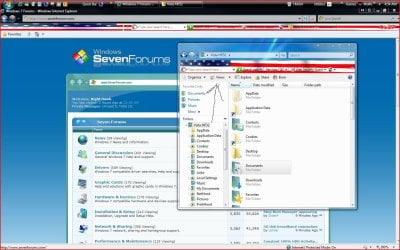
One other thing you may want to do kookster is correct something in your information about which version of Windows first saw the toolbar. It wasn't first seen in 7. When looking to customize a few things in a fresh installation of the previous version in time for the upcoming weekend I came across the thread here as you can see.

I would still caution as you did in the guide about backing up the original "shellstyle.dll file just the same in case WE becomes unusable for some reason. That would make it difficult to copy the original back into the system32 folder however but would restore the use of W.Explorer in csae of any mishaps.

And yes when first setting up Windows you have to go into the annoyance long enough to check off the show menu bar option in both versions as well as 32bit and 64bit flavors. Know that one well enough! :D
 

Attachments

  • Annoyance Toolbar in Vista too.jpg
    Annoyance Toolbar in Vista too.jpg
    176.5 KB · Views: 771

My Computers

System One System Two

  • Computer type
    PC/Desktop
    Computer Manufacturer/Model Number
    Custom builds = 2
    OS
    W7 Ultimate x64/W10 Pro x64/W11 Pro Triple Boot - Main PC W7 Remote PC Micro ATX W7 Pro x64/W11 Pro
    CPU
    AMD Phenom II X4 975 Deneb 3.6ghz - 965 2nd remote pc
    Motherboard
    Gigabyte GA-790XTA-UD4-Gigabyte GA-880GM-D2H remote pc
    Memory
    Kingston Hyper X DDR3 1600 1.5v 16gb - Hyper X Fury 8gb 2nd
    Graphics Card(s)
    MSI HD Radeon 5750 1gb - MSI HD Radeon 6450 on mini tower
    Sound Card
    Creative Labs X-Fi Xtreme Audio P - Realtek onooard 2nd case
    Monitor(s) Displays
    ASUS VW199T-P 19" HP 2082a Main-HP 2082a 20" remote pc
    Screen Resolution
    Asus 1440x900 - HP 1600x900
    Hard Drives
    WD Black 1TB HD per OS W7, W10, and pending W11 presently on 500gb OS Drive - Pending Triple 1TB HDs for Spanned Storage/backup volume
    Single 2TB external USB enclosure, single 1TB System 7 Host/Boot drive, Pending 8TB external HD for system image b
    PSU
    Corsair 750TX - primary / Corsair CX600 - second
    Case
    Antec 900-2 - SSD compatible / NZXT Vulcan mini tower
    Cooling
    Zalman CNPS9900A
    Keyboard
    AZIO L70 Backlit Letters Gaming - ONN Cordless/USB
    Mouse
    MSI DS200 Programmable, Logitech Cordless
    Internet Speed
    30mbps upgrade - primary hard wired - mini tower usb WiFi
    Antivirus
    GFI VIPRE Internet Security 2014 on W7 2016 beta on W10,
    Browser
    Cyberfox, WaterFox 64bit FF variants, FireFox x64, Pale Moon
    Other Info
    Accomdata fan cooled usb 2.0 PIDE/Sata II, III external enclosure.
    Sambient usb/eSata PATA/Sata II, III external enclosure.
  • Computer type
    PC/Desktop
    System Manufacturer/Model Number
    CUSTOM ASSEMBLY
    OS
    W7 Pro x64/W11 Pro
    CPU
    AMD Deneb 3.6ghz - 965
    Motherboard
    Gigabyte GA-880GM-D2H remote pc
    Memory
    Kingston Hyper X Fury 8gb
    Graphics Card(s)
    MSI HD Radeon 6450 DVI Output
    Sound Card
    Realtek onooard Creative or Other separate PENDING
    Monitor(s) Displays
    VIZIO 32" LCD TV Separate LCD Pending
    Screen Resolution
    1600x1080
    Hard Drives
    WD 500GB OS Host/Boot WD Green 1TB Storage/Backup
    PSU
    Corsair 600W - THERMALTAKE 600W spare case
    Case
    NZXT Vulcan mini tower
    Cooling
    Twin 120mm Top Fans - 240mm Side Cover
    Keyboard
    ONN Cordless/USB Logitech Cordless
    Mouse
    ONN USB/Cordless - Logitech Cordless
    Internet Speed
    DSL 5G
    Browser
    MS Edge, FireFox, WaterFox x64, FireFox Nightly
    Other Info
    OS Testing-Remote Access to Main TeamViewer
what are the contents of the folder:
C:\Windows\Resources\Themes

Aero.

That's it.

What I think you mis-understand is that the theme I use is essentially 'Windows Classic' but with different coloured window bars and a different coloured background.

From my understanding as soon as you use 'Windows Classic' as a basis for a theme, all of the fancy-schmancy eye-dribble foisted on you with W7's normal Themes system is turned off as it is associated with Aero, which means any mods to the shellstyle.dll in C:\Windows\Resources\Themes\ gets ignored.

I detest "interface bling" and killing Aero was the first thing I did once W7 was installed. Second thing was install 'ClassicShell' which eradicates 85% of everything that's wrong with the W7E interface. In fact, the closer my UI resembles Windows 2000, the happier I am. I didn't like the XP default UI much either, but at least I could change pretty much everything to how I like.

(When Microsoft all but admitted they 'borrowed' a lot of ideas for the Windows 7 UI from Mac OS X, the fact that the UI was no longer fully modifiable made more sense -- you can't do jackspit with the OSX UI! :p)

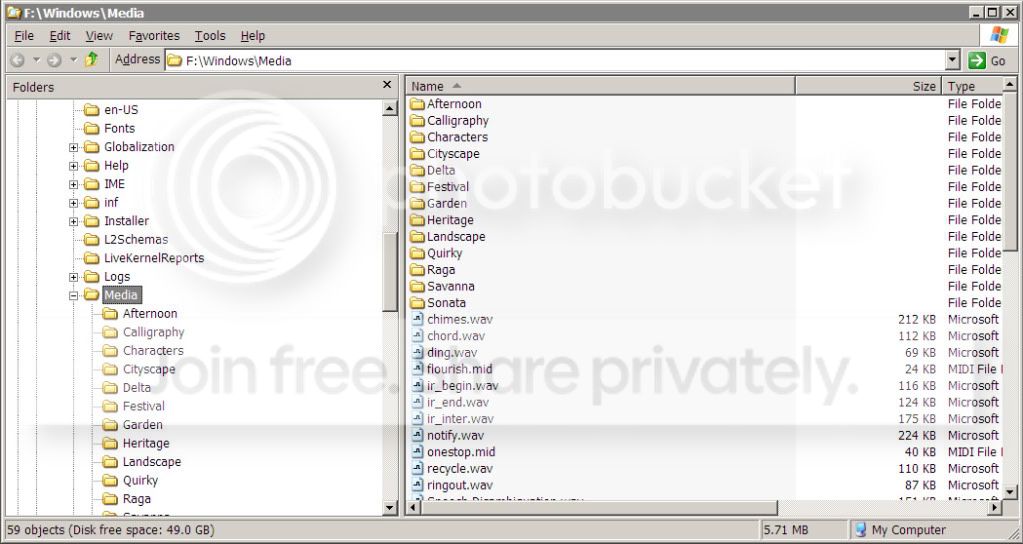
This is how my XP looks, and how I would dearly love my Win7 to look:

XPUI.jpg


No antialiasing, no animation, no fading in/out, no shadows, no fake 3D, no superfluous buttons, just a clean, ultra minimalist everything-I-need-and-nothing-but interface. And no translucency! The only time I want to see something translucent is if it's a girl's blouse, not on my frik'n desktop!
 

My Computer

OS
Windows 7 Home
so you are using windows classic theme, thats what I thought, just its customized. In that case I'm not sure how to help you yet. I will see what I can do but I never did anything for the basic themes.

Just so you know the file that I am pretty sure we will need to change is:
C:\Windows\System32\shellstyle.dll
 
Last edited:

My Computer

Computer Manufacturer/Model Number
acer timeline 3810t
OS
Windows 7 64-bit Windows 7 32-bit
CPU
Intel Core 2 Solo (1.4 GHz)
Memory
4 GB DDR3 SDRAM - 1066 MHz SO DIMM 204-pin
Graphics Card(s)
Intel GMA 4500MHD Dynamic Video Memory Technology 5.0
Monitor(s) Displays
Widescreen 13.3 in TFT active matrix
Hard Drives
# 250 GB - Serial ATA-150 - 5400 rpm
Case
# Ultraportable (Under 4 lbs.) , Budget
Back
Top