
Windows 7 dual boot using BIOS vs software vs switch ?

Mike99

New member
Member
VIP
Local time
6:31 AM
Messages
258
My regular PC uses a spinner HDD. But I’ve been playing around with an SSD to put some games on it. I’ve been powering off & swapping connections when I want to swap drives.

I thought about buying/building a hardware switch or using third party software to select the boot drive.

But since I have to reboot the PC no matter which method I use, why not just change the BIOS boot order when I want to use the SSD?

I’ve Googled & searched quite a bit & most articles are about partitioning the HDD & installing both OSs on the same drive. Or they state having two drives is the better way to go, but then go into discussing how to partition the HDD. I want to keep both drives completely separate because eventually the SSD will become the only drive.

Is there a downside to using BIOS to select the boot drive?
 

My Computer

Computer type
PC/Desktop
Computer Manufacturer/Model Number
HP
OS
Windows 7 Ultimate x64
CPU
AMD Athlon x4
Motherboard
HP / Foxconn
Memory
8.00 GB
Graphics Card(s)
GTX 750Ti SC
Monitor(s) Displays
ACER
Hard Drives
1TB Seagate
PSU
380W
Cooling
Stock
Internet Speed
3 Mbps

My Computer

Computer type
PC/Desktop
Computer Manufacturer/Model Number
medionl/Aspire 6930G/acer x55a
OS
W7 home premium 32bit/W7HP 64bit/w10 tp insider ring
CPU
E5300 dual core
Motherboard
medion MS7366
Memory
3gb
Graphics Card(s)
Nvidia Geforce 7100 Nforce 630i
Monitor(s) Displays
avixc
Internet Speed
n (isp resticted to 72)
Antivirus
mse/pands
Browser
palemoon
Other Info
Belkin Fd7050 n USB using Railink RT2870 drivers, more upto date
Thanks for the link.

I looked at all the options & it looks like they all are used for selecting an OS from the same drive. But both of my drives have the same OS so I have to select the drive. I don't think using something like a boot manager will work because each drive would have a boot manager.

I need to select a drive before it boots.
 

My Computer

Computer type
PC/Desktop
Computer Manufacturer/Model Number
HP
OS
Windows 7 Ultimate x64
CPU
AMD Athlon x4
Motherboard
HP / Foxconn
Memory
8.00 GB
Graphics Card(s)
GTX 750Ti SC
Monitor(s) Displays
ACER
Hard Drives
1TB Seagate
PSU
380W
Cooling
Stock
Internet Speed
3 Mbps
It is quite easy.

For example , if you have a system partion on Disk0 , and a system partition on Disk1, you can have boot menu entries to both OS in both bcd stores.

My current system partition is assigned C.

There is another OS on a different disk - assigned J by my currently running OS.

I add a bcd entry for C to the bcd store on J:

admin command prompt:

bcdboot c:\windows /s j:

Then add an entry for the OS on J to the bcd store on C

bcdboot j:\windows

You might then want to change the bcd description so you know which is which:

admin command prompt

bcdedit /set {current} description "Windows 7 on Disk 0"

The description between " " can be anything you want


Then you will get a windows boot menu with an entry for each os. By default it will pause 30 seconds for you to make a selection.

You can change it, e.g to 5 seconds

bcdedit /timeout 5
 
Last edited:

My Computers

System One System Two

  • Computer type
    PC/Desktop
    OS
    7 X64
    CPU
    i5 8400
    Motherboard
    gigabyte b365m ds3h
    Memory
    2x8gb 3200mhz
    Hard Drives
    various
    PSU
    pure power 11 400w cm
    Case
    Coolermaster
    Cooling
    cryorig m9i
  • Computer type
    PC/Desktop
    OS
    7x64
    CPU
    g5400
    Motherboard
    ga b365m ds3h
    Memory
    8gb ddr4 2400
    PSU
    xfx pro 450w
The basic bcdboot command is:

BCDBOOT <source windows directory, e.g c:\windows> [/s <letter of target bcd volume, e.g. J:]

There are other switches for adding locale settings and so on, but you don't need to do that.

Note the /s switch is optional. It is used to specify a different i.e. not the current bcd volume. If you don't use /s the entry will be added to the currently live bcd store.

So instead of
bcdboot j:\windows /s c:
you can just type
bcdboot j:\windows
the entry for J os will be added to the current bcd store by default if you don't specify a different volume with /s switch.

That is useful because windows will often hide the current system partition by not automatically assigning a drive letter.
 

My Computers

System One System Two

  • Computer type
    PC/Desktop
    OS
    7 X64
    CPU
    i5 8400
    Motherboard
    gigabyte b365m ds3h
    Memory
    2x8gb 3200mhz
    Hard Drives
    various
    PSU
    pure power 11 400w cm
    Case
    Coolermaster
    Cooling
    cryorig m9i
  • Computer type
    PC/Desktop
    OS
    7x64
    CPU
    g5400
    Motherboard
    ga b365m ds3h
    Memory
    8gb ddr4 2400
    PSU
    xfx pro 450w
My Gigabyte MB has a Boot Menu (F12). When I hear the POST beep I press F12 and boot options screen opens. Then I can choose the disk / OS I want to boot from.
Doesn't your HP BIOS has a similar option?
 

My Computers

System One System Two

  • Computer type
    PC/Desktop
    Computer Manufacturer/Model Number
    custom build
    OS
    Windows 7 HP 64
    CPU
    i5 6600K - 800MHz to 4200MHz
    Motherboard
    GA-Z170-HD3P
    Memory
    4+4G GSkill DDR4 3000
    Graphics Card(s)
    IG - Intel 530
    Monitor(s) Displays
    Samsung 226BW
    Screen Resolution
    1680x1050
    Hard Drives
    (1) -1 SM951 – 128GB M.2 AHCI PCIe SSD drive for Windows 7 and Lubuntu
    (2) -1 WD SATA 3 - 1T for Data
    (3) -1 WD SATA 3 - 1T for backup
    PSU
    Thermaltake 450W TR2 gold
    Keyboard
    Old and good Chicony mechanical keyboard
    Mouse
    Logitech mX performance - 9 buttons (had to disable some)
    Internet Speed
    500Mb/s
    Browser
    Firefox 64
    Other Info
    TinyWall firewall
  • Computer type
    Laptop
    System Manufacturer/Model Number
    Asus Q550LF
    OS
    Windows 7 Pro
    CPU
    i7-4500U 800MHz to 3.0GHz
    Motherboard
    Asus Q550LF
    Memory
    (4+4)G DDR3 1600
    Graphics Card(s)
    IG intel 4400 + NVIDIA GeForce GT 745M
    Sound Card
    Realtek
    Monitor(s) Displays
    LG Display LP156WF4-SPH1
    Screen Resolution
    1920 x 1080
    Hard Drives
    BX500 120G SSD for Windows and programs +
    1T HDD for data
    Internet Speed
    500 Mb/s
    Browser
    Firefox
    Other Info
    TinyWall firewall
It is quite easy.

For example , if you have a system partion on Disk0 , and a system partition on Disk1, you can have boot menu entries to both OS in both bcd stores.

My current system partition is assigned C.

There is another OS on a different disk - assigned J by my currently running OS.

I add a bcd entry for C to the bcd store on J:

admin command prompt:

bcdboot c:\windows /s j:

Then add an entry for the OS on J to the bcd store on C

bcdboot j:\windows

You might then want to change the bcd description so you know which is which:

admin command prompt

bcdedit /set {current} description "Windows 7 on Disk 0"

The description between " " can be anything you want


Then you will get a windows boot menu with an entry for each os. By default it will pause 30 seconds for you to make a selection.

You can change it, e.g to 5 seconds

bcdedit /timeout 5


Thanks for the information. I also looked at Easy BCD. However think I found an easier way.

Last night I re-discovered that hitting the Esc button on started brings up a boot menu. It’s not a permanent choice & will revert back to the default drive on the next startup. I'm going to give that a try.
 

My Computer

Computer type
PC/Desktop
Computer Manufacturer/Model Number
HP
OS
Windows 7 Ultimate x64
CPU
AMD Athlon x4
Motherboard
HP / Foxconn
Memory
8.00 GB
Graphics Card(s)
GTX 750Ti SC
Monitor(s) Displays
ACER
Hard Drives
1TB Seagate
PSU
380W
Cooling
Stock
Internet Speed
3 Mbps
My Gigabyte MB has a Boot Menu (F12). When I hear the POST beep I press F12 and boot options screen opens. Then I can choose the disk / OS I want to boot from.
Doesn't your HP BIOS has a similar option?

You are correct, as I just mentioned above.

Last night I just re-discovered that hitting the Esc button on my PC at startup brings up a boot menu. I picked up a couple SATA cables & will get both drives connected & see how it works & report back.
 

My Computer

Computer type
PC/Desktop
Computer Manufacturer/Model Number
HP
OS
Windows 7 Ultimate x64
CPU
AMD Athlon x4
Motherboard
HP / Foxconn
Memory
8.00 GB
Graphics Card(s)
GTX 750Ti SC
Monitor(s) Displays
ACER
Hard Drives
1TB Seagate
PSU
380W
Cooling
Stock
Internet Speed
3 Mbps
Before I do something that might mess up things, I have a question.

If I disconnect the HDD & connect the SSD, making the SSD the only drive & the letter C: Then install a couple programs & data. Then re-connect the HDD and make it the primary C: drive, thereby making the SSD the D: drive.

What happens when I run a program on the SSD which is the D: drive? Is it going to look for everything it needs on the SSD?

Or since the SSD was the C: drive when the program was installed, is the program going to look for what it needs (.dll & other files & data) on the HDD which is now the C: drive?
 

My Computer

Computer type
PC/Desktop
Computer Manufacturer/Model Number
HP
OS
Windows 7 Ultimate x64
CPU
AMD Athlon x4
Motherboard
HP / Foxconn
Memory
8.00 GB
Graphics Card(s)
GTX 750Ti SC
Monitor(s) Displays
ACER
Hard Drives
1TB Seagate
PSU
380W
Cooling
Stock
Internet Speed
3 Mbps
Fist of all, the drive letter is assigned by the OS it is running. As a general rule, the C: drive will the drive the OS has booted from. (There are exceptions.)

If you have two drives (C: and D:) and you run a program on D: it won't work (again there are exceptions). The main reason is that a program has a "script" on the register of the running OS. So, if you run a program on D: that isn't on C: it wont work.
My advice:
- As you have 4G of memory you should have installed Win 7 32 bits instead of 64
- You should use your SSD to install Windows and programs and use the HDD for data only. You will have the speed of a SSD and the space of a HDD at low cost. I have a small SSD (128G) for windows and Linux and a HDD for data. Works great.
If you're interested, I can show you how to move C:\Users to D:\Users
 

My Computers

System One System Two

  • Computer type
    PC/Desktop
    Computer Manufacturer/Model Number
    custom build
    OS
    Windows 7 HP 64
    CPU
    i5 6600K - 800MHz to 4200MHz
    Motherboard
    GA-Z170-HD3P
    Memory
    4+4G GSkill DDR4 3000
    Graphics Card(s)
    IG - Intel 530
    Monitor(s) Displays
    Samsung 226BW
    Screen Resolution
    1680x1050
    Hard Drives
    (1) -1 SM951 – 128GB M.2 AHCI PCIe SSD drive for Windows 7 and Lubuntu
    (2) -1 WD SATA 3 - 1T for Data
    (3) -1 WD SATA 3 - 1T for backup
    PSU
    Thermaltake 450W TR2 gold
    Keyboard
    Old and good Chicony mechanical keyboard
    Mouse
    Logitech mX performance - 9 buttons (had to disable some)
    Internet Speed
    500Mb/s
    Browser
    Firefox 64
    Other Info
    TinyWall firewall
  • Computer type
    Laptop
    System Manufacturer/Model Number
    Asus Q550LF
    OS
    Windows 7 Pro
    CPU
    i7-4500U 800MHz to 3.0GHz
    Motherboard
    Asus Q550LF
    Memory
    (4+4)G DDR3 1600
    Graphics Card(s)
    IG intel 4400 + NVIDIA GeForce GT 745M
    Sound Card
    Realtek
    Monitor(s) Displays
    LG Display LP156WF4-SPH1
    Screen Resolution
    1920 x 1080
    Hard Drives
    BX500 120G SSD for Windows and programs +
    1T HDD for data
    Internet Speed
    500 Mb/s
    Browser
    Firefox
    Other Info
    TinyWall firewall
I just update my PC info. It has 8GB RAM and a GTX 750Ti SC video card with 4GB RAM.

Eventually the PC with the SSD will be used as a game PC.

In the meantime I want the game software to be on both drives & have those both connected to make it easier to setup & compare things.

I will only run the game on whichever is the C: drive. I just don’t want it looking for bits of data on the other drive.
 

My Computer

Computer type
PC/Desktop
Computer Manufacturer/Model Number
HP
OS
Windows 7 Ultimate x64
CPU
AMD Athlon x4
Motherboard
HP / Foxconn
Memory
8.00 GB
Graphics Card(s)
GTX 750Ti SC
Monitor(s) Displays
ACER
Hard Drives
1TB Seagate
PSU
380W
Cooling
Stock
Internet Speed
3 Mbps
The HDD was the C: drive. Turned off the PC and connected the SSD.

Powered on & went into BIOS. It recognized the SDD. I set the boot order as HDD first then the SSD. Exited & saved changes.

Turned off the PC, then turned back on & tapped the ESC key & it displayed the boot menu. I selected the SSD, but the PC booted up with the HDD.

I went to Start > Computer and it does not show the SSD. However Control Panel > Device Manager does list both drives.

Should the SSD show up in Start > Computer?
Why didn't the SSD boot?
 

My Computer

Computer type
PC/Desktop
Computer Manufacturer/Model Number
HP
OS
Windows 7 Ultimate x64
CPU
AMD Athlon x4
Motherboard
HP / Foxconn
Memory
8.00 GB
Graphics Card(s)
GTX 750Ti SC
Monitor(s) Displays
ACER
Hard Drives
1TB Seagate
PSU
380W
Cooling
Stock
Internet Speed
3 Mbps
I went to Start > Computer and it does not show the SSD. However Control Panel > Device Manager does list both drives.

You need to have a look in disk management and see which is listed as the active, system partition.

Windows does not automatically allocate a drive letter to the live system partition.

Post a screenshot of disk mgmt window showing the partitions.

Why didn't the SSD boot?

Probably your bcd entry isn't correct. Or, you might have them mixed up - when you thought you selected the ssd boot menu entry, it pointed at the HDD.
 

My Computers

System One System Two

  • Computer type
    PC/Desktop
    OS
    7 X64
    CPU
    i5 8400
    Motherboard
    gigabyte b365m ds3h
    Memory
    2x8gb 3200mhz
    Hard Drives
    various
    PSU
    pure power 11 400w cm
    Case
    Coolermaster
    Cooling
    cryorig m9i
  • Computer type
    PC/Desktop
    OS
    7x64
    CPU
    g5400
    Motherboard
    ga b365m ds3h
    Memory
    8gb ddr4 2400
    PSU
    xfx pro 450w
I tried a 2nd time & got a black screen with a message to repair (recommended) or restart normally. I chose restart normally because I didn't know what the repair would do. It booted to the HDD again.

Powered off & then back on & got the same message & same results.

Disconnected the HHD & had just the SSD connected.
Powered off & then back on & got a black screen with a message that Windows failed to start..., ...required device is inaccessible. I did this a few times & always got the same message.

It did give options to insert the Windows disc & a couple other options.

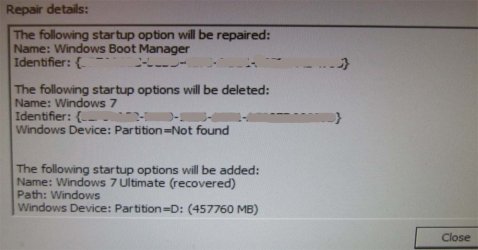
I inserted the Windows disc & chose repair. I took a photo showing what was going to be done & proceeded.

I don't recall the exact wording but it appeared I was supposed to hit "Enter" again, but it never said to remove the disc. So I left it in. Now I get a message that it can't be repaired automatically.

I removed the Windows disc & rebooted and the SSD is working again. Maybe I got the message that it could not be repaired automatically because it was already repaired & the system didn't know what to do.

I'll take a close look at the photos I took of the messages & try to figure out what was repaired.
 

My Computer

Computer type
PC/Desktop
Computer Manufacturer/Model Number
HP
OS
Windows 7 Ultimate x64
CPU
AMD Athlon x4
Motherboard
HP / Foxconn
Memory
8.00 GB
Graphics Card(s)
GTX 750Ti SC
Monitor(s) Displays
ACER
Hard Drives
1TB Seagate
PSU
380W
Cooling
Stock
Internet Speed
3 Mbps
required device missing means the bcd entry was wrong.

Sounds like startup repair fixed it.
 

My Computers

System One System Two

  • Computer type
    PC/Desktop
    OS
    7 X64
    CPU
    i5 8400
    Motherboard
    gigabyte b365m ds3h
    Memory
    2x8gb 3200mhz
    Hard Drives
    various
    PSU
    pure power 11 400w cm
    Case
    Coolermaster
    Cooling
    cryorig m9i
  • Computer type
    PC/Desktop
    OS
    7x64
    CPU
    g5400
    Motherboard
    ga b365m ds3h
    Memory
    8gb ddr4 2400
    PSU
    xfx pro 450w
required device missing means the bcd entry was wrong.

Sounds like startup repair fixed it.

What made it go wrong?
BIOS recognized the drive & the boot order was correct.

You mentioned"
You need to have a look in disk management and see which is listed as the active, system partition.
Windows does not automatically allocate a drive letter to the live system partition.


How do I look in disk management to see if the SSD is the active, system partition? If the SSD did not boot, then it would not be active. Obviously I'm not understanding what is happening.
 

My Computer

Computer type
PC/Desktop
Computer Manufacturer/Model Number
HP
OS
Windows 7 Ultimate x64
CPU
AMD Athlon x4
Motherboard
HP / Foxconn
Memory
8.00 GB
Graphics Card(s)
GTX 750Ti SC
Monitor(s) Displays
ACER
Hard Drives
1TB Seagate
PSU
380W
Cooling
Stock
Internet Speed
3 Mbps
Here's the photo I took of what was going to be repaired.
 

Attachments

  • IMG_3587C.jpg
    IMG_3587C.jpg
    79.2 KB · Views: 0

My Computer

Computer type
PC/Desktop
Computer Manufacturer/Model Number
HP
OS
Windows 7 Ultimate x64
CPU
AMD Athlon x4
Motherboard
HP / Foxconn
Memory
8.00 GB
Graphics Card(s)
GTX 750Ti SC
Monitor(s) Displays
ACER
Hard Drives
1TB Seagate
PSU
380W
Cooling
Stock
Internet Speed
3 Mbps
You may have a small system partition at the beginning of ssd.

What happened to the screenshots of Disk Management?

Ther is no need to blank out the {GUIDS}- they are not secret.
 

My Computers

System One System Two

  • Computer type
    PC/Desktop
    OS
    7 X64
    CPU
    i5 8400
    Motherboard
    gigabyte b365m ds3h
    Memory
    2x8gb 3200mhz
    Hard Drives
    various
    PSU
    pure power 11 400w cm
    Case
    Coolermaster
    Cooling
    cryorig m9i
  • Computer type
    PC/Desktop
    OS
    7x64
    CPU
    g5400
    Motherboard
    ga b365m ds3h
    Memory
    8gb ddr4 2400
    PSU
    xfx pro 450w
I don't have a screen shot of Disk Management.
Messages #13 & #14 sort of crossed. You obviously hit the Post Reply right before I did, therefore I never saw your Disk Management comment. It would have been too late anyway because I was in the process of trying to repair the SSD.

Should I re-connect both drives & boot off the default HDD and look at Disk Management?

What are those {GUIDS}?
 

My Computer

Computer type
PC/Desktop
Computer Manufacturer/Model Number
HP
OS
Windows 7 Ultimate x64
CPU
AMD Athlon x4
Motherboard
HP / Foxconn
Memory
8.00 GB
Graphics Card(s)
GTX 750Ti SC
Monitor(s) Displays
ACER
Hard Drives
1TB Seagate
PSU
380W
Cooling
Stock
Internet Speed
3 Mbps
Should I re-connect both drives & boot off the default HDD and look at Disk Management?

Yes


Guids are the identifiers between curly brackets. They appear to have been blanked out in your screenshot.
 

My Computers

System One System Two

  • Computer type
    PC/Desktop
    OS
    7 X64
    CPU
    i5 8400
    Motherboard
    gigabyte b365m ds3h
    Memory
    2x8gb 3200mhz
    Hard Drives
    various
    PSU
    pure power 11 400w cm
    Case
    Coolermaster
    Cooling
    cryorig m9i
  • Computer type
    PC/Desktop
    OS
    7x64
    CPU
    g5400
    Motherboard
    ga b365m ds3h
    Memory
    8gb ddr4 2400
    PSU
    xfx pro 450w
Back
Top