Windows 7 lags every few seconds

davidshuffles

New member
Local time
10:28 PM
Messages
7
Hi all,

I've been having a few problems with my Windows 7 laptop the past few months. Every few seconds it seems to lag- the screen will just freeze for about a second and then it will go on working as normal. For example, while I'm typing this, every so often the screen freezes and then suddenly anything I typed while it was frozen will appear at once. Or some of the visual effects of Windows 7 might be delayed, like if I hover the cursor over an icon in the taskbar, it might not light up immediately and there'll be a delay in actually clicking on it. It happens while playing games too. Everything will stop briefly, then continue. Today I noticed, while playing Final Fantasy VII, that these freezes seem to happen just before a sound effect is loaded that hasn't been used recently, like the sound of a particular attack landing. I don't know if that means anything or is something random, but I thought I'd mention it all the same.

I've had the computer since December 2009, and for the first year or so I had problems with BSODs, until I eventually I brought it back to the shop, and after a few months they figured out the problem and replaced the CPU. Since January 2011, it has been working fine, until these laggy problems started around August or September 2013.

These are my specs:
HP G61 Notebook PC
Windows 7 Home Premium 64-bit
Pentium Dual-Core CPU, T4300 @ 2.10 GHz
4.00 GB RAM

I've looked at dozens of similar threads and tried quite a few things to try to fix the problem. So far:

I've used Disk Cleanup and CCleaner to clear out temporary files, system files etc. and while this has freed up several GBs of memory it hasn't seemed to make a difference. (I didn't use the registry cleaner option in CCleaner, as I was a little unsure about what this would do.) While CPU usage is now down to below 20% usually, it hasn't seemed to fix the problem.

I've run the chkdsk command, which took almost three hours, but this has made no difference either.

I've used Sfc /Scannow, which found no problems.

I've checked quite extensively for malware. Malwarebytes found 4 dodgy files, which I deleted, but it made no difference. Scanning with Norton didn't find anything else, and another scan from Malwarebytes found nothing.

I then heard Norton was quite a CPU hog, and so uninstalled it and replaced with avast, but this hasn't helped either.

I've used msconfig to disable some of the startup programs and services, but again this hasn't made any difference to the problem.

I'm not sure what else to do, other than a full system restore. I've noticed other threads asking for the logs from the event viewer so I've included them here, if that helps.

Is there anything else I can do at this point? The computer is still usable, I can live with it, but it's an extremely irritating problem and I would be so grateful for any help in finding a solution. If you need any more information just ask.

Thanks in advance,
David
 

Attachments

My Computer

Computer type
Laptop
Computer Manufacturer/Model Number
HP G61 Notebook PC
OS
Windows 7 Home Premium 64bit
CPU
Pentium Dual-Core CPU
Memory
4.0 GB
Antivirus
avast!
Browser
Chrome
Do you have an external HD where you can store a backup image of the system partition?

If so I would use Macrium Reflect or similar to make a backup image. Then I would try running with no AV shield.

Also what is your HD capacity and how much free space do you have on the system partition? Or even better post a maximized screen shot of Disk Management screen.

Edit: I'm thinking if you haven't defragged your HD and/or you are running at low free space percentages this may generate the lag. Also av programs can slow down the machine. A combination of factors may be at work.
 

My Computer

Computer Manufacturer/Model Number
HP Media Center
OS
Windows 7 32 bit
CPU
AMD 5200+ dual core
Memory
2 GB
Graphics Card(s)
NVidia GeForce 6150SE 128 MB
Monitor(s) Displays
CRT
Screen Resolution
1280x1024
Hard Drives
500 GB Sata internal :

SIIG USB 3.0 docking stations w/WD Caviar Black 6 Gb/s drives
Keyboard
PS/2
Mouse
PS/2 Wheel Mouse
Other Info
SIIG USB 3.0 PCIexpress card.
Thanks for the reply.

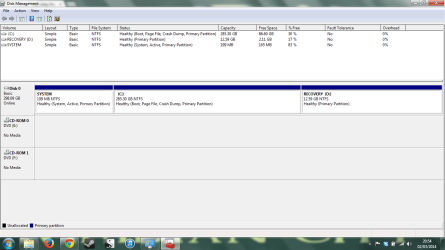
I've attached a screenshot of the disk management screen- I hope this is what you were looking for. Total hard drive space is around 300GB. The system partition has 199MB, 165 of which are free.

I've tried defragmenting the disk before and it didn't seem to get anywhere, but I decided to try it again tonight, it's in the middle of it now. I'll let you know what happens when it's finished. I have an external hard drive so making a backup image should be fine. I've never used one however, is it fairly simple to restore if I have to?
 

Attachments

  • disk management 020314.png
    disk management 020314.png
    39.3 KB · Views: 6
Last edited:

My Computer

Computer type
Laptop
Computer Manufacturer/Model Number
HP G61 Notebook PC
OS
Windows 7 Home Premium 64bit
CPU
Pentium Dual-Core CPU
Memory
4.0 GB
Antivirus
avast!
Browser
Chrome
I see for C: it only shows 30% free space. That can bog you if you haven't defragged in a bit. Also it makes defrags take longer as there's less room to jockey the files around. When I defrag I try to have close to 70% free space on C:. You can use the Windows defrag.exe but I like to use one that takes less time and is less thorough. That way you can run it more often without getting gray hair waiting. I like Auslogics Defrag Free or Puran Defrag with no optimizations.

The image restore is easy. The main thing is to boot the restore disc or USB and make sure you can see the external that has the backup images, the image files, and your HD partitions. If you cannot see one of those you may need to use a different image program or make a WinPE boot.

I would try Macrium Reflect. But for W7 EaseUS ToDo Backup Free worked well for me also. The main thing is test the boot as I noted above before you have a problem.

Edit: The reason for the backup image is, if you find the av really slows you down, running without it will perform better but has some risk. So if you get hit with a malware you have the backup image(s) to bail you out.
 

My Computer

Computer Manufacturer/Model Number
HP Media Center
OS
Windows 7 32 bit
CPU
AMD 5200+ dual core
Memory
2 GB
Graphics Card(s)
NVidia GeForce 6150SE 128 MB
Monitor(s) Displays
CRT
Screen Resolution
1280x1024
Hard Drives
500 GB Sata internal :

SIIG USB 3.0 docking stations w/WD Caviar Black 6 Gb/s drives
Keyboard
PS/2
Mouse
PS/2 Wheel Mouse
Other Info
SIIG USB 3.0 PCIexpress card.
The defrag completed, it took a few hours. The C drive now shows up as 0% fragmented. The system partition is still 10% fragmented, but disk defrag didn't seem to do anything to it. Is that normal?

I uninstalled some programmes and cleaned out some files, there's now 50% free space on the hard drive. Does it need to be at 70% all the time, or just when it's defragmenting?

Since the defrag things in windows seem to be running a little bit smoother, but there are still some problems with lag, and the exact same thing is happening with games. Games that used to run fine are now slow and very jerky, stopping and starting constantly. I have to say I'm a little bit hesitant to try running without an AV. Would I need to completely uninstall the AV, or just run the PC with the AV turned off?
 

My Computer

Computer type
Laptop
Computer Manufacturer/Model Number
HP G61 Notebook PC
OS
Windows 7 Home Premium 64bit
CPU
Pentium Dual-Core CPU
Memory
4.0 GB
Antivirus
avast!
Browser
Chrome
The disk free space doesn't have to be 70% but it's better if you can get it there at some point. The av you don't need to uninstall, just disable. But wait until you have a backup image first. Also you can back up your Registry with ERUNT freeware.

Also what are your page file settings? If you right click on Computer, then click Properties, you should see a tab for Advanced Settings. In there should be a section Performance with a button that lets you set the Virtual Memory. I just want to see if maybe it's set with a very small minimum. The page file might be fragmented.
 

My Computer

Computer Manufacturer/Model Number
HP Media Center
OS
Windows 7 32 bit
CPU
AMD 5200+ dual core
Memory
2 GB
Graphics Card(s)
NVidia GeForce 6150SE 128 MB
Monitor(s) Displays
CRT
Screen Resolution
1280x1024
Hard Drives
500 GB Sata internal :

SIIG USB 3.0 docking stations w/WD Caviar Black 6 Gb/s drives
Keyboard
PS/2
Mouse
PS/2 Wheel Mouse
Other Info
SIIG USB 3.0 PCIexpress card.
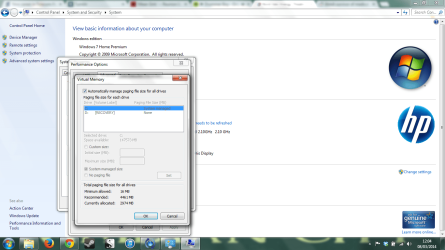
Virtual Memory is set at 2974 MB, with the total RAM being 4096. Does that seem small?
 

My Computer

Computer type
Laptop
Computer Manufacturer/Model Number
HP G61 Notebook PC
OS
Windows 7 Home Premium 64bit
CPU
Pentium Dual-Core CPU
Memory
4.0 GB
Antivirus
avast!
Browser
Chrome
Virtual Memory is set at 2974 MB, with the total RAM being 4096. Does that seem small?

What is the minimum set to? What I'm getting at is if the Minimum is 16 MB and the Max is 4 GB the system will keep sizing the page file around. That can cause unnecessary disk access. Can you post a screen shot of the page file settings?
 

My Computer

Computer Manufacturer/Model Number
HP Media Center
OS
Windows 7 32 bit
CPU
AMD 5200+ dual core
Memory
2 GB
Graphics Card(s)
NVidia GeForce 6150SE 128 MB
Monitor(s) Displays
CRT
Screen Resolution
1280x1024
Hard Drives
500 GB Sata internal :

SIIG USB 3.0 docking stations w/WD Caviar Black 6 Gb/s drives
Keyboard
PS/2
Mouse
PS/2 Wheel Mouse
Other Info
SIIG USB 3.0 PCIexpress card.
The minimum is indeed set to 16 MB. Can this be altered?
 

Attachments

  • performance.png
    performance.png
    98.6 KB · Views: 5

My Computer

Computer type
Laptop
Computer Manufacturer/Model Number
HP G61 Notebook PC
OS
Windows 7 Home Premium 64bit
CPU
Pentium Dual-Core CPU
Memory
4.0 GB
Antivirus
avast!
Browser
Chrome
The minimum is indeed set to 16 MB. Can this be altered?
Just click on the Custom Size checkbox. What I do before that is turn off paging altogether. Make sure your system doesn't come up with a whole bunch of programs on login. You don't want an Out Of Memory error. But with 4 GB ram you should have no problem. I did this same procedure on a Windows 7 system with only 2 GB ram installed. Basically:

Turn off virtual memory (no paging file)
reboot normally.
Defrag the system partition(or the partition where you will put the page file.)
Set Custom Size both the same. The size is in MB. So if you want 4 GB use 4096 MB if 8 GB then 8192 MB etc..

Set both the minimum and maximum the same.
Reboot.

Now your page file will never be fragmented. If you run large databases or have some other reason to use gobs of virtual memory then set the maximum larger. There's no "exact right answer" because it will vary with how your system is used. If you find yourself running out of memory then set the numbers higher. On my 2 GB Windows 7 system I set min and max both to 4096 MB and never had an OOM error. But that's what worked for me. Your mileage may vary.

Edit: Actually when you turn paging on you don't have to reboot. It's only when it's active and you turn it off that you have to reboot so that it can stop using the current page file and delete it. But no big deal. :)
 

My Computer

Computer Manufacturer/Model Number
HP Media Center
OS
Windows 7 32 bit
CPU
AMD 5200+ dual core
Memory
2 GB
Graphics Card(s)
NVidia GeForce 6150SE 128 MB
Monitor(s) Displays
CRT
Screen Resolution
1280x1024
Hard Drives
500 GB Sata internal :

SIIG USB 3.0 docking stations w/WD Caviar Black 6 Gb/s drives
Keyboard
PS/2
Mouse
PS/2 Wheel Mouse
Other Info
SIIG USB 3.0 PCIexpress card.
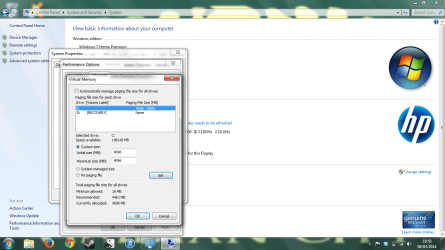
I've tried following this, but I'm not sure if I'm doing the right thing. I turned off paging (I think- I clicked "No paging file", then "Set"- is that right?) then rebooted. I tried to defrag the system partition, but it seems to be stuck at 10%, every time I click defrag it seems to complete instantly, but nothing actually happens.

I moved on anyway, and tried the Custom Size checkbox. I set both initial size (is this the same as minimum?) and maximum size to 4096MB, then clicked set, but the minimum is still reading 16 MB. I'm not quite sure what's wrong- I've attached a screenshot to show where it's at.

I feel like I'm so close to solving this, yet still so far! Thanks for your help so far.
 

Attachments

  • performance2.png
    performance2.png
    94.8 KB · Views: 1

My Computer

Computer type
Laptop
Computer Manufacturer/Model Number
HP G61 Notebook PC
OS
Windows 7 Home Premium 64bit
CPU
Pentium Dual-Core CPU
Memory
4.0 GB
Antivirus
avast!
Browser
Chrome
That's ok. Mine looks the same. I'm a bit concerned about the defrag being weird. You are using the Windows defrag.exe? Are you running an AV program? In any case before getting side-tracked run the system for a bit and see if you still have the lagging.
 

My Computer

Computer Manufacturer/Model Number
HP Media Center
OS
Windows 7 32 bit
CPU
AMD 5200+ dual core
Memory
2 GB
Graphics Card(s)
NVidia GeForce 6150SE 128 MB
Monitor(s) Displays
CRT
Screen Resolution
1280x1024
Hard Drives
500 GB Sata internal :

SIIG USB 3.0 docking stations w/WD Caviar Black 6 Gb/s drives
Keyboard
PS/2
Mouse
PS/2 Wheel Mouse
Other Info
SIIG USB 3.0 PCIexpress card.
Yes, I'm using the windows defrag. I have avast running, but I tried defrag with all the avast shields disabled and it still wouldn't defrag.

In general things are seeming a little bit smoother, but there are still issues, so I'm not sure if I'm just imagining it. General windows stuff and browsing seem ok, but the lag is still occurring with Word and a few games that I tried just now, so possibly with other programs as well.

Is it weird that the page file minimum size is still showing up as 16MB?
 

My Computer

Computer type
Laptop
Computer Manufacturer/Model Number
HP G61 Notebook PC
OS
Windows 7 Home Premium 64bit
CPU
Pentium Dual-Core CPU
Memory
4.0 GB
Antivirus
avast!
Browser
Chrome
Is it weird that the page file minimum size is still showing up as 16MB?
I seem to remember it was always like that. As long as the radio control where you set the custom size shows filled in then it's enabled. Plus you can just check it in a command prompt.
dir /AHS c:\pagefile.sys
it should show a 4 with lots of digits after. :)

Games are very demanding I'm told(I'm old fashioned. Pinball or Pool were my games.) I'm not sure they will run smooth with AV enabled.

You could try Auslogics Defrag Free with no optimizations. That's a very "Light" or non-thorough defrag. If that fails to finish then something is wrong. The HD may have issues.
 

My Computer

Computer Manufacturer/Model Number
HP Media Center
OS
Windows 7 32 bit
CPU
AMD 5200+ dual core
Memory
2 GB
Graphics Card(s)
NVidia GeForce 6150SE 128 MB
Monitor(s) Displays
CRT
Screen Resolution
1280x1024
Hard Drives
500 GB Sata internal :

SIIG USB 3.0 docking stations w/WD Caviar Black 6 Gb/s drives
Keyboard
PS/2
Mouse
PS/2 Wheel Mouse
Other Info
SIIG USB 3.0 PCIexpress card.
Back
Top