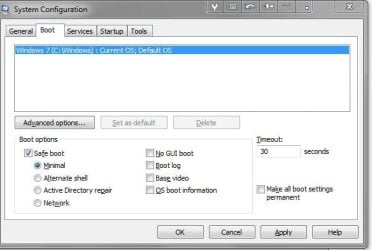
This might very well be a case for a re-install, but I'm not sure that the issue defines the issue.
I have Windows 7 on my computer.
I took some Windows updates the other day
I did not see anything saying "Windows 8"
The next time I started my computer I saw the boot screen coming up looking like Windows 8 (blue square instead of colored squares).
Then I noticed my desktop icons (google chromes) had lost their color and were now plain white.
I managed to search online to find out how to make them colored again, however next boot they were plain white again.
Then I tried rebooting and attempted hitting F8 to go into Advanced Boot Options and nothing happened.
I eventually ended up in "msconfig" and noticed my operating system (and there was only one choice) was Windows 8.
So I searched how to get into Advanced Boot Options in Windows 8 and found that F8 does not work for this operating system, which verifies that I have Windows 8.
This apparently from I understand is what happens with Windows 8. BUT my computer boots up in Windows 7.
Question 1: How the hell did my computer go to Windows 8
Question 2: Can I reverse this? (I tried doing system restore to 3 days before this happened and it did not work)
Question 3: Is my only option to reinstall Windows 7? (I am pretty sure it is)
Sure, lots of things point to Windows 8, except you boot to Windows 7.
This sounds more like malware than a magical upgrade.
There is another thread with the same symptoms, I'll look for it later.
First, a few suggestions. If one has already been offered, please excuse the duplication (I must have missed it).
Try a restore point going back to a time before the suspect Windows update (that wasn't the cause, but it's a good timeframe reference).
See
http://www.sevenforums.com/tutorials/700-system-restore.html (it sounds more ominous than it is - think restore points)
Also pay attention to Step 7 - lots of people miss that important information.
If that doesn't cure what ails ya...
Run a few quick malware scans just to make sure there isn't anything lurking.
Download Malwarebytes Anti-Malware Free (
click here to download, select the free version)
"Save as" the install package to your Desktop
Double click the mbam-setup file on your desktop to install and run Malwarebytes (Mbam)
Answer YES to all authorization prompts and then follow the Mbam setup prompts.
Do not make any changes to default settings.
When the install is finished, verify that only the following two options have checkmarks,
change to match if necessary.
[[FONT=Webdings, serif]
a[/FONT]]
Update Malwarebytes’ Anti-Malware
[
a]
Launch Malwarebytes’ Anti-Malware
Make sure that there is NOT a checkmark next to:
[
..] Enable free trial of Malwarebytes Anti-Malware PRO
Then click the Finish button.
Allow Mbam to update, then
Select
Perform Quick Scan from the options on the Scanner tab, then
Click the
Scan button.
After the scan is complete
Click on
Show Results
A window displaying any detected malware is shown
Select all malware (make sure all objects are ticked [
a]), then
Click on
Remove Selected
The Mbam report file pops up in your text editor when Mbam has completed the removal process.
:ar: Select all of the text in the report (Ctrl+A) and paste the text in a new post on this thread.
Note
If MBAM encounters a file that is difficult to remove, you are asked to restart the computer.
The restart is REQUIRED to allow Mbam to complete the removal of the malware.
Failure to restart means that the malware is still present on your machine.
:info: You want to restart in Normal mode, not in Safe mode.
AdwCleaner is a two step process. Scan then Clean
Step 1: Download and Scan
Click here to download AdwCleaner (author: Xplode)
>> save the application to your Desktop.
- Right-click AdwCleaner.exe on your Desktop and select Run As Administrator to run the scanner with full privilege rights.
:info: AdwCleaner is a standalone executable, there is no install.
- Click on the Scan button.
>> AdwCleaner begins scanning your system. It might take some time to complete, be patient
- When the scan has finished, click on the Report button
>> the AdwCleaner log: AdwCleaner[R#].txt is opened in your default Text editor.
:info: [R#] gets incremented every time you run AdwCleaner - the highest number is the most recent.
- Look through the log for any recognizable entries - don't worry about other details in the log.
i.e. I use Textpad on my system and AdwCleaner flags it as a possilbe threat because I configured Textpad to replace Notepad. AdwCleaner says "Hey, that's not quite right - you should take a look a this - did you make this change"
- Paste the entire AdwCleaner log in your next post.
:info: AdwCleaner logs are located in the C:\AdwCleaner folder if you need to reference them again.