Windows 7 with grub and boot manager

Budlee

New member
Local time
1:35 PM
Messages
6
Hello,

This is my first post as I have really struggled to find an answer to my questions I felt it was now appropriate!

So my problem is that I not only have a screwed installation of Windows 7 Premium x64 on my second harddrive, I have a messed up version of grub on my primary harddrive.

I recently bought 2 ssd's to put into my Dell LX702 as it can with 2 regular hdd's. The previous hdd's had windows 7 home premium x64 and honestly NEVER failed it.

As the young innocent fool I was I put fedora on the two newly inserted SSD's in my laptop. The reason was I wanted it for development but I forgot the games are rubbish so thought I would move back to play something decent.

Anyway I formatted the ssd's and started the installation and then grub would load up on the primary ssd and fail when the windows 7 restart is required during installation. Grub would go into its saftey recovery mode (As fedora was gone) and sit doing nothing. Now after a lot of installation things suggested to re-install the boot manager with the console and nothing happening I kind of gave up. It then materialized that if I chose the second ssd to boot from (again at the restart during the installation) it worked fine! this meant that the windows 7 install is on my second ssd! This is not to bad as I just changed the boot order.

However the great god Zeus has come down and ruined that for me as I can not install ANY of the windows updates and the installation likes to crash an awful lot!

My conclusion is that this just needs a new format! So what I want to do is get rid of grub on the primary ssd (Not a clue how to do it) and then remove the boot manager from the second ssd and start the installation again!


The things I did to re-install the boot manager were to use bootrec and something else I can't find it now but that didn't work

Anyway I really would appreciate any help

Thanks
 

My Computer My Computer

OS
Windows 7 Premium x64
Hello Budlee, welcome to Seven Forums!


I don't have a lot of time right now so I'm going to give you some reading to start, have a look through the information at the links below for some additional ideas and be sure to post back with any further questions you may have and to keep us informed.

Clean Install : Factory COA Activation Key


To over-write the Grub boot-loader.

   Information

It may be a help to over-write the HDD Master Boot Record (MBR) before you start any other procedure using the diskpart clean command, rather than the clean all; it takes just seconds to complete so you will have "unallocated" space to use either the Windows installer to create and format the partition(s) or use diskpart to create them, however you choose.
If you want to completely wipe / over-write the entire Hard Disk Drive of any possible format errors, malware infection, for security purposes or just to get the best possible place to install Windows to, have a look at these tutorials.


My Computer My Computer

Computer Manufacturer/Model Number
* BFK Customs *
OS
W 7 64-bit Ultimate
CPU
Intel Q9550 Yorkfield
Motherboard
ASUS P5Q Pro
Memory
8GB Dominator 8500C5D
Graphics Card(s)
ATI : XFX 5870
Sound Card
Realtek HD Audio 7-1
Monitor(s) Displays
1x 47" LCD HDMI & 3x 26" LCD HDMI
Screen Resolution
1920x1080P & 1920x1200
Hard Drives
1x 80GB Intel X25-M G2 SSD : 1x 500GB & 1x 640GB WD Caviar Black(s)
PSU
Corsair 620HX
Case
Cooler Master RC-690
Cooling
Tuniq Tower 120, 2x 140mm and 3x 120mm case fans
Keyboard
Microsoft 500
Mouse
Razer Diamondback 3G
Internet Speed
14 Mb/s
Other Info
1x Koutech 3Gb/s SATA HDD Hot Swap Rack
  • Like
Reactions: Arc
With two SSD's you should keep Linux GRUB off of the Win7 installation by booting them separately via the BIOS. Unplug the other SSD when you install. After installs, plug back in both SSD's, set preferred one first to boot in BIOS setup, then boot the other one when needed using the one-time BIOS Boot Menu key given on first screen.

For now wipe the SSD's with Diskpart Clean Command (not Clean All which is overkill and hard on an SSD) then follow these steps to get a perfect Clean Reinstall - Factory OEM Windows 7.
 
Cheers guys,

I am unusually busy at the moment so have had not time to do this and will not until next week.

Will write a message about how it went then

Thanks
 

My Computer My Computer

OS
Windows 7 Premium x64
Hey,

Well I last night made a start on this cleaning of my ssd's and followed one of the tutorial and did:

disk part -> clean all

It has been about 14 hours now!

What the hell do I do? Just keep waiting?

Thanks
 

My Computer My Computer

OS
Windows 7 Premium x64
That's why specifically said not to do the Clean All Command, since the quicker Clean command is all that is needed for this purpose and isn't as hard on an SSD.

I hope you can follow the steps in the Clean Reinstall tutorial better. Let us know if you have any questions.
 
Last edited:
Hey,

Well back up and rinning on the laptop again! All the installation went well after my small mistake with clean all!

So what I did was as suggested:


Firstly had to update the bios as without a newer version would not allow a USB boot! Really weird! Anyway that worked.

So put in my usb and went to the command prompt and opened up diskpart

Put in "clean all" command after 48 hours hit ctrl-C (A message saying error appeared so not sure what that was about but ignored it) and that stoped and I instead did the command "clean"

Did this to both disks.

Procceded to install windows 7. I created the new partitions for the ssd's using the windows installer hard drive choice options. This all went well EXCEPT that it still demanded to put the installation on the second hardrive again! not sure why this was (may be explained further down).

Installation went fine all functions working I still have some driver updates to install as the ones on my disk are painfully out of date.

Weird thing when I started the D: was not in a recognised format (This is also Disk 0 (the primary drive)) So I had to format it in to NTFS and Bingo it now works all well.

Nothing has crashed so far and installation is way better, GRUB is removed so Thanks all for your help I imagine the installation on the second ssd is due to it not formatting correctly at time of installation and then it could not put it on the primary ssd. It is still much quicker then before so I am going to leave it and have just changed the boot order

Thanks
 

My Computer My Computer

OS
Windows 7 Premium x64
As expected you didn't follow the steps in the Clean Reinstall tutorial either. It says quite clearly to unplug all other HD's during install. Do you have a reading disability?

If you'll post back a screenshot of your maximized Disk Mgmt drive map and listings, using Snipping Tool in Start Menu, we can look it over for you.
 
I assume windows is going to run happily along?

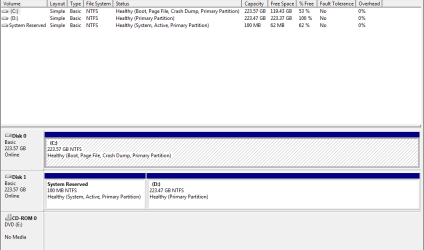
Here is the manager
 

Attachments

  • Capture.PNG
    Capture.PNG
    11.1 KB · Views: 41

My Computer My Computer

OS
Windows 7 Premium x64
Its booting off the System REserved partition on the other HD, which is not correct and needs to be changed.

Mark C Active in Disk Mgmt, power down to unplug DIsk1, boot into BIOS setup to set C as first HD to boot in BIOS setup, boot into Win7 installer to run Startup Repair up to 3 separate times with reboots - until C is labeled System Active.

You can plug back in the HD then and delete System Reserved and the old Win7 partition, or wipe the HD to get it cleanest with Diskpart Clean Command.

All of this was unnecessary waste of time because you wouldn't read the steps given you. Why?
 
Will do do that in the next few days :D

Thank you all for you help

P.S. Also its because I am just such a free spirit I don't like to follow the rules and reading is like a rule man!
 

My Computer My Computer

OS
Windows 7 Premium x64
Back
Top