Windows Explorer Auto Arrange - Disable

How to Disable Auto Arrange in Windows 7 Explorer to have Free Sorting


   Information
In Windows 7, auto arrange is enabled by default so that all file and folder names in Windows Explorer are sorted alphabetically no matter what folder view you used.

This is basically like having how you can arrange icons how you like on your desktop in every folder in Windows Explorer now.

This will show you how to disable Auto Arrange in Windows 7 to be able to sort your files and folders in any random order and position you like in each opened folder in Windows Explorer and in the Pin to Start Menu area at the top of the Start Menu without it having to be sorted alphabetically by name. Windows 7 will also remember these random folder sortings (order and position), and open as how they were when the folder window was last closed.

   Note
When You Disable Auto Arrange:
  • While using Extra Large Icons, Large Icons, Medium Icons, Small Icons, and Extended Tiles folder views, you can arrange files/folders in any random order and position.
  • While using Details folder view, you can only arrange files/folders in any order and not in any random position.
  • While using Extra Large Icons, Large Icons, Medium Icons, Small Icons, and Extended Tiles folder views, you can click on View (Menu bar) and check Auto arrange to have the black indicator line back inbetween files/folders when arranging files/folders in any order. This turns off the ability to arrange files/folders by random positions though.
  • While using Extra Large Icons, Large Icons, Medium Icons, Small Icons, and Extended Tiles folder views, you can click on View (Menu bar) and uncheck Auto arrange to be able to arrange files/folders in any order and random positions.
  • The Auto arrange and Align to grid options can be turned on and off at will in the View (Menu bar and right click context menu) when available (not grayed out) while using Extra Large Icons, Large Icons, Medium Icons, Small Icons, or Extended Tiles folder views.
  • If you have items arranged by random positions and switch from a Extra Large Icons, Large Icons, Medium Icons, Small Icons, and Extended Tiles folder view to a List, Details, Extended Tiles, or Content folder view, the random positions will be reset but still placed in a order of arrangement instead.
  • If you unzip a file in a folder, move a folder, or rename a folder, it will refresh and auto arrange the files in that specific folder only after each time you do this. Auto arrange is still disabled for that folder, but you will need to arrange the files back to whatever non-auto arranged order you like again after unzipping a file in a folder, move a folder, or rename a folder.
   Warning
DO NOT USE this tutorial in any other OS than Windows 7.
  • While this tutorial will allow you to disable auto arrange in the main Libraries folder itself, it will not disable auto arrange in any of the other library folders (ex: Documents, Music, Pictures, Videos).
  • Free sorting is not available if you use "Group by" folder views instead of only "Sort by" folder views.
  • Free sorting is not available in the List and Content folder views.
  • When you disable Auto Arrange, you will have Extend Tiles folder view instead of Tiles available in all folders except the Computer windows.

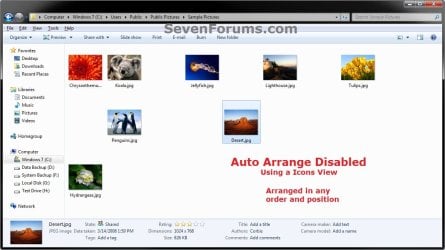
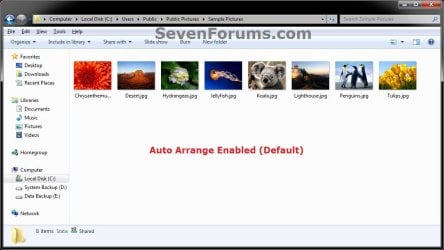
EXAMPLE: Auto Arrange Enabled and Disabled
NOTE: Notice in the screenshot with Auto Arrange disabled, the files can be dragged around the Windows Explorer window to sort how you like without having to be in alphabetical order.
Default.jpg

Disabled-1.jpg

Disabled-2.jpg


OPTION ONE

To Disable Auto Arrange in Windows 7 Windows Explorer


   Warning
It is also recommended to create a restore point before doing this option in case you would like to undo any unwanted unknown side affects that OPTION TWO may not undo. This way, you could also do a system restore with this restore point to undo this option completely.


1. Click on the Download button below to download the BAT file below.
Disable_Windows_7_Explorer_Auto_Arrange.bat

Download


2. Save the .bat file to your desktop.

3. Close everything that you have running first, then run the downloaded .bat file.

4. If prompted, click on Run.
NOTE: If you like, you can stop getting the Run prompt by unblocking the downloaded .bat file.

5. You will now notice your screen flicker and a command prompt open as the explorer process is restarted.

6. Let the command prompt count down to finish on it's own without pressing a key.

7. When it's finished, you will see the Computer window open.

8. Auto arrange in Windows Explorer is now disabled.


OPTION TWO

To Enable Auto Arrange in Windows 7 Windows Explorer


NOTE: This is the default setting.
1. Click on the Download button below to download the BAT file below.
Enable_Windows_7_Explorer_Auto_Arrange.bat

Download


2. Save the .bat file to your desktop.

3. Close all opened explorer windows first, then run the downloaded .bat file.

4. If prompted, click on Run.
NOTE: If you like, you can stop getting the Run prompt by unblocking the downloaded .bat file.

5. You will now notice your screen flicker and a command prompt open as the explorer process is restarted.

6. When it's finished, you will see the Computer window open.

7. Auto arrange in Windows Explorer is now enabled again.
That's it,
Shawn


Attachments

Last edited:
Brink, is it possible to change Extended Tiles back to normal Tiles and have it still work?
 

My Computer

Computer type
PC/Desktop
OS
Windows 7 Ultimate SP1 x64
CPU
Intel i7 920
Motherboard
ASRock x58 Extreme
Memory
G.SKILL Ripjaws 12GB (3 x 4GB)
Graphics Card(s)
EVGA GTX 670 FTW Sig2
Monitor(s) Displays
ACER 24" H243H, Vizio 42" E420VL
Screen Resolution
1600x900
Hard Drives
WD Black 2TB x 3
WD Black 4TB x 2
PSU
Thermaltake 775watt
Case
Thermaltake Armor
Keyboard
Logitech Cordless Wave
Mouse
Logitech Performance MX
Antivirus
ESET Smart Security
Browser
Internet Explorer, Firefox
Hello Yajiro,

Sorry, but it does not work in any of the "Tiles" view settings. :(
 

My Computer

Computer type
PC/Desktop
Computer Manufacturer/Model Number
Self built custom
OS
64-bit Windows 11 Pro for Workstations
CPU
Intel i7-8700K OC'd to 5 GHz
Motherboard
ASUS ROG Maximus XI Formula Z390
Memory
64 GB (4x16GB) G.SKILL TridentZ RGB DDR4 3600 MHz
Graphics Card(s)
ASUS ROG-STRIX-GTX1080TI-O11G-GAMING
Sound Card
Integrated
Monitor(s) Displays
2 x Samsung Odyssey G7 27"
Screen Resolution
2560x1440
Hard Drives
1TB Samsung 990 PRO M.2,
4TB Samsung 990 PRO PRO M.2,
TerraMaster F8 SSD Plus NAS
PSU
Seasonic Prime Titanium 850W
Case
Thermaltake Core P3
Cooling
Corsair Hydro H115i
Keyboard
Logitech wireless K800
Mouse
Logitech MX Master 4
Internet Speed
2 Gb/s Download and 100 Mb/s Upload
Antivirus
Malwarebyte Anti-Malware Premium
Browser
Google Chrome
Other Info
Logitech Z625 speaker system,
Logitech BRIO 4K Pro webcam,
HP Color LaserJet Pro MFP M477fdn,
APC SMART-UPS RT 1000 XL - SURT1000XLI,
Galaxy S23 Plus phone
Hello Brink,
I have been very displeased with W-7 explorer, thanks for working on this!

I found your solution only after implementing one from another source and wonder which is best overall.

If you are interested, would you please take a look at "disablefullrowselect" in the file "w7-fullrowsel.zip"
found here: How to Disable Full Row Select in Explorer in Windows 7? - The Winhelponline Blog

I'm looking forward to your comparison!
Thanks again,
Steve
 

My Computer

Computer Manufacturer/Model Number
HP Elite 180t
OS
W-7 pro 64bit
CPU
i7 930 @ 2.8 GHz
Memory
12 GB
Hello Steve, and welcome to Seven Forums.

The link you posted to is not for the same thing though.

I have seen that, but in my opinion the side effects it causes may not be worth doing it.

Hope this helps,
Shawn
 

My Computer

Computer type
PC/Desktop
Computer Manufacturer/Model Number
Self built custom
OS
64-bit Windows 11 Pro for Workstations
CPU
Intel i7-8700K OC'd to 5 GHz
Motherboard
ASUS ROG Maximus XI Formula Z390
Memory
64 GB (4x16GB) G.SKILL TridentZ RGB DDR4 3600 MHz
Graphics Card(s)
ASUS ROG-STRIX-GTX1080TI-O11G-GAMING
Sound Card
Integrated
Monitor(s) Displays
2 x Samsung Odyssey G7 27"
Screen Resolution
2560x1440
Hard Drives
1TB Samsung 990 PRO M.2,
4TB Samsung 990 PRO PRO M.2,
TerraMaster F8 SSD Plus NAS
PSU
Seasonic Prime Titanium 850W
Case
Thermaltake Core P3
Cooling
Corsair Hydro H115i
Keyboard
Logitech wireless K800
Mouse
Logitech MX Master 4
Internet Speed
2 Gb/s Download and 100 Mb/s Upload
Antivirus
Malwarebyte Anti-Malware Premium
Browser
Google Chrome
Other Info
Logitech Z625 speaker system,
Logitech BRIO 4K Pro webcam,
HP Color LaserJet Pro MFP M477fdn,
APC SMART-UPS RT 1000 XL - SURT1000XLI,
Galaxy S23 Plus phone
Hi Shawn,
Yes they are different fix's: I read that the auto arrange disable is a side effect of the authors main intent which was to disable full row select.

It sounds like your registry change is cleaner and more specific so I’d like to give it a try.

Question: In case it doesn’t work for me, does’ your solution have an "undo" or would I need to go back myself and do a system restore or maybe manually re-install my old reg file?
 

My Computer

Computer Manufacturer/Model Number
HP Elite 180t
OS
W-7 pro 64bit
CPU
i7 930 @ 2.8 GHz
Memory
12 GB
Ah, ok.

You can do OPTION TWO using the Reset download to undo it. :)
 
Last edited:

My Computer

Computer type
PC/Desktop
Computer Manufacturer/Model Number
Self built custom
OS
64-bit Windows 11 Pro for Workstations
CPU
Intel i7-8700K OC'd to 5 GHz
Motherboard
ASUS ROG Maximus XI Formula Z390
Memory
64 GB (4x16GB) G.SKILL TridentZ RGB DDR4 3600 MHz
Graphics Card(s)
ASUS ROG-STRIX-GTX1080TI-O11G-GAMING
Sound Card
Integrated
Monitor(s) Displays
2 x Samsung Odyssey G7 27"
Screen Resolution
2560x1440
Hard Drives
1TB Samsung 990 PRO M.2,
4TB Samsung 990 PRO PRO M.2,
TerraMaster F8 SSD Plus NAS
PSU
Seasonic Prime Titanium 850W
Case
Thermaltake Core P3
Cooling
Corsair Hydro H115i
Keyboard
Logitech wireless K800
Mouse
Logitech MX Master 4
Internet Speed
2 Gb/s Download and 100 Mb/s Upload
Antivirus
Malwarebyte Anti-Malware Premium
Browser
Google Chrome
Other Info
Logitech Z625 speaker system,
Logitech BRIO 4K Pro webcam,
HP Color LaserJet Pro MFP M477fdn,
APC SMART-UPS RT 1000 XL - SURT1000XLI,
Galaxy S23 Plus phone
You're most welcome Mardy, and welcome to Seven Forums. :)
 

My Computer

Computer type
PC/Desktop
Computer Manufacturer/Model Number
Self built custom
OS
64-bit Windows 11 Pro for Workstations
CPU
Intel i7-8700K OC'd to 5 GHz
Motherboard
ASUS ROG Maximus XI Formula Z390
Memory
64 GB (4x16GB) G.SKILL TridentZ RGB DDR4 3600 MHz
Graphics Card(s)
ASUS ROG-STRIX-GTX1080TI-O11G-GAMING
Sound Card
Integrated
Monitor(s) Displays
2 x Samsung Odyssey G7 27"
Screen Resolution
2560x1440
Hard Drives
1TB Samsung 990 PRO M.2,
4TB Samsung 990 PRO PRO M.2,
TerraMaster F8 SSD Plus NAS
PSU
Seasonic Prime Titanium 850W
Case
Thermaltake Core P3
Cooling
Corsair Hydro H115i
Keyboard
Logitech wireless K800
Mouse
Logitech MX Master 4
Internet Speed
2 Gb/s Download and 100 Mb/s Upload
Antivirus
Malwarebyte Anti-Malware Premium
Browser
Google Chrome
Other Info
Logitech Z625 speaker system,
Logitech BRIO 4K Pro webcam,
HP Color LaserJet Pro MFP M477fdn,
APC SMART-UPS RT 1000 XL - SURT1000XLI,
Galaxy S23 Plus phone
Shawn,

Does it improve the performance of loading files ?
 

My Computer

Computer Manufacturer/Model Number
Samsung NP550P5C-S02IN
OS
Windows 7 Ultimate - 64-bit | Windows 8 Pro - 64-bit
CPU
Intel® Core™ i7 Processor 3,610QM (2.30Hz, 6MB L3 Cach
Memory
8 GB
Graphics Card(s)
NVIDIA® GeForce® GT 650M 2GB Graphics, Optimus™ techno
Sound Card
SoundAlive™ JBL 3 Speakers (With sub-Woofer)
Monitor(s) Displays
39.62cm (15.6) SuperBright 300nit HD+ LED Display
Screen Resolution
1,600 x 900, Anti-Reflective
Hard Drives
1TB S-ATA II Hard Drive (5,400RPM)
Last edited:

My Computer

Computer type
PC/Desktop
Computer Manufacturer/Model Number
Self built custom
OS
64-bit Windows 11 Pro for Workstations
CPU
Intel i7-8700K OC'd to 5 GHz
Motherboard
ASUS ROG Maximus XI Formula Z390
Memory
64 GB (4x16GB) G.SKILL TridentZ RGB DDR4 3600 MHz
Graphics Card(s)
ASUS ROG-STRIX-GTX1080TI-O11G-GAMING
Sound Card
Integrated
Monitor(s) Displays
2 x Samsung Odyssey G7 27"
Screen Resolution
2560x1440
Hard Drives
1TB Samsung 990 PRO M.2,
4TB Samsung 990 PRO PRO M.2,
TerraMaster F8 SSD Plus NAS
PSU
Seasonic Prime Titanium 850W
Case
Thermaltake Core P3
Cooling
Corsair Hydro H115i
Keyboard
Logitech wireless K800
Mouse
Logitech MX Master 4
Internet Speed
2 Gb/s Download and 100 Mb/s Upload
Antivirus
Malwarebyte Anti-Malware Premium
Browser
Google Chrome
Other Info
Logitech Z625 speaker system,
Logitech BRIO 4K Pro webcam,
HP Color LaserJet Pro MFP M477fdn,
APC SMART-UPS RT 1000 XL - SURT1000XLI,
Galaxy S23 Plus phone
Hello Shyam.

Sorry, but no. :(

Thanks for responding ! I'm having this problem where it takes a long time to load folder with lot of contents.
 

My Computer

Computer Manufacturer/Model Number
Samsung NP550P5C-S02IN
OS
Windows 7 Ultimate - 64-bit | Windows 8 Pro - 64-bit
CPU
Intel® Core™ i7 Processor 3,610QM (2.30Hz, 6MB L3 Cach
Memory
8 GB
Graphics Card(s)
NVIDIA® GeForce® GT 650M 2GB Graphics, Optimus™ techno
Sound Card
SoundAlive™ JBL 3 Speakers (With sub-Woofer)
Monitor(s) Displays
39.62cm (15.6) SuperBright 300nit HD+ LED Display
Screen Resolution
1,600 x 900, Anti-Reflective
Hard Drives
1TB S-ATA II Hard Drive (5,400RPM)
You're welcome Shyam.

You might post that in a new thread to see what may be found for it. :)
 

My Computer

Computer type
PC/Desktop
Computer Manufacturer/Model Number
Self built custom
OS
64-bit Windows 11 Pro for Workstations
CPU
Intel i7-8700K OC'd to 5 GHz
Motherboard
ASUS ROG Maximus XI Formula Z390
Memory
64 GB (4x16GB) G.SKILL TridentZ RGB DDR4 3600 MHz
Graphics Card(s)
ASUS ROG-STRIX-GTX1080TI-O11G-GAMING
Sound Card
Integrated
Monitor(s) Displays
2 x Samsung Odyssey G7 27"
Screen Resolution
2560x1440
Hard Drives
1TB Samsung 990 PRO M.2,
4TB Samsung 990 PRO PRO M.2,
TerraMaster F8 SSD Plus NAS
PSU
Seasonic Prime Titanium 850W
Case
Thermaltake Core P3
Cooling
Corsair Hydro H115i
Keyboard
Logitech wireless K800
Mouse
Logitech MX Master 4
Internet Speed
2 Gb/s Download and 100 Mb/s Upload
Antivirus
Malwarebyte Anti-Malware Premium
Browser
Google Chrome
Other Info
Logitech Z625 speaker system,
Logitech BRIO 4K Pro webcam,
HP Color LaserJet Pro MFP M477fdn,
APC SMART-UPS RT 1000 XL - SURT1000XLI,
Galaxy S23 Plus phone
If you change the folder name, files auto arrange again :mad:
any solution ?:cry:
 

My Computer

OS
windows 7
If you change the folder name, files auto arrange again :mad:
any solution ?:cry:

Hello ! Welcome to SF !

Did you open My Computer before going into in Step 7. Maybe restore it and try it again.
 

My Computer

Computer Manufacturer/Model Number
Samsung NP550P5C-S02IN
OS
Windows 7 Ultimate - 64-bit | Windows 8 Pro - 64-bit
CPU
Intel® Core™ i7 Processor 3,610QM (2.30Hz, 6MB L3 Cach
Memory
8 GB
Graphics Card(s)
NVIDIA® GeForce® GT 650M 2GB Graphics, Optimus™ techno
Sound Card
SoundAlive™ JBL 3 Speakers (With sub-Woofer)
Monitor(s) Displays
39.62cm (15.6) SuperBright 300nit HD+ LED Display
Screen Resolution
1,600 x 900, Anti-Reflective
Hard Drives
1TB S-ATA II Hard Drive (5,400RPM)
yes, I did

"display auto arrange" works , and everything is Ok
but after that.. if I want to change the folder name, my arrange disappear and files auto arranged.

This video explain


any idea ?

Thanks for you help
 
Last edited by a moderator:

My Computer

OS
windows 7
Hello NaWaR, and welcome to Seven Forums.

When you disable auto arrange and rename a folder, it will refresh and auto arrange the files in that renamed folder only after each time you rename it. Auto arrange is still disabled for that renamed folder, but you will have to arrange the files back to whatever non-auto arranged order you like after renaming the folder.

It's just it's way of refreshing the folder after a rename.

Hope this helps,
Shawn
 

My Computer

Computer type
PC/Desktop
Computer Manufacturer/Model Number
Self built custom
OS
64-bit Windows 11 Pro for Workstations
CPU
Intel i7-8700K OC'd to 5 GHz
Motherboard
ASUS ROG Maximus XI Formula Z390
Memory
64 GB (4x16GB) G.SKILL TridentZ RGB DDR4 3600 MHz
Graphics Card(s)
ASUS ROG-STRIX-GTX1080TI-O11G-GAMING
Sound Card
Integrated
Monitor(s) Displays
2 x Samsung Odyssey G7 27"
Screen Resolution
2560x1440
Hard Drives
1TB Samsung 990 PRO M.2,
4TB Samsung 990 PRO PRO M.2,
TerraMaster F8 SSD Plus NAS
PSU
Seasonic Prime Titanium 850W
Case
Thermaltake Core P3
Cooling
Corsair Hydro H115i
Keyboard
Logitech wireless K800
Mouse
Logitech MX Master 4
Internet Speed
2 Gb/s Download and 100 Mb/s Upload
Antivirus
Malwarebyte Anti-Malware Premium
Browser
Google Chrome
Other Info
Logitech Z625 speaker system,
Logitech BRIO 4K Pro webcam,
HP Color LaserJet Pro MFP M477fdn,
APC SMART-UPS RT 1000 XL - SURT1000XLI,
Galaxy S23 Plus phone
, but you will have to arrange the files back to whatever non-auto arranged order you like after renaming the folder.
If I change the folder name for any reason, files will auto arrange.
Or if I copy and paste the files to different folder, files will auto arrange.

and if I have many many files in the folder, it will be so hard to arrange them back, won't it ?

why there is no clear way to disable auto arrange without any trouble ?!

Any way, Thanks for your help.
rose.gif
 

My Computer

OS
windows 7
"why there is no clear way to disable auto arrange without any trouble ?!"

ditto, another example of Microsoft making our choices for us - auto-arrange (or rather, the lack of a choice to turn it off) is nothing but a pain in the a##
 

My Computer

Computer Manufacturer/Model Number
Acer Aspire 5741
OS
windows 7 Home Premium
CPU
Intel Core i5 @ 2.27GHz 32nm Technology
Motherboard
Acer Aspire 5741 (CPU)
Memory
DDR3 4.0GB
Graphics Card(s)
Intel(R) Graphics Media Accelerator HD
Sound Card
Realtek High Definition Audio Intel(R) Display Audio
Monitor(s) Displays
Generic PnP Monitor on Intel Graphics Media Accelerator HD
Screen Resolution
1366x768
Hard Drives
Seagate 2.5" SATA 500GB
Keyboard
Synaptics PS/2 Port TouchPad
Mouse
Microsoft Comfort Mouse 4500 (IntelliPoint)
why there is no clear way to disable auto arrange without any trouble ?!

Any way, Thanks for your help.
rose.gif

You're welcome.

Since Windows 7 was not designed to have Auto Arrange disabled, there will be a few minor quirks with it modified to be disabled. Thankfully it's only a temp auto arrange as the folder is refreshed from only those actions. :(

We'll keep looking for alternative ways though.
 

My Computer

Computer type
PC/Desktop
Computer Manufacturer/Model Number
Self built custom
OS
64-bit Windows 11 Pro for Workstations
CPU
Intel i7-8700K OC'd to 5 GHz
Motherboard
ASUS ROG Maximus XI Formula Z390
Memory
64 GB (4x16GB) G.SKILL TridentZ RGB DDR4 3600 MHz
Graphics Card(s)
ASUS ROG-STRIX-GTX1080TI-O11G-GAMING
Sound Card
Integrated
Monitor(s) Displays
2 x Samsung Odyssey G7 27"
Screen Resolution
2560x1440
Hard Drives
1TB Samsung 990 PRO M.2,
4TB Samsung 990 PRO PRO M.2,
TerraMaster F8 SSD Plus NAS
PSU
Seasonic Prime Titanium 850W
Case
Thermaltake Core P3
Cooling
Corsair Hydro H115i
Keyboard
Logitech wireless K800
Mouse
Logitech MX Master 4
Internet Speed
2 Gb/s Download and 100 Mb/s Upload
Antivirus
Malwarebyte Anti-Malware Premium
Browser
Google Chrome
Other Info
Logitech Z625 speaker system,
Logitech BRIO 4K Pro webcam,
HP Color LaserJet Pro MFP M477fdn,
APC SMART-UPS RT 1000 XL - SURT1000XLI,
Galaxy S23 Plus phone
Back
Top