Windows Explorer Auto Arrange - Disable

How to Disable Auto Arrange in Windows 7 Explorer to have Free Sorting


   Information
In Windows 7, auto arrange is enabled by default so that all file and folder names in Windows Explorer are sorted alphabetically no matter what folder view you used.

This is basically like having how you can arrange icons how you like on your desktop in every folder in Windows Explorer now.

This will show you how to disable Auto Arrange in Windows 7 to be able to sort your files and folders in any random order and position you like in each opened folder in Windows Explorer and in the Pin to Start Menu area at the top of the Start Menu without it having to be sorted alphabetically by name. Windows 7 will also remember these random folder sortings (order and position), and open as how they were when the folder window was last closed.

   Note
When You Disable Auto Arrange:
  • While using Extra Large Icons, Large Icons, Medium Icons, Small Icons, and Extended Tiles folder views, you can arrange files/folders in any random order and position.
  • While using Details folder view, you can only arrange files/folders in any order and not in any random position.
  • While using Extra Large Icons, Large Icons, Medium Icons, Small Icons, and Extended Tiles folder views, you can click on View (Menu bar) and check Auto arrange to have the black indicator line back inbetween files/folders when arranging files/folders in any order. This turns off the ability to arrange files/folders by random positions though.
  • While using Extra Large Icons, Large Icons, Medium Icons, Small Icons, and Extended Tiles folder views, you can click on View (Menu bar) and uncheck Auto arrange to be able to arrange files/folders in any order and random positions.
  • The Auto arrange and Align to grid options can be turned on and off at will in the View (Menu bar and right click context menu) when available (not grayed out) while using Extra Large Icons, Large Icons, Medium Icons, Small Icons, or Extended Tiles folder views.
  • If you have items arranged by random positions and switch from a Extra Large Icons, Large Icons, Medium Icons, Small Icons, and Extended Tiles folder view to a List, Details, Extended Tiles, or Content folder view, the random positions will be reset but still placed in a order of arrangement instead.
  • If you unzip a file in a folder, move a folder, or rename a folder, it will refresh and auto arrange the files in that specific folder only after each time you do this. Auto arrange is still disabled for that folder, but you will need to arrange the files back to whatever non-auto arranged order you like again after unzipping a file in a folder, move a folder, or rename a folder.
   Warning
DO NOT USE this tutorial in any other OS than Windows 7.
  • While this tutorial will allow you to disable auto arrange in the main Libraries folder itself, it will not disable auto arrange in any of the other library folders (ex: Documents, Music, Pictures, Videos).
  • Free sorting is not available if you use "Group by" folder views instead of only "Sort by" folder views.
  • Free sorting is not available in the List and Content folder views.
  • When you disable Auto Arrange, you will have Extend Tiles folder view instead of Tiles available in all folders except the Computer windows.

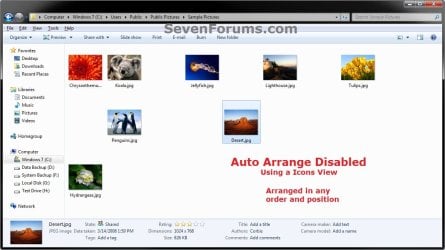
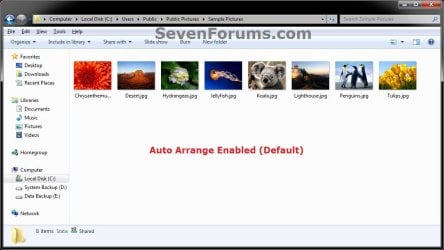
EXAMPLE: Auto Arrange Enabled and Disabled
NOTE: Notice in the screenshot with Auto Arrange disabled, the files can be dragged around the Windows Explorer window to sort how you like without having to be in alphabetical order.
Default.jpg

Disabled-1.jpg

Disabled-2.jpg


OPTION ONE

To Disable Auto Arrange in Windows 7 Windows Explorer


   Warning
It is also recommended to create a restore point before doing this option in case you would like to undo any unwanted unknown side affects that OPTION TWO may not undo. This way, you could also do a system restore with this restore point to undo this option completely.


1. Click on the Download button below to download the BAT file below.
Disable_Windows_7_Explorer_Auto_Arrange.bat

Download


2. Save the .bat file to your desktop.

3. Close everything that you have running first, then run the downloaded .bat file.

4. If prompted, click on Run.
NOTE: If you like, you can stop getting the Run prompt by unblocking the downloaded .bat file.

5. You will now notice your screen flicker and a command prompt open as the explorer process is restarted.

6. Let the command prompt count down to finish on it's own without pressing a key.

7. When it's finished, you will see the Computer window open.

8. Auto arrange in Windows Explorer is now disabled.


OPTION TWO

To Enable Auto Arrange in Windows 7 Windows Explorer


NOTE: This is the default setting.
1. Click on the Download button below to download the BAT file below.
Enable_Windows_7_Explorer_Auto_Arrange.bat

Download


2. Save the .bat file to your desktop.

3. Close all opened explorer windows first, then run the downloaded .bat file.

4. If prompted, click on Run.
NOTE: If you like, you can stop getting the Run prompt by unblocking the downloaded .bat file.

5. You will now notice your screen flicker and a command prompt open as the explorer process is restarted.

6. When it's finished, you will see the Computer window open.

7. Auto arrange in Windows Explorer is now enabled again.
That's it,
Shawn


Attachments

Last edited:
Ah, ok. The method used to disable "Full Row Select" in Windows Explorer has a few quirks that come with it, and is why we do not have it here.

Since I do not know what all changes that one or any other that you may have used made to the registry, you could do a system restore using a restore point dated before you applied these to undo them.

But it's important to know I used it because Reset_All_Folders_To_Default_Folder_Views.reg did nothing.

I did already a system restore to avoid problem with this fullrowsel.

Is there something to restore windows 7 regedit to normal?
And why the keys were reappeared after rebooting?
 
Last edited by a moderator:

My Computer My Computer

OS
Win 7 64 Bit
Setchan,

The Reset_All_Folders_To_Default_Folder_Views.reg file deletes what the other Disable_Windows_Explorer_Auto_Arrange.reg file added to the registry, so there is no reason why auto arrange should not be enabled again on your system after merging it and restarting your computer.

With that said, I find your issue a bit suspect. All I can recommend is to do another system restore using a restore point dated before you disabled auto arrange in case something else you have applied to your system is preventing it from being enabled again for some unknown reason.
 

My Computer My Computer

Computer type
PC/Desktop
Computer Manufacturer/Model Number
Self built custom
OS
64-bit Windows 11 Pro for Workstations
CPU
Intel i7-8700K OC'd to 5 GHz
Motherboard
ASUS ROG Maximus XI Formula Z390
Memory
64 GB (4x16GB) G.SKILL TridentZ RGB DDR4 3600 MHz
Graphics Card(s)
ASUS ROG-STRIX-GTX1080TI-O11G-GAMING
Sound Card
Integrated
Monitor(s) Displays
2 x Samsung Odyssey G7 27"
Screen Resolution
2560x1440
Hard Drives
1TB Samsung 990 PRO M.2,
4TB Samsung 990 PRO PRO M.2,
TerraMaster F8 SSD Plus NAS
PSU
Seasonic Prime Titanium 850W
Case
Thermaltake Core P3
Cooling
Corsair Hydro H115i
Keyboard
Logitech wireless K800
Mouse
Logitech MX Master 4
Internet Speed
2 Gb/s Download and 100 Mb/s Upload
Antivirus
Malwarebyte Anti-Malware Premium
Browser
Google Chrome
Other Info
Logitech Z625 speaker system,
Logitech BRIO 4K Pro webcam,
HP Color LaserJet Pro MFP M477fdn,
APC SMART-UPS RT 1000 XL - SURT1000XLI,
Galaxy S23 Plus phone
The Reset_All_Folders_To_Default_Folder_Views.reg file deletes what the other Disable_Windows_Explorer_Auto_Arrange.reg file added to the registry, so there is no reason why auto arrange should not be enabled again on your system after merging it and restarting your computer.

With that said, I find your issue a bit suspect. All I can recommend is to do another system restore using a restore point dated before you disabled auto arrange in case something else you have applied to your system is preventing it from being enabled again for some unknown reason.

Since I haven't any system restore before I install it, I think I will certainly format my laptop :cry:
Or perhaps you can help me... The reason I want to uninstall the disable auto arrange is because I want to customize my windows 7 with themes but it seems that this is not compatible with the possibility to put pictures on windows. So when I install my theme, all is working well but not these pictures(they simply don't appear). But these pictures are available on the library's windows.
I have tested on my desktop PC and it works very well to uninstall the auto arrange patch, and my themes appear entirely in consequence.
 

My Computer My Computer

OS
Win 7 64 Bit
Setchan,

I'm not sure what may be causing this, but it certainly appears to be some sort of issue with your system causing this. I've never seen or heard of this happening with this tutorial before.
 

My Computer My Computer

Computer type
PC/Desktop
Computer Manufacturer/Model Number
Self built custom
OS
64-bit Windows 11 Pro for Workstations
CPU
Intel i7-8700K OC'd to 5 GHz
Motherboard
ASUS ROG Maximus XI Formula Z390
Memory
64 GB (4x16GB) G.SKILL TridentZ RGB DDR4 3600 MHz
Graphics Card(s)
ASUS ROG-STRIX-GTX1080TI-O11G-GAMING
Sound Card
Integrated
Monitor(s) Displays
2 x Samsung Odyssey G7 27"
Screen Resolution
2560x1440
Hard Drives
1TB Samsung 990 PRO M.2,
4TB Samsung 990 PRO PRO M.2,
TerraMaster F8 SSD Plus NAS
PSU
Seasonic Prime Titanium 850W
Case
Thermaltake Core P3
Cooling
Corsair Hydro H115i
Keyboard
Logitech wireless K800
Mouse
Logitech MX Master 4
Internet Speed
2 Gb/s Download and 100 Mb/s Upload
Antivirus
Malwarebyte Anti-Malware Premium
Browser
Google Chrome
Other Info
Logitech Z625 speaker system,
Logitech BRIO 4K Pro webcam,
HP Color LaserJet Pro MFP M477fdn,
APC SMART-UPS RT 1000 XL - SURT1000XLI,
Galaxy S23 Plus phone
I'm not sure what may be causing this, but it certainly appears to be some sort of issue with your system causing this. I've never seen or heard of this happening with this tutorial before.

Yes, my PC is very strange, I have had a lot of problem I haven't with my Desktop.
I will try to solve this one and perhaps I will format it.

Thanks for all your help anyway :D
 

My Computer My Computer

OS
Win 7 64 Bit
You're welcome. Please let us know how it went.
 

My Computer My Computer

Computer type
PC/Desktop
Computer Manufacturer/Model Number
Self built custom
OS
64-bit Windows 11 Pro for Workstations
CPU
Intel i7-8700K OC'd to 5 GHz
Motherboard
ASUS ROG Maximus XI Formula Z390
Memory
64 GB (4x16GB) G.SKILL TridentZ RGB DDR4 3600 MHz
Graphics Card(s)
ASUS ROG-STRIX-GTX1080TI-O11G-GAMING
Sound Card
Integrated
Monitor(s) Displays
2 x Samsung Odyssey G7 27"
Screen Resolution
2560x1440
Hard Drives
1TB Samsung 990 PRO M.2,
4TB Samsung 990 PRO PRO M.2,
TerraMaster F8 SSD Plus NAS
PSU
Seasonic Prime Titanium 850W
Case
Thermaltake Core P3
Cooling
Corsair Hydro H115i
Keyboard
Logitech wireless K800
Mouse
Logitech MX Master 4
Internet Speed
2 Gb/s Download and 100 Mb/s Upload
Antivirus
Malwarebyte Anti-Malware Premium
Browser
Google Chrome
Other Info
Logitech Z625 speaker system,
Logitech BRIO 4K Pro webcam,
HP Color LaserJet Pro MFP M477fdn,
APC SMART-UPS RT 1000 XL - SURT1000XLI,
Galaxy S23 Plus phone
Hi Brink, just come across this tutorial and I haven't read all the replies but just thought some might like to know you can also arrange your files like in my attached screenshot.

To do this after using your reg file you need to be in one of the Icon views or Extended Tiles then right click -> Views -> Untick Auto Arrange.

If you want this to be the default in all folders then you can change "FFlags" to "FFlags"=dword:43000004.
This will make Auto Arrange unticked and Align to Grid ticked.

"FFlags"=dword:43000000, both unticked.

You can see this in regedit after changing these options for a folder.
 

Attachments

  • Arranged.jpg
    Arranged.jpg
    61.9 KB · Views: 281

My Computer My Computer

Computer Manufacturer/Model Number
Self built
OS
Windows 7 Ultimate x64
CPU
Intel Pentium Dual Core E5200 2.5GHz (3.77GHz OC)
Motherboard
Asus P5Q-E
Memory
Corsair 4GB DDR2 (4x1GB CM2X1024-6400C4)
Graphics Card(s)
Palit GeForce GTS 250 (1024MB)
Sound Card
On Board (ADI AD2000B 8ch HD)
Monitor(s) Displays
Samsung 32in LCD TV
Screen Resolution
1360x768
Hard Drives
2 x 1TB Samsung 103SJ (Raid0)
2 x External 500GB Samsung 502IJ (NexStar 3 HD Enclosures)
PSU
550W Antec Neo HE 550
Case
Antec P180
Cooling
Xigmatex Red Scorpion CPU Cooler. 3x120mm Fans
Keyboard
Logitech MX5000 Laser (Combo)
Mouse
Logitech MX5000 Laser (Combo)
Internet Speed
ADSL2+ (avg 10 Mbps Down, 0.80 Mbps up)
Other Info
Gigabyte GN-WP01GS 54g Wireless Lan Card
Thank you Dustin. That's a good idea. Tutorial updated for this. :)
 

My Computer My Computer

Computer type
PC/Desktop
Computer Manufacturer/Model Number
Self built custom
OS
64-bit Windows 11 Pro for Workstations
CPU
Intel i7-8700K OC'd to 5 GHz
Motherboard
ASUS ROG Maximus XI Formula Z390
Memory
64 GB (4x16GB) G.SKILL TridentZ RGB DDR4 3600 MHz
Graphics Card(s)
ASUS ROG-STRIX-GTX1080TI-O11G-GAMING
Sound Card
Integrated
Monitor(s) Displays
2 x Samsung Odyssey G7 27"
Screen Resolution
2560x1440
Hard Drives
1TB Samsung 990 PRO M.2,
4TB Samsung 990 PRO PRO M.2,
TerraMaster F8 SSD Plus NAS
PSU
Seasonic Prime Titanium 850W
Case
Thermaltake Core P3
Cooling
Corsair Hydro H115i
Keyboard
Logitech wireless K800
Mouse
Logitech MX Master 4
Internet Speed
2 Gb/s Download and 100 Mb/s Upload
Antivirus
Malwarebyte Anti-Malware Premium
Browser
Google Chrome
Other Info
Logitech Z625 speaker system,
Logitech BRIO 4K Pro webcam,
HP Color LaserJet Pro MFP M477fdn,
APC SMART-UPS RT 1000 XL - SURT1000XLI,
Galaxy S23 Plus phone
Tutorial has been updated to use .bat (batch) files now to make enabling/disabling Auto Arrange in Windows Explorer a lot easier to do. :)
 

My Computer My Computer

Computer type
PC/Desktop
Computer Manufacturer/Model Number
Self built custom
OS
64-bit Windows 11 Pro for Workstations
CPU
Intel i7-8700K OC'd to 5 GHz
Motherboard
ASUS ROG Maximus XI Formula Z390
Memory
64 GB (4x16GB) G.SKILL TridentZ RGB DDR4 3600 MHz
Graphics Card(s)
ASUS ROG-STRIX-GTX1080TI-O11G-GAMING
Sound Card
Integrated
Monitor(s) Displays
2 x Samsung Odyssey G7 27"
Screen Resolution
2560x1440
Hard Drives
1TB Samsung 990 PRO M.2,
4TB Samsung 990 PRO PRO M.2,
TerraMaster F8 SSD Plus NAS
PSU
Seasonic Prime Titanium 850W
Case
Thermaltake Core P3
Cooling
Corsair Hydro H115i
Keyboard
Logitech wireless K800
Mouse
Logitech MX Master 4
Internet Speed
2 Gb/s Download and 100 Mb/s Upload
Antivirus
Malwarebyte Anti-Malware Premium
Browser
Google Chrome
Other Info
Logitech Z625 speaker system,
Logitech BRIO 4K Pro webcam,
HP Color LaserJet Pro MFP M477fdn,
APC SMART-UPS RT 1000 XL - SURT1000XLI,
Galaxy S23 Plus phone
Hi Brink,

I have run the disable .bat file successfully, but have noticed a couple of pretty important (to me!) glitches.

Assuming that most people have problems with auto arrange when dealing with photos, I find it strange that the default folder setting is show by details. Surely most people open a folder of pics in large icon view, so you can see the thumbnails.

Also if I right click in a pic folder and "arrange by", I have default choices. Once I've gone into "more.." I can select what I want and move them to the top, but this only works for this folder. Every time I open a new folder, I have to re-pick my "arrange by" choices. I have literally hundreds of photo folders, and am now gibbering at the thought of having to manually go through them all, not only changing the view to large icons, but also changing the arrange by choices. Can this be done globally?

One other point, Duzzys' post about checking the Align To Grid and unchecking Auto Arrange may work well for some folders, but is far from perfect for photo folders, as when opening a folder with large icons, only the left hand side of the folder (in maximised view) is populated with thumbnails.

Please don't take this post as criticism for your excellent work, if MS got it right, you wouldn't have to compile workarounds.

Just one other thing, when arranging a folder of objects by, say, name, why is it that the first time it's done the results are in descending order, so you have to do it again to actually get them ascending??!! Is there any way to stop it doing that?

Thanks for all your hard work.
 

My Computer My Computer

Computer type
PC/Desktop
OS
Win7 Ultimate x64 SP1 Dual Boot
CPU
i7 950 3.8ghz o/c
Motherboard
Gigabyte GA-X58A-UD7
Memory
12gb Corsair XMS3 Triple Channel
Graphics Card(s)
Gigabyte GeForce GTX460
Sound Card
Integrated
Monitor(s) Displays
Pioneer PDP5090 Kuro 50" Plasma
Screen Resolution
1920x1080
Hard Drives
240gb OCZ IBIS SSD
2x1tb Samsung F3 Raid0 OS 60GB partition
2x1tb Samsung F3 Raid1
PSU
BeQuiet 650w Dark Power Pro
Case
Lian Li X500
Cooling
Nuctua NH-U12P, Tbalancer Big NG fan controlled by Speedfan
Antivirus
Avast!
Browser
Firefox
Hello Roo,

No worries, I don't take it as criticism. Instead, I find it has helpful feedback to help make the tutorial better for everyone by making any needed tweaking. :)

Yeah, the only drawback is that everything is set to "Details" view. However, you could use the tutorial below to quickly set the folder view to how you want it for all folders with the same folder template (ex: Pictures), then arrange each one how you like.
http://www.sevenforums.com/tutorials/11356-folder-view-apply-folders.html
...or if you wanted to apply a folder view to all folders no matter what folder template they have.
http://www.sevenforums.com/tutorials/41198-folder-view-set-default-all-folders.html

By default, objects (columns) should be sorted in ascending order. If you have the folder already sorted by say "Name", then it will change (toggle) to descending if you click on "Name" next. You can look at what direction the small direction triangle/arrow is pointing in the sorted by column to see if it's descending (pointing down) or ascending (pointing up) to also help know.
 

My Computer My Computer

Computer type
PC/Desktop
Computer Manufacturer/Model Number
Self built custom
OS
64-bit Windows 11 Pro for Workstations
CPU
Intel i7-8700K OC'd to 5 GHz
Motherboard
ASUS ROG Maximus XI Formula Z390
Memory
64 GB (4x16GB) G.SKILL TridentZ RGB DDR4 3600 MHz
Graphics Card(s)
ASUS ROG-STRIX-GTX1080TI-O11G-GAMING
Sound Card
Integrated
Monitor(s) Displays
2 x Samsung Odyssey G7 27"
Screen Resolution
2560x1440
Hard Drives
1TB Samsung 990 PRO M.2,
4TB Samsung 990 PRO PRO M.2,
TerraMaster F8 SSD Plus NAS
PSU
Seasonic Prime Titanium 850W
Case
Thermaltake Core P3
Cooling
Corsair Hydro H115i
Keyboard
Logitech wireless K800
Mouse
Logitech MX Master 4
Internet Speed
2 Gb/s Download and 100 Mb/s Upload
Antivirus
Malwarebyte Anti-Malware Premium
Browser
Google Chrome
Other Info
Logitech Z625 speaker system,
Logitech BRIO 4K Pro webcam,
HP Color LaserJet Pro MFP M477fdn,
APC SMART-UPS RT 1000 XL - SURT1000XLI,
Galaxy S23 Plus phone
Hi Brink,

Thanks for the swift reply, I'll have a play with it tomorrow and see how I get on. I am using external as well as internal drives, but if I can set folder options once at the beginning of a session, it's not too much hassle. I'll post to let you know how it goes.

Thanks for all your effort,

Roo
 

My Computer My Computer

Computer type
PC/Desktop
OS
Win7 Ultimate x64 SP1 Dual Boot
CPU
i7 950 3.8ghz o/c
Motherboard
Gigabyte GA-X58A-UD7
Memory
12gb Corsair XMS3 Triple Channel
Graphics Card(s)
Gigabyte GeForce GTX460
Sound Card
Integrated
Monitor(s) Displays
Pioneer PDP5090 Kuro 50" Plasma
Screen Resolution
1920x1080
Hard Drives
240gb OCZ IBIS SSD
2x1tb Samsung F3 Raid0 OS 60GB partition
2x1tb Samsung F3 Raid1
PSU
BeQuiet 650w Dark Power Pro
Case
Lian Li X500
Cooling
Nuctua NH-U12P, Tbalancer Big NG fan controlled by Speedfan
Antivirus
Avast!
Browser
Firefox
You're most welcome Roo. I hope it'll work for you.
 

My Computer My Computer

Computer type
PC/Desktop
Computer Manufacturer/Model Number
Self built custom
OS
64-bit Windows 11 Pro for Workstations
CPU
Intel i7-8700K OC'd to 5 GHz
Motherboard
ASUS ROG Maximus XI Formula Z390
Memory
64 GB (4x16GB) G.SKILL TridentZ RGB DDR4 3600 MHz
Graphics Card(s)
ASUS ROG-STRIX-GTX1080TI-O11G-GAMING
Sound Card
Integrated
Monitor(s) Displays
2 x Samsung Odyssey G7 27"
Screen Resolution
2560x1440
Hard Drives
1TB Samsung 990 PRO M.2,
4TB Samsung 990 PRO PRO M.2,
TerraMaster F8 SSD Plus NAS
PSU
Seasonic Prime Titanium 850W
Case
Thermaltake Core P3
Cooling
Corsair Hydro H115i
Keyboard
Logitech wireless K800
Mouse
Logitech MX Master 4
Internet Speed
2 Gb/s Download and 100 Mb/s Upload
Antivirus
Malwarebyte Anti-Malware Premium
Browser
Google Chrome
Other Info
Logitech Z625 speaker system,
Logitech BRIO 4K Pro webcam,
HP Color LaserJet Pro MFP M477fdn,
APC SMART-UPS RT 1000 XL - SURT1000XLI,
Galaxy S23 Plus phone
Hi Brink,

I've had a play, and after setting all folders to Picture, and setting the defaults to work with all folders of that type, it mostly works the way I want. There are a couple of other things that still may be a deal breaker for me, not sure if there's anything that can be done or not.

I have many folders with upwards of 1000 photos in each, and to sort them, I tend to have two different folders open, snapped to either side of the screen. Sometimes I want to place another shot in so the timeline is correct (I use quite a few different cameras), so in XP I would simply arrange the main folder by date taken then drag & drop the pic I wanted into that folder, which would immediately snap to the correct place in the folder, with the pic still highlighted making it easy to see. Even with auto arrange off, Win7 doesn't seem to do that.

Also, in a folder with a large quantity of pics, I may wish to view them on large icon (thumbnail) view using full screen (folder maximised) to make it easier to see where to insert a certain shot, then snap the folder to the side of the screen so I can pick a shot from the other snapped folder to insert. On XP I could simply single click on a pic to highlight it, then minimise the folder, and it would still show the highlighted shot in the window, basically snapping to its' position. Again, Win7 even with auto arrange off doesn't appear to do it (which seems strange given the whole "snap to" hyperbole!)

To me these are major problems, it would be really nice to be able to do what a now very old OS could!!

One of the posters said he had a problem with photo viewer showing pics in the wrong order. It happened to me too, and I sussed out that if you have "auto arrange" and "align to grid" ticked on right click menu, and then move a picture, the pics will be viewed in grid order, starting with the one you clicked on, but then moving DOWN the columns from left to right. It doesn't seem to do this unless a pic is moved.

Roo
 

My Computer My Computer

Computer type
PC/Desktop
OS
Win7 Ultimate x64 SP1 Dual Boot
CPU
i7 950 3.8ghz o/c
Motherboard
Gigabyte GA-X58A-UD7
Memory
12gb Corsair XMS3 Triple Channel
Graphics Card(s)
Gigabyte GeForce GTX460
Sound Card
Integrated
Monitor(s) Displays
Pioneer PDP5090 Kuro 50" Plasma
Screen Resolution
1920x1080
Hard Drives
240gb OCZ IBIS SSD
2x1tb Samsung F3 Raid0 OS 60GB partition
2x1tb Samsung F3 Raid1
PSU
BeQuiet 650w Dark Power Pro
Case
Lian Li X500
Cooling
Nuctua NH-U12P, Tbalancer Big NG fan controlled by Speedfan
Antivirus
Avast!
Browser
Firefox
Roo,

You might see if turning on the Preview Pane may work to keep the highlighted pic in view. You can adjust the width of the preview pane to how you like as well.
 

My Computer My Computer

Computer type
PC/Desktop
Computer Manufacturer/Model Number
Self built custom
OS
64-bit Windows 11 Pro for Workstations
CPU
Intel i7-8700K OC'd to 5 GHz
Motherboard
ASUS ROG Maximus XI Formula Z390
Memory
64 GB (4x16GB) G.SKILL TridentZ RGB DDR4 3600 MHz
Graphics Card(s)
ASUS ROG-STRIX-GTX1080TI-O11G-GAMING
Sound Card
Integrated
Monitor(s) Displays
2 x Samsung Odyssey G7 27"
Screen Resolution
2560x1440
Hard Drives
1TB Samsung 990 PRO M.2,
4TB Samsung 990 PRO PRO M.2,
TerraMaster F8 SSD Plus NAS
PSU
Seasonic Prime Titanium 850W
Case
Thermaltake Core P3
Cooling
Corsair Hydro H115i
Keyboard
Logitech wireless K800
Mouse
Logitech MX Master 4
Internet Speed
2 Gb/s Download and 100 Mb/s Upload
Antivirus
Malwarebyte Anti-Malware Premium
Browser
Google Chrome
Other Info
Logitech Z625 speaker system,
Logitech BRIO 4K Pro webcam,
HP Color LaserJet Pro MFP M477fdn,
APC SMART-UPS RT 1000 XL - SURT1000XLI,
Galaxy S23 Plus phone
Preview pane makes no difference I'm afraid!
 

My Computer My Computer

Computer type
PC/Desktop
OS
Win7 Ultimate x64 SP1 Dual Boot
CPU
i7 950 3.8ghz o/c
Motherboard
Gigabyte GA-X58A-UD7
Memory
12gb Corsair XMS3 Triple Channel
Graphics Card(s)
Gigabyte GeForce GTX460
Sound Card
Integrated
Monitor(s) Displays
Pioneer PDP5090 Kuro 50" Plasma
Screen Resolution
1920x1080
Hard Drives
240gb OCZ IBIS SSD
2x1tb Samsung F3 Raid0 OS 60GB partition
2x1tb Samsung F3 Raid1
PSU
BeQuiet 650w Dark Power Pro
Case
Lian Li X500
Cooling
Nuctua NH-U12P, Tbalancer Big NG fan controlled by Speedfan
Antivirus
Avast!
Browser
Firefox
Actually, that's not entirely true, but you have to refresh the page by using the back button to exit the page, then forward button to reenter.

This is only for chucking a pic in and following its progress. Even preview pane doesn't follow the pic when changing between maximised and minimised. Is there any way of finding out how XP managed this, and which reg keys are involved?

If not, I fear I'll have to reinstall XP on my 2nd boot, not ideal, as I use it for testing software, overclocking etc, and messing with the registry. If something goes big time tits up, I can reinstall without having to worry about my SSD write cycles!!

Roo
 

My Computer My Computer

Computer type
PC/Desktop
OS
Win7 Ultimate x64 SP1 Dual Boot
CPU
i7 950 3.8ghz o/c
Motherboard
Gigabyte GA-X58A-UD7
Memory
12gb Corsair XMS3 Triple Channel
Graphics Card(s)
Gigabyte GeForce GTX460
Sound Card
Integrated
Monitor(s) Displays
Pioneer PDP5090 Kuro 50" Plasma
Screen Resolution
1920x1080
Hard Drives
240gb OCZ IBIS SSD
2x1tb Samsung F3 Raid0 OS 60GB partition
2x1tb Samsung F3 Raid1
PSU
BeQuiet 650w Dark Power Pro
Case
Lian Li X500
Cooling
Nuctua NH-U12P, Tbalancer Big NG fan controlled by Speedfan
Antivirus
Avast!
Browser
Firefox
Roo,

I'm afraid that I do not know, but that would be a good question to post in a new thread to see if someone may know of a way. :)
 

My Computer My Computer

Computer type
PC/Desktop
Computer Manufacturer/Model Number
Self built custom
OS
64-bit Windows 11 Pro for Workstations
CPU
Intel i7-8700K OC'd to 5 GHz
Motherboard
ASUS ROG Maximus XI Formula Z390
Memory
64 GB (4x16GB) G.SKILL TridentZ RGB DDR4 3600 MHz
Graphics Card(s)
ASUS ROG-STRIX-GTX1080TI-O11G-GAMING
Sound Card
Integrated
Monitor(s) Displays
2 x Samsung Odyssey G7 27"
Screen Resolution
2560x1440
Hard Drives
1TB Samsung 990 PRO M.2,
4TB Samsung 990 PRO PRO M.2,
TerraMaster F8 SSD Plus NAS
PSU
Seasonic Prime Titanium 850W
Case
Thermaltake Core P3
Cooling
Corsair Hydro H115i
Keyboard
Logitech wireless K800
Mouse
Logitech MX Master 4
Internet Speed
2 Gb/s Download and 100 Mb/s Upload
Antivirus
Malwarebyte Anti-Malware Premium
Browser
Google Chrome
Other Info
Logitech Z625 speaker system,
Logitech BRIO 4K Pro webcam,
HP Color LaserJet Pro MFP M477fdn,
APC SMART-UPS RT 1000 XL - SURT1000XLI,
Galaxy S23 Plus phone
Actually, that's not entirely true, but you have to refresh the page by using the back button to exit the page, then forward button to reenter.

This is only for chucking a pic in and following its progress. Even preview pane doesn't follow the pic when changing between maximised and minimised. Is there any way of finding out how XP managed this, and which reg keys are involved?

If not, I fear I'll have to reinstall XP on my 2nd boot, not ideal, as I use it for testing software, overclocking etc, and messing with the registry. If something goes big time tits up, I can reinstall without having to worry about my SSD write cycles!!

Roo

If I understand correctly then it's not ideal but you can refresh the page by using the F5 key and that should bring it back into focus or you can use the up/down arrow keys. Does not require the preview pane to be open.

As for installing XP you could look at running it in a Virtual Machine.
 

My Computer My Computer

Computer Manufacturer/Model Number
Self built
OS
Windows 7 Ultimate x64
CPU
Intel Pentium Dual Core E5200 2.5GHz (3.77GHz OC)
Motherboard
Asus P5Q-E
Memory
Corsair 4GB DDR2 (4x1GB CM2X1024-6400C4)
Graphics Card(s)
Palit GeForce GTS 250 (1024MB)
Sound Card
On Board (ADI AD2000B 8ch HD)
Monitor(s) Displays
Samsung 32in LCD TV
Screen Resolution
1360x768
Hard Drives
2 x 1TB Samsung 103SJ (Raid0)
2 x External 500GB Samsung 502IJ (NexStar 3 HD Enclosures)
PSU
550W Antec Neo HE 550
Case
Antec P180
Cooling
Xigmatex Red Scorpion CPU Cooler. 3x120mm Fans
Keyboard
Logitech MX5000 Laser (Combo)
Mouse
Logitech MX5000 Laser (Combo)
Internet Speed
ADSL2+ (avg 10 Mbps Down, 0.80 Mbps up)
Other Info
Gigabyte GN-WP01GS 54g Wireless Lan Card
Hi Duzzy,

Nice call, F5 works a treat in min/max windows! I now believe, with Brinks reg change and the F5 trick, Win7 works about as closely to XP as you're gonna get. It does seem odd that MS would not just have auto arrange as a bolt on option (even if defaulted to this), rather than as the only way.

Mind you (I'm a cynic), if they produced an all singing all dancing OS that was everything to everybody, who in their right mind would buy Win8/9/10?

Cheers guys,
Roo
 

My Computer My Computer

Computer type
PC/Desktop
OS
Win7 Ultimate x64 SP1 Dual Boot
CPU
i7 950 3.8ghz o/c
Motherboard
Gigabyte GA-X58A-UD7
Memory
12gb Corsair XMS3 Triple Channel
Graphics Card(s)
Gigabyte GeForce GTX460
Sound Card
Integrated
Monitor(s) Displays
Pioneer PDP5090 Kuro 50" Plasma
Screen Resolution
1920x1080
Hard Drives
240gb OCZ IBIS SSD
2x1tb Samsung F3 Raid0 OS 60GB partition
2x1tb Samsung F3 Raid1
PSU
BeQuiet 650w Dark Power Pro
Case
Lian Li X500
Cooling
Nuctua NH-U12P, Tbalancer Big NG fan controlled by Speedfan
Antivirus
Avast!
Browser
Firefox
Back
Top