Windows Explorer Auto Arrange - Disable

How to Disable Auto Arrange in Windows 7 Explorer to have Free Sorting


   Information
In Windows 7, auto arrange is enabled by default so that all file and folder names in Windows Explorer are sorted alphabetically no matter what folder view you used.

This is basically like having how you can arrange icons how you like on your desktop in every folder in Windows Explorer now.

This will show you how to disable Auto Arrange in Windows 7 to be able to sort your files and folders in any random order and position you like in each opened folder in Windows Explorer and in the Pin to Start Menu area at the top of the Start Menu without it having to be sorted alphabetically by name. Windows 7 will also remember these random folder sortings (order and position), and open as how they were when the folder window was last closed.

   Note
When You Disable Auto Arrange:
  • While using Extra Large Icons, Large Icons, Medium Icons, Small Icons, and Extended Tiles folder views, you can arrange files/folders in any random order and position.
  • While using Details folder view, you can only arrange files/folders in any order and not in any random position.
  • While using Extra Large Icons, Large Icons, Medium Icons, Small Icons, and Extended Tiles folder views, you can click on View (Menu bar) and check Auto arrange to have the black indicator line back inbetween files/folders when arranging files/folders in any order. This turns off the ability to arrange files/folders by random positions though.
  • While using Extra Large Icons, Large Icons, Medium Icons, Small Icons, and Extended Tiles folder views, you can click on View (Menu bar) and uncheck Auto arrange to be able to arrange files/folders in any order and random positions.
  • The Auto arrange and Align to grid options can be turned on and off at will in the View (Menu bar and right click context menu) when available (not grayed out) while using Extra Large Icons, Large Icons, Medium Icons, Small Icons, or Extended Tiles folder views.
  • If you have items arranged by random positions and switch from a Extra Large Icons, Large Icons, Medium Icons, Small Icons, and Extended Tiles folder view to a List, Details, Extended Tiles, or Content folder view, the random positions will be reset but still placed in a order of arrangement instead.
  • If you unzip a file in a folder, move a folder, or rename a folder, it will refresh and auto arrange the files in that specific folder only after each time you do this. Auto arrange is still disabled for that folder, but you will need to arrange the files back to whatever non-auto arranged order you like again after unzipping a file in a folder, move a folder, or rename a folder.
   Warning
DO NOT USE this tutorial in any other OS than Windows 7.
  • While this tutorial will allow you to disable auto arrange in the main Libraries folder itself, it will not disable auto arrange in any of the other library folders (ex: Documents, Music, Pictures, Videos).
  • Free sorting is not available if you use "Group by" folder views instead of only "Sort by" folder views.
  • Free sorting is not available in the List and Content folder views.
  • When you disable Auto Arrange, you will have Extend Tiles folder view instead of Tiles available in all folders except the Computer windows.

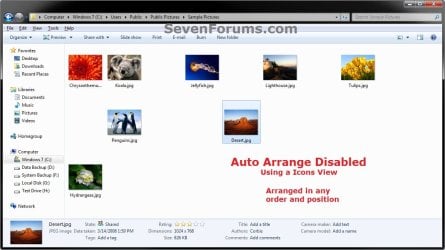
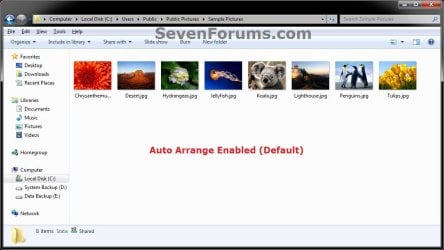
EXAMPLE: Auto Arrange Enabled and Disabled
NOTE: Notice in the screenshot with Auto Arrange disabled, the files can be dragged around the Windows Explorer window to sort how you like without having to be in alphabetical order.
Default.jpg

Disabled-1.jpg

Disabled-2.jpg


OPTION ONE

To Disable Auto Arrange in Windows 7 Windows Explorer


   Warning
It is also recommended to create a restore point before doing this option in case you would like to undo any unwanted unknown side affects that OPTION TWO may not undo. This way, you could also do a system restore with this restore point to undo this option completely.


1. Click on the Download button below to download the BAT file below.
Disable_Windows_7_Explorer_Auto_Arrange.bat

Download


2. Save the .bat file to your desktop.

3. Close everything that you have running first, then run the downloaded .bat file.

4. If prompted, click on Run.
NOTE: If you like, you can stop getting the Run prompt by unblocking the downloaded .bat file.

5. You will now notice your screen flicker and a command prompt open as the explorer process is restarted.

6. Let the command prompt count down to finish on it's own without pressing a key.

7. When it's finished, you will see the Computer window open.

8. Auto arrange in Windows Explorer is now disabled.


OPTION TWO

To Enable Auto Arrange in Windows 7 Windows Explorer


NOTE: This is the default setting.
1. Click on the Download button below to download the BAT file below.
Enable_Windows_7_Explorer_Auto_Arrange.bat

Download


2. Save the .bat file to your desktop.

3. Close all opened explorer windows first, then run the downloaded .bat file.

4. If prompted, click on Run.
NOTE: If you like, you can stop getting the Run prompt by unblocking the downloaded .bat file.

5. You will now notice your screen flicker and a command prompt open as the explorer process is restarted.

6. When it's finished, you will see the Computer window open.

7. Auto arrange in Windows Explorer is now enabled again.
That's it,
Shawn


Attachments

Last edited:
Glad it helps. And another thing in regards to something you posted previously
I have literally hundreds of photo folders, and am now gibbering at the thought of having to manually go through them all, not only changing the view to large icons, but also changing the arrange by choices. Can this be done globally?
I've attached a video you might be interested in. It has audio to explain what I'm doing but it's only in English and it's 12 and half minutes long and around 40mb in size.

It allows you set the default view for pictures, music etc... You still can't change the sort order or icon sizes while browsing your folders then move to a sub folder and have those changes apply to the subfolder but you might like it to set a default template.

One other point, Duzzys' post about checking the Align To Grid and unchecking Auto Arrange may work well for some folders, but is far from perfect for photo folders, as when opening a folder with large icons, only the left hand side of the folder (in maximised view) is populated with thumbnails.
With the above quote I don't know what's happening there as it works ok for me. I know if you have it set to view as Extended Tiles you'll only get one column on the left.

There are a few bugs with disabling auto arrange but there's not alot that can be done other than finding some less than perfect work around like the F5 trick.

Just one other thing, when arranging a folder of objects by, say, name, why is it that the first time it's done the results are in descending order, so you have to do it again to actually get them ascending??!!
This is another little bug that can't be fix. I think it happens because when you copy a file into a folder or manually arrange files a part of Windows still thinks it arranged by what it previously was. I not entirly sure and different view modes act differently in my experiences.

@Brink & Roo
One thing I should have probably pointed out when I first posted the info about auto arrange and align to grid is that if you try to move several files at once around in the same window it tends to jump around a bit and put a gap between some files.

@Brink
If you check the video as well and like anything then you have my permission to use, redistibute or do anything else with it and I hope I'm not stepping out line by posting this in your tutorial without your permission, if I am then delete the post or just let me know to ask first.

NOTE: Video is stored in a split RAR Archive, all 5 parts will be required (40mb total). If your unable to decompress it then decompress it using WinRAR.
 
Last edited:

My Computer My Computer

Computer Manufacturer/Model Number
Self built
OS
Windows 7 Ultimate x64
CPU
Intel Pentium Dual Core E5200 2.5GHz (3.77GHz OC)
Motherboard
Asus P5Q-E
Memory
Corsair 4GB DDR2 (4x1GB CM2X1024-6400C4)
Graphics Card(s)
Palit GeForce GTS 250 (1024MB)
Sound Card
On Board (ADI AD2000B 8ch HD)
Monitor(s) Displays
Samsung 32in LCD TV
Screen Resolution
1360x768
Hard Drives
2 x 1TB Samsung 103SJ (Raid0)
2 x External 500GB Samsung 502IJ (NexStar 3 HD Enclosures)
PSU
550W Antec Neo HE 550
Case
Antec P180
Cooling
Xigmatex Red Scorpion CPU Cooler. 3x120mm Fans
Keyboard
Logitech MX5000 Laser (Combo)
Mouse
Logitech MX5000 Laser (Combo)
Internet Speed
ADSL2+ (avg 10 Mbps Down, 0.80 Mbps up)
Other Info
Gigabyte GN-WP01GS 54g Wireless Lan Card
Thanks again guys,

I've no doubt everybody will have some weird quirks with this, but at least now there is enough info to get it to do what most people will want. I'm far happier with it currently than I was before, so for me, problem (kinda) solved.

Roo
 

My Computer My Computer

Computer type
PC/Desktop
OS
Win7 Ultimate x64 SP1 Dual Boot
CPU
i7 950 3.8ghz o/c
Motherboard
Gigabyte GA-X58A-UD7
Memory
12gb Corsair XMS3 Triple Channel
Graphics Card(s)
Gigabyte GeForce GTX460
Sound Card
Integrated
Monitor(s) Displays
Pioneer PDP5090 Kuro 50" Plasma
Screen Resolution
1920x1080
Hard Drives
240gb OCZ IBIS SSD
2x1tb Samsung F3 Raid0 OS 60GB partition
2x1tb Samsung F3 Raid1
PSU
BeQuiet 650w Dark Power Pro
Case
Lian Li X500
Cooling
Nuctua NH-U12P, Tbalancer Big NG fan controlled by Speedfan
Antivirus
Avast!
Browser
Firefox
You're welcome Roo, and thank you Dustin. I'm glad that we were able to help. :)
 

My Computer My Computer

Computer type
PC/Desktop
Computer Manufacturer/Model Number
Self built custom
OS
64-bit Windows 11 Pro for Workstations
CPU
Intel i7-8700K OC'd to 5 GHz
Motherboard
ASUS ROG Maximus XI Formula Z390
Memory
64 GB (4x16GB) G.SKILL TridentZ RGB DDR4 3600 MHz
Graphics Card(s)
ASUS ROG-STRIX-GTX1080TI-O11G-GAMING
Sound Card
Integrated
Monitor(s) Displays
2 x Samsung Odyssey G7 27"
Screen Resolution
2560x1440
Hard Drives
1TB Samsung 990 PRO M.2,
4TB Samsung 990 PRO PRO M.2,
TerraMaster F8 SSD Plus NAS
PSU
Seasonic Prime Titanium 850W
Case
Thermaltake Core P3
Cooling
Corsair Hydro H115i
Keyboard
Logitech wireless K800
Mouse
Logitech MX Master 4
Internet Speed
2 Gb/s Download and 100 Mb/s Upload
Antivirus
Malwarebyte Anti-Malware Premium
Browser
Google Chrome
Other Info
Logitech Z625 speaker system,
Logitech BRIO 4K Pro webcam,
HP Color LaserJet Pro MFP M477fdn,
APC SMART-UPS RT 1000 XL - SURT1000XLI,
Galaxy S23 Plus phone
Really great work, I tried this fix and it worked for me. However I have three questions about this:

1) I see the vertical spacing in the details view has shrunk since applying the fix. I now find it uncomfortable and cramped to read the folders ever since the extra spacing disappeared. Is it possible to increase the vertical spacing of the details view such that the list feels roomy and comfortable to read again?

2) Can there be a 'Tiles' view option, regardless of auto arrange or not. (I don't care about auto arrange here)

3) Is it possible to to have the 'Auto arrange' setting to be by default on (as opposed to default off), with the choice for us to manually disable 'Auto arrange' at will in specific folders?
 
Last edited:

My Computer My Computer

OS
Windows 7 32bit
Hello Noted, and welcome to Seven Forums

Answers inline. :)

1) I see the vertical spacing in the details view has shrunk since applying the fix. I now find it uncomfortable and cramped to read the folders ever since the extra spacing disappeared. Is it possible to increase the vertical spacing of the details view such that the list feels roomy and comfortable to read again?
It doesn't seem to be any different for me on my system. Could you post a screenshot comparing the two when Auto Arrange is enabled and disable?

2) Can there be a 'Tiles' view option, regardless of auto arrange or not. (I don't care about auto arrange here)
There only appears to be an "Extended Tiles" view except in the "Computer" window.

3) Is it possible to to have the 'Auto arrange' setting to be by default on (as opposed to default off), with the choice for us to manually disable 'Auto arrange' at will in specific folders?
When you have Auto Arrange disabled, you will still be able to sort files in a folder just like you always have been able to, but you just now have the added option of being able to place them in any order and arrangement within the folder.

http://www.sevenforums.com/tutorials/3952-file-folder-arrangement-group-sort-arrange.html

http://www.sevenforums.com/tutorial...rangement-change-windows-explorer-window.html

Hope this helps,
Shawn
 

My Computer My Computer

Computer type
PC/Desktop
Computer Manufacturer/Model Number
Self built custom
OS
64-bit Windows 11 Pro for Workstations
CPU
Intel i7-8700K OC'd to 5 GHz
Motherboard
ASUS ROG Maximus XI Formula Z390
Memory
64 GB (4x16GB) G.SKILL TridentZ RGB DDR4 3600 MHz
Graphics Card(s)
ASUS ROG-STRIX-GTX1080TI-O11G-GAMING
Sound Card
Integrated
Monitor(s) Displays
2 x Samsung Odyssey G7 27"
Screen Resolution
2560x1440
Hard Drives
1TB Samsung 990 PRO M.2,
4TB Samsung 990 PRO PRO M.2,
TerraMaster F8 SSD Plus NAS
PSU
Seasonic Prime Titanium 850W
Case
Thermaltake Core P3
Cooling
Corsair Hydro H115i
Keyboard
Logitech wireless K800
Mouse
Logitech MX Master 4
Internet Speed
2 Gb/s Download and 100 Mb/s Upload
Antivirus
Malwarebyte Anti-Malware Premium
Browser
Google Chrome
Other Info
Logitech Z625 speaker system,
Logitech BRIO 4K Pro webcam,
HP Color LaserJet Pro MFP M477fdn,
APC SMART-UPS RT 1000 XL - SURT1000XLI,
Galaxy S23 Plus phone
Thanks, you've been very helpful. After using it for a while I'm getting used to it and I believe I have everything covered now. As for the screenshot, I have already manually arranged all my icons and I don't want to have to redo them again. There's definitely a difference but but I feel it is a minor issue.
 

My Computer My Computer

OS
Windows 7 32bit
You're welcome Noted. :)
 

My Computer My Computer

Computer type
PC/Desktop
Computer Manufacturer/Model Number
Self built custom
OS
64-bit Windows 11 Pro for Workstations
CPU
Intel i7-8700K OC'd to 5 GHz
Motherboard
ASUS ROG Maximus XI Formula Z390
Memory
64 GB (4x16GB) G.SKILL TridentZ RGB DDR4 3600 MHz
Graphics Card(s)
ASUS ROG-STRIX-GTX1080TI-O11G-GAMING
Sound Card
Integrated
Monitor(s) Displays
2 x Samsung Odyssey G7 27"
Screen Resolution
2560x1440
Hard Drives
1TB Samsung 990 PRO M.2,
4TB Samsung 990 PRO PRO M.2,
TerraMaster F8 SSD Plus NAS
PSU
Seasonic Prime Titanium 850W
Case
Thermaltake Core P3
Cooling
Corsair Hydro H115i
Keyboard
Logitech wireless K800
Mouse
Logitech MX Master 4
Internet Speed
2 Gb/s Download and 100 Mb/s Upload
Antivirus
Malwarebyte Anti-Malware Premium
Browser
Google Chrome
Other Info
Logitech Z625 speaker system,
Logitech BRIO 4K Pro webcam,
HP Color LaserJet Pro MFP M477fdn,
APC SMART-UPS RT 1000 XL - SURT1000XLI,
Galaxy S23 Plus phone
1) I see the vertical spacing in the details view has shrunk since applying the fix. I now find it uncomfortable and cramped to read the folders ever since the extra spacing disappeared. Is it possible to increase the vertical spacing of the details view such that the list feels roomy and comfortable to read again?

If you really want to increase the spacing then I did come across a forum ages ago that gave some instructions to do this. The post was detailing how to decrease the default spacing without the disable auto arrange but it could be used to increase it as well but I'm not sure how it will go working together with disabling auto arrange.

Warnings
This involves editing your explorerframe.dll with a resouce hacker. It is essential you make a backup of the dll in case Explorer won't load. Before replacing it in the System32 folder make sure it's the same size. Theres a small chance a later Windows Update will overwrite the file and most likely running SFC /scannow will restore it.

I could not find the article I looked upon previously but you might get a idea from this thread, http://www.sevenforums.com/customization/45276-possible-change-list-item-height-spacing.html, it's not the best and is for list view but check the last post first. And you don't need 3rd party software to close Explorer, just hold CTRL + Shift and right click the right side of the Start Menu

If your dead set on doing this but this article does not make enough sense and you can't find good help on Google or the like then I guess I could write something easier to understand.
 

My Computer My Computer

Computer Manufacturer/Model Number
Self built
OS
Windows 7 Ultimate x64
CPU
Intel Pentium Dual Core E5200 2.5GHz (3.77GHz OC)
Motherboard
Asus P5Q-E
Memory
Corsair 4GB DDR2 (4x1GB CM2X1024-6400C4)
Graphics Card(s)
Palit GeForce GTS 250 (1024MB)
Sound Card
On Board (ADI AD2000B 8ch HD)
Monitor(s) Displays
Samsung 32in LCD TV
Screen Resolution
1360x768
Hard Drives
2 x 1TB Samsung 103SJ (Raid0)
2 x External 500GB Samsung 502IJ (NexStar 3 HD Enclosures)
PSU
550W Antec Neo HE 550
Case
Antec P180
Cooling
Xigmatex Red Scorpion CPU Cooler. 3x120mm Fans
Keyboard
Logitech MX5000 Laser (Combo)
Mouse
Logitech MX5000 Laser (Combo)
Internet Speed
ADSL2+ (avg 10 Mbps Down, 0.80 Mbps up)
Other Info
Gigabyte GN-WP01GS 54g Wireless Lan Card
Thank you Duzzy for your help. The thread you presented seems promising. However as of present I have gotten used to the new tighter look of the details view in Explorer.

Also I have a feeling that by disabling auto arrange Explorer is using an old shell (so to speak) and possibly with it's own set of files. And that's why not only has the spacing changed but the whole general look of Explorer as well.
 

My Computer My Computer

OS
Windows 7 32bit
Most people actually perfer the tighter spacing because it allows more items on the screen meaning less scrolling so if you can get use to it I wouldn't go to the hassle of changing it.

I personally didn't notice any change myself but I didn't take much notice either. I did read somewhere in that thread that changing the FFlags (what this tutorial does) did change the spacing, well for some anyway.
 

My Computer My Computer

Computer Manufacturer/Model Number
Self built
OS
Windows 7 Ultimate x64
CPU
Intel Pentium Dual Core E5200 2.5GHz (3.77GHz OC)
Motherboard
Asus P5Q-E
Memory
Corsair 4GB DDR2 (4x1GB CM2X1024-6400C4)
Graphics Card(s)
Palit GeForce GTS 250 (1024MB)
Sound Card
On Board (ADI AD2000B 8ch HD)
Monitor(s) Displays
Samsung 32in LCD TV
Screen Resolution
1360x768
Hard Drives
2 x 1TB Samsung 103SJ (Raid0)
2 x External 500GB Samsung 502IJ (NexStar 3 HD Enclosures)
PSU
550W Antec Neo HE 550
Case
Antec P180
Cooling
Xigmatex Red Scorpion CPU Cooler. 3x120mm Fans
Keyboard
Logitech MX5000 Laser (Combo)
Mouse
Logitech MX5000 Laser (Combo)
Internet Speed
ADSL2+ (avg 10 Mbps Down, 0.80 Mbps up)
Other Info
Gigabyte GN-WP01GS 54g Wireless Lan Card
Hi There.

I have just purchased a laptop with Windows 7 and discovered this auto arrange nightmare. It is vital for me for work that I can arrange items such as word documents and pictures into an order that I see fit. I have applied the fix from page 1 - thanks for that. However so far I can only get it to work on items within folders on my desktop and not within my documents. Is this normal? Is a work around to set up a doucments folder and a photos folder on my desktop and import all my files to there so I can arrange to my hearts content? Is this work around suitable?

Thanks for your help, in desperate need of an answer lol :)
 

My Computer My Computer

OS
Vista
Hello Pablo,

It sounds like you may be trying to arrange them in the Documents Library. Unfortunately, you cannot disable auto arrange in any libraries.

Instead, you would have to manually navigate to the say C:\Users\(user-name)\My Documents folder to be able to arrange them how you like. To help make this easier to do, you could use the tutorial below to set the user folder buttons in the Start Menu dark right side to open to the user folder locations instead of their library locations.

http://www.sevenforums.com/tutorial...der-buttons-open-users-instead-libraries.html

Hope this helps,
Shawn
 

My Computer My Computer

Computer type
PC/Desktop
Computer Manufacturer/Model Number
Self built custom
OS
64-bit Windows 11 Pro for Workstations
CPU
Intel i7-8700K OC'd to 5 GHz
Motherboard
ASUS ROG Maximus XI Formula Z390
Memory
64 GB (4x16GB) G.SKILL TridentZ RGB DDR4 3600 MHz
Graphics Card(s)
ASUS ROG-STRIX-GTX1080TI-O11G-GAMING
Sound Card
Integrated
Monitor(s) Displays
2 x Samsung Odyssey G7 27"
Screen Resolution
2560x1440
Hard Drives
1TB Samsung 990 PRO M.2,
4TB Samsung 990 PRO PRO M.2,
TerraMaster F8 SSD Plus NAS
PSU
Seasonic Prime Titanium 850W
Case
Thermaltake Core P3
Cooling
Corsair Hydro H115i
Keyboard
Logitech wireless K800
Mouse
Logitech MX Master 4
Internet Speed
2 Gb/s Download and 100 Mb/s Upload
Antivirus
Malwarebyte Anti-Malware Premium
Browser
Google Chrome
Other Info
Logitech Z625 speaker system,
Logitech BRIO 4K Pro webcam,
HP Color LaserJet Pro MFP M477fdn,
APC SMART-UPS RT 1000 XL - SURT1000XLI,
Galaxy S23 Plus phone
Hello Pablo,

It sounds like you may be trying to arrange them in the Documents Library. Unfortunately, you cannot disable auto arrange in any libraries.

Instead, you would have to manually navigate to the say C:\Users\(user-name)\My Documents folder to be able to arrange them how you like. To help make this easier to do, you could use the tutorial below to set the user folder buttons in the Start Menu dark right side to open to the user folder locations instead of their library locations.

http://www.sevenforums.com/tutorial...der-buttons-open-users-instead-libraries.html

Hope this helps,
Shawn

Hi

Thanks so much for all your help and for both the fixes, the auto sort and the start menu user buttons. both working really well. Top work!
:D
 

My Computer My Computer

OS
Vista
You're most welcome Pablo. :)
 

My Computer My Computer

Computer type
PC/Desktop
Computer Manufacturer/Model Number
Self built custom
OS
64-bit Windows 11 Pro for Workstations
CPU
Intel i7-8700K OC'd to 5 GHz
Motherboard
ASUS ROG Maximus XI Formula Z390
Memory
64 GB (4x16GB) G.SKILL TridentZ RGB DDR4 3600 MHz
Graphics Card(s)
ASUS ROG-STRIX-GTX1080TI-O11G-GAMING
Sound Card
Integrated
Monitor(s) Displays
2 x Samsung Odyssey G7 27"
Screen Resolution
2560x1440
Hard Drives
1TB Samsung 990 PRO M.2,
4TB Samsung 990 PRO PRO M.2,
TerraMaster F8 SSD Plus NAS
PSU
Seasonic Prime Titanium 850W
Case
Thermaltake Core P3
Cooling
Corsair Hydro H115i
Keyboard
Logitech wireless K800
Mouse
Logitech MX Master 4
Internet Speed
2 Gb/s Download and 100 Mb/s Upload
Antivirus
Malwarebyte Anti-Malware Premium
Browser
Google Chrome
Other Info
Logitech Z625 speaker system,
Logitech BRIO 4K Pro webcam,
HP Color LaserJet Pro MFP M477fdn,
APC SMART-UPS RT 1000 XL - SURT1000XLI,
Galaxy S23 Plus phone
Copying photos to a USB, not in sequence

Shawn,

Many many thanks for providing a work around to enable me to arrange photos in the order I want in Windows 7.
I still have a problem however when copying photos, in ammended sequence, to a USB, resulted in photos reverting to their original sequence. I read in page 10 or 11 of comments that you did not have this problem but do you have any suggestions to help me resolve mine!
 

My Computer My Computer

Computer Manufacturer/Model Number
Median Akoya E4320 D
OS
Windows 7 64
CPU
Intel® Core™2 Duo Processor E7300 2.66 Ghz
Motherboard
with LAN and 8 Channel high definition Audio onboard
Memory
4GB
Graphics Card(s)
NVIDIA® GEFORCE® 9500 GS graphics
Monitor(s) Displays
Iiyama E2201W-B2
Hard Drives
Western Digital 1tb WD10000SRTL2
Case
Tower
Cooling
fan
Hello Stan, and welcome to Seven Forums.

Is is auto arranging them in the original folder or on the USB when you copy them to the USB?

If on the USB, then this is normal and nothing can be done about that.
 

My Computer My Computer

Computer type
PC/Desktop
Computer Manufacturer/Model Number
Self built custom
OS
64-bit Windows 11 Pro for Workstations
CPU
Intel i7-8700K OC'd to 5 GHz
Motherboard
ASUS ROG Maximus XI Formula Z390
Memory
64 GB (4x16GB) G.SKILL TridentZ RGB DDR4 3600 MHz
Graphics Card(s)
ASUS ROG-STRIX-GTX1080TI-O11G-GAMING
Sound Card
Integrated
Monitor(s) Displays
2 x Samsung Odyssey G7 27"
Screen Resolution
2560x1440
Hard Drives
1TB Samsung 990 PRO M.2,
4TB Samsung 990 PRO PRO M.2,
TerraMaster F8 SSD Plus NAS
PSU
Seasonic Prime Titanium 850W
Case
Thermaltake Core P3
Cooling
Corsair Hydro H115i
Keyboard
Logitech wireless K800
Mouse
Logitech MX Master 4
Internet Speed
2 Gb/s Download and 100 Mb/s Upload
Antivirus
Malwarebyte Anti-Malware Premium
Browser
Google Chrome
Other Info
Logitech Z625 speaker system,
Logitech BRIO 4K Pro webcam,
HP Color LaserJet Pro MFP M477fdn,
APC SMART-UPS RT 1000 XL - SURT1000XLI,
Galaxy S23 Plus phone
Hello Stan, and welcome to Seven Forums.

Is is auto arranging them in the original folder or on the USB when you copy them to the USB?

If on the USB, then this is normal and nothing can be done about that.

Thank you for your prompt comments & welcome. Your attention to comments on this site is excellent.
I can arrange photos in the sequenceIwant on my computer. It is only when I copy them to USB order reverts.
 

My Computer My Computer

Computer Manufacturer/Model Number
Median Akoya E4320 D
OS
Windows 7 64
CPU
Intel® Core™2 Duo Processor E7300 2.66 Ghz
Motherboard
with LAN and 8 Channel high definition Audio onboard
Memory
4GB
Graphics Card(s)
NVIDIA® GEFORCE® 9500 GS graphics
Monitor(s) Displays
Iiyama E2201W-B2
Hard Drives
Western Digital 1tb WD10000SRTL2
Case
Tower
Cooling
fan
Hello Stan, and welcome to Seven Forums.

Is is auto arranging them in the original folder or on the USB when you copy them to the USB?

If on the USB, then this is normal and nothing can be done about that.

Thank you for your prompt comments & welcome. Your attention to comments on this site is excellent.
I can arrange photos in the sequenceIwant on my computer. It is only when I copy them to USB order reverts.
Brink asked if the order reverts on the USB or does it revert in the original folder your copying from?

If it reverts only on the USB then nothing can be done. When copying or moving files the custom order will not be copied.

If it reverts the order in the original folder then Brink might have an idea but I'm not sure.
 

My Computer My Computer

Computer Manufacturer/Model Number
Self built
OS
Windows 7 Ultimate x64
CPU
Intel Pentium Dual Core E5200 2.5GHz (3.77GHz OC)
Motherboard
Asus P5Q-E
Memory
Corsair 4GB DDR2 (4x1GB CM2X1024-6400C4)
Graphics Card(s)
Palit GeForce GTS 250 (1024MB)
Sound Card
On Board (ADI AD2000B 8ch HD)
Monitor(s) Displays
Samsung 32in LCD TV
Screen Resolution
1360x768
Hard Drives
2 x 1TB Samsung 103SJ (Raid0)
2 x External 500GB Samsung 502IJ (NexStar 3 HD Enclosures)
PSU
550W Antec Neo HE 550
Case
Antec P180
Cooling
Xigmatex Red Scorpion CPU Cooler. 3x120mm Fans
Keyboard
Logitech MX5000 Laser (Combo)
Mouse
Logitech MX5000 Laser (Combo)
Internet Speed
ADSL2+ (avg 10 Mbps Down, 0.80 Mbps up)
Other Info
Gigabyte GN-WP01GS 54g Wireless Lan Card
Thank you once again. It seems nothing ese can be done to prevent sequence of photos changing when copying files to a USB.

Dare I ask do you know of an alternative File Manager that would allow me to copy & keep sequence of photos intact when copying file.
 

My Computer My Computer

Computer Manufacturer/Model Number
Median Akoya E4320 D
OS
Windows 7 64
CPU
Intel® Core™2 Duo Processor E7300 2.66 Ghz
Motherboard
with LAN and 8 Channel high definition Audio onboard
Memory
4GB
Graphics Card(s)
NVIDIA® GEFORCE® 9500 GS graphics
Monitor(s) Displays
Iiyama E2201W-B2
Hard Drives
Western Digital 1tb WD10000SRTL2
Case
Tower
Cooling
fan
Stanferry,

I'm afraid none that I know of. It's pretty much a built-in feature to arrange them in the default alphabetical order at the location they are being copied/moved to. However, you should be able to arrange them how you like again afterwards. :(
 

My Computer My Computer

Computer type
PC/Desktop
Computer Manufacturer/Model Number
Self built custom
OS
64-bit Windows 11 Pro for Workstations
CPU
Intel i7-8700K OC'd to 5 GHz
Motherboard
ASUS ROG Maximus XI Formula Z390
Memory
64 GB (4x16GB) G.SKILL TridentZ RGB DDR4 3600 MHz
Graphics Card(s)
ASUS ROG-STRIX-GTX1080TI-O11G-GAMING
Sound Card
Integrated
Monitor(s) Displays
2 x Samsung Odyssey G7 27"
Screen Resolution
2560x1440
Hard Drives
1TB Samsung 990 PRO M.2,
4TB Samsung 990 PRO PRO M.2,
TerraMaster F8 SSD Plus NAS
PSU
Seasonic Prime Titanium 850W
Case
Thermaltake Core P3
Cooling
Corsair Hydro H115i
Keyboard
Logitech wireless K800
Mouse
Logitech MX Master 4
Internet Speed
2 Gb/s Download and 100 Mb/s Upload
Antivirus
Malwarebyte Anti-Malware Premium
Browser
Google Chrome
Other Info
Logitech Z625 speaker system,
Logitech BRIO 4K Pro webcam,
HP Color LaserJet Pro MFP M477fdn,
APC SMART-UPS RT 1000 XL - SURT1000XLI,
Galaxy S23 Plus phone
Back
Top