Windows Explorer Auto Arrange - Disable

How to Disable Auto Arrange in Windows 7 Explorer to have Free Sorting


   Information
In Windows 7, auto arrange is enabled by default so that all file and folder names in Windows Explorer are sorted alphabetically no matter what folder view you used.

This is basically like having how you can arrange icons how you like on your desktop in every folder in Windows Explorer now.

This will show you how to disable Auto Arrange in Windows 7 to be able to sort your files and folders in any random order and position you like in each opened folder in Windows Explorer and in the Pin to Start Menu area at the top of the Start Menu without it having to be sorted alphabetically by name. Windows 7 will also remember these random folder sortings (order and position), and open as how they were when the folder window was last closed.

   Note
When You Disable Auto Arrange:
  • While using Extra Large Icons, Large Icons, Medium Icons, Small Icons, and Extended Tiles folder views, you can arrange files/folders in any random order and position.
  • While using Details folder view, you can only arrange files/folders in any order and not in any random position.
  • While using Extra Large Icons, Large Icons, Medium Icons, Small Icons, and Extended Tiles folder views, you can click on View (Menu bar) and check Auto arrange to have the black indicator line back inbetween files/folders when arranging files/folders in any order. This turns off the ability to arrange files/folders by random positions though.
  • While using Extra Large Icons, Large Icons, Medium Icons, Small Icons, and Extended Tiles folder views, you can click on View (Menu bar) and uncheck Auto arrange to be able to arrange files/folders in any order and random positions.
  • The Auto arrange and Align to grid options can be turned on and off at will in the View (Menu bar and right click context menu) when available (not grayed out) while using Extra Large Icons, Large Icons, Medium Icons, Small Icons, or Extended Tiles folder views.
  • If you have items arranged by random positions and switch from a Extra Large Icons, Large Icons, Medium Icons, Small Icons, and Extended Tiles folder view to a List, Details, Extended Tiles, or Content folder view, the random positions will be reset but still placed in a order of arrangement instead.
  • If you unzip a file in a folder, move a folder, or rename a folder, it will refresh and auto arrange the files in that specific folder only after each time you do this. Auto arrange is still disabled for that folder, but you will need to arrange the files back to whatever non-auto arranged order you like again after unzipping a file in a folder, move a folder, or rename a folder.
   Warning
DO NOT USE this tutorial in any other OS than Windows 7.
  • While this tutorial will allow you to disable auto arrange in the main Libraries folder itself, it will not disable auto arrange in any of the other library folders (ex: Documents, Music, Pictures, Videos).
  • Free sorting is not available if you use "Group by" folder views instead of only "Sort by" folder views.
  • Free sorting is not available in the List and Content folder views.
  • When you disable Auto Arrange, you will have Extend Tiles folder view instead of Tiles available in all folders except the Computer windows.

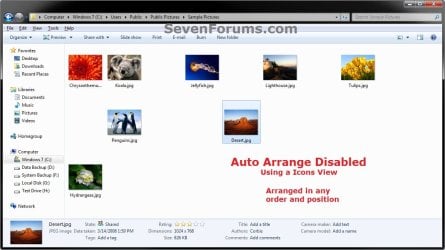
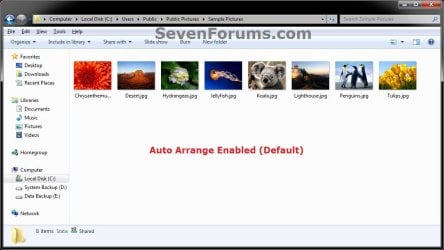
EXAMPLE: Auto Arrange Enabled and Disabled
NOTE: Notice in the screenshot with Auto Arrange disabled, the files can be dragged around the Windows Explorer window to sort how you like without having to be in alphabetical order.
Default.jpg

Disabled-1.jpg

Disabled-2.jpg


OPTION ONE

To Disable Auto Arrange in Windows 7 Windows Explorer


   Warning
It is also recommended to create a restore point before doing this option in case you would like to undo any unwanted unknown side affects that OPTION TWO may not undo. This way, you could also do a system restore with this restore point to undo this option completely.


1. Click on the Download button below to download the BAT file below.
Disable_Windows_7_Explorer_Auto_Arrange.bat

Download


2. Save the .bat file to your desktop.

3. Close everything that you have running first, then run the downloaded .bat file.

4. If prompted, click on Run.
NOTE: If you like, you can stop getting the Run prompt by unblocking the downloaded .bat file.

5. You will now notice your screen flicker and a command prompt open as the explorer process is restarted.

6. Let the command prompt count down to finish on it's own without pressing a key.

7. When it's finished, you will see the Computer window open.

8. Auto arrange in Windows Explorer is now disabled.


OPTION TWO

To Enable Auto Arrange in Windows 7 Windows Explorer


NOTE: This is the default setting.
1. Click on the Download button below to download the BAT file below.
Enable_Windows_7_Explorer_Auto_Arrange.bat

Download


2. Save the .bat file to your desktop.

3. Close all opened explorer windows first, then run the downloaded .bat file.

4. If prompted, click on Run.
NOTE: If you like, you can stop getting the Run prompt by unblocking the downloaded .bat file.

5. You will now notice your screen flicker and a command prompt open as the explorer process is restarted.

6. When it's finished, you will see the Computer window open.

7. Auto arrange in Windows Explorer is now enabled again.
That's it,
Shawn


Attachments

Last edited:
The only trouble I've had is that, after spending some time arranging files in the order I wanted, I accidentally copied some by dragging them. When I clicked "undo copy", every change I had made disappeared. Do you know a way of avoiding that in future? Will making the folder read-only prevent any future changes of file order?
 

My Computer My Computer

At a glance

Windows 7 Home Premium 64 bitIntel Core i5 3570K 3.4GHz Socket 1155 6MB CacheCrucial 8GB (2x4GB) DDR3 1600Mhz BallistixNvidia GeForce GT 620
OS
Windows 7 Home Premium 64 bit
CPU
Intel Core i5 3570K 3.4GHz Socket 1155 6MB Cache
Motherboard
MSI B75MA-P45 Socket 1155 VGA DVI 8 Channel Audio ATX
Memory
Crucial 8GB (2x4GB) DDR3 1600Mhz Ballistix
Graphics Card(s)
Nvidia GeForce GT 620
Hard Drives
Seagate 1TB Barracuda 3.5" SATA-III Hard Drive - 7200RPM
PSU
Corsair 430W CX Builder 80 Plus
Case
CiT 2016 MIDI Case
rfws,

Unfortunately, this cannot be stopped. Any change made to the folder view settings like that will reset it for that folder.

You could delete the copy or "copy and paste" the copy somewhere else as a workaround to preserve your arrangements instead of using "undo copy".
 

My Computer My Computer

At a glance

64-bit Windows 11 Pro for WorkstationsIntel i7-8700K OC'd to 5 GHz64 GB (4x16GB) G.SKILL TridentZ RGB DDR4 3600...ASUS ROG-STRIX-GTX1080TI-O11G-GAMING
Computer type
PC/Desktop
Computer Manufacturer/Model Number
Self built custom
OS
64-bit Windows 11 Pro for Workstations
CPU
Intel i7-8700K OC'd to 5 GHz
Motherboard
ASUS ROG Maximus XI Formula Z390
Memory
64 GB (4x16GB) G.SKILL TridentZ RGB DDR4 3600 MHz
Graphics Card(s)
ASUS ROG-STRIX-GTX1080TI-O11G-GAMING
Sound Card
Integrated
Monitor(s) Displays
2 x Samsung Odyssey G7 27"
Screen Resolution
2560x1440
Hard Drives
1TB Samsung 990 PRO M.2,
4TB Samsung 990 PRO PRO M.2,
TerraMaster F8 SSD Plus NAS
PSU
Seasonic Prime Titanium 850W
Case
Thermaltake Core P3
Cooling
Corsair Hydro H115i
Keyboard
Logitech wireless K800
Mouse
Logitech MX Master 4
Internet Speed
2 Gb/s Download and 100 Mb/s Upload
Antivirus
Malwarebyte Anti-Malware Premium
Browser
Google Chrome
Other Info
Logitech Z625 speaker system,
Logitech BRIO 4K Pro webcam,
HP Color LaserJet Pro MFP M477fdn,
APC SMART-UPS RT 1000 XL - SURT1000XLI,
Galaxy S23 Plus phone
Okay, thank you very much. I will just have to be careful! And I must remember not to rename any folders or subfolders in a moment of absentmindedness!
 

My Computer My Computer

At a glance

Windows 7 Home Premium 64 bitIntel Core i5 3570K 3.4GHz Socket 1155 6MB CacheCrucial 8GB (2x4GB) DDR3 1600Mhz BallistixNvidia GeForce GT 620
OS
Windows 7 Home Premium 64 bit
CPU
Intel Core i5 3570K 3.4GHz Socket 1155 6MB Cache
Motherboard
MSI B75MA-P45 Socket 1155 VGA DVI 8 Channel Audio ATX
Memory
Crucial 8GB (2x4GB) DDR3 1600Mhz Ballistix
Graphics Card(s)
Nvidia GeForce GT 620
Hard Drives
Seagate 1TB Barracuda 3.5" SATA-III Hard Drive - 7200RPM
PSU
Corsair 430W CX Builder 80 Plus
Case
CiT 2016 MIDI Case
Yeah, these quirks is most likely the reason why Microsoft didn't have an option to be able to disable auto arrange by default.
 

My Computer My Computer

At a glance

64-bit Windows 11 Pro for WorkstationsIntel i7-8700K OC'd to 5 GHz64 GB (4x16GB) G.SKILL TridentZ RGB DDR4 3600...ASUS ROG-STRIX-GTX1080TI-O11G-GAMING
Computer type
PC/Desktop
Computer Manufacturer/Model Number
Self built custom
OS
64-bit Windows 11 Pro for Workstations
CPU
Intel i7-8700K OC'd to 5 GHz
Motherboard
ASUS ROG Maximus XI Formula Z390
Memory
64 GB (4x16GB) G.SKILL TridentZ RGB DDR4 3600 MHz
Graphics Card(s)
ASUS ROG-STRIX-GTX1080TI-O11G-GAMING
Sound Card
Integrated
Monitor(s) Displays
2 x Samsung Odyssey G7 27"
Screen Resolution
2560x1440
Hard Drives
1TB Samsung 990 PRO M.2,
4TB Samsung 990 PRO PRO M.2,
TerraMaster F8 SSD Plus NAS
PSU
Seasonic Prime Titanium 850W
Case
Thermaltake Core P3
Cooling
Corsair Hydro H115i
Keyboard
Logitech wireless K800
Mouse
Logitech MX Master 4
Internet Speed
2 Gb/s Download and 100 Mb/s Upload
Antivirus
Malwarebyte Anti-Malware Premium
Browser
Google Chrome
Other Info
Logitech Z625 speaker system,
Logitech BRIO 4K Pro webcam,
HP Color LaserJet Pro MFP M477fdn,
APC SMART-UPS RT 1000 XL - SURT1000XLI,
Galaxy S23 Plus phone
Disable auto-arrange doesn't work for me

I know this is really old. But the first time I tried finding a way to disable auto-arrange, was when I first got my computer loaded with Win 7 more than a year ago. Then, there was Dave a previous Microsoft forum MVP who found a way to do it, and it worked for every outraged person on that forum thread...EXCEPT ME. I'm still pissed off and it has ruined my picture filing experiences. So I tried again...tried a few things, and Still nothing works for me.
Today, I did everything in YOUR suggested download, and it still doesn't work once I go back into a picture folder and try to arrange the icons. Sigh. Yes, I am in administrator mode, and no I am not technically good so I really don't know what it is about MY OS that is preventing all these so -called fixes. I don't even get the option of Disable Auto Arrange in a grayed out view anywhere like other people do. Sigh again.
What can I do?:cry:
 

My Computer My Computer

At a glance

windows 7 home premium . 64bitHP p6510fram 4.00GB
Computer type
PC/Desktop
Computer Manufacturer/Model Number
HP
OS
windows 7 home premium . 64bit
CPU
HP p6510f
Motherboard
AMD Athlon 11 x 4 630 Processor 2.80 GHz
Memory
ram 4.00GB
Antivirus
Bitdefender
Hello Lolypop, and welcome to Seven Forums.

Are you by chance in the "Pictures" library instead of the actual say "C:\Users\(user-name)\My Pictures" folder?

Auto arrange cannot be disabled in libraries.

Auto arrange can only be disabled in actual folder locations instead.

If you are not sure, then please post a screenshot showing the window, and we'll be happy to help.

Hope this helps for now, :)
Shawn
 

My Computer My Computer

At a glance

64-bit Windows 11 Pro for WorkstationsIntel i7-8700K OC'd to 5 GHz64 GB (4x16GB) G.SKILL TridentZ RGB DDR4 3600...ASUS ROG-STRIX-GTX1080TI-O11G-GAMING
Computer type
PC/Desktop
Computer Manufacturer/Model Number
Self built custom
OS
64-bit Windows 11 Pro for Workstations
CPU
Intel i7-8700K OC'd to 5 GHz
Motherboard
ASUS ROG Maximus XI Formula Z390
Memory
64 GB (4x16GB) G.SKILL TridentZ RGB DDR4 3600 MHz
Graphics Card(s)
ASUS ROG-STRIX-GTX1080TI-O11G-GAMING
Sound Card
Integrated
Monitor(s) Displays
2 x Samsung Odyssey G7 27"
Screen Resolution
2560x1440
Hard Drives
1TB Samsung 990 PRO M.2,
4TB Samsung 990 PRO PRO M.2,
TerraMaster F8 SSD Plus NAS
PSU
Seasonic Prime Titanium 850W
Case
Thermaltake Core P3
Cooling
Corsair Hydro H115i
Keyboard
Logitech wireless K800
Mouse
Logitech MX Master 4
Internet Speed
2 Gb/s Download and 100 Mb/s Upload
Antivirus
Malwarebyte Anti-Malware Premium
Browser
Google Chrome
Other Info
Logitech Z625 speaker system,
Logitech BRIO 4K Pro webcam,
HP Color LaserJet Pro MFP M477fdn,
APC SMART-UPS RT 1000 XL - SURT1000XLI,
Galaxy S23 Plus phone
Jon's workaround to re-label each photo in your newly arranged file.

Hi Jon and Brink

I'm such a tech-feeb. I'm trying John's work-around in my pictures (not library)...so, say I've brought up my pictures and highlighted the folder I want to work with, which in this case is 'RAVELRY SWEATERS'. I've already re-arranged the pictures in this folder into the order I want them to be in....but I'm unable (when I go to the first picture in the folder and bring it up in full screen) to use the next arrow at the bottom to go to the next one in the order I've created. It defaults to the pre-auto-arranged format.
I want to use your work-around but I'm really unsure what I'm doing wrong.
So I am still IN the folder....I highlight and right click on the first photo, and NOWHERE do I see what you are describing i.e. to select 'details' ....it gives me a side window with
OPEN
Open command prompt'
Open in new window
Add to Windows media player
Play with windows media player
share with >
File Shredder
Restore Previous versions
Scan with Bit Defender
Bit Defender File Vault
Include in Library
Send to >
Copy to folder
Move to folder
Cut
Copy
Create Short Cut
Delete ]
Rename
Properties
IF I THEN click Properties, it give me a 4 tab window, tabs are general, security, Details, Previous versions.
IF I then click the Details tab, it give me the specs on the photo, then at the very bottom in blue, is an underlined "Remove Properties and personal Information".
If I then click on "Remove Properties and personal information", I get another window opening with

2 radio buttons
1. Create a copy with all possible properties removed from the file
2. remove the following properties from the file
and below that,
boxes that you can click beside
title
subject
rating
tag
comments.
etc etc

This process doesn't give me a re-name re-tag, re-rate option at all anywhere.

WHERE ARE THEY!!!? Argh I'm so frustrated.

I would appreciate any help!!!!
Laurie

,

, an
Oh that's well cool then thanx Brink. Sorry I was a bit grotty but I am finding elephant traps round every corner in W7. I mean everyone slagged off Vista but I have has zero problems with that @work!

In the meantime I had actually devised a workaround for this.

Many of the complaints are from people who are staging slideshows/presentations but want to retain the file names without an 01-, 02-, 03- etc unprofessionally tagged to the (presentation-visible) filename, which is also time-consuming.

Well the secret is in the file itself.

Say you have five pix of flowers and you want2 present them in the order dahlia, tulip, anemone, rose, friesia. W7 won't have it! It insists on anemone,dahlia, friesia, rose, tulip (alphabetical)!

Ok..... right click each file and select details.
Each file has several options... title, subject, tags, comments are the 1st 4.
Choose any one; say, "title".
Input 0100 in dahlia, 0200 in tulip, 0300 in anemone, 0400 in rose and 0500 in friesia.
Then open the containing folder and right-click the whiteboard.
click "sort by" and select "more" at the bottom
scroll down the drop-down list till you find "title", tick the box and click ok.
Now right-click the whiteboard again, select "sort by" and then select "title".
Hey look! Your flowers are bedded in the right order.
You are now set up for life because (and here is the trick)
If the next time you open the folder you want "rose" 2nd instead of 4th, just change the title in that file to, say, 0150.
Now it appears correctly between dahlia (0100) and tulip (0200). That is why I spaced the "titles" 100 apart 2 leave space so that, almost forever, you only have2 amend the file(s) you want2 move rather than the whole lot.
You can always rumble the vets who used2 program basic, can't you, LOL?

You could always use "subject" for your second arrangement, "tags" for your third, etc etc etc and therefore always have them to call up with a simple "sort by".

Is that so cool it's got ice crystals?

Anyhow I'll now try your fix, because it's bound2B more systemised... well mayB 2moro, it's nearly mice n pumpkin time now!

Thanx Jon
 

My Computer My Computer

At a glance

windows 7 home premium . 64bitHP p6510fram 4.00GB
Computer type
PC/Desktop
Computer Manufacturer/Model Number
HP
OS
windows 7 home premium . 64bit
CPU
HP p6510f
Motherboard
AMD Athlon 11 x 4 630 Processor 2.80 GHz
Memory
ram 4.00GB
Antivirus
Bitdefender
Laurie,

Unfortunately, it will still show the next picture like that in alphabetical order in the player/viewer no matter how you have them arranged in the folder.

How you have them arranged is only for the purposes of viewing them in Windows Explorer.

Are you able to right click on the file in Windows Explorer, and click on "Rename" to name the file to how you want the order to be when viewing them in the player?
 

My Computer My Computer

At a glance

64-bit Windows 11 Pro for WorkstationsIntel i7-8700K OC'd to 5 GHz64 GB (4x16GB) G.SKILL TridentZ RGB DDR4 3600...ASUS ROG-STRIX-GTX1080TI-O11G-GAMING
Computer type
PC/Desktop
Computer Manufacturer/Model Number
Self built custom
OS
64-bit Windows 11 Pro for Workstations
CPU
Intel i7-8700K OC'd to 5 GHz
Motherboard
ASUS ROG Maximus XI Formula Z390
Memory
64 GB (4x16GB) G.SKILL TridentZ RGB DDR4 3600 MHz
Graphics Card(s)
ASUS ROG-STRIX-GTX1080TI-O11G-GAMING
Sound Card
Integrated
Monitor(s) Displays
2 x Samsung Odyssey G7 27"
Screen Resolution
2560x1440
Hard Drives
1TB Samsung 990 PRO M.2,
4TB Samsung 990 PRO PRO M.2,
TerraMaster F8 SSD Plus NAS
PSU
Seasonic Prime Titanium 850W
Case
Thermaltake Core P3
Cooling
Corsair Hydro H115i
Keyboard
Logitech wireless K800
Mouse
Logitech MX Master 4
Internet Speed
2 Gb/s Download and 100 Mb/s Upload
Antivirus
Malwarebyte Anti-Malware Premium
Browser
Google Chrome
Other Info
Logitech Z625 speaker system,
Logitech BRIO 4K Pro webcam,
HP Color LaserJet Pro MFP M477fdn,
APC SMART-UPS RT 1000 XL - SURT1000XLI,
Galaxy S23 Plus phone
Renaming photos individually

Hi, yes that option , to right click and rename, is open to me...but to be frank, I'm kinda not sure what happens to the picture at that point. I told you the truth when I said I am tech-challenged! Sometimes when I go to rename something, it'll get right down into the " ETGPP.jpeg1' type of format and I have no idea how I navigated there. If I remove all that and just type in 0100, or do I have to type in 001.jpeg, and/or will it remove anything important? Also, will the change that I do in the explorer window change the number of the photo in the Library?
What I'm really asking, is can anything I do manually on each file by renaming them be a permanent change so that the LIBRARY will also reflect the new order. I'm willing, in some photo files, to go to all the trouble of renumbering them if it's going to do any good at all. ( this is what I understood Jon to be doing).
I thank you for your patience, as I know most of the people in these threads actually know all this basic stuff that I don't have the brain to intuitively understand.!

regards and maybe talk to you tomorrow.
Laurie
Oh, by the way, I posted your tutorial and downloadable fix onto the original thread from Windows forum, and had an immediate reply that was toooo funny...he laughed, cried, danced around and squealed like a little girl with joy!


Laurie,

Unfortunately, it will still show the next picture like that in alphabetical order in the player/viewer no matter how you have them arranged in the folder.

How you have them arranged is only for the purposes of viewing them in Windows Explorer.

Are you able to right click on the file in Windows Explorer, and click on "Rename" to name the file to how you want the order to be when viewing them in the player?
 

My Computer My Computer

At a glance

windows 7 home premium . 64bitHP p6510fram 4.00GB
Computer type
PC/Desktop
Computer Manufacturer/Model Number
HP
OS
windows 7 home premium . 64bit
CPU
HP p6510f
Motherboard
AMD Athlon 11 x 4 630 Processor 2.80 GHz
Memory
ram 4.00GB
Antivirus
Bitdefender
Laurie,

No worries. Renaming the file will not affect anything, other than their order arrangement, as long as you leave it's file extension (ex: .jpg).

I find it best to rename them using say: 001text, 002text, 003text, etc.... to be able to use any text you like and still have them appear in numerical order.
 

My Computer My Computer

At a glance

64-bit Windows 11 Pro for WorkstationsIntel i7-8700K OC'd to 5 GHz64 GB (4x16GB) G.SKILL TridentZ RGB DDR4 3600...ASUS ROG-STRIX-GTX1080TI-O11G-GAMING
Computer type
PC/Desktop
Computer Manufacturer/Model Number
Self built custom
OS
64-bit Windows 11 Pro for Workstations
CPU
Intel i7-8700K OC'd to 5 GHz
Motherboard
ASUS ROG Maximus XI Formula Z390
Memory
64 GB (4x16GB) G.SKILL TridentZ RGB DDR4 3600 MHz
Graphics Card(s)
ASUS ROG-STRIX-GTX1080TI-O11G-GAMING
Sound Card
Integrated
Monitor(s) Displays
2 x Samsung Odyssey G7 27"
Screen Resolution
2560x1440
Hard Drives
1TB Samsung 990 PRO M.2,
4TB Samsung 990 PRO PRO M.2,
TerraMaster F8 SSD Plus NAS
PSU
Seasonic Prime Titanium 850W
Case
Thermaltake Core P3
Cooling
Corsair Hydro H115i
Keyboard
Logitech wireless K800
Mouse
Logitech MX Master 4
Internet Speed
2 Gb/s Download and 100 Mb/s Upload
Antivirus
Malwarebyte Anti-Malware Premium
Browser
Google Chrome
Other Info
Logitech Z625 speaker system,
Logitech BRIO 4K Pro webcam,
HP Color LaserJet Pro MFP M477fdn,
APC SMART-UPS RT 1000 XL - SURT1000XLI,
Galaxy S23 Plus phone
Dear Brink,

I've tried your bat file on my Windows 7 64-bit OS but, within the folders on my desktop I don't see "auto arrange" visible (to uncheck/disable) under the menu item "view".

I did run your batch file as administrator, no errors were seen, the screen did flicker (as was described that it would), my desktop icons reset their locations.. but I can't disable auto arrange in folders other then the root of my desktop.

Am I missing something?
Is this an issue because I'm running windows 7 64bit?

Thanks for your time.
 

My Computer My Computer

At a glance

Windows 7 64bit
Computer type
PC/Desktop
OS
Windows 7 64bit
Browser
Firefox

My Computer My Computer

At a glance

64-bit Windows 11 Pro for WorkstationsIntel i7-8700K OC'd to 5 GHz64 GB (4x16GB) G.SKILL TridentZ RGB DDR4 3600...ASUS ROG-STRIX-GTX1080TI-O11G-GAMING
Computer type
PC/Desktop
Computer Manufacturer/Model Number
Self built custom
OS
64-bit Windows 11 Pro for Workstations
CPU
Intel i7-8700K OC'd to 5 GHz
Motherboard
ASUS ROG Maximus XI Formula Z390
Memory
64 GB (4x16GB) G.SKILL TridentZ RGB DDR4 3600 MHz
Graphics Card(s)
ASUS ROG-STRIX-GTX1080TI-O11G-GAMING
Sound Card
Integrated
Monitor(s) Displays
2 x Samsung Odyssey G7 27"
Screen Resolution
2560x1440
Hard Drives
1TB Samsung 990 PRO M.2,
4TB Samsung 990 PRO PRO M.2,
TerraMaster F8 SSD Plus NAS
PSU
Seasonic Prime Titanium 850W
Case
Thermaltake Core P3
Cooling
Corsair Hydro H115i
Keyboard
Logitech wireless K800
Mouse
Logitech MX Master 4
Internet Speed
2 Gb/s Download and 100 Mb/s Upload
Antivirus
Malwarebyte Anti-Malware Premium
Browser
Google Chrome
Other Info
Logitech Z625 speaker system,
Logitech BRIO 4K Pro webcam,
HP Color LaserJet Pro MFP M477fdn,
APC SMART-UPS RT 1000 XL - SURT1000XLI,
Galaxy S23 Plus phone
Wow.. my mistake. :o

While I've read your article many times, my brain kept seeing the word "enable" and thinking "yeah, we want to enable seeing auto arrange so we can uncheck it" so I kept going to option 2. *facepalm* Yeah that wasn't what I was suppose to do to make this work.

Heh.. on the bright side I can now disable auto arrange for folders on my pc. Thanks Brink! :)

Note: While I haven't found a program that will remember the order icons are arranged within folders, I did find a nice free one that works well for the desktop. I've found it very helpful while working on disabling autoarrange (as I have several icons on my desktop). For those others who might also find such a program helpful I'll list it here:
DesktopOK 3.55 Save and restore the desktop icon positions.
 

My Computer My Computer

At a glance

Windows 7 64bit
Computer type
PC/Desktop
OS
Windows 7 64bit
Browser
Firefox
No worries. We all have moments like that. :)
 

My Computer My Computer

At a glance

64-bit Windows 11 Pro for WorkstationsIntel i7-8700K OC'd to 5 GHz64 GB (4x16GB) G.SKILL TridentZ RGB DDR4 3600...ASUS ROG-STRIX-GTX1080TI-O11G-GAMING
Computer type
PC/Desktop
Computer Manufacturer/Model Number
Self built custom
OS
64-bit Windows 11 Pro for Workstations
CPU
Intel i7-8700K OC'd to 5 GHz
Motherboard
ASUS ROG Maximus XI Formula Z390
Memory
64 GB (4x16GB) G.SKILL TridentZ RGB DDR4 3600 MHz
Graphics Card(s)
ASUS ROG-STRIX-GTX1080TI-O11G-GAMING
Sound Card
Integrated
Monitor(s) Displays
2 x Samsung Odyssey G7 27"
Screen Resolution
2560x1440
Hard Drives
1TB Samsung 990 PRO M.2,
4TB Samsung 990 PRO PRO M.2,
TerraMaster F8 SSD Plus NAS
PSU
Seasonic Prime Titanium 850W
Case
Thermaltake Core P3
Cooling
Corsair Hydro H115i
Keyboard
Logitech wireless K800
Mouse
Logitech MX Master 4
Internet Speed
2 Gb/s Download and 100 Mb/s Upload
Antivirus
Malwarebyte Anti-Malware Premium
Browser
Google Chrome
Other Info
Logitech Z625 speaker system,
Logitech BRIO 4K Pro webcam,
HP Color LaserJet Pro MFP M477fdn,
APC SMART-UPS RT 1000 XL - SURT1000XLI,
Galaxy S23 Plus phone
Auto Arrange

Shawn,

I am forever in your debt! This worked in seconds, like magic.

In the real world (business) that "us" normal people operate, disabling auto arrange is vital.
I was ready to reinstall XP for this reason alone.

Working in the Win 7 folder views, it "was" taking me WEEKS to do what I do in one day.

It is imperative that I arrange files, sometimes side by side (ie: 25 PDF doc's next to excel related docs, but separated from other docs, as that is the group I'm working on). With nearly 10,000 various documents in many different type folders, one MUST group things accordingly.

I can't tell you the incredible amount of time it was taking to hunt and root out files, or even simply keeping a copy of my letterhead in the upper corners with other boiler plate docs etc.

From us Multi tasking business users, THANK YOU!
 

My Computer My Computer

At a glance

Windows 7 Professional x64Xeon1tnvidia
Computer type
PC/Desktop
Computer Manufacturer/Model Number
Dell
OS
Windows 7 Professional x64
CPU
Xeon
Motherboard
not sure
Memory
1t
Graphics Card(s)
nvidia
Hard Drives
not sure
You're most welcome cigarbar, and welcome to Seven Forums. I'm happy to hear this was able to help. :)
 

My Computer My Computer

At a glance

64-bit Windows 11 Pro for WorkstationsIntel i7-8700K OC'd to 5 GHz64 GB (4x16GB) G.SKILL TridentZ RGB DDR4 3600...ASUS ROG-STRIX-GTX1080TI-O11G-GAMING
Computer type
PC/Desktop
Computer Manufacturer/Model Number
Self built custom
OS
64-bit Windows 11 Pro for Workstations
CPU
Intel i7-8700K OC'd to 5 GHz
Motherboard
ASUS ROG Maximus XI Formula Z390
Memory
64 GB (4x16GB) G.SKILL TridentZ RGB DDR4 3600 MHz
Graphics Card(s)
ASUS ROG-STRIX-GTX1080TI-O11G-GAMING
Sound Card
Integrated
Monitor(s) Displays
2 x Samsung Odyssey G7 27"
Screen Resolution
2560x1440
Hard Drives
1TB Samsung 990 PRO M.2,
4TB Samsung 990 PRO PRO M.2,
TerraMaster F8 SSD Plus NAS
PSU
Seasonic Prime Titanium 850W
Case
Thermaltake Core P3
Cooling
Corsair Hydro H115i
Keyboard
Logitech wireless K800
Mouse
Logitech MX Master 4
Internet Speed
2 Gb/s Download and 100 Mb/s Upload
Antivirus
Malwarebyte Anti-Malware Premium
Browser
Google Chrome
Other Info
Logitech Z625 speaker system,
Logitech BRIO 4K Pro webcam,
HP Color LaserJet Pro MFP M477fdn,
APC SMART-UPS RT 1000 XL - SURT1000XLI,
Galaxy S23 Plus phone
Start Menu file and folder arranging

Hi, I'm new here. I tried both your suggested methods for disabling auto-arrange in the Start Menu. Unchecking the sort box works for about 5 minutes; the reg fix worked overnight, but reverted after a couple of hours this morning.

I appreciate your efforts in this area. Is there a later fix for this hideous problem?

Thanks, Erewhon.
 

My Computer My Computer

At a glance

windows 7 64 bitamd black 64
Computer type
PC/Desktop
Computer Manufacturer/Model Number
custom
OS
windows 7 64 bit
CPU
amd black 64

My Computer My Computer

At a glance

64-bit Windows 11 Pro for WorkstationsIntel i7-8700K OC'd to 5 GHz64 GB (4x16GB) G.SKILL TridentZ RGB DDR4 3600...ASUS ROG-STRIX-GTX1080TI-O11G-GAMING
Computer type
PC/Desktop
Computer Manufacturer/Model Number
Self built custom
OS
64-bit Windows 11 Pro for Workstations
CPU
Intel i7-8700K OC'd to 5 GHz
Motherboard
ASUS ROG Maximus XI Formula Z390
Memory
64 GB (4x16GB) G.SKILL TridentZ RGB DDR4 3600 MHz
Graphics Card(s)
ASUS ROG-STRIX-GTX1080TI-O11G-GAMING
Sound Card
Integrated
Monitor(s) Displays
2 x Samsung Odyssey G7 27"
Screen Resolution
2560x1440
Hard Drives
1TB Samsung 990 PRO M.2,
4TB Samsung 990 PRO PRO M.2,
TerraMaster F8 SSD Plus NAS
PSU
Seasonic Prime Titanium 850W
Case
Thermaltake Core P3
Cooling
Corsair Hydro H115i
Keyboard
Logitech wireless K800
Mouse
Logitech MX Master 4
Internet Speed
2 Gb/s Download and 100 Mb/s Upload
Antivirus
Malwarebyte Anti-Malware Premium
Browser
Google Chrome
Other Info
Logitech Z625 speaker system,
Logitech BRIO 4K Pro webcam,
HP Color LaserJet Pro MFP M477fdn,
APC SMART-UPS RT 1000 XL - SURT1000XLI,
Galaxy S23 Plus phone
Thanks for fast response. No third party programs installed. I did have Start Menu X for awhile . . . I just gave it another try but uninstalled it when I found I couldn't arrange the items. So I'm giving the reg fix another chance.

My version of Windows 7 is a new installation and I keep it spotlessly clean.
 

My Computer My Computer

At a glance

windows 7 64 bitamd black 64
Computer type
PC/Desktop
Computer Manufacturer/Model Number
custom
OS
windows 7 64 bit
CPU
amd black 64
file-folder arranging in Start Menu

No luck Brink, the fix keeps reverting back to: files first in alphabetical order, then folders in alphabetical order.

Any other suggestions?

Thanks
 

My Computer My Computer

At a glance

windows 7 64 bitamd black 64
Computer type
PC/Desktop
Computer Manufacturer/Model Number
custom
OS
windows 7 64 bit
CPU
amd black 64
Back
Top