Windows Explorer Auto Arrange - Disable

How to Disable Auto Arrange in Windows 7 Explorer to have Free Sorting


   Information
In Windows 7, auto arrange is enabled by default so that all file and folder names in Windows Explorer are sorted alphabetically no matter what folder view you used.

This is basically like having how you can arrange icons how you like on your desktop in every folder in Windows Explorer now.

This will show you how to disable Auto Arrange in Windows 7 to be able to sort your files and folders in any random order and position you like in each opened folder in Windows Explorer and in the Pin to Start Menu area at the top of the Start Menu without it having to be sorted alphabetically by name. Windows 7 will also remember these random folder sortings (order and position), and open as how they were when the folder window was last closed.

   Note
When You Disable Auto Arrange:
  • While using Extra Large Icons, Large Icons, Medium Icons, Small Icons, and Extended Tiles folder views, you can arrange files/folders in any random order and position.
  • While using Details folder view, you can only arrange files/folders in any order and not in any random position.
  • While using Extra Large Icons, Large Icons, Medium Icons, Small Icons, and Extended Tiles folder views, you can click on View (Menu bar) and check Auto arrange to have the black indicator line back inbetween files/folders when arranging files/folders in any order. This turns off the ability to arrange files/folders by random positions though.
  • While using Extra Large Icons, Large Icons, Medium Icons, Small Icons, and Extended Tiles folder views, you can click on View (Menu bar) and uncheck Auto arrange to be able to arrange files/folders in any order and random positions.
  • The Auto arrange and Align to grid options can be turned on and off at will in the View (Menu bar and right click context menu) when available (not grayed out) while using Extra Large Icons, Large Icons, Medium Icons, Small Icons, or Extended Tiles folder views.
  • If you have items arranged by random positions and switch from a Extra Large Icons, Large Icons, Medium Icons, Small Icons, and Extended Tiles folder view to a List, Details, Extended Tiles, or Content folder view, the random positions will be reset but still placed in a order of arrangement instead.
  • If you unzip a file in a folder, move a folder, or rename a folder, it will refresh and auto arrange the files in that specific folder only after each time you do this. Auto arrange is still disabled for that folder, but you will need to arrange the files back to whatever non-auto arranged order you like again after unzipping a file in a folder, move a folder, or rename a folder.
   Warning
DO NOT USE this tutorial in any other OS than Windows 7.
  • While this tutorial will allow you to disable auto arrange in the main Libraries folder itself, it will not disable auto arrange in any of the other library folders (ex: Documents, Music, Pictures, Videos).
  • Free sorting is not available if you use "Group by" folder views instead of only "Sort by" folder views.
  • Free sorting is not available in the List and Content folder views.
  • When you disable Auto Arrange, you will have Extend Tiles folder view instead of Tiles available in all folders except the Computer windows.

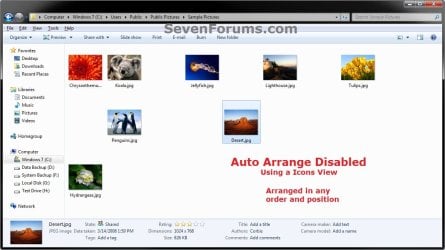
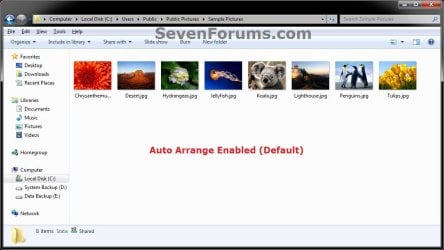
EXAMPLE: Auto Arrange Enabled and Disabled
NOTE: Notice in the screenshot with Auto Arrange disabled, the files can be dragged around the Windows Explorer window to sort how you like without having to be in alphabetical order.
Default.jpg

Disabled-1.jpg

Disabled-2.jpg


OPTION ONE

To Disable Auto Arrange in Windows 7 Windows Explorer


   Warning
It is also recommended to create a restore point before doing this option in case you would like to undo any unwanted unknown side affects that OPTION TWO may not undo. This way, you could also do a system restore with this restore point to undo this option completely.


1. Click on the Download button below to download the BAT file below.
Disable_Windows_7_Explorer_Auto_Arrange.bat

Download


2. Save the .bat file to your desktop.

3. Close everything that you have running first, then run the downloaded .bat file.

4. If prompted, click on Run.
NOTE: If you like, you can stop getting the Run prompt by unblocking the downloaded .bat file.

5. You will now notice your screen flicker and a command prompt open as the explorer process is restarted.

6. Let the command prompt count down to finish on it's own without pressing a key.

7. When it's finished, you will see the Computer window open.

8. Auto arrange in Windows Explorer is now disabled.


OPTION TWO

To Enable Auto Arrange in Windows 7 Windows Explorer


NOTE: This is the default setting.
1. Click on the Download button below to download the BAT file below.
Enable_Windows_7_Explorer_Auto_Arrange.bat

Download


2. Save the .bat file to your desktop.

3. Close all opened explorer windows first, then run the downloaded .bat file.

4. If prompted, click on Run.
NOTE: If you like, you can stop getting the Run prompt by unblocking the downloaded .bat file.

5. You will now notice your screen flicker and a command prompt open as the explorer process is restarted.

6. When it's finished, you will see the Computer window open.

7. Auto arrange in Windows Explorer is now enabled again.
That's it,
Shawn


Attachments

Last edited:
Yeah I understand that and I figured that out later on. But why is it that you cant overlap anymore?
 

My Computer My Computer

At a glance

windows 7
Computer type
PC/Desktop
OS
windows 7
It's not that you can't. It's just how the downloads are set for this since it would be hard to select or open items if they were all jumbled up on top of each other. I used the play it safe option to prevent this possible issue.

I'll see if I may be able to clear out the cobwebs from my memory to come up with a version that does not "align to grid" for you though, and post back when ready. :)
 

My Computer My Computer

At a glance

64-bit Windows 11 Pro for WorkstationsIntel i7-8700K OC'd to 5 GHz64 GB (4x16GB) G.SKILL TridentZ RGB DDR4 3600...ASUS ROG-STRIX-GTX1080TI-O11G-GAMING
Computer type
PC/Desktop
Computer Manufacturer/Model Number
Self built custom
OS
64-bit Windows 11 Pro for Workstations
CPU
Intel i7-8700K OC'd to 5 GHz
Motherboard
ASUS ROG Maximus XI Formula Z390
Memory
64 GB (4x16GB) G.SKILL TridentZ RGB DDR4 3600 MHz
Graphics Card(s)
ASUS ROG-STRIX-GTX1080TI-O11G-GAMING
Sound Card
Integrated
Monitor(s) Displays
2 x Samsung Odyssey G7 27"
Screen Resolution
2560x1440
Hard Drives
1TB Samsung 990 PRO M.2,
4TB Samsung 990 PRO PRO M.2,
TerraMaster F8 SSD Plus NAS
PSU
Seasonic Prime Titanium 850W
Case
Thermaltake Core P3
Cooling
Corsair Hydro H115i
Keyboard
Logitech wireless K800
Mouse
Logitech MX Master 4
Internet Speed
2 Gb/s Download and 100 Mb/s Upload
Antivirus
Malwarebyte Anti-Malware Premium
Browser
Google Chrome
Other Info
Logitech Z625 speaker system,
Logitech BRIO 4K Pro webcam,
HP Color LaserJet Pro MFP M477fdn,
APC SMART-UPS RT 1000 XL - SURT1000XLI,
Galaxy S23 Plus phone
Ahhh I see I its no big deal though dont go out of your way or anything thank you for responding.
 

My Computer My Computer

At a glance

windows 7
Computer type
PC/Desktop
OS
windows 7
Mlynn,

LOL, I forgot:

The Auto arrange and Align to grid options can be turned on and off at will in the View (Menu bar and right click context menu) when available (not grayed out) while using Extra Large Icons, Large Icons, Medium Icons, Small Icons, or Extended Tiles folder views.
:doh:


It's already good to go for what you're wanting. :)
 

My Computer My Computer

At a glance

64-bit Windows 11 Pro for WorkstationsIntel i7-8700K OC'd to 5 GHz64 GB (4x16GB) G.SKILL TridentZ RGB DDR4 3600...ASUS ROG-STRIX-GTX1080TI-O11G-GAMING
Computer type
PC/Desktop
Computer Manufacturer/Model Number
Self built custom
OS
64-bit Windows 11 Pro for Workstations
CPU
Intel i7-8700K OC'd to 5 GHz
Motherboard
ASUS ROG Maximus XI Formula Z390
Memory
64 GB (4x16GB) G.SKILL TridentZ RGB DDR4 3600 MHz
Graphics Card(s)
ASUS ROG-STRIX-GTX1080TI-O11G-GAMING
Sound Card
Integrated
Monitor(s) Displays
2 x Samsung Odyssey G7 27"
Screen Resolution
2560x1440
Hard Drives
1TB Samsung 990 PRO M.2,
4TB Samsung 990 PRO PRO M.2,
TerraMaster F8 SSD Plus NAS
PSU
Seasonic Prime Titanium 850W
Case
Thermaltake Core P3
Cooling
Corsair Hydro H115i
Keyboard
Logitech wireless K800
Mouse
Logitech MX Master 4
Internet Speed
2 Gb/s Download and 100 Mb/s Upload
Antivirus
Malwarebyte Anti-Malware Premium
Browser
Google Chrome
Other Info
Logitech Z625 speaker system,
Logitech BRIO 4K Pro webcam,
HP Color LaserJet Pro MFP M477fdn,
APC SMART-UPS RT 1000 XL - SURT1000XLI,
Galaxy S23 Plus phone
Very Nice! I had discovered that shortly after my last post. Thank you again.
 

My Computer My Computer

At a glance

windows 7
Computer type
PC/Desktop
OS
windows 7
You're welcome. Glad it's working how you like. :)
 

My Computer My Computer

At a glance

64-bit Windows 11 Pro for WorkstationsIntel i7-8700K OC'd to 5 GHz64 GB (4x16GB) G.SKILL TridentZ RGB DDR4 3600...ASUS ROG-STRIX-GTX1080TI-O11G-GAMING
Computer type
PC/Desktop
Computer Manufacturer/Model Number
Self built custom
OS
64-bit Windows 11 Pro for Workstations
CPU
Intel i7-8700K OC'd to 5 GHz
Motherboard
ASUS ROG Maximus XI Formula Z390
Memory
64 GB (4x16GB) G.SKILL TridentZ RGB DDR4 3600 MHz
Graphics Card(s)
ASUS ROG-STRIX-GTX1080TI-O11G-GAMING
Sound Card
Integrated
Monitor(s) Displays
2 x Samsung Odyssey G7 27"
Screen Resolution
2560x1440
Hard Drives
1TB Samsung 990 PRO M.2,
4TB Samsung 990 PRO PRO M.2,
TerraMaster F8 SSD Plus NAS
PSU
Seasonic Prime Titanium 850W
Case
Thermaltake Core P3
Cooling
Corsair Hydro H115i
Keyboard
Logitech wireless K800
Mouse
Logitech MX Master 4
Internet Speed
2 Gb/s Download and 100 Mb/s Upload
Antivirus
Malwarebyte Anti-Malware Premium
Browser
Google Chrome
Other Info
Logitech Z625 speaker system,
Logitech BRIO 4K Pro webcam,
HP Color LaserJet Pro MFP M477fdn,
APC SMART-UPS RT 1000 XL - SURT1000XLI,
Galaxy S23 Plus phone
Is it possible to work without change tiles view to extended tiles?
 

My Computer My Computer

At a glance

Windows 7
Computer type
Laptop
OS
Windows 7
Hello srovarie, and welcome to Seven Forums.

So far, not that I'm aware of. :(
 

My Computer My Computer

At a glance

64-bit Windows 11 Pro for WorkstationsIntel i7-8700K OC'd to 5 GHz64 GB (4x16GB) G.SKILL TridentZ RGB DDR4 3600...ASUS ROG-STRIX-GTX1080TI-O11G-GAMING
Computer type
PC/Desktop
Computer Manufacturer/Model Number
Self built custom
OS
64-bit Windows 11 Pro for Workstations
CPU
Intel i7-8700K OC'd to 5 GHz
Motherboard
ASUS ROG Maximus XI Formula Z390
Memory
64 GB (4x16GB) G.SKILL TridentZ RGB DDR4 3600 MHz
Graphics Card(s)
ASUS ROG-STRIX-GTX1080TI-O11G-GAMING
Sound Card
Integrated
Monitor(s) Displays
2 x Samsung Odyssey G7 27"
Screen Resolution
2560x1440
Hard Drives
1TB Samsung 990 PRO M.2,
4TB Samsung 990 PRO PRO M.2,
TerraMaster F8 SSD Plus NAS
PSU
Seasonic Prime Titanium 850W
Case
Thermaltake Core P3
Cooling
Corsair Hydro H115i
Keyboard
Logitech wireless K800
Mouse
Logitech MX Master 4
Internet Speed
2 Gb/s Download and 100 Mb/s Upload
Antivirus
Malwarebyte Anti-Malware Premium
Browser
Google Chrome
Other Info
Logitech Z625 speaker system,
Logitech BRIO 4K Pro webcam,
HP Color LaserJet Pro MFP M477fdn,
APC SMART-UPS RT 1000 XL - SURT1000XLI,
Galaxy S23 Plus phone
I only began using Windows 7 a couple of months ago and it annoyed me so much that the way I used to sort files in XP was no longer an option. The mandatory auto arrange made managing large numbers of images unnecessarily difficult, and since the OP was over three years ago, you'd think that MS would've offered an alternative by now!

After finding a few inadequate work-arounds, I found this post and can finally cut down on the profanity.


Thank you very much for the clear instructions and easy to implement solution. - It works great. :thumbsup:
 

My Computer My Computer

At a glance

Windows 7, 64-bit
Computer type
PC/Desktop
Computer Manufacturer/Model Number
Custom build
OS
Windows 7, 64-bit
hack explained

this hack is good. solves the problem. this hack has side effects. a hack that has no side effects is difficult to find (if it exists).

this hack does not disable auto arrange. it disables an aspect of auto arrange. the aspect of auto arrange that it disables is auto sort by name. the other aspects of auto arrange are things like how folders get positioned before files, and things like gaps between items are taken away. this hack does not disable those aspects, but instead gives you the option to apply them, by applying auto arrange, which is by checking auto arrange from the menu. the aspect that is disabled is auto sorting by name. when you check auto arrange, all other aspects take effect, but sort by name does not. it is disabled. auto arrange is not disabled, auto sort by name is disabled. i should also say that strictly speaking, this hack does not disable auto sort by name. the first time you go into a folder of items, they have got to be sorted in some way, and the way they are sorted is by name (except in special situations). so, in a sense, auto sort by name is not disabled. items are auto sorting by name. the point to understand is that sorting by name is not forced on you (you are able to manually change their positions). so, to be exact, what this hack disables is your inability to manually change the positions of files. auto sort still occurs.

what are the side effects of this hack?

RENAMING FILES
if auto arrange is not checked, and if you try to rename a group of files (by highlighting them all), then the naming sequence goes from top to bottom, then across and top to bottom, then across and top to bottom, etc. if checked, the sequence goes left to right, then down and left to right, then down and left to right, etc. this second way is the way the system renames files by default.

UNRESPONSIVE "SORT BY" FUNCTION
this is a very interesting side effect. it's interesting if you try to understand why it happens. but first i will say what happens. if you change the position of a file while both auto arrange and align to grid are checked, then, before closing the window down, if you choose to Sort by Name (or [probably] other sorting methods too), you will find that nothing happens. if you do it again, it finally responds. and when it responds, items sort by Name, except they sort from z to a, not from a to z. if you sort by Name one more time, they will sort by name (from a to z).

why does this happen?
well, when you manually move an item to a new position, it is still registered in part x of the system that items are sorted by name. this is because, as far as the system is concerned, manual sort is not possible. it didn't happen. part x of the system thinks that files are arranged by name, even though they are not. part y of the system knows they are not arranged by name, and we know this because, when you move a file and then click Sort by, the Name item is not checked anymore. now, when you chose to Sort by Name, nothing happens. this is because part x thinks they are already arranged by name (from a-z), and so does not sort anything. part y knows they are not, but the only thing part y does is check off Name again in the menu (since it knows you just clicked Name). now, when you click Name again, they sort by name, but from z to a. why do they now sort? because part x of the system knows they are arranged by name (a-z), and sorts them the other way (z to a). basically, when you clicked Name again, it was a click that meant something to part x of the system, and it meant "sort the items from z to a". the first time you clicked Name, it meant "sort the items from a to z", but it did not prompt part x of the system to sort items from a to z because they already were (according to the system) sorted from a to z. this, or something very close to this, is the reason that click goes unresponsive.

there are other side effects too, but i need to go. the other side effects are a bit less important though, i think.

thank you for this hack.
 

My Computer My Computer

At a glance

win72.33 duo intel4gbnone
Computer type
PC/Desktop
Computer Manufacturer/Model Number
custom
OS
win7
CPU
2.33 duo intel
Motherboard
intel
Memory
4gb
Graphics Card(s)
none
Hard Drives
1tb
Antivirus
none
Browser
chrome
Any way to sort folders and files all mixed together?
Does Win8 explorer have bug described here?
 

My Computer My Computer

At a glance

Win7 Ultimate 32bIntel Core i54 GbIntegrated
Computer Manufacturer/Model Number
Asus
OS
Win7 Ultimate 32b
CPU
Intel Core i5
Memory
4 Gb
Graphics Card(s)
Integrated
manually, after applying the hack, yes.

but that's probably not what you want.

i don't think there is a way to sort, using one of the sorting options, where files and folders end up properly sorted (that is, where folder Always appears beside file Attack, followed by folder Balloon beside file Bread [sort by name]).

there are things you can do to speed up manually sorting files and folders (where they end up mixed).

if you just need to sort files and folders by some property, just a one time thing but too difficult to go in by hand, then you have some other options. but if you want some system button to click and then files and folders are mixed and sorted, i don't think so.
 

My Computer My Computer

At a glance

win72.33 duo intel4gbnone
Computer type
PC/Desktop
Computer Manufacturer/Model Number
custom
OS
win7
CPU
2.33 duo intel
Motherboard
intel
Memory
4gb
Graphics Card(s)
none
Hard Drives
1tb
Antivirus
none
Browser
chrome
why can't you just move them to the right places, then rename them all by highlighting them all, right clicking the first pic, choosing rename, and calling it " (1) "? the second will auto name to (2), and so on. now picture viewer will play them in the order you want, since the order you want is now alphanumeric order. if you do this, make sure align to grid and auto arrange are both checked off before renaming.

Hi, yes that option , to right click and rename, is open to me...but to be frank, I'm kinda not sure what happens to the picture at that point. I told you the truth when I said I am tech-challenged! Sometimes when I go to rename something, it'll get right down into the " ETGPP.jpeg1' type of format and I have no idea how I navigated there. If I remove all that and just type in 0100, or do I have to type in 001.jpeg, and/or will it remove anything important? Also, will the change that I do in the explorer window change the number of the photo in the Library?
What I'm really asking, is can anything I do manually on each file by renaming them be a permanent change so that the LIBRARY will also reflect the new order. I'm willing, in some photo files, to go to all the trouble of renumbering them if it's going to do any good at all. ( this is what I understood Jon to be doing).
I thank you for your patience, as I know most of the people in these threads actually know all this basic stuff that I don't have the brain to intuitively understand.!

regards and maybe talk to you tomorrow.
Laurie
Oh, by the way, I posted your tutorial and downloadable fix onto the original thread from Windows forum, and had an immediate reply that was toooo funny...he laughed, cried, danced around and squealed like a little girl with joy!


Laurie,

Unfortunately, it will still show the next picture like that in alphabetical order in the player/viewer no matter how you have them arranged in the folder.

How you have them arranged is only for the purposes of viewing them in Windows Explorer.

Are you able to right click on the file in Windows Explorer, and click on "Rename" to name the file to how you want the order to be when viewing them in the player?
 

My Computer My Computer

At a glance

win72.33 duo intel4gbnone
Computer type
PC/Desktop
Computer Manufacturer/Model Number
custom
OS
win7
CPU
2.33 duo intel
Motherboard
intel
Memory
4gb
Graphics Card(s)
none
Hard Drives
1tb
Antivirus
none
Browser
chrome
im not getting new files going to beginning of LIST with auto arrange checked off. btw auto arrange checked off is forced when viewing LISTS.


Same problem. When auto arrange is disabled, new files are storred at the begining of the list. Pretty annoying...
 

My Computer My Computer

At a glance

win72.33 duo intel4gbnone
Computer type
PC/Desktop
Computer Manufacturer/Model Number
custom
OS
win7
CPU
2.33 duo intel
Motherboard
intel
Memory
4gb
Graphics Card(s)
none
Hard Drives
1tb
Antivirus
none
Browser
chrome
Is there any way to enable auto arrange by default without disabling sorting?
So I don't to enable auto arrange everytime I'm in icon view. Like this Folder - Imgur
 

My Computer My Computer

At a glance

Windows 7 Utimate x64Intel i5-4670k8GB Kingston Hyper X BeastGigabyte 3x Windforce R9 290
Computer type
PC/Desktop
Computer Manufacturer/Model Number
Custom Build
OS
Windows 7 Utimate x64
CPU
Intel i5-4670k
Motherboard
MSI Z87-G45 Gaming
Memory
8GB Kingston Hyper X Beast
Graphics Card(s)
Gigabyte 3x Windforce R9 290
Antivirus
AVG Internet Security 2014
Browser
Google Chrome
Hello Beaux, and welcome to Seven Forums.

Unfortunately, sorting is part of auto arrange. I'm afraid that you'll need to enable it per folder again as needed. :(
 

My Computer My Computer

At a glance

64-bit Windows 11 Pro for WorkstationsIntel i7-8700K OC'd to 5 GHz64 GB (4x16GB) G.SKILL TridentZ RGB DDR4 3600...ASUS ROG-STRIX-GTX1080TI-O11G-GAMING
Computer type
PC/Desktop
Computer Manufacturer/Model Number
Self built custom
OS
64-bit Windows 11 Pro for Workstations
CPU
Intel i7-8700K OC'd to 5 GHz
Motherboard
ASUS ROG Maximus XI Formula Z390
Memory
64 GB (4x16GB) G.SKILL TridentZ RGB DDR4 3600 MHz
Graphics Card(s)
ASUS ROG-STRIX-GTX1080TI-O11G-GAMING
Sound Card
Integrated
Monitor(s) Displays
2 x Samsung Odyssey G7 27"
Screen Resolution
2560x1440
Hard Drives
1TB Samsung 990 PRO M.2,
4TB Samsung 990 PRO PRO M.2,
TerraMaster F8 SSD Plus NAS
PSU
Seasonic Prime Titanium 850W
Case
Thermaltake Core P3
Cooling
Corsair Hydro H115i
Keyboard
Logitech wireless K800
Mouse
Logitech MX Master 4
Internet Speed
2 Gb/s Download and 100 Mb/s Upload
Antivirus
Malwarebyte Anti-Malware Premium
Browser
Google Chrome
Other Info
Logitech Z625 speaker system,
Logitech BRIO 4K Pro webcam,
HP Color LaserJet Pro MFP M477fdn,
APC SMART-UPS RT 1000 XL - SURT1000XLI,
Galaxy S23 Plus phone
Thanks for the quick response.
 

My Computer My Computer

At a glance

Windows 7 Utimate x64Intel i5-4670k8GB Kingston Hyper X BeastGigabyte 3x Windforce R9 290
Computer type
PC/Desktop
Computer Manufacturer/Model Number
Custom Build
OS
Windows 7 Utimate x64
CPU
Intel i5-4670k
Motherboard
MSI Z87-G45 Gaming
Memory
8GB Kingston Hyper X Beast
Graphics Card(s)
Gigabyte 3x Windforce R9 290
Antivirus
AVG Internet Security 2014
Browser
Google Chrome
Last edited by a moderator:

My Computer My Computer

At a glance

Windows 7 Ultimate x64i5 2500k 3.30ghz16GB RAM CORSAIR 1600MHZATI RADEON 6790 1GB GDDR5
Computer type
PC/Desktop
OS
Windows 7 Ultimate x64
CPU
i5 2500k 3.30ghz
Motherboard
Z68P-DS3
Memory
16GB RAM CORSAIR 1600MHZ
Graphics Card(s)
ATI RADEON 6790 1GB GDDR5
Hard Drives
Western Digital Caviar Black 7200rpm 64mb buffer 1TB
Browser
IE 11
Hello syb, and welcome to Seven Forums.

I'm afraid that I don't know of a way to prevent it from using extended tiles when auto arrange is disabled. :(
 

My Computer My Computer

At a glance

64-bit Windows 11 Pro for WorkstationsIntel i7-8700K OC'd to 5 GHz64 GB (4x16GB) G.SKILL TridentZ RGB DDR4 3600...ASUS ROG-STRIX-GTX1080TI-O11G-GAMING
Computer type
PC/Desktop
Computer Manufacturer/Model Number
Self built custom
OS
64-bit Windows 11 Pro for Workstations
CPU
Intel i7-8700K OC'd to 5 GHz
Motherboard
ASUS ROG Maximus XI Formula Z390
Memory
64 GB (4x16GB) G.SKILL TridentZ RGB DDR4 3600 MHz
Graphics Card(s)
ASUS ROG-STRIX-GTX1080TI-O11G-GAMING
Sound Card
Integrated
Monitor(s) Displays
2 x Samsung Odyssey G7 27"
Screen Resolution
2560x1440
Hard Drives
1TB Samsung 990 PRO M.2,
4TB Samsung 990 PRO PRO M.2,
TerraMaster F8 SSD Plus NAS
PSU
Seasonic Prime Titanium 850W
Case
Thermaltake Core P3
Cooling
Corsair Hydro H115i
Keyboard
Logitech wireless K800
Mouse
Logitech MX Master 4
Internet Speed
2 Gb/s Download and 100 Mb/s Upload
Antivirus
Malwarebyte Anti-Malware Premium
Browser
Google Chrome
Other Info
Logitech Z625 speaker system,
Logitech BRIO 4K Pro webcam,
HP Color LaserJet Pro MFP M477fdn,
APC SMART-UPS RT 1000 XL - SURT1000XLI,
Galaxy S23 Plus phone
....I've had that option before my hdd broked up ....don't know how to remake it
I'm sure it's a way to make it work in "Tiles"
 

My Computer My Computer

At a glance

Windows 7 Ultimate x64i5 2500k 3.30ghz16GB RAM CORSAIR 1600MHZATI RADEON 6790 1GB GDDR5
Computer type
PC/Desktop
OS
Windows 7 Ultimate x64
CPU
i5 2500k 3.30ghz
Motherboard
Z68P-DS3
Memory
16GB RAM CORSAIR 1600MHZ
Graphics Card(s)
ATI RADEON 6790 1GB GDDR5
Hard Drives
Western Digital Caviar Black 7200rpm 64mb buffer 1TB
Browser
IE 11
Back
Top