
Windows Explorer Columns - Add or Remove

How to Add or Remove Windows Explorer Columns

   Information
This will show you how to add or remove columns that display details about files in a folder in Windows Explorer.

Columns are folder specific. Any added or removed columns to a opened folder in Windows Explorer will not be added or removed from any other folder unless Apply to Folders is used, or it is used to set as default for all folders.

You will need to have the folder in Windows Explorer displayed with Details view to have columns available.

   Note

  • In Libraries, column width changes are applied to all included folders in the library.
  • In Windows Explorer, column changes are only applied to that specific folder and the specific location it was opened from (ex: Start menu vs Windows Explorer), and will not be applied to any other folder unless Apply to Folders is used, or it is used to set a default for all folders.


Here's How: 1. Open the folder that you want to add or remove a column in Windows Explorer.

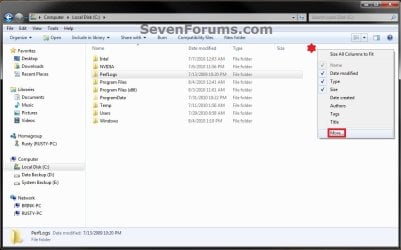
2. Right click on the column bar and click on More. (see screenshot below)
NOTE: If the column that you want to add or remove is listed in the right click menu, then you could also just check (add) or uncheck (remove) it for a quicker way to. Step1.jpg
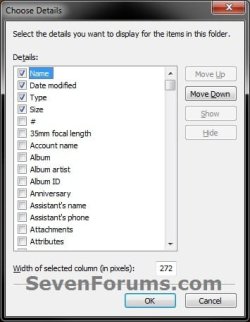
3. Check (add) and uncheck (remove) columns from the available listed details that you want to add or remove, then click on OK when finished. (see screenshot below)
NOTE: You will not be able to uncheck the Name column to remove it since it is required. Step2.jpg
That's it,
Shawn


Last edited:
making changes stick

Shawn,

I know how to change the folder view template [I'm using the music one] and how to change the column heading to what I prefer [with the more button], but;

1] as soon as I navigate away and come back the column headings are back to the defaults, they don't stay changed.

2] And I need to do be able to change the default column headings for all folders and subfolders and have the changes permanent [until I change them]

Why aren't the column head changes "sticking"

Thanks, Darcy

PS...... who pays for all of this help?
 
Last edited:

My Computer

Computer Manufacturer/Model Number
Dell Vostros 1500 Laptop
OS
windows 7 professional (student download)
CPU
Core 2 Duo T5270 1.4 gig hz
Memory
2 gig
Hard Drives
Internal 160 G
External 160 G
External 1.5 T
Hello Darcy,

Columns are folder specific. Any added or removed columns to a opened folder in Windows Explorer will not be added or removed from any other folder unless Apply to Folders is used, or it is used to set as default for all folders.

Hope this helps,
Shawn
 

My Computer

Computer type
PC/Desktop
Computer Manufacturer/Model Number
Self built custom
OS
64-bit Windows 11 Pro for Workstations
CPU
Intel i7-8700K OC'd to 5 GHz
Motherboard
ASUS ROG Maximus XI Formula Z390
Memory
64 GB (4x16GB) G.SKILL TridentZ RGB DDR4 3600 MHz
Graphics Card(s)
ASUS ROG-STRIX-GTX1080TI-O11G-GAMING
Sound Card
Integrated
Monitor(s) Displays
2 x Samsung Odyssey G7 27"
Screen Resolution
2560x1440
Hard Drives
1TB Samsung 990 PRO M.2,
4TB Samsung 990 PRO PRO M.2,
TerraMaster F8 SSD Plus NAS
PSU
Seasonic Prime Titanium 850W
Case
Thermaltake Core P3
Cooling
Corsair Hydro H115i
Keyboard
Logitech wireless K800
Mouse
Logitech MX Master 4
Internet Speed
2 Gb/s Download and 100 Mb/s Upload
Antivirus
Malwarebyte Anti-Malware Premium
Browser
Google Chrome
Other Info
Logitech Z625 speaker system,
Logitech BRIO 4K Pro webcam,
HP Color LaserJet Pro MFP M477fdn,
APC SMART-UPS RT 1000 XL - SURT1000XLI,
Galaxy S23 Plus phone
Brink,
I have gone through most of the stuff on file folders, tutorials and such. I down loaded the vista "reset_folder_view" [i'm using W7] and ran it. It fixed the "forgetfullness" part of when I would change column headings and the changes would not stick [ i'm trying to set up my music stuff with just the columns i want], but it only works just for the folder I changed it in, not the subfolders.

[ back to the tutorial] after rebooting your told to go into the control pannel/folder options/ views and check the "remember folder settings" selection. There isn't one, so what' that about?

As mentioned above the "apply to all subfolders" does not work. I'll select a "parent" folder in windows explore like
J:/Multi-Media/Audio/MyMusic/ that has about 100 subfolders full of albums, some 2 or 3 deep, I'll adjust the columns to what I want, check the apply to all subfolders box but none of the subfolders column heading get changed.

I need to change the way the defalut column heading "looks" when I open folders that are using the "music" templet format.

Help OBWAN

Thank you!!
 

My Computer

Computer Manufacturer/Model Number
Dell Vostros 1500 Laptop
OS
windows 7 professional (student download)
CPU
Core 2 Duo T5270 1.4 gig hz
Memory
2 gig
Hard Drives
Internal 160 G
External 160 G
External 1.5 T

My Computer

Computer type
PC/Desktop
Computer Manufacturer/Model Number
Self built custom
OS
64-bit Windows 11 Pro for Workstations
CPU
Intel i7-8700K OC'd to 5 GHz
Motherboard
ASUS ROG Maximus XI Formula Z390
Memory
64 GB (4x16GB) G.SKILL TridentZ RGB DDR4 3600 MHz
Graphics Card(s)
ASUS ROG-STRIX-GTX1080TI-O11G-GAMING
Sound Card
Integrated
Monitor(s) Displays
2 x Samsung Odyssey G7 27"
Screen Resolution
2560x1440
Hard Drives
1TB Samsung 990 PRO M.2,
4TB Samsung 990 PRO PRO M.2,
TerraMaster F8 SSD Plus NAS
PSU
Seasonic Prime Titanium 850W
Case
Thermaltake Core P3
Cooling
Corsair Hydro H115i
Keyboard
Logitech wireless K800
Mouse
Logitech MX Master 4
Internet Speed
2 Gb/s Download and 100 Mb/s Upload
Antivirus
Malwarebyte Anti-Malware Premium
Browser
Google Chrome
Other Info
Logitech Z625 speaker system,
Logitech BRIO 4K Pro webcam,
HP Color LaserJet Pro MFP M477fdn,
APC SMART-UPS RT 1000 XL - SURT1000XLI,
Galaxy S23 Plus phone
Brink,
OK! :sarc: I got it to work for all my hundreds of music folders. That's the good news. But like you pointed out in one of the links, all my folders are set up as music folders now. I guess I just can't do what I want to do.

What is the check box for that says "apply to all subfolders"? Why doesn't it do what is says it will do and apply the current folders looks to all it's subfolders? I only wanted one particular parent folder and it's subfolders to have the music format not every folder in Windows Explore. [ am I daft, why would anyone want there whole drive with one default format [ie general, data, picture, music etc?, that, would be the definition of stupid].

I guess I'll go back and play around with the general and data types. Maybe I shouldn't do this kind of stuff at 1 am in the morning:sleepy::sleepy:

I hope there is some thing I am still not getting. You don't need to reply, I'll get back to you. Thanks for all you do!

Darcy
 

My Computer

Computer Manufacturer/Model Number
Dell Vostros 1500 Laptop
OS
windows 7 professional (student download)
CPU
Core 2 Duo T5270 1.4 gig hz
Memory
2 gig
Hard Drives
Internal 160 G
External 160 G
External 1.5 T
Darcy,

The "apply to all subfolders" would only work on the subfolders that have the same folder template as the main folder. If they do not, then it will not change them.


Since you do not want "all folders" to be this way and only the Music folder and it's subfolders, give this a try to see of it may get you there:
  • Reset folder views back to default to restore all folders back to their default views.
  • Make sure that the main Music folder and all of it's subfolders have the Music folder template by setting this for the main Music folder and checking the Also apply this template to all subfolders box.
  • Make the folder view changes that you want in the Main Music folder, then use Apply to all folders to have it applied to all folders with a Music folder template.
 

My Computer

Computer type
PC/Desktop
Computer Manufacturer/Model Number
Self built custom
OS
64-bit Windows 11 Pro for Workstations
CPU
Intel i7-8700K OC'd to 5 GHz
Motherboard
ASUS ROG Maximus XI Formula Z390
Memory
64 GB (4x16GB) G.SKILL TridentZ RGB DDR4 3600 MHz
Graphics Card(s)
ASUS ROG-STRIX-GTX1080TI-O11G-GAMING
Sound Card
Integrated
Monitor(s) Displays
2 x Samsung Odyssey G7 27"
Screen Resolution
2560x1440
Hard Drives
1TB Samsung 990 PRO M.2,
4TB Samsung 990 PRO PRO M.2,
TerraMaster F8 SSD Plus NAS
PSU
Seasonic Prime Titanium 850W
Case
Thermaltake Core P3
Cooling
Corsair Hydro H115i
Keyboard
Logitech wireless K800
Mouse
Logitech MX Master 4
Internet Speed
2 Gb/s Download and 100 Mb/s Upload
Antivirus
Malwarebyte Anti-Malware Premium
Browser
Google Chrome
Other Info
Logitech Z625 speaker system,
Logitech BRIO 4K Pro webcam,
HP Color LaserJet Pro MFP M477fdn,
APC SMART-UPS RT 1000 XL - SURT1000XLI,
Galaxy S23 Plus phone
Back
Top