Solved Windows explorer + zoom settings

1976kjell

New member
Local time
10:36 PM
Messages
65
Location
Norway
When I use internet explorer, 125% zoom is the best choise for me

When I open IE8, the zoom is 100%. I then change it to 125%. Next page I open is often 100% and sometimes 125%. This is randomly.

Ive also tried to change it in regedit, but it doesnt help.

Ive read other threads about this issue, but these threads were started a while ago. Maybe there is some new solutions.

I just installed service pack 2, and I guess the issue appeared after the installation

Someone knows how to get the zoom to stay at 125% permanently?
 
Last edited:

My Computer

Computer type
PC/Desktop
Computer Manufacturer/Model Number
Unknown
OS
Windows 7 Home Premium 64bit, service pack 1
CPU
Intel(R) Core(TM) i5 760
Memory
4,00 GB
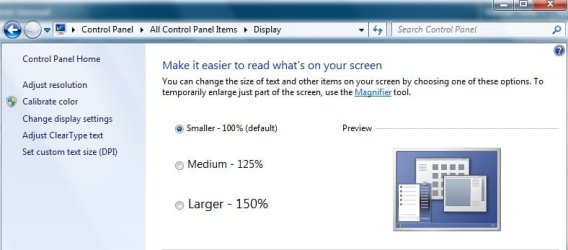
What's the 'display' set at?
 

Attachments

  • 125 display.jpg
    125 display.jpg
    32.6 KB · Views: 54

My Computer

Computer type
PC/Desktop
Computer Manufacturer/Model Number
Bruce ... somewhere in his 40's
OS
Windows 7 Ultimate 32bit SP1
CPU
Intel(R) Core(TM)2 Quad CPU @ 2.40GHz, 2400 MHz
Motherboard
INTEL/D975XBX2
Memory
4 GB
Graphics Card(s)
ATI Radeon HD 2600 Pro
Monitor(s) Displays
Samsung SyncMaster 914v
Screen Resolution
1280 x 1024
Hard Drives
2/500GB each ... ST3500630AS ATA Device.
One is not connected
PSU
Rocketfish 700 W
Case
G.Skill Gigabyte Chassis
Keyboard
Standard PS/2 Keyboard
Mouse
Microsoft PS/2 Mouse
Internet Speed
DSL
Antivirus
Avira Internet Security
Browser
IE 11
Other Info
ATI HDMI Audio
That display is set at 125%
 

My Computer

Computer type
PC/Desktop
Computer Manufacturer/Model Number
Unknown
OS
Windows 7 Home Premium 64bit, service pack 1
CPU
Intel(R) Core(TM) i5 760
Memory
4,00 GB
Ive tried this also:


  • Open Internet Explorer
  • From the Tools menu, choose Internet Options
  • Select the Advanced tab
  • Under Accessibility, deselect the following option: Reset Zoom level to 100% for new windows and tabs
  • Click OK
That didnt help either
 

My Computer

Computer type
PC/Desktop
Computer Manufacturer/Model Number
Unknown
OS
Windows 7 Home Premium 64bit, service pack 1
CPU
Intel(R) Core(TM) i5 760
Memory
4,00 GB
Have you rebooted since doing this?
 

My Computer

Computer type
PC/Desktop
Computer Manufacturer/Model Number
Bruce ... somewhere in his 40's
OS
Windows 7 Ultimate 32bit SP1
CPU
Intel(R) Core(TM)2 Quad CPU @ 2.40GHz, 2400 MHz
Motherboard
INTEL/D975XBX2
Memory
4 GB
Graphics Card(s)
ATI Radeon HD 2600 Pro
Monitor(s) Displays
Samsung SyncMaster 914v
Screen Resolution
1280 x 1024
Hard Drives
2/500GB each ... ST3500630AS ATA Device.
One is not connected
PSU
Rocketfish 700 W
Case
G.Skill Gigabyte Chassis
Keyboard
Standard PS/2 Keyboard
Mouse
Microsoft PS/2 Mouse
Internet Speed
DSL
Antivirus
Avira Internet Security
Browser
IE 11
Other Info
ATI HDMI Audio
Last edited by a moderator:

My Computer

Computer type
PC/Desktop
Computer Manufacturer/Model Number
Bruce ... somewhere in his 40's
OS
Windows 7 Ultimate 32bit SP1
CPU
Intel(R) Core(TM)2 Quad CPU @ 2.40GHz, 2400 MHz
Motherboard
INTEL/D975XBX2
Memory
4 GB
Graphics Card(s)
ATI Radeon HD 2600 Pro
Monitor(s) Displays
Samsung SyncMaster 914v
Screen Resolution
1280 x 1024
Hard Drives
2/500GB each ... ST3500630AS ATA Device.
One is not connected
PSU
Rocketfish 700 W
Case
G.Skill Gigabyte Chassis
Keyboard
Standard PS/2 Keyboard
Mouse
Microsoft PS/2 Mouse
Internet Speed
DSL
Antivirus
Avira Internet Security
Browser
IE 11
Other Info
ATI HDMI Audio
Well, I have rebooted it now and under the adress bar on "view", it stands 125%

And it seems to work ok. The pages have automatically 125%.

Dont to be pessimistic, but Ill wait to write that this issue is solved. Im gonna use some days and give a message later if its ok or not

Thanks for help
 

My Computer

Computer type
PC/Desktop
Computer Manufacturer/Model Number
Unknown
OS
Windows 7 Home Premium 64bit, service pack 1
CPU
Intel(R) Core(TM) i5 760
Memory
4,00 GB

My Computer

Computer type
PC/Desktop
Computer Manufacturer/Model Number
OQO 2+
OS
Windows 8 Pro w/MC 32-bit
CPU
Intel Atom 1.86 GHz
Motherboard
OQO 2+
Memory
2 GB
Graphics Card(s)
Intel GMA 500
Sound Card
IDT
Monitor(s) Displays
LCD
Screen Resolution
800 x 480 (portable) 1280 x 1024 (docked)
Hard Drives
64 GB SSD
PSU
9 Ah Battery (portable) or OQO Brick (docked)
Case
Shirt Pocket Sized
Cooling
Tiny Fan
Keyboard
Slide out (portable) DiNovo Edge (docked)
Mouse
Eraser head (portable) Logitech Bluetooth (docked)
Internet Speed
WWAN or 802.11G (portable) T1 (docked)
Browser
IE 10
Other Info
DVD-RW OQO Docking Station
At the lower right hand corner of every IE web page, there’s a Zoom control that lets you increase the size of every web page, and it should stay at that Zoom setting for every page until/unless you change it, IF you set the following settings:

Open Internet Explorer, go to Tools, Internet Options, General, Accessibility, and select: Ignore font sizes specified on web pages. Click OK, then Apply, then OK.

Then, go to Tools, Internet Options, Advanced, UNcheck: Reset Zoom level to 100% for new windows and tabs.

You could also try changing your Display. Right-click on the Desktop, select Personalize, then Display. From the 3 settings: choose Medium (125% size for font and images).
 

My Computer

Computer Manufacturer/Model Number
HP Pavillion dv5t (generation 1)
OS
Vista 64 bit and 32 bit (SP2)
CPU
Intel(R) Core(TM)2 Duo Processor T9400 (2.53 GHz
Memory
4GB DDR2 System Memory (2 Dimm)
Graphics Card(s)
512 MB NVIDIA GeForce 9600M GT
Monitor(s) Displays
15.4" diagonal WSXGA+ High-Definition HP BrightView Widescre
Screen Resolution
1680 x 1050
Hard Drives
320GB 5400RPM SATA Hard Drive with HP ProtectSmart Hard Drive Protection
Keyboard
Built-in HP
Mouse
Built in - Synaptics TouchPad V6.5 on PS/2 Port
Internet Speed
Max
Other Info
~ Intel Next-Gen Wireless-N Mini-card w/Bluetooth ~ Blu-Ray ROM DVD+/-R/RW ~ Integ. HDTV Hybrid Tuner ~ 12 Cell Battery ~ MS Office (Home Premium) 2007 ~
At the lower right hand corner of every IE web page, there’s a Zoom control that lets you increase the size of every web page, and it should stay at that Zoom setting for every page until/unless you change it, IF you set the following settings:

Open Internet Explorer, go to Tools, Internet Options, General, Accessibility, and select: Ignore font sizes specified on web pages. Click OK, then Apply, then OK.

Then, go to Tools, Internet Options, Advanced, UNcheck: Reset Zoom level to 100% for new windows and tabs.

Just what I did, but it didnt work, until I rebooted the PC

Often a new page has 100% zoom, even if the zoom is set to 125% on the last page

It works ok now, but Im not sure that issue is gone yet, time will show
 

My Computer

Computer type
PC/Desktop
Computer Manufacturer/Model Number
Unknown
OS
Windows 7 Home Premium 64bit, service pack 1
CPU
Intel(R) Core(TM) i5 760
Memory
4,00 GB
When you reset your IE you sometimes do have to close IE and reopen it, but you shouldn't have to reboot your pc.

Here's my whole list of increasing image sizes, font sizes, display sizes, etc. You might find some other options here that will help or even solve the problem:

1. Fonts - Change - This is the one of the main setting tools for setting various locations of Windows font sizes. Right-click on the Desktop and go to Personalize, Window Color and Appearance. Click on Advanced, and in the drop-down menu, select the item that controls the location where you wish to change the font size. (Note: the last one, Window, does not have an option to control font size.)

2. DPI - How to Change the Display DPI Size in Windows 7
Right click on Desktop, Personalize, On Personalization Page, go to left column to: Adjust Font size – DPI, DPI Scaling: Click on Large scale (120 DPI), and click Apply.

3. Screen Resolution: Right-click on the Desktop, choose Screen Resolution, click on the down-arrow at the end of the Resolution box, and pick the desired resolution. Check OK.

4. Display: Right-click on the Desktop, select Personalize, then Display. From the 3 settings: Small, Medium, Large, if screen defaults to Medium (125% size for font and images) and that’s too large, use Small for 100% size (aka “normal”)

5. At the lower right hand corner of every IE web page, there’s a Zoom control that lets you increase the size of every web page, and it stays at that Zoom setting for every page until/unless you change it.

6. Open Internet Explorer, go to Tools, Internet Options, Advanced, UNcheck all three:
Reset text size to Medium for new windows and tabs, and
Reset text size to Medium while Zooming, and
Reset Zoom level to 100% for new windows and tabs

7. Open Internet Explorer, go to Tools, Internet Options, General, Accessibility, Select Ignore font sizes specified on web pages. Click OK, then Apply, then OK.

8. Open Internet Explorer, click the Page button, click Text Size, and then select the size you want i.e. Large (Largest may be too large).

9. Ease of Access Center – Go to either: Control Panel, All Control Panel Items, Ease of Access Center, Make Your Computer Easier to Use, Explore All Settings, and click on: Make this computer easier to see (Optimize Visual Display). OR go to Control Panel, and Explore all settings. Under the following heading, Make things on the screen larger, select: Change the size of text + icons. This takes you to the dpi settings screen.

10. If you have a scroll wheel on your mouse, use command/ctrl + your scroll on a web page to increase the font size.

11. MS Word templates: In the Ribbon or QuickAccess Bar select Styles, Normal, and when the little arrow appears, select Modify. Under Formatting you can change the default font size (12) to whatever size you wish. At the bottom of the screen select Only in this documents OR New documents based on this template. Click OK. You can change this font size setting for any/all other MS Word templates as well.

12. In IE and FireFox (for current use – not permanent): press Ctrl and the + key to increase screen size. To reduce screen size press Ctrl and the – key. (To restore screen size to 100% press Ctrl and 0.)

13. FireFox (permanent setting): go to Tools, Options, Content, and on that screen set the new default text size that you wish. Then, click Advanced and there are additional default text size settings. Plus, in the box that says "Minimum text size" select None, and down below, UNcheck the box that says "allow pages to choose their own fonts instead of my selections above."

14. Magnifier – To Magnify Entire Page: Start, Search pane, and type: magnifier. When it comes up click the plus (+) sign. The entire page will magnify. OR go to: Control Panel, All Control Panel Items, Ease of Access Center, Make Your Computer Easier to Use, Start Magnifier.

15. Magnifier – To Magnify a Certain Portion of the Screen - go to Start, Search pane, and type: magnifier. Click the program at the top. The Magnifier can be set to Docked Mode which places a re-sizable window at the top of the screen that follows the cursor. (To read more about Magnifier go to Start, click "Help & Support" on the right hand side, type in "magnifier.") Magnifier is actually located at: Start, All Programs, Accessories, Ease of Access, Magnifier.

16. FireFox Add-On: NoSquint (http://urandom.ca/nosquint/)


My Computer

Computer Manufacturer/Model Number
HP Pavillion dv5t (generation 1)
OS
Vista 64 bit and 32 bit (SP2)
CPU
Intel(R) Core(TM)2 Duo Processor T9400 (2.53 GHz
Memory
4GB DDR2 System Memory (2 Dimm)
Graphics Card(s)
512 MB NVIDIA GeForce 9600M GT
Monitor(s) Displays
15.4" diagonal WSXGA+ High-Definition HP BrightView Widescre
Screen Resolution
1680 x 1050
Hard Drives
320GB 5400RPM SATA Hard Drive with HP ProtectSmart Hard Drive Protection
Keyboard
Built-in HP
Mouse
Built in - Synaptics TouchPad V6.5 on PS/2 Port
Internet Speed
Max
Other Info
~ Intel Next-Gen Wireless-N Mini-card w/Bluetooth ~ Blu-Ray ROM DVD+/-R/RW ~ Integ. HDTV Hybrid Tuner ~ 12 Cell Battery ~ MS Office (Home Premium) 2007 ~
This last post may help me with another small issue also:

In IE8, the pages only fill the center of window. Its some empty spaces on each side often. I have a widescreen monitor, so that is maybe some of the reason.
 

My Computer

Computer type
PC/Desktop
Computer Manufacturer/Model Number
Unknown
OS
Windows 7 Home Premium 64bit, service pack 1
CPU
Intel(R) Core(TM) i5 760
Memory
4,00 GB
You're welcome
 

My Computer

Computer Manufacturer/Model Number
HP Pavillion dv5t (generation 1)
OS
Vista 64 bit and 32 bit (SP2)
CPU
Intel(R) Core(TM)2 Duo Processor T9400 (2.53 GHz
Memory
4GB DDR2 System Memory (2 Dimm)
Graphics Card(s)
512 MB NVIDIA GeForce 9600M GT
Monitor(s) Displays
15.4" diagonal WSXGA+ High-Definition HP BrightView Widescre
Screen Resolution
1680 x 1050
Hard Drives
320GB 5400RPM SATA Hard Drive with HP ProtectSmart Hard Drive Protection
Keyboard
Built-in HP
Mouse
Built in - Synaptics TouchPad V6.5 on PS/2 Port
Internet Speed
Max
Other Info
~ Intel Next-Gen Wireless-N Mini-card w/Bluetooth ~ Blu-Ray ROM DVD+/-R/RW ~ Integ. HDTV Hybrid Tuner ~ 12 Cell Battery ~ MS Office (Home Premium) 2007 ~
Well, I had to reinstall windows 7.

I have tried most of the different advices from you, Imperfect1, but the issue dont disappear.

Its very randomly, sometimes when I open windows explorer, its 100%, other times its 125%.

This happens now and then, starting the internet explorer or if I just want a new tab in IE

Ive also rebooted the PC many times
 
Last edited:

My Computer

Computer type
PC/Desktop
Computer Manufacturer/Model Number
Unknown
OS
Windows 7 Home Premium 64bit, service pack 1
CPU
Intel(R) Core(TM) i5 760
Memory
4,00 GB
Back
Top