
How to Manually Uninstall Windows Live Messenger
Information
This article will show you how to manually remove Windows Live Messenger completely. This is helpful when you have issues with Messenger not able to uninstall normally, and reinstalling fails.
You will need to be logged in as an administrator to be able to do this.
You will need to be logged in as an administrator to be able to do this.
Here's How:
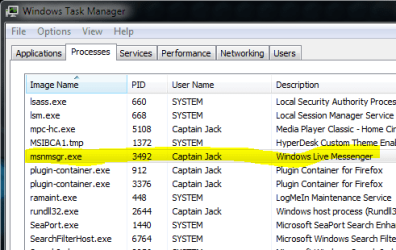
1. First we have to shutdown Windows Live Messenger if it's running. Press Ctrl+Alt+Del and Select Start Task Manager then click on Processes Tab find msnmsgr.exe and click on End Process.
2. Then we have to remove Windows Live Messenger from Programs and Features. So go to Start then under search type in Programs and Features
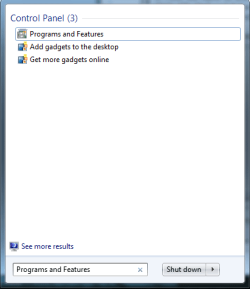
3. Under Programs and Features look for Windows Live Essentials then click of Uninstall
4. Then it will give you an option to Remove all the Windows Live Programs like Windows Live Mail, Windows Live Writer etc. You might wanna remove all of them then it will more smooth.
5. Once the Uninstall is completely then download and install CCleaner. Once it's uninstalled, then run CCleaner.
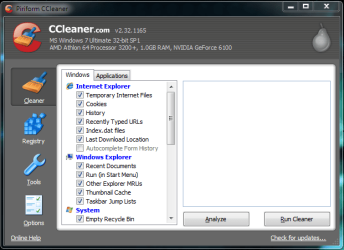
6. Click on Run Cleaner to make sure all the Temp files are removed.
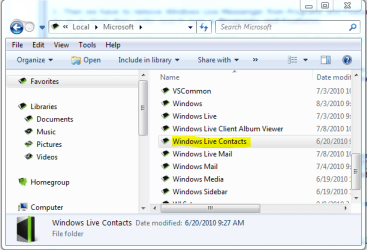
7. Now we have to remove the Contact cache folders located under Application Data folder for that go to Start under search type in %USERPROFILE%\AppData\Local\Microsoft\ and Hit Enter and Delete the Windows Live Contacts folder.
8. Now we have to delete few left over keys in Registry make sure you make a backup of the Registry.
9. Now go to Start and under search type in Regedit and press enter.
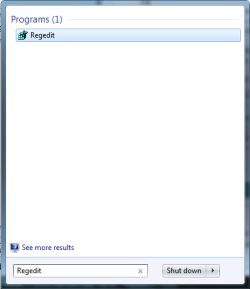
10. If prompted by UAC, then click on Yes.
11. In regedit, navigate to each location below.
- HKEY_LOCAL_MACHINE\Software\Microsoft\Windows Live and Delete Messenger folder
- HKEY_LOCAL_MACHINE\Software\Microsoft and Delete MSNMessenger
- HKEY_CURRENT_USER\Software\Microsoft and Delete MSNMessenger
- HKEY_CURRENT_USER\Software\Microsoft\Windows Live\Communications Clients and Delete Shared
- HKEY_CURRENT_USER\Software\Microsoft and Delete IdentityCRL
Hope this helps,
Captain
Last edited by a moderator:


