Wireless Troubleshooting Guide
Wireless issues that can be fixed by using these steps
(Limited or no connectivity, Connected but no data transfer, Can't connect to access point/router, etc...)
*Close all active applications
*Click Start -> Control Panel -> Network Connections
*Right click Wireless Network Connection, select Properties, Wireless Connection Properties window appears
*Wireless Connection Properties should contain at least three tabs (General, Wireless Network, Advanced)
**If Wireless Network is not present do steps below
***Close Wireless Connection Properties window
***Click Start -> Run, Type: services.msc, click ok
***Services window should appear
***Scroll all the way down and locate Wireless Zero Configuration
***Right click Wireless Zero Configuration, select Properties
***Make sure that the start-up type is set to Automatic, change if not
***If Wireless Zero Configuration service is started or stopped, re-start or start service
***Close Services windows (Wireless Network tab should now be activated)
**If Wireless Network tab is present continue below
*Click on Wireless Network tab
*Make sure that there's a check mark on the "Use Windows to configure my wireless connection automatically"
*In the Preferred Networks list, make sure that the box is empty, if not delete all access points found
*Just below the Preferred Networks list box, click on the Advanced button, a small window will appear
*Select the first option - Automatically connect to preferred networks
*Put a check mark on the last line that says - Connect to non-preferred networks
*Click close
*Click Ok on the Wireless Network Properties
*Go back to Control Panel -> click System -> System Properties window will come up
*Click on Hardware tab -> click on Device Manager button, Device Manager windows come up
*In Device Manager, click on the "+" beside Network Adapters to expand contents
*Right click and select un-install the Wireless Network device and confirm removal on the warning window
*Close all active windows
*Restart laptop/pc
*Upon startup, found new hardware will appear
**If no, found new hardware appears, the driver has already been installed automatically and should continue with the next steps
*Windows should automatically re-install the Wireless Network Device drivers
*Upon completion of installation, a pop-up window will appear stating "One or more wireless networks detected, click here for more options"
*Click on the balloon to bring up the "Available Wireless Networks Windows"
*You should now be able to see all available Wireless Networks in range
*Select desired Access Point to connect to then once connected, you should be able to browse the internet with no problems
***These steps should be able to resolve all if not most of the wireless issues encountered
Reminder: If connecting to a secured Wireless Access Point, entering an incorrect key will still allow you to connect but you will not be able to browse.
Notes: If after all these steps, you are still unable to connect or view any available networks, do the following with the Wireless Router
*Reset router
*Change "Channels"
*Change Work Mode to "g" only (can use "n" if present depending on your wireless card capability)
Try to connect to the wireless router with no security enabled, if successful and able to browse, you can then proceed to enable the security again
If you are able to detect Wireless Networks in range, you can safely assume that there's nothing wrong with the Wireless Network Card/Device installed on the computer
On intermittent Connections: Make sure that Windows built-in Firewall is turned off as well as any anti-virus programs, anti-spy-ware programs and the like are de-activated before doing these steps and/or before
attempting to connect to any Wireless Networks.
Applicable OS: Windows 2000/XP/Vista/7
Some window(s)/properties may be located differently depending on your OS. Adjust accordingly
I've designed these steps for one of the OEM I used to support




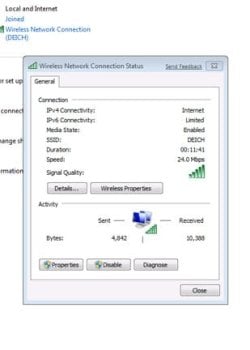
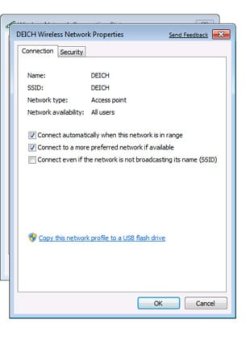
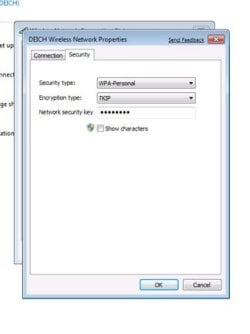
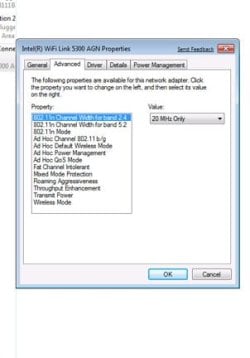

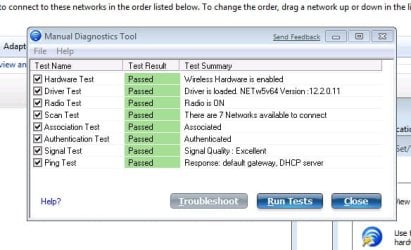
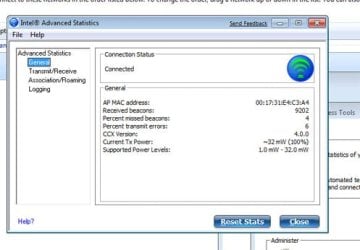


 but have to spread it around ATM but will add when i can


