XP mode won't start

bittert

New member
Local time
11:39 PM
Messages
8
Location
Netherlands
Hi,

After using XP mode for a while it just won't start anymore.
The screen that pops up when it is starting does pop up, but after completing like 30% it goes back to 0% and that repeats time after time.

I won't mind re installing it, but I do need some files saved to the desktop, anyone know how I can get them, or how I can get XP mode to work again?

Thanks,

bittert
 

My Computer

Computer Manufacturer/Model Number
HP elitebook 8530w
OS
win 7 Pro 64 bit
CPU
T9600 2,8 Ghz
Memory
4GB
Graphics Card(s)
Nvidea Quadro FX 770M
Screen Resolution
1680 X 1050

My Computer

Computer type
PC/Desktop
Computer Manufacturer/Model Number
Custom built by me.
OS
Windows 10 Pro
CPU
Intel Core i7-4770K (3.5Ghz)
Motherboard
Gigabyte G1 Sniper 5 (F10 Bios)
Memory
32 gig Corsair Dominator Platinum (4x8Gig)
Graphics Card(s)
Sapphire Tri-X R9 Fury
Sound Card
Soundblaster ZXR
Monitor(s) Displays
NEC PA242W 24" LCD Monitor
Screen Resolution
1920 x 1200
Hard Drives
Primary - Samsung 850 Pro (512gig), Samsung 840 Pro (256gig), 2TB WD Caviar Black.
PSU
EVGA Supernova 1000 G2
Case
Cooler Master HAF X
Cooling
Corsair H100i with Corsair Air Series SP120 Quiet Fans
Keyboard
Logitech Wireless Wave
Mouse
Logitech Performance MX
Internet Speed
High Speed Cable
Antivirus
Norton Security
Browser
IE11
Other Info
Memory Timings - 1866MHz @ 9-9-9-27-1T @ 1.5 volts
Thanks for the quick reply!
I don't get any error message, it just keeps "rebooting" it seems..
I'll try to create a new virtual machine tomorrow and see if I can work around it like that.
Thanks!
 

My Computer

Computer Manufacturer/Model Number
HP elitebook 8530w
OS
win 7 Pro 64 bit
CPU
T9600 2,8 Ghz
Memory
4GB
Graphics Card(s)
Nvidea Quadro FX 770M
Screen Resolution
1680 X 1050
I just created a second virtual machine,
It starts, and when I see the win xp screen I get a blue screen.
Think a new install will be required, but is there any way to retrieve files from that desktop?

Thanks
 

My Computer

Computer Manufacturer/Model Number
HP elitebook 8530w
OS
win 7 Pro 64 bit
CPU
T9600 2,8 Ghz
Memory
4GB
Graphics Card(s)
Nvidea Quadro FX 770M
Screen Resolution
1680 X 1050
I just created a second virtual machine,
It starts, and when I see the win xp screen I get a blue screen.
Think a new install will be required, but is there any way to retrieve files from that desktop?

Thanks

Before re-installing VPC and XPM, copy the problem virtual drive to another location. The vhd-file you have to copy is C:\Users\Your_Username\AppData\Local\Microsoft\Windows Virtual PC\Virtual Machines\Windows XP Mode.vhd

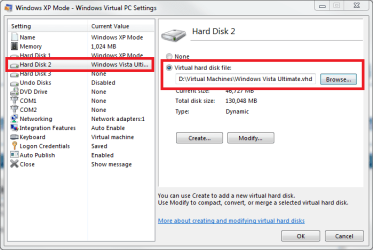
After re-installing, go to the new XP Mode's settings, choose Hard Disk 2 and mount the old XP Mode vhd-file as a second hard disk:

XPM_HD2.png

Boot your new XP Mode, move files you need from E: (default Hard Disk 2 in XP Mode) to C:. Turn off the XP Mode, go back to settings and unmount the Hard Disk 2. Afterwards you can delete the old XPM vhd-file.

Please remember you have to uninstall Virtual PC and XP Mode before reinstalling. Read here how to do that.

Kari
 
Last edited:

My Computer

Computer type
Laptop
Computer Manufacturer/Model Number
HP ENVY 17-1150eg
OS
Windows 10 Pro x64 EN-GB
CPU
1.6 GHz Intel Core i7-720QM Processor
Memory
6 GB
Graphics Card(s)
ATI Mobility Radeon HD 5850 Graphics
Sound Card
Beats sound system with integrated subwoofer
Monitor(s) Displays
17" laptop display, 22" LED and 32" Full HD TV through HDMI
Screen Resolution
1600*900 (1), 1920*1080 (2&3)
Hard Drives
Internal: 2 x 500 GB SATA Hard Disk Drive 7200 rpm
External: 2TB for backups, 3TB USB3 network drive for media
Cooling
As Envy runs a bit warm, I have it on a Cooler Master pad
Keyboard
Logitech diNovo Media Desktop Laser (bluetooth)
Mouse
Logitech Performance Mouse MX
Internet Speed
50/10 Mbps VDSL
Antivirus
Windows Defender 4.3.9431.0
Browser
Maxthon 3.5.2., IE11
Last night I finally had time to do this.
I got my files back, thanks Kari!
 

My Computer

Computer Manufacturer/Model Number
HP elitebook 8530w
OS
win 7 Pro 64 bit
CPU
T9600 2,8 Ghz
Memory
4GB
Graphics Card(s)
Nvidea Quadro FX 770M
Screen Resolution
1680 X 1050
Nice to hear it worked!
 

My Computer

Computer type
Laptop
Computer Manufacturer/Model Number
HP ENVY 17-1150eg
OS
Windows 10 Pro x64 EN-GB
CPU
1.6 GHz Intel Core i7-720QM Processor
Memory
6 GB
Graphics Card(s)
ATI Mobility Radeon HD 5850 Graphics
Sound Card
Beats sound system with integrated subwoofer
Monitor(s) Displays
17" laptop display, 22" LED and 32" Full HD TV through HDMI
Screen Resolution
1600*900 (1), 1920*1080 (2&3)
Hard Drives
Internal: 2 x 500 GB SATA Hard Disk Drive 7200 rpm
External: 2TB for backups, 3TB USB3 network drive for media
Cooling
As Envy runs a bit warm, I have it on a Cooler Master pad
Keyboard
Logitech diNovo Media Desktop Laser (bluetooth)
Mouse
Logitech Performance Mouse MX
Internet Speed
50/10 Mbps VDSL
Antivirus
Windows Defender 4.3.9431.0
Browser
Maxthon 3.5.2., IE11
Alternate solution

Just an update and possible alternate solution...

I had this problem and went into the same folder as the .vhd file. If you have XP Mode open or--in my case--had the XP Mode freeze up and not shut down properly, there will be a .vsv file with the same name as your XP Mode. This is a saved state file for the XP Mode.

I deleted this file and my XP Mode booted properly. Since I didn't touch the .vhd file, everything on the virtual hard drive was intact and the XP Mode was in the same state as when I previously tried to shut it down and got into this mess.

I hope this helps others in the future!
 

My Computer

OS
Windows 7 Pro x64
A simple way to extract data from an unbootable Windows Virtual Hard Disk is to use 7-Zip.

Assuming that the VHD has not been corrupted beyond recognition, if you have 7-Zip, it will open VHD files as archives in the 7Z file manager.

It is then easily possible to copy the required folders and files from the guest filesystem in the VHD to the hard disk of the host system, just by dragging and dropping.
 

My Computer

Computer Manufacturer/Model Number
Acer 7520, Packard Bell dot se, Acer travelmate 2423
OS
Win 7 Ult + Starter, XP Pro +Home, 2kAS, Linux Mint 8, SuperOS
CPU
AMD 64 Athlon X2 , Intel Atom N450, Intel Celeron M 1.50 Ghz
Motherboard
Acer Fuquene
Memory
2.5GB ; 1GB; 2GB
Graphics Card(s)
Nvidia GeForce7000m; Intel; Intel
Sound Card
Realtek AC57
Monitor(s) Displays
17" ;10.1"; 19"
Screen Resolution
1440x900;1024x600;1440x900;
Hard Drives
WD 80, WD 320;
PSU
19v
Case
Laptop
Cooling
Air
Internet Speed
9.7Mb/s down 0.99Mb/s up
Other Info
ISP VIRGINMEDIA 10M cable broadband - D-Link DIR615 wireless router, 3Com OfficeConnect ASDL router used as wireless extender switch
This is for Jub. I've lost most of my hair doing tech.
So, on those rare occasions when I get lucky, I need to say so.
I had a VM that wouldn't start. I followed your advice of deleting .VSV. It took 5 minutes and everything was FINE. Thank you so much!
One comment: In my case, it was also necessary to open Task Manager and find the VPC line and press "End Process".
Great job, Jub. T H A N K Y O U.
 

My Computer

OS
Windows (XP, 2000, Vista, 7)
You guys rock!

Thank you so much to Jub and Cardinal24.
A bit more info for the blondes out there (yes I even managed it!), if your XP Mode won't start.
Locate the .VSV - (from desktop, hit F3, search C: drive for .VSV)
Delete the .VSV file (will be named something like WinXP Mode.VSV, didn't take note!)

If that doesn't solve it, yes, go to the Task Manager (I didn't know how to find that! So went Control Panel, then top right corrner Search Box, search for Task Manager. Results give you a link to Task manager).
Scroll down the list on the "Processes" tab, find the process referring to VPC, and bottom right corner I think it was, "End Process".
It took longer to join and make this post than get my XP Mode running, thamk you guys!!
 

My Computer

Computer type
PC/Desktop
OS
Win XP
Back
Top