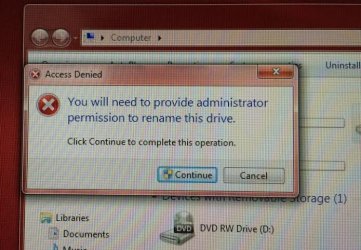
I purchased my computer 11 months ago and had two additional hard drives installed 5 months ago. I had a technician install and format them for me. A couple of days after I brought my computer home. I renamed one of the hard drives successfully. Now 5 months later I am unable to rename the other hard drive due to getting this error "You will need to provide administrator permissions to rename drive". I haven't done anything to change any settings. What would cause this out of the blue?
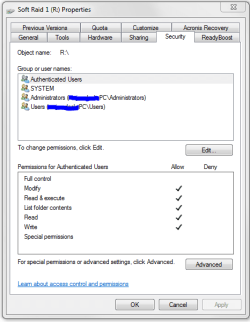
I have read something about adding my user in the security tab of the properties of the hard drive. Administrator is already listed in the security tab, so that doesn't make sense as I am the administrator with Full rights. In the same dialog box if I click on Advanced and go to the Owner tab. The Owner says SYSTEM. What is the purpose of the Owner being SYSTEM and why?
I checked all the settings on the other hard drive that I renamed 5 months ago and every setting is the same as this hard drive. It seems that something must have caused a change somewhere.
Would a Windows update have changed any of these settings? This isn't making sense when I haven't changed anything on my computer. In fact, I hardly use this computer cause I have a laptop that I use more regularly. Recently I had this computer turned off for at least a month or longer.
I'm looking for an easy way to maybe change a setting that can be changed back the way it was easily after renaming the hard drive.
My Computer
At a glance
Windows 7 Home Premium 64bitIntel Core i7 3.40 GHz8 GB
Computer type
PC/Desktop
Computer Manufacturer/Model Number
Dell XPS8700
OS
Windows 7 Home Premium 64bit
CPU
Intel Core i7 3.40 GHz
Memory
8 GB
Hard Drives
Main Hard Drive
2 Additional Western Digital Hard Drives
Since your pc was off for so long I would first check to make sure it starts up with the right date and time (your cmos batt might be dead causing security conflicts). Your security has all four of these groups correct?
Attachments
permissions.PNG
14.7 KB
· Views: 28
My Computer
At a glance
10 Pro x64Ryzen 9 3900X64GB(4x16GB) DDR4EVGA 1080ti FTW3
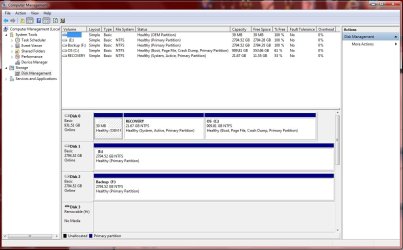
I've attached the screenshot of the disk management.
Drive (E) shows as "Local Disk" when I view the hard drives in My Computer. I see in disk management it is showing as not being named other than the drive letter.
Drive (F) that is named Backup is the drive that I renamed 5 months ago.
Attachments
CompMngScrnSht.jpg
135.7 KB
· Views: 5
My Computer
At a glance
Windows 7 Home Premium 64bitIntel Core i7 3.40 GHz8 GB
Computer type
PC/Desktop
Computer Manufacturer/Model Number
Dell XPS8700
OS
Windows 7 Home Premium 64bit
CPU
Intel Core i7 3.40 GHz
Memory
8 GB
Hard Drives
Main Hard Drive
2 Additional Western Digital Hard Drives
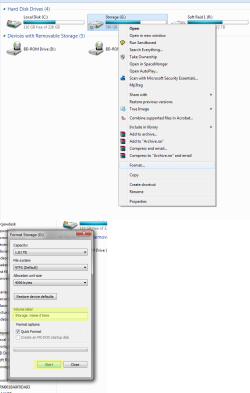
From that pick it all looks good, but it looks like you have nothing in the drives is that correct? if you do not have anything in E can you format it and when formatting it label it what you want? Right click it in explorer and choose format (only if you have nothing in it).
My Computer
At a glance
10 Pro x64Ryzen 9 3900X64GB(4x16GB) DDR4EVGA 1080ti FTW3
I do have a few files on the drive but it isn't showing as taking up any space. I have no idea how to format the drive. Is it possible to name the drive from within computer management?
My Computer
At a glance
Windows 7 Home Premium 64bitIntel Core i7 3.40 GHz8 GB
Computer type
PC/Desktop
Computer Manufacturer/Model Number
Dell XPS8700
OS
Windows 7 Home Premium 64bit
CPU
Intel Core i7 3.40 GHz
Memory
8 GB
Hard Drives
Main Hard Drive
2 Additional Western Digital Hard Drives
Copy the info out of the drive to somewhere else then format like so. You can also try to name it buy going to its properties its at the top of the window.
Attachments
Formating.png
35.6 KB
· Views: 3
My Computer
At a glance
10 Pro x64Ryzen 9 3900X64GB(4x16GB) DDR4EVGA 1080ti FTW3
I was looking at the error message that I got again and have attached a screen shot. What would this do if I was to click the continue button on the Access Denied popup?
Attachments
AccessDeniedScrnSht.jpg
95 KB
· Views: 11
My Computer
At a glance
Windows 7 Home Premium 64bitIntel Core i7 3.40 GHz8 GB
Computer type
PC/Desktop
Computer Manufacturer/Model Number
Dell XPS8700
OS
Windows 7 Home Premium 64bit
CPU
Intel Core i7 3.40 GHz
Memory
8 GB
Hard Drives
Main Hard Drive
2 Additional Western Digital Hard Drives
Oh hit continue and see if it thinks you have the credentials to do it. It will probably just succeed. If it fails you can probably do the same with diskpart but will wait before we explain that as its much more technical.
My Computer
At a glance
10 Pro x64Ryzen 9 3900X64GB(4x16GB) DDR4EVGA 1080ti FTW3
Samsung 128GB 840 Pro SSD (1),
Samsung 4TB 850 EVO SSDs (4)
Samsung 4TB 850 EVO SSDs (16) external backup drives used in 2.5" hot swap bays in the computer.
PSU
Corsair HX750w
Case
Antec Two Hundred v2 (modified)
Cooling
Cooler Master GeminII S524 120mm (fan replaced with a 140mm)
If this thread can be of help to anyone else. Here's what I did. I called my computer tech that installed the drives. He was really helpful and explained that the reason for the popup was that it was Windows way of protecting you from yourself when you make changes to your computer.
I went to the properties dialog box and I hit Apply on the properties dialog box and got the popup a second time then hit continue again and so far everything is fine. My computer tech assured me he could fix it if anything went wrong and if anything went wrong only the drive I was renaming would be affected.
I now have a renamed hard drive. Yay!!!!
My Computer
At a glance
Windows 7 Home Premium 64bitIntel Core i7 3.40 GHz8 GB
Computer type
PC/Desktop
Computer Manufacturer/Model Number
Dell XPS8700
OS
Windows 7 Home Premium 64bit
CPU
Intel Core i7 3.40 GHz
Memory
8 GB
Hard Drives
Main Hard Drive
2 Additional Western Digital Hard Drives