Partition or Volume - Shrink

How to Shrink a Partition or Volume in Windows 7

   Information
This will show you how to shrink an existing partition or volume using Disk Management or Diskpart in Windows 7 to create unallocated disk space, from which you can create a new partition or volume with.
   Warning
You must be logged on in an administrator account to be able to do this tutorial.

If while shrinking a partition below, you get a Convert to Dynamic disks? type prompt, do not do so.

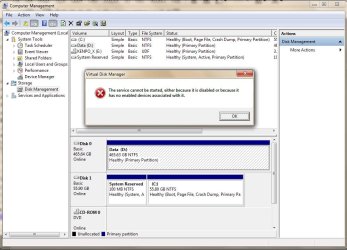
If you disable the Disk Defragmenter service, then you will get the error below when you try to do anything in Disk Management. If you get this error, then make sure that the Disk Defragmenter service is set to only Manual.
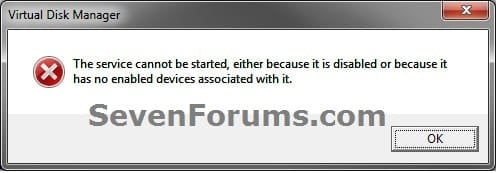
Error.jpg


OPTION ONE

Using Disk Management


1. Open the Control Panel (icons view), and click on the Administrative Tools icon. then close the Control Panel window.

2. Click on Computer Management in Administrative Tools, then close the Administrative Tools window.

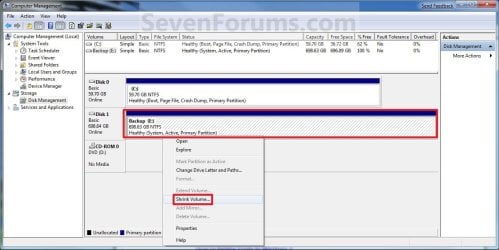
3. In the left pane under Storage, click on Disk Management. (See screenshot below)
Shrink_Step1.jpg
4. In the middle pane, right click on the partition that you want to shrink and click on Shrink Volume. (See screenshot above)

5. Type in how many MB (1 GB = 1024 MB) of the available shrink space shown that you want to shrink the partition or volume by to be used for the new unallocated space, then click on the Shrink button. (See screenshot below)
   Warning
The size of the available shrink space can be restricted by the amount of space currently allocated to on the hard drive for the virtual memory page file, System Protection maximum storage space size, and hibernation files. The location of the files on the hard drive plays a big part here because these files are marked as unmovable, and Disk Management is unable to relocate them. As such, if these unmovable files are located in the middle of the total amount of free space on the disk, then only the amount of free space on the other side (to the right) of these files will actually be available for the new partition. This will result in you showing that you have x amount of free space, but not being able to use it for your partition. The only way around this is to use a 3rd party hard drive partition management program, or setup the partition when installing Vista.

Shrink_Step2.jpg
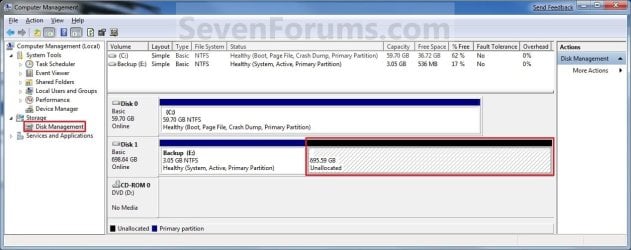
6. The selected partition (step 4) has now been shrunk to create a new empty unallocated space. You can use this new unallocated space to create a new partition with. (See screenshot below)
Shrink_Step3.jpg
7. Close the Computer Management window. (See screenshot above)


OPTION TWO

Using Diskpart in a Elevated Command Prompt


1. Open a elevated command prompt, or a command prompt at boot.

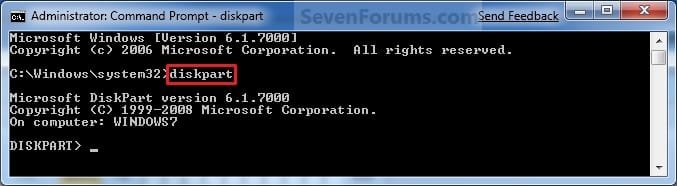
2. In the elevated command prompt, type diskpart and press Enter. (See screenshot below)
CMD_Shrink_Step1.jpg
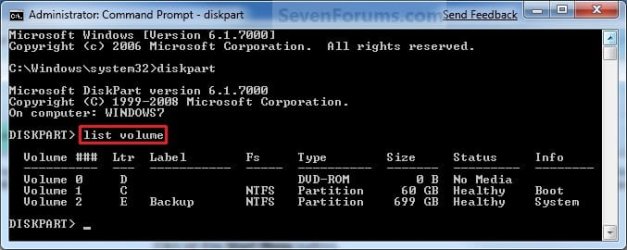
3. In the elevated command prompt, type list volume and press Enter. (See screenshot below)
NOTE: This will give you a list of volume numbers to select from to shrink.
CMD_Shrink_Step2.jpg
4. In the elevated command prompt, type select volume # and press Enter. (See screenshot below)
NOTE: You would substitute # for the volume number listed that you want to shrink. For example, I want to shrink the listed volume 2, so I would type select volume 2 and press Enter.
CMD_Shrink_Step3.jpg
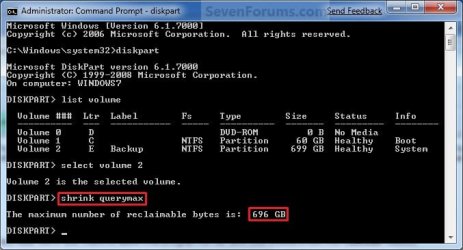
5. In the elevated command prompt, type shrink querymax and press Enter. (See screenshot below)
NOTE: This will give you the maximum amount of size in MB that you can shrink the selected partition or volume (step 4) by to be used as the new unallocated space. For example, I have 696 GB available to shrink.
CMD_Shrink_Step4.jpg
6. To Shrink All of the Available Space
A) In the elevated command prompt, type shrink and press Enter.
NOTE: This will shrink the selected partition or volume by all of the maximum number of reclaimable bytes (step 4) to be used for the new unallocated space.

B) Go to step 8.
7. To Shrink the Available Space by a Specified Size
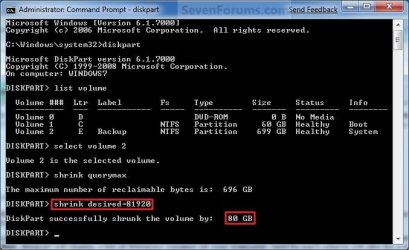
A) In the elevated command prompt, type shrink desired=(# in MB) and press Enter. (See screenshot below)
NOTE: You would substitute (# in MB) for how many MB (1 GB = 1024 MB) you want to shrink the selected partition or volume (step 4) by to be used for the new unallocated space. For example, if I only wanted to shrink the partition or volume by 81920 MB (80 GB), then I would type shrink desired=81920 and press Enter.
CMD_Shrink_Step5.jpg
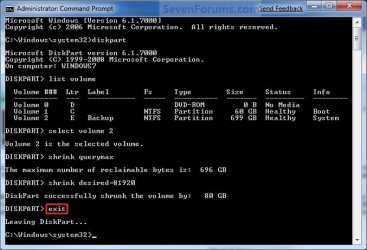
8. In the elevated command prompt, type exit and press Enter. (See screenshot below)
CMD_Shrink_Step6.jpg
9. Close the elevated command prompt.

10. The selected partition (step 4) has now been shrunk to create a new empty unallocated space. You can use this new unallocated space to create a new partition with.
That's it,
Shawn


Last edited:
You're most welcome.

LOL, yeah tons of fun for a Saturday. ;)
 

My Computer

Computer type
PC/Desktop
Computer Manufacturer/Model Number
Self built custom
OS
64-bit Windows 11 Pro for Workstations
CPU
Intel i7-8700K OC'd to 5 GHz
Motherboard
ASUS ROG Maximus XI Formula Z390
Memory
64 GB (4x16GB) G.SKILL TridentZ RGB DDR4 3600 MHz
Graphics Card(s)
ASUS ROG-STRIX-GTX1080TI-O11G-GAMING
Sound Card
Integrated
Monitor(s) Displays
2 x Samsung Odyssey G7 27"
Screen Resolution
2560x1440
Hard Drives
1TB Samsung 990 PRO M.2,
4TB Samsung 990 PRO PRO M.2,
TerraMaster F8 SSD Plus NAS
PSU
Seasonic Prime Titanium 850W
Case
Thermaltake Core P3
Cooling
Corsair Hydro H115i
Keyboard
Logitech wireless K800
Mouse
Logitech MX Master 4
Internet Speed
2 Gb/s Download and 100 Mb/s Upload
Antivirus
Malwarebyte Anti-Malware Premium
Browser
Google Chrome
Other Info
Logitech Z625 speaker system,
Logitech BRIO 4K Pro webcam,
HP Color LaserJet Pro MFP M477fdn,
APC SMART-UPS RT 1000 XL - SURT1000XLI,
Galaxy S23 Plus phone
Getting an error message...

When I try to Shrink my volume so I can create a partition, I get this error... :( I've made sure that all the right services are running, and I also ran it as an Admin. Any ideas? THank you

UPDATE: Nevermind! I figured it out. :rolleyes: Did some searching and found out that I have to enable Disk Defragmenting service. I have it disabled because I have an SSD. I can just turn it back off when Im done. :p
 

Attachments

  • error.jpg
    error.jpg
    93.3 KB · Views: 149
Last edited:

My Computer

OS
Windows 7 Ultimate x64
CPU
AMD Phenom II X4
Motherboard
ASRock 770 Extreme 3
Memory
Ripjaw 4GB 1600
Graphics Card(s)
NVidia GTX 460
PSU
Apevia 680W
Case
Cooler Master Haf 922
Keyboard
Logitech Wave
Mouse
Rosewill Wireless Laser
Internet Speed
FIOS
Other Info
Red and Black UV internal case lights
Thanks!

Thank you for the great tutorial! Now I can install Windows 8 Developer Preview on a new partition. So excited!! :party:
 

My Computer

OS
Windows 7 Ultimate x64
CPU
AMD Phenom II X4
Motherboard
ASRock 770 Extreme 3
Memory
Ripjaw 4GB 1600
Graphics Card(s)
NVidia GTX 460
PSU
Apevia 680W
Case
Cooler Master Haf 922
Keyboard
Logitech Wave
Mouse
Rosewill Wireless Laser
Internet Speed
FIOS
Other Info
Red and Black UV internal case lights
Hello JaminRoe, and welcome to Seven Forums.

That's great news. Have fun playing with Windows 8. :party:
 

My Computer

Computer type
PC/Desktop
Computer Manufacturer/Model Number
Self built custom
OS
64-bit Windows 11 Pro for Workstations
CPU
Intel i7-8700K OC'd to 5 GHz
Motherboard
ASUS ROG Maximus XI Formula Z390
Memory
64 GB (4x16GB) G.SKILL TridentZ RGB DDR4 3600 MHz
Graphics Card(s)
ASUS ROG-STRIX-GTX1080TI-O11G-GAMING
Sound Card
Integrated
Monitor(s) Displays
2 x Samsung Odyssey G7 27"
Screen Resolution
2560x1440
Hard Drives
1TB Samsung 990 PRO M.2,
4TB Samsung 990 PRO PRO M.2,
TerraMaster F8 SSD Plus NAS
PSU
Seasonic Prime Titanium 850W
Case
Thermaltake Core P3
Cooling
Corsair Hydro H115i
Keyboard
Logitech wireless K800
Mouse
Logitech MX Master 4
Internet Speed
2 Gb/s Download and 100 Mb/s Upload
Antivirus
Malwarebyte Anti-Malware Premium
Browser
Google Chrome
Other Info
Logitech Z625 speaker system,
Logitech BRIO 4K Pro webcam,
HP Color LaserJet Pro MFP M477fdn,
APC SMART-UPS RT 1000 XL - SURT1000XLI,
Galaxy S23 Plus phone
I really need help with partitioning!

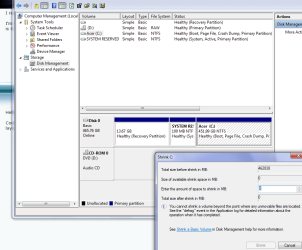
I'm trying to do the dual boot with 7 and 8, but I can't shrink the volume because it just says the available value is 0 MB. This has something to do with unmovable files, right? How do I remedy this?
 

My Computer

Computer type
PC/Desktop
OS
Microsoft Windows 7 Home Premium 64-bit 7601 Multiprocessor Free Service Pack 1
CPU
AMD FX-6300 3.5GHz
Motherboard
AsRock 970 Extreme3 R2.0
Memory
8.00 GB
Graphics Card(s)
AMD Radeon 270x
Sound Card
(1) High Definition Audio Device (2) Envy24 Family Audio C
Screen Resolution
1920 x 1080
Hard Drives
ST3500418AS ATA Device
PSU
Thermaltake 600w
Hello Frosst,

Could you post a screenshot of your Disk Management (diskmgmt.msc) window showing all of your HDD(s) layout? This would give us a better idea of what your options may be. :)
 

My Computer

Computer type
PC/Desktop
Computer Manufacturer/Model Number
Self built custom
OS
64-bit Windows 11 Pro for Workstations
CPU
Intel i7-8700K OC'd to 5 GHz
Motherboard
ASUS ROG Maximus XI Formula Z390
Memory
64 GB (4x16GB) G.SKILL TridentZ RGB DDR4 3600 MHz
Graphics Card(s)
ASUS ROG-STRIX-GTX1080TI-O11G-GAMING
Sound Card
Integrated
Monitor(s) Displays
2 x Samsung Odyssey G7 27"
Screen Resolution
2560x1440
Hard Drives
1TB Samsung 990 PRO M.2,
4TB Samsung 990 PRO PRO M.2,
TerraMaster F8 SSD Plus NAS
PSU
Seasonic Prime Titanium 850W
Case
Thermaltake Core P3
Cooling
Corsair Hydro H115i
Keyboard
Logitech wireless K800
Mouse
Logitech MX Master 4
Internet Speed
2 Gb/s Download and 100 Mb/s Upload
Antivirus
Malwarebyte Anti-Malware Premium
Browser
Google Chrome
Other Info
Logitech Z625 speaker system,
Logitech BRIO 4K Pro webcam,
HP Color LaserJet Pro MFP M477fdn,
APC SMART-UPS RT 1000 XL - SURT1000XLI,
Galaxy S23 Plus phone
Untitled4443222.png
 

My Computer

Computer type
PC/Desktop
OS
Microsoft Windows 7 Home Premium 64-bit 7601 Multiprocessor Free Service Pack 1
CPU
AMD FX-6300 3.5GHz
Motherboard
AsRock 970 Extreme3 R2.0
Memory
8.00 GB
Graphics Card(s)
AMD Radeon 270x
Sound Card
(1) High Definition Audio Device (2) Envy24 Family Audio C
Screen Resolution
1920 x 1080
Hard Drives
ST3500418AS ATA Device
PSU
Thermaltake 600w
Frosst,

Your screenshot doesn't show how much free space is available on the C: partition in the middle pane at the top. If you are low on free space, then you may not be able to shrink it.

For now, other factors that will limit how much you can shrink a system partition by is how much space is being used/allocated for the page file and system protection.
 

My Computer

Computer type
PC/Desktop
Computer Manufacturer/Model Number
Self built custom
OS
64-bit Windows 11 Pro for Workstations
CPU
Intel i7-8700K OC'd to 5 GHz
Motherboard
ASUS ROG Maximus XI Formula Z390
Memory
64 GB (4x16GB) G.SKILL TridentZ RGB DDR4 3600 MHz
Graphics Card(s)
ASUS ROG-STRIX-GTX1080TI-O11G-GAMING
Sound Card
Integrated
Monitor(s) Displays
2 x Samsung Odyssey G7 27"
Screen Resolution
2560x1440
Hard Drives
1TB Samsung 990 PRO M.2,
4TB Samsung 990 PRO PRO M.2,
TerraMaster F8 SSD Plus NAS
PSU
Seasonic Prime Titanium 850W
Case
Thermaltake Core P3
Cooling
Corsair Hydro H115i
Keyboard
Logitech wireless K800
Mouse
Logitech MX Master 4
Internet Speed
2 Gb/s Download and 100 Mb/s Upload
Antivirus
Malwarebyte Anti-Malware Premium
Browser
Google Chrome
Other Info
Logitech Z625 speaker system,
Logitech BRIO 4K Pro webcam,
HP Color LaserJet Pro MFP M477fdn,
APC SMART-UPS RT 1000 XL - SURT1000XLI,
Galaxy S23 Plus phone
According to Paragon I have 221GB free on C.
 

My Computer

Computer type
PC/Desktop
OS
Microsoft Windows 7 Home Premium 64-bit 7601 Multiprocessor Free Service Pack 1
CPU
AMD FX-6300 3.5GHz
Motherboard
AsRock 970 Extreme3 R2.0
Memory
8.00 GB
Graphics Card(s)
AMD Radeon 270x
Sound Card
(1) High Definition Audio Device (2) Envy24 Family Audio C
Screen Resolution
1920 x 1080
Hard Drives
ST3500418AS ATA Device
PSU
Thermaltake 600w
Are you able to shrink it using Paragon, or with the free Partition Wizard?
 

My Computer

Computer type
PC/Desktop
Computer Manufacturer/Model Number
Self built custom
OS
64-bit Windows 11 Pro for Workstations
CPU
Intel i7-8700K OC'd to 5 GHz
Motherboard
ASUS ROG Maximus XI Formula Z390
Memory
64 GB (4x16GB) G.SKILL TridentZ RGB DDR4 3600 MHz
Graphics Card(s)
ASUS ROG-STRIX-GTX1080TI-O11G-GAMING
Sound Card
Integrated
Monitor(s) Displays
2 x Samsung Odyssey G7 27"
Screen Resolution
2560x1440
Hard Drives
1TB Samsung 990 PRO M.2,
4TB Samsung 990 PRO PRO M.2,
TerraMaster F8 SSD Plus NAS
PSU
Seasonic Prime Titanium 850W
Case
Thermaltake Core P3
Cooling
Corsair Hydro H115i
Keyboard
Logitech wireless K800
Mouse
Logitech MX Master 4
Internet Speed
2 Gb/s Download and 100 Mb/s Upload
Antivirus
Malwarebyte Anti-Malware Premium
Browser
Google Chrome
Other Info
Logitech Z625 speaker system,
Logitech BRIO 4K Pro webcam,
HP Color LaserJet Pro MFP M477fdn,
APC SMART-UPS RT 1000 XL - SURT1000XLI,
Galaxy S23 Plus phone
Yes, Paragon worked. I successfully created the partition using the wizard that handles most of it automatically. It recommended that I partition 199GB, so I selected that, and then it was created. I then followed the other steps and successfully installed Windows 8 on the new partition.

Thank you very much for your help!
 

My Computer

Computer type
PC/Desktop
OS
Microsoft Windows 7 Home Premium 64-bit 7601 Multiprocessor Free Service Pack 1
CPU
AMD FX-6300 3.5GHz
Motherboard
AsRock 970 Extreme3 R2.0
Memory
8.00 GB
Graphics Card(s)
AMD Radeon 270x
Sound Card
(1) High Definition Audio Device (2) Envy24 Family Audio C
Screen Resolution
1920 x 1080
Hard Drives
ST3500418AS ATA Device
PSU
Thermaltake 600w
You're most welcome Frost. I'm happy to hear that you got it sorted. :)
 

My Computer

Computer type
PC/Desktop
Computer Manufacturer/Model Number
Self built custom
OS
64-bit Windows 11 Pro for Workstations
CPU
Intel i7-8700K OC'd to 5 GHz
Motherboard
ASUS ROG Maximus XI Formula Z390
Memory
64 GB (4x16GB) G.SKILL TridentZ RGB DDR4 3600 MHz
Graphics Card(s)
ASUS ROG-STRIX-GTX1080TI-O11G-GAMING
Sound Card
Integrated
Monitor(s) Displays
2 x Samsung Odyssey G7 27"
Screen Resolution
2560x1440
Hard Drives
1TB Samsung 990 PRO M.2,
4TB Samsung 990 PRO PRO M.2,
TerraMaster F8 SSD Plus NAS
PSU
Seasonic Prime Titanium 850W
Case
Thermaltake Core P3
Cooling
Corsair Hydro H115i
Keyboard
Logitech wireless K800
Mouse
Logitech MX Master 4
Internet Speed
2 Gb/s Download and 100 Mb/s Upload
Antivirus
Malwarebyte Anti-Malware Premium
Browser
Google Chrome
Other Info
Logitech Z625 speaker system,
Logitech BRIO 4K Pro webcam,
HP Color LaserJet Pro MFP M477fdn,
APC SMART-UPS RT 1000 XL - SURT1000XLI,
Galaxy S23 Plus phone
Would appreciate some assistance...

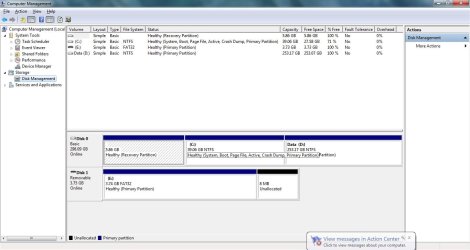
Have a Hannspree 12" netbook with W 7 Home Premium (32-bit) installed, and want to dual boot with Vista (32-bit).

The 320GB SATA hard drive is configured as follows:
5.86GB Healthy (Recovery Partition)
C:\ 39.06GB NTFS (System, Boot, PageFile, Active, Crash Dump, Primary Partition)
Data D:\ 253.17GB NTFS Healthy (Primary Partition)

There is no free Unallocated space.

What do I shrink to install Vista, the 39.06GB C:\, or the 253.17GB D:\?

Would presume it is D:\, but want to be safe rather than sorry.

Thanks for your help!
 

My Computer

Computer type
PC/Desktop
Computer Manufacturer/Model Number
An ol' eMachines
OS
Windows 7 Home Premium
Internet Speed
Fine for me...I'm retired!
Hello Canard,

I would need to see a screenshot of your Disk Management window showing all of your drives layout to be absolutely certain, but yes you would need to shrink the D: drive if it's the last partition on the far right. :)
 

My Computer

Computer type
PC/Desktop
Computer Manufacturer/Model Number
Self built custom
OS
64-bit Windows 11 Pro for Workstations
CPU
Intel i7-8700K OC'd to 5 GHz
Motherboard
ASUS ROG Maximus XI Formula Z390
Memory
64 GB (4x16GB) G.SKILL TridentZ RGB DDR4 3600 MHz
Graphics Card(s)
ASUS ROG-STRIX-GTX1080TI-O11G-GAMING
Sound Card
Integrated
Monitor(s) Displays
2 x Samsung Odyssey G7 27"
Screen Resolution
2560x1440
Hard Drives
1TB Samsung 990 PRO M.2,
4TB Samsung 990 PRO PRO M.2,
TerraMaster F8 SSD Plus NAS
PSU
Seasonic Prime Titanium 850W
Case
Thermaltake Core P3
Cooling
Corsair Hydro H115i
Keyboard
Logitech wireless K800
Mouse
Logitech MX Master 4
Internet Speed
2 Gb/s Download and 100 Mb/s Upload
Antivirus
Malwarebyte Anti-Malware Premium
Browser
Google Chrome
Other Info
Logitech Z625 speaker system,
Logitech BRIO 4K Pro webcam,
HP Color LaserJet Pro MFP M477fdn,
APC SMART-UPS RT 1000 XL - SURT1000XLI,
Galaxy S23 Plus phone
Here we go.

Saved it to a USB Pen Drive, and that is showing there as E:\...

Thanks again for your help.
 

Attachments

  • Untitled.jpg
    Untitled.jpg
    87.3 KB · Views: 191

My Computer

Computer type
PC/Desktop
Computer Manufacturer/Model Number
An ol' eMachines
OS
Windows 7 Home Premium
Internet Speed
Fine for me...I'm retired!

My Computer

Computer type
PC/Desktop
Computer Manufacturer/Model Number
Self built custom
OS
64-bit Windows 11 Pro for Workstations
CPU
Intel i7-8700K OC'd to 5 GHz
Motherboard
ASUS ROG Maximus XI Formula Z390
Memory
64 GB (4x16GB) G.SKILL TridentZ RGB DDR4 3600 MHz
Graphics Card(s)
ASUS ROG-STRIX-GTX1080TI-O11G-GAMING
Sound Card
Integrated
Monitor(s) Displays
2 x Samsung Odyssey G7 27"
Screen Resolution
2560x1440
Hard Drives
1TB Samsung 990 PRO M.2,
4TB Samsung 990 PRO PRO M.2,
TerraMaster F8 SSD Plus NAS
PSU
Seasonic Prime Titanium 850W
Case
Thermaltake Core P3
Cooling
Corsair Hydro H115i
Keyboard
Logitech wireless K800
Mouse
Logitech MX Master 4
Internet Speed
2 Gb/s Download and 100 Mb/s Upload
Antivirus
Malwarebyte Anti-Malware Premium
Browser
Google Chrome
Other Info
Logitech Z625 speaker system,
Logitech BRIO 4K Pro webcam,
HP Color LaserJet Pro MFP M477fdn,
APC SMART-UPS RT 1000 XL - SURT1000XLI,
Galaxy S23 Plus phone
Thanks, Brink!

That is exactly what I plan to use.

Your tutorials are always excellent. Thanks for sharing all your hard work.

Have a great week.
 

My Computer

Computer type
PC/Desktop
Computer Manufacturer/Model Number
An ol' eMachines
OS
Windows 7 Home Premium
Internet Speed
Fine for me...I'm retired!
You're most welcome Canard. Thank you. :)
 

My Computer

Computer type
PC/Desktop
Computer Manufacturer/Model Number
Self built custom
OS
64-bit Windows 11 Pro for Workstations
CPU
Intel i7-8700K OC'd to 5 GHz
Motherboard
ASUS ROG Maximus XI Formula Z390
Memory
64 GB (4x16GB) G.SKILL TridentZ RGB DDR4 3600 MHz
Graphics Card(s)
ASUS ROG-STRIX-GTX1080TI-O11G-GAMING
Sound Card
Integrated
Monitor(s) Displays
2 x Samsung Odyssey G7 27"
Screen Resolution
2560x1440
Hard Drives
1TB Samsung 990 PRO M.2,
4TB Samsung 990 PRO PRO M.2,
TerraMaster F8 SSD Plus NAS
PSU
Seasonic Prime Titanium 850W
Case
Thermaltake Core P3
Cooling
Corsair Hydro H115i
Keyboard
Logitech wireless K800
Mouse
Logitech MX Master 4
Internet Speed
2 Gb/s Download and 100 Mb/s Upload
Antivirus
Malwarebyte Anti-Malware Premium
Browser
Google Chrome
Other Info
Logitech Z625 speaker system,
Logitech BRIO 4K Pro webcam,
HP Color LaserJet Pro MFP M477fdn,
APC SMART-UPS RT 1000 XL - SURT1000XLI,
Galaxy S23 Plus phone
Hi to all,
I`m new here
I use Partition Wizard to shrink my HDD. I make new hdd and when my laptop restart i see wizard and everything.
But when windos start there is no new HDD ... everything is like before restart..
What can be this ?

edit:
Second try was successful. hm..
 
Last edited:

My Computer

OS
Windows 7 Ultimate x64
Hello Vinsbg, and welcome to Seven Forums.

You may have just not clicked on Apply (check mark) toolbar icon in Partition Wizard to apply your changes the first time. :)
 

My Computer

Computer type
PC/Desktop
Computer Manufacturer/Model Number
Self built custom
OS
64-bit Windows 11 Pro for Workstations
CPU
Intel i7-8700K OC'd to 5 GHz
Motherboard
ASUS ROG Maximus XI Formula Z390
Memory
64 GB (4x16GB) G.SKILL TridentZ RGB DDR4 3600 MHz
Graphics Card(s)
ASUS ROG-STRIX-GTX1080TI-O11G-GAMING
Sound Card
Integrated
Monitor(s) Displays
2 x Samsung Odyssey G7 27"
Screen Resolution
2560x1440
Hard Drives
1TB Samsung 990 PRO M.2,
4TB Samsung 990 PRO PRO M.2,
TerraMaster F8 SSD Plus NAS
PSU
Seasonic Prime Titanium 850W
Case
Thermaltake Core P3
Cooling
Corsair Hydro H115i
Keyboard
Logitech wireless K800
Mouse
Logitech MX Master 4
Internet Speed
2 Gb/s Download and 100 Mb/s Upload
Antivirus
Malwarebyte Anti-Malware Premium
Browser
Google Chrome
Other Info
Logitech Z625 speaker system,
Logitech BRIO 4K Pro webcam,
HP Color LaserJet Pro MFP M477fdn,
APC SMART-UPS RT 1000 XL - SURT1000XLI,
Galaxy S23 Plus phone
Back
Top