System Restore Point : Create at System Startup

How to Automatically Create System Restore Points in Windows 7 and 8


The two (2) separate methods outlined herein make it very easy to have fresh, reliable System Restore points available for use whenever needed; whether created by a system startup/restart or created by the Windows Task Scheduler; once it's setup you never have to be concerned with it again, it's all completely automatic.​


   Note
System Restore isn't available for Windows RT.

Credit for this goes to our own Microsoft MVP and all around good guy Brink who wrote these "Restore Point" scripts, without whose dedication and hard work with the Windows Operating Systems none of this would even be possible. Thanks Shawn! :)

Please view his original tutorial for pertinent Windows 7 information .

Windows 7 System Restore Point Shortcut

This will also work with Windows Vista.
Please view the relevant tutorial at Vista Forums at the link below.

Vista System Restore Point Shortcut
   Information
For those of you that would like to have the option to create restore points without restarting the system have a look at step #4 A below to add a shortcut to the desktop or the taskbar that can be used whenever needed without a system restart.

Be sure to have a look at Method Two below to see the steps to use the Windows Task Scheduler to automatically create System Restore points, once the task is created there is nothing further to do, there will always be daily, fresh System Restore points available for use if needed, even if the PC is never restarted at all.

Let's get started!


Method One

System Startup / Restart


1) The first thing that needs done is to download the file you want to use; to create a restore point with a description click the button below and select to save the file to the desktop.
Restore_Point_Shortcut.zip file (with description)


Download


2) To create a restore point without a description click the button below and save the file to the desktop.
Instant_Restore_Point.zip file (without description)


Download


3) Open the downloaded zip file, extract (drag and drop) the VBS file to the desktop, and unblock the VBS file.


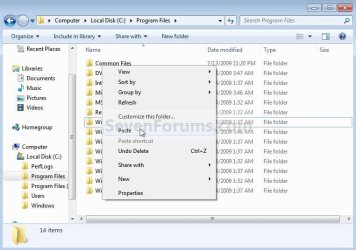
4) Navigate to "C:\Program Files" in Windows Explorer (not "Program Files (x86)" if you have 64-bit Windows), move the extracted and unblocked VBS file into the "C:\Program Files" folder, then close the "Program Files" window.
click any image to enlarge
Cut.jpg

Paste.jpg

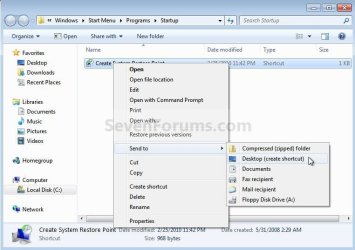
5) Now in the start menu navigate to and r click the "Startup File" to open the "Startup" file window; now back at the "Restore_Point Shortcut" window r click the "Create System Restore Point" shortcut and click cut, then in the "Startup" window at an empty spot click paste. A) Now if you want a shortcut on the desktop to create a restore point whenever needed (without restarting the PC) r click the "Instant Restore Point" shortcut in the "Startup" window and select "Send to, Desktop (create shortcut)" to place a shortcut on the desktop.
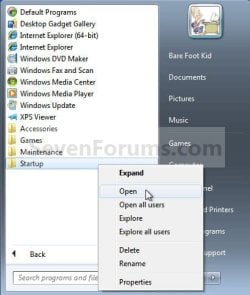
Start.jpg

Desktop Shortcut.jpg

6) You're done, now close all the windows and if you want, the zip and the restore point files that you downloaded can be deleted from the desktop.

To use the shortcut you just created.

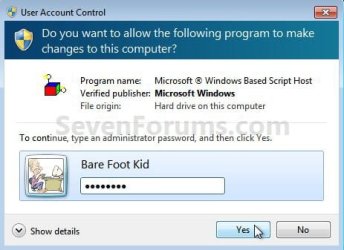
7) Whenever the PC boots to the desktop the first prompt you'll get is "Do you want to open this file?" click open then enter your user credentials for the UAC prompt and click yes.
click any image to enlarge
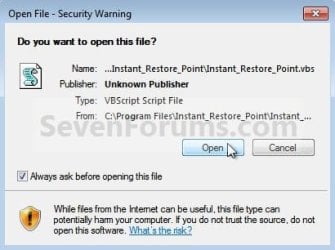
File Prompt.jpg

Prompt.jpg

8) If you have chosen to use the restore point creator with a description this last snip is the last step in the process, enter the description you want to use and click ok to finish up, that's all there is to it. I use the one with no description and with 2 clicks at bootup it's done.
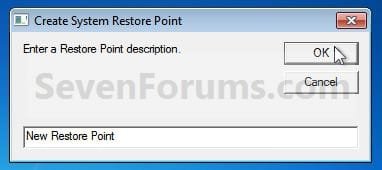
Description.jpg


Method Two

Windows Task Scheduler


1) Start by downloading this zip file to the Windows desktop.
Scheduled_Instant_Restore_Point.zip

Download


2) Open the downloaded zip file, extract (drag and drop) the VBS file to the desktop, and unblock the VBS file.

3) Navigate to "C:\Program Files" in Windows Explorer (not "Program Files (x86)" if you have 64-bit Windows), move the extracted and unblocked VBS file into the "C:\Program Files" folder, then close the "Program Files" window.
Cut.jpg

Paste.jpg

4) In the "Access Denied" dialog box that opens click Continue, if you get a UAC prompt, enter your user credentials and click Yes; then just close the Program Files window that opens.

You can now delete the downloaded Zip file from the desktop if you like.
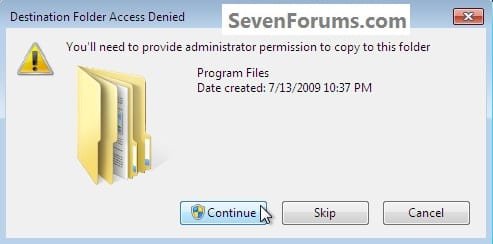
Continue.jpg
Now in the Windows start menu search box type taskschd.msc and hit the <enter> key. In the Task Scheduler window that opens at the right pane Actions column, click Create Task.

5) In the "Create Task" window that opens at the General tab, give the new task a Name, a description is optional, dot "Run whether user ... " put a check/tic at "Run with highest ... " and "Configure for ... " your flavor Windows.
click any image to enlarge
Task_General.jpg
6) Now still in the "Create Task" window click the Triggers tab, at the bottom left click the New button, in the New Trigger dialog box that opens be sure to select when you want the task to run and the daily time you want it to run and click OK.
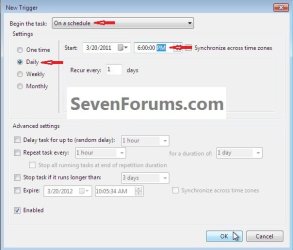
Task_Trigger.jpg
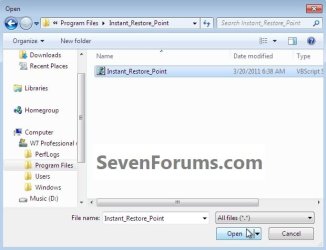
7) Now back at the "Create Task" window click the Actions tab, at the bottom left click the New button, in the New Action dialog box that opens click Browse (see #8 below), now browse to C:\Program Files and click the Instant_Restore_Point file you extracted there in step #2 above and click Open, then click the Instant_Restore_Point script and click Open again.
click any image to enlarge
Action_File.jpg

Action_Script.jpg

8) Now at the New Action dialog box that's still open click OK.
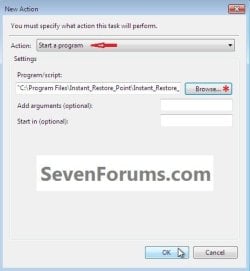
Action.jpg
9) In the Create Task window that's still open click OK, in the Account Information dialog box that opens add your user credentials and click OK.

That's all, you are now finished and you can close the Task Scheduler.
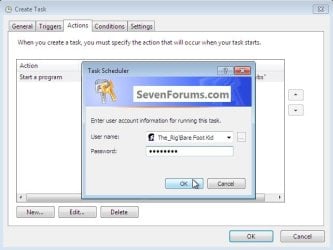
Password.jpg
Enjoy! :)
 

Attachments

Last edited by a moderator:
A system image would include your restore points since all system drives are included in it.

I'm not sure about cloning, but if you include everything, I would think it should.
 

My Computer

Computer type
PC/Desktop
Computer Manufacturer/Model Number
Self built custom
OS
64-bit Windows 11 Pro for Workstations
CPU
Intel i7-8700K OC'd to 5 GHz
Motherboard
ASUS ROG Maximus XI Formula Z390
Memory
64 GB (4x16GB) G.SKILL TridentZ RGB DDR4 3600 MHz
Graphics Card(s)
ASUS ROG-STRIX-GTX1080TI-O11G-GAMING
Sound Card
Integrated
Monitor(s) Displays
2 x Samsung Odyssey G7 27"
Screen Resolution
2560x1440
Hard Drives
1TB Samsung 990 PRO M.2,
4TB Samsung 990 PRO PRO M.2,
TerraMaster F8 SSD Plus NAS
PSU
Seasonic Prime Titanium 850W
Case
Thermaltake Core P3
Cooling
Corsair Hydro H115i
Keyboard
Logitech wireless K800
Mouse
Logitech MX Master 4
Internet Speed
2 Gb/s Download and 100 Mb/s Upload
Antivirus
Malwarebyte Anti-Malware Premium
Browser
Google Chrome
Other Info
Logitech Z625 speaker system,
Logitech BRIO 4K Pro webcam,
HP Color LaserJet Pro MFP M477fdn,
APC SMART-UPS RT 1000 XL - SURT1000XLI,
Galaxy S23 Plus phone
A system image would include your restore points since all system drives are included in it.

I'm not sure about cloning, but if you include everything, I would think it should.

WAIT A MINUTE!!

I would have to hunt down the thread, but I am pretty sure you stated that a WindowsImageBackup cannot include RESTORE PTS. + I confirmed that fact by actually restoring an OLD image. I believe the RESTORE PTS reside in the SYS VOL INFO directory which is essentially OFF LIMITS to everyone including 3rd party software. However, cloning sector by sector may transfer that info to another drive.

Am I correct or not?
 

My Computer

Computer type
PC/Desktop
OS
Windows 7 Home Prem 32 bit
I'm pretty sure that a system image would include them since it's a full copy of your system drives where restore points are stored as well.

A Windows Backup wouldn't, but a System Image should.
 

My Computer

Computer type
PC/Desktop
Computer Manufacturer/Model Number
Self built custom
OS
64-bit Windows 11 Pro for Workstations
CPU
Intel i7-8700K OC'd to 5 GHz
Motherboard
ASUS ROG Maximus XI Formula Z390
Memory
64 GB (4x16GB) G.SKILL TridentZ RGB DDR4 3600 MHz
Graphics Card(s)
ASUS ROG-STRIX-GTX1080TI-O11G-GAMING
Sound Card
Integrated
Monitor(s) Displays
2 x Samsung Odyssey G7 27"
Screen Resolution
2560x1440
Hard Drives
1TB Samsung 990 PRO M.2,
4TB Samsung 990 PRO PRO M.2,
TerraMaster F8 SSD Plus NAS
PSU
Seasonic Prime Titanium 850W
Case
Thermaltake Core P3
Cooling
Corsair Hydro H115i
Keyboard
Logitech wireless K800
Mouse
Logitech MX Master 4
Internet Speed
2 Gb/s Download and 100 Mb/s Upload
Antivirus
Malwarebyte Anti-Malware Premium
Browser
Google Chrome
Other Info
Logitech Z625 speaker system,
Logitech BRIO 4K Pro webcam,
HP Color LaserJet Pro MFP M477fdn,
APC SMART-UPS RT 1000 XL - SURT1000XLI,
Galaxy S23 Plus phone
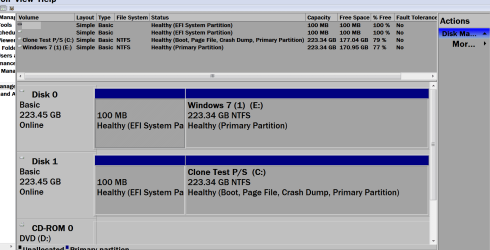
I'm on my Clone SSD at the present time.

Restore points are there.

I did a complete Clone using Macrium Reflect.

Here is just a few from my Clone restore points of the original system.

I hope this helps and I'm not getting in the way.

Shadow Copy ID: {ad1dddeb-6543-4282-94f1-b8eb895fd334}
Original Volume: (C:)\\?\Volume{2dd66727-c18a-4b53-9036-cc4d78177701}\
Shadow Copy Volume: \\?\GLOBALROOT\Device\HarddiskVolumeShadowCopy15
Originating Machine: Jack-PC
Service Machine: Jack-PC
Provider: 'Microsoft Software Shadow Copy provider 1.0'
Type: ClientAccessibleWriters
Attributes: Persistent, Client-accessible, No auto release, Differential, Auto re
covered

Contents of shadow copy set ID: {66f9ee91-1b46-4730-8ae3-ec428a24a9f9}
Contained 1 shadow copies at creation time: 4/19/2016 10:34:15 AM
Shadow Copy ID: {e60b6e1b-5415-4c91-8c38-194c6c5cc068}
Original Volume: (E:)\\?\Volume{cc1934e0-7154-4dc2-86f4-fde6173dce8f}\
Shadow Copy Volume: \\?\GLOBALROOT\Device\HarddiskVolumeShadowCopy4
Originating Machine: Jack-PC
Service Machine: Jack-PC
Provider: 'Microsoft Software Shadow Copy provider 1.0'
Type: ClientAccessibleWriters
Attributes: Persistent, Client-accessible, No auto release, Differential, Auto re
covered

Contents of shadow copy set ID: {931f4e01-19ae-454a-a5f1-a78a790d650f}
Contained 2 shadow copies at creation time: 4/21/2016 10:05:01 AM
Shadow Copy ID: {43ba2eb3-c810-4c9f-8e8c-5b515afdd7e5}
Original Volume: (E:)\\?\Volume{cc1934e0-7154-4dc2-86f4-fde6173dce8f}\
Shadow Copy Volume: \\?\GLOBALROOT\Device\HarddiskVolumeShadowCopy5
Originating Machine: Jack-PC
Service Machine: Jack-PC
Provider: 'Microsoft Software Shadow Copy provider 1.0'
Type: ClientAccessibleWriters
Attributes: Persistent, Client-accessible, No auto release, Differential, Auto re
covered

Shadow Copy ID: {63a507a0-9348-4a3a-b99c-30f5975ba2a7}
Original Volume: (C:)\\?\Volume{2dd66727-c18a-4b53-9036-cc4d78177701}\
Shadow Copy Volume: \\?\GLOBALROOT\Device\HarddiskVolumeShadowCopy16
Originating Machine: Jack-PC
Service Machine: Jack-PC
Provider: 'Microsoft Software Shadow Copy provider 1.0'
Type: ClientAccessibleWriters
Attributes: Persistent, Client-accessible, No auto release, Differential, Auto re
covered

Contents of shadow copy set ID: {83c5a22d-280a-4c12-9622-44d8a86c8dd8}
Contained 2 shadow copies at creation time: 4/22/2016 2:11:28 PM
Shadow Copy ID: {a1d99a06-9a85-483b-8e8e-0cd6818ed461}
Original Volume: (E:)\\?\Volume{cc1934e0-7154-4dc2-86f4-fde6173dce8f}\
Shadow Copy Volume: \\?\GLOBALROOT\Device\HarddiskVolumeShadowCopy6
Originating Machine: Jack-PC
Service Machine: Jack-PC
Provider: 'Microsoft Software Shadow Copy provider 1.0'
Type: ClientAccessibleWriters
Attributes: Persistent, Client-accessible, No auto release, Differential, Auto re
covered

Shadow Copy ID: {cf5e1a73-cec2-4205-9079-f73d457d50a9}
Original Volume: (C:)\\?\Volume{2dd66727-c18a-4b53-9036-cc4d78177701
---------------------------
As you can see I'm booted into my Clone.


My clone for Brink.PNG
 

My Computer

Computer type
PC/Desktop
Computer Manufacturer/Model Number
Home made Desktop
OS
Windows 10 Pro. 64/ version 1709 Windows 7 Pro/64
CPU
Intel i7-6800K @ 4.3
Motherboard
ASUS X-99 Deluxe II
Memory
Corsair Platinum 16 gig @2400
Graphics Card(s)
EVGA GTX 1070 OC
Monitor(s) Displays
Asus 27" LED LCD/VE278Q
Screen Resolution
1920-1080 or 1280-720 HDMI
Hard Drives
INTEL SSD 730-240 Gb Sata 3.0/
PSU
EVGA Platium 1200W
Case
Phanteks Luxe Tempered Glass 8 fans/ one radiator
Cooling
XSPC/ Water Cooled CPU
Keyboard
Das 4 Professional
Mouse
Logitech M705/MX Anywhere 2-S
Internet Speed
100 mbits
Antivirus
Microsoft Security Essentials/ Malwarebytes Premium 3.0/ SAS
Browser
I.E. 11 default/Firefox/ ISP Time Warner Cable/Spectrum
Other Info
LG BluRay Burner/
Sound system-KLipsch-THX/
Icy Dock ssd Hot Swap bays.
Layback & Shawn,

Now I am pretty confused.

LayBack: Did you check SYS RESTORE dialog box & actually see the RESTORE PTS? When I did my clone the SYS RESTORE utility indicated that SYS RESTORE was not turned on. So how did you do your clone? I am missing something? I did use MACRIUM & did sector by sector.

Shawn: I'll root around for the thread, but I explicitly remember that restoring an image from WindowsImageBackup will not reproduce RESTORE PTS. It will create a NEW one, but the old points are GONE.
 

My Computer

Computer type
PC/Desktop
OS
Windows 7 Home Prem 32 bit
Basically, if you include all of the system drive in a clone or System Image, then it'll include the restore points.
 

My Computer

Computer type
PC/Desktop
Computer Manufacturer/Model Number
Self built custom
OS
64-bit Windows 11 Pro for Workstations
CPU
Intel i7-8700K OC'd to 5 GHz
Motherboard
ASUS ROG Maximus XI Formula Z390
Memory
64 GB (4x16GB) G.SKILL TridentZ RGB DDR4 3600 MHz
Graphics Card(s)
ASUS ROG-STRIX-GTX1080TI-O11G-GAMING
Sound Card
Integrated
Monitor(s) Displays
2 x Samsung Odyssey G7 27"
Screen Resolution
2560x1440
Hard Drives
1TB Samsung 990 PRO M.2,
4TB Samsung 990 PRO PRO M.2,
TerraMaster F8 SSD Plus NAS
PSU
Seasonic Prime Titanium 850W
Case
Thermaltake Core P3
Cooling
Corsair Hydro H115i
Keyboard
Logitech wireless K800
Mouse
Logitech MX Master 4
Internet Speed
2 Gb/s Download and 100 Mb/s Upload
Antivirus
Malwarebyte Anti-Malware Premium
Browser
Google Chrome
Other Info
Logitech Z625 speaker system,
Logitech BRIO 4K Pro webcam,
HP Color LaserJet Pro MFP M477fdn,
APC SMART-UPS RT 1000 XL - SURT1000XLI,
Galaxy S23 Plus phone
betaupsilon

All I did to get restore points to work in my Clone was to turn on Restore and reboot.
Then I downloaded and used the Fixit from Microsoft at this site while booted in my Clone. Rebooted into Clone again.

Then tested my Restore Points in the Clone to a early date and it worked.
Updated what was needed and I'm back in business on my Clone.

https://support.microsoft.com/en-us/kb/982736

For what ever reason when I use Macrium to clone the Restore Point are there you just can't use them. The above fixed that problem.

Hope this helps!
 

My Computer

Computer type
PC/Desktop
Computer Manufacturer/Model Number
Home made Desktop
OS
Windows 10 Pro. 64/ version 1709 Windows 7 Pro/64
CPU
Intel i7-6800K @ 4.3
Motherboard
ASUS X-99 Deluxe II
Memory
Corsair Platinum 16 gig @2400
Graphics Card(s)
EVGA GTX 1070 OC
Monitor(s) Displays
Asus 27" LED LCD/VE278Q
Screen Resolution
1920-1080 or 1280-720 HDMI
Hard Drives
INTEL SSD 730-240 Gb Sata 3.0/
PSU
EVGA Platium 1200W
Case
Phanteks Luxe Tempered Glass 8 fans/ one radiator
Cooling
XSPC/ Water Cooled CPU
Keyboard
Das 4 Professional
Mouse
Logitech M705/MX Anywhere 2-S
Internet Speed
100 mbits
Antivirus
Microsoft Security Essentials/ Malwarebytes Premium 3.0/ SAS
Browser
I.E. 11 default/Firefox/ ISP Time Warner Cable/Spectrum
Other Info
LG BluRay Burner/
Sound system-KLipsch-THX/
Icy Dock ssd Hot Swap bays.
Maybe it's stated here but I can't find it: why would not the Task Scheduler method simply use the "At startup" trigger instead of Daily? The title here is Create at System Startup but instead Method Two is for Create Daily.

I'm think that vs Method 1, the Task Scheduler method, if using At startup as a trigger, would create the RP earlier in the boot process...?
 

My Computer

Computer type
Laptop
Computer Manufacturer/Model Number
Dell Latitude E6540 Laptop
OS
Windows 7 Professional 64bit
CPU
Intel Core i7 4600M @ 2.90GHz
Motherboard
Dell Inc. 0CYT5F (SOCKET 0)
Memory
16.0GB Dual-Channel DDR3 @ 797MHz (11-11-11-28)
Graphics Card(s)
Intel HD Graphics 4600 (Dell) 2048MB ATI AMD Radeon HD 8790M
Sound Card
Realtek High Definition Audio
Monitor(s) Displays
HP ZR30w (2560x1600@60Hz)
Hard Drives
256GB LITEONIT LMT-256M6M-41 mm SATA (SSD)
1TB Samsung SSD 860 EVO mSATA SATA (SSD)
2TB USB 3.0 USB Device
115GB SanDisk Ultra Fit USB
Other Info
Multiple Dell E-Port Plus II Port Replicator/Docking Stations 0Y72NH USB 3.0 + 130W AC Adapters
maxseven

What I have found on my system is their is not a problem of creating Restore Points while booted into a Clone. The Restore point were there. The Restore points from cloning and the ones I added where there.
The problem I had was I could not use the Restore Points with out doing what I explained in my post #86. I kept getting error 0x80070057. Now my Restore Points when booted in my Clone work just like when I'm booted into the original install.
I don't know if others will have the same problem I had.
 

My Computer

Computer type
PC/Desktop
Computer Manufacturer/Model Number
Home made Desktop
OS
Windows 10 Pro. 64/ version 1709 Windows 7 Pro/64
CPU
Intel i7-6800K @ 4.3
Motherboard
ASUS X-99 Deluxe II
Memory
Corsair Platinum 16 gig @2400
Graphics Card(s)
EVGA GTX 1070 OC
Monitor(s) Displays
Asus 27" LED LCD/VE278Q
Screen Resolution
1920-1080 or 1280-720 HDMI
Hard Drives
INTEL SSD 730-240 Gb Sata 3.0/
PSU
EVGA Platium 1200W
Case
Phanteks Luxe Tempered Glass 8 fans/ one radiator
Cooling
XSPC/ Water Cooled CPU
Keyboard
Das 4 Professional
Mouse
Logitech M705/MX Anywhere 2-S
Internet Speed
100 mbits
Antivirus
Microsoft Security Essentials/ Malwarebytes Premium 3.0/ SAS
Browser
I.E. 11 default/Firefox/ ISP Time Warner Cable/Spectrum
Other Info
LG BluRay Burner/
Sound system-KLipsch-THX/
Icy Dock ssd Hot Swap bays.
Shawn: I'll root around for the thread, but I explicitly remember that restoring an image from WindowsImageBackup will not reproduce RESTORE PTS. It will create a NEW one, but the old points are GONE.
Hi Shawn,
I found your reply to me in:

http://www.sevenforums.com/tutorial...261.html?highlight=system+imaging#post3128261


So is it possible to preserve previous RESTORE PTS using the WindowsImageBackup utility? If so then what services or settings do I need to be sure are ACTIVE?

I will try LayBack BEAR's approach on cloning, but if this can be done in WindowsImageBackup I would like to try that.

THANX
 
Last edited:

My Computer

Computer type
PC/Desktop
OS
Windows 7 Home Prem 32 bit
A system image is an exact copy of a drive, so it should include restore points at the time the image was created.

What is a system image?
 

My Computer

Computer type
PC/Desktop
Computer Manufacturer/Model Number
Self built custom
OS
64-bit Windows 11 Pro for Workstations
CPU
Intel i7-8700K OC'd to 5 GHz
Motherboard
ASUS ROG Maximus XI Formula Z390
Memory
64 GB (4x16GB) G.SKILL TridentZ RGB DDR4 3600 MHz
Graphics Card(s)
ASUS ROG-STRIX-GTX1080TI-O11G-GAMING
Sound Card
Integrated
Monitor(s) Displays
2 x Samsung Odyssey G7 27"
Screen Resolution
2560x1440
Hard Drives
1TB Samsung 990 PRO M.2,
4TB Samsung 990 PRO PRO M.2,
TerraMaster F8 SSD Plus NAS
PSU
Seasonic Prime Titanium 850W
Case
Thermaltake Core P3
Cooling
Corsair Hydro H115i
Keyboard
Logitech wireless K800
Mouse
Logitech MX Master 4
Internet Speed
2 Gb/s Download and 100 Mb/s Upload
Antivirus
Malwarebyte Anti-Malware Premium
Browser
Google Chrome
Other Info
Logitech Z625 speaker system,
Logitech BRIO 4K Pro webcam,
HP Color LaserJet Pro MFP M477fdn,
APC SMART-UPS RT 1000 XL - SURT1000XLI,
Galaxy S23 Plus phone
A system image is an exact copy of a drive, so it should include restore points at the time the image was created.

What is a system image?

OK, I will conduct an experiment. Are there any crucial settings I should be sure are correct to increase the likelihood of success?

I should add that this is a multi-boot system with 3 separate system partitions on the same drive. So when I created the image I am only booted into 1 of the 3 OS's. Moreover, I know to select the other 2 partitions to be included in the image.

Another note SYS PROTECTION is enabled in each of the 3 OS's, but only for that partition; not the others. I hope you follow what I am trying to say.
 

My Computer

Computer type
PC/Desktop
OS
Windows 7 Home Prem 32 bit
Shouldn't be any. I'll be interested in hearing your results. :)
 

My Computer

Computer type
PC/Desktop
Computer Manufacturer/Model Number
Self built custom
OS
64-bit Windows 11 Pro for Workstations
CPU
Intel i7-8700K OC'd to 5 GHz
Motherboard
ASUS ROG Maximus XI Formula Z390
Memory
64 GB (4x16GB) G.SKILL TridentZ RGB DDR4 3600 MHz
Graphics Card(s)
ASUS ROG-STRIX-GTX1080TI-O11G-GAMING
Sound Card
Integrated
Monitor(s) Displays
2 x Samsung Odyssey G7 27"
Screen Resolution
2560x1440
Hard Drives
1TB Samsung 990 PRO M.2,
4TB Samsung 990 PRO PRO M.2,
TerraMaster F8 SSD Plus NAS
PSU
Seasonic Prime Titanium 850W
Case
Thermaltake Core P3
Cooling
Corsair Hydro H115i
Keyboard
Logitech wireless K800
Mouse
Logitech MX Master 4
Internet Speed
2 Gb/s Download and 100 Mb/s Upload
Antivirus
Malwarebyte Anti-Malware Premium
Browser
Google Chrome
Other Info
Logitech Z625 speaker system,
Logitech BRIO 4K Pro webcam,
HP Color LaserJet Pro MFP M477fdn,
APC SMART-UPS RT 1000 XL - SURT1000XLI,
Galaxy S23 Plus phone
Shouldn't be any. I'll be interested in hearing your results. :)

Shawn,
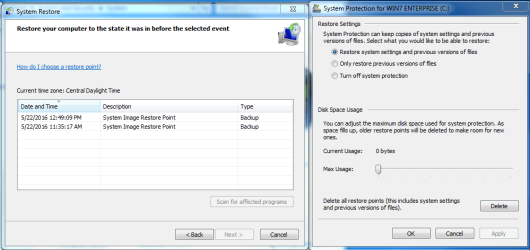
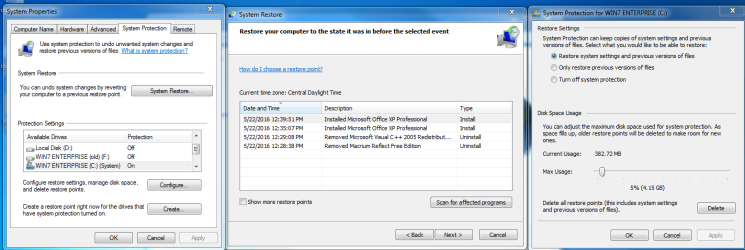
My experiment failed even with a single boot system. All of my previous RESTORE PTS were wiped out. What was left was a single RESTORE PT with the description "System Image Restore Point".

If this can be done do you have itemized instructions? I am not able to get this right!!!!!

If I can do a single boot system then maybe I can extend the procedure for the triple boot system. Attached are screenshots of my RESTORE PTS & SYS PRPTECTION settings prior to imaging & after image restoration. You can see the differences.
 

Attachments

  • Capture3.PNG
    Capture3.PNG
    97.5 KB · Views: 60
  • Capture2.PNG
    Capture2.PNG
    168 KB · Views: 55
Last edited:

My Computer

Computer type
PC/Desktop
OS
Windows 7 Home Prem 32 bit
It appears that restore points don't carry over then. :(
 

My Computer

Computer type
PC/Desktop
Computer Manufacturer/Model Number
Self built custom
OS
64-bit Windows 11 Pro for Workstations
CPU
Intel i7-8700K OC'd to 5 GHz
Motherboard
ASUS ROG Maximus XI Formula Z390
Memory
64 GB (4x16GB) G.SKILL TridentZ RGB DDR4 3600 MHz
Graphics Card(s)
ASUS ROG-STRIX-GTX1080TI-O11G-GAMING
Sound Card
Integrated
Monitor(s) Displays
2 x Samsung Odyssey G7 27"
Screen Resolution
2560x1440
Hard Drives
1TB Samsung 990 PRO M.2,
4TB Samsung 990 PRO PRO M.2,
TerraMaster F8 SSD Plus NAS
PSU
Seasonic Prime Titanium 850W
Case
Thermaltake Core P3
Cooling
Corsair Hydro H115i
Keyboard
Logitech wireless K800
Mouse
Logitech MX Master 4
Internet Speed
2 Gb/s Download and 100 Mb/s Upload
Antivirus
Malwarebyte Anti-Malware Premium
Browser
Google Chrome
Other Info
Logitech Z625 speaker system,
Logitech BRIO 4K Pro webcam,
HP Color LaserJet Pro MFP M477fdn,
APC SMART-UPS RT 1000 XL - SURT1000XLI,
Galaxy S23 Plus phone
It appears that restore points don't carry over then. :(

So are you uncertain on this? As I said you replied to me before that RESTORE PTS are not preserved in WindowsImageBackup & then you seemed to think they were.

I could be doing something wrong. Can you give it an attempt to see what you get?
 

My Computer

Computer type
PC/Desktop
OS
Windows 7 Home Prem 32 bit
Nope. If you don't have them, then they aren't included.
 

My Computer

Computer type
PC/Desktop
Computer Manufacturer/Model Number
Self built custom
OS
64-bit Windows 11 Pro for Workstations
CPU
Intel i7-8700K OC'd to 5 GHz
Motherboard
ASUS ROG Maximus XI Formula Z390
Memory
64 GB (4x16GB) G.SKILL TridentZ RGB DDR4 3600 MHz
Graphics Card(s)
ASUS ROG-STRIX-GTX1080TI-O11G-GAMING
Sound Card
Integrated
Monitor(s) Displays
2 x Samsung Odyssey G7 27"
Screen Resolution
2560x1440
Hard Drives
1TB Samsung 990 PRO M.2,
4TB Samsung 990 PRO PRO M.2,
TerraMaster F8 SSD Plus NAS
PSU
Seasonic Prime Titanium 850W
Case
Thermaltake Core P3
Cooling
Corsair Hydro H115i
Keyboard
Logitech wireless K800
Mouse
Logitech MX Master 4
Internet Speed
2 Gb/s Download and 100 Mb/s Upload
Antivirus
Malwarebyte Anti-Malware Premium
Browser
Google Chrome
Other Info
Logitech Z625 speaker system,
Logitech BRIO 4K Pro webcam,
HP Color LaserJet Pro MFP M477fdn,
APC SMART-UPS RT 1000 XL - SURT1000XLI,
Galaxy S23 Plus phone
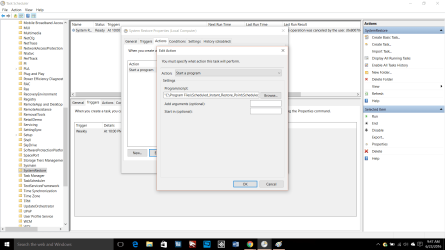
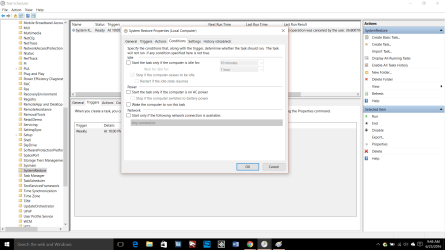
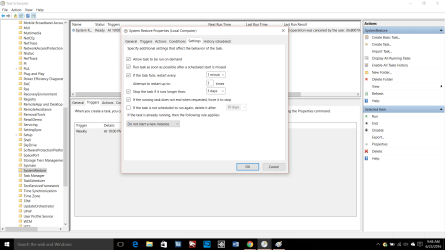
I tried using this guide with Windows 10 but it did not work. The "Last Run Result" is stuck on "The Task is currently running. (0x41301)" and does not continue past it. It is set to run whether or not I am logged on, it runs with highest privileges, it does not have any specific conditions set, and so on.

What am I missing? The script works if I just click it, but it doesn't work when I use the task scheduler.
 

My Computer

Computer type
Laptop
Computer Manufacturer/Model Number
MSI
OS
Windows 10 64 bit

My Computer

Computer type
PC/Desktop
Computer Manufacturer/Model Number
Self built custom
OS
64-bit Windows 11 Pro for Workstations
CPU
Intel i7-8700K OC'd to 5 GHz
Motherboard
ASUS ROG Maximus XI Formula Z390
Memory
64 GB (4x16GB) G.SKILL TridentZ RGB DDR4 3600 MHz
Graphics Card(s)
ASUS ROG-STRIX-GTX1080TI-O11G-GAMING
Sound Card
Integrated
Monitor(s) Displays
2 x Samsung Odyssey G7 27"
Screen Resolution
2560x1440
Hard Drives
1TB Samsung 990 PRO M.2,
4TB Samsung 990 PRO PRO M.2,
TerraMaster F8 SSD Plus NAS
PSU
Seasonic Prime Titanium 850W
Case
Thermaltake Core P3
Cooling
Corsair Hydro H115i
Keyboard
Logitech wireless K800
Mouse
Logitech MX Master 4
Internet Speed
2 Gb/s Download and 100 Mb/s Upload
Antivirus
Malwarebyte Anti-Malware Premium
Browser
Google Chrome
Other Info
Logitech Z625 speaker system,
Logitech BRIO 4K Pro webcam,
HP Color LaserJet Pro MFP M477fdn,
APC SMART-UPS RT 1000 XL - SURT1000XLI,
Galaxy S23 Plus phone
Hello MadDemon64, and welcome to Seven Forums. :)

There may be something wrong with your task. You might see if deleting the current task, and creating a new one to see if it may work afterwards.

If it still won't work, then post back with screenshots showing all your task settings to see if anything may stand out.

http://www.sevenforums.com/tutorials/9733-screenshots-files-upload-post-seven-forums.html

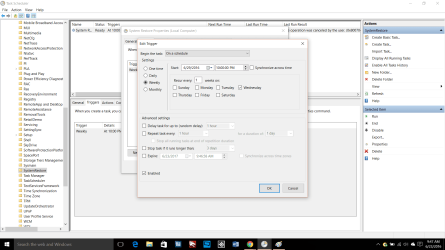
I tried that already and it didn't work. The screenshots are below:
 

Attachments

  • General.png
    General.png
    145.9 KB · Views: 60
  • Triggers.png
    Triggers.png
    158.6 KB · Views: 58
  • Actions.png
    Actions.png
    143.2 KB · Views: 58
  • Conditions.png
    Conditions.png
    145.6 KB · Views: 57
  • Settings.png
    Settings.png
    143.4 KB · Views: 66

My Computer

Computer type
Laptop
Computer Manufacturer/Model Number
MSI
OS
Windows 10 64 bit
Back
Top