SSD / HDD : Optimize for Windows Reinstallation

How to Optimize an SSD / HDD When You're Ready to Reinstall the Operating System

This will show how to remove / over-write all existing data from a Solid State Drive (SSD) or a Hard Disk Drive (HDD), it'll work for both, then how to create a partition and then format that partition before install begins so you have a clean drive to start the installation with.

   Note

Before you start this, in the Windows start menu search box type diskmgmt.msc right click the entry and click "Run as Administrator" if you get a User Account Control (UAC) prompt enter your user credentials and click Yes; make very sure you know the correct drive number of the drive you want to do this to if you have more than one SSD / HDD in the machine, you don't want to do the wrong one.
   Warning

Do not do this to any SSD or HDD that has data on it you don't want to lose, the first thing this does is to mark the drive as "Unallocated Space" and then writes zeroes ( 0's ) to the entire drive, it's known as a "Secure Erase" and it will make data un-recoverable, it cannot be done to just a single partition on a drive, it will do the whole drive.
You have been warned!
   Information

It may be a help to over-write the HDD Master Boot Record (MBR) before you start any other procedure using the diskpart clean command, rather than the clean all; it takes just seconds to complete so you will have "unallocated" space to use either the Windows installer to create and format the partition(s) or use diskpart for that, however you choose.

Let's get started!


Step One

Boot To DISKPART


If need be, view this tutorial at the link below for an out-line of the process.
How to Boot to DISKPART at PC Startup

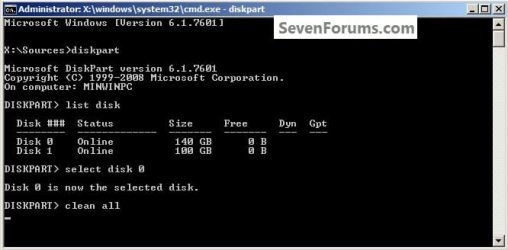
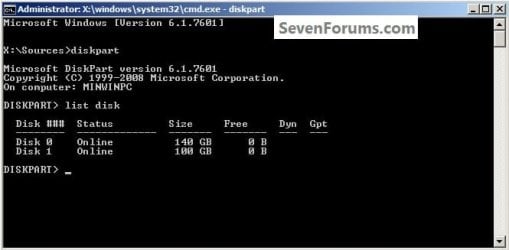
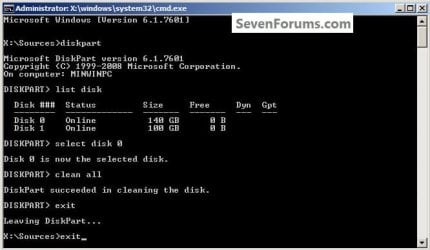
1) In the command window that opens type diskpart then hit the <enter> key then type list disk <enter> if you have more than one SSD / HDD in the machine it'll list them all.

Have a look here to view additional important information on this entire process.
click any image to enlarge
One_1.jpg
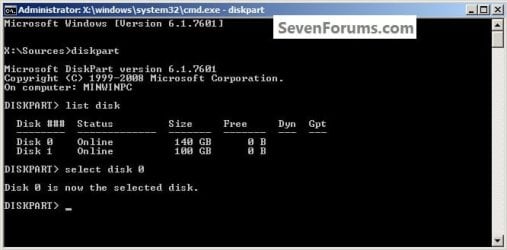
2) Now in the command window type select disk # (# = target disk number) then <enter>, you will get "Disk # is now the selected disk".
One_2.jpg
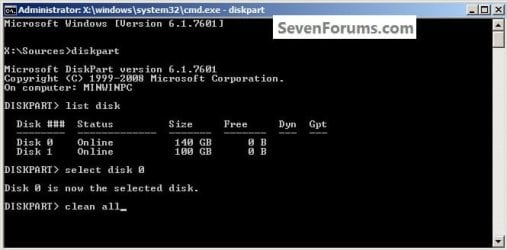
3) Now type clean <enter> you will get a blinking cursor telling you that clean all is working like in the second snip down, just relax and let it work.
One_3.1.jpg
One_3.2.jpg
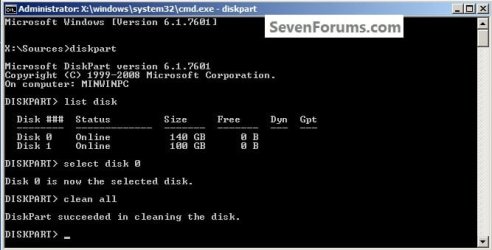
4) When it finishes you'll get "DiskPart succeeded in cleaning the disk" in the command window.
One_4.1.jpg
To leave diskpart at any time and return to the Windows 7 installer type exit two (2) separate times and hit <enter> after each and you will be returned to the installer to continue the installation process.
One_4.2.jpg


Step Two

Create a Partition


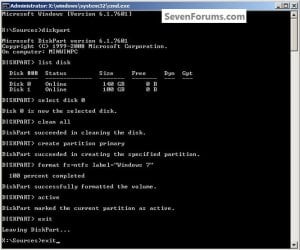
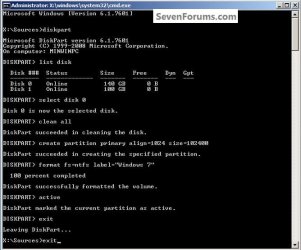
1) Create a single partition of the entire HDD / SSD

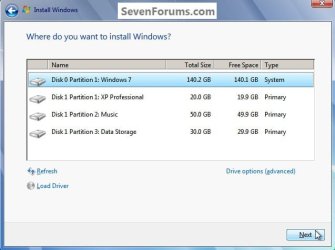
Still in the same command window, to create a partition of the entire HDD / SSD, it is suggested if you are using one of the larger, 1 - 2TB HDDs that you use the outline in #2 below to create a single 100GB partition to do the installation to or #3 below if you would like to include the new Windows 7 System Reserved partition, as we're now seeing serious issues with some trying to install to such large partitions.

Do not format the created partition(s) with the installer if you create them using this process as the installer will delete all this info, the second snip shows how to select "where to install" during the installation process, click to highlight/select the "Windows 7" partition and click next.

Now skip down to #5 below to start the installation.
click any image to enlarge
Two_1.1.jpg
Two_1.2.jpg
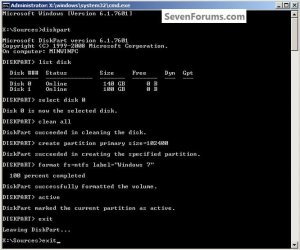
2) Create a specific size partition

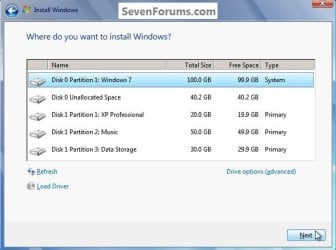
If you wanted to create a specific size partition, say 100GB you would add the size you want to create in MBs like in the command below.
create partition primary size=102400 <enter>
1024MB = 1GB - 1024x100 = 102400, you can use/create any size you like.

You can always extend the Windows partition to include the remaining unallocated space on the HDD / SSD or create additional Primary partitions or an Extended partition after the installation completes if you choose.

Do not format the created partition(s) with the installer if you create them using this process as the installer will delete all this info, the second snip shows how to select "where to install" during the installation process, click to highlight/select the "Windows 7" partition and click next.

Now skip down to #5 below to start the installation.
Two_2.1.jpg
Two_2.2.jpg
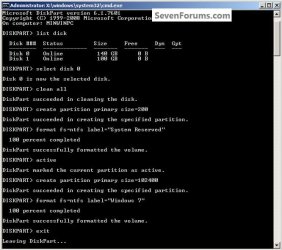
3) Create the System Reserved partition

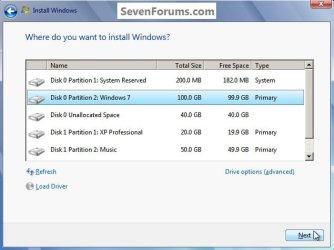
If you should want to add the "System Reserved" partition back after the clean all, see this snip; of course you would have to select to install Windows 7 to the partition labeled as "Windows 7" during the install and do not format either partition with the installer.

The reason for suggesting to create the System Reserved at 200MB instead of the new default of 100MB is an attempt to curb some of the issues we're now seeing with the partition being too small when dual/multi booting and it also being needed for use with the Windows 7 Backup and Restore and BitLocker programs.

You can always extend the Windows partition to include the remaining unallocated space on the HDD / SSD or create additional Primary partitions or an Extended partition after the installation completes if you choose.

The second snip shows how to select "where to install" during the installation process, click to highlight/select the "Windows 7" partition and click next.
Two_3.1.jpg
Two_3.2.jpg
4) See this tutorial for the "align" argument

Align a Solid State Drive for Windows Installation
Two_4.1.jpg
5) That's it, you're now done with the command window, type exit <enter> to leave diskpart and exit <enter> again to close the command window; if you're using a Windows 7 full installer it will go to the "Select Language" screen to continue the installation process as usual.

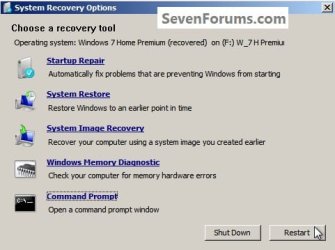
For those using a created repair CD or a Vista installer type exit <enter> to leave diskpart and exit <enter> again to close the command window; at the System Recovery Options dialog box that's still open click Restart to finish the process.
Restart.jpg
Enjoy! :)


Last edited by a moderator:
1. Program files you find easily when you double click on C in "Computer".
2. To check whether Superfetch is on, type "Services" into Start/search, then go to Services (not component services) and see whether Superfetch is set to "Automatic". If not, right click on the Superfetch line, go to Properties and set the "Startup type" to automatic.
 

My Computer My Computer

Computer Manufacturer/Model Number
HP, Dell, Gateway, Toshiba - 4 laptops and 2 desktops
OS
Vista, Windows7, Mint Mate, Zorin, Windows 8
CPU
from 1.6GHz Duo to i7
Monitor(s) Displays
2x HP w2207
Hard Drives
5x HDD, 7x SSD, 12x Externals
Keyboard
with trackball - no mices
Mouse
Trackball mice
Internet Speed
DSL 6000
Bare foot kid, can i just say wat a fab tut this is and its helped me out loads!! Just wanna make sure before i wipe my 500gb HD which has 4 partitions once its all clean and 500gb of unallocated space can i definatly create 4 partitons using diskpart? if yes once i have created the 1st and set it to active in the CMD prompt do i just create the other 3 one by one setting the size i want then putting it as a primary partition?

Thanks again matey, WHS above did kindly inform me to look at the partition magic bootable cd but im not over keen on using 3rd party tools.

Thanks WHS though for bringing it to my attention
 

My Computer My Computer

OS
Windows 7 64bit
CPU
Phenom IIx4 955 Black Edition
Memory
4GB Kingston 1066mhz DDR2
Graphics Card(s)
Gigabyte 260GTX
Monitor(s) Displays
Samsung syncmaster 2033
Hard Drives
500GB Samsung ATA
500GB Segate ATA
PSU
Antec True blue 750W Modular
Case
Antec 1200
Cooling
Prolimatech Megahalems Performance CPU Cooler/2x Apache Fan

My Computer My Computer

Computer Manufacturer/Model Number
HP, Dell, Gateway, Toshiba - 4 laptops and 2 desktops
OS
Vista, Windows7, Mint Mate, Zorin, Windows 8
CPU
from 1.6GHz Duo to i7
Monitor(s) Displays
2x HP w2207
Hard Drives
5x HDD, 7x SSD, 12x Externals
Keyboard
with trackball - no mices
Mouse
Trackball mice
Internet Speed
DSL 6000
Bare foot kid, can i just say wat a fab tut this is and its helped me out loads!! Just wanna make sure before i wipe my 500gb HD which has 4 partitions once its all clean and 500gb of unallocated space can i definatly create 4 partitons using diskpart? if yes once i have created the 1st and set it to active in the CMD prompt do i just create the other 3 one by one setting the size i want then putting it as a primary partition?

Thanks again matey, WHS above did kindly inform me to look at the partition magic bootable cd but im not over keen on using 3rd party tools.

Thanks WHS though for bringing it to my attention


Thank you, I'm glad it's a help.

You can create all four as Primary giving the first three a size and don't try to give the fourth a size, just let it take all that's left and you will be good to go.
 

My Computer My Computer

Computer Manufacturer/Model Number
* BFK Customs *
OS
W 7 64-bit Ultimate
CPU
Intel Q9550 Yorkfield
Motherboard
ASUS P5Q Pro
Memory
8GB Dominator 8500C5D
Graphics Card(s)
ATI : XFX 5870
Sound Card
Realtek HD Audio 7-1
Monitor(s) Displays
1x 47" LCD HDMI & 3x 26" LCD HDMI
Screen Resolution
1920x1080P & 1920x1200
Hard Drives
1x 80GB Intel X25-M G2 SSD : 1x 500GB & 1x 640GB WD Caviar Black(s)
PSU
Corsair 620HX
Case
Cooler Master RC-690
Cooling
Tuniq Tower 120, 2x 140mm and 3x 120mm case fans
Keyboard
Microsoft 500
Mouse
Razer Diamondback 3G
Internet Speed
14 Mb/s
Other Info
1x Koutech 3Gb/s SATA HDD Hot Swap Rack
Oops... yes 40 GB :D
 

My Computer My Computer

Computer type
PC/Desktop
Computer Manufacturer/Model Number
Custom Build
OS
Windows 7 Home Premium
CPU
AMD Phenom II 955 Black Edition Quad Core
Motherboard
MSI 870-G45
Memory
Corsair XMS3 8GB
Graphics Card(s)
ATI Eyefinity HD 5770 5 mini display ports
Sound Card
Realtek High Definition 6.1
Monitor(s) Displays
2 DELL E207WFP 21.5" - 1 Acer 21.5"
Screen Resolution
2 Dells 1680x1050 - Acer 1920x1080
Hard Drives
Intel 40GB SSD
WD 500GB internal
WD 500Gb external
PSU
Cooler Master 500w
Case
Cooler Master 430 Black Elite
Keyboard
HP
Mouse
MIBRU
Internet Speed
10 mbs
Antivirus
Trend Micro
Browser
Chrome

My Computer My Computer

Computer Manufacturer/Model Number
* BFK Customs *
OS
W 7 64-bit Ultimate
CPU
Intel Q9550 Yorkfield
Motherboard
ASUS P5Q Pro
Memory
8GB Dominator 8500C5D
Graphics Card(s)
ATI : XFX 5870
Sound Card
Realtek HD Audio 7-1
Monitor(s) Displays
1x 47" LCD HDMI & 3x 26" LCD HDMI
Screen Resolution
1920x1080P & 1920x1200
Hard Drives
1x 80GB Intel X25-M G2 SSD : 1x 500GB & 1x 640GB WD Caviar Black(s)
PSU
Corsair 620HX
Case
Cooler Master RC-690
Cooling
Tuniq Tower 120, 2x 140mm and 3x 120mm case fans
Keyboard
Microsoft 500
Mouse
Razer Diamondback 3G
Internet Speed
14 Mb/s
Other Info
1x Koutech 3Gb/s SATA HDD Hot Swap Rack
Thanks barefoot, i decided to create a 80gb partiton in diskpart which hopefully will be fine for my 7 installation and applications, i have 355gb to play with i intend to create another 2 partitions which i will do via disk management. I normally create a seperate partition for my applications but wise advised to keep them on the same partitions as windows would you agree with this if so is 80gb a good size?

I was thinking of extending my C partition to 100gb but if im right i cant do that in disk management with erasing the drive first?

thanks again your a credit to these forums
 

My Computer My Computer

OS
Windows 7 64bit
CPU
Phenom IIx4 955 Black Edition
Memory
4GB Kingston 1066mhz DDR2
Graphics Card(s)
Gigabyte 260GTX
Monitor(s) Displays
Samsung syncmaster 2033
Hard Drives
500GB Samsung ATA
500GB Segate ATA
PSU
Antec True blue 750W Modular
Case
Antec 1200
Cooling
Prolimatech Megahalems Performance CPU Cooler/2x Apache Fan

My Computer My Computer

Computer Manufacturer/Model Number
* BFK Customs *
OS
W 7 64-bit Ultimate
CPU
Intel Q9550 Yorkfield
Motherboard
ASUS P5Q Pro
Memory
8GB Dominator 8500C5D
Graphics Card(s)
ATI : XFX 5870
Sound Card
Realtek HD Audio 7-1
Monitor(s) Displays
1x 47" LCD HDMI & 3x 26" LCD HDMI
Screen Resolution
1920x1080P & 1920x1200
Hard Drives
1x 80GB Intel X25-M G2 SSD : 1x 500GB & 1x 640GB WD Caviar Black(s)
PSU
Corsair 620HX
Case
Cooler Master RC-690
Cooling
Tuniq Tower 120, 2x 140mm and 3x 120mm case fans
Keyboard
Microsoft 500
Mouse
Razer Diamondback 3G
Internet Speed
14 Mb/s
Other Info
1x Koutech 3Gb/s SATA HDD Hot Swap Rack
Oops... yes 40 GB :D


Hello again Casey.


Here's another excellent option that should gain you quite a lot of space, for use during a clean install; have a look at this tutorial at the link below.


User Profiles - Create and Move During Windows 7 Installation

Hi Ted,

OK, let me see if I understand this... so what I will be doing here is putting things that are now on my SSD drive (defaulted on there when I installed Windows 7) onto my D: drive such as User folders and ProgramData to free up more space?

You rock my friend!

Casey
 

My Computer My Computer

Computer type
PC/Desktop
Computer Manufacturer/Model Number
Custom Build
OS
Windows 7 Home Premium
CPU
AMD Phenom II 955 Black Edition Quad Core
Motherboard
MSI 870-G45
Memory
Corsair XMS3 8GB
Graphics Card(s)
ATI Eyefinity HD 5770 5 mini display ports
Sound Card
Realtek High Definition 6.1
Monitor(s) Displays
2 DELL E207WFP 21.5" - 1 Acer 21.5"
Screen Resolution
2 Dells 1680x1050 - Acer 1920x1080
Hard Drives
Intel 40GB SSD
WD 500GB internal
WD 500Gb external
PSU
Cooler Master 500w
Case
Cooler Master 430 Black Elite
Keyboard
HP
Mouse
MIBRU
Internet Speed
10 mbs
Antivirus
Trend Micro
Browser
Chrome
Oops... yes 40 GB :D


Hello again Casey.


Here's another excellent option that should gain you quite a lot of space, for use during a clean install; have a look at this tutorial at the link below.


User Profiles - Create and Move During Windows 7 Installation

Hi Ted,

OK, let me see if I understand this... so what I will be doing here is putting things that are now on my SSD drive (defaulted on there when I installed Windows 7) onto my D: drive such as User folders and ProgramData to free up more space?

You rock my friend!

Casey


Yes but, this one is only for use during the installation process.
 

My Computer My Computer

Computer Manufacturer/Model Number
* BFK Customs *
OS
W 7 64-bit Ultimate
CPU
Intel Q9550 Yorkfield
Motherboard
ASUS P5Q Pro
Memory
8GB Dominator 8500C5D
Graphics Card(s)
ATI : XFX 5870
Sound Card
Realtek HD Audio 7-1
Monitor(s) Displays
1x 47" LCD HDMI & 3x 26" LCD HDMI
Screen Resolution
1920x1080P & 1920x1200
Hard Drives
1x 80GB Intel X25-M G2 SSD : 1x 500GB & 1x 640GB WD Caviar Black(s)
PSU
Corsair 620HX
Case
Cooler Master RC-690
Cooling
Tuniq Tower 120, 2x 140mm and 3x 120mm case fans
Keyboard
Microsoft 500
Mouse
Razer Diamondback 3G
Internet Speed
14 Mb/s
Other Info
1x Koutech 3Gb/s SATA HDD Hot Swap Rack
Hello again Casey.


Here's another excellent option that should gain you quite a lot of space, for use during a clean install; have a look at this tutorial at the link below.


User Profiles - Create and Move During Windows 7 Installation

Hi Ted,

OK, let me see if I understand this... so what I will be doing here is putting things that are now on my SSD drive (defaulted on there when I installed Windows 7) onto my D: drive such as User folders and ProgramData to free up more space?

You rock my friend!

Casey


Yes but, this one is only for use during the installation process.

OK cool, then I will do a new clean install.
 

My Computer My Computer

Computer type
PC/Desktop
Computer Manufacturer/Model Number
Custom Build
OS
Windows 7 Home Premium
CPU
AMD Phenom II 955 Black Edition Quad Core
Motherboard
MSI 870-G45
Memory
Corsair XMS3 8GB
Graphics Card(s)
ATI Eyefinity HD 5770 5 mini display ports
Sound Card
Realtek High Definition 6.1
Monitor(s) Displays
2 DELL E207WFP 21.5" - 1 Acer 21.5"
Screen Resolution
2 Dells 1680x1050 - Acer 1920x1080
Hard Drives
Intel 40GB SSD
WD 500GB internal
WD 500Gb external
PSU
Cooler Master 500w
Case
Cooler Master 430 Black Elite
Keyboard
HP
Mouse
MIBRU
Internet Speed
10 mbs
Antivirus
Trend Micro
Browser
Chrome

My Computer My Computer

Computer Manufacturer/Model Number
* BFK Customs *
OS
W 7 64-bit Ultimate
CPU
Intel Q9550 Yorkfield
Motherboard
ASUS P5Q Pro
Memory
8GB Dominator 8500C5D
Graphics Card(s)
ATI : XFX 5870
Sound Card
Realtek HD Audio 7-1
Monitor(s) Displays
1x 47" LCD HDMI & 3x 26" LCD HDMI
Screen Resolution
1920x1080P & 1920x1200
Hard Drives
1x 80GB Intel X25-M G2 SSD : 1x 500GB & 1x 640GB WD Caviar Black(s)
PSU
Corsair 620HX
Case
Cooler Master RC-690
Cooling
Tuniq Tower 120, 2x 140mm and 3x 120mm case fans
Keyboard
Microsoft 500
Mouse
Razer Diamondback 3G
Internet Speed
14 Mb/s
Other Info
1x Koutech 3Gb/s SATA HDD Hot Swap Rack
OK cool, then I will do a new clean install.


Let me know the final 'used' space.

Hi Ted,

Is it good to do a clean install from time to time just to keep things, for lack of a better word, clean?

Also, once I do a clean install and do these steps...User Profiles - Create and Move During Windows 7 Installation, will I have to put the BIOS back on AHCI or does it stay like that and will I have to reset the maximum disk usage for system restore to about 2GB?

God Bless,

Casey
 

My Computer My Computer

Computer type
PC/Desktop
Computer Manufacturer/Model Number
Custom Build
OS
Windows 7 Home Premium
CPU
AMD Phenom II 955 Black Edition Quad Core
Motherboard
MSI 870-G45
Memory
Corsair XMS3 8GB
Graphics Card(s)
ATI Eyefinity HD 5770 5 mini display ports
Sound Card
Realtek High Definition 6.1
Monitor(s) Displays
2 DELL E207WFP 21.5" - 1 Acer 21.5"
Screen Resolution
2 Dells 1680x1050 - Acer 1920x1080
Hard Drives
Intel 40GB SSD
WD 500GB internal
WD 500Gb external
PSU
Cooler Master 500w
Case
Cooler Master 430 Black Elite
Keyboard
HP
Mouse
MIBRU
Internet Speed
10 mbs
Antivirus
Trend Micro
Browser
Chrome
Hello Casey.


It is a good practice to clean install Windows periodically to get better performance.

AHCI is a setting in the motherboard BIOS and independent of Windows.

After the new install have a look at this new tutorial for a list of ideas, of course you would skip Option #6 if you use the other tutorial during the install process.

How to Free Up and Recover Hard Drive Space
 

My Computer My Computer

Computer Manufacturer/Model Number
* BFK Customs *
OS
W 7 64-bit Ultimate
CPU
Intel Q9550 Yorkfield
Motherboard
ASUS P5Q Pro
Memory
8GB Dominator 8500C5D
Graphics Card(s)
ATI : XFX 5870
Sound Card
Realtek HD Audio 7-1
Monitor(s) Displays
1x 47" LCD HDMI & 3x 26" LCD HDMI
Screen Resolution
1920x1080P & 1920x1200
Hard Drives
1x 80GB Intel X25-M G2 SSD : 1x 500GB & 1x 640GB WD Caviar Black(s)
PSU
Corsair 620HX
Case
Cooler Master RC-690
Cooling
Tuniq Tower 120, 2x 140mm and 3x 120mm case fans
Keyboard
Microsoft 500
Mouse
Razer Diamondback 3G
Internet Speed
14 Mb/s
Other Info
1x Koutech 3Gb/s SATA HDD Hot Swap Rack
Ted,

Thank you so much! For some reason I keep losing free disk space even after I adjusted the recovery thing to 2 GB, so now I will start all over and do a clean install and do the things you suggested.

Casey
 

My Computer My Computer

Computer type
PC/Desktop
Computer Manufacturer/Model Number
Custom Build
OS
Windows 7 Home Premium
CPU
AMD Phenom II 955 Black Edition Quad Core
Motherboard
MSI 870-G45
Memory
Corsair XMS3 8GB
Graphics Card(s)
ATI Eyefinity HD 5770 5 mini display ports
Sound Card
Realtek High Definition 6.1
Monitor(s) Displays
2 DELL E207WFP 21.5" - 1 Acer 21.5"
Screen Resolution
2 Dells 1680x1050 - Acer 1920x1080
Hard Drives
Intel 40GB SSD
WD 500GB internal
WD 500Gb external
PSU
Cooler Master 500w
Case
Cooler Master 430 Black Elite
Keyboard
HP
Mouse
MIBRU
Internet Speed
10 mbs
Antivirus
Trend Micro
Browser
Chrome
Ted,

Thank you so much! For some reason I keep losing free disk space even after I adjusted the recovery thing to 2 GB, so now I will start all over and do a clean install and do the things you suggested.

Casey


Be sure to keep us informed.
 

My Computer My Computer

Computer Manufacturer/Model Number
* BFK Customs *
OS
W 7 64-bit Ultimate
CPU
Intel Q9550 Yorkfield
Motherboard
ASUS P5Q Pro
Memory
8GB Dominator 8500C5D
Graphics Card(s)
ATI : XFX 5870
Sound Card
Realtek HD Audio 7-1
Monitor(s) Displays
1x 47" LCD HDMI & 3x 26" LCD HDMI
Screen Resolution
1920x1080P & 1920x1200
Hard Drives
1x 80GB Intel X25-M G2 SSD : 1x 500GB & 1x 640GB WD Caviar Black(s)
PSU
Corsair 620HX
Case
Cooler Master RC-690
Cooling
Tuniq Tower 120, 2x 140mm and 3x 120mm case fans
Keyboard
Microsoft 500
Mouse
Razer Diamondback 3G
Internet Speed
14 Mb/s
Other Info
1x Koutech 3Gb/s SATA HDD Hot Swap Rack
Ted,

Thank you so much! For some reason I keep losing free disk space even after I adjusted the recovery thing to 2 GB, so now I will start all over and do a clean install and do the things you suggested.

Casey


Be sure to keep us informed.

Hi Ted,

I had a friend of mine today move the pagefile.sys from the (C:) SSD drive to the (D:) drive. I went from having 12.1 GB of free space to 20 GB of free space...I can't wait to do a clean install and see how much room I will have then.
 

My Computer My Computer

Computer type
PC/Desktop
Computer Manufacturer/Model Number
Custom Build
OS
Windows 7 Home Premium
CPU
AMD Phenom II 955 Black Edition Quad Core
Motherboard
MSI 870-G45
Memory
Corsair XMS3 8GB
Graphics Card(s)
ATI Eyefinity HD 5770 5 mini display ports
Sound Card
Realtek High Definition 6.1
Monitor(s) Displays
2 DELL E207WFP 21.5" - 1 Acer 21.5"
Screen Resolution
2 Dells 1680x1050 - Acer 1920x1080
Hard Drives
Intel 40GB SSD
WD 500GB internal
WD 500Gb external
PSU
Cooler Master 500w
Case
Cooler Master 430 Black Elite
Keyboard
HP
Mouse
MIBRU
Internet Speed
10 mbs
Antivirus
Trend Micro
Browser
Chrome
Ted,

Thank you so much! For some reason I keep losing free disk space even after I adjusted the recovery thing to 2 GB, so now I will start all over and do a clean install and do the things you suggested.

Casey


Be sure to keep us informed.

Hi Ted,

I had a friend of mine today move the pagefile.sys from the (C:) SSD drive to the (D:) drive. I went from having 12.1 GB of free space to 20 GB of free space...I can't wait to do a clean install and see how much room I will have then.


Well done.
 

My Computer My Computer

Computer Manufacturer/Model Number
* BFK Customs *
OS
W 7 64-bit Ultimate
CPU
Intel Q9550 Yorkfield
Motherboard
ASUS P5Q Pro
Memory
8GB Dominator 8500C5D
Graphics Card(s)
ATI : XFX 5870
Sound Card
Realtek HD Audio 7-1
Monitor(s) Displays
1x 47" LCD HDMI & 3x 26" LCD HDMI
Screen Resolution
1920x1080P & 1920x1200
Hard Drives
1x 80GB Intel X25-M G2 SSD : 1x 500GB & 1x 640GB WD Caviar Black(s)
PSU
Corsair 620HX
Case
Cooler Master RC-690
Cooling
Tuniq Tower 120, 2x 140mm and 3x 120mm case fans
Keyboard
Microsoft 500
Mouse
Razer Diamondback 3G
Internet Speed
14 Mb/s
Other Info
1x Koutech 3Gb/s SATA HDD Hot Swap Rack
Hello BFK,

Thanks for the tutorial, however I'm having trouble.

I have followed the procedures but my system does not see my OS drive.

In the diskpart comand window after typing list disk there in no OS disk. The disc is listed in Disk management as Disk # 3, but when booting from CD it is mot listed.

Any thoughts?

Cheers
 

My Computer My Computer

Computer type
PC/Desktop
OS
Win pro 64bit
CPU
i7-980X
Motherboard
X58A-UD3R
Memory
Corsair Dominator CMP12GX3M3A1600C9 9-9-9-24 X2
Graphics Card(s)
Asus Geforce GTX 560 Ti
Sound Card
none
Monitor(s) Displays
Eizo x 2
Screen Resolution
1200x1600
Hard Drives
Revo 240gb,
Samsung 840 pro OS
Samsung 840 Scratch
WD 1TB x 3.
PSU
Siverstone
Case
Corsair 700d
Cooling
Noctua 140

My Computer My Computer

Computer Manufacturer/Model Number
* BFK Customs *
OS
W 7 64-bit Ultimate
CPU
Intel Q9550 Yorkfield
Motherboard
ASUS P5Q Pro
Memory
8GB Dominator 8500C5D
Graphics Card(s)
ATI : XFX 5870
Sound Card
Realtek HD Audio 7-1
Monitor(s) Displays
1x 47" LCD HDMI & 3x 26" LCD HDMI
Screen Resolution
1920x1080P & 1920x1200
Hard Drives
1x 80GB Intel X25-M G2 SSD : 1x 500GB & 1x 640GB WD Caviar Black(s)
PSU
Corsair 620HX
Case
Cooler Master RC-690
Cooling
Tuniq Tower 120, 2x 140mm and 3x 120mm case fans
Keyboard
Microsoft 500
Mouse
Razer Diamondback 3G
Internet Speed
14 Mb/s
Other Info
1x Koutech 3Gb/s SATA HDD Hot Swap Rack
Back
Top