Move Windows 7 to another disk

liverpaul

New member
Local time
12:06 PM
Messages
44
Hi,

First of all, here's a few things to know:

- My laptop has 2 hard drives

- I have a genuine DVD of Windows 7 Home Premium 32 bit

- The drive that I originally installed Windows on is starting to fail (1st drive), so I want to move the OS to the other drive (2nd drive).

- I have a cloned backup of Windows and all my programs and settings, etc. I did this using Paragon Backup & Recovery (free edition).

- From my backup image, I have recovered the OS to the other drive (2nd drive). Then I got boot up problems (wouldn't boot) so I used the Windows 7 DVD to System Repair. This allowed me to boot up, but it seems to have created a System reserved partition on the 1st drive (I want everything on the 2nd drive), and everything else seems to be on the other drive (1st drive).

- I copied the System reserved partition on the 1st drive to the 2nd drive (I think I uses Easus Partition Master, free edition). However, when I delete the System reserved partition from the 1st drive I once again can't boot up and have to do the System Repair again.

- I've tried several different tools to try changing active partitions, etc, but I'm just not knowledgeable enough to know what I'm doing:confused:.

So, here I am looking for help:geek:

Any ideas what I can try? I'm a total newbie at this stuff, so any help would be appreciated. I've included a screen capture of my Computer Management window.

Thanks:D

s3k3gw.png
 

My Computer My Computer

Computer type
Laptop
OS
Microsoft Windows 7 Home Premium 64-bit 7601 Multiprocessor Free Service Pack 1
CPU
Intel(R) Core(TM) i7-2720QM CPU @ 2.20GHz
Motherboard
Dell Inc. 0XN71K
Memory
6,00 GB
Graphics Card(s)
(1) NVIDIA GeForce GT 555M (2) Intel(R) HD Graphics Fa
Sound Card
(1) Realtek High Definition Audio (2) Intel(R) Display Aud
Screen Resolution
0 x 0 x 0 bits (0 colors) @ 0 Hz
Hard Drives
(1) WDC WD5000BPKT-75PK4T0 (2) USB2.0 Mobile Disk USB Device
Hello liverpaul, welcome to Seven Forums!


You have to power down the PC and disconnect the Disk 0 and connect the Disk 1 to the #1 SATA port on the motherboard and set that as the second boot device after the CD/DVD drive and boot the Windows 7 disk to first mark the Windows 7 partition as Active then run the 3 separate startup repairs with restarts discussed in this tutorial at this link below to make the Windows 7 partition the "System" partition.

Startup Repair - Run 3 Separate Times


Be sure to post back with any further questions you may have and to keep us informed.
 

My Computer My Computer

Computer Manufacturer/Model Number
* BFK Customs *
OS
W 7 64-bit Ultimate
CPU
Intel Q9550 Yorkfield
Motherboard
ASUS P5Q Pro
Memory
8GB Dominator 8500C5D
Graphics Card(s)
ATI : XFX 5870
Sound Card
Realtek HD Audio 7-1
Monitor(s) Displays
1x 47" LCD HDMI & 3x 26" LCD HDMI
Screen Resolution
1920x1080P & 1920x1200
Hard Drives
1x 80GB Intel X25-M G2 SSD : 1x 500GB & 1x 640GB WD Caviar Black(s)
PSU
Corsair 620HX
Case
Cooler Master RC-690
Cooling
Tuniq Tower 120, 2x 140mm and 3x 120mm case fans
Keyboard
Microsoft 500
Mouse
Razer Diamondback 3G
Internet Speed
14 Mb/s
Other Info
1x Koutech 3Gb/s SATA HDD Hot Swap Rack
Unplug Disk0. or Wipe or mark System Reserved Inactive using free Partition Wizard bootable CD.

Now rightclick your System partition on Disk1, delete it and create a New Primary partition of 200mb, mark it Active.

Next boot the Win7 Repair CD or DVD Repair console to run Startup Repair up to 3 separate times (not including the first offered repair), to write the System boot files to the System partition and the Repair console to your F8 Advanced Boot Tools menu.

If this fails to start Win7, from DIsk tab on booted PW CD, select Rebuild MBR.

If that fails, delete the System partiiton and mark Win7 partiiton itself Active, then run Startup Repair x3.

Report back and we will look at other options, including copying out your files using the Load Drivers mini-explorer on Install or Repair disks, and clean reinstalling.
 
Hello liverpaul, welcome to Seven Forums!


You have to power down the PC and disconnect the Disk 0 and connect the Disk 1 to the #1 SATA port on the motherboard and set that as the second boot device after the CD/DVD drive and boot the Windows 7 disk to first mark the Windows 7 partition as Active then run the 3 startup repairs discussed in this tutorial at this link below.

Startup Repair - Run 3 Separate Times


Be sure to post back with any further questions you may have and to keep us informed.
Thanks for the reply. I was hoping there would be a software related way to do it, I didn't realise I'd have to open up my laptop (scary:eek:). If that's the only way to do it then I'll have a look at how easy/difficult it is to access the hard drives.

If I decide that opening up my laptop is too difficult/risky, will I be able to do a clean install of Windows onto the 2nd drive will no problems?
 

My Computer My Computer

Computer type
Laptop
OS
Microsoft Windows 7 Home Premium 64-bit 7601 Multiprocessor Free Service Pack 1
CPU
Intel(R) Core(TM) i7-2720QM CPU @ 2.20GHz
Motherboard
Dell Inc. 0XN71K
Memory
6,00 GB
Graphics Card(s)
(1) NVIDIA GeForce GT 555M (2) Intel(R) HD Graphics Fa
Sound Card
(1) Realtek High Definition Audio (2) Intel(R) Display Aud
Screen Resolution
0 x 0 x 0 bits (0 colors) @ 0 Hz
Hard Drives
(1) WDC WD5000BPKT-75PK4T0 (2) USB2.0 Mobile Disk USB Device
Unplug Disk0. or Wipe or mark System Reserved Inactive using free Partition Wizard bootable CD.

Now rightclick your System partition on Disk1, delete it and create a New Primary partition of 200mb, mark it Active.

Next boot the Win7 Repair CD or DVD Repair console to run Startup Repair up to 3 separate times (not including the first offered repair), to write the System boot files to the System partition and the Repair console to your F8 Advanced Boot Tools menu.

If this fails to start Win7, from DIsk tab on booted PW CD, select Rebuild MBR.

If that fails, delete the System partiiton and mark Win7 partiiton itself Active, then run Startup Repair x3.

Report back and we will look at other options, including copying out your files using the Load Drivers mini-explorer on Install or Repair disks, and clean reinstalling.
I'm going to try this method
Wipe or mark System Reserved Inactive using free Partition Wizard bootable CD
I'll report back when I try it, probably is a day or two.
Thanks:D
 

My Computer My Computer

Computer type
Laptop
OS
Microsoft Windows 7 Home Premium 64-bit 7601 Multiprocessor Free Service Pack 1
CPU
Intel(R) Core(TM) i7-2720QM CPU @ 2.20GHz
Motherboard
Dell Inc. 0XN71K
Memory
6,00 GB
Graphics Card(s)
(1) NVIDIA GeForce GT 555M (2) Intel(R) HD Graphics Fa
Sound Card
(1) Realtek High Definition Audio (2) Intel(R) Display Aud
Screen Resolution
0 x 0 x 0 bits (0 colors) @ 0 Hz
Hard Drives
(1) WDC WD5000BPKT-75PK4T0 (2) USB2.0 Mobile Disk USB Device

My Computer My Computer

Computer Manufacturer/Model Number
* BFK Customs *
OS
W 7 64-bit Ultimate
CPU
Intel Q9550 Yorkfield
Motherboard
ASUS P5Q Pro
Memory
8GB Dominator 8500C5D
Graphics Card(s)
ATI : XFX 5870
Sound Card
Realtek HD Audio 7-1
Monitor(s) Displays
1x 47" LCD HDMI & 3x 26" LCD HDMI
Screen Resolution
1920x1080P & 1920x1200
Hard Drives
1x 80GB Intel X25-M G2 SSD : 1x 500GB & 1x 640GB WD Caviar Black(s)
PSU
Corsair 620HX
Case
Cooler Master RC-690
Cooling
Tuniq Tower 120, 2x 140mm and 3x 120mm case fans
Keyboard
Microsoft 500
Mouse
Razer Diamondback 3G
Internet Speed
14 Mb/s
Other Info
1x Koutech 3Gb/s SATA HDD Hot Swap Rack

My Computer My Computer

Computer type
Laptop
OS
Microsoft Windows 7 Home Premium 64-bit 7601 Multiprocessor Free Service Pack 1
CPU
Intel(R) Core(TM) i7-2720QM CPU @ 2.20GHz
Motherboard
Dell Inc. 0XN71K
Memory
6,00 GB
Graphics Card(s)
(1) NVIDIA GeForce GT 555M (2) Intel(R) HD Graphics Fa
Sound Card
(1) Realtek High Definition Audio (2) Intel(R) Display Aud
Screen Resolution
0 x 0 x 0 bits (0 colors) @ 0 Hz
Hard Drives
(1) WDC WD5000BPKT-75PK4T0 (2) USB2.0 Mobile Disk USB Device
If you want a System Reserved partition for the Repair Console it places on F8 boot menu, you need to reconstruct it per the steps given earlier, mark it Active and run Startup Repair x3.

If you don't want the SysReserved partition then delete it, mark Win7 partition active and run the repairs.
 
Update:
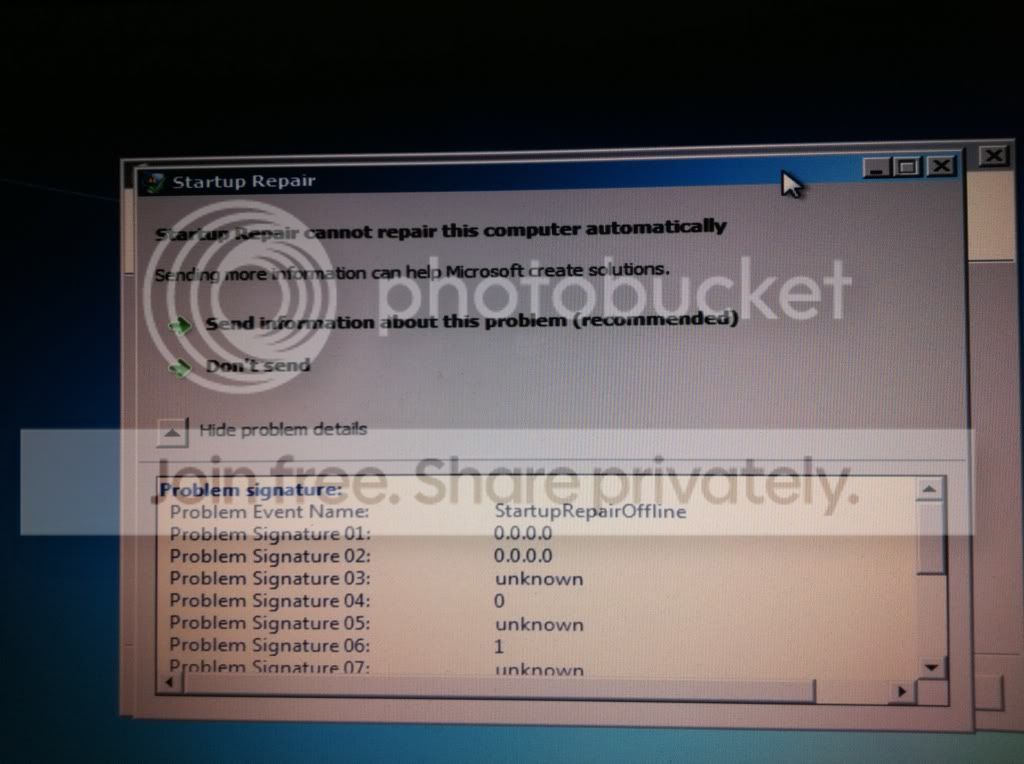
I tried the above methods but each time I do Startup Repair, it runs for over an hour before I eventually get the following error message.
70b71685.jpg

Right now, I can no longer get Windows running so I'm posting from my phone!

Any ideas that I can try now? I'd love to be able to get my original backup working again, but I am aware that I may have to do a clean install and lose all my programs and settings. All my data is backed up, so at least that's safe.
 

My Computer My Computer

Computer type
Laptop
OS
Microsoft Windows 7 Home Premium 64-bit 7601 Multiprocessor Free Service Pack 1
CPU
Intel(R) Core(TM) i7-2720QM CPU @ 2.20GHz
Motherboard
Dell Inc. 0XN71K
Memory
6,00 GB
Graphics Card(s)
(1) NVIDIA GeForce GT 555M (2) Intel(R) HD Graphics Fa
Sound Card
(1) Realtek High Definition Audio (2) Intel(R) Display Aud
Screen Resolution
0 x 0 x 0 bits (0 colors) @ 0 Hz
Hard Drives
(1) WDC WD5000BPKT-75PK4T0 (2) USB2.0 Mobile Disk USB Device
Last edited:

My Computer My Computer

Computer type
PC/Desktop
Computer Manufacturer/Model Number
Own build
OS
Windows 7x64 Home Premium SP1
CPU
Intel i7 2600k
Motherboard
ASUS P8Z68 Deluxe
Memory
G.Skill Ripjaws (DDR3-1600) 2x4GB
Graphics Card(s)
Nvidia GeForce GTS 450; Intel HD Graphics 3000(GT2+)
Monitor(s) Displays
Dell Ultrasharp IPS panel U2311H, Samsung SyncMaster P2350
Screen Resolution
1920x1080
Hard Drives
Samsung 850 Pro SSD 256GB, Samsung SSD 840 120GB, Seagates 1TB Barracuda ST31000528AS x2
PSU
Seasonic M12II 520W
Case
Lian Li Lancool PC-K60
Cooling
Case: 1x120mm, 3x140mm CPU: Hyper 212+
Keyboard
Logitech MK520 (wireless)
Mouse
Logitech MK520
Internet Speed
6-7 Mbps
Antivirus
Norton Security Premium, Malwarebytes on 2 (MSE on 3rd PC)
Browser
FireFox
Other Info
Audio: Logitech Z523 2.1
Try the Bootrec commands directly as per the MS guidance.
How to use the Bootrec.exe tool in the Windows Recovery Environment to troubleshoot and repair startup issues in Windows
This has solved your problem for others. Don't forget the BCD rebuild.

Thanks for the reply. At the moment I don't think I can do that because when I click Repair my computer, Windows no longer appears on the list of installed operating systems (it used to). Maybe this can give you a better idea of what's wrong?
 

My Computer My Computer

Computer type
Laptop
OS
Microsoft Windows 7 Home Premium 64-bit 7601 Multiprocessor Free Service Pack 1
CPU
Intel(R) Core(TM) i7-2720QM CPU @ 2.20GHz
Motherboard
Dell Inc. 0XN71K
Memory
6,00 GB
Graphics Card(s)
(1) NVIDIA GeForce GT 555M (2) Intel(R) HD Graphics Fa
Sound Card
(1) Realtek High Definition Audio (2) Intel(R) Display Aud
Screen Resolution
0 x 0 x 0 bits (0 colors) @ 0 Hz
Hard Drives
(1) WDC WD5000BPKT-75PK4T0 (2) USB2.0 Mobile Disk USB Device
Hello again.


Too bad, perhaps the partition manager you used FUBAR'd the partition for you, just use Partition Wizard from now on mate.

You're still liable to have issues with Windows creating the "System Reserved" partition to Disk 0 as long as it's still connected though you can't disconnect it because it's a lappy.

There may be a way around it though by doing a wipe to the Disk 1 (if you reinstall) and using the outline in Step Two #3 of the tutorial at the link below to create a SysResv partition and marking that Active after the clean all and before the install.

Have a good look through the information below.

   Information

After you have copied out or made back-ups of the data you need to save to external media, use Step One of this tutorial at the first link below to do a wipe (secure erase) to the entire Hard Disk Drive / Solid State Drive.
  • Then if you do not want to create the new Windows 7 "System Reserved" partition use the outline in Step Two #2 to create, format and mark Active a single 100GB partition to do the installation to.
  • If you do want to create the "System Reserved" partition use the outline in Step Two #3 to create, format and mark Active the System Reserved partition and then create and format the 100GB partition to do the installation to.
With either method, running the "clean all" then creating and formatting the partition(s) using diskpart will get you the best possible space to do a clean install of Windows 7 to; you can always extend the Windows partition to include the remaining unallocated space on the HDD / SSD or create additional partitions after the installation completes if you choose.


SSD / HDD : Optimize for Windows Reinstallation

DISKPART : At PC Startup
 

My Computer My Computer

Computer Manufacturer/Model Number
* BFK Customs *
OS
W 7 64-bit Ultimate
CPU
Intel Q9550 Yorkfield
Motherboard
ASUS P5Q Pro
Memory
8GB Dominator 8500C5D
Graphics Card(s)
ATI : XFX 5870
Sound Card
Realtek HD Audio 7-1
Monitor(s) Displays
1x 47" LCD HDMI & 3x 26" LCD HDMI
Screen Resolution
1920x1080P & 1920x1200
Hard Drives
1x 80GB Intel X25-M G2 SSD : 1x 500GB & 1x 640GB WD Caviar Black(s)
PSU
Corsair 620HX
Case
Cooler Master RC-690
Cooling
Tuniq Tower 120, 2x 140mm and 3x 120mm case fans
Keyboard
Microsoft 500
Mouse
Razer Diamondback 3G
Internet Speed
14 Mb/s
Other Info
1x Koutech 3Gb/s SATA HDD Hot Swap Rack
Try the Bootrec commands directly as per the MS guidance.
How to use the Bootrec.exe tool in the Windows Recovery Environment to troubleshoot and repair startup issues in Windows
This has solved your problem for others. Don't forget the BCD rebuild.

Thanks for the reply. At the moment I don't think I can do that because when I click Repair my computer, Windows no longer appears on the list of installed operating systems (it used to). Maybe this can give you a better idea of what's wrong?
Can you get into the command prompt from the system repair boot? If so you can do a bootrec.
 

My Computer My Computer

Computer type
PC/Desktop
Computer Manufacturer/Model Number
Own build
OS
Windows 7x64 Home Premium SP1
CPU
Intel i7 2600k
Motherboard
ASUS P8Z68 Deluxe
Memory
G.Skill Ripjaws (DDR3-1600) 2x4GB
Graphics Card(s)
Nvidia GeForce GTS 450; Intel HD Graphics 3000(GT2+)
Monitor(s) Displays
Dell Ultrasharp IPS panel U2311H, Samsung SyncMaster P2350
Screen Resolution
1920x1080
Hard Drives
Samsung 850 Pro SSD 256GB, Samsung SSD 840 120GB, Seagates 1TB Barracuda ST31000528AS x2
PSU
Seasonic M12II 520W
Case
Lian Li Lancool PC-K60
Cooling
Case: 1x120mm, 3x140mm CPU: Hyper 212+
Keyboard
Logitech MK520 (wireless)
Mouse
Logitech MK520
Internet Speed
6-7 Mbps
Antivirus
Norton Security Premium, Malwarebytes on 2 (MSE on 3rd PC)
Browser
FireFox
Other Info
Audio: Logitech Z523 2.1
Try the Bootrec commands directly as per the MS guidance.
How to use the Bootrec.exe tool in the Windows Recovery Environment to troubleshoot and repair startup issues in Windows
This has solved your problem for others. Don't forget the BCD rebuild.

Thanks for the reply. At the moment I don't think I can do that because when I click Repair my computer, Windows no longer appears on the list of installed operating systems (it used to). Maybe this can give you a better idea of what's wrong?
Can you get into the command prompt from the system repair boot? If so you can do a bootrec.
I should be able to do that. I'll post back here with how I get on. Thanks.
 

My Computer My Computer

Computer type
Laptop
OS
Microsoft Windows 7 Home Premium 64-bit 7601 Multiprocessor Free Service Pack 1
CPU
Intel(R) Core(TM) i7-2720QM CPU @ 2.20GHz
Motherboard
Dell Inc. 0XN71K
Memory
6,00 GB
Graphics Card(s)
(1) NVIDIA GeForce GT 555M (2) Intel(R) HD Graphics Fa
Sound Card
(1) Realtek High Definition Audio (2) Intel(R) Display Aud
Screen Resolution
0 x 0 x 0 bits (0 colors) @ 0 Hz
Hard Drives
(1) WDC WD5000BPKT-75PK4T0 (2) USB2.0 Mobile Disk USB Device
Hello again.


Too bad, perhaps the partition manager you used FUBAR'd the partition for you, just use Partition Wizard from now on mate.

You're still liable to have issues with Windows creating the "System Reserved" partition to Disk 0 as long as it's still connected though you can't disconnect it because it's a lappy.

There may be a way around it though by doing a wipe to the Disk 1 (if you reinstall) and using the outline in Step Two #3 of the tutorial at the link below to create a SysResv partition and marking that Active after the clean all and before the install.

Have a good look through the information below.
I certainly will use Partition Wizard instead. I'm going to try as many potential solutions I can before giving up and doing a clean install. I may even stumble upon a solution, although that's not as likely as I first thought.
 

My Computer My Computer

Computer type
Laptop
OS
Microsoft Windows 7 Home Premium 64-bit 7601 Multiprocessor Free Service Pack 1
CPU
Intel(R) Core(TM) i7-2720QM CPU @ 2.20GHz
Motherboard
Dell Inc. 0XN71K
Memory
6,00 GB
Graphics Card(s)
(1) NVIDIA GeForce GT 555M (2) Intel(R) HD Graphics Fa
Sound Card
(1) Realtek High Definition Audio (2) Intel(R) Display Aud
Screen Resolution
0 x 0 x 0 bits (0 colors) @ 0 Hz
Hard Drives
(1) WDC WD5000BPKT-75PK4T0 (2) USB2.0 Mobile Disk USB Device
I too hope you can find a solution, just keep us updated here in this same thread, we'll do all we can to help.
 

My Computer My Computer

Computer Manufacturer/Model Number
* BFK Customs *
OS
W 7 64-bit Ultimate
CPU
Intel Q9550 Yorkfield
Motherboard
ASUS P5Q Pro
Memory
8GB Dominator 8500C5D
Graphics Card(s)
ATI : XFX 5870
Sound Card
Realtek HD Audio 7-1
Monitor(s) Displays
1x 47" LCD HDMI & 3x 26" LCD HDMI
Screen Resolution
1920x1080P & 1920x1200
Hard Drives
1x 80GB Intel X25-M G2 SSD : 1x 500GB & 1x 640GB WD Caviar Black(s)
PSU
Corsair 620HX
Case
Cooler Master RC-690
Cooling
Tuniq Tower 120, 2x 140mm and 3x 120mm case fans
Keyboard
Microsoft 500
Mouse
Razer Diamondback 3G
Internet Speed
14 Mb/s
Other Info
1x Koutech 3Gb/s SATA HDD Hot Swap Rack
What were the results for each step given here:

Unplug Disk0. or Wipe or mark System Reserved Inactive using free Partition Wizard bootable CD.

Now rightclick your System partition on Disk1, delete it and create a New Primary partition of 200mb, mark it Active.

Next boot the Win7 Repair CD or DVD Repair console to run Startup Repair up to 3 separate times (not including the first offered repair), to write the System boot files to the System partition and the Repair console to your F8 Advanced Boot Tools menu.

If this fails to start Win7, from DIsk tab on booted PW CD, select Rebuild MBR.

If that fails, delete the System partiiton and mark Win7 partiiton itself Active, then run Startup Repair x3.

Report back and we will look at other options, including copying out your files using the Load Drivers mini-explorer on Install or Repair disks, and clean reinstalling.

All bootrec and bootsect commands are automated in Startup Repair, however if it cannot find an installation to repair you may have to run bootrec.exe /fixboot and bootrec.exe /fixmbr from the Repair Recovery Options Command Line to jump start the repair utility. Then complete attempting each step given and report back.
 
When you clone or image copy a disk with both disks connected you do need to deal with the disk signature clash. Windows 7 does not allow 2 connected disks to have the same disk signature. This is totally consistent with system repair retaining disk 0 (with it's original signature) as the location for the system reserved partition. Windows will have changed the disk signature of disk 1.
(The disk signature is in the MBR at the front of the disk.)

If you don't want to physically disconnect disk 0, then you could do a "Clean all" on this disk. This will wipe the MBR and the disk signature.
Then try the system repair again then the manual bootrec (inc. bootrec /rebuild bcd) if this doesn't work.

Also did you keep an image of the original disk 0. If so this can also be tried again after the clean.
 

My Computer My Computer

Computer type
PC/Desktop
Computer Manufacturer/Model Number
Own build
OS
Windows 7x64 Home Premium SP1
CPU
Intel i7 2600k
Motherboard
ASUS P8Z68 Deluxe
Memory
G.Skill Ripjaws (DDR3-1600) 2x4GB
Graphics Card(s)
Nvidia GeForce GTS 450; Intel HD Graphics 3000(GT2+)
Monitor(s) Displays
Dell Ultrasharp IPS panel U2311H, Samsung SyncMaster P2350
Screen Resolution
1920x1080
Hard Drives
Samsung 850 Pro SSD 256GB, Samsung SSD 840 120GB, Seagates 1TB Barracuda ST31000528AS x2
PSU
Seasonic M12II 520W
Case
Lian Li Lancool PC-K60
Cooling
Case: 1x120mm, 3x140mm CPU: Hyper 212+
Keyboard
Logitech MK520 (wireless)
Mouse
Logitech MK520
Internet Speed
6-7 Mbps
Antivirus
Norton Security Premium, Malwarebytes on 2 (MSE on 3rd PC)
Browser
FireFox
Other Info
Audio: Logitech Z523 2.1
This is why I suggested he recreate the SysReserved partitiion he copied if he wants to keep it on Disk1. Be sure to mark it Active before running the Repair, or if you want to delete it mark Win7 partition Active instead.
 
I'm referring to the disk signature (4 bytes) which lives on the physical MBR (first 512 bytes). This is what Windows 7 (and Vista?) uses to avoid disk collisions and is recorded also in the registry.
A clean all (even partly run) is one of the few things to completely wipe the MBR and the old disk signature on disk 0.

Unplugging the disk 0 would have avoided this but that's history. If disk 0 is looking suspect then you'll need to do it sooner or later.
 

My Computer My Computer

Computer type
PC/Desktop
Computer Manufacturer/Model Number
Own build
OS
Windows 7x64 Home Premium SP1
CPU
Intel i7 2600k
Motherboard
ASUS P8Z68 Deluxe
Memory
G.Skill Ripjaws (DDR3-1600) 2x4GB
Graphics Card(s)
Nvidia GeForce GTS 450; Intel HD Graphics 3000(GT2+)
Monitor(s) Displays
Dell Ultrasharp IPS panel U2311H, Samsung SyncMaster P2350
Screen Resolution
1920x1080
Hard Drives
Samsung 850 Pro SSD 256GB, Samsung SSD 840 120GB, Seagates 1TB Barracuda ST31000528AS x2
PSU
Seasonic M12II 520W
Case
Lian Li Lancool PC-K60
Cooling
Case: 1x120mm, 3x140mm CPU: Hyper 212+
Keyboard
Logitech MK520 (wireless)
Mouse
Logitech MK520
Internet Speed
6-7 Mbps
Antivirus
Norton Security Premium, Malwarebytes on 2 (MSE on 3rd PC)
Browser
FireFox
Other Info
Audio: Logitech Z523 2.1
Back
Top