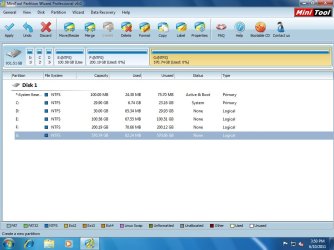
Your original arrangement was:
C - 29.90GB
D - 30.00GB
E - 100.58GB
F - 200.19GB
G - 570.74GB
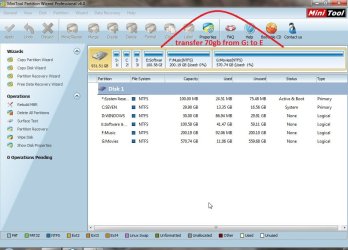
Your rearrangement goal was to enlarge E by 70GB, thus increasing its size to approximately 170GB. And the plan was to find the 70GB you needed to enlarge E, by taking 70GB from G (keeping its right edge just where it is, and moving its left edge to the right by 70Gb) thus reducing G down to approximately 500GB. And obviously in order to make that happen, you would have to keep the F partition in the middle between the increased E and the reduced G exactly the same size of 200GB but slide F to the right by 70GB. That was the obvious plan, and the steps that would be needed.
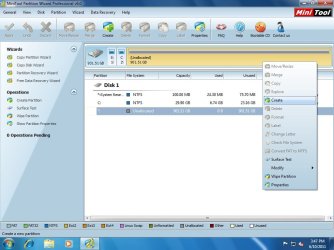
Looking at the original partition sizes, I believe you should have approached this task with the following sequence of steps using Partition Wizard, in the exact sequence shown:
(1) RESIZE G to reduce its size by 70GB, sliding its left edge to the right by 70GB. The right edge remains where it is (i.e. at the upper end of the drive), and the left edge moves to the right by 70GB.
You accomplish this by specifying the unallocated space on the right of G to 0GB, and the unallocated space on the left of G to 70GB.
In the graphical representation of the drive, this would then show 70GB "unallocated" to the left of G, located between the right edge of the current F and the left edge of the resized G.
(2) MOVE F to the right by 70GB, thus taking up all of the "unallocated" space to its right move, and creating a new "unallocated" area of 70GB to its left, located between the current E and the moved F.
You accomplish this by specifying the unallocated space on the right of F to 0GB, and the unallocated space on the left of F to 70GB.
In the graphical representation of the drive, this would then show 70GB "unallocated" to the left of F, located between right edge of the current E and the left edge of the moved F.
(3) RESIZE E to increase its size by 70GB, absorbing the 70GB unallocated space now to its right, between its right edge and the left edge of the moved F.
You accomplish this by specifying the unallocated space on the right of E to 0GB, and the unallocated space on the left of E to 0GB.
In the graphical representation of the drive, there should now be NO unallocated space between any of the partitions. E should now be approximately 170GB, F should be approximately 200GB, and G should be approximately 500GB.
You can either use the graphical sliders to move the left and right edges of the partition you're working on, or you can manually type in the numeric size values in the numeric entry area, or you can use the up/down arrows to "spin" the numbers until you get the value you want to see.
Once you get it all set up and the graphical drive representation of the partitions looks correct, you push the APPLY button and the queued operations will be performed in the above sequence, accomplishing the resize-G/move-F/resize-E you want to accomplish.
And then you'd end up with your goal:
C - 29.90GB
D - 30.00GB
E - 170.00GB
F - 200.00GB
G - 501.50GB
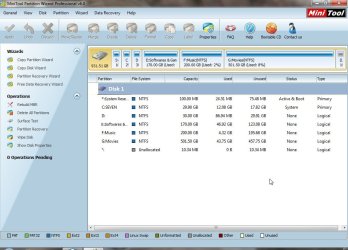
I honestly don't know why you somehow got that 10.34MB unallocated at the end, and I do understand why this is bothersome. But I suspect if you'd done things in the three steps I defined above, which uses up 100% of whatever you shrink from G to slide F to the right, and then to enlarge E... I would have expected to not have this 10.34MB mysterious space.
But, maybe it's just some kind of a "rounding error" resulting from partition boundaries, that cannot be overcome.
Anyway, your current screenshot looks just fine. I really do believe that if you'd followed my three steps above, in that sequence, that you should have had no problem whatsoever with Partition Wizard doing exactly those actions.