
- Local time
- 8:38 AM
- Messages
- 50,634
PW CD will not show letters in most cases.


Why would you convert your HD to Dynamic? This is used to span the same partition across multiple HD's.
Had you asked us we could have taken a look at your Disk Management screenshot and easily helped you adjust your disk configuration to extend the partition. Now you may have deleted something which is needed by your computer to function correctly if it is a factory install.
Before making any further random changes post back a screenshot of your maximized Disk Mgmt drive map with listings showing all columns, using the Snipping Tool in Start Menu and explain exactly what you did.
In light of gregrocker's comment, it would seem your only option now is a re-install to factory settings.
Why would you convert your HD to Dynamic? This is used to span the same partition across multiple HD's.
Had you asked us we could have taken a look at your Disk Management screenshot and easily helped you adjust your disk configuration to extend the partition. Now you may have deleted something which is needed by your computer to function correctly if it is a factory install.
Before making any further random changes post back a screenshot of your maximized Disk Mgmt drive map with listings showing all columns, using the Snipping Tool in Start Menu and explain exactly what you did.
In light of gregrocker's comment, it would seem your only option now is a re-install to factory settings.
Good advice was given 3 weeks ago.
If Win7 will not start now, download and burn to CD free Partition Wizard version 4.2 which still has free conversion from Dynamic to Basic Disk: pw422.zip ISO - Windows Live. This is now a paid feature in later versions and the home edition.
Boot PW CD, click on the Win7 HD to highlight it, from Disk tab select Convert from Dynamic to Basic, Apply.
If Win7 doesn't start, boot back into PW CD to make sure Win7 or its 100mb System Reserved boot partition (preferred) are marked Active, then highlight HD again, from Disk tab choose Rebuild MBR., OK, Apply.
If Win7 still doesn't start boot the Win7 DVD or Repair CD, accept any offered Repair. If that doesn't start it, boot back in to System Recovery Options to run Startup Repair repeatedly until Win7 starts. Post back a camera snap if possible of the drive map with listings, or type them out for us. System Repair Disc - Create
If all fails, You can copy out your files using this method: Copy & Paste - in Windows Recovery Console. Then try running Factory Recovery, run your Recovery disks, or boot Win7 DVD to clean reinstall: Reinstalling Windows 7
see, it is good advice, but i did the mistake of reformatting. thats why its all jumbled up now. anyway, thanks.Why would you convert your HD to Dynamic? This is used to span the same partition across multiple HD's.
Had you asked us we could have taken a look at your Disk Management screenshot and easily helped you adjust your disk configuration to extend the partition. Now you may have deleted something which is needed by your computer to function correctly if it is a factory install.
Before making any further random changes post back a screenshot of your maximized Disk Mgmt drive map with listings showing all columns, using the Snipping Tool in Start Menu and explain exactly what you did.
In light of gregrocker's comment, it would seem your only option now is a re-install to factory settings.
Good advice was given 3 weeks ago.


finally, pls pls pls help me just expand my c drive, and everything in the garden will be lovely................
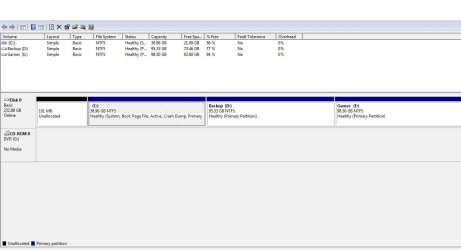
What is on the D Backup partition, the Factory Recovery image? Does it still run? Have you made the Recovery Disks? How to use the Toshiba HDD Recovery Utility
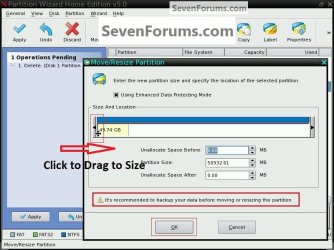
Even though D is 77% empty it may have greyed out Extend in Disk Mgmt because it contains the Factory Recovery Image. If you've made the disks and don't care about having Recovery remain on the HD, you can always delete it using Diskpart or free Partition Wizard bootable CD then extend C into D's space.
If you don't' use the Games on E you could also delete that to regain its space, assuming it's a factory-preinstalled Games partition and not your own Games storage.
If you have any questions, please post them back. If you want us to take a look at what's on D and E, unhide Hidden Files in Control Panel>Folder Options>View then post back a screenshot of the file contents.


