HP6480 Scanner (flatbed on my all-in-one printer)
Crappy Windows scanner software, 200DPI (resuloution?) Bitmap
For my own mix cd's with my original artwork, I use Paint Shop Pro v X. I open the 200x200 folder.jpg, resize to 500x500, open the new scan in the PSP, make my adjustments, copy and paste over the original folder.jpg and hit "Save".
Well, this procedure is a bit strange. Certainly not the way I'd recommend.
Why do you have to start from or end up with the 200x200 folder.jpg original?
Why not just open the new scan in PSP, adjust it, RE-SIZE IT TO 500x500 IN PSP, and then "Save as..." to a second name (specifying JPG as the type and a good quality value, and PSP should do the conversion from BMP to JPG).
This process has nothing at all to do with the original 200x200 folder.jpg... it's simply scanning the CD cover, tweaking it, resizing to the 500x500 target size, and "Save as..." a JPG with some name. It's simply a brand new scan to JPG.
Then, delete the original 200x200 folder.jpg which you're wanting to replace with the new 500x500 JPG from the scan, and rename the saved JPG from the scan to folder.jpg. And you're done.
Just in passing, I mention that my hardware and software is totally different from yours:
(1) Epson Perfection 4990 Photo scanner
(2) SilverFast Ai scanning software from LaserSoft Imaging
(3) Adobe Photoshop for editing/saving
My workflow (which you can review, and possibly adapt to your own setup) is as follows:
(1) Place the CD cover on the glass, and position a sheet of black construction paper behind it. For printed items that are not 100% opaque, the black background behind the image being scanned produces a better quality result. For printed items that are 100% opaque, the black background in contrast to the picture itself simply makes it a bit easier to see the outer edge of the picture being scanned, thus making it easier to position to crop outline more precisely at the edge. For printed magazine pictures, the black background is very beneficial in blocking out whatever image or text has been printed on the other side of that thin piece of paper page from bleeding through and ruining the scan of the side of the paper you're really interested in.
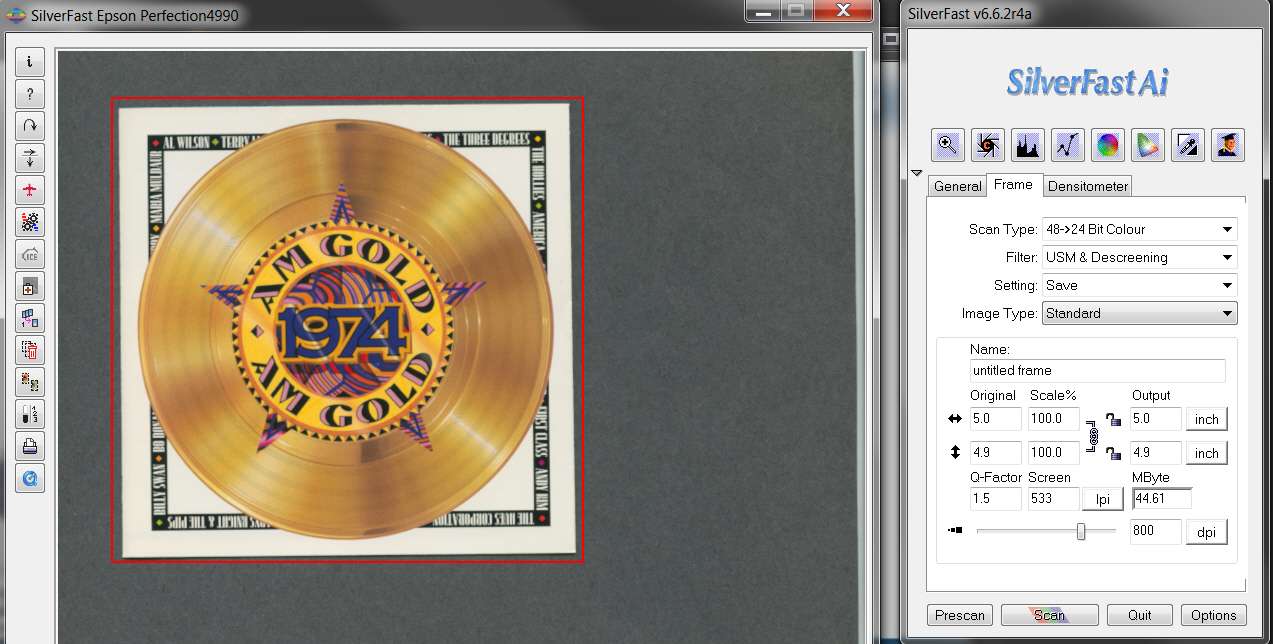
Open SilverFast and do a "prescan". This allows me to then adjust the red outline for the actual SCAN, to come reasonably close to the outline of the CD cover.
Since my scan is done at 800DPI (not the 200DPI you're using), the resulting output of the scan is very very large... typically about 45MB. But getting the outline fairly close to the cover art the file size is kept reasonable.
Your Windows scanner software may have a "basic/wizard" mode and an "advanced" mode. I only use "advanced", so that I have complete control over what I'm doing.
(2) Note that my scan setup specifies a "USM and descreening" filter. USM stands for "unsharp mask", which contrary to intuition actually results in a SHARPENING of the scanned image. And the "descreening" is to eliminate the ink-dot effect of scanning from magazine print or CD covers.
The result of both of these scanning options, plus 800DPI scanning (your scanner may not support such a high resolution), produces a very good initial "raw" scanned image.
After getting the red outline correct, I push the SCAN button. The output of the scan would normally be specified as type "TIF", although BMP is probably equivalent.
(3) SilverFast will take the scan, initiate the USM and descreening filter process, and when done saves the TIF file with a name you choose to some target folder place you navigate to at the start of the SCAN.
Then it invokes Adobe Photoshop, passing in a parameter the name of the saved TIF file it just created.
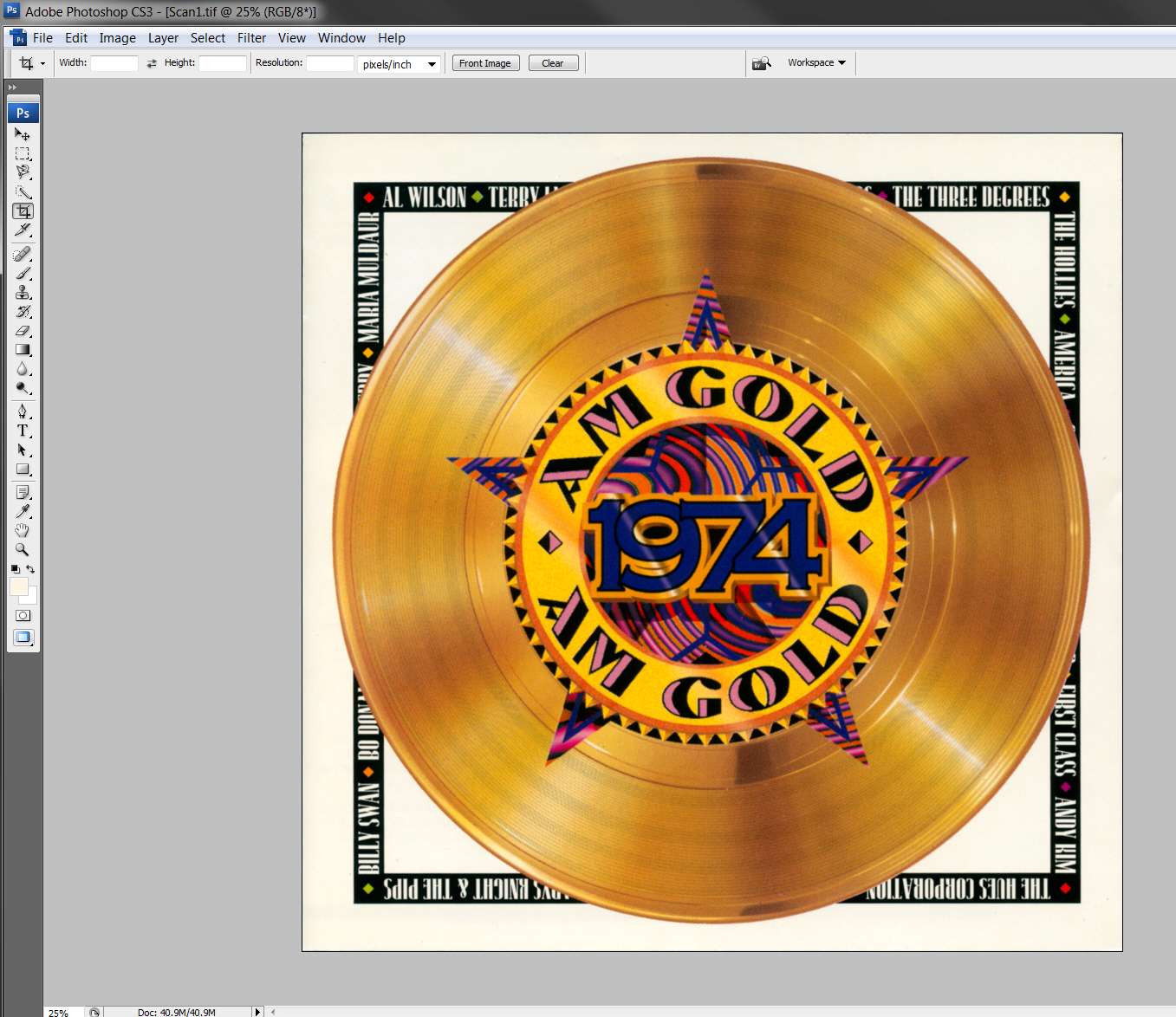
Photoshop opens, with the TIF file that got scanned as the current object to be edited. I have the "work table" maximized so that I can see great detail in the scan, so that I can get the slight rotate (which is probably necessary) and crop nicely clean and square. I then do the CROP.
It will then look like this.
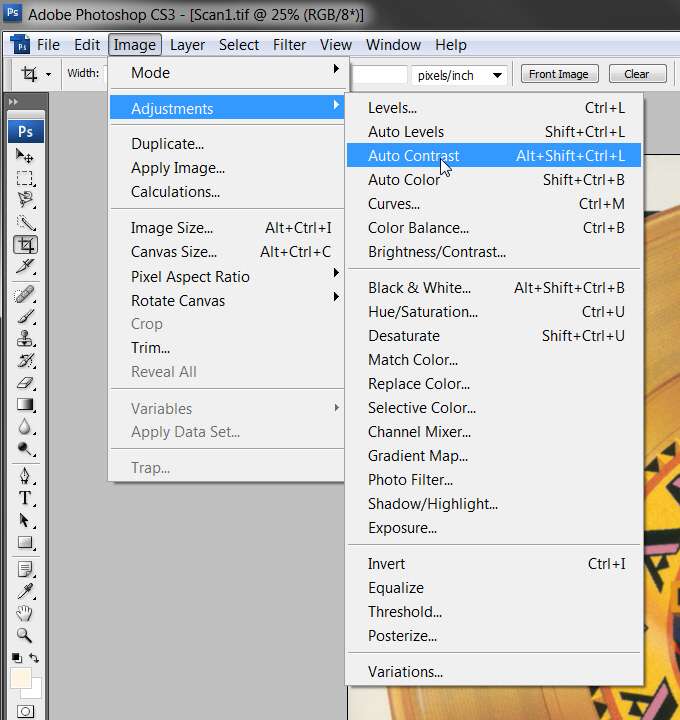
(4) I then begin my tweaking for color, brightness and contrast. Photoshop offers two different adjustment presets that I try out (auto levels, or auto contrast), to see how the result looks each way. If the results are better with one than the other, without ruining the color, I will usually go with it. Otherwise I will generally go with the other one. In worst case I manually adjust color and/or brightness and/or contrast, until I'm satisfied.
My scanner and the SilverFast scanning software generally does an excellent job on the color, so more often than not I use the "auto contrast".
Sometimes the result of "auto contrast" are dramatic, and sometimes not so much. In the current example here is the result.
If I'm not really satisfied, I'll push Edit -> undo auto contrast to back out the adjustment, and try again with a somewhat different tweak. Sometimes I go ahead with one of the auto-adjustments, but then come in after the fact to make further manual adjustments of color, brightness or contrast.
Bottom line is I want my result to look terrific, so I do what it takes and I don't mind spending some time on it. This is essentially a one-time job, so why not do it right that one time?
(5) Once I've got the large image (still in original TIF 3874x3874 size shown at 1:4 scale in Photoshop) tweaked to my satisfaction, I now resize the image down to 500x500. Note that "satisfaction" really means a result that is true to the original color of the cover but sharper and clearer and brighter, not auto-adjusted into some different color that looks nothing like the original. Many covers are quite artistic and beautiful but often are not really natural colors at all, but reflect the photographers intent nevertheless (e.g. sepia is very popular, which is a bit of an unnatural jaundice-like color for skin... but that's what many covers looks like). So my goal is to reproduce the cover itself as best I can, not to make up my own idea or let Photoshop destroy the original look of the cover.
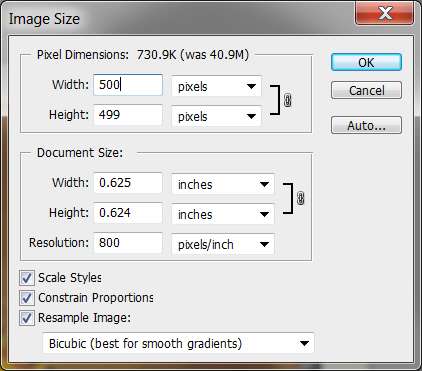
Anyway, if my original red box outline was good, and the CD cover was square, the resize will produce 500x500 or very close. If the cover is a bit off-square, I simply let Photoshop keep the "proportions constrained" (i.e. retain the original scanned aspect ratio) in the resized image, with the width always specified as 500. Then Photoshop calculates the height proportionally.
Original:
Resize specification:
The result looks like this (note that Photoshop is still presenting in 1:4 scale, from the original large s3784x3784):
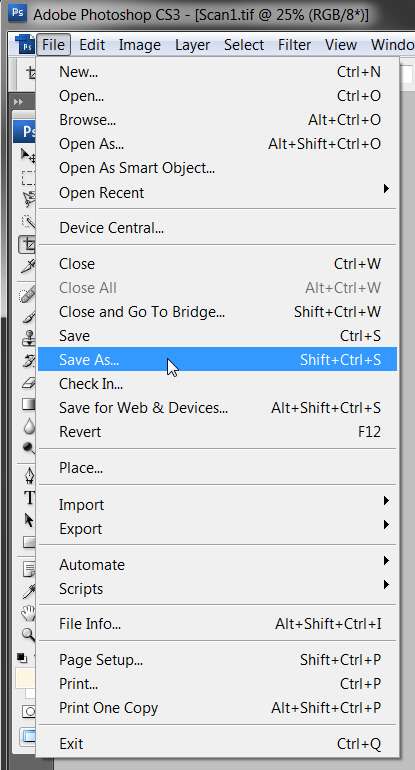
(6) Finally, it's time to "SAVE AS..." in high-quality JPG form, this tweaked and resized scan.
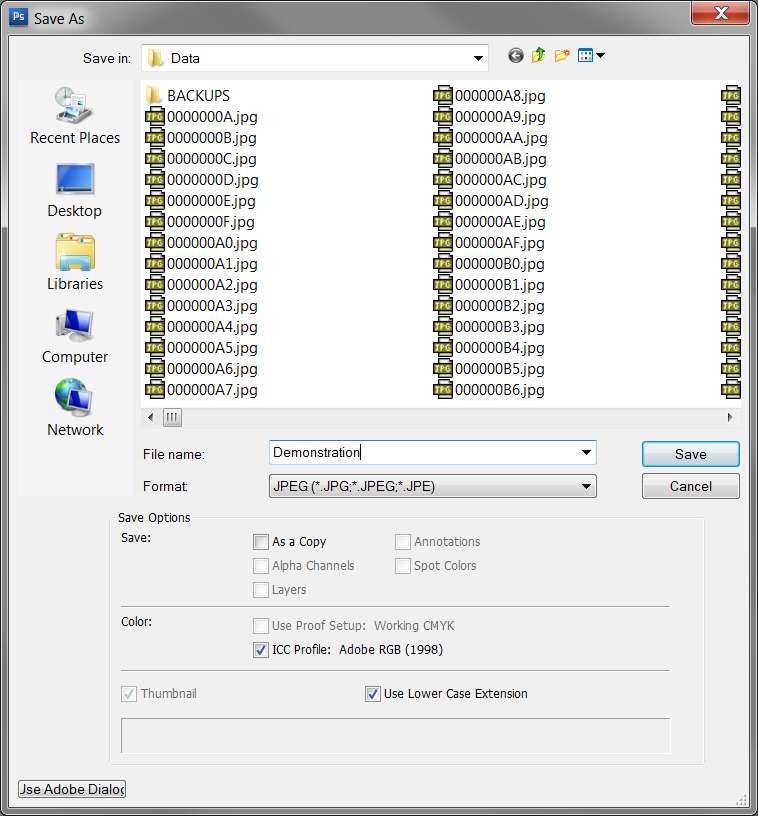
I then (a) change the format to "JPEG", and (b) specify the file name to be whatever I want.
Then I push the "SAVE" button (in this "Save as..." dialog).
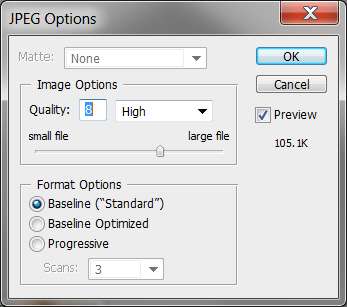
(7) Photoshop then presents a "quality" dialog, asking me what degree of JPG compression I want. Higher quality number (11 is maximum) means better quality but also larger file size. Lower quality number means poorer quality but also smaller file size.
In my mind, I'm looking for a reasonable file size which is from 50K-120K for my high-quality album art, but that's what I will get if I just always specify a quality number of 8. This is the low-end of the "high quality" range, and also still keeps the resulting file size reasonable.
I push OK, and the JPG is produced under whatever name I saved it as.
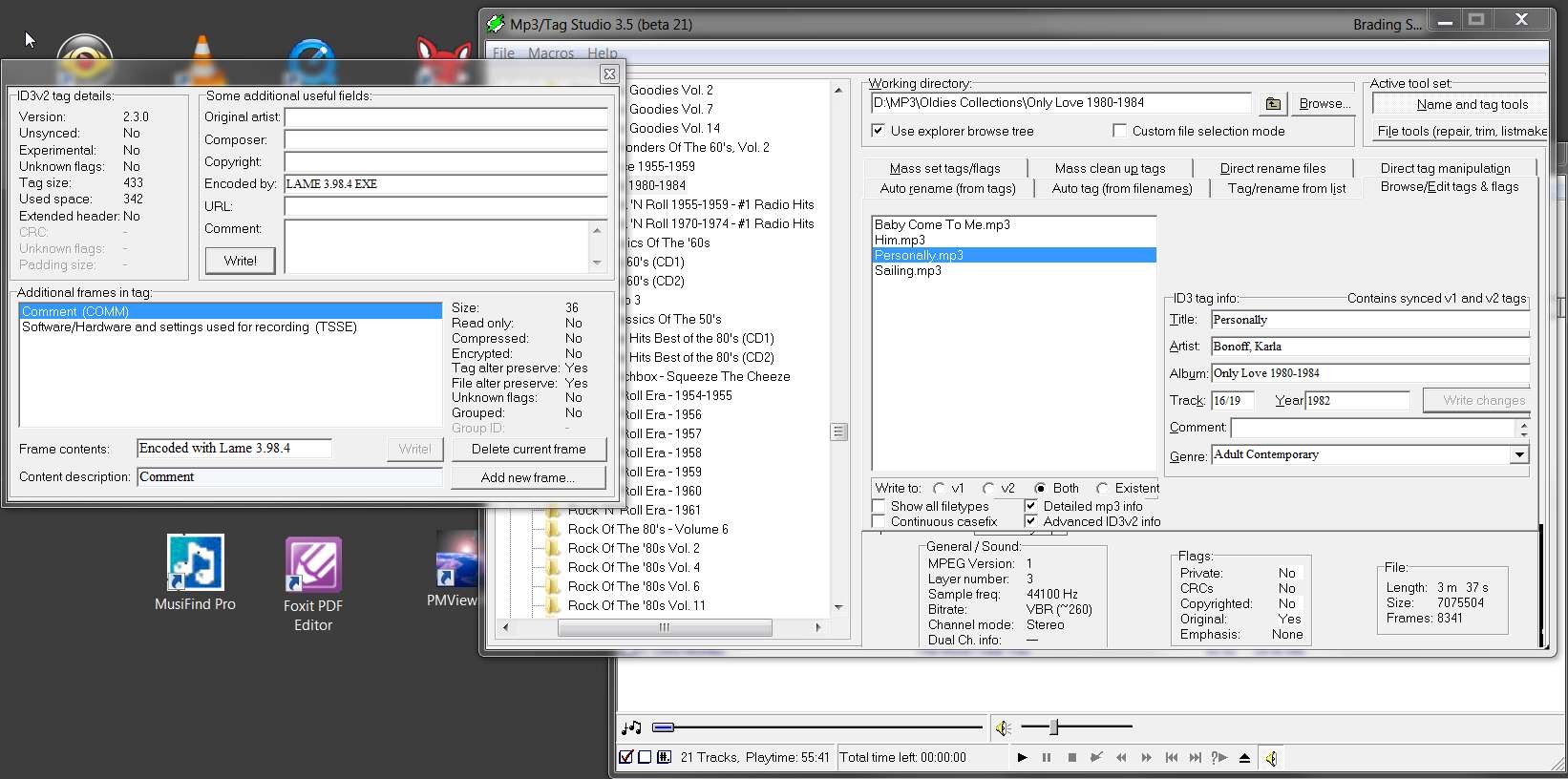
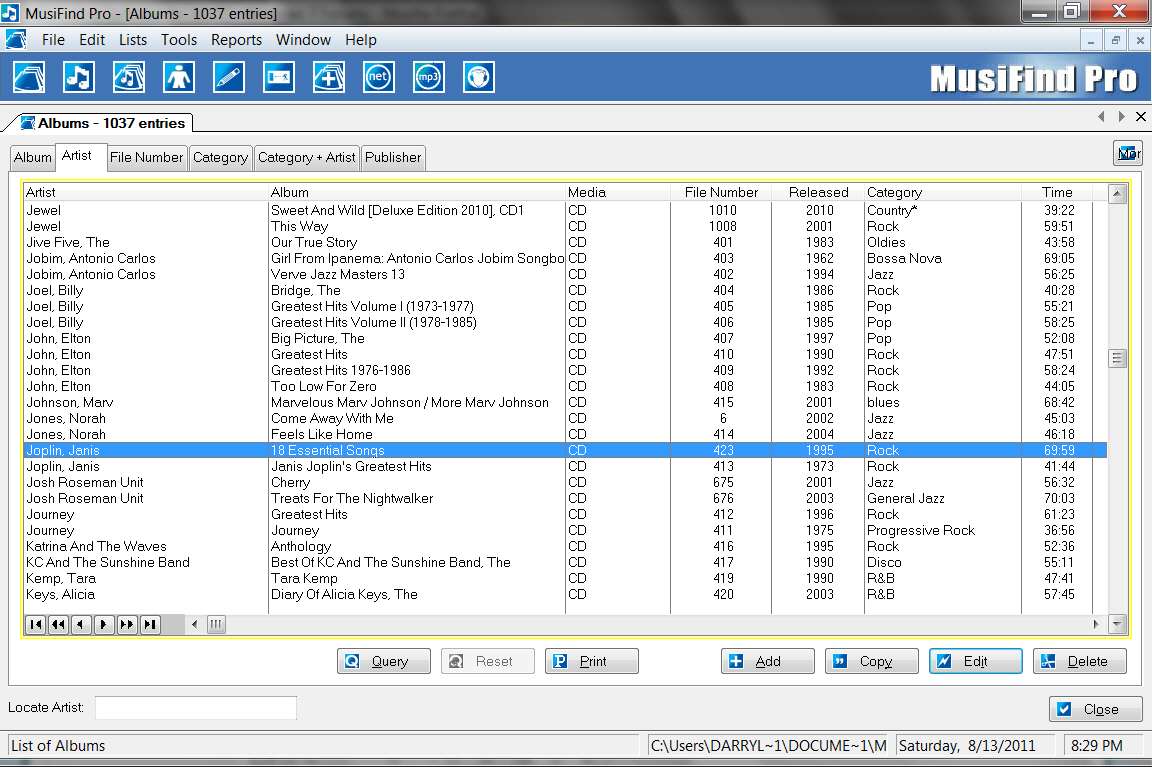
(8) Actually, I've chosen a name to conform to my CD Database program's purely numeric rule. But then I copy it to my music/album folder and rename it there to be "cover.jpg".
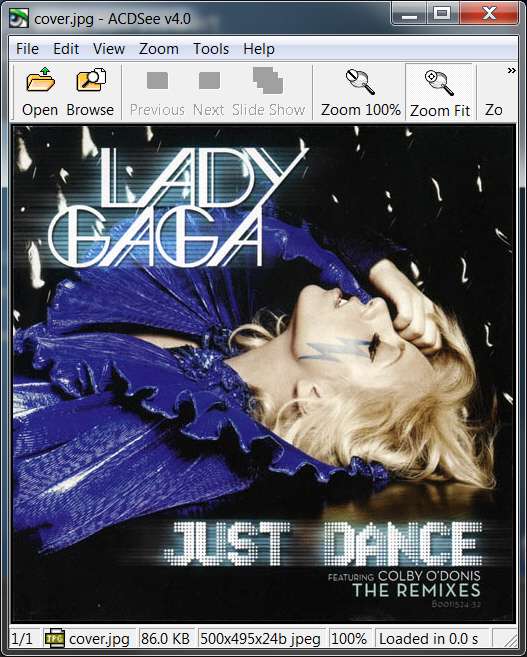
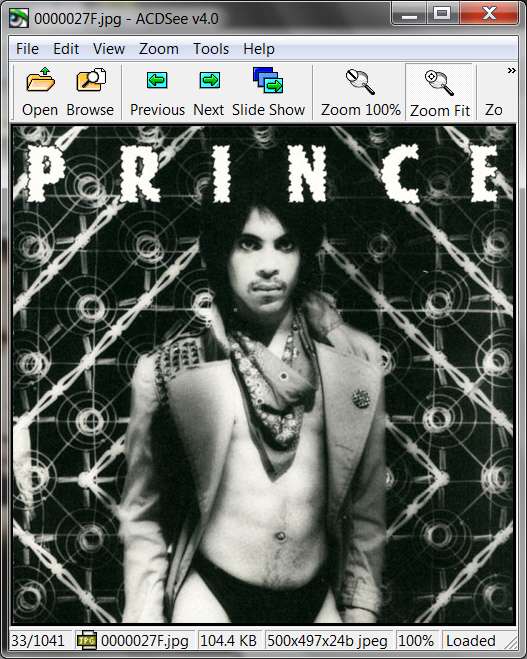
In its final 500x500 form it looks like this:
(9) I probably should have used a different cover, to show you a more dynamic and exciting result. When I do one of these scans I also upload it to Amazon, for others to retrieve.
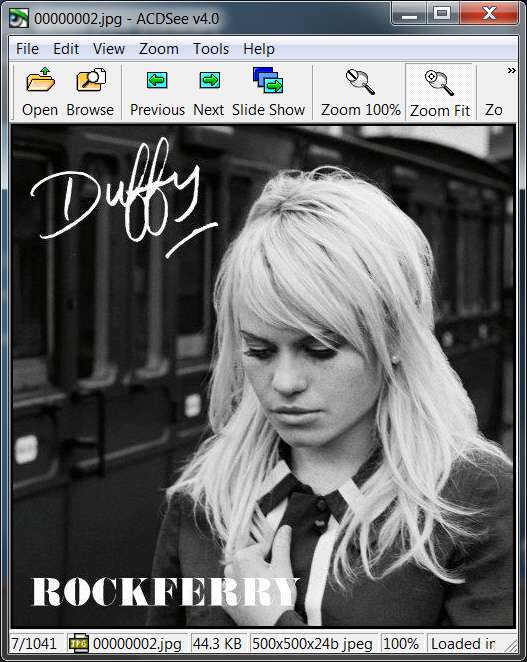
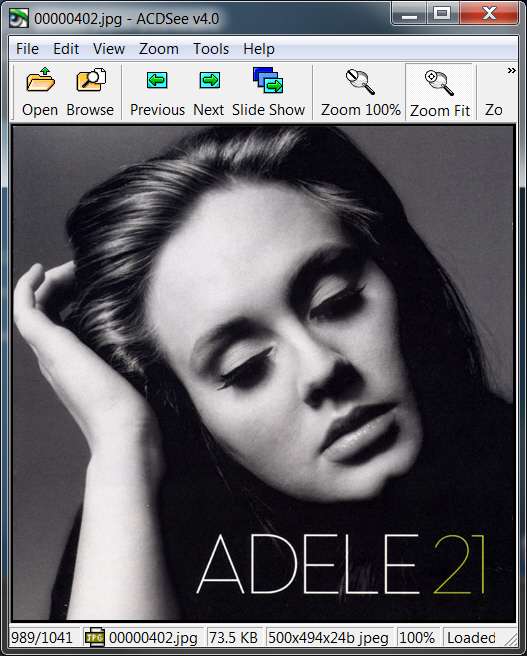
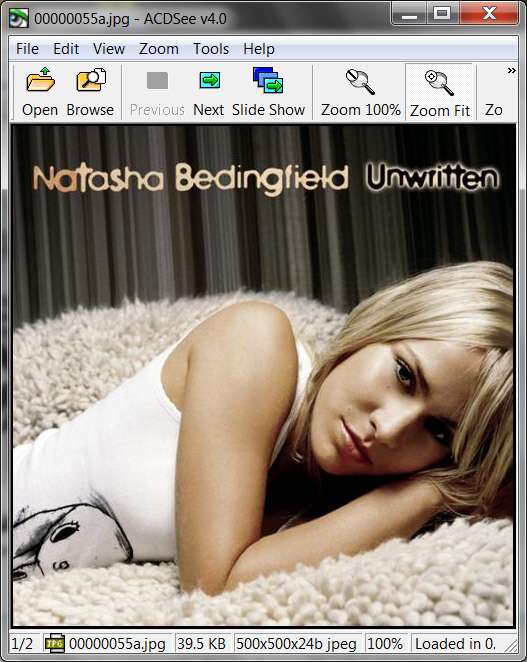
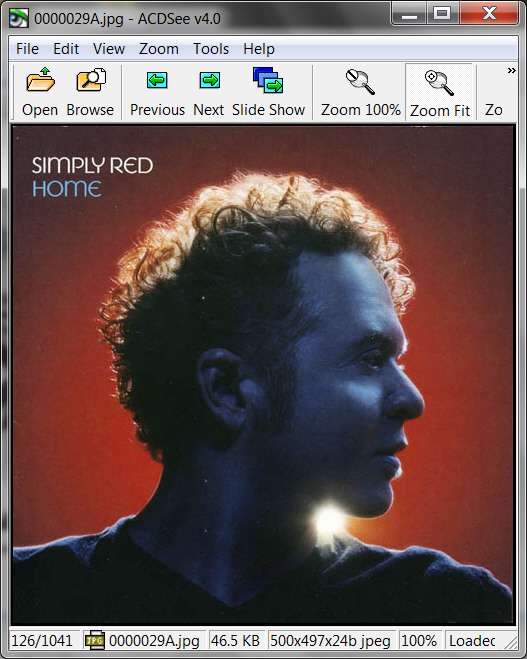
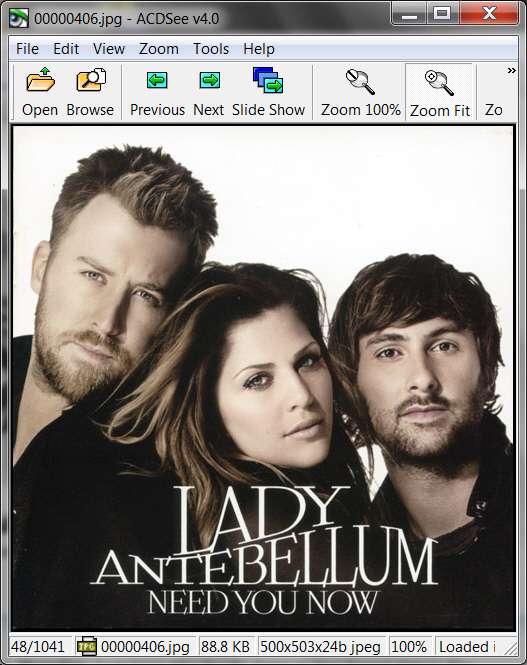
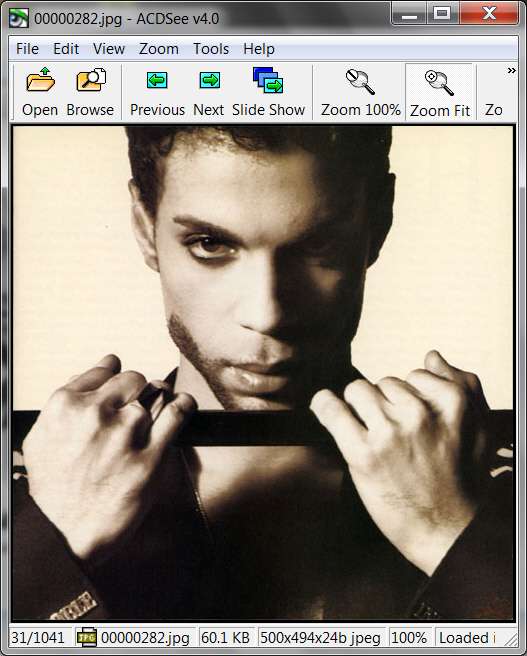
For example, here are a few other personal scans that are more interesting: