Window Color and Appearance - Change

How to Change the Window Color and Appearance in Windows 7


   Information
This will show you how to change the Window Color and Appearance settings for how windows, the Start Menu, and the taskbar are displayed in Windows 7.

   Warning
Aero Requirements to be Enabled in Windows 7

NOTE: If Aero is not enabled, then you will not see the Window Color and Appearance screen in step 3A of OPTION TWO below.
  • Aero is not included in Windows 7 Home Basic or Windows 7 Starter editions.
  • 1 GHz 32-bit or 64-bit processor
  • 1 GB of system memory
  • A graphics card with support for DirectX 9 graphics with at least 128 MB of memory.
  • The graphics card must support Pixel Shader 2.0 and the Windows Display Driver Model (WDDM).
  • Activate Windows 7.
  • You must be have True Color (32 bit) set instead of High Color (16 bit).
  • The Themes and Desktop Window Manager Session Manager Services are set to Start and Automatic.
  • The desktop composition and Animated controls and elements inside windows options enabled in Visual Effects.
  • Refresh or update your WEI score.
  • You must be using a "Aero" theme.
   Tip
All advanced appearance settings for a single user are stored in the three registry keys below.

  • HKEY_CURRENT_USER\Control Panel\Colors
  • HKEY_CURRENT_USER\Control Panel\Desktop\Colors
  • HKEY_CURRENT_USER\Control Panel\Desktop\WindowMetrics


OPTION ONE

To Change "Window Color and Appearance" in ONLY Windows 7 Starter and Home Basic


   Note
If you have the Windows 7 Home Premium, Professional, Ultimate, or Enterprise edition, then use OPTION TWO below instead.


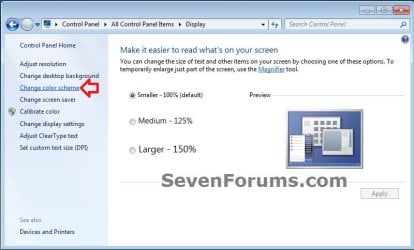
1. Open the Control Panel (icons view), and click on the Display icon.

2. In the left blue pane, click on the Change color scheme link. (see screenshot below)
Starter_Basic-1.jpg
3. Click on the Advanced button. (see screenshot below)
NOTE: Aero themes are not available in the Windows 7 Starter and Home Basic editions.
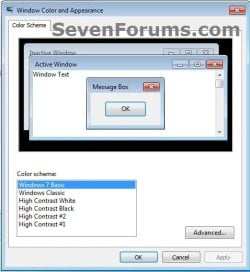
Starter_Basic-2.jpg
4. Go to step 7B in OPTION TWO below to do steps 7B to 9.

5. When finished, click on OK. (see screenshot below step 3)

6. Close the Display window. (see screenshot below step 1)


OPTION TWO

To Change "Window Color and Appearance" in ONLY Windows 7 Home Premium, Professional, Ultimate, and Enterprise


   Note
If you have the Windows 7 Starter or Home Basic edition, then use OPTION ONE above instead.


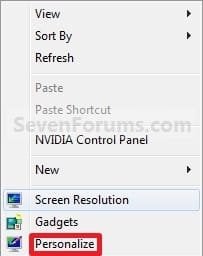
1. Right click on a empty space on the desktop and click on Personalize. (see screenshot below)
177d1230589847-window-color-appearance-change-right_click.jpg

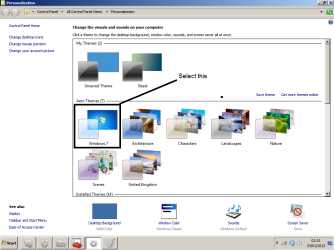
2. Click on the Window Color link at the bottom of the window. (see screenshot below)
NOTE: The name that is grayed out under Window Color, is the current color selected.
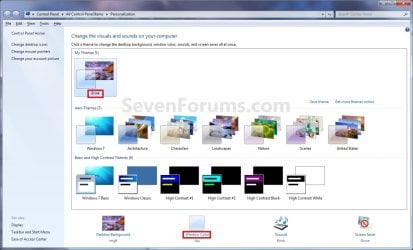
Personalize.jpg

   Warning

  • If you have selected from the Basic and High Contrast Themes , then you will not see the Window Color and Appearance screen below step 3A. Instead, go to step 7.
  • If you have selected from the Aero Themes, then you will see the Window Color and Appearance screen below step 3A. Continue to step 3.

3. Select a Color
A) Click on an available color that you would like the Start Menu, window borders, and taskbar to be. (see screenshot below step 5A)
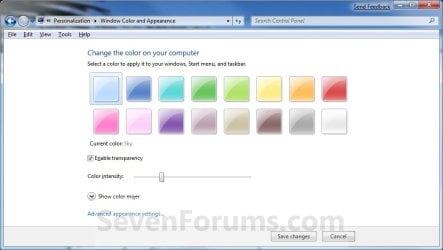
Color_and_Appearance-1.jpg
4. Enable or Disable Transparency
A) Check or uncheck Enable transparency to enable or disable transparency for the Start Menu, window borders, and taskbar. (see screenshot below step 3A)
5. Adjust Color Intensity
A) Slide the Color intensity slider to the left to lighten the color (step 3) or to the right to darken the color (step 3). (see screenshot below step 3A)
WARNING: If you slide the slider to far to the right, the Start menu, windows, and taskbar, may no longer be transparent (if enabled) since the color will be to dark. You would just need to slide it some to the left to lighten the color again.
6. To Adjust the Color Mixer Settings
NOTE: If you do not want to adjust the color mixer settings, then skip this step to keep the default color selected in step 3 and go to step 7 instead.
A) Click on the Show color mixer button. (see screenshot below)
NOTE: This is if you would like to adjust the color's (step 3A) hue, saturation, and brightness to create a custom color.

B) Slide the sliders to adjust the color.
NOTE: If you do not wish to continue to step 7, then click on the Save Changes button to apply the changes and close the window below. You're done.
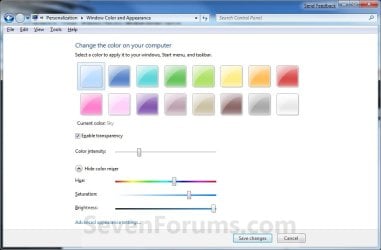
Color_and_Appearance-2.jpg
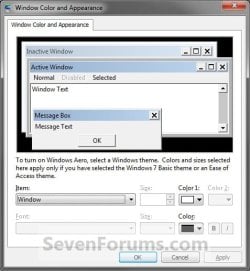
7. To Change the "Advanced Window Color and Appearance" Settings
WARNING: Colors and sizes selected for items will only be used if you have selected a Windows Classic or High Contrast theme. If any other theme is applied, you will not be able to change colors and sizes for items.
A) Click on the Advanced appearance settings link. (see screenshot above)
NOTE: You will not need to do this if you have a Basic and High Contrast Theme selected. Continue to step 7B instead.

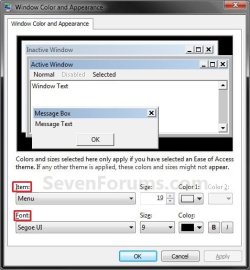
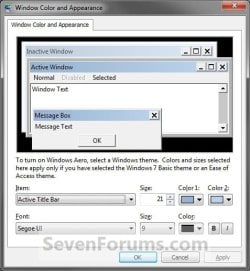
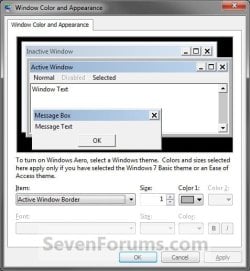
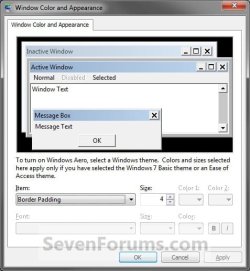
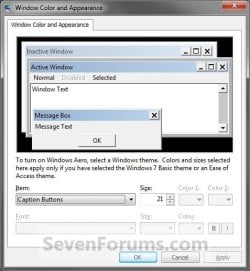
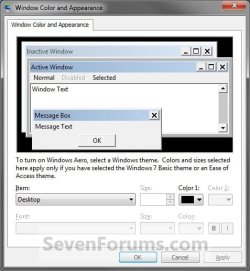
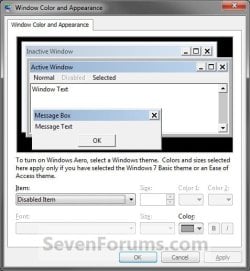
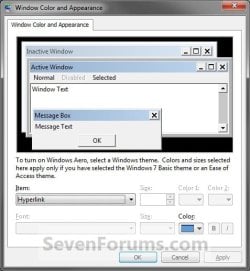
B) To Change a Window Item Setting

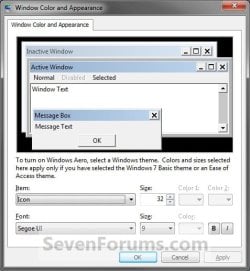
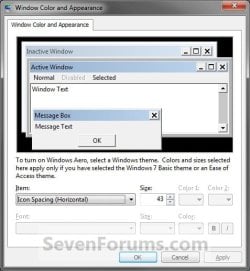
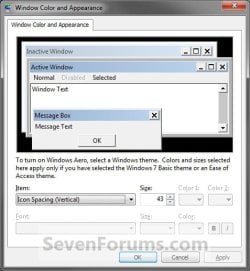
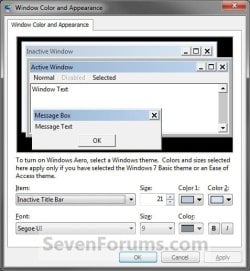
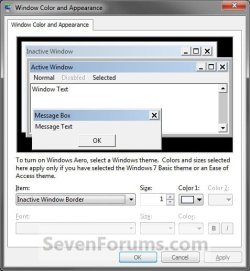
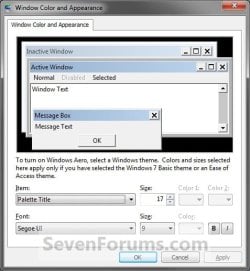
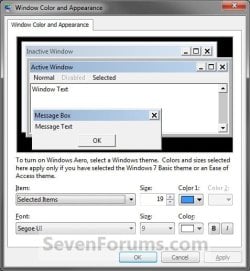
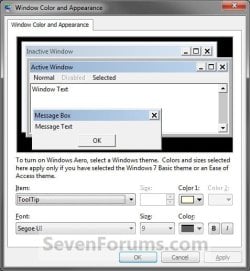
  • To Select a Item - Click on the Item drop down menu and select a window item you want to change. (See screenshots below step 7C)
    NOTE: You can also click on the different displayed windows at the top of the "Window Color and Appearance" window to select a Item to.
  • To Change the Item Size - Change the Size number to what you want.
  • To Change the Item Color - Click on the Color 1 and Color 2 drop down menu and select a color.
    NOTE: The color will only change if you have the Windows Classic theme selected.
C) To Change the Font Settings for the Selected Item

  • To Change the Item Font - Click on the Font drop down menu and select a font. (See screenshotd below)
  • To Change the Item Font Size - Click on the Size drop down menu and select a number for the size. The higher the number, the larger the size.
  • To Change the Item Font Color - Click on the Color drop down menu and select a color.
  • To Have the Item Font in Bold - Click the B button to highlight it. If it is not highlighted, then the font will not be in bold.
  • To Have the Item Font in Italic - Click on the I button to highlight it. If it is not highlighted, then the font will not be in italic.
Classic_Color_and_Appearance-1.jpg

Classic_Color_and_Appearance-2.jpg
D) Repeat steps 7B and 7C until you change all the Items you wanted.
8. The Default Advanced Appearance Settings
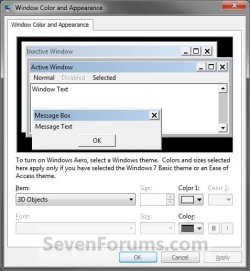
3D_Objects.jpgActive_Tittle_Bar.jpg

Active_Window_Border.jpgApplication Background.jpg

Border_Padding.jpgCaption_Buttons.jpg

Desktop.jpgDisabled_Item.jpg

Hyperlink.jpgIcon.jpg

Icon_Spacing_Horizontal.jpgIcon_Spacing_Vertical.jpg

Inactive_Title_Bar.jpgInactive_Window_Border.jpg

Menu.jpgMessage_Box.jpg

Palette_Title.jpgScrollbar.jpg

Selected_Items.jpgToolTip.jpg

Window.jpg

9. When finished, click on OK. (see screenshots above or below step 7C)

10. Click on the Save Changes button in the Window Color and Appearance window. (see screenshot below step 6B)
NOTE: You will not have this to do if you have a Basic and High Contrast Theme selected.

11. Close the the Personalization window. (see screenshot below step 2)
That's it,
Shawn


Attachments

  • Right_Click.jpg
    Right_Click.jpg
    7.6 KB · Views: 470,417
Last edited:
Hello Steve,

Unfortunately, that color setting will only be applied when using the "Windows Classic" theme. It will not work in any other theme. :(
 

My Computer My Computer

Computer type
PC/Desktop
Computer Manufacturer/Model Number
Self built custom
OS
64-bit Windows 11 Pro for Workstations
CPU
Intel i7-8700K OC'd to 5 GHz
Motherboard
ASUS ROG Maximus XI Formula Z390
Memory
64 GB (4x16GB) G.SKILL TridentZ RGB DDR4 3600 MHz
Graphics Card(s)
ASUS ROG-STRIX-GTX1080TI-O11G-GAMING
Sound Card
Integrated
Monitor(s) Displays
2 x Samsung Odyssey G7 27"
Screen Resolution
2560x1440
Hard Drives
1TB Samsung 990 PRO M.2,
4TB Samsung 990 PRO PRO M.2,
TerraMaster F8 SSD Plus NAS
PSU
Seasonic Prime Titanium 850W
Case
Thermaltake Core P3
Cooling
Corsair Hydro H115i
Keyboard
Logitech wireless K800
Mouse
Logitech MX Master 4
Internet Speed
2 Gb/s Download and 100 Mb/s Upload
Antivirus
Malwarebyte Anti-Malware Premium
Browser
Google Chrome
Other Info
Logitech Z625 speaker system,
Logitech BRIO 4K Pro webcam,
HP Color LaserJet Pro MFP M477fdn,
APC SMART-UPS RT 1000 XL - SURT1000XLI,
Galaxy S23 Plus phone
This seems to have changed. There is no "Change color scheme link". There is, however, a "change display settings" link. But if you go there, the advanced link does not lead to these screens.

This help should be updated.
 

My Computer My Computer

OS
XP
This seems to have changed. There is no "Change color scheme link". There is, however, a "change display settings" link. But if you go there, the advanced link does not lead to these screens.

This help should be updated.

Hello Eddy,

Sorry, but there's nothing wrong with the tutorial.

What you are looking at in OPTION ONE is only for the Windows 7 Starter and Windows 7 Home Basic editions as the title under OPTION ONE indicates. ;)

In addition, the Windows 7 Starter and Windows 7 Home Basic editions do not have the screen under step 3A in OPTION TWO since it's not included in these editions as per the red warning box at the top of the tutorial

What edition of Windows 7 do you have installed?
 
Last edited:

My Computer My Computer

Computer type
PC/Desktop
Computer Manufacturer/Model Number
Self built custom
OS
64-bit Windows 11 Pro for Workstations
CPU
Intel i7-8700K OC'd to 5 GHz
Motherboard
ASUS ROG Maximus XI Formula Z390
Memory
64 GB (4x16GB) G.SKILL TridentZ RGB DDR4 3600 MHz
Graphics Card(s)
ASUS ROG-STRIX-GTX1080TI-O11G-GAMING
Sound Card
Integrated
Monitor(s) Displays
2 x Samsung Odyssey G7 27"
Screen Resolution
2560x1440
Hard Drives
1TB Samsung 990 PRO M.2,
4TB Samsung 990 PRO PRO M.2,
TerraMaster F8 SSD Plus NAS
PSU
Seasonic Prime Titanium 850W
Case
Thermaltake Core P3
Cooling
Corsair Hydro H115i
Keyboard
Logitech wireless K800
Mouse
Logitech MX Master 4
Internet Speed
2 Gb/s Download and 100 Mb/s Upload
Antivirus
Malwarebyte Anti-Malware Premium
Browser
Google Chrome
Other Info
Logitech Z625 speaker system,
Logitech BRIO 4K Pro webcam,
HP Color LaserJet Pro MFP M477fdn,
APC SMART-UPS RT 1000 XL - SURT1000XLI,
Galaxy S23 Plus phone
Eddy,

Are you using one of the Aero themes in Enterprise to be able to see the Window Color and Appearance screen under step 3A in OPTION TWO?

If you are, then double check the items listed in the red warning box at the top of the tutorial to see if one of them may apply to why you are not seeing it.
 

My Computer My Computer

Computer type
PC/Desktop
Computer Manufacturer/Model Number
Self built custom
OS
64-bit Windows 11 Pro for Workstations
CPU
Intel i7-8700K OC'd to 5 GHz
Motherboard
ASUS ROG Maximus XI Formula Z390
Memory
64 GB (4x16GB) G.SKILL TridentZ RGB DDR4 3600 MHz
Graphics Card(s)
ASUS ROG-STRIX-GTX1080TI-O11G-GAMING
Sound Card
Integrated
Monitor(s) Displays
2 x Samsung Odyssey G7 27"
Screen Resolution
2560x1440
Hard Drives
1TB Samsung 990 PRO M.2,
4TB Samsung 990 PRO PRO M.2,
TerraMaster F8 SSD Plus NAS
PSU
Seasonic Prime Titanium 850W
Case
Thermaltake Core P3
Cooling
Corsair Hydro H115i
Keyboard
Logitech wireless K800
Mouse
Logitech MX Master 4
Internet Speed
2 Gb/s Download and 100 Mb/s Upload
Antivirus
Malwarebyte Anti-Malware Premium
Browser
Google Chrome
Other Info
Logitech Z625 speaker system,
Logitech BRIO 4K Pro webcam,
HP Color LaserJet Pro MFP M477fdn,
APC SMART-UPS RT 1000 XL - SURT1000XLI,
Galaxy S23 Plus phone
I don't know if I have Aero Themes or not. I looked at the red box but it references "the color screen below step 5". But there is a step 5 in both options and neither of them a color screen. So I think you meant step 3 of OPTION TWO. If so I do have the color screen.
I was able to use OPTION TWO so I tried changing the Active Window Boarder and Active Title Bar. But after saving the chagnes those don't change on the active windows. Any ideas on that?
 

My Computer My Computer

OS
XP
Eddy,

Ah, I see now. The color settings under the Item section (step 7B Option Two) will only change if you have the Windows Classic theme selected. :(
 

My Computer My Computer

Computer type
PC/Desktop
Computer Manufacturer/Model Number
Self built custom
OS
64-bit Windows 11 Pro for Workstations
CPU
Intel i7-8700K OC'd to 5 GHz
Motherboard
ASUS ROG Maximus XI Formula Z390
Memory
64 GB (4x16GB) G.SKILL TridentZ RGB DDR4 3600 MHz
Graphics Card(s)
ASUS ROG-STRIX-GTX1080TI-O11G-GAMING
Sound Card
Integrated
Monitor(s) Displays
2 x Samsung Odyssey G7 27"
Screen Resolution
2560x1440
Hard Drives
1TB Samsung 990 PRO M.2,
4TB Samsung 990 PRO PRO M.2,
TerraMaster F8 SSD Plus NAS
PSU
Seasonic Prime Titanium 850W
Case
Thermaltake Core P3
Cooling
Corsair Hydro H115i
Keyboard
Logitech wireless K800
Mouse
Logitech MX Master 4
Internet Speed
2 Gb/s Download and 100 Mb/s Upload
Antivirus
Malwarebyte Anti-Malware Premium
Browser
Google Chrome
Other Info
Logitech Z625 speaker system,
Logitech BRIO 4K Pro webcam,
HP Color LaserJet Pro MFP M477fdn,
APC SMART-UPS RT 1000 XL - SURT1000XLI,
Galaxy S23 Plus phone
Display problems...

So I just hooked up my brand new computer it has windows 7 home prem. 64 bit.

I'm trying to change the window color according to the tutorial found here.

The problem I am having is every time I click the "Window Color" icon it does not take me to the image displayed in step 3 instead it takes me to step 7. It worked just fine the first time I tried it...just to play around with some colors I liked.

I've read the responses and I have selected an aero theme and NOT a basic or high contrast theme but I cannot get step 3 to show up.

I've also run a troubleshoot - fix problems with transparency and other visual effects but all it tells me is - Desktop Window Manager is disabled....that it has been detected...I did click the advance tab and made sure Repair Automatically was checked (I also tried it manually) and nothing.

Nothing has fixed this issue so far.
 

My Computer My Computer

OS
Windows 7 Home Premium 64 bit
Hello Seal Captn, and welcome to Seven Forums.

For that message, double check to make sure that the Themes and Desktop Window Manager Session Manager Services are set to Start and Automatic.

In addition, it wouldn't hurt to double check each item in the red warning box at the top of the tutorial to see if anything else may also apply as a cause.

Hope this helps,
Shawn
 

My Computer My Computer

Computer type
PC/Desktop
Computer Manufacturer/Model Number
Self built custom
OS
64-bit Windows 11 Pro for Workstations
CPU
Intel i7-8700K OC'd to 5 GHz
Motherboard
ASUS ROG Maximus XI Formula Z390
Memory
64 GB (4x16GB) G.SKILL TridentZ RGB DDR4 3600 MHz
Graphics Card(s)
ASUS ROG-STRIX-GTX1080TI-O11G-GAMING
Sound Card
Integrated
Monitor(s) Displays
2 x Samsung Odyssey G7 27"
Screen Resolution
2560x1440
Hard Drives
1TB Samsung 990 PRO M.2,
4TB Samsung 990 PRO PRO M.2,
TerraMaster F8 SSD Plus NAS
PSU
Seasonic Prime Titanium 850W
Case
Thermaltake Core P3
Cooling
Corsair Hydro H115i
Keyboard
Logitech wireless K800
Mouse
Logitech MX Master 4
Internet Speed
2 Gb/s Download and 100 Mb/s Upload
Antivirus
Malwarebyte Anti-Malware Premium
Browser
Google Chrome
Other Info
Logitech Z625 speaker system,
Logitech BRIO 4K Pro webcam,
HP Color LaserJet Pro MFP M477fdn,
APC SMART-UPS RT 1000 XL - SURT1000XLI,
Galaxy S23 Plus phone
Shawn,

I did as you said. Both are "started" and "automatic".

I also went back and double (did this multiple times previously) checked the red warrning box as you suggested and it still is taking me to step 7 instead of step 3.

I just don't understand how it worked once (and I didn't actually change anything) to it changing its own color to an obnoxiously color and now I can't change it.

*EDIT*

Furthermore, after I try and change the window color and it brings up step 7 I go back and look under "themes" and it now has an "Unsaved Theme" that has the desired background with a "Basic and High Contrast" window setting....

this isn't making any sense.
 
Last edited:

My Computer My Computer

OS
Windows 7 Home Premium 64 bit
Shawn,

I did as you said. Both are "started" and "automatic".

I also went back and double (did this multiple times previously) checked the red warrning box as you suggested and it still is taking me to step 7 instead of step 3.

I just don't understand how it worked once (and I didn't actually change anything) to it changing its own color to an obnoxiously color and now I can't change it.

*EDIT*

Furthermore, after I try and change the window color and it brings up step 7 I go back and look under "themes" and it now has an "Unsaved Theme" that has the desired background with a "Basic and High Contrast" window setting....

this isn't making any sense.


Hmm, ok. See if selecting either a saved Aero theme to the right of that "Unsaved Theme", or select another Aero theme below it to see if that may help.

If not, restart the computer and try again.
 
Last edited:

My Computer My Computer

Computer type
PC/Desktop
Computer Manufacturer/Model Number
Self built custom
OS
64-bit Windows 11 Pro for Workstations
CPU
Intel i7-8700K OC'd to 5 GHz
Motherboard
ASUS ROG Maximus XI Formula Z390
Memory
64 GB (4x16GB) G.SKILL TridentZ RGB DDR4 3600 MHz
Graphics Card(s)
ASUS ROG-STRIX-GTX1080TI-O11G-GAMING
Sound Card
Integrated
Monitor(s) Displays
2 x Samsung Odyssey G7 27"
Screen Resolution
2560x1440
Hard Drives
1TB Samsung 990 PRO M.2,
4TB Samsung 990 PRO PRO M.2,
TerraMaster F8 SSD Plus NAS
PSU
Seasonic Prime Titanium 850W
Case
Thermaltake Core P3
Cooling
Corsair Hydro H115i
Keyboard
Logitech wireless K800
Mouse
Logitech MX Master 4
Internet Speed
2 Gb/s Download and 100 Mb/s Upload
Antivirus
Malwarebyte Anti-Malware Premium
Browser
Google Chrome
Other Info
Logitech Z625 speaker system,
Logitech BRIO 4K Pro webcam,
HP Color LaserJet Pro MFP M477fdn,
APC SMART-UPS RT 1000 XL - SURT1000XLI,
Galaxy S23 Plus phone
Please update the guide to show what every feature actually is.

I think it will help a lot of people.

Thanks, Joe.
 

My Computer My Computer

Computer Manufacturer/Model Number
iRush Pro
OS
Windows 7 Ultimate x64
CPU
Intel Core i5 2500K Processor
Motherboard
Intel H67 Chipset Motherboard (Micro ATX)
Memory
2x4GB DDR3 1333Mhz Memory
Graphics Card(s)
Novatech Radeon 6770 1GB Graphics Card
Hard Drives
1TB
PSU
Novatech 500W
Case
Novatech ATX Gaming Case
Cooling
-
Keyboard
Novatech Wired Keyboard
Mouse
Novatech Wired Mouse
Internet Speed
VirginMedia 10MB/s
Hello Joe,

If you click on what you would like to change in the top half of the window, you will see what item it is for. :)
 

My Computer My Computer

Computer type
PC/Desktop
Computer Manufacturer/Model Number
Self built custom
OS
64-bit Windows 11 Pro for Workstations
CPU
Intel i7-8700K OC'd to 5 GHz
Motherboard
ASUS ROG Maximus XI Formula Z390
Memory
64 GB (4x16GB) G.SKILL TridentZ RGB DDR4 3600 MHz
Graphics Card(s)
ASUS ROG-STRIX-GTX1080TI-O11G-GAMING
Sound Card
Integrated
Monitor(s) Displays
2 x Samsung Odyssey G7 27"
Screen Resolution
2560x1440
Hard Drives
1TB Samsung 990 PRO M.2,
4TB Samsung 990 PRO PRO M.2,
TerraMaster F8 SSD Plus NAS
PSU
Seasonic Prime Titanium 850W
Case
Thermaltake Core P3
Cooling
Corsair Hydro H115i
Keyboard
Logitech wireless K800
Mouse
Logitech MX Master 4
Internet Speed
2 Gb/s Download and 100 Mb/s Upload
Antivirus
Malwarebyte Anti-Malware Premium
Browser
Google Chrome
Other Info
Logitech Z625 speaker system,
Logitech BRIO 4K Pro webcam,
HP Color LaserJet Pro MFP M477fdn,
APC SMART-UPS RT 1000 XL - SURT1000XLI,
Galaxy S23 Plus phone
Windows aero

i have windows 7 home premium, and my appearance randomly changed from aero, to basic.... i tried to go to the window color tab, but it brought me to the advanced window, that shows 3D model, inactive window, active window, etc. how do i get aero back?
 

My Computer My Computer

OS
windows 7 home premium
Try these:

Right Click Desktop - Personalize. Chose Windows 7

Or Control Panel - System - Advanced System Settings - Settings - Adjust for best appearance

If that fails. Type in the Search bar in the Start Menu or a Run Dialogue "services.msc". Open it and seach for Themes. It is alphabetically enabled. Right Click it and select Properties. Under Startup type change it to Automatic. Then click OK. Now select Themes again and chose "Start this service".
 

Attachments

  • Example.png
    Example.png
    59 KB · Views: 451

My Computer My Computer

Computer type
PC/Desktop
Computer Manufacturer/Model Number
Novatech iRush Pro
OS
Windows 7 Ultimate SP1 - 64 Bit
CPU
Intel Core i5 2500k
Motherboard
Foxconn H67M-S/H67M-V/H67
Memory
2x4GB DDR3 1333Hz
Graphics Card(s)
Ati Radeon 6770
Sound Card
None
Monitor(s) Displays
Samsung S22B150
Screen Resolution
1920x1080
Hard Drives
2x500GB
PSU
500W
Cooling
Fan
Keyboard
HP KU0316
Mouse
Wireless Logitech M185
Internet Speed
20MB/s
Antivirus
Avast Free
Browser
Google Chrome
Other Info
Logitech M185 Mouse
KU-M316 Keyboard
i have windows 7 home premium, and my appearance randomly changed from aero, to basic.... i tried to go to the window color tab, but it brought me to the advanced window, that shows 3D model, inactive window, active window, etc. how do i get aero back?

Hello GsCGolden, and welcome to Seven Forums.

In addition, double check the last 5 items listed in the red Warning box at the top of the tutorial to see if any of them may be at issue here.

Hope this helps,
Shawn
 

My Computer My Computer

Computer type
PC/Desktop
Computer Manufacturer/Model Number
Self built custom
OS
64-bit Windows 11 Pro for Workstations
CPU
Intel i7-8700K OC'd to 5 GHz
Motherboard
ASUS ROG Maximus XI Formula Z390
Memory
64 GB (4x16GB) G.SKILL TridentZ RGB DDR4 3600 MHz
Graphics Card(s)
ASUS ROG-STRIX-GTX1080TI-O11G-GAMING
Sound Card
Integrated
Monitor(s) Displays
2 x Samsung Odyssey G7 27"
Screen Resolution
2560x1440
Hard Drives
1TB Samsung 990 PRO M.2,
4TB Samsung 990 PRO PRO M.2,
TerraMaster F8 SSD Plus NAS
PSU
Seasonic Prime Titanium 850W
Case
Thermaltake Core P3
Cooling
Corsair Hydro H115i
Keyboard
Logitech wireless K800
Mouse
Logitech MX Master 4
Internet Speed
2 Gb/s Download and 100 Mb/s Upload
Antivirus
Malwarebyte Anti-Malware Premium
Browser
Google Chrome
Other Info
Logitech Z625 speaker system,
Logitech BRIO 4K Pro webcam,
HP Color LaserJet Pro MFP M477fdn,
APC SMART-UPS RT 1000 XL - SURT1000XLI,
Galaxy S23 Plus phone
Advanced appearance settings

Dear Shawn,

I have adjusted the Advanced Appearance settings to make my window headings a little larger and bolder. The changes have worked well in all my programs except Office 2010 programs! These programs continue to show the original small, unbolded heading fonts. Can you tell me how to get my Office programs to "take" the same changes that I have been able to apply to all my other applications?

Many thanks
Alice1
 

My Computer My Computer

OS
Windows 7 Home premium 64 bit
Hello Alice, and welcome to Seven Forums.

Unfortunately, Office 2010 uses it's own settings for that instead. I don't know if it can be changed or not, but you might consider posting this in the Microsoft Office forum to see if we may have someone here that does. :)
 

My Computer My Computer

Computer type
PC/Desktop
Computer Manufacturer/Model Number
Self built custom
OS
64-bit Windows 11 Pro for Workstations
CPU
Intel i7-8700K OC'd to 5 GHz
Motherboard
ASUS ROG Maximus XI Formula Z390
Memory
64 GB (4x16GB) G.SKILL TridentZ RGB DDR4 3600 MHz
Graphics Card(s)
ASUS ROG-STRIX-GTX1080TI-O11G-GAMING
Sound Card
Integrated
Monitor(s) Displays
2 x Samsung Odyssey G7 27"
Screen Resolution
2560x1440
Hard Drives
1TB Samsung 990 PRO M.2,
4TB Samsung 990 PRO PRO M.2,
TerraMaster F8 SSD Plus NAS
PSU
Seasonic Prime Titanium 850W
Case
Thermaltake Core P3
Cooling
Corsair Hydro H115i
Keyboard
Logitech wireless K800
Mouse
Logitech MX Master 4
Internet Speed
2 Gb/s Download and 100 Mb/s Upload
Antivirus
Malwarebyte Anti-Malware Premium
Browser
Google Chrome
Other Info
Logitech Z625 speaker system,
Logitech BRIO 4K Pro webcam,
HP Color LaserJet Pro MFP M477fdn,
APC SMART-UPS RT 1000 XL - SURT1000XLI,
Galaxy S23 Plus phone
Hello

Like Koolam, steps 3-6 do not show up when I try to change the colour. What is strange is that I had Windows 7 installed some time ago and everything worked well. I installed Windows 8 Consumer Preview for a short amount of time and then reinstalled Windows 7. I did not modify the hardware in any way.
I have a Standard VGA Graphics Adapter and a Radeon HD6470M.
Also, I have noticed that when I reinstalled Windows 7, in the "Computer Performance Information" section, the score of the computer is now 1.0 (the "Graphics" and "Gaming Graphics" sections both score 1.0), and it used to be 5.3 before I installed Windows 8. During the time that Windows 8 was installed I never checked what the score was.
So I do not think it is a graphics card problem, but the computer seems to tell me so.

Any help would be appreciated

Thanks and Regards
 

My Computer My Computer

OS
Windows 7 Ultimate x64

My Computer My Computer

Computer type
PC/Desktop
Computer Manufacturer/Model Number
Self built custom
OS
64-bit Windows 11 Pro for Workstations
CPU
Intel i7-8700K OC'd to 5 GHz
Motherboard
ASUS ROG Maximus XI Formula Z390
Memory
64 GB (4x16GB) G.SKILL TridentZ RGB DDR4 3600 MHz
Graphics Card(s)
ASUS ROG-STRIX-GTX1080TI-O11G-GAMING
Sound Card
Integrated
Monitor(s) Displays
2 x Samsung Odyssey G7 27"
Screen Resolution
2560x1440
Hard Drives
1TB Samsung 990 PRO M.2,
4TB Samsung 990 PRO PRO M.2,
TerraMaster F8 SSD Plus NAS
PSU
Seasonic Prime Titanium 850W
Case
Thermaltake Core P3
Cooling
Corsair Hydro H115i
Keyboard
Logitech wireless K800
Mouse
Logitech MX Master 4
Internet Speed
2 Gb/s Download and 100 Mb/s Upload
Antivirus
Malwarebyte Anti-Malware Premium
Browser
Google Chrome
Other Info
Logitech Z625 speaker system,
Logitech BRIO 4K Pro webcam,
HP Color LaserJet Pro MFP M477fdn,
APC SMART-UPS RT 1000 XL - SURT1000XLI,
Galaxy S23 Plus phone
Back
Top