Removing Win 7 from HDD after clean install on SSD

kamsah

New member
Local time
9:41 PM
Messages
7
I am unable to find a thread that discusses this. Can someone help me?

I installed an SSD and performed clean install of WIN 7 on it from DVD. I had a dual boot system. I installed some core programs and tested and optimized for two weeks - no more crashes and stable.
My intent was to install one program at a time from the SSD environment onto the hard drive and uninstall the program from the HDD once I found it works from the SSD. Now I cannot boot into the HDD anymore, and boot fixer does not work.
What do I need to do? I no longer need the HDD boot.
I guess I can manually delete a lot of the folders on the HDD, but I am hesitant since I have installed some of my programs on it from the SSD.
Does anyone understand my warped description and my intent?
 

My Computer My Computer

At a glance

Win 7 home premium
OS
Win 7 home premium
Please boot into Win7 with both HD's attached and post back a screenshot of your maximized Disk Management drive map with listings, using the Snipping Tool in Start Menu: Screen Shots

You can copy any remaining data you need from HD into SSD or externally via Explorer now, correct?

So are you ready now to recover the System boot files into SSD and wipe the HD?
 
Window pics

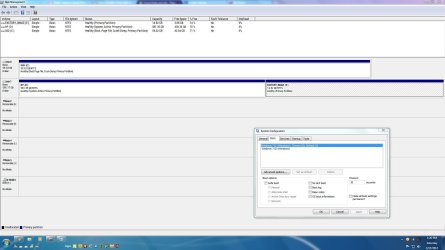
Here are the disk manager and superimposed msconfig boot tab windows.
Does this help?
 

Attachments

  • DB1.JPG
    DB1.JPG
    140.2 KB · Views: 350

My Computer My Computer

At a glance

Win 7 home premium
OS
Win 7 home premium
Do I understand correctly:

You cannot boot from the HDD, but don't need to anymore?

What exactly is the problem?
 

My Computer My Computer

At a glance

Windows 7 Home Premium SP1, 64-bitIntel Skylake i5-6600K, not overclocked8 GB HyperX DDR4-2666 (2 x 4 GB)none; graphics are integrated on CPU
Computer type
PC/Desktop
Computer Manufacturer/Model Number
Ignatz Special; 4 speed manual gearbox; factory air conditioning; one of one
OS
Windows 7 Home Premium SP1, 64-bit
CPU
Intel Skylake i5-6600K, not overclocked
Motherboard
AsRock Z170M Extreme 4, micro ATX
Memory
8 GB HyperX DDR4-2666 (2 x 4 GB)
Graphics Card(s)
none; graphics are integrated on CPU
Sound Card
onboard: Realtek ALC1150; external: USB Behringer UF0-202
Monitor(s) Displays
Dell S2340M 23 inch IPS
Screen Resolution
1600 x 900
Hard Drives
System: Crucial MX100 series SSD, 128 GB;
Data: Samsung Spinpoint 103SJ, 1 TB;
Backup: WD Caviar Green WD30EZRX-00D8PB0, 3 TB
PSU
Rosewill SilentNight 500 watt fanless, semi-modular
Case
Antec Solo II
Cooling
Noctua NH-U12S; Noctua F12 intake, Noctua S12A exhaust
Keyboard
Microsoft 200 6JH-00001 USB
Mouse
Dell or Microsoft optical wired; USB
Antivirus
Microsoft Security Essentials and Malwarebytes Premium
Browser
Pale Moon
Other Info
All fans PWM; speeds at idle: CPU circa 500 rpm; intake circa 600 rpm; exhaust circa 600 rpm; CPU temps 27 idle and 47 C load in a warm room (27 C/81 F) when running Intel Extreme Tuning Utility stress test.
I cannot boot from HDD.

I want to reboot to HDD only to remove all the programs I am reinstalling from the SSD (onto a folder on the HDD) - that's why I can't just reformat the HDD. ( I am installing programs I need but use inconsistently to a subfolder on the HDD as I am reinstalling them through my new Win 7 installation on the SSD in order to save SSD space and maintain speed)

I then want to remove Win 7 from the HDD and remove the dual boot option.

I have no problem accessing my files on any of the drives at this time.

I am not sure I am being very effective in explaining my intent... Or perhaps what I am trying to achieve makes no sense - educate me!!
 

My Computer My Computer

At a glance

Win 7 home premium
OS
Win 7 home premium
I'm still not sure I understand your point.

Is it that you want to uninstall programs from the HDD but cannot?

Or??

In one sentence, what can't you do that you want to do?
 

My Computer My Computer

At a glance

Windows 7 Home Premium SP1, 64-bitIntel Skylake i5-6600K, not overclocked8 GB HyperX DDR4-2666 (2 x 4 GB)none; graphics are integrated on CPU
Computer type
PC/Desktop
Computer Manufacturer/Model Number
Ignatz Special; 4 speed manual gearbox; factory air conditioning; one of one
OS
Windows 7 Home Premium SP1, 64-bit
CPU
Intel Skylake i5-6600K, not overclocked
Motherboard
AsRock Z170M Extreme 4, micro ATX
Memory
8 GB HyperX DDR4-2666 (2 x 4 GB)
Graphics Card(s)
none; graphics are integrated on CPU
Sound Card
onboard: Realtek ALC1150; external: USB Behringer UF0-202
Monitor(s) Displays
Dell S2340M 23 inch IPS
Screen Resolution
1600 x 900
Hard Drives
System: Crucial MX100 series SSD, 128 GB;
Data: Samsung Spinpoint 103SJ, 1 TB;
Backup: WD Caviar Green WD30EZRX-00D8PB0, 3 TB
PSU
Rosewill SilentNight 500 watt fanless, semi-modular
Case
Antec Solo II
Cooling
Noctua NH-U12S; Noctua F12 intake, Noctua S12A exhaust
Keyboard
Microsoft 200 6JH-00001 USB
Mouse
Dell or Microsoft optical wired; USB
Antivirus
Microsoft Security Essentials and Malwarebytes Premium
Browser
Pale Moon
Other Info
All fans PWM; speeds at idle: CPU circa 500 rpm; intake circa 600 rpm; exhaust circa 600 rpm; CPU temps 27 idle and 47 C load in a warm room (27 C/81 F) when running Intel Extreme Tuning Utility stress test.
If you are going to remove Win 7 from the HDD there is not need to boot into it to remove anything. Just delete the Win 7 directory, Windows, from that drive and then delete the User folder then the Program Files and Program Files (x86) directories. All the programs and Windows will be gone from that drive.
 

My Computer My Computer

At a glance

7 x64
OS
7 x64
It would be cleaner if you can wipe the HDD after you get your data off. However if you have too much data to wipe it then we can help you move all of the data to a second partition so you can correctly remove Win7 which is done by deleting its partition.

You cannot copy over Programs but must reinstall them from scratch to the SSD.

Currently the SSD's boot files reside on the HD as shown by it holding the System label. To correct this mark C Active: Partition - Mark as Active

Then power down to unplug the HD, boot into BIOS setup to set the SSD first to boot. Then run Startup Repair - Run 3 Separate Times until Win7 starts and C holds the System Active boot flags.

You can then plug back in the HD to access it's data or even boot it using the one-time BIOS Boot Menu key. If a Dual Boot menu persists, delete D listing in msconfig>Boot.
 
Your post is way confusing. If you have successfully installed 7 on the ssd and you can see the hdd drive after you`ve booted into the ssd, get all your files off the hdd onto your new ssd then format the C: partition on your hdd. Don`t format the recovery partition you might need it someday. You can then start using the partition you`ve formatted on the hdd for storage or whatever. You should make a partition on your hdd for keeping disk images.

Follow Gregs instructions to get the ssd booting on its own first.
 

My Computer My Computer

At a glance

Windows 10 Pro x64Intel Core i7 6700KGSkill TridentZ RGB 16GB 3600 16-16-16-36EVGA GTX 980 Ti SC x2
Computer type
PC/Desktop
Computer Manufacturer/Model Number
Skylake Special #666
OS
Windows 10 Pro x64
CPU
Intel Core i7 6700K
Motherboard
Asus Sabertooth Z170 Mark 1
Memory
GSkill TridentZ RGB 16GB 3600 16-16-16-36
Graphics Card(s)
EVGA GTX 980 Ti SC x2
Sound Card
Realtek High Definition
Monitor(s) Displays
AOC G2460PG
Screen Resolution
1920 x 1080 144Hz
Hard Drives
Samsung 860 Pro 256GB, Seagate Barracuda 4TB x2
PSU
EVGA 1000 P2, EVGA White Custom Braided Cables
Case
Corsair Vengeance C70 Gunmetal Black
Cooling
Corsair H100i v2, Corsair ML120 x2, Thermal Grizzly Kryonaut
Keyboard
Logitech G910 Orion Spectrum
Mouse
Logitech G700s
Internet Speed
Verizon Fios Quantum Gateway 75/75
Antivirus
Windows Defender, Malwarebytes Free 3.8.3
Browser
Chrome
Other Info
Corsair SP120 x4, LG Blu-ray Drive, Durabrand HT-395 100 Watt Dolby Digital Amp, Corsair H2100 Wireless 7.1 Headset
I think I am starting to understand that formatting the drive with the unwanted windows installation is the only way to really get rid of it. Is this correct?

To clarify -
My ultimate goal is to run W7 and some core, frequently used apps from SSD alone. Since this is a small SSD drive ( 60GB ), I cannot place all my applications on the SSD. So, as I am in W7 on my SSD, when installing less frequently used applications that take up huge amount of space like labelmakers and video editors and games, I am changing the installation directory to a folder on the HDD.
That's why I do not want to format the HDD. That's why AddRAM's and gregrocker's solutions won't work.

So, as I am installing the new programs, I am now unable to uninstall them from the HDD as I am unable to boot into that instance of W7.

WOW, perhaps there is a flaw in my reasoning?

Perhaps my logic is poor and I need some educating on how W7 runs programs, etc.. Please let me know where this does or does not make sense.

I like edwar's solution, but it appears this is not a clean way to remove W7 from the HDD?
 

My Computer My Computer

At a glance

Win 7 home premium
OS
Win 7 home premium
I think I am starting to understand that formatting the drive with the unwanted windows installation is the only way to really get rid of it. Is this correct?

No, that's not correct. You could delete the partition entirely, without formatting it.

So, as I am installing the new programs, I am now unable to uninstall them from the HDD as I am unable to boot into that instance of W7.

I'll have to take your word for it that you cannot uninstall apps on the HDD when you have booted from the SSD. I've never installed anywhere but C and have never had to deal with that problem.

Many people with small SSDs install some apps to an HDD without incident. I'm not sure how you find yourself in a predicament.
 

My Computer My Computer

At a glance

Windows 7 Home Premium SP1, 64-bitIntel Skylake i5-6600K, not overclocked8 GB HyperX DDR4-2666 (2 x 4 GB)none; graphics are integrated on CPU
Computer type
PC/Desktop
Computer Manufacturer/Model Number
Ignatz Special; 4 speed manual gearbox; factory air conditioning; one of one
OS
Windows 7 Home Premium SP1, 64-bit
CPU
Intel Skylake i5-6600K, not overclocked
Motherboard
AsRock Z170M Extreme 4, micro ATX
Memory
8 GB HyperX DDR4-2666 (2 x 4 GB)
Graphics Card(s)
none; graphics are integrated on CPU
Sound Card
onboard: Realtek ALC1150; external: USB Behringer UF0-202
Monitor(s) Displays
Dell S2340M 23 inch IPS
Screen Resolution
1600 x 900
Hard Drives
System: Crucial MX100 series SSD, 128 GB;
Data: Samsung Spinpoint 103SJ, 1 TB;
Backup: WD Caviar Green WD30EZRX-00D8PB0, 3 TB
PSU
Rosewill SilentNight 500 watt fanless, semi-modular
Case
Antec Solo II
Cooling
Noctua NH-U12S; Noctua F12 intake, Noctua S12A exhaust
Keyboard
Microsoft 200 6JH-00001 USB
Mouse
Dell or Microsoft optical wired; USB
Antivirus
Microsoft Security Essentials and Malwarebytes Premium
Browser
Pale Moon
Other Info
All fans PWM; speeds at idle: CPU circa 500 rpm; intake circa 600 rpm; exhaust circa 600 rpm; CPU temps 27 idle and 47 C load in a warm room (27 C/81 F) when running Intel Extreme Tuning Utility stress test.
But that`s not the correct way to do it. You should 1st format/delete the partition/drive then start doing what you want. The old windows 7 is taking up valuable space you could be using.
 

My Computer My Computer

At a glance

Windows 10 Pro x64Intel Core i7 6700KGSkill TridentZ RGB 16GB 3600 16-16-16-36EVGA GTX 980 Ti SC x2
Computer type
PC/Desktop
Computer Manufacturer/Model Number
Skylake Special #666
OS
Windows 10 Pro x64
CPU
Intel Core i7 6700K
Motherboard
Asus Sabertooth Z170 Mark 1
Memory
GSkill TridentZ RGB 16GB 3600 16-16-16-36
Graphics Card(s)
EVGA GTX 980 Ti SC x2
Sound Card
Realtek High Definition
Monitor(s) Displays
AOC G2460PG
Screen Resolution
1920 x 1080 144Hz
Hard Drives
Samsung 860 Pro 256GB, Seagate Barracuda 4TB x2
PSU
EVGA 1000 P2, EVGA White Custom Braided Cables
Case
Corsair Vengeance C70 Gunmetal Black
Cooling
Corsair H100i v2, Corsair ML120 x2, Thermal Grizzly Kryonaut
Keyboard
Logitech G910 Orion Spectrum
Mouse
Logitech G700s
Internet Speed
Verizon Fios Quantum Gateway 75/75
Antivirus
Windows Defender, Malwarebytes Free 3.8.3
Browser
Chrome
Other Info
Corsair SP120 x4, LG Blu-ray Drive, Durabrand HT-395 100 Watt Dolby Digital Amp, Corsair H2100 Wireless 7.1 Headset
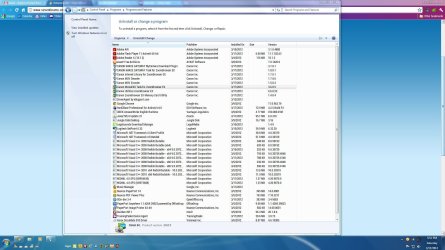
Here is a screenshot of my uninstall menu from the SSD. The programs without space listed in "Size" were installed from my SSD Win7 instance, but onto the HDD under a folder called "Programs installed from SSD". They are taking no space on the SSD. And they require HDD activity to run. I use them less frequently.
The other programs do not activate the HDD, since they run purely off the SSD - faster and quieter.
Since there seems to be a lot of question about my intent here, I wonder if my reasoning makes sense at all...
 

Attachments

  • DB2.JPG
    DB2.JPG
    222.4 KB · Views: 77

My Computer My Computer

At a glance

Win 7 home premium
OS
Win 7 home premium
Why can't you just delete the partitions on the HDD, create a new one, give it a quick format, and then re-install any programs you need?

You don't need to boot into it, just use Windows 7's disk management to repartition and format the old drive.

I think we're all struggling to understand why you seem to want to make things unnecessarily complicated.
 

My Computer My Computer

At a glance

Windows 7 Ultimate SP1 64-BitIntel Core i7 870 @ 2.93GHz8Gb Dual-Channel DDR3 @ 664MHznVidia GeForce GTX 460 1024MB dedicated RAM
Computer Manufacturer/Model Number
HP Pavilion Elite 495UK
OS
Windows 7 Ultimate SP1 64-Bit
CPU
Intel Core i7 870 @ 2.93GHz
Motherboard
MSI 2A9C (CPU1)
Memory
8Gb Dual-Channel DDR3 @ 664MHz
Graphics Card(s)
nVidia GeForce GTX 460 1024MB dedicated RAM
Sound Card
Realtek HD Audio
Monitor(s) Displays
HP2310i
Screen Resolution
1920 x 1080
Hard Drives
1x1954GB Hitachi HDS22020ALA 330 (RAID), 1x1954GB Hitachi External for backup and storage
PSU
460W
Case
HP Elite
Cooling
Air cooled
Keyboard
Logitech K750 solar-powered keyboard
Mouse
Logitech Wireless M180 mouse
Internet Speed
2Mb
Other Info
Pure Avanti Flow Internet Radio with iPod Dock, 64Gb iPod, HP USB Speakers, Sony MDR-V500 Headphones, Sony Vaio F-Series Laptop
The programs without space listed in "Size" were installed from my SSD Win7 instance, but onto the HDD under a folder called "Programs installed from SSD".

And you cannot uninstall those programs when booted from the SSD?
 

My Computer My Computer

At a glance

Windows 7 Home Premium SP1, 64-bitIntel Skylake i5-6600K, not overclocked8 GB HyperX DDR4-2666 (2 x 4 GB)none; graphics are integrated on CPU
Computer type
PC/Desktop
Computer Manufacturer/Model Number
Ignatz Special; 4 speed manual gearbox; factory air conditioning; one of one
OS
Windows 7 Home Premium SP1, 64-bit
CPU
Intel Skylake i5-6600K, not overclocked
Motherboard
AsRock Z170M Extreme 4, micro ATX
Memory
8 GB HyperX DDR4-2666 (2 x 4 GB)
Graphics Card(s)
none; graphics are integrated on CPU
Sound Card
onboard: Realtek ALC1150; external: USB Behringer UF0-202
Monitor(s) Displays
Dell S2340M 23 inch IPS
Screen Resolution
1600 x 900
Hard Drives
System: Crucial MX100 series SSD, 128 GB;
Data: Samsung Spinpoint 103SJ, 1 TB;
Backup: WD Caviar Green WD30EZRX-00D8PB0, 3 TB
PSU
Rosewill SilentNight 500 watt fanless, semi-modular
Case
Antec Solo II
Cooling
Noctua NH-U12S; Noctua F12 intake, Noctua S12A exhaust
Keyboard
Microsoft 200 6JH-00001 USB
Mouse
Dell or Microsoft optical wired; USB
Antivirus
Microsoft Security Essentials and Malwarebytes Premium
Browser
Pale Moon
Other Info
All fans PWM; speeds at idle: CPU circa 500 rpm; intake circa 600 rpm; exhaust circa 600 rpm; CPU temps 27 idle and 47 C load in a warm room (27 C/81 F) when running Intel Extreme Tuning Utility stress test.
To answer ignatzatsonic - Yes, I can. But they are duplicate installations performed from the SSD. I want to uninstall the old installations from the HDD Win7 instance.
To answer seavixen32 - I actually am trying to make things simpler by removing all the duplicate programs and finally Win7 from the HDD and then making my system single-boot.
 

My Computer My Computer

At a glance

Win 7 home premium
OS
Win 7 home premium
I like edwar's solution, but it appears this is not a clean way to remove W7 from the HDD?

We can help you remove the OS from HD in pieces but it's not recommended and can be a struggle requiring Take Ownership Shortcut on the WIndows folder.

The cleanest method is to wipe the HD it was on to clean the boot sector which sometimes presents problems with leftover code blocking future OS installs, or other problems.

The normal method
is to delete the OS partition. You could do this here easily by shrinking it as much as Disk Management will allow, then creating a New partition in that space, dragging all of your files you want to keep over to that partition. Partition or Volume - Shrink
Partition or Volume - Create New

You could even drag your User folders (Documents, Picures, etc) intact to the new partition and then link them to the C:Win7 related Library - Include a Folder which is easiest, or move your C:Win7 User folders to your old User folders on HD: User Folders - Change Default Location

I would first install all needed Programs to the SSD which is best so they can be a part of it's backup image - it's the data which should be moved off if necessary as described above.

Once you've emptied programs and files from the HD OS partition, you can delete it in Disk Management from C, then create a new partition there or resize your HD data partition to the left to include the space using free Partition Wizard bootable CD.
 
Although every ones suggestions may work there is one thing that bothers me about your setup. On the SSD I do not see the 100MB System Reserve partition. So if you installed Win 7 on the SSD with the other hard drive connected the Sys Reserve section, The Active section which is needed to boot the computer, very well may be on the HDD. If you delete partitions and or format that drive your system may not boot back into Windows.

Please let us know if you had the HDD connected when you installed 7 on the SSD.
 

My Computer My Computer

At a glance

7 x64
OS
7 x64
Edwar this was dealt with here:

Currently the SSD's boot files reside on the HD as shown by it holding the System label. To correct this mark C Active: Partition - Mark as Active

Then power down to unplug the HD, boot into BIOS setup to set the SSD first to boot. Then run Startup Repair - Run 3 Separate Times until Win7 starts and C holds the System Active boot flags.

You can then plug back in the HD to access it's data or even boot it using the one-time BIOS Boot Menu key. If a Dual Boot menu persists, delete D listing in msconfig>Boot.
 
Back
Top