Download Process Monitor to a USB flash drive.
There is nothing to install.
Just unzip and copy Procmon.exe to the desktop of the problematic computer.
Start Process Monitor (run as admin).
Accept the EULA.
When it starts for the first time, it automatically starts gathering data.
You can stop that via the button/icon with the magnifying glass.
Then de-select the 3 buttons/icons shown in the right part of this image:
View attachment 318163
Clear the data that was gathered:
View attachment 318164
Add a filter for the IP address of interest:
View attachment 318165
Add a second filter for the registry action of interest:
View attachment 318167
Start the data collection process.
(Use the same magnifying glass button/icon that you see in screenshot #1.)
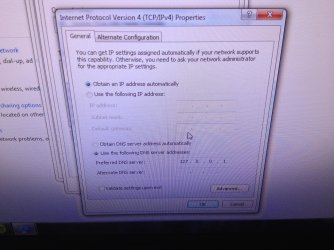
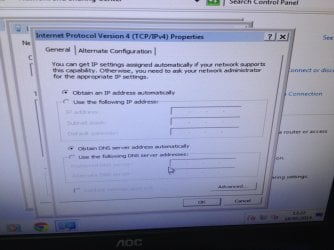
Manually change the DNS setting back to automatic.
Then let's see if Process Monitor can find the app that changes it back to 127....
If I use the Windows interface to set the 127... IP as the DNS value, then I see this:
View attachment 318168
Hopefully, these steps will find the offending app on your computer. Unfortunately, there is a chance that the offending app calls another app to do that actual change to the registry and/or the offending app hides itself from Process Monitor.
No luck I'm afraid, the process monitor didn't show anything.
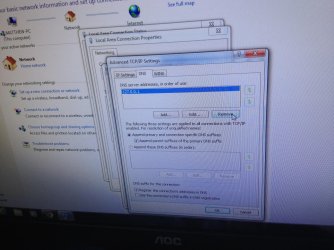
I looked at the advanced DNS settings and removed the DNS server ip shown in the picture but it keeps popping up. Is there anything else that's wrong with the advanced DNS settings?
Attachments
My Computer
- Computer type
- PC/Desktop
- Computer Manufacturer/Model Number
- custom build
- OS
- Windows 7 Home Premium 64 Bit
- CPU
- AMD A-10 6800k
- Motherboard
- ASUS F2A55-M LE
- Memory
- Samsung 8GB dual DDR3 1333MHz
- Graphics Card(s)
- EVGA 770 2GB
- Monitor(s) Displays
- acer LED 1920X1080
- Hard Drives
- Seagate 500GB
Velociraptor 1TB
- Antivirus
- Microsoft Security Essentials
- Browser
- Google Chrome