Windows 7 & 8, need to remove & format Win7 Partition!

MouseyFlash

New member
Local time
5:14 PM
Messages
15
Hey Guys,

Basically I installed windows 8 on an SSD and partitioned one of my 2tb drives in order to install / transfers programs and documents etc into windows 8 from the old windows 7 install. This worked perfectly, however, windows is not not letting my format the windows 7 side of the partition so i can expand and let windows 8 have the full 2tb of storage!

Windows 7 is installed on E:, I think perhaps the bootmgr may lay inside of E hence why I can't format it, but I have no idea!

Diskmgmt.png


Thanks for any help!

Edit: marking either as active does nada, however when i mark the D: as active it doesn't boot due some issue with bootmgr I THINK!
 

My Computer My Computer

OS
Windows 7 32 bit
To make Windows 8 on Disk0 independently bootable you should have installed it with all other drives unplugged. To do it now Mark C Partition Active, unplug all other HD's, then run Windows 8 Automatic Repair until it starts and holds the System flag.

The correct way to delete an OS is to delete its partition in Disk Mgmt. However if it won't delete after marking the System partition Inactive (only partitions booting an OS should be Active) then open an Elevated Command Prompt and use DiskPart Command-Line Options to Delete partition Override on the first two partitions on disk2:

DISKPART
LIST DISK
SEL DISK 2 (after confirming it is Win7 disk by size in the list)
LIST PART
SEL part 1 (after confirming this is System Reserved)
DELETE PARTITION OVERRIDE
SEL PART 2
(again confirming this is old Win7 partition)
DELETE PARTITION OVERRIDE
EXIT


Now repartition that space in Disk Mgmt, or use Partition Wizard to resize the other partition into the space to the left.
 
Thankyuo so much for that Greg, I hadn't thought about removing the other HDD's to force bootmgr to be installed onto the SSD!

I'll follow your instructions to the T in a bit and get back to you!
 

My Computer My Computer

OS
Windows 7 32 bit
Huzzah the solution worked!

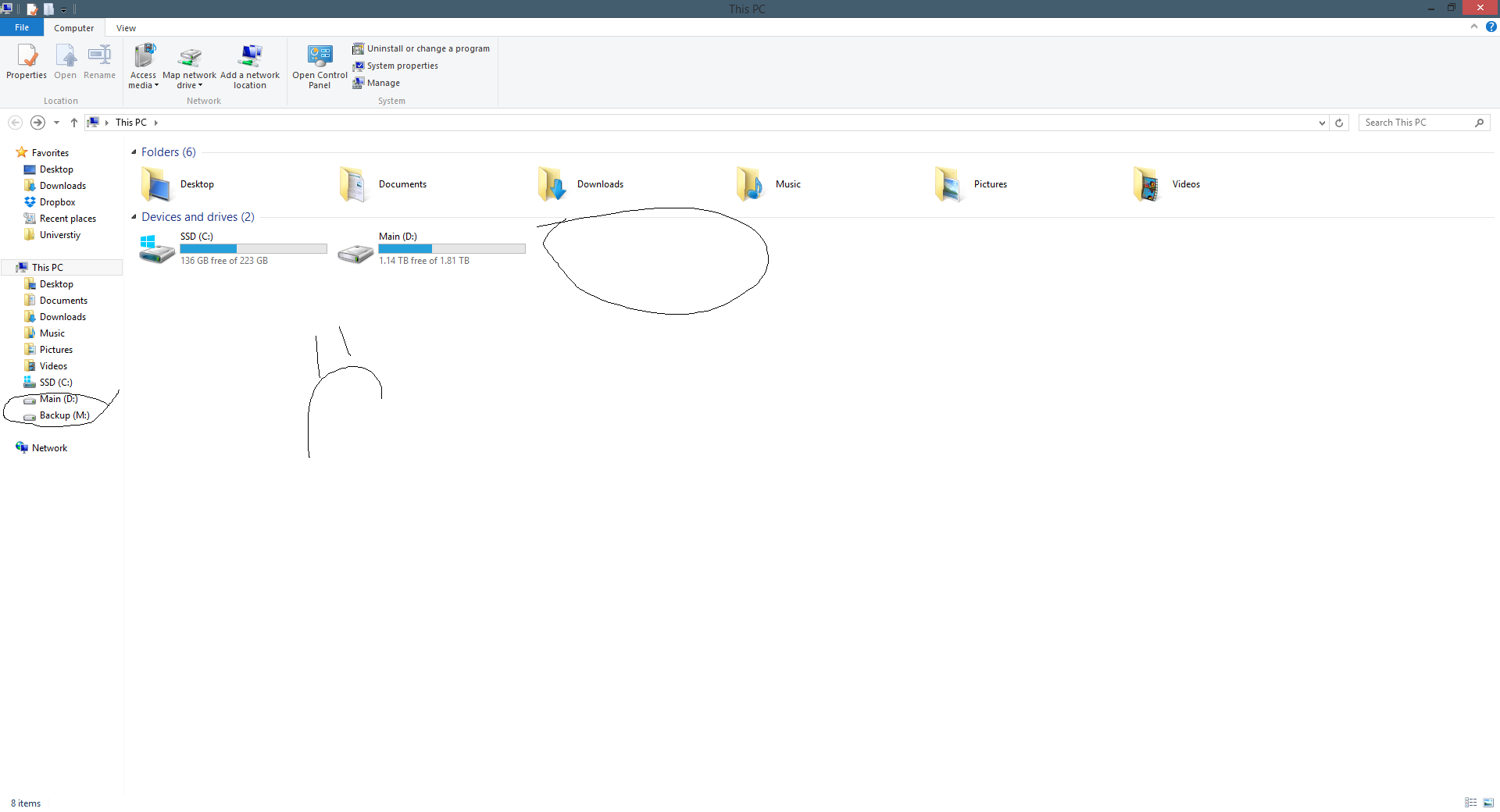
However I now have another issue which cropped up, basically the backup drive, which i didn't touch! Has vanished from my computer, its still working, still access it and its still in disk mgmt. However its just not showing in my computer and occasionally vanished from "this pc" too. However if i change the drive letter on it it crops back, then, i access it via my computer and then go back and its gone again!

76DiY4o.png
 

My Computer My Computer

OS
Windows 7 32 bit
If you've given it a drive letter in Disk mgmt following these steps it should be enough: Drive Letter - Add, Change, or Remove in Windows 7 - Windows 7 Forums.

If not run a full Disk Check followed by if necessary the HD maker's HD Diagnostic extended CD scan.

Sometimes it is necessary to move the files off to wipe the drive with Diskpart Clean Command then repartition in Disk Mgmt. However this is normally only needed if boot code somehow got on the drive.

Can you post back a screenshot of Disk Management - Post a Screen Capture Image with all drives connected?
 
Hey,

I've assigned it a letter in diskmgmt, and the scan came up a-ok no issues!

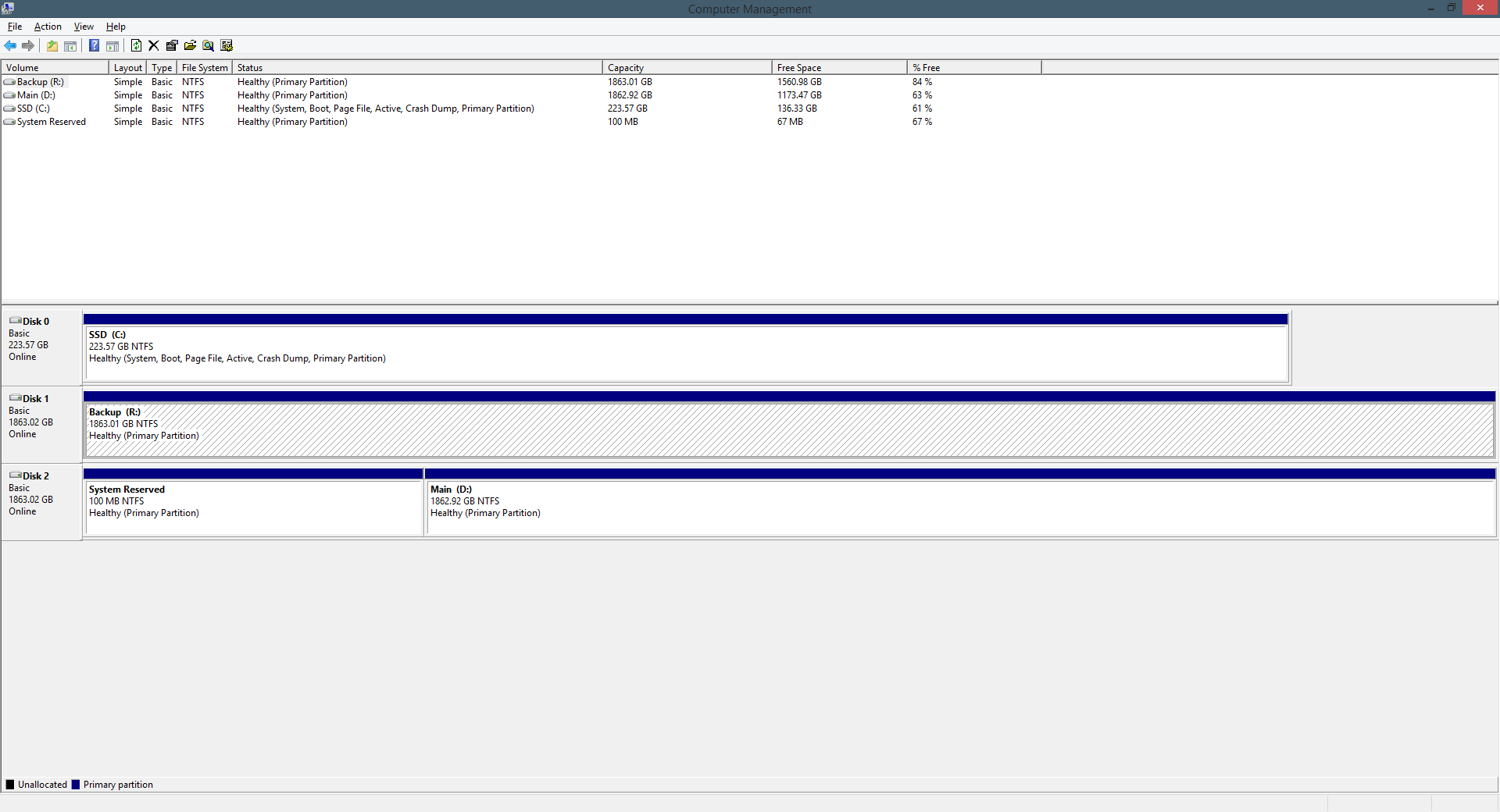
Heres the disk management shot for you!
Is0h7Fh.png
 

My Computer My Computer

OS
Windows 7 32 bit
Looks fine. How is performance?

I would delete the System Reserved partition in Disk Mgmt.
 
Looks fine. How is performance?

I would delete the System Reserved partition in Disk Mgmt.


Performance is a-ok too, iv'e just formatted it (As it was only a backup, needed to do a new image anyway although thats proving to be awkward inside of windows 8, why did t hey remove automatic system images! Is there a new alternative?) And that seemed to do the trick really, iv'e never quite seen anything like it! Is the system reserved needed?
 

My Computer My Computer

OS
Windows 7 32 bit
No, which is why I gave you the command earlier for force deleting it too. But since it has no System flag signifying its booting anything you can probably Delete it in Disk Mgmt. You don't want stray Win7 boot files on the drive.

I'd use the latest Macrium - Image your system
 
No, which is why I gave you the command earlier for force deleting it too, but since it has no System flag signifying its booting anything you can probably delete it in Disk Mgmt. You don't need the stray Win7 boot files on the drive though.

I'd use the latest Macrium - Image your system


Ah, thankyou so much for your help greg it's been phenomenal! If i ever need the 100mb space (Or get OCD about diskmgmt i'll be sure to delete it, its hidden from my computer for the time being)

I'll take a look at it, I dont' trust the file history all too much especially as its now saying "File history doesn't recognize this drive" more issues to fix!

Once again thankyou for the phenomenal help!
 

My Computer My Computer

OS
Windows 7 32 bit
Hey Greg,

Woke up this morning and the HDD is still not there, i plugged in my external drive too and that does the same thing appears on the left but not in the "this pc" I can still acess fiiles from it etc as normal, photoshop, NukeX etc all see the drives in their respective file browsers. Its up most bizzare!
 

My Computer My Computer

OS
Windows 7 32 bit
Did you delete the System Reserved partition?

Please do so now, then reboot and post back another screenshot of Disk Mgmt.

Please also post a screenshot of where the drives are not appearing because it makes no sense to me.
 
Hey Greg,

That seems to have fixed it again, the drives weren't appearing in the "this pc" section, as posted last night they're there atleast for now though!

I'll post here again if it vanishes again, its such a strange issue, starting to think it may be more of a bug!
 

My Computer My Computer

OS
Windows 7 32 bit
What "This PC" section? Please post a screenshot so we know what you're talking about.
 
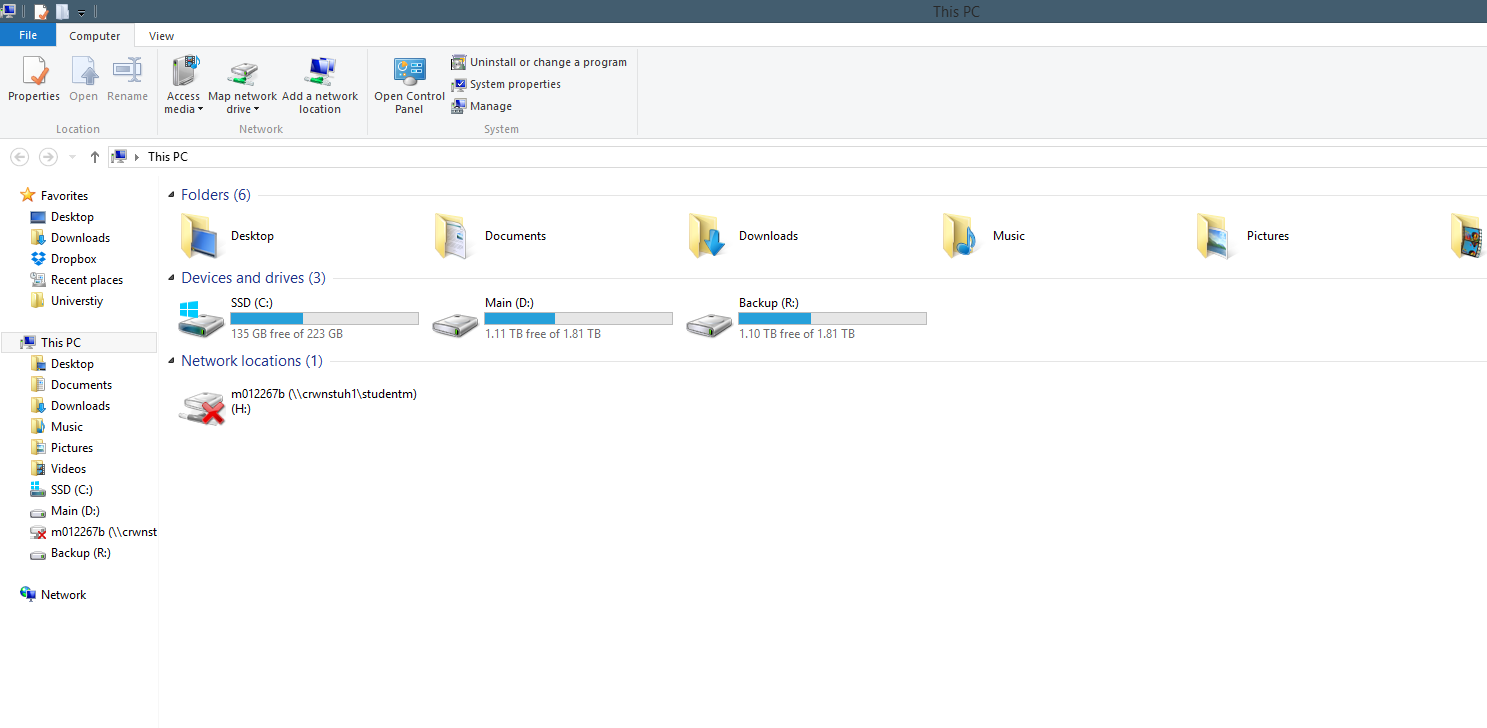
Ah sorry, "My computer" on the side bar and in general. Keep forgetting im on the seven forums, no idea why they renamed it to This pc rather then my computer!

a48upA3.png
 

My Computer My Computer

OS
Windows 7 32 bit
Back
Top