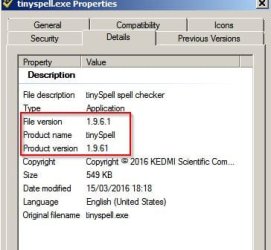
Okay here's what happens when I install Notepad++ version 6.9.1 and Tinyspell version 1961
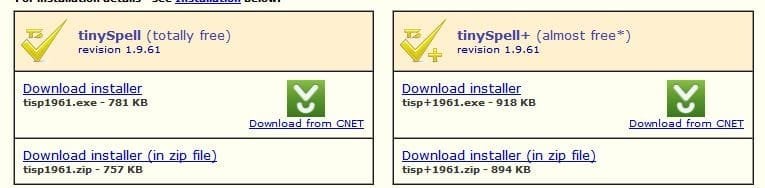
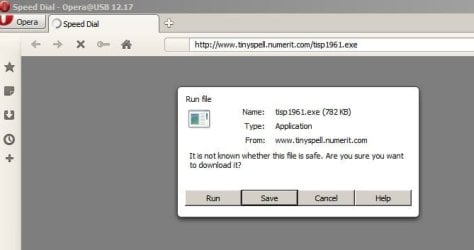
Installers downloaded and ready to run:
Installed Notepad++ then afterwards ran tisp1961.exe which is the TinySpell installer.

Run the TinySpell installer tisp1961.exe - click next.
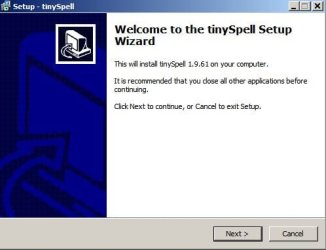
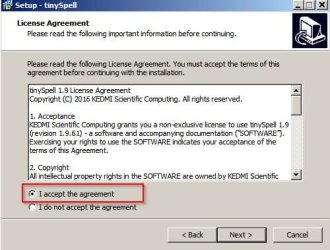
Accept license agreement.
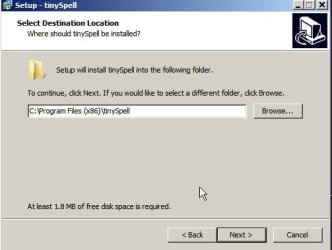
Choose install location - leave it as it is.
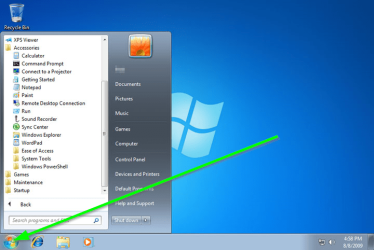
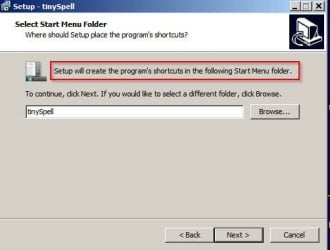
It will create a start menu folder but this can be removed later.
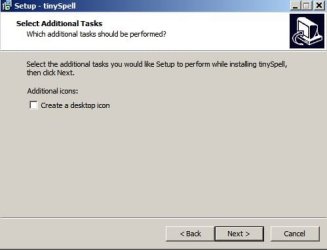
It's up to you if you want a desktop icon.
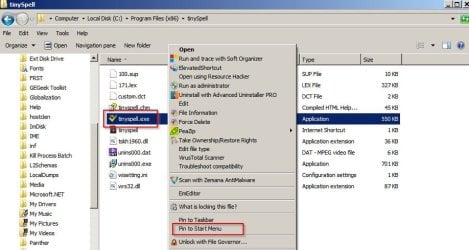
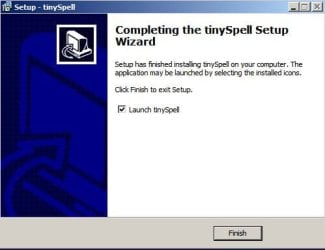
Click Finish to complete the install and launch TinySpell.
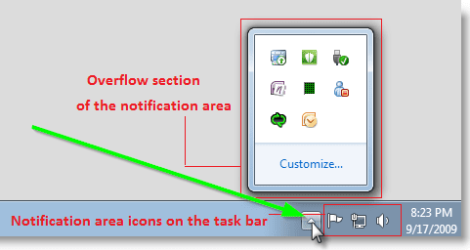
Right click the TinySpell icon in your system tray.

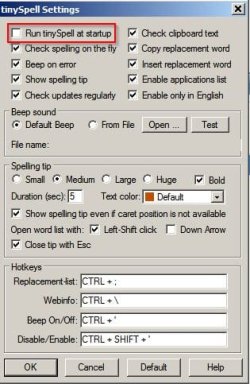
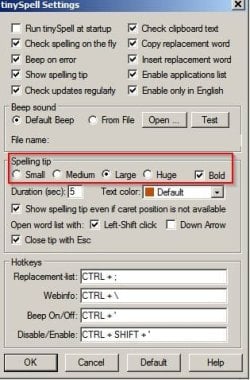
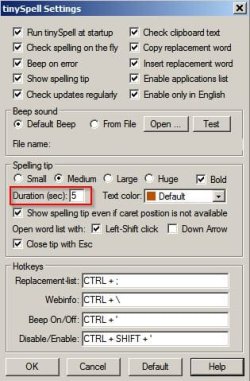
Choose "Settings" and the following window opens.
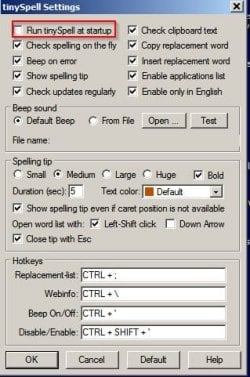
Suggest: Uncheck "Run TinySpell at Startup" - you can then launch it when needed.
Leave the other settings as they are but consider increasing the size and duration of "Spelling Tip"
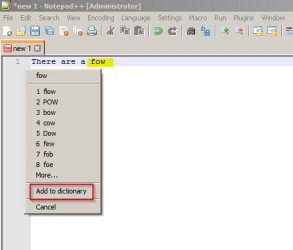
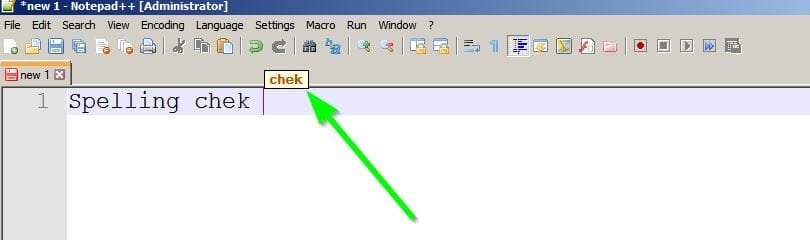
If you close that window and launch Notepad++ and type a word but spell it incorrectly - once you have added a space or other punctuation after the word you should see a prompt appear.
It the prompt does not appear right click the TinySpell system tray icon and view the applications list to make sure that Notepad++ is included.

TinySpell Usage:
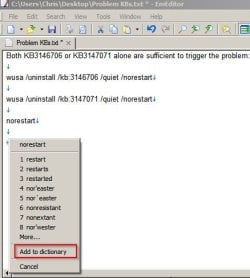
If you spell a word incorrectly you get a prompt like this (where green arrow is pointing)
Click the prompt and choose from the list of options.
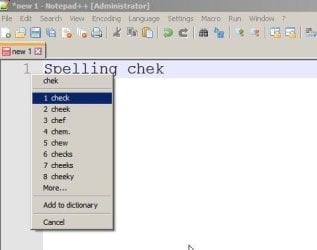
If the prompt vanishes before you can click - adjust delay here:
If you still get the same error messages after installation I'd suggest uninstalling Notepad++ and TinySpell then rebooting before re-installing the current version of both programs. Notepad++ should be installed before TinySpell.