Jump Lists - Reset and Clear All Items

How to Reset and Clear All Items in Windows 7 Jump Lists

   Information
This will show you how to completely reset and clear specific or all items in the Start Menu and Taskbar jump lists in Windows 7 to start fresh again.

This will only affect your currently logged in user account and no other users on the computer.

   Note
On a computer that is running Windows 7 or Windows Server 2008 R2, the Jump List of an application may disappear permanently when you use the application to open or save a new item. This issue occurs when there are 999 items in the Jump List already.


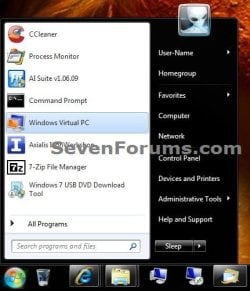
EXAMPLE: Start Menu Jump Lists Before and Reset
NOTE: You will need to click or hover on the arrow (if available) to the far right to see the Start Menu Recent or Pinned program's jump list.
Start_Menu-before.jpgStart_Menu-reset.jpg
EXAMPLE: Taskbar Jump Lists Before and Reset
NOTE: You will need to right click on the taskbar icons to see their jump list.
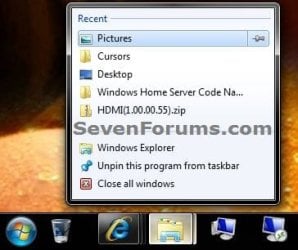
Taskbar-before.jpgTaskbar-reset.jpg


OPTION ONE

To Only Remove a Specific Item in a Jump List


1. Open the program's jump list, right click on a unpinned item that you want to remove, and click on Remove from this list. (see screenshot below)
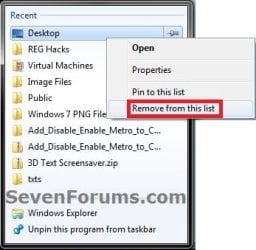
Remove.jpg
2. Repeat step 1 for any other item you wish to remove from this or any other program's jump list.


OPTION TWO

To Reset and Clear All Jump Lists Automatically with a BAT File


1. Click on the Download button below to download the file below, and save it to your desktop.
Reset_Recent_Jump_List_Items.bat

Download


2. Click or double click on the downloaded BAT file to open and run it.

3. If prompted, click on Run.
NOTE: If you like, you can stop getting the Run prompt by unblocking the downloaded .bat file.

4. You will now see a quick flash as the BAT file runs and restarts explorer.

5. Your jump lists have been reset and cleared to be empty now. It may take a day or two afterwards before the jump lists repopulate.


OPTION THREE

To Reset and Clear All Jump Lists in a Command Prompt


1. Open a command prompt.

2. In the command prompt, "Copy and Paste" (or type) the command below and press enter. (see screenshot below)

Code:
del /F /Q %APPDATA%\Microsoft\Windows\Recent\AutomaticDestinations\*
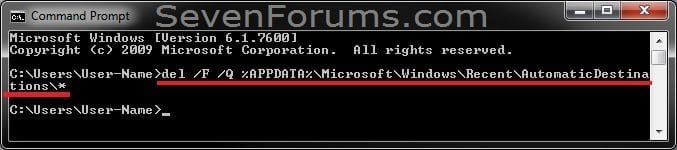
CMD1.jpg
3. In the command prompt, "Copy and Paste" (or type) the command below and press enter. (see screenshot below)

Code:
del /F /Q %APPDATA%\Microsoft\Windows\Recent\CustomDestinations\*
CMD2.jpg
4. Close the command prompt.

5. Log off and on, or restart the computer to fully apply.

6. Your jump lists have been reset and cleared to be empty now. It may take a day or two afterwards before the jump lists repopulate.
That's it,
Shawn


Attachments

Last edited:
I'm glad it could help JediKnight, and welcome to Seven Forums. :)
 

My Computer My Computer

Computer type
PC/Desktop
Computer Manufacturer/Model Number
Self built custom
OS
64-bit Windows 11 Pro for Workstations
CPU
Intel i7-8700K OC'd to 5 GHz
Motherboard
ASUS ROG Maximus XI Formula Z390
Memory
64 GB (4x16GB) G.SKILL TridentZ RGB DDR4 3600 MHz
Graphics Card(s)
ASUS ROG-STRIX-GTX1080TI-O11G-GAMING
Sound Card
Integrated
Monitor(s) Displays
2 x Samsung Odyssey G7 27"
Screen Resolution
2560x1440
Hard Drives
1TB Samsung 990 PRO M.2,
4TB Samsung 990 PRO PRO M.2,
TerraMaster F8 SSD Plus NAS
PSU
Seasonic Prime Titanium 850W
Case
Thermaltake Core P3
Cooling
Corsair Hydro H115i
Keyboard
Logitech wireless K800
Mouse
Logitech MX Master 4
Internet Speed
2 Gb/s Download and 100 Mb/s Upload
Antivirus
Malwarebyte Anti-Malware Premium
Browser
Google Chrome
Other Info
Logitech Z625 speaker system,
Logitech BRIO 4K Pro webcam,
HP Color LaserJet Pro MFP M477fdn,
APC SMART-UPS RT 1000 XL - SURT1000XLI,
Galaxy S23 Plus phone
Option 3 worked for me

I've had this problem with Jump lists since I reverted to Windows 7 from Windows 10. This fixed it, thank you so much.
Warning, do not upgrade until you're sure your pc/laptop can take it. I have spent three months repairing issues related to the roll back from W10.
 

My Computer My Computer

Computer type
Laptop
Computer Manufacturer/Model Number
HP Presario CQ57
OS
Windows 7 Home premium 64 bit
CPU
AMD E-300 APU
Memory
4gb
Graphics Card(s)
Radeon HD Graphics 1.30Ghz
Antivirus
BT Netprotect plus
Browser
Vivaldi
I'm glad it was able to help Trueblue, and welcome to Seven Forums. :)
 

My Computer My Computer

Computer type
PC/Desktop
Computer Manufacturer/Model Number
Self built custom
OS
64-bit Windows 11 Pro for Workstations
CPU
Intel i7-8700K OC'd to 5 GHz
Motherboard
ASUS ROG Maximus XI Formula Z390
Memory
64 GB (4x16GB) G.SKILL TridentZ RGB DDR4 3600 MHz
Graphics Card(s)
ASUS ROG-STRIX-GTX1080TI-O11G-GAMING
Sound Card
Integrated
Monitor(s) Displays
2 x Samsung Odyssey G7 27"
Screen Resolution
2560x1440
Hard Drives
1TB Samsung 990 PRO M.2,
4TB Samsung 990 PRO PRO M.2,
TerraMaster F8 SSD Plus NAS
PSU
Seasonic Prime Titanium 850W
Case
Thermaltake Core P3
Cooling
Corsair Hydro H115i
Keyboard
Logitech wireless K800
Mouse
Logitech MX Master 4
Internet Speed
2 Gb/s Download and 100 Mb/s Upload
Antivirus
Malwarebyte Anti-Malware Premium
Browser
Google Chrome
Other Info
Logitech Z625 speaker system,
Logitech BRIO 4K Pro webcam,
HP Color LaserJet Pro MFP M477fdn,
APC SMART-UPS RT 1000 XL - SURT1000XLI,
Galaxy S23 Plus phone
I have a question about the OP's EXAMPLE: Taskbar Jump Lists Before and Reset
In my case I pin some of the recent items from the jump list of explorer taskbar icon. I do this cos the explorer taskbar icon stays pinned in my taskbar and regardless of whether or not I have an explorer window open I can always right click and access the list of my pinned explorer items (i.e.) folders. Basically a shortcut without having to clutter my desktop with extra shortcuts. Nice and handy. But every so often, without any prompt this list of pinned explorer items in the jumplist would simply disappear and I'd have to repin them? How can I change this behaviour so my pinned items in the explorer jumplist remain pinned??? :)))
 

My Computer My Computer

Computer type
Laptop
Computer Manufacturer/Model Number
HP
OS
Win 7 x64
Hello soewhaty, :)

That is not a normal behavior. Do you have any 3rd party cleaning software (ex: CCleaner) installed that could be resetting your jump lists when you run the software.

For now, you could use the tutorial below to backup and restore your jump lists as needed until you can track down the source of what's resetting them.

How to Backup and Restore Jump Lists in Windows 7
 

My Computer My Computer

Computer type
PC/Desktop
Computer Manufacturer/Model Number
Self built custom
OS
64-bit Windows 11 Pro for Workstations
CPU
Intel i7-8700K OC'd to 5 GHz
Motherboard
ASUS ROG Maximus XI Formula Z390
Memory
64 GB (4x16GB) G.SKILL TridentZ RGB DDR4 3600 MHz
Graphics Card(s)
ASUS ROG-STRIX-GTX1080TI-O11G-GAMING
Sound Card
Integrated
Monitor(s) Displays
2 x Samsung Odyssey G7 27"
Screen Resolution
2560x1440
Hard Drives
1TB Samsung 990 PRO M.2,
4TB Samsung 990 PRO PRO M.2,
TerraMaster F8 SSD Plus NAS
PSU
Seasonic Prime Titanium 850W
Case
Thermaltake Core P3
Cooling
Corsair Hydro H115i
Keyboard
Logitech wireless K800
Mouse
Logitech MX Master 4
Internet Speed
2 Gb/s Download and 100 Mb/s Upload
Antivirus
Malwarebyte Anti-Malware Premium
Browser
Google Chrome
Other Info
Logitech Z625 speaker system,
Logitech BRIO 4K Pro webcam,
HP Color LaserJet Pro MFP M477fdn,
APC SMART-UPS RT 1000 XL - SURT1000XLI,
Galaxy S23 Plus phone
Hello soewhaty, :)

That is not a normal behavior. Do you have any 3rd party cleaning software (ex: CCleaner) installed that could be resetting your jump lists when you run the software.

For now, you could use the tutorial below to backup and restore your jump lists as needed until you can track down the source of what's resetting them.

How to Backup and Restore Jump Lists in Windows 7

I have CCleaner and I use it only to scan and clean registry issues, but CCleaner is not at fault here because the issue I'm describing happens randomly, or at least I cannot catch its pattern. I just did a test where I pinned a folder and then immediately afterwards ran a ccleaner scan and clean and as expected this did NOT unpin the folder I had pinned. So CCleaner is not at fault nor could it be since I've not scheduled it to do any scans or cleans without my intent, so that's that. I read here Disappearing Windows Explorer pinned items - Super User about the routine "Computer Maintenance". I'll quote the answer for consistency:

I have this happen all of the time, but perhaps Windows removes these during routine "Computer Maintenance". Try disabling "Computer Maintenance" in Control Panel > System and Security > Troubleshoot common computer problems* > Change settings [left pane]. (Set "Computer Maintenance" to Off.)
* - Words may have changed. Could also read "Find and fix problems", etc.
I took these instructions from "Method 2" in Microsoft KB978980, but posted them here since I could see Microsoft removing these instructions if too many people realize "Computer Maintenance" causes problems.

I've not tried this yet as I'm not sure if it is safe, only 3 ppl incl me have voted up for this answer so I cannot be sure. Maybe someone on this forum would confirm or give another suggestion as to how to troubleshoot this large annoyance?

EDIT:
Similarly to this user who had the exact same problem like me - Disappearing Windows Explorer pinned items - Super User (i.e. from where I quoted the answer) - my issue happens only with Windows Explorer jumplist pinned entries, not with Word, Acrobat or any other program for that matter! And in his case he doesn't even have CCleaner installed and yet the issue is still there.
 

My Computer My Computer

Computer type
Laptop
Computer Manufacturer/Model Number
HP
OS
Win 7 x64
Hello soewhaty, :)

That is not a normal behavior. Do you have any 3rd party cleaning software (ex: CCleaner) installed that could be resetting your jump lists when you run the software.

For now, you could use the tutorial below to backup and restore your jump lists as needed until you can track down the source of what's resetting them.

How to Backup and Restore Jump Lists in Windows 7

Hi again, Brink! Nope, sadly the solution I mentioned from here Disappearing Windows Explorer pinned items - Super User did not work in my case. Had them pinned, did nothing special, no scans or cleaning or whatever ... just working in Word and Ctrl+S and all of a sudden, 30 minutes after I saw and used some pinned items in the explorer jumplist they magically disappeared along with the recent items in that same jumplist. This can drive one crazy!
 

My Computer My Computer

Computer type
Laptop
Computer Manufacturer/Model Number
HP
OS
Win 7 x64
soewhaty,

If you haven't already, go ahead and reset and clear your jump lists to see if it may help items you pin afterwards stay if this may be corrupted.
 

My Computer My Computer

Computer type
PC/Desktop
Computer Manufacturer/Model Number
Self built custom
OS
64-bit Windows 11 Pro for Workstations
CPU
Intel i7-8700K OC'd to 5 GHz
Motherboard
ASUS ROG Maximus XI Formula Z390
Memory
64 GB (4x16GB) G.SKILL TridentZ RGB DDR4 3600 MHz
Graphics Card(s)
ASUS ROG-STRIX-GTX1080TI-O11G-GAMING
Sound Card
Integrated
Monitor(s) Displays
2 x Samsung Odyssey G7 27"
Screen Resolution
2560x1440
Hard Drives
1TB Samsung 990 PRO M.2,
4TB Samsung 990 PRO PRO M.2,
TerraMaster F8 SSD Plus NAS
PSU
Seasonic Prime Titanium 850W
Case
Thermaltake Core P3
Cooling
Corsair Hydro H115i
Keyboard
Logitech wireless K800
Mouse
Logitech MX Master 4
Internet Speed
2 Gb/s Download and 100 Mb/s Upload
Antivirus
Malwarebyte Anti-Malware Premium
Browser
Google Chrome
Other Info
Logitech Z625 speaker system,
Logitech BRIO 4K Pro webcam,
HP Color LaserJet Pro MFP M477fdn,
APC SMART-UPS RT 1000 XL - SURT1000XLI,
Galaxy S23 Plus phone
soewhaty,

If you haven't already, go ahead and reset and clear your jump lists to see if it may help items you pin afterwards stay if this may be corrupted.

Thanks, Brink! Appreciate your effort to help! I have now reset and cleared the jump lists via CMD. Will report back if the issue persists.

Having reset the jump list, should I still keep the 'Computer Maintenance' setting to off, as the answer I quoted suggests, or should I revert it to on? Don't know how relevant it is now in this context, since it became clear that this setting does not affect the behaviour of my jump lists. Even having set it to off, the jump lists still disappeared so I guess I'm reverting it back to on.
 

My Computer My Computer

Computer type
Laptop
Computer Manufacturer/Model Number
HP
OS
Win 7 x64
I'd leave maintenance turned on, but would turn off the wake up option in its settings.
 

My Computer My Computer

Computer type
PC/Desktop
Computer Manufacturer/Model Number
Self built custom
OS
64-bit Windows 11 Pro for Workstations
CPU
Intel i7-8700K OC'd to 5 GHz
Motherboard
ASUS ROG Maximus XI Formula Z390
Memory
64 GB (4x16GB) G.SKILL TridentZ RGB DDR4 3600 MHz
Graphics Card(s)
ASUS ROG-STRIX-GTX1080TI-O11G-GAMING
Sound Card
Integrated
Monitor(s) Displays
2 x Samsung Odyssey G7 27"
Screen Resolution
2560x1440
Hard Drives
1TB Samsung 990 PRO M.2,
4TB Samsung 990 PRO PRO M.2,
TerraMaster F8 SSD Plus NAS
PSU
Seasonic Prime Titanium 850W
Case
Thermaltake Core P3
Cooling
Corsair Hydro H115i
Keyboard
Logitech wireless K800
Mouse
Logitech MX Master 4
Internet Speed
2 Gb/s Download and 100 Mb/s Upload
Antivirus
Malwarebyte Anti-Malware Premium
Browser
Google Chrome
Other Info
Logitech Z625 speaker system,
Logitech BRIO 4K Pro webcam,
HP Color LaserJet Pro MFP M477fdn,
APC SMART-UPS RT 1000 XL - SURT1000XLI,
Galaxy S23 Plus phone
I'd leave maintenance turned on, but would turn off the wake up option in its settings.

All I see in my settings (I'm on Win7 Pro sp1) is as seen on the attached screenshot. By 'wake up option' were you referring to 'Allow troubleshooting to begin immediately when started'?
 

Attachments

  • Capture.PNG
    Capture.PNG
    5.8 KB · Views: 294

My Computer My Computer

Computer type
Laptop
Computer Manufacturer/Model Number
HP
OS
Win 7 x64
Yep, that'll be fine. :)
 

My Computer My Computer

Computer type
PC/Desktop
Computer Manufacturer/Model Number
Self built custom
OS
64-bit Windows 11 Pro for Workstations
CPU
Intel i7-8700K OC'd to 5 GHz
Motherboard
ASUS ROG Maximus XI Formula Z390
Memory
64 GB (4x16GB) G.SKILL TridentZ RGB DDR4 3600 MHz
Graphics Card(s)
ASUS ROG-STRIX-GTX1080TI-O11G-GAMING
Sound Card
Integrated
Monitor(s) Displays
2 x Samsung Odyssey G7 27"
Screen Resolution
2560x1440
Hard Drives
1TB Samsung 990 PRO M.2,
4TB Samsung 990 PRO PRO M.2,
TerraMaster F8 SSD Plus NAS
PSU
Seasonic Prime Titanium 850W
Case
Thermaltake Core P3
Cooling
Corsair Hydro H115i
Keyboard
Logitech wireless K800
Mouse
Logitech MX Master 4
Internet Speed
2 Gb/s Download and 100 Mb/s Upload
Antivirus
Malwarebyte Anti-Malware Premium
Browser
Google Chrome
Other Info
Logitech Z625 speaker system,
Logitech BRIO 4K Pro webcam,
HP Color LaserJet Pro MFP M477fdn,
APC SMART-UPS RT 1000 XL - SURT1000XLI,
Galaxy S23 Plus phone

My Computer My Computer

Computer type
Laptop
Computer Manufacturer/Model Number
HP
OS
Win 7 x64
I had Windows 10 on my mind. :o
 

My Computer My Computer

Computer type
PC/Desktop
Computer Manufacturer/Model Number
Self built custom
OS
64-bit Windows 11 Pro for Workstations
CPU
Intel i7-8700K OC'd to 5 GHz
Motherboard
ASUS ROG Maximus XI Formula Z390
Memory
64 GB (4x16GB) G.SKILL TridentZ RGB DDR4 3600 MHz
Graphics Card(s)
ASUS ROG-STRIX-GTX1080TI-O11G-GAMING
Sound Card
Integrated
Monitor(s) Displays
2 x Samsung Odyssey G7 27"
Screen Resolution
2560x1440
Hard Drives
1TB Samsung 990 PRO M.2,
4TB Samsung 990 PRO PRO M.2,
TerraMaster F8 SSD Plus NAS
PSU
Seasonic Prime Titanium 850W
Case
Thermaltake Core P3
Cooling
Corsair Hydro H115i
Keyboard
Logitech wireless K800
Mouse
Logitech MX Master 4
Internet Speed
2 Gb/s Download and 100 Mb/s Upload
Antivirus
Malwarebyte Anti-Malware Premium
Browser
Google Chrome
Other Info
Logitech Z625 speaker system,
Logitech BRIO 4K Pro webcam,
HP Color LaserJet Pro MFP M477fdn,
APC SMART-UPS RT 1000 XL - SURT1000XLI,
Galaxy S23 Plus phone
soewhaty,

If you haven't already, go ahead and reset and clear your jump lists to see if it may help items you pin afterwards stay if this may be corrupted.

Did it accordingly, but today, for no apparent reason, the pinned items of the explorer taskbar jump-list disappeared...
 
Last edited:

My Computer My Computer

Computer type
Laptop
Computer Manufacturer/Model Number
HP
OS
Win 7 x64
I must admit that I'm at a loss for why it's only the pinned jump list items for explorer and nothing else getting cleared. :huh:
 

My Computer My Computer

Computer type
PC/Desktop
Computer Manufacturer/Model Number
Self built custom
OS
64-bit Windows 11 Pro for Workstations
CPU
Intel i7-8700K OC'd to 5 GHz
Motherboard
ASUS ROG Maximus XI Formula Z390
Memory
64 GB (4x16GB) G.SKILL TridentZ RGB DDR4 3600 MHz
Graphics Card(s)
ASUS ROG-STRIX-GTX1080TI-O11G-GAMING
Sound Card
Integrated
Monitor(s) Displays
2 x Samsung Odyssey G7 27"
Screen Resolution
2560x1440
Hard Drives
1TB Samsung 990 PRO M.2,
4TB Samsung 990 PRO PRO M.2,
TerraMaster F8 SSD Plus NAS
PSU
Seasonic Prime Titanium 850W
Case
Thermaltake Core P3
Cooling
Corsair Hydro H115i
Keyboard
Logitech wireless K800
Mouse
Logitech MX Master 4
Internet Speed
2 Gb/s Download and 100 Mb/s Upload
Antivirus
Malwarebyte Anti-Malware Premium
Browser
Google Chrome
Other Info
Logitech Z625 speaker system,
Logitech BRIO 4K Pro webcam,
HP Color LaserJet Pro MFP M477fdn,
APC SMART-UPS RT 1000 XL - SURT1000XLI,
Galaxy S23 Plus phone
I must admit that I'm at a loss for why it's only the pinned jump list items for explorer and nothing else getting cleared. :huh:

Well ... regardless, thanks for your effort! After the OS reinstall it ought to be up and running correctly again, I would assume! :)
 

My Computer My Computer

Computer type
Laptop
Computer Manufacturer/Model Number
HP
OS
Win 7 x64
I would recommend making sure that Ccleaner is set at default. If it's not some strange things can be removed.
I would also suggest not to use any other program that cleans or tune up programs except Windows 7 built tools.

I use Ccleaner set a default and Windows 7 built in Disk Cleanup with no problems.

Jack
 

My Computer My Computer

Computer type
PC/Desktop
Computer Manufacturer/Model Number
Home made Desktop
OS
Windows 10 Pro. 64/ version 1709 Windows 7 Pro/64
CPU
Intel i7-6800K @ 4.3
Motherboard
ASUS X-99 Deluxe II
Memory
Corsair Platinum 16 gig @2400
Graphics Card(s)
EVGA GTX 1070 OC
Monitor(s) Displays
Asus 27" LED LCD/VE278Q
Screen Resolution
1920-1080 or 1280-720 HDMI
Hard Drives
INTEL SSD 730-240 Gb Sata 3.0/
PSU
EVGA Platium 1200W
Case
Phanteks Luxe Tempered Glass 8 fans/ one radiator
Cooling
XSPC/ Water Cooled CPU
Keyboard
Das 4 Professional
Mouse
Logitech M705/MX Anywhere 2-S
Internet Speed
100 mbits
Antivirus
Microsoft Security Essentials/ Malwarebytes Premium 3.0/ SAS
Browser
I.E. 11 default/Firefox/ ISP Time Warner Cable/Spectrum
Other Info
LG BluRay Burner/
Sound system-KLipsch-THX/
Icy Dock ssd Hot Swap bays.
I would recommend making sure that Ccleaner is set at default. If it's not some strange things can be removed.
I would also suggest not to use any other program that cleans or tune up programs.

Jack

Thanks for your reply! Neither one of your two suggestions is the culprit in my case. I'm not using any program other than CCleaner to clean things up with. And as to CCleaner itself, as I said before, I only run it on a manual basis and only clean registry with it, nothing else. Besides, as I said, the issues happens at will ... that is - completely randomly. The issue does not occur after a scan and clean by CCleaner. It happens just by itself. So CCleaner is not involved in any way at all. I have not scheduled CCleaner to do any tasks so ... that's that. All in all, the way I see it is that it's not a 3rd party background tool that is causing the issue.
 

My Computer My Computer

Computer type
Laptop
Computer Manufacturer/Model Number
HP
OS
Win 7 x64
I will take my spanking and go back to watching.

Have a nice day.

Jack
 

My Computer My Computer

Computer type
PC/Desktop
Computer Manufacturer/Model Number
Home made Desktop
OS
Windows 10 Pro. 64/ version 1709 Windows 7 Pro/64
CPU
Intel i7-6800K @ 4.3
Motherboard
ASUS X-99 Deluxe II
Memory
Corsair Platinum 16 gig @2400
Graphics Card(s)
EVGA GTX 1070 OC
Monitor(s) Displays
Asus 27" LED LCD/VE278Q
Screen Resolution
1920-1080 or 1280-720 HDMI
Hard Drives
INTEL SSD 730-240 Gb Sata 3.0/
PSU
EVGA Platium 1200W
Case
Phanteks Luxe Tempered Glass 8 fans/ one radiator
Cooling
XSPC/ Water Cooled CPU
Keyboard
Das 4 Professional
Mouse
Logitech M705/MX Anywhere 2-S
Internet Speed
100 mbits
Antivirus
Microsoft Security Essentials/ Malwarebytes Premium 3.0/ SAS
Browser
I.E. 11 default/Firefox/ ISP Time Warner Cable/Spectrum
Other Info
LG BluRay Burner/
Sound system-KLipsch-THX/
Icy Dock ssd Hot Swap bays.
Back
Top