creating image backups for Windows 10 partitions...help, please.

slipstream55

New member
Local time
7:15 AM
Messages
27
Good morning, Forum.


On my Windows 7 PC, it was simple to create an image of my C: and D: partitions as they were the only two partitions on my HDD. I used an early version of Macrium Reflect and was very happy with the program.


I have a new Asus Windows 10 laptop I bought in 2019 and am just getting around to setting it up for first time use. I would like to create backup images of the HDD partitions but am a little confused as to how to do this because there are extra (recovery) partitions I have never had to deal with before. I still want to use Macrium Reflect to create these images. So...do I create an image for the C: (System) and D: (Data) partitions as I did for my Windows 7 laptop and also create separate images of the recovery partition(s)? There seem to be two of these extra partitions. Any help is appreciated.
 

My Computer

OS
Windows 7 Professional 64-bit
Is not necessary to backup the Recovery partitions if you're going to leave HDD intact. Making full images of W7's System Reserved and OS partitions is always a good idea. I make both during my weekly - to - bimonthly backup routines. If you have the time and the external HDD space, maybe make just one backup of each Recovery partitions - just in case.
 

My Computer

Computer type
PC/Desktop
Computer Manufacturer/Model Number
Antec desktop; Acer Aspire laptops
OS
Windows 7 Professional 64-bit
CPU
Desktop i5; Acers i5 & i7
Memory
desktop 16GB; 1 Acer 8GB & 1 Acer 16GB
Hard Drives
1TB split into 2 equal partitions [OS and data] usable by RJS
Internet Speed
AT&T DSL
Browser
FF, GChrome, msIE
Other Info
Windows 7 Firewall, Emsisoft AM/AV, MSE [scan-only], SpywareBlaster, Ruiware/BillP combine
The recovery partition is used to reinstall the OS (Windows 10) in case your computer goes to the dumps. If the issue is hardware related that won't work.

What this recovery partition has on it is the full OS install disk. On computer boot you'd press a key to load that menu for recovery. You need to read your computer owner's manual on that.

What I'd do is a full 1:1 hard drive clone to an external hard drive of equal or greater size. Now the whole thing is backed up. This is what I do and use Clonezilla, but Clonezilla is not very intuitive. I have to use Clonezilla because it's the only cloning software that is free and clones encrypted hard drives. If you're willing to read some literature, then check out the free Clonezilla. Clonezilla - About

Interesting to note. I see their website server is in Japan. So you gotta wonder if Clonezilla is in reference to Godzilla.

History shows again and again how nature points out the folly of man's lack of backups... LOL!

So I don't sound like an idiot to those that somehow don't know. Godzilla Blue Oyster Cult Music Video with Lyrics - YouTube
 

My Computer

Computer type
PC/Desktop
OS
Windows 7 Ultimate x64
I should add that the recovery partition with the reinstall OS was made popular waaaay back in maybe the late XP days or Vista days in an effort to not ship a reinstall CD but to just put the OS on a partition.

All fine and well until the hard drive craps out. And just doing a search it looks like you can still burn the recovery partition to DVD. How to Burn the Recovery Partition to DVD | It Still Works And to USB How to Copy Recovery Partition to USB in Windows 10/8/7? YMMV. Never did it, don't need to.
 

My Computer

Computer type
PC/Desktop
OS
Windows 7 Ultimate x64
Excellent point F22SimPilot! If one wants to backup any particular Recovery Partition, find a way to "burn a bootable" onto external media. Another problem must be solved, sometimes, how to "call up" that external device saved Recovery Partition.
 

My Computer

Computer type
PC/Desktop
Computer Manufacturer/Model Number
Antec desktop; Acer Aspire laptops
OS
Windows 7 Professional 64-bit
CPU
Desktop i5; Acers i5 & i7
Memory
desktop 16GB; 1 Acer 8GB & 1 Acer 16GB
Hard Drives
1TB split into 2 equal partitions [OS and data] usable by RJS
Internet Speed
AT&T DSL
Browser
FF, GChrome, msIE
Other Info
Windows 7 Firewall, Emsisoft AM/AV, MSE [scan-only], SpywareBlaster, Ruiware/BillP combine
Another problem must be solved, sometimes, how to "call up" that external device saved Recovery Partition.


I'm thinking that if the recovery partition is burned to DVD or USB, you'd just boot it like a bootable OS install disk.
 

My Computer

Computer type
PC/Desktop
OS
Windows 7 Ultimate x64
...I have a new Asus Windows 10 laptop I bought in 2019 and am just getting around to setting it up for first time use. I would like to create backup images of the HDD partitions but am a little confused as to how to do this because there are extra (recovery) partitions I have never had to deal with before. I still want to use Macrium Reflect to create these images. So...do I create an image for the C: (System) and D: (Data) partitions as I did for my Windows 7 laptop and also create separate images of the recovery partition(s)? There seem to be two of these extra partitions...
F22 Simpilot said:
The recovery partition is used to reinstall the OS (Windows 10) in case your computer goes to the dumps. If the issue is hardware related that won't work.

What this recovery partition has on it is the full OS install disk. On computer boot you'd press a key to load that menu for recovery. You need to read your computer owner's manual on that.

It is rare to find any OEM putting a full Windows 10 system image or source files in a 10GB (or so) custom recovery partition. That was common practice in Win7 and Win8, but Win10 was designed to use its own WinSxS component store as the source files for reinstalling Windows through the 'Reset this PC' option, even for a factory reset. That is the method Asus use...

Windows 10 - How to restore the system to factory default settings? | Official Support | ASUS Global

...so it unlikely that there will be a large OEM recovery partition.

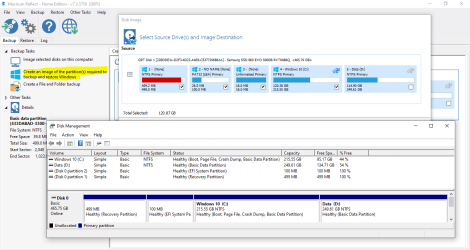
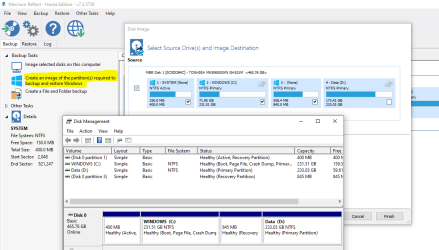
Typically on an MBR install of Windows 10 there will be two partitions that may be called 'recovery'. The first will be marked 'Active' and is required to boot the system, the second JUST contains the WinRE recovery environment and is typically 450-500MB.

For a UEFI/GPT system (which a 2019 Asus almost certainly will be) then there are additional required partitions: an EFI partition (for booting) and a 16MB MSR partition. Depending on whether the system has ever had a Feature Update there may be more than one recovery partition. When upgrading to the next version of Win10 the WinRE gets upgraded too. If the current recovery partition is too small a new one may be created, typically about 500MB.

When you back up with Macrium Reflect v7 there is an option to 'Create an image of the partition(s) required to backup and restore Windows'. Click this and it automatically selects all the partitions you need to back up to be able to restore the fully working system. You can then optionally include your D: Data partition if you wish (I do). All partitions will then be included in one single image file.

I used an early version of Macrium Reflect and was very happy with the program.
Macrium Reflect v5 is no longer supported by Macrium for use in Win10, v6 is - but as the latest Reflect v7 is available as a Free edition I'd recommend downloading and installing that.

Macrium Software | Macrium Reflect Free


Attached are screenshots of a typical UEFI/GPT backup, and one for a Legacy/MBR layout. Both machines have a D: Data partition that is not required for a working Windows system. I actually use my Data partition to hold a Macrium image of the other partitions (for a convenient quick restore) then separately create an image on an external drive of all partitions including D: Data.
 

Attachments

  • Required for Windows - Macrium backup (GPT).PNG
    Required for Windows - Macrium backup (GPT).PNG
    80 KB · Views: 2
  • Required for Windows - Macrium backup (MBR).PNG
    Required for Windows - Macrium backup (MBR).PNG
    72.3 KB · Views: 1
Last edited:

My Computers

System One System Two

  • Computer type
    Laptop
    Computer Manufacturer/Model Number
    Toshiba satellite C650D
    OS
    Windows 7 Home Premium x64
    CPU
    AMD V120
    Memory
    4GB
    Internet Speed
    150 Mbps
    Antivirus
    MSE
    Browser
    IE11, Edge, Firefox
    Other Info
    I also have W7 Pro on my System Two, and several W7 Hyper-V VMs. My other machines run Windows 10/11. Their specs are in my Ten Forums & Eleven Forum profiles.
  • Computer type
    Laptop
    System Manufacturer/Model Number
    Lenovo Thinkpad T430
    OS
    Windows 7 Pro x64
    CPU
    Intel i5-3320M
    Memory
    8 GB
    Hard Drives
    250GB Samsung SSD 860 EVO
    Other Info
    Antivirus: MSE
I'm thinking that if the recovery partition is burned to DVD or USB, you'd just boot it like a bootable OS install disk.

An OEM pre-installed Windows 10 machine typically does not have a separate recovery partition for reinstalling the factory image.

If you want a bootable USB to reinstall Win10, then use the built in function to create a Recovery Drive USB. Select the option to include system files. For an OEM pre-installed Win10 the last two items listed below are what make this into a 'Factory Reset' USB specific to the PC it was made on, with all the OEM utilities, drivers and customisations included.

Brink said:
When the option is selected, the following are copied onto the USB recovery media as well:

  • Windows Component Store
  • Installed drivers
  • Backup of preinstalled Windows apps
  • Provisioning packages containing preinstalled customizations (under C:\Recovery\Customizations)
  • Push-button Reset configuration XML and scripts (under C:\Recovery\OEM)
Create Recovery Drive in Windows 10 | Tutorials
 

My Computers

System One System Two

  • Computer type
    Laptop
    Computer Manufacturer/Model Number
    Toshiba satellite C650D
    OS
    Windows 7 Home Premium x64
    CPU
    AMD V120
    Memory
    4GB
    Internet Speed
    150 Mbps
    Antivirus
    MSE
    Browser
    IE11, Edge, Firefox
    Other Info
    I also have W7 Pro on my System Two, and several W7 Hyper-V VMs. My other machines run Windows 10/11. Their specs are in my Ten Forums & Eleven Forum profiles.
  • Computer type
    Laptop
    System Manufacturer/Model Number
    Lenovo Thinkpad T430
    OS
    Windows 7 Pro x64
    CPU
    Intel i5-3320M
    Memory
    8 GB
    Hard Drives
    250GB Samsung SSD 860 EVO
    Other Info
    Antivirus: MSE
So I covered this in post #4 with AOMEI's link.

On its face, the Microsoft method of recovery doesn't look too promising to me. It looks like the recovery isn't a full OS backup disk, but just a way of reinstalling key pieces of data as mentioned. And I get the felling after reading that tenfourms link that the recovery doesn't format the drive and reinstall the whole OS from scratch like what was the case with true OEM recovery partitions of the full OS back in the day. This so-called Windows 10 recovery sounds like a more glorified version of SFC /scannow.

By far the best recovery would be a full 1:1 disk clone. And that's what I do from time to time. The whole drive is cloned to another external drive. And certain data is backed up from time to time as well as an added backup measure.
 

My Computer

Computer type
PC/Desktop
OS
Windows 7 Ultimate x64
On its face, the Microsoft method of recovery doesn't look too promising ... I get the felling after reading that tenfourms link that the recovery doesn't format the drive and reinstall the whole OS from scratch like what was the case with true OEM recovery partitions....

You didn't read the W10 Recovery Drive link thoroughly then. A Recovery Drive USB made by Windows 10 and with the 'include system files' option selected is capable of reinstalling W10 from scratch on a blank replacement drive, should the original die. If that Recovery Drive was made on an OEM machine then it includes the OEM provisioning packages, meaning that all drivers, OEM utilities and customisations will also be installed.

Windows 10 does not need to be supplied with a 'true' OEM recovery partition, or a recovery DVD, because in W10 you can make your own 'Factory Reset' USB at the click of a button.


By far the best recovery would be a full 1:1 disk clone. And that's what I do from time to time. The whole drive is cloned to another external drive. And certain data is backed up from time to time as well as an added backup measure.
I prefer an image rather than a clone, partly because it can be restored to a larger replacement disk (or smaller if necessary), but mostly because it takes up less space. I can fit images of my half-dozen or so machines on a single external drive, and do so once a month (and still have room to retain the previous month's images).
 

My Computers

System One System Two

  • Computer type
    Laptop
    Computer Manufacturer/Model Number
    Toshiba satellite C650D
    OS
    Windows 7 Home Premium x64
    CPU
    AMD V120
    Memory
    4GB
    Internet Speed
    150 Mbps
    Antivirus
    MSE
    Browser
    IE11, Edge, Firefox
    Other Info
    I also have W7 Pro on my System Two, and several W7 Hyper-V VMs. My other machines run Windows 10/11. Their specs are in my Ten Forums & Eleven Forum profiles.
  • Computer type
    Laptop
    System Manufacturer/Model Number
    Lenovo Thinkpad T430
    OS
    Windows 7 Pro x64
    CPU
    Intel i5-3320M
    Memory
    8 GB
    Hard Drives
    250GB Samsung SSD 860 EVO
    Other Info
    Antivirus: MSE
So if that's what it does and you have the OS all there then I guess it's like having an OS reinstall disk. Reading that sounds really FUBAR and just complicates a simple mechanism where it could just read something like, "creates a FULL reinstall OS disk." or sometime. I mean, there's just a lot of fluff there.

Re: Disk clones. In my case of using images many years ago (like 2007), I was pissed to find out my "images" once written to disk did not allow me to boot the hard drive after I wrote the "image" back. So I said F all that and now just make full 1:1 disk clones so that I have the whole drive as it is and can copy to another drive and boot straight always like hardly anything happened except between clones. Yes, they'll take up more room so to speak, but external platter (emphasis on platter) HDDs are super cheap for the every so often clone. My main system drive is 1 TB and I have an external 1 TB 2.5 USB drive for the clones. I do use USB 3.0 which is conveniently on the front of my computer case which is why I bought this computer case and MOBO with appropriate USB headers. But USB 3.1 is on the back. I should just buy a USB 3.1 cable and run that from the back to the front here for the extra bump in speed. Though, speed isn't really a huge issue. It takes a good three to four hours and I do my clones at night.

On the other hand, maybe I didn't create the images correctly all those years ago. It just made a bad taste in my mouth when I thought I had a real true backup to find out that wasn't the case at all. If this is wrong, I may look and see if Clonezilla has image capability and test an image, reinstall to a test HDD and if it works then I'll compress the images and backup those all over hell rather then relying on one HDD. I should buy another 1 TB as a backup to the backup. Knowing my luck the backup HDD won't work when I need it. But, it's barely been used. It is a Toshiba for what ever that's worth.
 

My Computer

Computer type
PC/Desktop
OS
Windows 7 Ultimate x64
Re: Disk clones. In my case of using images many years ago (like 2007), I was pissed to find out my "images" once written to disk did not allow me to boot the hard drive after I wrote the "image" back....
Isn't that a pain when that happens? IME the least reliable system imaging is the one supplied by MS and built into Windows. It has a habit of failing to recognise an apparently perfectly good system image for no obvious reason, just when you need it the most :(


These days I use Macrium Reflect and have literally lost count of the number of successful restores I have done. In fact, I'll restore an image in preference to using restore point, it's usually far quicker.
 

My Computers

System One System Two

  • Computer type
    Laptop
    Computer Manufacturer/Model Number
    Toshiba satellite C650D
    OS
    Windows 7 Home Premium x64
    CPU
    AMD V120
    Memory
    4GB
    Internet Speed
    150 Mbps
    Antivirus
    MSE
    Browser
    IE11, Edge, Firefox
    Other Info
    I also have W7 Pro on my System Two, and several W7 Hyper-V VMs. My other machines run Windows 10/11. Their specs are in my Ten Forums & Eleven Forum profiles.
  • Computer type
    Laptop
    System Manufacturer/Model Number
    Lenovo Thinkpad T430
    OS
    Windows 7 Pro x64
    CPU
    Intel i5-3320M
    Memory
    8 GB
    Hard Drives
    250GB Samsung SSD 860 EVO
    Other Info
    Antivirus: MSE
Back
Top