MBR - Restore Windows 7 Master Boot Record

How to Restore the Windows 7 MBR (Master Boot Record)

   Information
If you have been dual booting with Linux, then you probably know one of the Linux boot managers like Grub or LILO has been installed in the MBR of your hard drive. What can you do when you no longer want Linux on that hard drive? This tutorial will show you how to use your 7 DVD and BOOTSECT.EXE to restore the "bootsector code" of the MBR and allow you to begin booting to Windows 7 again.
   Tip
You can use this method to update the bootsector code for Windows 7, Vista, XP, 2000 or switch between Bootmgr and NTLDR. Just check the Microsoft TechNet site for the correct command.


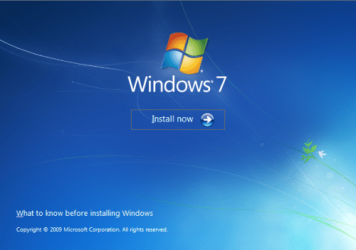
Here's How:1. Boot your computer to the Windows 7 DVD (or to a "Repair CD"). At this screen choose to install now.
25672d1251414873-mbr-restore-windows-7-master-boot-record-mbr_02.png


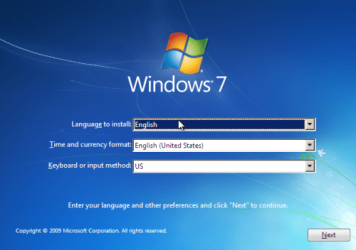
2. Select your language and click next.
25673d1251414836-mbr-restore-windows-7-master-boot-record-mbr_03.png


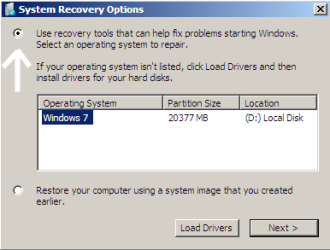
3. Click the button for "Use recovery tools".
25674d1251414836-mbr-restore-windows-7-master-boot-record-mbr_04.png


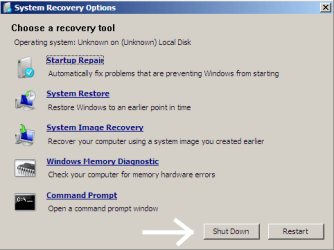
4. Then select "Command Prompt".
25675d1251414836-mbr-restore-windows-7-master-boot-record-mbr_05.png


5. When open, the command prompt will look like this:
53598d1251414836-mbr-restore-windows-7-master-boot-record-mbr_16.png


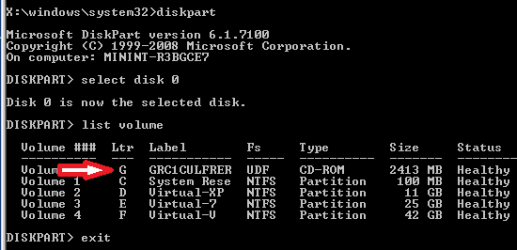
6. The command we will use, bootsect.exe, is in a folder (named boot) on the DVD.We need to know what drive letter has been assigned the DVD drive to access the folder.

Code:
Type: [B]diskpart[/B]
and press [B]Enter[/B]
 
Type: [B]select disk 0[/B] (zero)
and press [B]Enter[/B]
 
type: [B]list volume[/B]
and press [B]Enter[/B]
In this screen shot, the 7 DVD is letter: G
53599d1251414836-mbr-restore-windows-7-master-boot-record-mbr_17a.png


7. Use your DVD drive letter and

Code:
Type: [B]exit[/B]
and press [B]Enter[/B]
 
to close Diskpart
 
Type: [B]G:[/B] (use the letter of your DVD drive)
and press [B]Enter[/B]
 
Type: [B]cd boot[/B]
and press [B]Enter[/B]
 
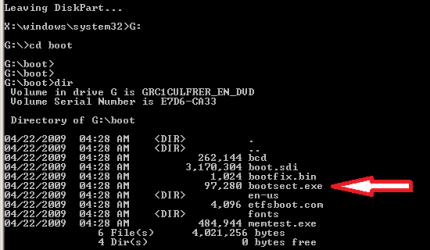
Type: [B]dir[/B]
and press [B]Enter[/B]
to verify that bootcect.exe is there (if you really need to)
53600d1251414836-mbr-restore-windows-7-master-boot-record-mbr_18a.png


8. To restore the "bootsector code":

Code:
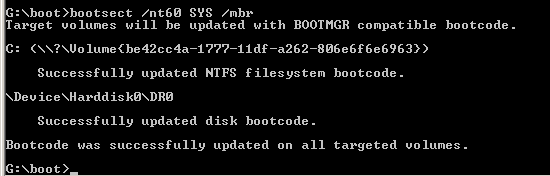
TYPE: [B]bootsect /nt60 SYS /mbr[/B]
and press [B]Enter[/B]
53601d1251414836-mbr-restore-windows-7-master-boot-record-mbr_19.png


NOTE: If this method fails to restore the MBR, you can try the bootrec command as it is also a tool for repairing the MBR.


9. When completed successfully,

Code:
Type: [B]exit[/B]
and press [B]Enter[/B]
This will close the command prompt window.

10. Now select Shut Down or Restart
25680d1251414836-mbr-restore-windows-7-master-boot-record-mbr_10.png


11. Then you can reboot your computer into Windows.
25681d1251414836-mbr-restore-windows-7-master-boot-record-mbr_12.png


Attachments

  • mbr_02.png
    mbr_02.png
    220.2 KB · Views: 1,640,315
  • mbr_12.png
    mbr_12.png
    18.2 KB · Views: 1,552,307
  • mbr_10.png
    mbr_10.png
    25 KB · Views: 1,576,678
  • mbr_05.png
    mbr_05.png
    25.7 KB · Views: 1,579,666
  • mbr_04.png
    mbr_04.png
    13.3 KB · Views: 1,633,763
  • mbr_03.png
    mbr_03.png
    212.8 KB · Views: 1,635,478
  • mbr_16.png
    mbr_16.png
    6.1 KB · Views: 1,554,623
  • mbr_17a.png
    mbr_17a.png
    13.4 KB · Views: 1,565,873
  • mbr_18a.png
    mbr_18a.png
    14.7 KB · Views: 1,620,585
  • mbr_19.png
    mbr_19.png
    5.3 KB · Views: 1,569,958
Last edited by a moderator:
OK got some more info...

I figured out that my D: drive is the partition with Windows 7 installed on it.

When I went in and did a "bootsect/nt60 all" I got the following error message regarding the D: Drive

"Update may be unrealiable since the volume could not be locked during update. Access is denied"

WTF does that mean? and how do I fix it?

Thanks,
Jay
Good afternoon, Jay!

I would recommend to you to try a "repair install" from the 7 DVD: http://www.sevenforums.com/tutorials/668-system-recovery-options.html

Follow this tutorial ... take note that step 5 says "If Windows 7 is not listed here, or it is blank, then it is ok. Click on Next anyway." Then do the "startup repair." Please let us know if this restores access to your Windows 7?

Cheers!

Thanks, however, I'm pretty sure I have already done this process. And it did not work!

I'll maybe try running it again with all my other hard drives disconnected and see if that does anything...

Jay
 

My Computer

OS
Windows 7
Thanks, however, I'm pretty sure I have already done this process. And it did not work!

I'll maybe try running it again with all my other hard drives disconnected and see if that does anything...

Jay
Yes, please try with the Windows 7 hard drive connected and let us know?
 

My Computer

OS
...
Ok so I diconnected all of my other hard drives so only the one with W7 was on.

Went through the process of startup repair and got the following details:

Root Cause Found: The Partition Table does not have a valid system partition.
Repair Action: Partition Table Repair
Result: Completed Sucessfully Error Code = 0x0

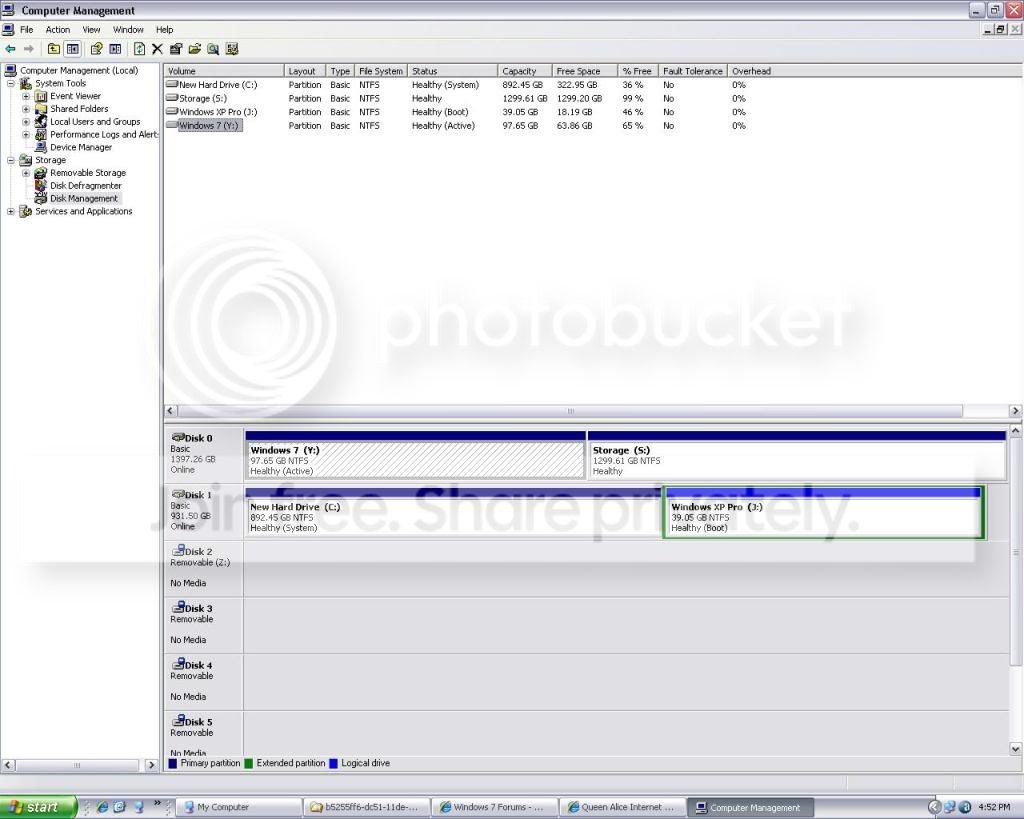
If I attach my other HDD with XP (what I'm on now) I can go into disk management and see my Windows 7 partition. It says it's "Healthy"

Ideas on how to fix??

Thanks,

Jay
 

My Computer

OS
Windows 7
Ok so I diconnected all of my other hard drives so only the one with W7 was on.

Went through the process of startup repair and got the following details:

Root Cause Found: The Partition Table does not have a valid system partition.

Repair Action: Partition Table Repair
Result: Completed Sucessfully
Error Code = 0x0
OK ... so did the partition table get repaired and are you able to boot to Windows 7?

.
 

My Computer

OS
...
Ok so I diconnected all of my other hard drives so only the one with W7 was on.

Went through the process of startup repair and got the following details:

Root Cause Found: The Partition Table does not have a valid system partition.

Repair Action: Partition Table Repair
Result: Completed Sucessfully
Error Code = 0x0
OK ... so did the partition table get repaired and are you able to boot to Windows 7?

.

I removed the W7 install disk... restarted... get Boot Failure...
 

My Computer

OS
Windows 7
I also did a C:bootsec /fixmbr and it said it completed successfully....

I could not however, do a /bootfix. Said (something) could not be found???

Also tried a /rebuildbcd. It was thinking for a while and then came up with a bunch of stuff but can't remember if it worked...


Still get boot failure at startup...
 

My Computer

OS
Windows 7
Ok so I diconnected all of my other hard drives so only the one with W7 was on.

Went through the process of startup repair and got the following details:

Root Cause Found: The Partition Table does not have a valid system partition.

Repair Action: Partition Table Repair
Result: Completed Sucessfully
Error Code = 0x0
OK ... so did the partition table get repaired and are you able to boot to Windows 7?

.

I attach my other HDD with XP (what I'm on now) I can go into disk management and see my Windows 7 partition. It says it's "Healthy"
 

My Computer

OS
Windows 7
Is there a way that I can fix/repair the boot directory or the install of Windows 7, or partition while I'm on my other HDD??

That would be really nice if I could just copy and paste new files into the Windows 7 partition....

Possible??
 

My Computer

OS
Windows 7
I also did a C:bootsec /fixmbr and it said it completed successfully....

I could not however, do a /bootfix. Said (something) could not be found???

Also tried a /rebuildbcd. It was thinking for a while and then came up with a bunch of stuff but can't remember if it worked...


Still get boot failure at startup...
Before you proceed, lets consider your options. I re-read your initial post and can not see how booting to your XP hard drive would damage your 7 partition table. Doesn't mean it couldn't happen, just I don't see how.

Damage to the partition table could be the result of defects in the hard drive platter in the area where the partition table resides, so it might save a lot of effort to verify the hard drive is, or is not the cause. I would suggest to you to go the manufacturer's web site and get a copy of their diagnostic software and check the physicial condition of the hard drive before continuing. A few defects does not mean the hard drive will need to be replaced, but the surface of a platter failing will continue to cause corrupted data. You need to know!

If the diagnostic software can adequately repair (block off the failing area so no data can be stored there) the hard drive, then we may be able to repair the MBR / partition table and resume using it. If not, you should be able to RMA the drive.

In the mean time, one option you might consider is to install 7 in a separate partition on one of your other drives. If you do, I suggest shrinking the XP partition, moving it to the "end" (right) of the hard drive and installing 7 including its 100 MB system partition. With a working 7 OS you may be able to rescue your files and settings from the damaged drive, maybe ...

If no defects are found in the 7 hard drive, or if it can be repaired (as mentioned above) the tutorial referes to this MS site where you can use the command:

bootrec (not bootsec, as you posted)

"The /FixBoot option writes a new boot sector to the system partition by using a boot sector that is compatible with Windows Vista or Windows 7. Use this option if one of the following conditions is true:
  • The boot sector has been replaced with a non-standard Windows Vista or Windows 7 boot sector.
  • The boot sector is damaged.
  • An earlier Windows operating system has been installed after Windows Vista or Windows 7 was installed. In this scenario, the computer starts by using Windows NT Loader (NTLDR) instead of Windows Boot Manager (Bootmgr.exe)."
Please consider your options and let us know if we may assist?

Cheers!
 

My Computer

OS
...
  • Like
Reactions: JMH
Before you proceed, lets consider your options. I re-read your initial post and can not see how booting to your XP hard drive would damage your 7 partition table. Doesn't mean it couldn't happen, just I don't see how.

The boot of W7 got messed up when I was playing around in the BIOS settings trying to overclock my CPU.

I re-set the BIOS to "standard" settings, then re-started my computer.

However, I did not change the disk order before doing that.

When the computer re-started, it booted to my XP drive as it was listed first.

So I went back into BIOS, changed it to my W7 disk, and re-started.

That's when the problems started.

I originally got an "NTDLR is missing" error.

In my efforts to fix the problem, it wasn't giving me the NTDLR error anymore, just a "Boot Failure".... Which is what it's still giving me...

I've already transfered over all of my "data" on the Windows 7 partition as I am able to access it in Disk Management when running my XP drive....

DiskManagement.jpg


SO I'm probably just going to re-format the hard drive, then re-install Windows 7 and be done with this CRAP!

But I do thank everyone for their help! But I'm not sure I can fix it any faster than just re-installing!
 

My Computer

OS
Windows 7
SO I'm probably just going to re-format the hard drive, then re-install Windows 7 and be done with this CRAP!

But I do thank everyone for their help! But I'm not sure I can fix it any faster than just re-installing!
I concur that would most likely be quicker and should work if the partition table is not damaged and the 7 install DVD can recognize the hard drive.

I also noticed from your screen shot (thanks btw, it really helps!) that your boot code has been put inside your XP partition. We have received numerous complaints that XP trashes the boot code for 7 at times (unknown exactly why). The real issue here is that XP does not have the ability to manage Vista or 7 because they are newer than XP. The 7 bootmgr is able to include XP. I recommend to all that they use the 100 MB reserved system partition which includes bootmgr (unplug the XP hard drive when installing 7 to allow 7 to create the bootmgr there) to protect the boot manager menu when modifying partitions. It will allow one to continue to boot to other OSs if one of them gets damaged.

Cheers!

.
 

My Computer

OS
...
windows 7 problem

Hi i am new to this forum. I have a problem with a new installation of windows 7. I installed it fine onto a new drive but when i connected my old drive with windows vista on it booted to vista without asking me,i wanted to move my documents and photos to the new drive. i switched off and disconnected the old drive and started the computer again but this time i got a message : drive 1 primary 00 vista/2008/7 ntfs insert startup disk in floppy drive press f2 to run setup. i just press return to start windows 7 o.k. but when i look in msconfig boot tab nothing is listed. i have tried a startup repair but it says that the disk is the wrong one and wont load the tools.Please can someone help.
 

My Computer

OS
windows 7
Hi i am new to this forum. I have a problem with a new installation of windows 7. I installed it fine onto a new drive but when i connected my old drive with windows vista on it booted to vista without asking me,i wanted to move my documents and photos to the new drive. i switched off and disconnected the old drive and started the computer again but this time i got a message : drive 1 primary 00 vista/2008/7 ntfs insert startup disk in floppy drive press f2 to run setup. i just press return to start windows 7 o.k. but when i look in msconfig boot tab nothing is listed. i have tried a startup repair but it says that the disk is the wrong one and wont load the tools.Please can someone help.
Hello paul129, and welcome to Windows Seven Forums!

This is puzzling as you installed 7 with the Vista disk removed, I would expect 7 to boot if you removed the Vista disk again. I would recommend to you to leave the Vista disk unplugged and use your 7 install DVD and do a "Startup Repair" like explained here: http://www.sevenforums.com/tutorials/668-system-recovery-options.html If that doesn't work you can always just reinstall 7.

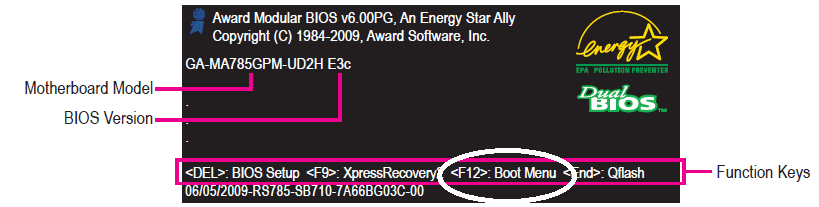
Without knowing what computer/motherboard you are using, I can only give vague suggestions how to overcome this after you have 7 working again. Some motherboards offer a "Boot Menu" during the booting process; you have to watch the screen and see if there is an F# key you can press to start the boot menu. Then you can choose to boot from the 7 hard disk when you want 7, or choose to boot from the Vista disk. Here is a sample boot screen for illustration:

gigibyte_boot.png

If you do not have the "Boot Menu" option, you can go into the BIOS and put the 7 Hard Disk as the first boot device (and likewise go back and set the Vista Hard Disk as first if desired) so you can boot to 7. You will have to determine which key to press during the boot process to open the BIOS, "Delete", F1, F2, or something else. Then look around and find the "Boot Order, or Priority, and select the 7 hard disk to boot first. You will want to connect both hard drives before you open the BIOS and make your choice. You should be able to access your Vista files form 7.

However, I recommend using the "Easy Transfer Wizard" to move your profiles and settings to 7. I just finished replacing my 7 RC with the 7 Upgrade I purchased and the "Easy Transfer Wizard" is a real convenience!

Please let us know how it goes!
 

My Computer

OS
...
Thanks for the reply. I have taken out the vista hard drive and still get the errror at startup : drive 1 primary 00 vista/2008/7 ntfs insert startup disk in floppy drive press f2 to run setup. I dont have a floppy drive installed as there is no place for it on my motherboard. if i press return windows 7 starts up and runs o.k. but why do i get this error on startup. it comes before the animated windows 7 logo. when i go into msconfig boot tab there is no opperating system listed. i have booted to the windows 7 dvd and it lists the opperating system in the box as windows 7 when i try to load the tools it says that it is the wrong opperating system. I cant figure this one out. have you any ideas please. thanks again.
 

My Computer

OS
windows 7
Thanks for the reply. I have taken out the vista hard drive and still get the errror at startup : drive 1 primary 00 vista/2008/7 ntfs insert startup disk in floppy drive press f2 to run setup. I dont have a floppy drive installed as there is no place for it on my motherboard. if i press return windows 7 starts up and runs o.k. but why do i get this error on startup. it comes before the animated windows 7 logo. when i go into msconfig boot tab there is no opperating system listed. i have booted to the windows 7 dvd and it lists the opperating system in the box as windows 7 when i try to load the tools it says that it is the wrong opperating system. I cant figure this one out. have you any ideas please. thanks again.
Thanks for posting back. When you installed 7 while the Vista hard drive was connected, 7 put its boot code into the Vista partition. To get 7 to boot without this error, you need to do a clean install (or custom), delete the 7 partition so 7 can create the 100 MB system partition that holds the boot code when it reinstalls 7. That will fix the boot error message and we can add Vista to the 7 boot menu later if you wish.

If you look in "Disk Management" and see the 100 MB partition already there, you can just run the MBR repair (three times to fix all) and you woun't need to reinstall. If you like, you can take a snapshot of your Disk Manager screen and attach it to a post so we can see what you see?

Cheers!
Robert
 

My Computer

OS
...
Thanks for the reply. I have formated my windows 7 drive and reinstalled.after removing the vista drive. When it rebooted i got a message that the boot mgr is missing. ( bang head against brick wall !!! ) I went back to the shop that sold me the hard drive and he said try a new cable and swap the ports , this i did and it worked!! so far is working great. When i was at the shop i bought an external hard drive case so i can put the vista drive in and copy my photo and documents without having to boot it. I would like to thank you for all the help and advice you gave me.
 

My Computer

OS
windows 7
Thanks for the reply. I have formated my windows 7 drive and reinstalled.after removing the vista drive. When it rebooted i got a message that the boot mgr is missing. ( bang head against brick wall !!! ) I went back to the shop that sold me the hard drive and he said try a new cable and swap the ports , this i did and it worked!! so far is working great. When i was at the shop i bought an external hard drive case so i can put the vista drive in and copy my photo and documents without having to boot it. I would like to thank you for all the help and advice you gave me.
You are quite welcome. Glad you got it sorted. I will remember the "try a different SATA port!!

The external drive case is an excellent idea. It is a great place to save your Windows 7 "Backups and Images".

Happy surfing!
Robert
 

My Computer

OS
...
SO I'm probably just going to re-format the hard drive, then re-install Windows 7 and be done with this CRAP!

But I do thank everyone for their help! But I'm not sure I can fix it any faster than just re-installing!
I concur that would most likely be quicker and should work if the partition table is not damaged and the 7 install DVD can recognize the hard drive.

I also noticed from your screen shot (thanks btw, it really helps!) that your boot code has been put inside your XP partition. We have received numerous complaints that XP trashes the boot code for 7 at times (unknown exactly why). The real issue here is that XP does not have the ability to manage Vista or 7 because they are newer than XP. The 7 bootmgr is able to include XP. I recommend to all that they use the 100 MB reserved system partition which includes bootmgr (unplug the XP hard drive when installing 7 to allow 7 to create the bootmgr there) to protect the boot manager menu when modifying partitions. It will allow one to continue to boot to other OSs if one of them gets damaged.

Cheers!

.

Just wanted to let you guys know that I think all of my problems were due to bad RAM.

I just purchased another 4 gigs of Corsair Dominator Ram and when I installed them, crap started to happen.

Since removing them, I have not had one BSOD...

Cheers,

Jay
 

My Computer

OS
Windows 7
No BOOT

Hi. I recently installed Ubuntu and it sort of took over.
On STEP 4, there is no 'boot' in the list.

Why not?

:sarc:
 

My Computer

Computer Manufacturer/Model Number
Sony
OS
Windows 7 Professional x64
CPU
Intel Pentium Dual-Core
Screen Resolution
1366 x 768
Other Info
Splashtop
Hi. I recently installed Ubuntu and it sort of took over.
On STEP 4, there is no 'boot' in the list.

Why not?

:sarc:
Welcome! Where are you looking? You're right, there is no Boot in step 4. Do you mean it cannot find any OSes?
 

My Computer

Computer Manufacturer/Model Number
Custom
OS
Windows 7 Professional x64
CPU
Intel i7 2600K OC'd @ 4620 MHz
Motherboard
Asus P8Z68-V Pro
Memory
16GB GSkill Sniper 2133 Mhz (4x4GB)
Graphics Card(s)
EVGA GeForce GTX 480 SuperClocked+
Sound Card
Realtek High Definition Audio
Monitor(s) Displays
2x Acer S273HLbmii 27"
Screen Resolution
2 x 1920x1080
Hard Drives
64GB Crucial M4 SSD

Storage: Hitachi 1TB 5400RPM, Samsung 1.5TB 5400RPM
PSU
Corsair HW Series 750w (modular)
Case
Cooler Master HAF 932 Advanced Blue Edition
Cooling
CM Hyper 212+ CPU cooler, 3x 230mm + 1x 140mm case fans
Keyboard
Logitech MK320 (wireless)
Mouse
Logitech MK320 (wireless)
Internet Speed
30 Mb/s : 2 Mb/s
Back
Top