MBR - Restore Windows 7 Master Boot Record

How to Restore the Windows 7 MBR (Master Boot Record)

   Information
If you have been dual booting with Linux, then you probably know one of the Linux boot managers like Grub or LILO has been installed in the MBR of your hard drive. What can you do when you no longer want Linux on that hard drive? This tutorial will show you how to use your 7 DVD and BOOTSECT.EXE to restore the "bootsector code" of the MBR and allow you to begin booting to Windows 7 again.
   Tip
You can use this method to update the bootsector code for Windows 7, Vista, XP, 2000 or switch between Bootmgr and NTLDR. Just check the Microsoft TechNet site for the correct command.


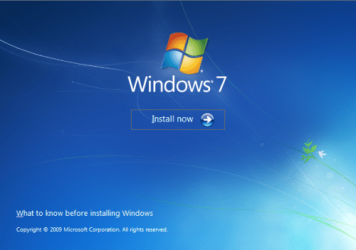
Here's How:1. Boot your computer to the Windows 7 DVD (or to a "Repair CD"). At this screen choose to install now.
25672d1251414873-mbr-restore-windows-7-master-boot-record-mbr_02.png


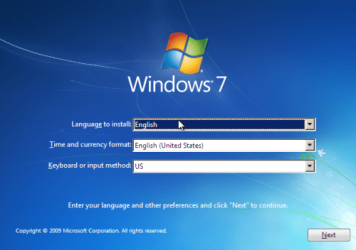
2. Select your language and click next.
25673d1251414836-mbr-restore-windows-7-master-boot-record-mbr_03.png


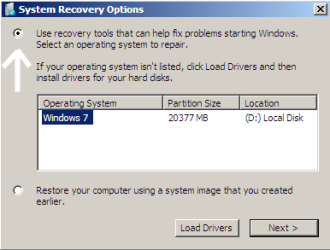
3. Click the button for "Use recovery tools".
25674d1251414836-mbr-restore-windows-7-master-boot-record-mbr_04.png


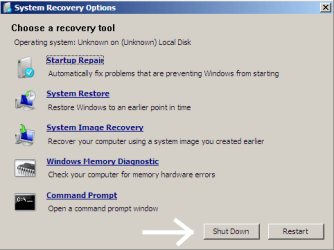
4. Then select "Command Prompt".
25675d1251414836-mbr-restore-windows-7-master-boot-record-mbr_05.png


5. When open, the command prompt will look like this:
53598d1251414836-mbr-restore-windows-7-master-boot-record-mbr_16.png


6. The command we will use, bootsect.exe, is in a folder (named boot) on the DVD.We need to know what drive letter has been assigned the DVD drive to access the folder.

Code:
Type: [B]diskpart[/B]
and press [B]Enter[/B]
 
Type: [B]select disk 0[/B] (zero)
and press [B]Enter[/B]
 
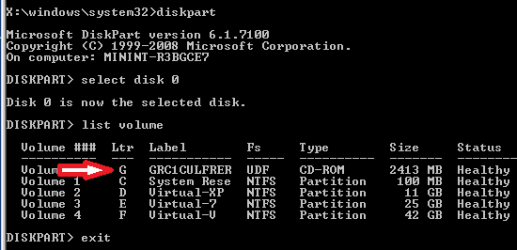
type: [B]list volume[/B]
and press [B]Enter[/B]
In this screen shot, the 7 DVD is letter: G
53599d1251414836-mbr-restore-windows-7-master-boot-record-mbr_17a.png


7. Use your DVD drive letter and

Code:
Type: [B]exit[/B]
and press [B]Enter[/B]
 
to close Diskpart
 
Type: [B]G:[/B] (use the letter of your DVD drive)
and press [B]Enter[/B]
 
Type: [B]cd boot[/B]
and press [B]Enter[/B]
 
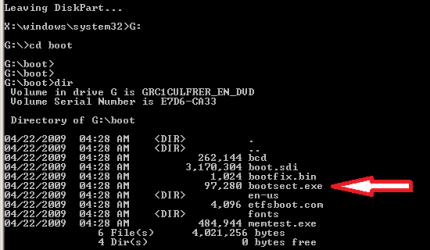
Type: [B]dir[/B]
and press [B]Enter[/B]
to verify that bootcect.exe is there (if you really need to)
53600d1251414836-mbr-restore-windows-7-master-boot-record-mbr_18a.png


8. To restore the "bootsector code":

Code:
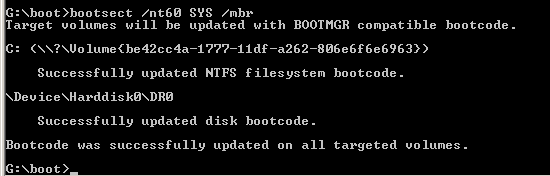
TYPE: [B]bootsect /nt60 SYS /mbr[/B]
and press [B]Enter[/B]
53601d1251414836-mbr-restore-windows-7-master-boot-record-mbr_19.png


NOTE: If this method fails to restore the MBR, you can try the bootrec command as it is also a tool for repairing the MBR.


9. When completed successfully,

Code:
Type: [B]exit[/B]
and press [B]Enter[/B]
This will close the command prompt window.

10. Now select Shut Down or Restart
25680d1251414836-mbr-restore-windows-7-master-boot-record-mbr_10.png


11. Then you can reboot your computer into Windows.
25681d1251414836-mbr-restore-windows-7-master-boot-record-mbr_12.png


Attachments

  • mbr_02.png
    mbr_02.png
    53.7 KB · Views: 1,640,315
  • mbr_12.png
    mbr_12.png
    5.3 KB · Views: 1,552,307
  • mbr_10.png
    mbr_10.png
    10.4 KB · Views: 1,576,678
  • mbr_05.png
    mbr_05.png
    10.5 KB · Views: 1,579,666
  • mbr_04.png
    mbr_04.png
    6.9 KB · Views: 1,633,763
  • mbr_03.png
    mbr_03.png
    54.3 KB · Views: 1,635,478
  • mbr_19.png
    mbr_19.png
    2.4 KB · Views: 1,569,958
  • mbr_18a.png
    mbr_18a.png
    3.7 KB · Views: 1,620,585
  • mbr_16.png
    mbr_16.png
    3.3 KB · Views: 1,554,623
  • mbr_17a.png
    mbr_17a.png
    3.8 KB · Views: 1,565,873
Last edited by a moderator:
Searching for problems... None detected!

DONE! No problems were found... is that BAD?

Yes, it is bad! The Grub is not gone! What now? Please note that my Ubuntu install is not inside Windows...

Help!
 
Last edited by a moderator:

My Computer

Computer Manufacturer/Model Number
Sony
OS
Windows 7 Professional x64
CPU
Intel Pentium Dual-Core
Screen Resolution
1366 x 768
Other Info
Splashtop
Searching for problems... None detected!

DONE! No problems were found... is that BAD?

Yes, it is bad! The Grub is not gone! What now? Please note that my Ubuntu install is not inside Windows...

Help!
OK I just restored the Windows boot loader on my test computer.

You will want to boot to your DVD and instead of the "Start Repair", go to the bottom of the window to "Command Prompt". Next you need to find your DVD disk, one way is to enter Drive letters and check the contents to locate the DVD. (DiskPart could show you a list of the drives and letters also) If you have the 100MB "System Reserved" partition, the bios will see that as the C: drive, then your Windows 7 would be the D: drive, so your DVD might be E:

When you find your DVD, as in the Tutorial, you will need to type:

bootsect /nt60 SYS /force /mbr

SIW2 suggested the /mbr switch an hour ago ... thanks pal, a good catch on your part! I had to add the /force switch to get it to work for my system.

When done I had the Windows boot menu restored. If you only have Windows 7, it should boot without showing any menu.

Next ...
 

My Computer

OS
...
Hi peter,

You only the /force switch to force a temporary dismount if you are booted into windows.

Shouldn't need it if you are running the command from winre.
 

My Computers

System One System Two

  • Computer type
    PC/Desktop
    OS
    7 X64
    CPU
    i5 8400
    Motherboard
    gigabyte b365m ds3h
    Memory
    2x8gb 3200mhz
    Hard Drives
    various
    PSU
    pure power 11 400w cm
    Case
    Coolermaster
    Cooling
    cryorig m9i
  • Computer type
    PC/Desktop
    OS
    7x64
    CPU
    g5400
    Motherboard
    ga b365m ds3h
    Memory
    8gb ddr4 2400
    PSU
    xfx pro 450w
Hi peter,

You only need the /force switch to force a temporary dismount if you are booted into windows.

Shouldn't need it if you are running the command from winre.
Right again. Thanks again.

I make no claim to be able to understand what goes on deep in the code of computer processes. I restored the Grub boot loader to my test system and executed the command again, first with only the added switch "/mbr". Last time I received several lines of error or warning messages and no "successful" message until I added the "/force" switch. This time the command was successful without the "/force" switch. Imagine that!? I have updated the Tutorial instructions to include the "/mbr" switch by default.

Cheers!
 

My Computer

OS
...
Uh Oh

The computer I was using to see this site ran out of battery power, so I am using the 'sick' computer. When I did the auto-fix, it said no problems found, all three times. It didn't work at all. I am about to see the original post, so see what happens next...
 

My Computer

Computer Manufacturer/Model Number
Sony
OS
Windows 7 Professional x64
CPU
Intel Pentium Dual-Core
Screen Resolution
1366 x 768
Other Info
Splashtop
Again

Yes, but that comes back to my problem: There is no 'boot' listed in step 4.
 

My Computer

Computer Manufacturer/Model Number
Sony
OS
Windows 7 Professional x64
CPU
Intel Pentium Dual-Core
Screen Resolution
1366 x 768
Other Info
Splashtop
Wait..

Let me try that. I have to restart because it is the same laptop today.
 

My Computer

Computer Manufacturer/Model Number
Sony
OS
Windows 7 Professional x64
CPU
Intel Pentium Dual-Core
Screen Resolution
1366 x 768
Other Info
Splashtop
Yes, but that comes back to my problem: There is no 'boot' listed in step 4.
Following the Tutorial step by step ... you would open the command prompt and type:
D:
and hit enter. Then type:
dir
and hit enter. If you do not see the DVD label or the Boot folder, then go t the next letter:
E:
and hit enter. Then type:
dir
and hit enter. If you do not see the DVD label or the Boot folder, then go to the next letter:
F:
and hit enter. then type:
dir
If you still do not see the DVD label or the Boot folder, keep trying and let me know ...
 

My Computer

OS
...
YAY!

It worked!!!!!!!!!!!!!!!!!!!
Now to remove Ubuntu... How do I do it?

I just did the tutorial exactly as it is.
 

My Computer

Computer Manufacturer/Model Number
Sony
OS
Windows 7 Professional x64
CPU
Intel Pentium Dual-Core
Screen Resolution
1366 x 768
Other Info
Splashtop
It worked!!!!!!!!!!!!!!!!!!!
Now to remove Ubuntu... How do I do it?

I just did the tutorial exactly as it is.
Excellent! I had every confidence you could do it!!

In Windows 7, click the "Start Buttton" lower left, and type: Disk Management
in the search bar just above the "Start Button"
 

My Computer

OS
...
Done

And then?
 

My Computer

Computer Manufacturer/Model Number
Sony
OS
Windows 7 Professional x64
CPU
Intel Pentium Dual-Core
Screen Resolution
1366 x 768
Other Info
Splashtop
And then?
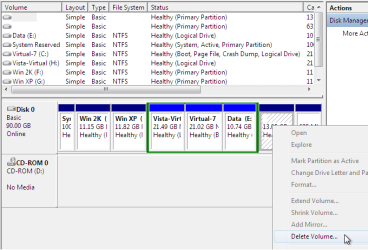
Now, right click on the Ubuntu partitions (Volumes) and select "Delete".
There are two, a big one and a small one, less than 1GB.

delete_ubuntu_01.PNG

Ubuntu gone ...
 

My Computer

OS
...
No

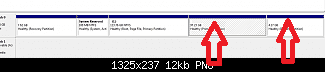
No, there are not. I attached a picture of mine.
 

Attachments

  • disk_utility_disk_hdd_ubuntu_9.10+windows_7_before1.png
    disk_utility_disk_hdd_ubuntu_9.10+windows_7_before1.png
    4.7 KB · Views: 190

My Computer

Computer Manufacturer/Model Number
Sony
OS
Windows 7 Professional x64
CPU
Intel Pentium Dual-Core
Screen Resolution
1366 x 768
Other Info
Splashtop
No, there are not. I attached a picture of mine.
These two partitions (Volumes) on the right end are your Ubuntu partitions.

disk_utility_disk_hdd_ubuntu_9.10+windows_7_before1.png

If you want to make sure this is correct, boot to your Ubuntu Live CD and open GParted and look at the partitions:

ubun2_01.PNG

Cheers!
 

My Computer

OS
...
GParted

Can you give me more info about how to open GParted? Remember I have Ubuntu 9.10
 

My Computer

Computer Manufacturer/Model Number
Sony
OS
Windows 7 Professional x64
CPU
Intel Pentium Dual-Core
Screen Resolution
1366 x 768
Other Info
Splashtop
Can you give me more info about how to open GParted? Remember I have Ubuntu 9.10
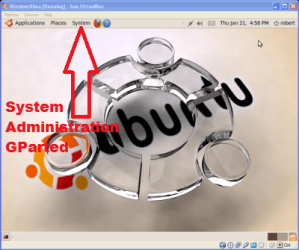
Boot to your live Ubuntu CD, when it is finished loading, from the desktop:
click System, Administration, GParted

find_gparted.png

Cheers!
 

My Computer

OS
...
Ok

Ok, I will try. What do I do in it?
 

My Computer

Computer Manufacturer/Model Number
Sony
OS
Windows 7 Professional x64
CPU
Intel Pentium Dual-Core
Screen Resolution
1366 x 768
Other Info
Splashtop
Ok, I will try. What do I do in it?
Well ... if you look closely at the GParted screen I posted, you will see the last two partitions are labeled as "ext4" and "swap". Those two partitions are your Ubuntu partitions. You can delete them with GParted, or you can boot back into Windows 7 and delete them from there.

Just do not delete anything you want to keep!!
 

My Computer

OS
...
?

So I can delete the last two in Windows?
 

My Computer

Computer Manufacturer/Model Number
Sony
OS
Windows 7 Professional x64
CPU
Intel Pentium Dual-Core
Screen Resolution
1366 x 768
Other Info
Splashtop
So I can delete the last two in Windows?
Yes. Windows doesn't recognize anthing but NTFS and Fat32 and the last two partitions are not recognized by Windows so ...

But you can verify this before you delete them ...
 

My Computer

OS
...
Back
Top