joelandsonja
New member
- Local time
- 12:20 PM
- Messages
- 18
I guess I'll make this one simple, how do I change the icons for the Library Folders?
My Computer
At a glance
Windows 7
- OS
- Windows 7


5. To Use a Custom Icon of Yours - A) Look for the <iconReference>"path to icon w/file extension"</iconReference> line. (See screenshots above)NOTE: If this is a new Library that you have created, then the line will not be there and you will need to add the <iconReference>"path to icon w/file extension"</iconReference> line directly under the <isLibraryPinned>-1</isLibraryPinned> line entry.B) In Notepad, substitute path to icon w/file extension in quotes to the full path of the custom icon that you want to use for the default Library icon instead.

I'm glad you posted that, I tried doing that method before, but for some reason the icons default to a blank folder when I rename each icon. Could someone perhaps tell me exactly what I am supposed to write (The Path to icon) as it is shown in section 5:
Example Shown Below:
The icons I want to use are located in my Pictures folder (my library) and they are in a second folder called 'Folder Icons' ... the Icons are named ... 'Documents.ico', 'Films.ico', 'Music.ico' and 'Pictures.ico' ... could someone please write out the exact path that I am supposed to write into the icon reference?
5. To Use a Custom Icon of Yours - A) Look for the <iconReference>"path to icon w/file extension"</iconReference> line. (See screenshots above)NOTE: If this is a new Library that you have created, then the line will not be there and you will need to add the <iconReference>"path to icon w/file extension"</iconReference> line directly under the <isLibraryPinned>-1</isLibraryPinned> line entry.B) In Notepad, substitute path to icon w/file extension in quotes to the full path of the custom icon that you want to use for the default Library icon instead.


Nice Found, Derek ! It will help an icon freak like me a lot . Just one thing .... is not is possible to extend the scope of the program out of library icons .... it access the entire imageresYou could just use this,
Replace Librarie Icons by ~bluefisch200 on deviantART

Nice Found, Derek ! It will help an icon freak like me a lot . Just one thing .... is not is possible to extend the scope of the program out of library icons .... it access the entire imageresYou could just use this,
Replace Librarie Icons by ~bluefisch200 on deviantART
It does change only the library icons, Derek !I'm not sure, you can try it.:huh:
I only used it to change the library icons on my last install I haven't gotten around to doing it on my current ones yet.

It does change only the library icons, Derek !I'm not sure, you can try it.:huh:
I only used it to change the library icons on my last install I haven't gotten around to doing it on my current ones yet.
I told about the possibility of the program ... it should be enhanced by the programmer in such a way that all the system icons should be changed . If it can change the library icons from imageres, it will be able to do the same things for the icons other than library icons
It does change only the library icons, Derek !I'm not sure, you can try it.:huh:
I only used it to change the library icons on my last install I haven't gotten around to doing it on my current ones yet.
I told about the possibility of the program ... it should be enhanced by the programmer in such a way that all the system icons should be changed . If it can change the library icons from imageres, it will be able to do the same things for the icons other than library icons
Actually, no.
The Library 'folders' are not actual folders. They are simply XML files that contain information that is read by Windows 7, creating, in effect, a 'virtual folder'.
Therefore, changing the icons associated with these virtual folders is not the same thing as changing a system icon for other things, not at all.
If you use the tool I linked to it not only does the icon, but also allows you to create your own Library folders as well, and use folders in any location. It also allows you to save the info into another file so if you do like I do, move the location of the library folders (the real folders that they point to) to other locations, and an update reverts them to default locations, you can simply re-apply your changes in a single step.
Actually, no.
The Library 'folders' are not actual folders. They are simply XML files that contain information that is read by Windows 7, creating, in effect, a 'virtual folder'.
Therefore, changing the icons associated with these virtual folders is not the same thing as changing a system icon for other things, not at all.
If you use the tool I linked to it not only does the icon, but also allows you to create your own Library folders as well, and use folders in any location. It also allows you to save the info into another file so if you do like I do, move the location of the library folders (the real folders that they point to) to other locations, and an update reverts them to default locations, you can simply re-apply your changes in a single step.
Derekimo - no problem.
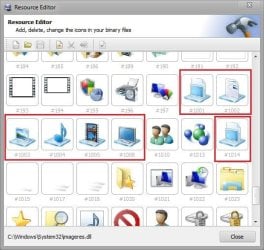
Arc - Actually, in that tool, you're looking at *real* icons in the imageres.dll file, and the tool is showing the .XML files that Win7 translates into Library folders as folders, so it is easy to make the incorrect association.
We have a number of tutorials dealing with the Library folders, see http://www.sevenforums.com/tutorials/3011-libraries-icons-change.html and the related tutorials underneath it.
).  I dont know programing , so I cannot have a try

Probably something like for example -
C:\Users\yourusernamehere\Pictures\Folder Icons\Documents.ico
so..
<iconReference>C:\Users\yourusernamehere\Pictures\Folder Icons\Documents.ico</iconReference>