
How to Allow Users to Run Only Specified Programs in Windows
Information
This tutorial will show you how to allow all or specific users on the computer to be able to run only a list of allowed programs you specify in Vista, Windows 7, or Windows 8.
You must be logged in as an administrator to be able to do the steps in this tutorial.
You must be logged in as an administrator to be able to do the steps in this tutorial.
Warning
This will not prevent users from being able to run a program through the command prompt unless you do not add cmd.exe to the list of allowed applications, or add cmd.exe to the list of disallowed applications.
Even if you have an .exe file of a program in the list of allowed applications and also in the list of disallowed applications, then users will not be able to run the .exe. Anything disallowed will always override anything allowed.
If an .exe file in the list of allowed programs was renamed by a user (if allowed), then the user will no longer be able to run that exe since that name wasn't in the list of allowed programs.
Renaming an .exe file will bypass the list of disallowed programs to let it run anyways, but not with the list of allowed programs. If the .exe file name is not on the list of allowed programs, then it can't run.
This does not apply to "Metro" Store apps in Windows 8.
Even if you have an .exe file of a program in the list of allowed applications and also in the list of disallowed applications, then users will not be able to run the .exe. Anything disallowed will always override anything allowed.
If an .exe file in the list of allowed programs was renamed by a user (if allowed), then the user will no longer be able to run that exe since that name wasn't in the list of allowed programs.
Renaming an .exe file will bypass the list of disallowed programs to let it run anyways, but not with the list of allowed programs. If the .exe file name is not on the list of allowed programs, then it can't run.
This does not apply to "Metro" Store apps in Windows 8.
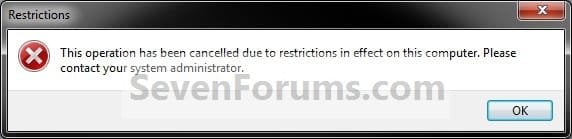
EXAMPLE: Message
NOTE: This is a message that all users will get when they try to run a EXE file not on the list of allowed programs that you specified.
OPTION ONE
Through the Local Group Policy Editor
2. In the left pane, click/tap on to expand User Configuration, Administrative Templates, and System. (see screenshot below)
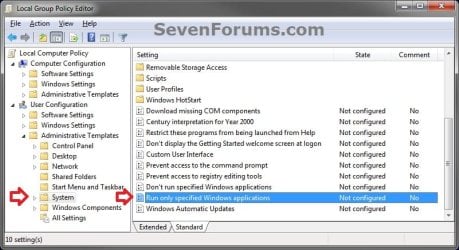
3. In the right pane of System, double click/tap on Run only specified Windows applications to edit it. (see screenshot above)
4. To Allow All Applications to Run A) Select (dot) either Not Configured or Disabled, and go to step 6 below. (see screenshot below)
NOTE: Not configured is the default setting.
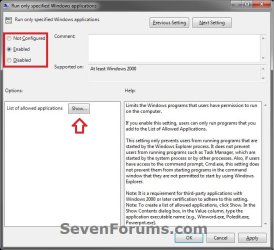
B) Under Value, double click/tap in a blank line and type in the name of the EXE file (ex: cmd.exe) with file extension that you want to prevent from running. (see screenshots below)
Tip
- To change or remove a listed exe file name, you can just type over it.
- To clear or reset the list of allowed applications, you can select Not Configured (step 4), click/tap on Apply, select Enabled again, and click/tap on Apply.
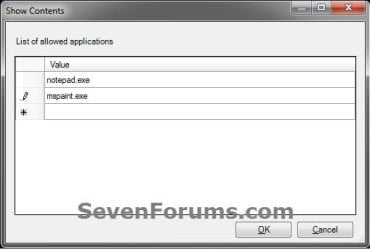
C) Repeat step 5B until you have added any other EXE files (ex: CCleaner) you want on the list of allowed applications as well. When finished, click/tap on OK. (see screenshots above)
D) Go to step 6 below.
6. Click/tap on OK. (see screenshot below step 4A)
7. If used, you may also wish to make changes to your list of disallowed programs to run.
8. When finished, you can close the Local Group Policy Editor window if you like.
OPTION TWO
Manually in Registry Editor
NOTE: This option affects all users on the computer.1. Press the Windows + R keys to open the Run dialog, type regedit, and click/tap on OK.
2. If prompted by UAC, click/tap on Yes (Windows 7/8) or Continue (Vista).
3. In regedit, navigate to the location below. (see screenshot below)HKEY_CURRENT_USER\Software\Microsoft\Windows\CurrentVersion\Policies\Explorer
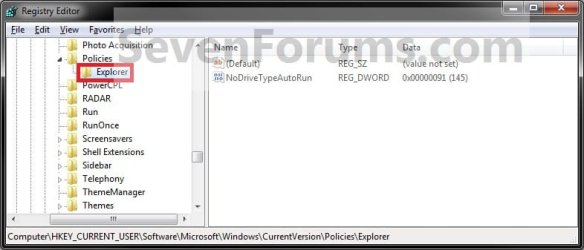
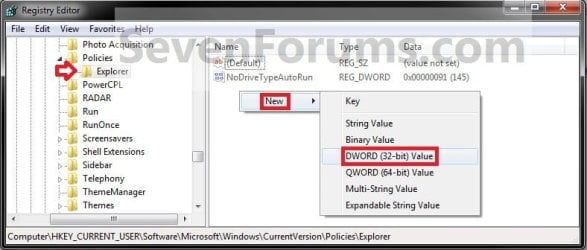
4. To Allow Only Specified Applications to Run for Only Current UserA) In the right pane of Explorer, right click or press and hold on a empty space, and click/tap on New and DWORD (32-bit) Value. (see screenshot below)
B) Type in RestrictRun and press Enter. Double click/tap on RestrictRun to modify it. (see screenshot below)
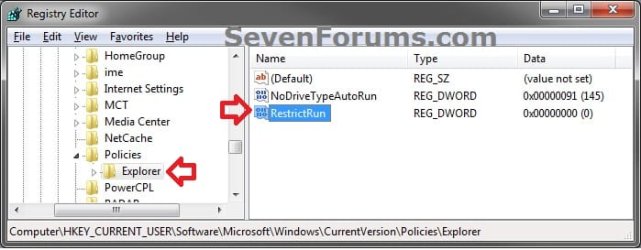
C) Type in 1 and click/tap on OK. (see screenshot below)

D) In the left pane, right click on Explorer, click/tap on New and Key, type in RestrictRun, and press Enter. (see screenshot below)
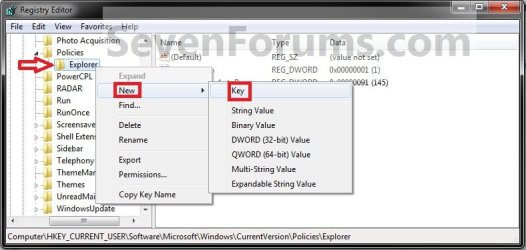
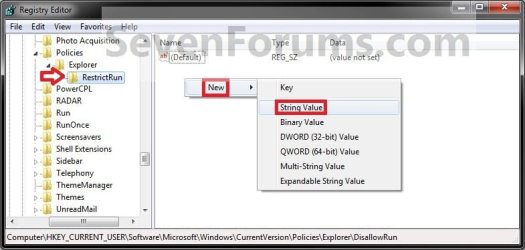
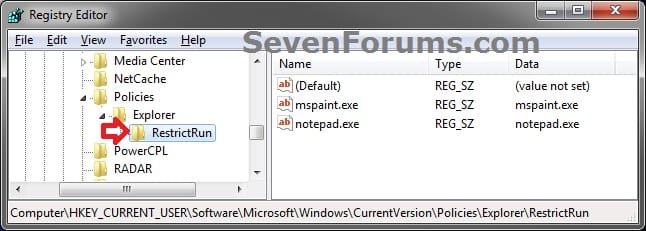
E) In the right pane of RestrictRun, right click or press and hold on a empty space, and click/tap on New and String Value. (see screenshot below)
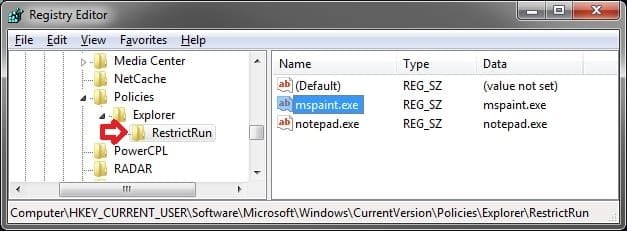
F) Type in the name of the .exe file (ex: mspaint.exe) with extension that you want to be added to the list of allowed applications, and press Enter. Double click/tap on this .exe file (ex: mspaint.exe) name to modify it. (see screenshot below)
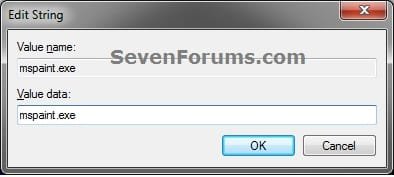
G) Type in the name of the same .exe file (ex: mspaint.exe) again, and click/tap on OK. (see screenshot below)
Tip
- To change a listed EXE file name, double click/tap on the EXE to modify it (step 4F), type the new EXE name, and click/tap on OK.
- To remove a listed EXE file name, right click or press and hold on the EXE, then click/tap on Delete and Yes.
H) Repeat steps 4F and 4G until you have added any other .exe files (ex: notepad.exe) you want on the list of allowed applications as well. (see screenshot below step 4F)
I) When finished, go to step 6 below.
5. To Allow All Applications to Run for Only Current User
NOTE: This is the default setting.A) In the right pane of Explorer, right click or press and hold on RestrictRun, and click/tap on Delete. (see screenshot below)

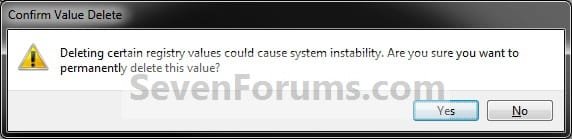
B) Click/tap on Yes to approve. (see screenshot below)
C) In the left pane, right click on RestrictRun, and click/tap on Delete. (see screenshot below)
D) Click/tap on Yes to approve, go to step 6 below. (see screenshot below)

6. If used, you may also wish to make changes to your list of disallowed programs to run.
7. Close regedit.
8. Log off and log on, or restart the computer to apply.
That's it,
Shawn
Related Tutorials
- How to Prevent Users from Running Specified Programs in Windows
- How to Create New Rules in Windows 7 AppLocker
- How to Enable DLL Rule Collection in Windows 7 AppLocker
- How to Uninstall or Change a Program in Windows 7
- How to Apply Group Policies to a Specific User or Group in Vista and Windows 7
- Run Specific Programs and Documents at User Logon in Vista, Windows 7, and Windows 8
- How to Set Up an Account for Assigned Access in Windows 8.1 and Windows RT 8.1
Last edited:


