Backup

ukthesis

New member
Local time
10:17 AM
Messages
110
My backup system is set to daily back up files each day to an external hard drive. However, I can't see which files it's backing up on my computer and I can't seem to change the files it saves anyhow. What do I do? I have, on my desktop, a large folder containing most of my saved files but it doesn't seem to be picking that one up. So I suspect that if it's working at all, it's only saving an insignificant folder.
 

My Computer

OS
64 bit
Depends what you are using for the backup. If it is backking up to a VHD, you can attach it via Disk Management > Action tab. Then you can open the virtual volume and see what's in it.
 

My Computer

Computer Manufacturer/Model Number
HP, Dell, Gateway, Toshiba - 4 laptops and 2 desktops
OS
Vista, Windows7, Mint Mate, Zorin, Windows 8
CPU
from 1.6GHz Duo to i7
Monitor(s) Displays
2x HP w2207
Hard Drives
5x HDD, 7x SSD, 12x Externals
Keyboard
with trackball - no mices
Mouse
Trackball mice
Internet Speed
DSL 6000
What's a virtual volume and a VHD? Briefly, and without any technicalities, I go to the control panel, and look in it. One of the options says "Backup and Restore." I click on it and the destination is given as the H drive (external hard drive). Under "contents" it says "Files in libraries and personal folders for all users." That's all I can see.
 

My Computer

OS
64 bit
My backup system is set to daily back up files each day to an external hard drive. However, I can't see which files it's backing up on my computer and I can't seem to change the files it saves anyhow. What do I do? I have, on my desktop, a large folder containing most of my saved files but it doesn't seem to be picking that one up. So I suspect that if it's working at all, it's only saving an insignificant folder.

Welcome ukthesis to the windows forums.
Something tells me that your backup is the internal windows 7 backup that comes with windows. By default what it does is backup your "my documents" folder and data files from some programs.

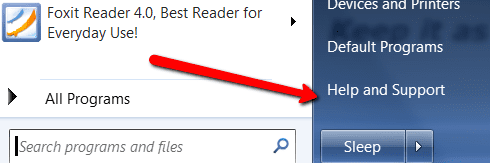
You can determine which files are backed up by going to the help selection in the main menu and type backup files.

this will allow you to either select the files to backup or let windows determine which files to backup
And where..

Help is pretty informative.

Rich
 

My Computer

Computer type
Laptop
Computer Manufacturer/Model Number
Toshiba Laptop Qosimo X870
OS
Windows 7 Pro x64 SP1
CPU
Intel Core I7
Motherboard
Toshiba Qosmio
Memory
16 Gigs
Graphics Card(s)
NVIDIA GeForce GTX 670M
Monitor(s) Displays
17.7" laptop
Screen Resolution
1600 x 900
Hard Drives
256 Gig SanDisk SSD for C
256 Gig Intel SSD for D
Internet Speed
50/25 FIOS
Antivirus
Vipre (all you can eat for 10 machines)
Browser
IE and FF
Other Info
I have dos 6.22, wfwg 3.11, win98, 2000 and xp VHD's available for testing. MS's Virtual PC works great.
Hello ukthesis, and welcome to Seven Forums.

Step 2 in the tutorial below can help show you how to make changes to your scheduled backup using the Windows 7 Backup feature.

http://www.sevenforums.com/tutorials/615-backup-user-system-files.html

I find that the easiest way to view the files in a backup is to go through the same process you would to restore them as in the tutorial below to be able to view them without finishing the process of actually restoring them.

http://www.sevenforums.com/tutorials/648-restore-backup-user-system-files.html

Hope this helps,
Shawn
 

My Computer

Computer type
PC/Desktop
Computer Manufacturer/Model Number
Self built custom
OS
64-bit Windows 11 Pro for Workstations
CPU
Intel i7-8700K OC'd to 5 GHz
Motherboard
ASUS ROG Maximus XI Formula Z390
Memory
64 GB (4x16GB) G.SKILL TridentZ RGB DDR4 3600 MHz
Graphics Card(s)
ASUS ROG-STRIX-GTX1080TI-O11G-GAMING
Sound Card
Integrated
Monitor(s) Displays
2 x Samsung Odyssey G7 27"
Screen Resolution
2560x1440
Hard Drives
1TB Samsung 990 PRO M.2,
4TB Samsung 990 PRO PRO M.2,
TerraMaster F8 SSD Plus NAS
PSU
Seasonic Prime Titanium 850W
Case
Thermaltake Core P3
Cooling
Corsair Hydro H115i
Keyboard
Logitech wireless K800
Mouse
Logitech MX Master 4
Internet Speed
2 Gb/s Download and 100 Mb/s Upload
Antivirus
Malwarebyte Anti-Malware Premium
Browser
Google Chrome
Other Info
Logitech Z625 speaker system,
Logitech BRIO 4K Pro webcam,
HP Color LaserJet Pro MFP M477fdn,
APC SMART-UPS RT 1000 XL - SURT1000XLI,
Galaxy S23 Plus phone
I "think" I may have done something by following this. I got to the point where it says Computer and I ticked Acer (C) then carried on. This "might" save that folder on my C drive that contains the important folder on my desktop. Not so sure though. Anyhow, I'll be back if it doesn't save updates in this file (that I will place there for the purpose) tomorrow. It didn't ask which specific folders I want to save, which makes me wonder if this is correct and would have made me more comfortable, since I'm now not sure which files on my C drive it's going to copy to the H drive..

And "the help selection in the main menu" - where do I find this one?
 
Last edited by a moderator:

My Computer

OS
64 bit
What's a virtual volume and a VHD? Briefly, and without any technicalities, I go to the control panel, and look in it. One of the options says "Backup and Restore." I click on it and the destination is given as the H drive (external hard drive). Under "contents" it says "Files in libraries and personal folders for all users." That's all I can see.
OK, understand. You did not use the Win7 imaging facility (that is where you would get a VHD "virtual hard disk") but you used the file backup.

In order to see what was actually backed up, go to your external disk and find a folder named "Yourname-PC" - like mine would be WHS-PC. Right click on it and click "Open". Then double click on "Backup set" twice until you see "Backup files 1.zip, Backup files 2.zip, etc". Those contain the files that were backed up from your system. Since those are .zip files, you have to extract the folders and then you will see exactly what is inside.


PS: For your other question see the picture.
 

Attachments

  • 2011-06-13_2205.png
    2011-06-13_2205.png
    11.4 KB · Views: 4

My Computer

Computer Manufacturer/Model Number
HP, Dell, Gateway, Toshiba - 4 laptops and 2 desktops
OS
Vista, Windows7, Mint Mate, Zorin, Windows 8
CPU
from 1.6GHz Duo to i7
Monitor(s) Displays
2x HP w2207
Hard Drives
5x HDD, 7x SSD, 12x Externals
Keyboard
with trackball - no mices
Mouse
Trackball mice
Internet Speed
DSL 6000
The problem is that I manually saved the contents of the C drive folder to the external hard drive a while ago. So just seeing those up there doesn't say anything. However, what I can say is that I inserted, earlier today, two new files in the folder in C drive and they should have been saved on the external drive which they weren't. So it's clearly not saving that folder so far, except where I manually save it by going from C drive (ie where I copy and paste it to H drive).
 

My Computer

OS
64 bit
You probably shouldn't be selecting all items capable of file/folder backup which maybe what you are doing.
This description may help
http://www.sevenforums.com/backup-restore/168223-backup-restore-options.html#post1438257
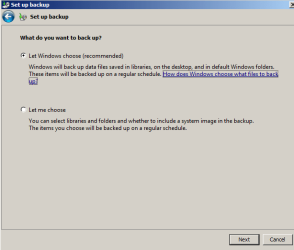
When you select "let me choose" windows should have default folders ticked. Select any additional folders with care. You may have a folder under c: outside of the libraries called say C:\Other_Data which you may want to include.

Brink has also given further tutorial links.
 

My Computer

Computer type
PC/Desktop
Computer Manufacturer/Model Number
Own build
OS
Windows 7x64 Home Premium SP1
CPU
Intel i7 2600k
Motherboard
ASUS P8Z68 Deluxe
Memory
G.Skill Ripjaws (DDR3-1600) 2x4GB
Graphics Card(s)
Nvidia GeForce GTS 450; Intel HD Graphics 3000(GT2+)
Monitor(s) Displays
Dell Ultrasharp IPS panel U2311H, Samsung SyncMaster P2350
Screen Resolution
1920x1080
Hard Drives
Samsung 850 Pro SSD 256GB, Samsung SSD 840 120GB, Seagates 1TB Barracuda ST31000528AS x2
PSU
Seasonic M12II 520W
Case
Lian Li Lancool PC-K60
Cooling
Case: 1x120mm, 3x140mm CPU: Hyper 212+
Keyboard
Logitech MK520 (wireless)
Mouse
Logitech MK520
Internet Speed
6-7 Mbps
Antivirus
Norton Security Premium, Malwarebytes on 2 (MSE on 3rd PC)
Browser
FireFox
Other Info
Audio: Logitech Z523 2.1
Honestly, though, don't you think it's better if I manually save the contents of the folder each day? This process you describe seems to be getting more complicated as it goes along and there seem to be different versions of what to do with no end in sight. Not helpful. And I'm still baffled by what it's apparently saving on H drive ...
 
Last edited:

My Computer

OS
64 bit
You should do what you are comfortable with. If you have a small amount personal data in a folder then certainly back it up manually at first

I don't think the advice is conflicting but may be a bit confusing. All I can say is that it may seem a little confusing at first and you just need to get a handle on the topic. (I'm not trying to patronize).
 

My Computer

Computer type
PC/Desktop
Computer Manufacturer/Model Number
Own build
OS
Windows 7x64 Home Premium SP1
CPU
Intel i7 2600k
Motherboard
ASUS P8Z68 Deluxe
Memory
G.Skill Ripjaws (DDR3-1600) 2x4GB
Graphics Card(s)
Nvidia GeForce GTS 450; Intel HD Graphics 3000(GT2+)
Monitor(s) Displays
Dell Ultrasharp IPS panel U2311H, Samsung SyncMaster P2350
Screen Resolution
1920x1080
Hard Drives
Samsung 850 Pro SSD 256GB, Samsung SSD 840 120GB, Seagates 1TB Barracuda ST31000528AS x2
PSU
Seasonic M12II 520W
Case
Lian Li Lancool PC-K60
Cooling
Case: 1x120mm, 3x140mm CPU: Hyper 212+
Keyboard
Logitech MK520 (wireless)
Mouse
Logitech MK520
Internet Speed
6-7 Mbps
Antivirus
Norton Security Premium, Malwarebytes on 2 (MSE on 3rd PC)
Browser
FireFox
Other Info
Audio: Logitech Z523 2.1
Backup and restore function problem

My backup system is set to daily back up files each day to an external hard drive. However, it doesn't seem to be doing what it says it should. I set it to backup C drive files ("libraries") at 3pm daily. When I later look on the external hard drive, it's not copied any of them (desktop files). Yet I am using the control panel settings and that isn't reporting any problems. What should I do? I can manually (copy and paste) copy my desktop files to the external drive, but that's hardly the point.
 

My Computer

OS
64 bit

My Computer

Computer type
PC/Desktop
Computer Manufacturer/Model Number
Own build
OS
Windows 7x64 Home Premium SP1
CPU
Intel i7 2600k
Motherboard
ASUS P8Z68 Deluxe
Memory
G.Skill Ripjaws (DDR3-1600) 2x4GB
Graphics Card(s)
Nvidia GeForce GTS 450; Intel HD Graphics 3000(GT2+)
Monitor(s) Displays
Dell Ultrasharp IPS panel U2311H, Samsung SyncMaster P2350
Screen Resolution
1920x1080
Hard Drives
Samsung 850 Pro SSD 256GB, Samsung SSD 840 120GB, Seagates 1TB Barracuda ST31000528AS x2
PSU
Seasonic M12II 520W
Case
Lian Li Lancool PC-K60
Cooling
Case: 1x120mm, 3x140mm CPU: Hyper 212+
Keyboard
Logitech MK520 (wireless)
Mouse
Logitech MK520
Internet Speed
6-7 Mbps
Antivirus
Norton Security Premium, Malwarebytes on 2 (MSE on 3rd PC)
Browser
FireFox
Other Info
Audio: Logitech Z523 2.1
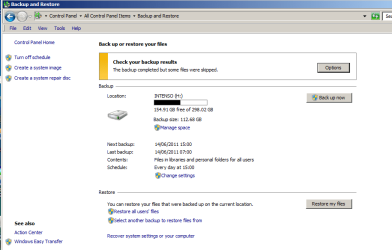
Here it is. As you can see, nothing seems to be out of order ... but it doesn't appear to back to H drive the files on Desktop automatically.

What makes me suspicious that all isn't well is that first, the major files on the desktop here are saved in a large folder marked as Files and Folders. Now, I have manually saved this folder (using copy and paste) to the external drive. To test if this backup system will save an updated version of this folder automatically, using Backup and Restore, I later added 3 files to this desktop folder. Then used Backup and Restore to see what happens. If these 3 files were also copied to the external drive that way, the system is proved as working (saving all the files from this folder from desktop to external drive).

But it didn't. In other words, it did not copy these 3 pdf image files, added later, to the external drive as presumably it should. So I've not got much trust that the Backup and Restore system is actually behaving as it should. It looks like it's simply re-copying (at most) the files that are already on the external drive, which isn't any use. At worst, it's going through the motions of copying all the folder, but it isn't.

 

Attachments

  • Backup.png
    Backup.png
    20 KB · Views: 18
Last edited:

My Computer

OS
64 bit
I meant click on change settings and show us what specific folders have been selected. The Windows message suggests you are backing up some folders which aren't normally included in personal file/folder backups.
Sometimes system folders will actually have data which is allowed to be backed up (but pointless). This will generate the sort of message you see.

A system image is where you backup the complete partition snapshot. This includes system files, programs - the works.
 

My Computer

Computer type
PC/Desktop
Computer Manufacturer/Model Number
Own build
OS
Windows 7x64 Home Premium SP1
CPU
Intel i7 2600k
Motherboard
ASUS P8Z68 Deluxe
Memory
G.Skill Ripjaws (DDR3-1600) 2x4GB
Graphics Card(s)
Nvidia GeForce GTS 450; Intel HD Graphics 3000(GT2+)
Monitor(s) Displays
Dell Ultrasharp IPS panel U2311H, Samsung SyncMaster P2350
Screen Resolution
1920x1080
Hard Drives
Samsung 850 Pro SSD 256GB, Samsung SSD 840 120GB, Seagates 1TB Barracuda ST31000528AS x2
PSU
Seasonic M12II 520W
Case
Lian Li Lancool PC-K60
Cooling
Case: 1x120mm, 3x140mm CPU: Hyper 212+
Keyboard
Logitech MK520 (wireless)
Mouse
Logitech MK520
Internet Speed
6-7 Mbps
Antivirus
Norton Security Premium, Malwarebytes on 2 (MSE on 3rd PC)
Browser
FireFox
Other Info
Audio: Logitech Z523 2.1
Here it is. Seems to only show the destination, though, whereas its what files and folders its copying that's at issue. Just to clarify, I want it to only back up selected files, but I can't figure out how to select them. These are on the C drive desktop. When I today did a "backup" (using the "back up now" button)(and it took about a hour and a) I wonder WHAT files and folders it backed up b) if it backed up a load of folders, because of the time it took, it's actually backing up far more than required
 

Attachments

  • Backup.png
    Backup.png
    21.1 KB · Views: 13
Last edited:

My Computer

OS
64 bit
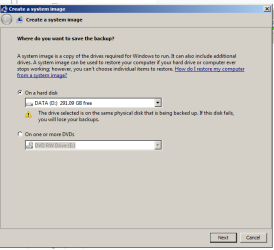
This is also what comes up under "System Image" if it helps.
 

Attachments

  • System image.png
    System image.png
    12.1 KB · Views: 13

My Computer

OS
64 bit
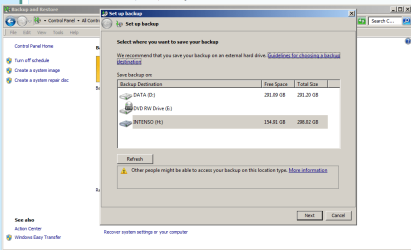
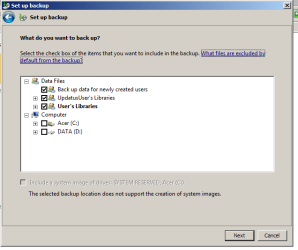
If you keep clicking Next you will end up with screenshots like this
backup1.jpg
backup2.jpg
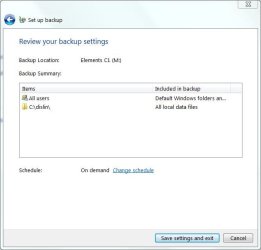
Note in the first user libraries are selected. This is generally all that needs to be selected. I have added a folder under C:\ called dislin. This contains software development graphics libraries with some data I want backed up. Generally under Computer these are unticked. I suspect you have items ticked which shouldn't be ticked.

The next screenshot shows the backup summary.
Included in backup: Default Windows folders and local files in libraries
Note under the dislin folder it states
Included in backup - All local data files
My dislin folder is an exception not the norm.

Post what you have selected.
 
Last edited:

My Computer

Computer type
PC/Desktop
Computer Manufacturer/Model Number
Own build
OS
Windows 7x64 Home Premium SP1
CPU
Intel i7 2600k
Motherboard
ASUS P8Z68 Deluxe
Memory
G.Skill Ripjaws (DDR3-1600) 2x4GB
Graphics Card(s)
Nvidia GeForce GTS 450; Intel HD Graphics 3000(GT2+)
Monitor(s) Displays
Dell Ultrasharp IPS panel U2311H, Samsung SyncMaster P2350
Screen Resolution
1920x1080
Hard Drives
Samsung 850 Pro SSD 256GB, Samsung SSD 840 120GB, Seagates 1TB Barracuda ST31000528AS x2
PSU
Seasonic M12II 520W
Case
Lian Li Lancool PC-K60
Cooling
Case: 1x120mm, 3x140mm CPU: Hyper 212+
Keyboard
Logitech MK520 (wireless)
Mouse
Logitech MK520
Internet Speed
6-7 Mbps
Antivirus
Norton Security Premium, Malwarebytes on 2 (MSE on 3rd PC)
Browser
FireFox
Other Info
Audio: Logitech Z523 2.1
I went there but for the life of me, I could not find on the list the folder I need to save. It's on the desktop and it titled as "All files and folders." I jigged around but could not get the desktop icon up there in order to select that one.

Here are three pages. The 2nd and 3rd are where I choose the recommended one and the other one. Again, I don't see the desktop icon up there to click on.
 

Attachments

  • 1.png
    1.png
    9.1 KB · Views: 6
  • 2.png
    2.png
    7.4 KB · Views: 6
  • 3.png
    3.png
    11.3 KB · Views: 39

My Computer

OS
64 bit
For the Desktop, you would need to manually navigate (expand) there under Computer to C:\Users\(user-name)\Desktop in your bottom screenshot.

You will not see the files themself at this location though, only the folder that you have selected to backup the files in them.
 

My Computer

Computer type
PC/Desktop
Computer Manufacturer/Model Number
Self built custom
OS
64-bit Windows 11 Pro for Workstations
CPU
Intel i7-8700K OC'd to 5 GHz
Motherboard
ASUS ROG Maximus XI Formula Z390
Memory
64 GB (4x16GB) G.SKILL TridentZ RGB DDR4 3600 MHz
Graphics Card(s)
ASUS ROG-STRIX-GTX1080TI-O11G-GAMING
Sound Card
Integrated
Monitor(s) Displays
2 x Samsung Odyssey G7 27"
Screen Resolution
2560x1440
Hard Drives
1TB Samsung 990 PRO M.2,
4TB Samsung 990 PRO PRO M.2,
TerraMaster F8 SSD Plus NAS
PSU
Seasonic Prime Titanium 850W
Case
Thermaltake Core P3
Cooling
Corsair Hydro H115i
Keyboard
Logitech wireless K800
Mouse
Logitech MX Master 4
Internet Speed
2 Gb/s Download and 100 Mb/s Upload
Antivirus
Malwarebyte Anti-Malware Premium
Browser
Google Chrome
Other Info
Logitech Z625 speaker system,
Logitech BRIO 4K Pro webcam,
HP Color LaserJet Pro MFP M477fdn,
APC SMART-UPS RT 1000 XL - SURT1000XLI,
Galaxy S23 Plus phone
Back
Top