
Backup

Last edited:

My Computer

Computer type
PC/Desktop
Computer Manufacturer/Model Number
Self built custom
OS
64-bit Windows 11 Pro for Workstations
CPU
Intel i7-8700K OC'd to 5 GHz
Motherboard
ASUS ROG Maximus XI Formula Z390
Memory
64 GB (4x16GB) G.SKILL TridentZ RGB DDR4 3600 MHz
Graphics Card(s)
ASUS ROG-STRIX-GTX1080TI-O11G-GAMING
Sound Card
Integrated
Monitor(s) Displays
2 x Samsung Odyssey G7 27"
Screen Resolution
2560x1440
Hard Drives
1TB Samsung 990 PRO M.2,
4TB Samsung 990 PRO PRO M.2,
TerraMaster F8 SSD Plus NAS
PSU
Seasonic Prime Titanium 850W
Case
Thermaltake Core P3
Cooling
Corsair Hydro H115i
Keyboard
Logitech wireless K800
Mouse
Logitech MX Master 4
Internet Speed
2 Gb/s Download and 100 Mb/s Upload
Antivirus
Malwarebyte Anti-Malware Premium
Browser
Google Chrome
Other Info
Logitech Z625 speaker system,
Logitech BRIO 4K Pro webcam,
HP Color LaserJet Pro MFP M477fdn,
APC SMART-UPS RT 1000 XL - SURT1000XLI,
Galaxy S23 Plus phone
But this brings me back to where it started. Because this function did not do updates, I emailed this forum.
 

My Computer

OS
64 bit
Just for me to try and understand, what specifically leads you to believe that it did not create a backup of these folders after you created a new backup?

If you think this because you do not see them physically listed on your external HDD, then this is normal. You will not see the backed up selected files/folders unless you go through the restore backup process to view them as thoroughly described in the prevoius pages in the posts above in this thread.

If it successfully finished creating a backup, then the selected files/folders (ex: your two folders) would have been saved to your selected location (ex: external HDD).
 

My Computer

Computer type
PC/Desktop
Computer Manufacturer/Model Number
Self built custom
OS
64-bit Windows 11 Pro for Workstations
CPU
Intel i7-8700K OC'd to 5 GHz
Motherboard
ASUS ROG Maximus XI Formula Z390
Memory
64 GB (4x16GB) G.SKILL TridentZ RGB DDR4 3600 MHz
Graphics Card(s)
ASUS ROG-STRIX-GTX1080TI-O11G-GAMING
Sound Card
Integrated
Monitor(s) Displays
2 x Samsung Odyssey G7 27"
Screen Resolution
2560x1440
Hard Drives
1TB Samsung 990 PRO M.2,
4TB Samsung 990 PRO PRO M.2,
TerraMaster F8 SSD Plus NAS
PSU
Seasonic Prime Titanium 850W
Case
Thermaltake Core P3
Cooling
Corsair Hydro H115i
Keyboard
Logitech wireless K800
Mouse
Logitech MX Master 4
Internet Speed
2 Gb/s Download and 100 Mb/s Upload
Antivirus
Malwarebyte Anti-Malware Premium
Browser
Google Chrome
Other Info
Logitech Z625 speaker system,
Logitech BRIO 4K Pro webcam,
HP Color LaserJet Pro MFP M477fdn,
APC SMART-UPS RT 1000 XL - SURT1000XLI,
Galaxy S23 Plus phone
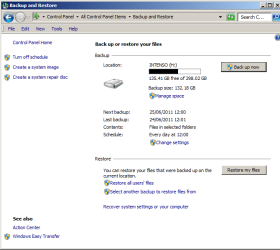
So you're saying that if I use Back Up Now button, it will indeed save the updated folders on the external drive?

If not, suggest we go back to the start and go through it again. For example, at one stage, I requested the system to just backup the two folders of interest. So I ticked those and so it would only save those two. Is this still active?

There have been a substantial number of twists and turns to this saga (look at the number of posts generated) so we need to start again if necessary and now that we know the objective. Otherwise, more confusion will follow. :D
 

My Computer

OS
64 bit
Correct, it will.

However, since you are only backing up those 2 folders, it would be easier for you to just manually "Copy and Paste" them to your external HDD as a backup instead whenever you make changes to them. That way you will be able to see what you have at anytime. Plus, it's more reliable.
 

My Computer

Computer type
PC/Desktop
Computer Manufacturer/Model Number
Self built custom
OS
64-bit Windows 11 Pro for Workstations
CPU
Intel i7-8700K OC'd to 5 GHz
Motherboard
ASUS ROG Maximus XI Formula Z390
Memory
64 GB (4x16GB) G.SKILL TridentZ RGB DDR4 3600 MHz
Graphics Card(s)
ASUS ROG-STRIX-GTX1080TI-O11G-GAMING
Sound Card
Integrated
Monitor(s) Displays
2 x Samsung Odyssey G7 27"
Screen Resolution
2560x1440
Hard Drives
1TB Samsung 990 PRO M.2,
4TB Samsung 990 PRO PRO M.2,
TerraMaster F8 SSD Plus NAS
PSU
Seasonic Prime Titanium 850W
Case
Thermaltake Core P3
Cooling
Corsair Hydro H115i
Keyboard
Logitech wireless K800
Mouse
Logitech MX Master 4
Internet Speed
2 Gb/s Download and 100 Mb/s Upload
Antivirus
Malwarebyte Anti-Malware Premium
Browser
Google Chrome
Other Info
Logitech Z625 speaker system,
Logitech BRIO 4K Pro webcam,
HP Color LaserJet Pro MFP M477fdn,
APC SMART-UPS RT 1000 XL - SURT1000XLI,
Galaxy S23 Plus phone
That's what I first decided to do but there again, you can easily forget to do backups of updates. So not a complete solution.

Okay, can we go back to the start, otherwise if we kick off from the middle, I can foresee confusion again?

First off, I want up update two folders from the desktop. What's the process? (I don't think the settings previously made were saved.)

Back to the original panel. Here it is again. So what's the procedure right from the beginning? I think you know exactly what I want by now.

First we need to select for updating on the external hard drive (drive H) two folders from my desktop. How's this achieved?:D
 

Attachments

  • 1.png
    1.png
    17.2 KB · Views: 4
Last edited:

My Computer

OS
64 bit

My Computer

Computer type
PC/Desktop
Computer Manufacturer/Model Number
Self built custom
OS
64-bit Windows 11 Pro for Workstations
CPU
Intel i7-8700K OC'd to 5 GHz
Motherboard
ASUS ROG Maximus XI Formula Z390
Memory
64 GB (4x16GB) G.SKILL TridentZ RGB DDR4 3600 MHz
Graphics Card(s)
ASUS ROG-STRIX-GTX1080TI-O11G-GAMING
Sound Card
Integrated
Monitor(s) Displays
2 x Samsung Odyssey G7 27"
Screen Resolution
2560x1440
Hard Drives
1TB Samsung 990 PRO M.2,
4TB Samsung 990 PRO PRO M.2,
TerraMaster F8 SSD Plus NAS
PSU
Seasonic Prime Titanium 850W
Case
Thermaltake Core P3
Cooling
Corsair Hydro H115i
Keyboard
Logitech wireless K800
Mouse
Logitech MX Master 4
Internet Speed
2 Gb/s Download and 100 Mb/s Upload
Antivirus
Malwarebyte Anti-Malware Premium
Browser
Google Chrome
Other Info
Logitech Z625 speaker system,
Logitech BRIO 4K Pro webcam,
HP Color LaserJet Pro MFP M477fdn,
APC SMART-UPS RT 1000 XL - SURT1000XLI,
Galaxy S23 Plus phone
Going back to the tutorial, on stage 3. It says there that there should be a "Set Up Backup" button, which is the way I select just the two folders to save from the desktop. But I can't see it here. The screens here are in the images below.:)
 

Attachments

  • 1.png
    1.png
    24.5 KB · Views: 3
  • 2.png
    2.png
    8.5 KB · Views: 1
  • 3.png
    3.png
    17 KB · Views: 1

My Computer

OS
64 bit
Step 3 states "If backup is not configured".

Your backup has been configured (setup) already, so you would do either step 4 ot 5 instead for what you want to do.

The notes under the steps help explain more about them.
 

My Computer

Computer type
PC/Desktop
Computer Manufacturer/Model Number
Self built custom
OS
64-bit Windows 11 Pro for Workstations
CPU
Intel i7-8700K OC'd to 5 GHz
Motherboard
ASUS ROG Maximus XI Formula Z390
Memory
64 GB (4x16GB) G.SKILL TridentZ RGB DDR4 3600 MHz
Graphics Card(s)
ASUS ROG-STRIX-GTX1080TI-O11G-GAMING
Sound Card
Integrated
Monitor(s) Displays
2 x Samsung Odyssey G7 27"
Screen Resolution
2560x1440
Hard Drives
1TB Samsung 990 PRO M.2,
4TB Samsung 990 PRO PRO M.2,
TerraMaster F8 SSD Plus NAS
PSU
Seasonic Prime Titanium 850W
Case
Thermaltake Core P3
Cooling
Corsair Hydro H115i
Keyboard
Logitech wireless K800
Mouse
Logitech MX Master 4
Internet Speed
2 Gb/s Download and 100 Mb/s Upload
Antivirus
Malwarebyte Anti-Malware Premium
Browser
Google Chrome
Other Info
Logitech Z625 speaker system,
Logitech BRIO 4K Pro webcam,
HP Color LaserJet Pro MFP M477fdn,
APC SMART-UPS RT 1000 XL - SURT1000XLI,
Galaxy S23 Plus phone
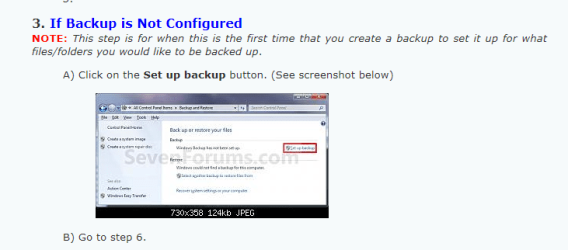
So it would only be stage 5, since the two folders for saving were apparently selected some time ago, as you know. I will now press the Back Up Now button, and see if the UPDATES to these two folders are saved on the H drive ...

Update - no, the Back Up Now button has done the same as before. IF it's backing up the files a) it's of all the files (since it's taking too long if it's only backing up the 2 files I want it to back up) b) these are NOT the updated files (I checked).

Please advise. (It looks, for one thing, like the earlier stage in which I supposedly only selected the 2 files to copy failed.)
 
Last edited:

My Computer

OS
64 bit
The problem I had is still not resolved. According to the advice received it should have worked, but has not. As one of the posters said, there "should be" a way around this, but so far nothing ...
 

My Computer

OS
64 bit
What didn't work??

I'm desperately trying to help you, but you never make this point clear of what doesn't work. From everything that has been posted in this thread so far, everything has been working in your screenshots.

Did it successfully create the backup? If so, note the date and time when you created it. It should be listed as an available backup with the same date and time to select from when you go through the restore back process.
 

My Computer

Computer type
PC/Desktop
Computer Manufacturer/Model Number
Self built custom
OS
64-bit Windows 11 Pro for Workstations
CPU
Intel i7-8700K OC'd to 5 GHz
Motherboard
ASUS ROG Maximus XI Formula Z390
Memory
64 GB (4x16GB) G.SKILL TridentZ RGB DDR4 3600 MHz
Graphics Card(s)
ASUS ROG-STRIX-GTX1080TI-O11G-GAMING
Sound Card
Integrated
Monitor(s) Displays
2 x Samsung Odyssey G7 27"
Screen Resolution
2560x1440
Hard Drives
1TB Samsung 990 PRO M.2,
4TB Samsung 990 PRO PRO M.2,
TerraMaster F8 SSD Plus NAS
PSU
Seasonic Prime Titanium 850W
Case
Thermaltake Core P3
Cooling
Corsair Hydro H115i
Keyboard
Logitech wireless K800
Mouse
Logitech MX Master 4
Internet Speed
2 Gb/s Download and 100 Mb/s Upload
Antivirus
Malwarebyte Anti-Malware Premium
Browser
Google Chrome
Other Info
Logitech Z625 speaker system,
Logitech BRIO 4K Pro webcam,
HP Color LaserJet Pro MFP M477fdn,
APC SMART-UPS RT 1000 XL - SURT1000XLI,
Galaxy S23 Plus phone
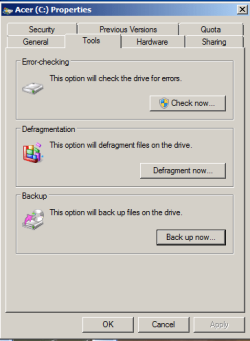
No, as my last post said, a day or two ago, I went through the designated process and nothing changed from where I entered this conversation.

As I've said before, the objective is simple. Perhaps you can guide me through it, since I don't imagine it involves more than a few steps.:) If you remember, last time, there was confusion over whether it was for a backup of older files on the external drive or for very recently constructed UPDATES of files on the desktop. The latter is the case. So if I update these folders on Monday, I want them automatically saved on Tuesday.

So we went through a lot of stuff that complicated everything and still didn't do the job.

So this is all I require:

a) I have two folders on my desktop. These have been updated but the copies of them on my external hard drive are of the old versions. So I want to replace those with the updates.

b) these folder updates to be backed on a regular basis (ie I want the updated folders copied from the desktop to the external drive) through using the Backup and Restore function. Then this will be an automatic function to save my remembering to update the folders onto the external drive, something that can easily be forgotten to do manually (by copy and paste)
 

My Computer

OS
64 bit
Could you post a screenshot of what you see (using step 4) for when you get to step 8 when doing the restore back process?

Does it have the date and time listed of the backup that you last created?

If so, select it. Does it have the two folders with it's contents when you view them at steps 10 and 11?
 

My Computer

Computer type
PC/Desktop
Computer Manufacturer/Model Number
Self built custom
OS
64-bit Windows 11 Pro for Workstations
CPU
Intel i7-8700K OC'd to 5 GHz
Motherboard
ASUS ROG Maximus XI Formula Z390
Memory
64 GB (4x16GB) G.SKILL TridentZ RGB DDR4 3600 MHz
Graphics Card(s)
ASUS ROG-STRIX-GTX1080TI-O11G-GAMING
Sound Card
Integrated
Monitor(s) Displays
2 x Samsung Odyssey G7 27"
Screen Resolution
2560x1440
Hard Drives
1TB Samsung 990 PRO M.2,
4TB Samsung 990 PRO PRO M.2,
TerraMaster F8 SSD Plus NAS
PSU
Seasonic Prime Titanium 850W
Case
Thermaltake Core P3
Cooling
Corsair Hydro H115i
Keyboard
Logitech wireless K800
Mouse
Logitech MX Master 4
Internet Speed
2 Gb/s Download and 100 Mb/s Upload
Antivirus
Malwarebyte Anti-Malware Premium
Browser
Google Chrome
Other Info
Logitech Z625 speaker system,
Logitech BRIO 4K Pro webcam,
HP Color LaserJet Pro MFP M477fdn,
APC SMART-UPS RT 1000 XL - SURT1000XLI,
Galaxy S23 Plus phone
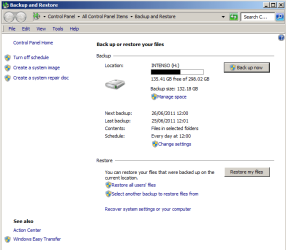
Here are the screens and the two folders to save on H drive. I can press Restore button. But what exactly does Restore do? And I want to remind you that this exercise is to automatically (DAILY) save UPDATES of files as they are updated. So this is all about updates and automatically getting them to H drive, where I think there was confusion last time we went through all this.
 

Attachments

  • 1.png
    1.png
    10 KB · Views: 6
  • 2.png
    2.png
    6.3 KB · Views: 6

My Computer

OS
64 bit
The purpose of having you go through the Restore process only far enough to see this above then cancel, is to show you that it is working since there is your back up that includes your two folders.

To help maximize your disk space, Windows Backup backs up all selected folders the first time it's run and then it only backs up files that are new or have been changed since the last scheduled backup was made. If you didn't make any changes to the two folders since the last scheduled backup, then the new backup will not be created until so at the next scheduled time.
 

My Computer

Computer type
PC/Desktop
Computer Manufacturer/Model Number
Self built custom
OS
64-bit Windows 11 Pro for Workstations
CPU
Intel i7-8700K OC'd to 5 GHz
Motherboard
ASUS ROG Maximus XI Formula Z390
Memory
64 GB (4x16GB) G.SKILL TridentZ RGB DDR4 3600 MHz
Graphics Card(s)
ASUS ROG-STRIX-GTX1080TI-O11G-GAMING
Sound Card
Integrated
Monitor(s) Displays
2 x Samsung Odyssey G7 27"
Screen Resolution
2560x1440
Hard Drives
1TB Samsung 990 PRO M.2,
4TB Samsung 990 PRO PRO M.2,
TerraMaster F8 SSD Plus NAS
PSU
Seasonic Prime Titanium 850W
Case
Thermaltake Core P3
Cooling
Corsair Hydro H115i
Keyboard
Logitech wireless K800
Mouse
Logitech MX Master 4
Internet Speed
2 Gb/s Download and 100 Mb/s Upload
Antivirus
Malwarebyte Anti-Malware Premium
Browser
Google Chrome
Other Info
Logitech Z625 speaker system,
Logitech BRIO 4K Pro webcam,
HP Color LaserJet Pro MFP M477fdn,
APC SMART-UPS RT 1000 XL - SURT1000XLI,
Galaxy S23 Plus phone
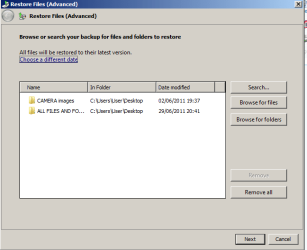
No, I only included the two folders today, when I had time to look at the forum. These two folders were not saved before today. I did go through the procedure some time ago, but I have no idea what happened there.

At any rate. Once I get to this stage, do I now press the Restore button? If so, or if not, what do I do then?

And to be clear. If this on the way to achieving the objective I have outlined above. We want to get there by as quick a route as possible ...
 

My Computer

OS
64 bit
I'm sorry, I tried, but there is nothing more that I can do to help.

You have had this thoroughly explained over and over. Please review the previous posts and tutorial links posted in this thread if you would like to go over it again.

I would personally recommend that you just manually backup these two folders each time you make a change to them since you are not able to understand how the backup feature works. This way you will know that they have been backed up.
 

My Computer

Computer type
PC/Desktop
Computer Manufacturer/Model Number
Self built custom
OS
64-bit Windows 11 Pro for Workstations
CPU
Intel i7-8700K OC'd to 5 GHz
Motherboard
ASUS ROG Maximus XI Formula Z390
Memory
64 GB (4x16GB) G.SKILL TridentZ RGB DDR4 3600 MHz
Graphics Card(s)
ASUS ROG-STRIX-GTX1080TI-O11G-GAMING
Sound Card
Integrated
Monitor(s) Displays
2 x Samsung Odyssey G7 27"
Screen Resolution
2560x1440
Hard Drives
1TB Samsung 990 PRO M.2,
4TB Samsung 990 PRO PRO M.2,
TerraMaster F8 SSD Plus NAS
PSU
Seasonic Prime Titanium 850W
Case
Thermaltake Core P3
Cooling
Corsair Hydro H115i
Keyboard
Logitech wireless K800
Mouse
Logitech MX Master 4
Internet Speed
2 Gb/s Download and 100 Mb/s Upload
Antivirus
Malwarebyte Anti-Malware Premium
Browser
Google Chrome
Other Info
Logitech Z625 speaker system,
Logitech BRIO 4K Pro webcam,
HP Color LaserJet Pro MFP M477fdn,
APC SMART-UPS RT 1000 XL - SURT1000XLI,
Galaxy S23 Plus phone
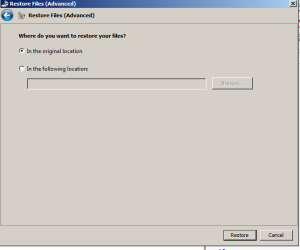
But you only repeated what I already did before all this started. Then you confused yourself over what I wanted to do from this, though I did tell you a number of times. And I never believed that the procedure was so complex and time consuming as it became, because we were going around in circles. I would also strongly suggest you alter the tutorials so that people like me who only want a very simple thing done, that really shouldn't take any time to perform, are able to do it successfully in 10 minutes and don't have to go through reams of irrelevant information. Most people I know just wouldn't have the patience to go this far and they'd give up.
 
Last edited:

My Computer

OS
64 bit
Hello ukthesis. Forgive me for butting in and please understand that I mean no disrespect. In reading through this entire thread I'm sensing you might have some confusion as to exactly what the backup process is all about. It's a two step procedure. First, one must make a copy of the original files, folders, or even the entire hard drive. The copies serve as a backup to the originals. That's all. They do not do anything else until the second step is initiated. And the second step is to restore the damaged, corrupted, deleted originals with those copies.

If the originals have changes made to them every day, then the copies (backups) can be scheduled to update on a daily basis. But again, that's all that happens. So effectively you have two sets of files, folders, or even the entire hard drive. If the originals are never damaged, corrupted, deleted, etc you may never get to use the copies (backups). And if no changes were made to the originals, then no new copies (backups) will be generated.

During the backup process you can specify where the copies (backup) will be stored, like on the H: drive. You can specify how often the copies (backup) are made, like daily, weekly, monthly, etc. You can specify what will be copied (backed up), like one specific folder, two specific folders, etc. But you must initiate the restore process to replace the originals with the copies (backup).

In an ideal world, all of your originals will be updated/changed by you and they will remain perfect. Your copies (backups) of the originals will be done on the schedule you created, but only if you've made changes to the originals. And in an ideal world you will have two perfect sets of the same files or folders ... your originals and the copies (backups).

I sure hope I haven't made things more confusing.
 

My Computer

Computer type
Laptop
Computer Manufacturer/Model Number
Sony Vaio VPCEB47GM Laptop
OS
Win 7 Pro 64-bit
CPU
Intel i5 2.4 Ghz
Memory
8GB DDR3
Graphics Card(s)
Intel HD 3000
Sound Card
IDT High Definition
Monitor(s) Displays
15.6 WGXA Anti-Glare LED
Screen Resolution
1280x800
Hard Drives
640Gb 7200rpm
Antivirus
MSE
Browser
Opera (primary) with IE9 backup
Back
Top