Solved BIOS Update - Boot Loader Missing

incurablegeek

As requested
Local time
4:42 PM
Messages
180
I am for sure gonna get kicked out of this forum for being so annoying. I hope not, because some of the smartest people I have found are in this great forum.

Anyway, I did something I know was newbie-stupid wrong. I tried the ASUS EZ Update from within Win 7 to update my ASUS Crosshair V Formula BIOS to the newest version which is #1701. I know ASUS touts this as The Way. From my experience, though, it is not - it really screwed things up. I will never do this again, I can assure you!

*****
System: ASUS Crosshair V Formula with AMD 6-core and 16 GB of DDR-3 RAM; 128 GB SSD, many WDD HDD's.
*****

So I did things the "right way" - flashed the bios to #1703 with a USB stick. Been there, done that before several times, so no problem.

After doing so, however, and I choose to blame the EZ Update for this problem, I couldn't boot with my Boot Settings as CD/DVD ROM (#1) ---> SSD (#2).

That should be normal boot order. I mean Duh! on that one. But it would not boot, so I naturally thought the Win 7 Boot Loader was corrupted (still might be, dunno).

Anyway, I tried the obvious, ie set the BIOS to optimal defaults (oh and yes, the BIOS had updated properly to #1703). Took a look at the boot order and it was the biggest mess imaginable. Order was scrambled with the SSD way down the list and a bunch of HDD's higher in priority on the boot order list. DVD was way down in the order too. "Windows Boot Manager" was #1

Now here's the kicker: The system will no longer boot unless "Windows Boot Manager" is selected as #1 in the BIOS boot order. Excuse my ignorance but what the heck is Windows Boot Manager. Isn't that the Boot Loader in the MBR on the SSD? And now with "optimized defaults" in the BIOS the SSD is no longer the boot item of choice. In fact, the boot order is a list of all my HDD's (many) and my single SSD - in totally meaningless scrambled order.

Does this problem make any sense to anyone? I have never seen this before. All that I can conclude is that it is a BIOS problem but then Win 7 64 bit Ultimate may be corrupted.

Additional info: Before I set the BIOS (after updating to 1703) to Optimized Defaults, the system would not boot to Win 7 UNLESS the setup disk was in the optical drive. Now ain't that a kick in the buttsky!
 

My Computer

OS
Win 7-64
Did everything work correctly before you flashed the BIOS ?

It is quite possible that W7 is corrupted in some way or other. I've only ever flashed my BIOS a couple of times, and each time I've done it outside the OS. The main problem with doing it in Windows is that Windows relies on some of the information provided by the BIOS in order to function, and updating the BIOS causes this information to momentarily disappear.
 

My Computer

Computer type
PC/Desktop
Computer Manufacturer/Model Number
Dwarf Dwf/11/2012 r09/2013
OS
Windows 8.1 Pro RTM x64
CPU
Intel Core-i5-3570K 4-core @ 3.4GHz (Ivy Bridge) (OC 4.4GHz)
Motherboard
ASRock Z77 Extreme4-M
Memory
4 x 4GB DDR3-1600 Corsair Vengeance CMZ8GX3M2A1600C9B (16GB)
Graphics Card(s)
MSI GeForce GTX770 Gaming OC 2GB
Sound Card
Realtek High Definition on board solution (ALC 898)
Monitor(s) Displays
ViewSonic VA1912w Widescreen (VGA)
Screen Resolution
1440x900
Hard Drives
OCZ Agility 3 SSD 120GB SATA III x2 (RAID 0)
Samsung HD501LJ 500GB SATA II x2
Hitachi HDS721010CLA332 1TB SATA II
Iomega 1.5TB Ext USB 2.0
WD 2.0TB Ext USB 3.0
PSU
XFX Pro Series 850W Semi-Modular
Case
Gigabyte IF233
Cooling
1 x 120mm Front Inlet 1 x 120mm Rear Exhaust
Keyboard
Microsoft Comfort Curve Keyboard 3000 (USB)
Mouse
Microsoft Comfort Mouse 3000 for Business (USB)
Internet Speed
NetGear DG834Gv3 ADSL Modem/Router (Ethernet) ~4.0 Mb/s (O2)
Antivirus
Avast! 8.0.1497
Browser
IE 11
Other Info
Optical Drive: HL-DT-ST BD-RE BH10LS30 SATA Bluray
Lexmark S305 Printer/Scanner/Copier (USB)
WEI Score: 8.1/8.1/8.5/8.5/8.25
Asus Eee PC 1011PX Netbook (Windows 7 x86 Starter)
Did everything work correctly before you flashed the BIOS ?

Yes sir, it did. In fact, it's a new install of Win 7 64 bit.

Everything worked perfectly until I used the EZ update within Win 7. After the EZ update resulted in the failure of the OS to boot without the installation disk in the optical drive, I did a proper hardware BIOS update with the USB thumb drive.

Then came the missing boot loader problem. To fix that I just loaded the optimal BIOS defaults, which in turn resulted in the scrambled boot device order and the (for me strangely new) Windows Boot Manager as the 1st and only device that would bring me up to Win 7.
 

My Computer

OS
Win 7-64
When you say new install, do you mean it's a new install that you did after flashing the BIOS ? It could be that the new BIOS code has some bugs in it, and you might need to revert back to the older version if that is the case. Older versions should be available on the motherboard manufacturer's website.
 

My Computer

Computer type
PC/Desktop
Computer Manufacturer/Model Number
Dwarf Dwf/11/2012 r09/2013
OS
Windows 8.1 Pro RTM x64
CPU
Intel Core-i5-3570K 4-core @ 3.4GHz (Ivy Bridge) (OC 4.4GHz)
Motherboard
ASRock Z77 Extreme4-M
Memory
4 x 4GB DDR3-1600 Corsair Vengeance CMZ8GX3M2A1600C9B (16GB)
Graphics Card(s)
MSI GeForce GTX770 Gaming OC 2GB
Sound Card
Realtek High Definition on board solution (ALC 898)
Monitor(s) Displays
ViewSonic VA1912w Widescreen (VGA)
Screen Resolution
1440x900
Hard Drives
OCZ Agility 3 SSD 120GB SATA III x2 (RAID 0)
Samsung HD501LJ 500GB SATA II x2
Hitachi HDS721010CLA332 1TB SATA II
Iomega 1.5TB Ext USB 2.0
WD 2.0TB Ext USB 3.0
PSU
XFX Pro Series 850W Semi-Modular
Case
Gigabyte IF233
Cooling
1 x 120mm Front Inlet 1 x 120mm Rear Exhaust
Keyboard
Microsoft Comfort Curve Keyboard 3000 (USB)
Mouse
Microsoft Comfort Mouse 3000 for Business (USB)
Internet Speed
NetGear DG834Gv3 ADSL Modem/Router (Ethernet) ~4.0 Mb/s (O2)
Antivirus
Avast! 8.0.1497
Browser
IE 11
Other Info
Optical Drive: HL-DT-ST BD-RE BH10LS30 SATA Bluray
Lexmark S305 Printer/Scanner/Copier (USB)
WEI Score: 8.1/8.1/8.5/8.5/8.25
Asus Eee PC 1011PX Netbook (Windows 7 x86 Starter)
The Asus easy flash is supposed to work well. I did do it once. just to see, and it worked OK. It reads the bios update into ram and reboots the computer, then actually does the bios flash during POST. But, to your problem, would you please post a screenshot of your expanded disk management. Also, does your bios have a setting called compatibility? if so how is it set. I have an Asus Maximus V. I will post a screenshot here of the compatibility setting, as I recall it's called CSM.

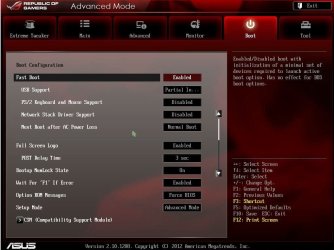
boot.JPG


EDIT: The reason I ask those questions, Although I have one, I am unfamiliar with USFI mode. But, from what I am reading from your previous posts, it appears you have installed in UEFI mode. When you do that you must select 'Windows Boot Manager' as first boot device to boot. The UEFI adds that as a new entry into the boot order. It is a setting in BIOS. It cannot be changed without a complete reinstall of Windows. It is not really anything wrong, it is simply how it works and many people like having it that way as it provides some advantages. If it works OK for you, there is really no reason I am aware of to change it. Perhaps next time you do a clean install, you can change the CSM setting in BIOS and do it, 'the old fashioned way' like I do, if you would prefer that. Someone who has more knowledge of UEFI may be able to give you more information on it.
 
Last edited:

My Computers

System One System Two

  • Computer type
    PC/Desktop
    Computer Manufacturer/Model Number
    ALWAYS UNDER CONSTRUCTION
    OS
    Windows 11 Pro
    CPU
    Ryzen 9 5900X
    Motherboard
    Asus X570 Crosshair Viii Hero
    Memory
    32GB G Skill DDR4-3600
    Graphics Card(s)
    EVGA RTX 3080 FTW 3 Ultra
    Sound Card
    On Board/Sennheiser PC37X Headset
    Monitor(s) Displays
    3 X Asus 27"
    Screen Resolution
    2560x1440
    Hard Drives
    2 X 1 TB NVME drives
    PSU
    EVGA 850
    Case
    Phanteks Eclipse P400A
    Cooling
    EVGA 280 AIO
    Keyboard
    Logitech G510s/ Logitech G13
    Mouse
    Logitech G502
    Internet Speed
    24/1
    Antivirus
    ESET/MBAM Pro/SAS Pro
    Browser
    Chrome/ Firefox/ Edge
  • Computer type
    Laptop
    System Manufacturer/Model Number
    Dell 16 Plus
    OS
    Windows 11 Pro
    CPU
    Intel Ultra 9 288V
    Memory
    32 GB LPDDR5X 8533
    Monitor(s) Displays
    16" Mini-LED HDR600 Touch 90 Hz
    Screen Resolution
    2560X1600
    Hard Drives
    1 TB NVME
Here's what I'm gonna try - and it's rather obvious.

I'm going to disconnect all of my traditional HDD's and leave only the SSD and the optical connected. If it doesn't boot, I'll know more. Possibly the software flash of the BIOS messed up the OS or, God forbid, damaged my SSD.

Thanks for your time, Be back at ya soon,

Dennis

*********************
OK, I just disconnected all the traditional HDD's.

After doing so, when I booted up, I received this error message:

Remove Disks or Other Media
Press any key to restart


Well, I just hit "Enter" and my rig booted up into Windows perfectly. So where in the world did this hiccup come from?
 

My Computer

OS
Win 7-64
Sorry, but I cannot answer. But, what happens when you select your SSD in bios boot menu and restart the computer? From the description you gave previously, it sounds as though you installed in UEFI mode. That is the way it is described in the little I have read.
 

My Computers

System One System Two

  • Computer type
    PC/Desktop
    Computer Manufacturer/Model Number
    ALWAYS UNDER CONSTRUCTION
    OS
    Windows 11 Pro
    CPU
    Ryzen 9 5900X
    Motherboard
    Asus X570 Crosshair Viii Hero
    Memory
    32GB G Skill DDR4-3600
    Graphics Card(s)
    EVGA RTX 3080 FTW 3 Ultra
    Sound Card
    On Board/Sennheiser PC37X Headset
    Monitor(s) Displays
    3 X Asus 27"
    Screen Resolution
    2560x1440
    Hard Drives
    2 X 1 TB NVME drives
    PSU
    EVGA 850
    Case
    Phanteks Eclipse P400A
    Cooling
    EVGA 280 AIO
    Keyboard
    Logitech G510s/ Logitech G13
    Mouse
    Logitech G502
    Internet Speed
    24/1
    Antivirus
    ESET/MBAM Pro/SAS Pro
    Browser
    Chrome/ Firefox/ Edge
  • Computer type
    Laptop
    System Manufacturer/Model Number
    Dell 16 Plus
    OS
    Windows 11 Pro
    CPU
    Intel Ultra 9 288V
    Memory
    32 GB LPDDR5X 8533
    Monitor(s) Displays
    16" Mini-LED HDR600 Touch 90 Hz
    Screen Resolution
    2560X1600
    Hard Drives
    1 TB NVME
Please understand that I know less than nothing about UEFI mode. Don't know how to switch back to a traditional BIOS from UEFI.

Some more info: Bootup takes forever, cycling through the ASUS ROG splash screen two, maybe three times. Same for all the hardware screens - 2-3 times they cycle through. Never had that before.

Only this new kid on the block "Windows Boot Manager" works if and only if it is set to primary boot device, with the rest of the boot order being chaos.

Do you think that maybe this new ASUS BIOS is buggy (#1703)?

Note: I do not see the SSD as one of the devices: I only see the HDD's, the USB and the opticals (I believe). No SSD showing.

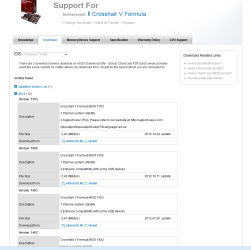
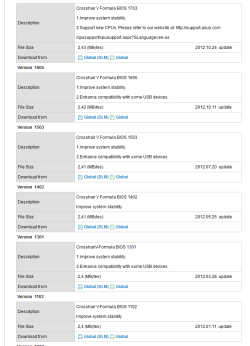
This is the strangest darn thing I have ever encountered. Better to flash with an older BIOS version maybe? (please see attached) This is what scares me: Support new CPUs.

ASUSTeK Computer Inc. -Support- Drivers and Download Crosshair V Formula
 

Attachments

  • BIOS Problem.PNG
    BIOS Problem.PNG
    40.4 KB · Views: 9

My Computer

OS
Win 7-64
I can't answer your questions. I am not familiar with your bios. You have an Asus AMD board and I have an Asus Intel board. But, look in BIOS under boot options and see if you have an option for UEFI, Legacy, Legacy only or Compatibility or maybe uefi-legacy options. If you like, you should be able to put a USB drive in and on any page press a key (F12) on mine, and it will put a picture on the USB drive of exactly the page you are looking at. Just like I showed you my boot options page in post #6. You may have to change it from .BPM to .JPEG or .PNG to upload it, but that is simple. I read my manual, but it is not right, probably changed by new bios updates. To change from a UEFI boot, you will have to completely do a new clean install. And, all of this is assuming I am correct in what I think.
 

My Computers

System One System Two

  • Computer type
    PC/Desktop
    Computer Manufacturer/Model Number
    ALWAYS UNDER CONSTRUCTION
    OS
    Windows 11 Pro
    CPU
    Ryzen 9 5900X
    Motherboard
    Asus X570 Crosshair Viii Hero
    Memory
    32GB G Skill DDR4-3600
    Graphics Card(s)
    EVGA RTX 3080 FTW 3 Ultra
    Sound Card
    On Board/Sennheiser PC37X Headset
    Monitor(s) Displays
    3 X Asus 27"
    Screen Resolution
    2560x1440
    Hard Drives
    2 X 1 TB NVME drives
    PSU
    EVGA 850
    Case
    Phanteks Eclipse P400A
    Cooling
    EVGA 280 AIO
    Keyboard
    Logitech G510s/ Logitech G13
    Mouse
    Logitech G502
    Internet Speed
    24/1
    Antivirus
    ESET/MBAM Pro/SAS Pro
    Browser
    Chrome/ Firefox/ Edge
  • Computer type
    Laptop
    System Manufacturer/Model Number
    Dell 16 Plus
    OS
    Windows 11 Pro
    CPU
    Intel Ultra 9 288V
    Memory
    32 GB LPDDR5X 8533
    Monitor(s) Displays
    16" Mini-LED HDR600 Touch 90 Hz
    Screen Resolution
    2560X1600
    Hard Drives
    1 TB NVME
In the previous post I showed my boot options page. On it was CSM. If you expand CSM it gives you a brief description on the left to explain what the options mean. Mine is set to auto, which enables either one but allows you to install in legacy mode but gives most of the advantages of UEFI. I just select the SSD I want to boot from. It sounds like that is what you like. Yours may or may not be called the same, but it seems you should have similar options although called something else.

z.JPG
 

My Computers

System One System Two

  • Computer type
    PC/Desktop
    Computer Manufacturer/Model Number
    ALWAYS UNDER CONSTRUCTION
    OS
    Windows 11 Pro
    CPU
    Ryzen 9 5900X
    Motherboard
    Asus X570 Crosshair Viii Hero
    Memory
    32GB G Skill DDR4-3600
    Graphics Card(s)
    EVGA RTX 3080 FTW 3 Ultra
    Sound Card
    On Board/Sennheiser PC37X Headset
    Monitor(s) Displays
    3 X Asus 27"
    Screen Resolution
    2560x1440
    Hard Drives
    2 X 1 TB NVME drives
    PSU
    EVGA 850
    Case
    Phanteks Eclipse P400A
    Cooling
    EVGA 280 AIO
    Keyboard
    Logitech G510s/ Logitech G13
    Mouse
    Logitech G502
    Internet Speed
    24/1
    Antivirus
    ESET/MBAM Pro/SAS Pro
    Browser
    Chrome/ Firefox/ Edge
  • Computer type
    Laptop
    System Manufacturer/Model Number
    Dell 16 Plus
    OS
    Windows 11 Pro
    CPU
    Intel Ultra 9 288V
    Memory
    32 GB LPDDR5X 8533
    Monitor(s) Displays
    16" Mini-LED HDR600 Touch 90 Hz
    Screen Resolution
    2560X1600
    Hard Drives
    1 TB NVME
I think my brain is beginning to leak out my ears. I've been up to 3:00 am the past two nights and am really really tired.

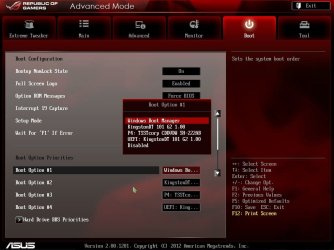
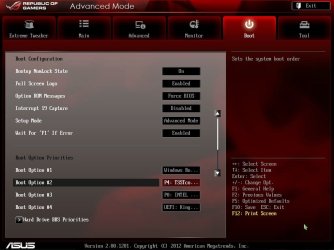
Anyway, I made pics of the bios and attached them. Maybe they make more sense to you than they do to me. Just for the heck of it, I tried setting the boot order again to Optical 1st, SSD 2nd and everything else disabled. Failed yet again.

Ugh!

Btw, it's Christmas eve and if you have better things to do, I will certainly understand. :o
 

Attachments

  • 121224211948.jpg
    121224211948.jpg
    71.6 KB · Views: 10
  • 121224212114.jpg
    121224212114.jpg
    65.3 KB · Views: 9

My Computer

OS
Win 7-64
It looks a little different than mine. Please show me a picture with Interrupt 19 expanded so I can see what it is and also a picture of the bottom section of the boot screen. Scroll down lower to the bottom if you can. It may be possible that it is in advanced options, although I think it should be in boot options. That is the most logical place for it. And Merry Christmas to you also. If you need to get some sleep, go ahead. I will be here tomorrow too. Just be advised, if we do find it and change it, you will be forced to do a clean install.
 

My Computers

System One System Two

  • Computer type
    PC/Desktop
    Computer Manufacturer/Model Number
    ALWAYS UNDER CONSTRUCTION
    OS
    Windows 11 Pro
    CPU
    Ryzen 9 5900X
    Motherboard
    Asus X570 Crosshair Viii Hero
    Memory
    32GB G Skill DDR4-3600
    Graphics Card(s)
    EVGA RTX 3080 FTW 3 Ultra
    Sound Card
    On Board/Sennheiser PC37X Headset
    Monitor(s) Displays
    3 X Asus 27"
    Screen Resolution
    2560x1440
    Hard Drives
    2 X 1 TB NVME drives
    PSU
    EVGA 850
    Case
    Phanteks Eclipse P400A
    Cooling
    EVGA 280 AIO
    Keyboard
    Logitech G510s/ Logitech G13
    Mouse
    Logitech G502
    Internet Speed
    24/1
    Antivirus
    ESET/MBAM Pro/SAS Pro
    Browser
    Chrome/ Firefox/ Edge
  • Computer type
    Laptop
    System Manufacturer/Model Number
    Dell 16 Plus
    OS
    Windows 11 Pro
    CPU
    Intel Ultra 9 288V
    Memory
    32 GB LPDDR5X 8533
    Monitor(s) Displays
    16" Mini-LED HDR600 Touch 90 Hz
    Screen Resolution
    2560X1600
    Hard Drives
    1 TB NVME
Your Boot Menu is a whole 'nother creature. No "CSM" visible in mine.
 

My Computer

OS
Win 7-64
Two pics on the way:

1) Interrupt 19 expanded

2) Advanced Options

You are very kind to bear with me. I sincerely appreciate your sharing your wisdom with my ignorance. :geek:
 

My Computer

OS
Win 7-64
My background is in linguistics, language analysis and symbolic logic so I think in rather boring procedural or mechanical ways. I am not especially creative nor am I prone to off-the-wall "try this" problem solving.

So ...

In the BIOS I really don't have any options, e.g.

1) Interrupt 19 - either enable or disable --- Tried both

2) No Advanced Mode options - either Advanced or Simple

So there's just not much I can do within this particular BIOS.

My conclusion: This BIOS update is the problem.

Remember my prior comment:

This is the strangest darn thing I have ever encountered. Better to flash with an older BIOS version maybe? (please see attached) This is what scares me: Support new CPUs.
This BIOS update may be specific to Bulldozer or chips that are ostensibly more "advanced" than my AMD 6-Core. What do you think if I reflash with #1605 instead of the latest one #1703 which is giving me problems? (please see attached)
 

Attachments

  • BIOS Problem 2.PNG
    BIOS Problem 2.PNG
    23.1 KB · Views: 2

My Computer

OS
Win 7-64
I do not believe that the 'support new CPUs' is the problem. It does not mean that it supports yours no longer, it only adds support for newer ones. Mine will do the same thing. You didn't mention what model CPU you are running. I have read your manual twice now and really don't see anything. I have no idea what interrupt 19 is. You can try with a previous bios update. But, first. When you go to install the OS and pick the hard drive as the primary boot device, do you have 2 options as in Crucial SSD and UEFI Crucial SSD?
 

My Computers

System One System Two

  • Computer type
    PC/Desktop
    Computer Manufacturer/Model Number
    ALWAYS UNDER CONSTRUCTION
    OS
    Windows 11 Pro
    CPU
    Ryzen 9 5900X
    Motherboard
    Asus X570 Crosshair Viii Hero
    Memory
    32GB G Skill DDR4-3600
    Graphics Card(s)
    EVGA RTX 3080 FTW 3 Ultra
    Sound Card
    On Board/Sennheiser PC37X Headset
    Monitor(s) Displays
    3 X Asus 27"
    Screen Resolution
    2560x1440
    Hard Drives
    2 X 1 TB NVME drives
    PSU
    EVGA 850
    Case
    Phanteks Eclipse P400A
    Cooling
    EVGA 280 AIO
    Keyboard
    Logitech G510s/ Logitech G13
    Mouse
    Logitech G502
    Internet Speed
    24/1
    Antivirus
    ESET/MBAM Pro/SAS Pro
    Browser
    Chrome/ Firefox/ Edge
  • Computer type
    Laptop
    System Manufacturer/Model Number
    Dell 16 Plus
    OS
    Windows 11 Pro
    CPU
    Intel Ultra 9 288V
    Memory
    32 GB LPDDR5X 8533
    Monitor(s) Displays
    16" Mini-LED HDR600 Touch 90 Hz
    Screen Resolution
    2560X1600
    Hard Drives
    1 TB NVME
OK, before doing anything rash, I have sent a message to someone else who has the same motherboard as you. I hope he will know exactly what to do. He is in the UK, so it may be several hours before he responds, especially being Christmas morning there. They are +6 hours ahead of me. so....
 

My Computers

System One System Two

  • Computer type
    PC/Desktop
    Computer Manufacturer/Model Number
    ALWAYS UNDER CONSTRUCTION
    OS
    Windows 11 Pro
    CPU
    Ryzen 9 5900X
    Motherboard
    Asus X570 Crosshair Viii Hero
    Memory
    32GB G Skill DDR4-3600
    Graphics Card(s)
    EVGA RTX 3080 FTW 3 Ultra
    Sound Card
    On Board/Sennheiser PC37X Headset
    Monitor(s) Displays
    3 X Asus 27"
    Screen Resolution
    2560x1440
    Hard Drives
    2 X 1 TB NVME drives
    PSU
    EVGA 850
    Case
    Phanteks Eclipse P400A
    Cooling
    EVGA 280 AIO
    Keyboard
    Logitech G510s/ Logitech G13
    Mouse
    Logitech G502
    Internet Speed
    24/1
    Antivirus
    ESET/MBAM Pro/SAS Pro
    Browser
    Chrome/ Firefox/ Edge
  • Computer type
    Laptop
    System Manufacturer/Model Number
    Dell 16 Plus
    OS
    Windows 11 Pro
    CPU
    Intel Ultra 9 288V
    Memory
    32 GB LPDDR5X 8533
    Monitor(s) Displays
    16" Mini-LED HDR600 Touch 90 Hz
    Screen Resolution
    2560X1600
    Hard Drives
    1 TB NVME
do you have 2 options as in Crucial SSD and UEFI Crucial SSD?
I'm mentally burnt and will check later. Re CPU, it's AMD Phenom II X6 1090T Processor, Black Edition (HDT90ZFBGRBOX). I don't overclock. I use my computers for work and never gaming.

The reason I pointed up the possibility of BIOS #1703 is that I know from all my activity on OCN that new BIOS versions often give you problems.

IRQ 19?? Never heard of such a thing! I always thought there were 15 IRQ's though I may still be in the 90's.

Time to get my beauty sleep, though I believe that also might be a fruitless endeavor. :rolleyes:
 

My Computer

OS
Win 7-64
I'll try to help you there too. It's past my bed time.
 

My Computers

System One System Two

  • Computer type
    PC/Desktop
    Computer Manufacturer/Model Number
    ALWAYS UNDER CONSTRUCTION
    OS
    Windows 11 Pro
    CPU
    Ryzen 9 5900X
    Motherboard
    Asus X570 Crosshair Viii Hero
    Memory
    32GB G Skill DDR4-3600
    Graphics Card(s)
    EVGA RTX 3080 FTW 3 Ultra
    Sound Card
    On Board/Sennheiser PC37X Headset
    Monitor(s) Displays
    3 X Asus 27"
    Screen Resolution
    2560x1440
    Hard Drives
    2 X 1 TB NVME drives
    PSU
    EVGA 850
    Case
    Phanteks Eclipse P400A
    Cooling
    EVGA 280 AIO
    Keyboard
    Logitech G510s/ Logitech G13
    Mouse
    Logitech G502
    Internet Speed
    24/1
    Antivirus
    ESET/MBAM Pro/SAS Pro
    Browser
    Chrome/ Firefox/ Edge
  • Computer type
    Laptop
    System Manufacturer/Model Number
    Dell 16 Plus
    OS
    Windows 11 Pro
    CPU
    Intel Ultra 9 288V
    Memory
    32 GB LPDDR5X 8533
    Monitor(s) Displays
    16" Mini-LED HDR600 Touch 90 Hz
    Screen Resolution
    2560X1600
    Hard Drives
    1 TB NVME
Back
Top