
BitLocker Drive Encryption - Windows 7 Drive - Turn On or Off with no TPM
PREPARATION:
To Allow BitLocker without a TPM
METHOD ONE:
Using Local Group Policy Editor
1. Open the Local Group Policy Editor.
2. In the left pane, click on to expand Computer Configuration, Administrative Templates, Windows Components, BitLocker Drive Encryption, and Operating System Drives. (See screenshot below)
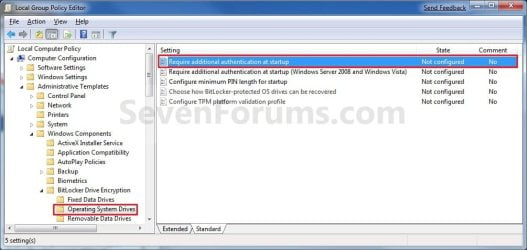
3. In the right pane, right click on Require additional authentification at startup and click on Edit. (See screenshot above)
4. To Allow BitLocker without TPM
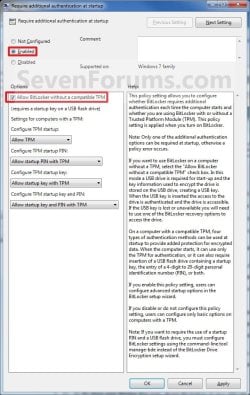
A) Select (dot) Enabled. (See screenshot below step 6)
B) Under the Options section, check the Allow Bitlocker without a compatible TPM box. (See screenshot below step 6)
C) Go to step 6.
5. To Undo Allow BitLocker without TPM
NOTE: This is optional. Unless you now have a TPM that you would like to use instead, it will not hurt anything to leave this set as in step 4 above.
A) You will need to do OPTION TWO below first to turn off BitLocker.
B) Select (dot) either Not Configured or Disabled. (See screenshot below step 6)
6. Click on OK. (See screenshot below)
7. Close the Local Group Policy Editor window.
8. Open the Start menu, and type gpupdate.exe /force into the search line and press Enter. (See screenshot below)

9. You will see this command prompt pop-up briefly, then go away when completey successfully. (See screenshot below)

10. If you did step 4, then go to OPTION ONE to turn on BitLocker. If you did step 5, then you are done.
METHOD TWO:
Using a REG File Download
1. To Allow BitLocker without TPM
A) Click on the Download button below to download the file below.
Enable_No_TPM.zip
Download
B) Go to step 3.
2. To Undo Allow BitLocker without TPM
NOTE: This is optional. Unless you now have a TPM that you would like to use instead, it will not hurt anything to leave this set as in step 1 above.
A) You will need to do OPTION TWO below first to turn off BitLocker.
B) Click on the Download button below to download the file below.
Default_Require_TPM.zip
Download
3. Save the .zip file to your desktop.
4. Open the downloaded .zip file and extract the .reg file to the desktop.
5. Right click on extracted the .reg file and click on Merge.
6. Click on Run, Yes, Yes, and OK when prompted to approve the merge.
7. Restart the computer to apply.
8. When done, you can delete the downloaded .reg and .zip files if you like.
9. If you did step 1, then go to OPTION ONE to turn on BitLocker. If you did step 2, then you are done.
1. Decide if you want 128-bit or 256-bit encryption.
NOTE: By default, Windows 7 will use AES encryption with 128-bit encryption keys and Diffuser unless changed already by you previously.
2. Plug in the USB flash drive that you want to use to have the startup and recovery key saved to.
NOTE: You will still be able to use the USB flash drive as normal. Just do not remove the BitLocker startup key file (step 7) that is used to unlock your Windows 7 at startup.
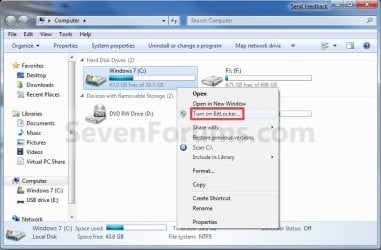
3. Open the Start menu and click on the Computer button, then right click on the Windows 7 or other operating system drive or partition letter and click on Turn on BitLocker. (See screenshot below)
A) Go to step 5.
OR
4. Open the Control Panel (icons view), and click on the BitLocker Drive Encryption icon.
A) Click on Turn On BitLocker for the Windows 7 or other operating system drive or partition letter. (See screenshot below)

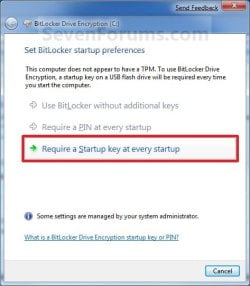
5. Select the Require a Startup key at every startup option. (See screenshot below)
NOTE: The Use BitLocker without additional key and Require PIN at every startup options are not available unless you have a TPM.
6. Select the USB flash drive from step 2, and click on the Save button. (See screenshot below)

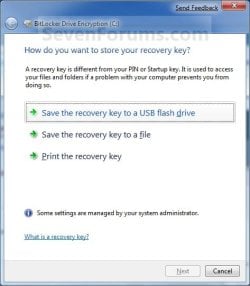
7. Select the Save the recovery key to a USB flash drive option. (See screenshot below)
NOTE: It is highly recommended that you do the other two options as well and save this key file somewhere safe. You will need the recovery key number to gain access to the encrypted Windows 7 or other operating system drive if you should lose or damage the USB flash drive with the startup key, or if BitLocker locks the drive.
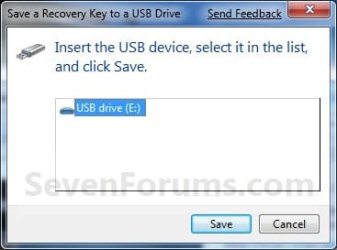
A) Select the USB flash drive from step 2, and click on the Save button. (See screenshot below)
B) When finished, click on the Next button. (See screenshot below step 7)
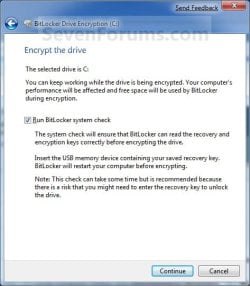
8. Check the Run BitLocker system check box, then click on the Continue button. (See screenshot below)
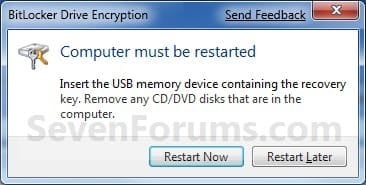
9. Click on the Restart Now button. (See screenshot below)
WARNING: This will restart your computer immediately. Close and save anything that you are working on first.
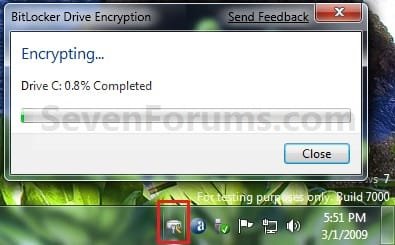
10. When the computer restarts, BitLocker will start encrypting the Windows 7 drive. Click on the BitLocker icon in the taskbar notification area (far right) to see the encryption status. (See screenshot below)
NOTE: This may take a while to finish.
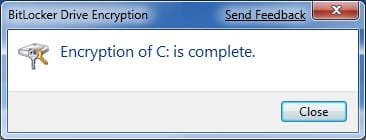
11. When BitLocker is finished, click on the Close button. (See screenshot below)
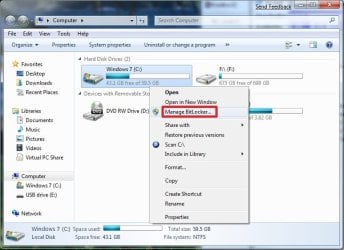
12. You will now have a Manage BitLocker option in the Control Panel and Computer for the encrypted drive. (See screenshots below)
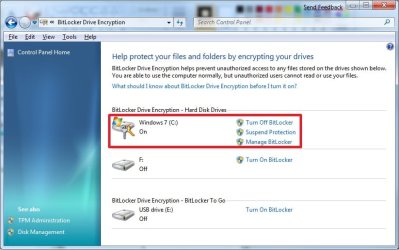
13. If you click on Manage BitLocker, these will be the options that you will have below. (See screenshot below)
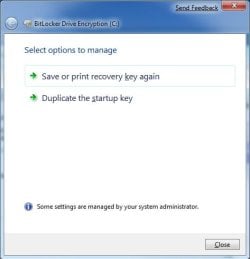
14. You're done. The Windows 7 or other operating system drive or partition is now encrypted with BitLocker Drive Encryption. You will now be required to plug in the USB flash drive that contains the startup key in order to unlock and startup Windows 7 or the other operating system.
NOTE: If you do not care about losing all data on the drive/partition, then formating or using the clean command will allso turn off BitLocker for the drive/partition.
1. Open the Control Panel (icons view), and click on the BitLocker Drive Encryption icon.
2. Click on Turn Off BitLocker for the Windows 7 or other operating system drive or partition letter that you want to turn off BitLocker with. (See screenshot below)

3. Click on the Decrypt Drive button. (See screenshot below)
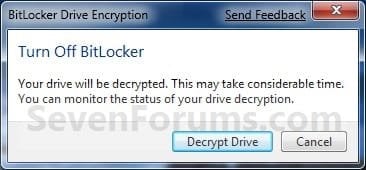
4. BitLocker will now start decrypting the drive. Click on the BitLocker icon in the taskbar notification area (far right) to see the encryption status. (See screenshot below)
NOTE: This may take a while to finish.
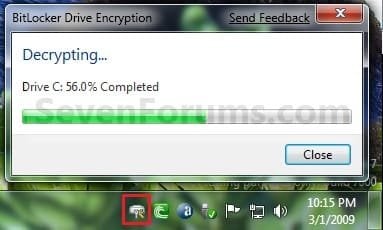
5. When finished, click on the Close button. (See screenshot below)

6. The Control Panel and Computer will now have the Turn On BitLocker option again.
7. If you would like to restore the default Group Policy setting to have BitLocker use a TPM instead of a USB flash drive, then do METHOD ONE (step 5) or METHOD TWO (step 2) in the PREPARATION section at the top of the tutorial.
8. You're done. The Windows 7 drive or other operating system drive or partition is now decrypted.
That's it,
Shawn
How to Turn On or Off BitLocker without a TPM for Windows 7 Drive
Information
This will show you how to turn BitLocker Drive Encryption on or off for your Windows 7 or other operating system drive or partition when your computer does not have a Trusted Platform Module (TPM). When BitLocker Drive Encryption is turned on, you will be required to plug in the USB flash drive that contains the startup key before starting the computer to unlock the Windows 7 or other operating system drive or partition at startup.
Note
When you add new files to the Windows 7 or other operating system drive or partition that is encrypted with BitLocker, BitLocker encrypts them automatically. Files remain encrypted only while they are stored in the encrypted drive. Files that are copied to another drive, partition, or computer are decrypted.
Warning
REQUIREMENTS:
- BitLocker is only available in the Windows 7 Ultimate and Enterprise editions.
- A USB flash drive. BitLocker will store its key on the flash drive to use to unlock the Windows 7 drive at startup.
- Have at least two partitions. One partition must include the drive Windows 7 is installed on and must be at least 400 MB. This is the drive that BitLocker will encrypt. The other partition is the active partition, which must remain unencrypted so that the computer can be started. If you have the 100 MB System Reserved partition that Windows 7 creates during installation on a blank drive or partition, then BitLocker will store the key on it instead. If your computer does not have two partitions, BitLocker will create them for you. Both partitions must be formatted with the NTFS file system.
- A BIOS that supports USB devices during computer startup.
PREPARATION:
To Allow BitLocker without a TPM
Note
You have the option to use the Local Group Policy Editor or a .reg file download to allow BitLocker to be able to encrypt the Windows 7 or other operating system drive or partition without a TPM and with a USB flash drive instead.
METHOD ONE:
Using Local Group Policy Editor
1. Open the Local Group Policy Editor.
2. In the left pane, click on to expand Computer Configuration, Administrative Templates, Windows Components, BitLocker Drive Encryption, and Operating System Drives. (See screenshot below)
3. In the right pane, right click on Require additional authentification at startup and click on Edit. (See screenshot above)
4. To Allow BitLocker without TPM
A) Select (dot) Enabled. (See screenshot below step 6)
B) Under the Options section, check the Allow Bitlocker without a compatible TPM box. (See screenshot below step 6)
C) Go to step 6.
5. To Undo Allow BitLocker without TPM
NOTE: This is optional. Unless you now have a TPM that you would like to use instead, it will not hurt anything to leave this set as in step 4 above.
A) You will need to do OPTION TWO below first to turn off BitLocker.
B) Select (dot) either Not Configured or Disabled. (See screenshot below step 6)
6. Click on OK. (See screenshot below)
7. Close the Local Group Policy Editor window.
8. Open the Start menu, and type gpupdate.exe /force into the search line and press Enter. (See screenshot below)
9. You will see this command prompt pop-up briefly, then go away when completey successfully. (See screenshot below)
10. If you did step 4, then go to OPTION ONE to turn on BitLocker. If you did step 5, then you are done.
METHOD TWO:
Using a REG File Download
1. To Allow BitLocker without TPM
A) Click on the Download button below to download the file below.
Enable_No_TPM.zip
Download
B) Go to step 3.
2. To Undo Allow BitLocker without TPM
NOTE: This is optional. Unless you now have a TPM that you would like to use instead, it will not hurt anything to leave this set as in step 1 above.
A) You will need to do OPTION TWO below first to turn off BitLocker.
B) Click on the Download button below to download the file below.
Default_Require_TPM.zip
Download
3. Save the .zip file to your desktop.
4. Open the downloaded .zip file and extract the .reg file to the desktop.
5. Right click on extracted the .reg file and click on Merge.
6. Click on Run, Yes, Yes, and OK when prompted to approve the merge.
7. Restart the computer to apply.
8. When done, you can delete the downloaded .reg and .zip files if you like.
9. If you did step 1, then go to OPTION ONE to turn on BitLocker. If you did step 2, then you are done.
OPTION ONE
Turn On BitLocker to Encrypt Windows 7 Drive
1. Decide if you want 128-bit or 256-bit encryption.
NOTE: By default, Windows 7 will use AES encryption with 128-bit encryption keys and Diffuser unless changed already by you previously.
2. Plug in the USB flash drive that you want to use to have the startup and recovery key saved to.
NOTE: You will still be able to use the USB flash drive as normal. Just do not remove the BitLocker startup key file (step 7) that is used to unlock your Windows 7 at startup.
3. Open the Start menu and click on the Computer button, then right click on the Windows 7 or other operating system drive or partition letter and click on Turn on BitLocker. (See screenshot below)
A) Go to step 5.
OR
4. Open the Control Panel (icons view), and click on the BitLocker Drive Encryption icon.
A) Click on Turn On BitLocker for the Windows 7 or other operating system drive or partition letter. (See screenshot below)
5. Select the Require a Startup key at every startup option. (See screenshot below)
NOTE: The Use BitLocker without additional key and Require PIN at every startup options are not available unless you have a TPM.
6. Select the USB flash drive from step 2, and click on the Save button. (See screenshot below)
7. Select the Save the recovery key to a USB flash drive option. (See screenshot below)
NOTE: It is highly recommended that you do the other two options as well and save this key file somewhere safe. You will need the recovery key number to gain access to the encrypted Windows 7 or other operating system drive if you should lose or damage the USB flash drive with the startup key, or if BitLocker locks the drive.
A) Select the USB flash drive from step 2, and click on the Save button. (See screenshot below)
B) When finished, click on the Next button. (See screenshot below step 7)
8. Check the Run BitLocker system check box, then click on the Continue button. (See screenshot below)
9. Click on the Restart Now button. (See screenshot below)
WARNING: This will restart your computer immediately. Close and save anything that you are working on first.
10. When the computer restarts, BitLocker will start encrypting the Windows 7 drive. Click on the BitLocker icon in the taskbar notification area (far right) to see the encryption status. (See screenshot below)
NOTE: This may take a while to finish.
11. When BitLocker is finished, click on the Close button. (See screenshot below)
12. You will now have a Manage BitLocker option in the Control Panel and Computer for the encrypted drive. (See screenshots below)
13. If you click on Manage BitLocker, these will be the options that you will have below. (See screenshot below)
Warning
It is highly recommended that you do one or both options below. You will need the recovery key number to gain access to the encrypted Windows 7 or other operating system drive if you should lose or damage the USB flash drive with the startup key, or if BitLocker locks the drive.
14. You're done. The Windows 7 or other operating system drive or partition is now encrypted with BitLocker Drive Encryption. You will now be required to plug in the USB flash drive that contains the startup key in order to unlock and startup Windows 7 or the other operating system.
OPTION TWO
Turn Off BitLocker to Decrypt Windows 7 Drive
NOTE: If you do not care about losing all data on the drive/partition, then formating or using the clean command will allso turn off BitLocker for the drive/partition.
1. Open the Control Panel (icons view), and click on the BitLocker Drive Encryption icon.
2. Click on Turn Off BitLocker for the Windows 7 or other operating system drive or partition letter that you want to turn off BitLocker with. (See screenshot below)
3. Click on the Decrypt Drive button. (See screenshot below)
4. BitLocker will now start decrypting the drive. Click on the BitLocker icon in the taskbar notification area (far right) to see the encryption status. (See screenshot below)
NOTE: This may take a while to finish.
5. When finished, click on the Close button. (See screenshot below)
6. The Control Panel and Computer will now have the Turn On BitLocker option again.
7. If you would like to restore the default Group Policy setting to have BitLocker use a TPM instead of a USB flash drive, then do METHOD ONE (step 5) or METHOD TWO (step 2) in the PREPARATION section at the top of the tutorial.
8. You're done. The Windows 7 drive or other operating system drive or partition is now decrypted.
That's it,
Shawn
Related Tutorials
- How to Turn Windows 7 BitLocker To Go On or Off for Removable Drives
- How to Change Windows 7 BitLocker Drive Encryption Method and Cipher Strength
- How to Suspend or Resume BitLocker Protection on Windows 7 Drive
- How to Turn Windows 7 BitLocker On or Off for Internal Data Hard Drives
- How to Create a Windows 7 BitLocker Drive Encryption Shortcut
- How to Lock an Unlocked BitLocker Drive
- How to Unlock a Windows 7 Computer Locked by BitLocker Drive Encryption
- How to Create a USB Startup Key to Lock or Unlock Windows
- How to Check BitLocker Status of Drive in Windows 7 and Windows 8
Attachments
Last edited:


 super sigh

