OK, here's the better way (to me) to do this; no matter which way you go you're going to have to do the at least 3 separate startup repairs with the system restarts between each repair to create a new set of boot files out-lined in this tutorial at the link below.
Startup Repair - Run 3 Separate Times
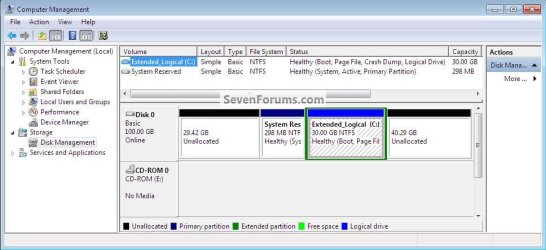
Create the Windows 7 new "System, Reserved" partition so it will become the system volume partition instead of the way XP is now, see the first disk management snip to see what I mean.
Then the XP partition can be easily deleted using Windows 7 disk management.
This link below has additional information on this subject.
Boot Windows 7 from Logical
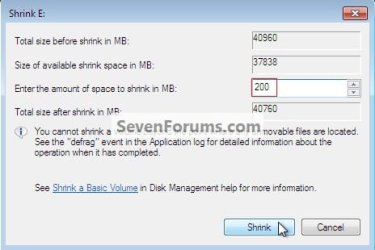
Start in Windows 7 disk management and right click the XP partition and click "Shrink Volume" as I have done in this snip to my "E: Data" partition, the partition doesn't matter as long as there's a little room to shrink it.
Partition or Volume - Shrink
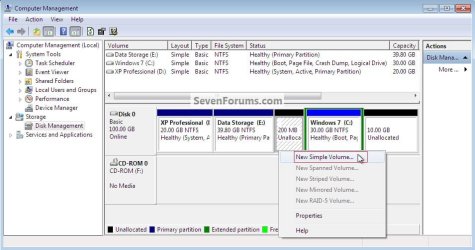
Then right click the newly created space and click "New Simple Volume".
Partition or Volume - Create New
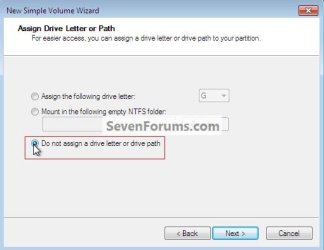
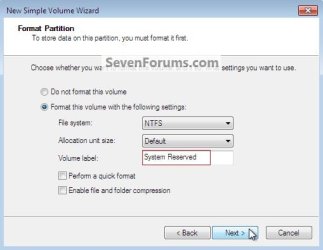
Then do not give it a drive letter in the first dialog box and in the second give it the Label "System Reserved" (without the quotes) and un-tick the quick format box then click next and the partition will be created and formatted.
Now right click the newly created "System Reserved" partition and click "Mark Partition as Active" then in the second snip down you can see that the "Active" partition has changed from the XP partition to the new System Reserved partition.
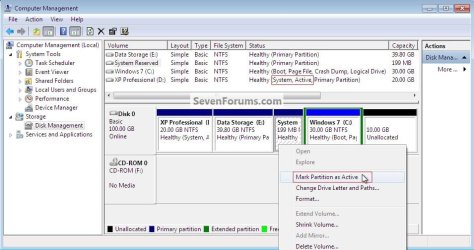
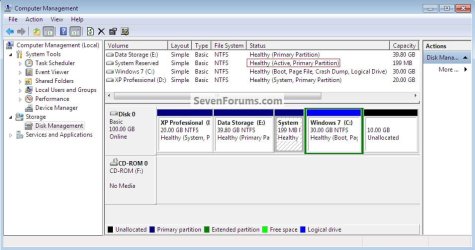
Then put the Windows 7 installer DVD or the repair CD listed in this tutorial in the Optical Disk Drive (ODD) and restart the PC, and set the PC BIOS to boot first from the ODD and do the startup repairs with the restarts needed to create a new set of boot files to the new SysResv partition.
Startup Repair - Run 3 Separate Times
This is what you'll have when the startup repairs are finished.

If you need to get back into XP you may need to add a boot entry with EasyBCD in Windows 7 so you'll get the dual boot option at system startup but that's a piece of cake, very easy.
EasyBCD Free Boot Manager Software
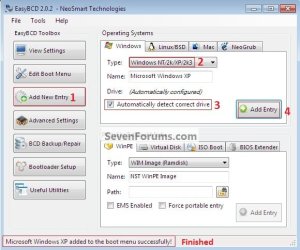
Enjoy! 
Startup Repair - Run 3 Separate Times
Create the Windows 7 new "System, Reserved" partition so it will become the system volume partition instead of the way XP is now, see the first disk management snip to see what I mean.
Then the XP partition can be easily deleted using Windows 7 disk management.
This link below has additional information on this subject.
Boot Windows 7 from Logical
Start in Windows 7 disk management and right click the XP partition and click "Shrink Volume" as I have done in this snip to my "E: Data" partition, the partition doesn't matter as long as there's a little room to shrink it.
Partition or Volume - Shrink
click any image to enlarge

It'll scan the available shrink size and you'll get a dialog box like this one; enter 200 (for 200MB) in the amount to shrink box and click "Shrink" it'll do the shrink that'll only take a couple seconds.
Partition or Volume - Create New
Now right click the newly created "System Reserved" partition and click "Mark Partition as Active" then in the second snip down you can see that the "Active" partition has changed from the XP partition to the new System Reserved partition.
Startup Repair - Run 3 Separate Times
This is what you'll have when the startup repairs are finished.
EasyBCD Free Boot Manager Software
Last edited:
My Computer
At a glance
W 7 64-bit UltimateIntel Q9550 Yorkfield8GB Dominator 8500C5DATI : XFX 5870
- Computer Manufacturer/Model Number
- * BFK Customs *
- OS
- W 7 64-bit Ultimate
- CPU
- Intel Q9550 Yorkfield
- Motherboard
- ASUS P5Q Pro
- Memory
- 8GB Dominator 8500C5D
- Graphics Card(s)
- ATI : XFX 5870
- Sound Card
- Realtek HD Audio 7-1
- Monitor(s) Displays
- 1x 47" LCD HDMI & 3x 26" LCD HDMI
- Screen Resolution
- 1920x1080P & 1920x1200
- Hard Drives
- 1x 80GB Intel X25-M G2 SSD : 1x 500GB & 1x 640GB WD Caviar Black(s)
- PSU
- Corsair 620HX
- Case
- Cooler Master RC-690
- Cooling
- Tuniq Tower 120, 2x 140mm and 3x 120mm case fans
- Keyboard
- Microsoft 500
- Mouse
- Razer Diamondback 3G
- Internet Speed
- 14 Mb/s
- Other Info
- 1x Koutech 3Gb/s SATA HDD Hot Swap Rack