BSOD Stop Code F4

cosmikdebris

New member
Local time
11:24 AM
Messages
8
Hi :), I am running Windows 7 Home Premium 64-bit on a Dell Inspiron 14z Ultrabook. My Windows has been crashing periodically since I purchased the laptop several months ago. I have contacted Dell for technical support and everything they have recommended (factory reset, Windows re-install, updating drivers) has failed to rectify the issue.

In the past I would receive STOP code 0x0000009F, but I have not received this error in recent weeks. Last week my system crashed with the following message:

Atheros PCIE ethernet controller error: "Check cable connection"
Intel PXE MOF: Exiting INTEL PXE ROM
No bootable device - insert book disk and press any key

Based on what research I have done with this message, it may indicate hard drive failure.

The most recent crash occurred last night. The OS suddenly failed - I could not open any programs or task manager, and explorer.exe would not respond. Then I saw a blue screen with the STOP code 0x000000F4. It generated a kernel-mode memory dump which I have attached.

I would greatly appreciate if anyone would take some of their free time to analyze the crash dump so I can solve this headache. Thank you!
 

My Computer

Computer type
Laptop
Computer Manufacturer/Model Number
Dell Inspiron 14z Ultrabook
OS
Windows 7 Home Premium 64 bit
Welcome to Seven Forums

Is the firmware for your SSD up-to-date?

Check for one and see if the stability returns.

Perform a System File Check to check the integrity of all protected Windows 7 :
  1. Click on the start :orb:
  2. Type CMD on Search
  3. Left click and Run as Administrator
  4. Type
    Code:
    SFC /scannow
Full tutorial here:
Check your hard drive(s) for errors by running chkdsk
Number down items at start-up. Keep only your anti-virus, this also improves the time for logging into windows.
We recommended Microsoft Security Essentials from a strict BSOD perspective. Is most compatible & provides most stability compared to other antivirus app/Internet Security Software.
   Warning
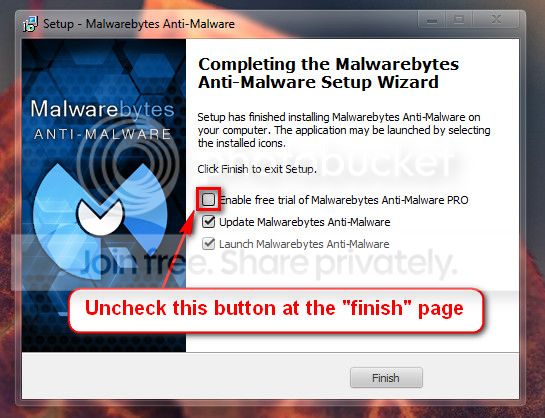
Do not start the free trial of Malware Bytes; remember to deselect that option when prompted.

2013-03-09_224312_zps62dc7c23.jpg

Run a full scan with both (separately) once downloaded, installed and updated.
 

My Computer

Computer type
PC/Desktop
Computer Manufacturer/Model Number
Self assembled
OS
Windows 10 Home 64Bit
CPU
Intel Core i5 10400 @ 2.90GHz
Motherboard
Intel Corporation DG41WV (PROCESSOR)
Memory
8.00GB Single-Channel Unknown @ 1329MHz (16-20-20-38)
Sound Card
Realtek High Definition Audio
Monitor(s) Displays
DELL E170S
Screen Resolution
1280x1024 pixels
Hard Drives
931GB TOSHIBA DT01ACA100 (SATA)
238GB TEAM TM8PS7256G (SATA SSD)
Case
Nothing Fancy
Cooling
Fans
Keyboard
A4 Tech Co LTD
Mouse
A4 Tech Co Ltd/Logitech
Internet Speed
25 Mbps
Hi koolkat, thanks for your reply :).

I do not know if the firmware on my SSD is updated, how may I check this?

All the tests came back positive. Scannow found no problems, chkdsk showed 0 bad sectors, and virus scans came up zero threats. What do you recommend next?
 

My Computer

Computer type
Laptop
Computer Manufacturer/Model Number
Dell Inspiron 14z Ultrabook
OS
Windows 7 Home Premium 64 bit

My Computer

Computer type
PC/Desktop
Computer Manufacturer/Model Number
Self assembled
OS
Windows 10 Home 64Bit
CPU
Intel Core i5 10400 @ 2.90GHz
Motherboard
Intel Corporation DG41WV (PROCESSOR)
Memory
8.00GB Single-Channel Unknown @ 1329MHz (16-20-20-38)
Sound Card
Realtek High Definition Audio
Monitor(s) Displays
DELL E170S
Screen Resolution
1280x1024 pixels
Hard Drives
931GB TOSHIBA DT01ACA100 (SATA)
238GB TEAM TM8PS7256G (SATA SSD)
Case
Nothing Fancy
Cooling
Fans
Keyboard
A4 Tech Co LTD
Mouse
A4 Tech Co Ltd/Logitech
Internet Speed
25 Mbps
While the .pdf in the download does explain well how to update the firmware, I am still unsure of how I should go about checking my current version. Sorry, I am not too knowledgeable with hardware.
 

My Computer

Computer type
Laptop
Computer Manufacturer/Model Number
Dell Inspiron 14z Ultrabook
OS
Windows 7 Home Premium 64 bit
cosmikdebris, maybe I can help with the SSD firmware update. What SSD make and model do you have now? To find what firmware you have now, click the start button and in the search box type device, click on device manager, when in device manager click the arrow next to disk drives to expand it. It will show all your hard drives. Right click your SSD, and select properties, click on the details tab, in the middle of that page will be a box labeled device description, click on that and it will expand to a long list. The second one in the list is Hardware ID, click on that. At the end of the line will be some numbers, that is your firmware. It will look like the one below. You will notice I have a Samsung 830 hard drive and my firmware is version CXM03B1Q. Please tell me what your firmware is and the manufacturer and model/and size of your SSD. If you have any questions, don't hesitate to ask.

View attachment 259541
 

My Computers

System One System Two

  • Computer type
    PC/Desktop
    Computer Manufacturer/Model Number
    ALWAYS UNDER CONSTRUCTION
    OS
    Windows 11 Pro
    CPU
    Ryzen 9 5900X
    Motherboard
    Asus X570 Crosshair Viii Hero
    Memory
    32GB G Skill DDR4-3600
    Graphics Card(s)
    EVGA RTX 3080 FTW 3 Ultra
    Sound Card
    On Board/Sennheiser PC37X Headset
    Monitor(s) Displays
    3 X Asus 27"
    Screen Resolution
    2560x1440
    Hard Drives
    2 X 1 TB NVME drives
    PSU
    EVGA 850
    Case
    Phanteks Eclipse P400A
    Cooling
    EVGA 280 AIO
    Keyboard
    Logitech G510s/ Logitech G13
    Mouse
    Logitech G502
    Internet Speed
    24/1
    Antivirus
    ESET/MBAM Pro/SAS Pro
    Browser
    Chrome/ Firefox/ Edge
  • Computer type
    Laptop
    System Manufacturer/Model Number
    Dell 16 Plus
    OS
    Windows 11 Pro
    CPU
    Intel Ultra 9 288V
    Memory
    32 GB LPDDR5X 8533
    Monitor(s) Displays
    16" Mini-LED HDR600 Touch 90 Hz
    Screen Resolution
    2560X1600
    Hard Drives
    1 TB NVME
Hi essenbe, my SSD is Samsung PM830 mSata 32GB, firmware CXM12D1Q. Thank you for your help :).

UPDATE: Windows crashed again. Sadly no blue screen or crash dump. I suddenly lost all functionality while I was using it. I could not open programs or task manager and the desktop icons flashed, then I was left with the wallpaper and a movable cursor and nothing else. I shut down before a blue screen appeared.
 
Last edited:

My Computer

Computer type
Laptop
Computer Manufacturer/Model Number
Dell Inspiron 14z Ultrabook
OS
Windows 7 Home Premium 64 bit
Hi essenbe, my SSD is Samsung PM830 mSata 32GB, firmware CXM12D1Q. Thank you for your help :).

I have searched, and am unable to find new firmware for your SSD. Did your SSD come from Dell? It seems that the PM830 is a Samsung SSD made specifically for Dell computers and has Dell firmware on them not from Samsung. That is why the Samsung Magician will not/can not recognize it or Samsung updates don't recognize it. Samsung will make hardware for OEM (Original Equipment Manufacturers) like Dell, but the drivers and updates come from the OEM, not Samsung. This is fairly common in the industry. What is not that common is that these OEMs do not keep up with firmware updates for those items. It appears Dell is in that category. In my reading it appears that these drives have caused problems with some computers and are made to Dell specifications and do not perform as well as the Samsung drives. You may find this, from the Dell communities interesting. I realize you don't have an Alienware computer, but the drives are from the same place.
Unable to firmware update samsung ssd that came in r3 - Alienware Forum - Alienware Club - Dell Community

EDIT: I have asked someone who works for Dell to take a look and see if they may help.
 

My Computers

System One System Two

  • Computer type
    PC/Desktop
    Computer Manufacturer/Model Number
    ALWAYS UNDER CONSTRUCTION
    OS
    Windows 11 Pro
    CPU
    Ryzen 9 5900X
    Motherboard
    Asus X570 Crosshair Viii Hero
    Memory
    32GB G Skill DDR4-3600
    Graphics Card(s)
    EVGA RTX 3080 FTW 3 Ultra
    Sound Card
    On Board/Sennheiser PC37X Headset
    Monitor(s) Displays
    3 X Asus 27"
    Screen Resolution
    2560x1440
    Hard Drives
    2 X 1 TB NVME drives
    PSU
    EVGA 850
    Case
    Phanteks Eclipse P400A
    Cooling
    EVGA 280 AIO
    Keyboard
    Logitech G510s/ Logitech G13
    Mouse
    Logitech G502
    Internet Speed
    24/1
    Antivirus
    ESET/MBAM Pro/SAS Pro
    Browser
    Chrome/ Firefox/ Edge
  • Computer type
    Laptop
    System Manufacturer/Model Number
    Dell 16 Plus
    OS
    Windows 11 Pro
    CPU
    Intel Ultra 9 288V
    Memory
    32 GB LPDDR5X 8533
    Monitor(s) Displays
    16" Mini-LED HDR600 Touch 90 Hz
    Screen Resolution
    2560X1600
    Hard Drives
    1 TB NVME
This is very interesting. So basically I am using an inferior SSD, lol nice. Do you think this may be causing the crashing? The reason I am asking this is because I have contacted Dell again, and now that they see that I have called them 6.02e23 times in the last month they agreed to send a technician to inspect my hardware/drives, and I'm wondering whether he should replace my Hitachi HDD or the Samsung SSD. I don't have much confidence that he will know that himself after my experience with tech support (excuse my cynicism, haha)
 

My Computer

Computer type
Laptop
Computer Manufacturer/Model Number
Dell Inspiron 14z Ultrabook
OS
Windows 7 Home Premium 64 bit
I understand perfectly. I can't give advice on what to replace or repair. I'm not there and can't see exactly what is happening. I would advise him to do something about your SSD though. Try starting off telling him you want it replaced with a new computer. It won't work, but it is a good starting point for negotiations. My advice, is be nice to the repair guy. If it is like it used to be, he does not work for Dell and has only minor control over what happens. He is usually a computer repair person who sub contracts through Dell as well as others. In other words, he is the only one who can help you, don't make him mad. The ones I have had dealings with are not the greatest technicians, but do try and want to help. If you can get both drives replaced do it. But, back up your personal data first and see if the tech will let you return the drive after you have wiped it clean. They usually will. They understand. Just explain the problems you have been having and let him determine what to do. And ask him nicely to explain why, that you would like to understand. be sure to let us know what happens, and good luck. Anything else you have questions about, feel free to ask. But, you did the correct thing.
 

My Computers

System One System Two

  • Computer type
    PC/Desktop
    Computer Manufacturer/Model Number
    ALWAYS UNDER CONSTRUCTION
    OS
    Windows 11 Pro
    CPU
    Ryzen 9 5900X
    Motherboard
    Asus X570 Crosshair Viii Hero
    Memory
    32GB G Skill DDR4-3600
    Graphics Card(s)
    EVGA RTX 3080 FTW 3 Ultra
    Sound Card
    On Board/Sennheiser PC37X Headset
    Monitor(s) Displays
    3 X Asus 27"
    Screen Resolution
    2560x1440
    Hard Drives
    2 X 1 TB NVME drives
    PSU
    EVGA 850
    Case
    Phanteks Eclipse P400A
    Cooling
    EVGA 280 AIO
    Keyboard
    Logitech G510s/ Logitech G13
    Mouse
    Logitech G502
    Internet Speed
    24/1
    Antivirus
    ESET/MBAM Pro/SAS Pro
    Browser
    Chrome/ Firefox/ Edge
  • Computer type
    Laptop
    System Manufacturer/Model Number
    Dell 16 Plus
    OS
    Windows 11 Pro
    CPU
    Intel Ultra 9 288V
    Memory
    32 GB LPDDR5X 8533
    Monitor(s) Displays
    16" Mini-LED HDR600 Touch 90 Hz
    Screen Resolution
    2560X1600
    Hard Drives
    1 TB NVME
Hi cosmikdebris,

It appears that the efforts haven't produced positive results; apologies for the unpleasant experience.

The issue could be related to the 'drive firmware'. There could be other possible reasons as well. Would like to have a better understanding of options that have already been tried (Dell perspective).

Please share the following information with me through a 'private message' (to ensure confidentiality of your personal information):
- System 'Service Tag'
- Account Holder's name (Person who purchased the system, as in Dell records)
- Country where the system was purchased
- Country where it is currently being used

Do reply with the information; will take it forward from there.


My Computer

OS
Windows 7 64bit
Hi Saurabh,

Thank you for your reply :).

I should note that I have contacted Dell and they are sending a technician to inspect the hardware, and this may resolve the issue.

The following things have already been tried:

-Reset to factory image
-Windows re-install
-BIOS flash
-Dell hardware diagnostic test (100% good)

I have also done chkdsk and scannow myself; no bad sectors were found and the file system was intact. I also used SeaTools to test the hard disks in my system and no problems were found.

Thanks again for your reply, I appreciate your help.
 
Last edited:

My Computer

Computer type
Laptop
Computer Manufacturer/Model Number
Dell Inspiron 14z Ultrabook
OS
Windows 7 Home Premium 64 bit
Hi cosmikdebris,

Thank you for sharing the details.

I checked the case details. The issue looks weird as it persisted even after 'factory restore/Windows re-installation' (Considering that Dell Diagnostics passed).

Your system was shipped with two 'Hard Drives':
- 500 GB, SATA 2, 5.4K RPM Drive
- Solid State Drive, 32 GB (Samsung)

Though, no errors have been observed during 'Diagnostics', a replacement 'Hard Drive' (500 GB S2 Drive) has been sent. This has been done to rule out the possibility of a possible 'Hard Drive' malfunction. This is based on an assumption that may not work if the issue exists with the SATA connector on the 'Motherboard' (where hard drive is connected); a very rare possibility.

In my opinion, it is a logical choice in this situation; can help us isolate if this 'Drive' is causing trouble.

I tried to check but could not find any known issues with this system model in regards to the 'Solid State Drive' functionality/firmware. Will look for some more information to see if a similar issue has been observed, reported or fixed; will keep you posted.

You may want to take a glance at the 'listed drivers' for your system. Please check and verify if you installed all these drivers / firmware updates after performing 'Windows re-installation'. (If you attempt the installation of any of these drivers/firmware updates, please check for the 'Important Information' section mentioned underneath the 'file download': Drivers & Downloads | Dell US

Would recommend you to go ahead with the 'Hard drive replacement and observe the system performance; strong possibility that the issue gets fixed. Do reply with the findings; will take it forward from there.


My Computer

OS
Windows 7 64bit
Hi Saurabh,

A technician from Dell came to my house today and replaced the hard drive. So far so good! I will post again if I have any problems.
 

My Computer

Computer type
Laptop
Computer Manufacturer/Model Number
Dell Inspiron 14z Ultrabook
OS
Windows 7 Home Premium 64 bit
That's good news, so far. I hope it continues. if you have any further problems, please post them here. And, Thanks Saurabh, your help is much appreciated.
 

My Computers

System One System Two

  • Computer type
    PC/Desktop
    Computer Manufacturer/Model Number
    ALWAYS UNDER CONSTRUCTION
    OS
    Windows 11 Pro
    CPU
    Ryzen 9 5900X
    Motherboard
    Asus X570 Crosshair Viii Hero
    Memory
    32GB G Skill DDR4-3600
    Graphics Card(s)
    EVGA RTX 3080 FTW 3 Ultra
    Sound Card
    On Board/Sennheiser PC37X Headset
    Monitor(s) Displays
    3 X Asus 27"
    Screen Resolution
    2560x1440
    Hard Drives
    2 X 1 TB NVME drives
    PSU
    EVGA 850
    Case
    Phanteks Eclipse P400A
    Cooling
    EVGA 280 AIO
    Keyboard
    Logitech G510s/ Logitech G13
    Mouse
    Logitech G502
    Internet Speed
    24/1
    Antivirus
    ESET/MBAM Pro/SAS Pro
    Browser
    Chrome/ Firefox/ Edge
  • Computer type
    Laptop
    System Manufacturer/Model Number
    Dell 16 Plus
    OS
    Windows 11 Pro
    CPU
    Intel Ultra 9 288V
    Memory
    32 GB LPDDR5X 8533
    Monitor(s) Displays
    16" Mini-LED HDR600 Touch 90 Hz
    Screen Resolution
    2560X1600
    Hard Drives
    1 TB NVME
Hi cosmikdebris,

Thank you for the response.

Please use the system with the replacement drive and see if that helps. It you still experience issues, the 'SATA connector' on the motherboard may be a possible culprit.

Please observe the system performance and reply with the findings. Will take it forward from there.

Would also request you to 'remove' the 'Service Tag' & 'Account Name' information from one of your previous posts; may not be appropriate when shared in an open forum.

@essenbe: You are most welcome, Steve.


My Computer

OS
Windows 7 64bit
Hi cosmikdebris,

I am checking for an update on status of the 'blue screen errors' that you were facing. Please share your observations after the 'hard drive' replacement.
Do reply if you have any further questions; would be glad to assist.


My Computer

OS
Windows 7 64bit
Hi Saurabh,

I apologize for the lack of response recently. Since the hard drive was replaced a few weeks ago I've experienced no errors, everything is functioning perfectly now. Thank you for your assistance.

-Matt
 

My Computer

Computer type
Laptop
Computer Manufacturer/Model Number
Dell Inspiron 14z Ultrabook
OS
Windows 7 Home Premium 64 bit
Back
Top